

- Find new messages instantly with the “New” divider and auto-scroll to the first unread reply
- Quick Summary – Unread Message Indicator Overview
- What Changed in Conversations: What changed with the unread message indicator
- Before and After: Before vs after in real inbox life
- Why This Matters to You: Unread message indicator means faster responses
- How to Enable Unread Message Indicators in GoHighLevel (Labs)
- Pro / Quick Tips: Unread message indicator tips for busy teams
- What This Means for Your Business: Unread message indicator improves response speed
- Frequently Asked Questions: Unread message indicator
- Conclusion: Use the unread message indicator and stop missing replies
Find new messages instantly with the “New” divider and auto-scroll to the first unread reply
Unread message indicator fixes the scroll struggle
Unread message indicator is the little upgrade your GoHighLevel Conversations inbox has been begging for.
Because if you’ve ever opened a long conversation thread and thought, “Cool… where’s the unread message?” you know the pain. One client reply gets buried between campaign logs, activities, and a wall of back-and-forth messages. And now you’re scrolling like it’s 2009.
This update makes unread messages impossible to miss. When you open an unread conversation, GoHighLevel will automatically scroll you to the first unread message. Right where the unread section starts, you’ll see a clear “New” divider so you instantly know what you haven’t seen yet.
The best part is the indicator doesn’t disappear just because you clicked away or refreshed. It sticks around until you either reply or manually mark the conversation as read. That means fewer missed replies, faster response times, and way less inbox chaos for agencies managing multiple client conversations all day.

The unread message indicator removes the “where did that reply go?” problem in GoHighLevel Conversations. You’ll jump straight to the first unread message, respond faster, and miss fewer client replies.
Quick Summary – Unread Message Indicator Overview
Purpose: This guide shows you how to turn on the unread message indicator in GoHighLevel so unread messages are easy to spot in long conversation threads.
Why It Matters: Unread replies get buried fast, and this update cuts the time it takes to find and respond to what is actually new.
What You Get: You learn how to enable the Labs toggle, confirm auto-scroll to the first unread message, and understand exactly when the “New” divider clears.
Time To Complete: Most users can set this up and test it in about 3 to 5 minutes.
Difficulty Level: This is an easy setup with one Labs switch and a quick inbox test.
Key Outcome: Your team uses the unread message indicator to respond faster, miss fewer replies, and avoid wasting time scrolling.
What Changed in Conversations: What changed with the unread message indicator
The unread message indicator update adds two simple things inside GoHighLevel Conversations. But together, they kill a very real daily headache.
Change 1: The “New” divider now shows up in the thread
Automate marketing, manage leads, and grow faster with GoHighLevel.

When you open a conversation that has unread messages, GoHighLevel inserts a visible divider that literally marks the spot where unread messages begin. So instead of guessing, you can instantly see:
- Everything above the divider = already read
- Everything below the divider = new stuff you still need to handle
Change 2: Auto-scroll takes you straight to the first unread message
- This is the time-saver. The moment you open an unread conversation, GoHighLevel jumps you down to the first unread message automatically. No hunting. No endless scrolling. No “Did I already read this part?” second-guessing.
Change 3: The “New” indicator only clears when you take action
- This part matters more than people realize. The “New” divider doesn’t disappear just because you clicked away or refreshed the page. It stays until one of these happens:
- You reply in the conversation, or
- You manually mark the conversation as read
That means your team can safely bounce between conversations and still come back later without losing the “this is where you left off” marker.
Important note about the April 23, 2026 cutoff
- The “New” divider will only show for messages received after April 23, 2026. So if you’re testing this feature in an older thread and nothing shows up, it might not be broken. It might just be too old to qualify.
Before and After: Before vs after in real inbox life
Before this update, unread messages in GoHighLevel Conversations were easy to lose. You would open a long thread, see it was unread, and still have to scroll to figure out what changed. In busy inboxes, that means wasted time and missed replies.
Now the unread message indicator fixes that. When you open an unread conversation, GoHighLevel auto-scrolls you straight to the first unread message. You also get a clear “New” divider so you can see where unread messages begin.
This makes daily inbox work simpler for agencies and teams. You stop guessing, you stop re-reading old parts of the thread, and you get to the message that needs your attention right away.
Why This Matters to You: Unread message indicator means faster responses
The unread message indicator helps you respond faster, and that is the whole game in Conversations. When you spot unread messages quickly, you cut down on delays, missed replies, and awkward “sorry, just seeing this now” follow-ups.
Here’s what you get right away:
- Faster reply times because you land on the first unread message instantly
- Fewer missed messages buried in long threads and activity logs
- Less backtracking since you can see exactly where “New” starts
- Easier handoffs when multiple team members touch the same inbox
This is especially useful if you run a busy agency inbox, have VAs doing message triage, or manage multiple sub-accounts. Instead of wasting time hunting for the latest reply, you open the thread, see the unread message indicator, and handle what needs attention.
How to Enable Unread Message Indicators in GoHighLevel (Labs)
This is a Labs toggle. You are not changing your Conversations setup, and you are not rebuilding anything. You are simply turning on the unread message indicator so GoHighLevel can auto-scroll to the first unread message and show the “New” divider inside long threads.
Here are the steps to create and schedule Facebook background posts in GHL.
- Access the Settings area in GoHighLevel.
- Open Labs in Settings.
- Find and turn on the unread message indicator feature.
- Confirm the unread message indicator is active in Conversations.
To start make sure you are logged in to your GoHighLevel sub-account.
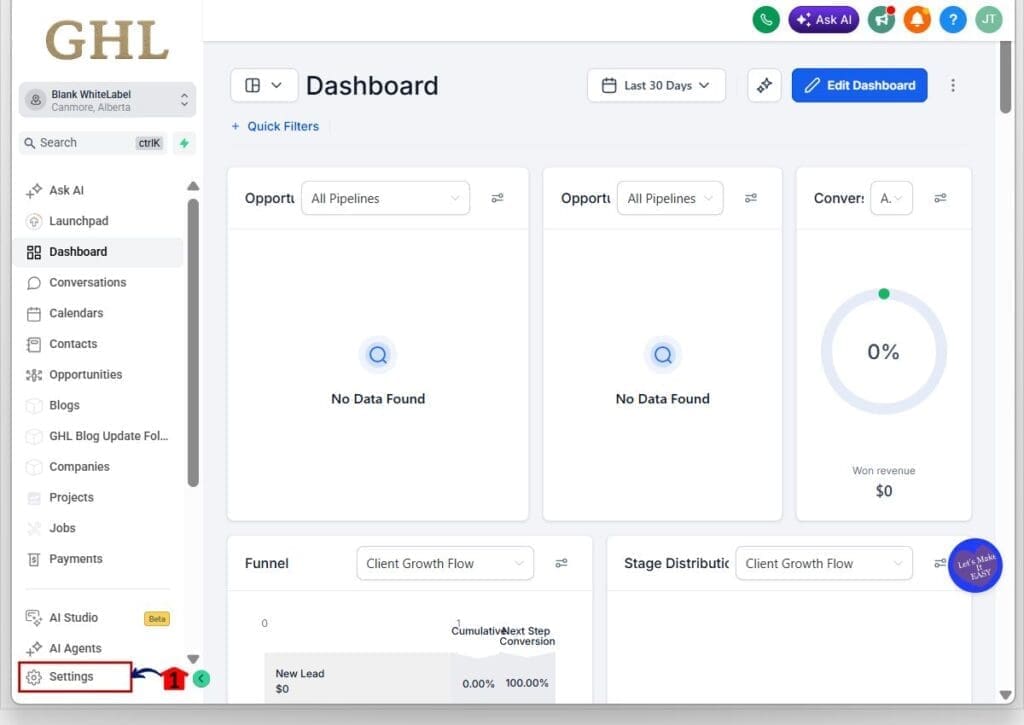
Step 01 – Access the Settings area in GoHighLevel
- Go to the bottom of the Main Menu on the left-hand sidebar.
1.1 Click the Settings gear icon ⚙️.
- This opens the Settings dashboard.
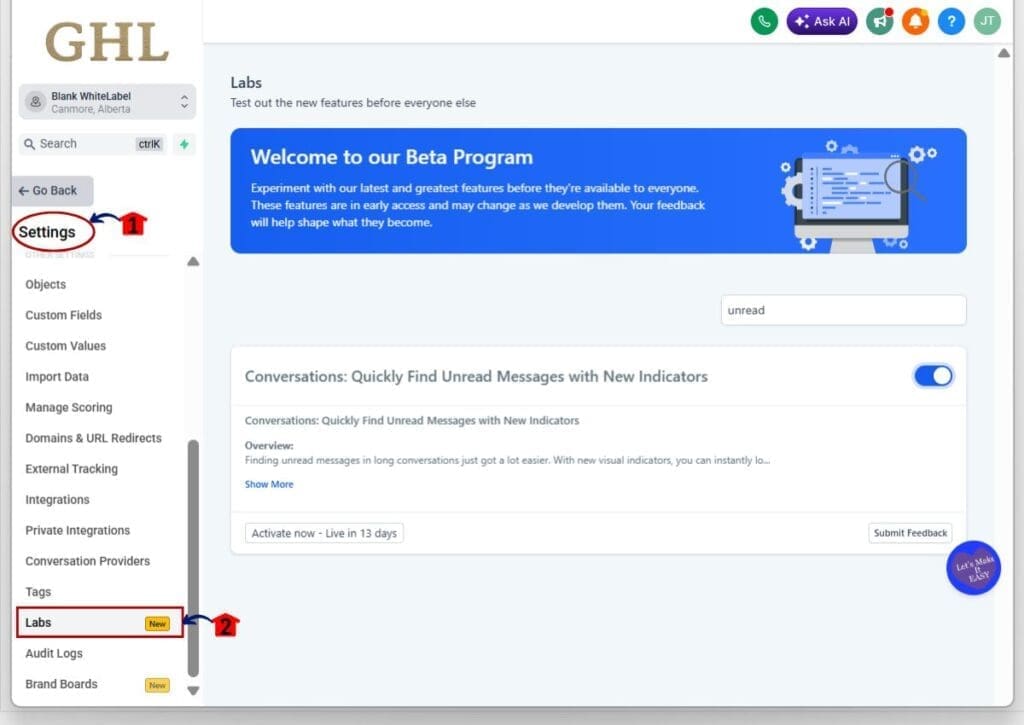
Step 02 – Open Labs in Settings
2.1 Inside Settings scroll toward the bottom of the menu.
- This helps you find Labs faster.
2.2 Click Labs.
- This opens the Labs feature list.
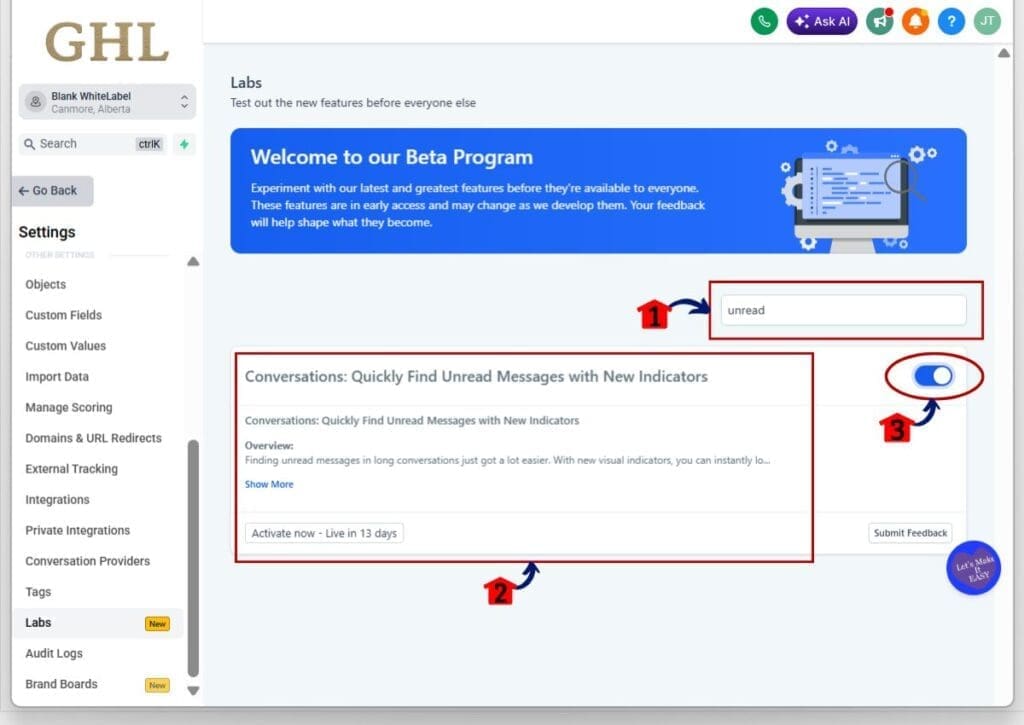
Step 03 – Find and turn on the unread message indicator feature
- This is the specific toggle that enables the “New” divider and auto-scroll in Conversations.
3.1 In the Labs search bar, type unread.
- This filters the Labs list to the right feature.
3.2 Find “Conversations: Quickly Find Unread Messages with New Indicators.”
- This is the unread message indicator feature.
3.3 Toggle the feature to ON.
- Refresh the page if it does not apply right away.
Step 04 – Confirm the unread message indicator is active in Conversations
- This makes sure the new unread experience is working in your inbox.
4.1 Click Conversations on the left-hand sidebar.
- This takes you back to your Conversations inbox.
4.2 Open a conversation that has unread messages.
- This is the best way to test the feature.
4.3 Confirm the thread auto-scrolls to the first unread message.
- This confirms auto-scroll is working.
4.4 Look for the “New” divider inside the thread.
- This marks where unread messages begin.
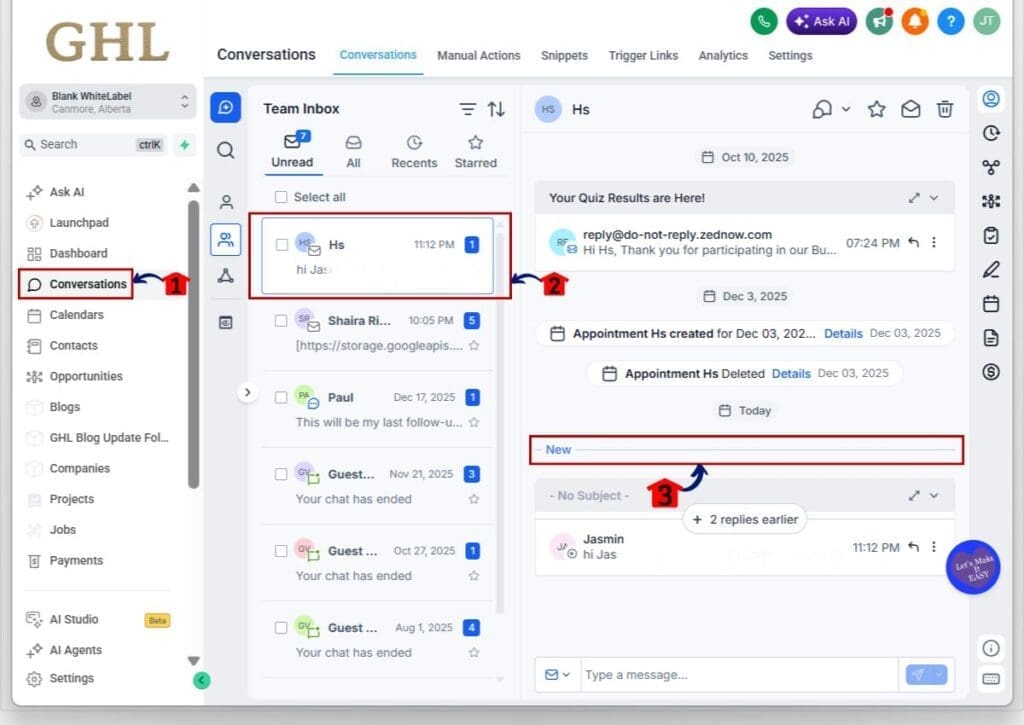
Important note: The “New” divider only shows for messages received after April 23, 2026. If you test on older unread messages, you may not see the divider even if the toggle is on.
Pro / Quick Tips: Unread message indicator tips for busy teams
The unread message indicator is simple, but your team still needs a clear way to use it. Decide how you want to clear it. If you reply, it shows the thread was handled inside Conversations. If you mark it as read, it usually means it was handled somewhere else, like a call or an internal note.
For shared inboxes, treat the unread message indicator like your starting line. Open the Unread list, click the next thread, and work only what is below the “New” divider. That keeps everyone focused on what is actually new, not what looks new.
When you roll this out in a sub-account, test it with a fresh inbound message. Old threads may not show the divider due to the cutoff date. A quick test saves you from chasing a “bug” that is really just a timing issue.
What This Means for Your Business: Unread message indicator improves response speed
The unread message indicator helps you respond faster, and that matters in every business. Leads go cold fast. Clients get impatient fast. When your team can find the newest message right away, you cut down on delays and avoid missed replies.
In a busy agency inbox, this shows up in simple ways. A client replies inside a long thread, and your VA does not have to scroll to find it. A sales rep opens a lead conversation and lands on the first unread message, ready to respond. It keeps the day moving without the “where did that go?” problem.
Over time, this creates a cleaner workflow. Your team spends less time hunting, re-reading, and guessing. They spend more time replying, booking, and resolving issues. That is what the unread message indicator is really for.
Frequently Asked Questions: Unread message indicator
Conclusion: Use the unread message indicator and stop missing replies
The unread message indicator is one of those small GoHighLevel updates that fixes a daily problem fast. You open an unread conversation, jump straight to the first unread message, and the “New” divider shows you exactly where to start.
If you manage long threads, shared inboxes, or multiple sub-accounts, this keeps your team focused on what is actually new. Less scrolling. Fewer missed replies. Faster response times.
Turn it on in Labs, test it with a fresh inbound message, and decide a simple team rule for clearing it. Are you going to clear the unread message indicator by replying, or by marking as read?
Scale Your Business Today.
Streamline your workflow with GoHighLevel’s powerful tools.


