

- GoHighLevel improves notification access and builder tooltips across Forms, Surveys, and Quizzes so users can set things up faster with less confusion.
- Quick Summary – Form Notifications Essentials
- What Changed in Form Notifications?
- Why Form Notifications Matter
- How to Use Form Notifications
- Pro Tips for Form Notifications
- What Form Notifications Mean for Business
- Frequently Asked Questions About Form Notifications
- Final Thoughts on Form Notifications
GoHighLevel improves notification access and builder tooltips across Forms, Surveys, and Quizzes so users can set things up faster with less confusion.
Form Notifications Are Easier to Find
Form notifications are now easier to find inside GoHighLevel, and that is a small change that fixes a real problem. If someone fills out a form, survey, or quiz, the right person needs to know about it fast. No hunting through icons. No guessing where the setting lives.
Before this update, notification settings could be easy to miss, especially for new users or team members still learning the builder. Now, GoHighLevel has moved Notifications into its own dedicated tab inside Forms, Surveys, and Quizzes. It is clearer, faster, and much easier to explain when training someone on your team.
GoHighLevel also improved the builder tooltips with better descriptions, more helpful context, and Learn more links where supported. That means users can understand settings while they work, instead of stopping to search for help. Simple fix. Better workflow. Less frustration.

Form notifications are now easier to find, understand, and manage inside GoHighLevel Forms, Surveys, and Quizzes. This update helps users move faster, reduce setup confusion, and get lead capture assets working with less back-and-forth.
Quick Summary – Form Notifications Essentials
Purpose: This update makes form notifications easier to find inside GoHighLevel Forms, Surveys, and Quizzes by moving them into a dedicated Notifications tab.
Why It Matters: Users no longer have to hunt for an icon inside the builder, which helps reduce confusion and makes setup faster.
What You Get: You get clearer access to notification settings, improved tooltips, better in-builder guidance, and Learn more links where supported.
Time To Complete: Most users can review and update form notifications in about 3 to 5 minutes.
Difficulty Level: This is beginner-friendly and easy for new GHL users, VAs, and agency team members to follow.
Key Outcome: Your team can set up form notifications with fewer mistakes, better lead alerts, and less back-and-forth during client setup.
What Changed in Form Notifications?
GoHighLevel made form notifications easier to access by moving them into a dedicated Notifications tab inside the builder. This applies to Forms, Surveys, and Quizzes. The feature itself has not changed, but the way users find it is much clearer.
Before this update, users had to access notification settings through an icon in the builder. That worked fine if you already knew where it was. But for new users, VAs, or team members setting up client assets, it was easy to miss. Now, the Notifications tab is clearly labeled, so users can find it without needing extra help.
Automate marketing, manage leads, and grow faster with GoHighLevel.

The builder tooltips also got a useful upgrade. They now include clearer descriptions, more helpful context, and Learn more links where supported. That means users can better understand each setting while they are building instead of stopping their work to search the Help Center.
Why Form Notifications Matter
Form notifications matter because leads go cold fast. When someone fills out a form, survey, or quiz, your team needs to see it and respond quickly. If the notification setup is hard to find, that creates room for missed leads, slow replies, and messy client follow-up.
This update makes the setup process easier for everyone. Agency owners can train their team faster. VAs can build client forms with more confidence. New GHL users can find notification settings without opening a support chat or digging through help docs.
It also helps reduce small mistakes. When form notifications are easy to see, users are more likely to check them before publishing a form or sending traffic to a page. That means smoother launches, better lead response, and fewer “who was supposed to get that alert?” moments.
How to Use Form Notifications
Form notifications are easier to manage now that GoHighLevel has added a dedicated Notifications tab inside the builder. For this How-To, we’ll open the Forms area, edit an existing form, use the new Notifications tab, and review the improved tooltips.
This is helpful when your team needs to make sure the right person gets alerted after someone submits a form. Instead of searching for an icon, you can now go straight to the Notifications tab and update the notification settings from one clear place.
Here are the steps we will follow:
- Access the Forms area in GoHighLevel.
- Open the form builder.
- Use the Notifications tab to manage email notifications.
- Review the improved tooltips.
To start, make sure you are logged in to your GoHighLevel sub-account.
Step 01 – Access the Forms Area in GoHighLevel
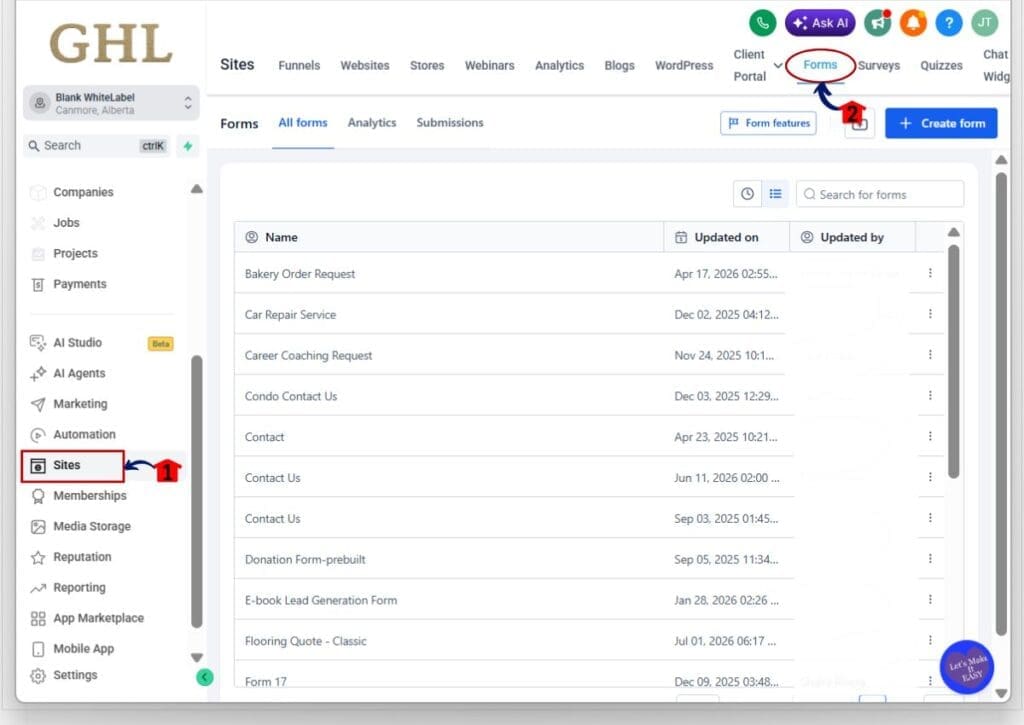
- The main menu on the left side of your screen has the core areas you work in when using GoHighLevel.
1.1 Click Sites in the left menu.
- This opens the Sites area inside GHL.
1.2 Click Forms in the top navigation menu.
- This opens the Forms section, where you can view and manage your existing forms.
Step 02 – Open the Form Builder
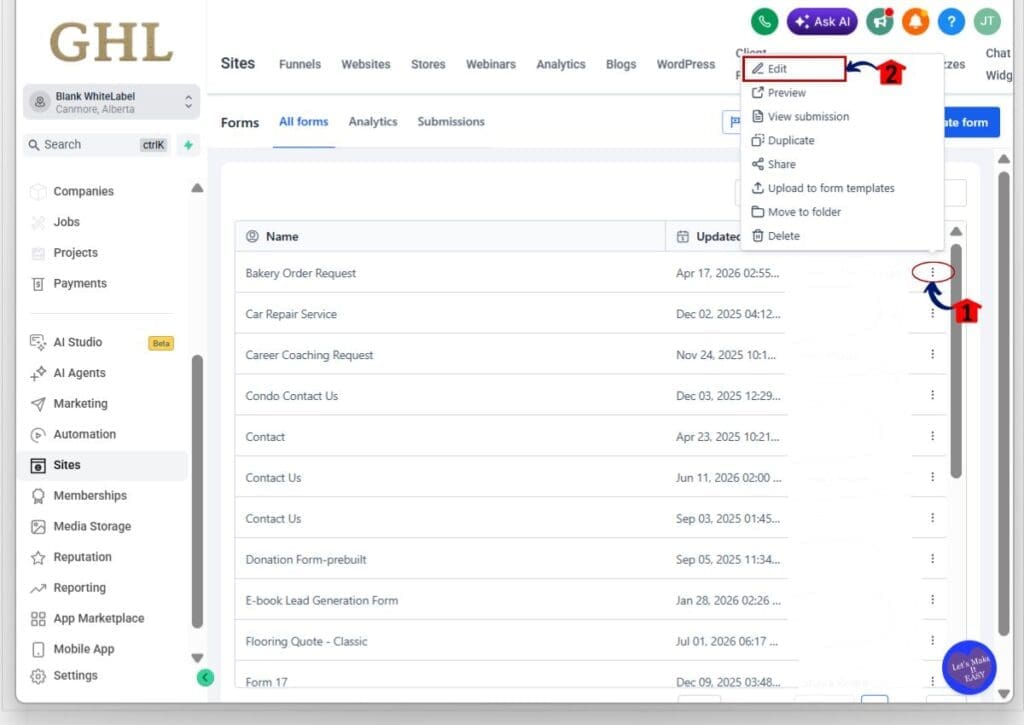
- Your forms are listed in the main Forms dashboard. From here, you can open the form you want to edit.
2.1 Find the form you want to update.
- Use the form list to locate the correct form.
2.2 Click the three-dot menu on the right side of the form row.
- This opens the action menu for that form.
2.3 Click Edit.
- This opens the selected form inside the form builder.
Step 03 – Open the Notifications Tab to manage email notifications.
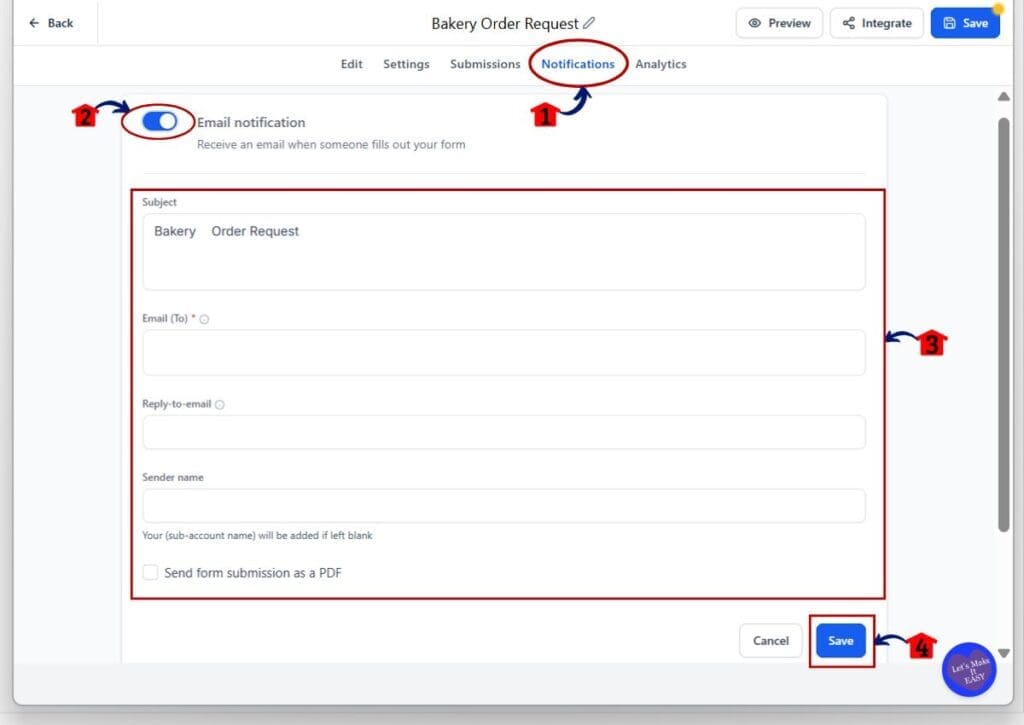
- The Notifications tab is where you can manage email alerts for form submissions.
3.1 Click the Notifications tab at the top of the form builder.
- This opens the notification settings for that form.
3.2 Turn the Email notification toggle ON if you want to receive an email when someone submits the form.
- Use this when a team member, admin, or client contact needs to be alerted after each submission.
3.3 Review the Subject field.
- This controls the subject line of the email notification.
3.4 Add the Email To address.
- This is the email address that should receive the form notification.
3.5 Add a Reply-to-email address if needed.
- Use this when replies should go to a specific inbox.
3.6 Add a Sender name if needed.
- This helps the notification email look clear and easy to recognize.
3.7 Choose whether to send the form submission as a PDF.
- Use this option if the recipient needs a PDF copy of each submission.
3.8 Click Save.
- This saves the notification settings for that form.
Step 04 – Review the Improved Tooltips
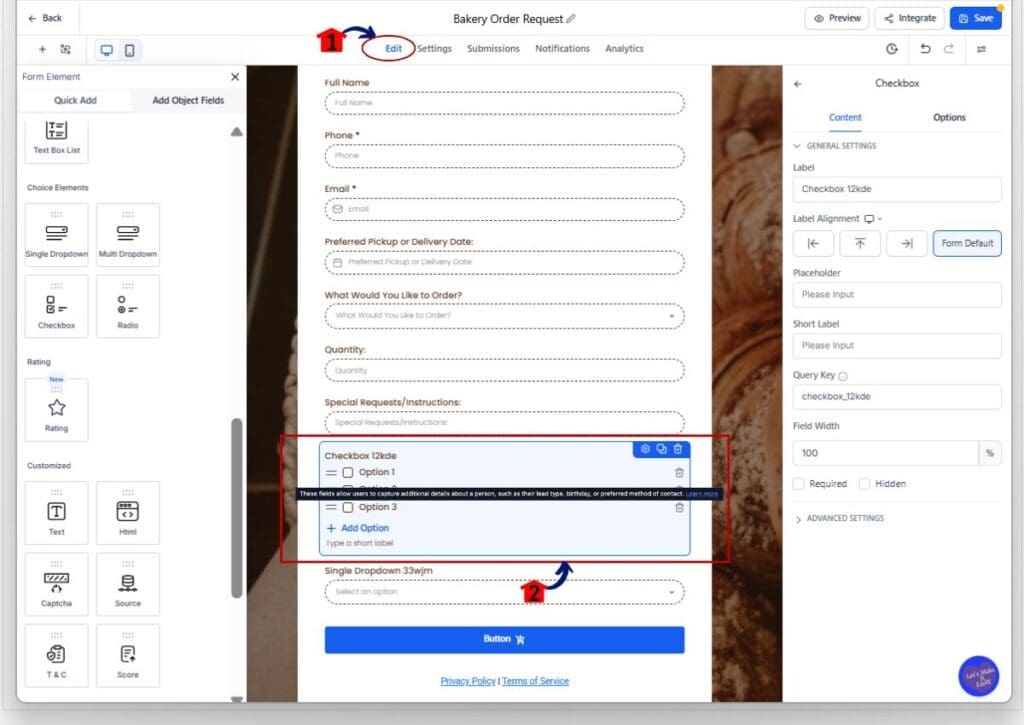
- GoHighLevel also improved tooltips inside the builder so users can better understand settings while they work.
4.1 Click back into the Edit area of the form builder.
- This takes you back to the main form editing screen.
4.2 Select a field inside the form.
- In the example shown, a checkbox field is selected.
4.3 Hover over the tooltip or help text connected to the field setting.
- The tooltip gives more context about what the field or setting does.
4.4 Click Learn more if the link is available.
- This opens related Help Center information for supported tooltips.
Once saved, submit a test form to make sure the notification goes to the right person. This gives your team a cleaner setup, fewer missed alerts, and a better way to manage lead capture inside GoHighLevel.
Pro Tips for Form Notifications
Form notifications are simple, but they still deserve a quick check before anything goes live. If the wrong email is added, the lead may come in and nobody sees it. That is not a fun problem to explain to a client.
Before you publish a form, send a test submission. Check that the alert reaches the right inbox, the subject line makes sense, and the message is easy to understand. This small habit can prevent missed leads and slow follow-up.
If you manage forms for clients, add form notifications to your launch checklist. Also, use the improved tooltips when training new team members. They help explain settings while users work, which means less guessing and fewer support questions.
What Form Notifications Mean for Business
Form notifications help your team respond faster. That matters because a new lead should not sit in limbo. When the right person gets the alert right away, they can follow up, book the call, or move the lead into the next step.
For agencies, this update also makes client setup smoother. Your team can find the Notifications tab faster, check the settings, and move on without wasting time. It is a small workflow fix, but those small fixes add up when you manage several client accounts.
It also makes training easier. New users can understand the builder faster with clearer tooltips and Learn more links. That means fewer questions, fewer mistakes, and a cleaner process for launching forms, surveys, and quizzes in GoHighLevel.
Frequently Asked Questions About Form Notifications
Final Thoughts on Form Notifications
Form notifications are now easier to find, and that is a solid win for anyone building inside GoHighLevel. The new Notifications tab removes guesswork and gives users a clearer path when setting up alerts for Forms, Surveys, and Quizzes.
The improved tooltips also make the builder easier to understand. That helps new users learn faster, helps teams avoid small mistakes, and helps agencies train staff without answering the same questions over and over.
This is not a massive feature launch, but it is a smart update. Open one of your key forms, check the Notifications tab, and send a test submission. A few minutes now can save you from missed leads later.
Scale Your Business Today.
Streamline your workflow with GoHighLevel’s powerful tools.


