

- One App QR Code now sends each user to the right app store based on their device.
- Quick Summary – App QR Code at a Glance
- What’s New With App QR Code
- Why App QR Code Matters
- How to Use App QR Code in GoHighLevel
- App QR Code Tips and Best Practices
- Results You Can Expect from App QR Code
- Frequently Asked Questions About App QR Code
- App QR Code Makes App Promotion Easier
One App QR Code now sends each user to the right app store based on their device.
One App QR Code, Less Hassle
The new App QR Code in GoHighLevel makes it easier to send people to the right app store. Instead of using separate QR codes for iPhone and Android users, you can now use one code for both.
When someone scans the code, GHL checks the device they are using. iPhone users go to the Apple App Store, Android users go to Google Play, and other devices can be sent to a fallback page you choose.
For agencies and businesses, this means a cleaner setup and a simpler user experience. You can use the same App QR Code on websites, print materials, signs, event displays, and other promotions without adding extra steps.
The new App QR Code gives you one simple way to send users to the correct app store based on their device. It cuts extra steps, removes the need for separate QR codes, and makes app promotion easier to manage.
Quick Summary – App QR Code at a Glance
Purpose: The new App QR Code lets you use one QR code to send users to the right app store based on their device.
Why It Matters: You no longer need separate QR codes for iPhone and Android users, which keeps campaigns cleaner and easier to manage.
What You Get: You can add an iOS link, an Android link, and an optional fallback URL for other devices.
Time To Complete: Most users should be able to set up an App QR Code in about 5 minutes.
Difficulty Level: Easy. The setup uses the same QR Code area and design tools already available in GoHighLevel.
Key Outcome: You get one App QR Code that works across websites, print materials, events, and other promotions while sending users to the correct destination.
What’s New With App QR Code
The new App QR Code gives GoHighLevel users one simple way to send people to the right app store. You no longer need separate QR codes for iPhone and Android users, or a landing page with several download buttons.
When you create the code, you can add an App Store URL for iOS users, a Play Store URL for Android users, and a fallback URL for other devices. GHL then checks the device and sends the person to the right place automatically.
Automate marketing, manage leads, and grow faster with GoHighLevel.

The QR code design tools have not changed. You can still use the same customization options you already know, while adding the new device-based routing in the background.
Why App QR Code Matters
The App QR Code gives you a cleaner way to promote mobile apps. One code can now handle iPhone, Android, and other devices without making people choose where to go.
That means fewer clicks for the user and less setup for you. Agencies can place the same QR code on flyers, posters, websites, event displays, and other marketing materials without creating different versions for each device.
It also makes campaigns easier to manage. If you work with clients who have a mobile app, this App QR Code gives you one simple tool that can support more channels and create a smoother download experience.
How to Use App QR Code in GoHighLevel
Setting up an App QR Code in GoHighLevel only takes a few steps. You’ll open the QR Codes area, choose the Apps QR type, add your destination links, and then continue to the design settings.
Here are the main steps to use App QR Code:
- Access the QR Codes Section in GoHighLevel.
- Choose the Apps QR Code Type.
- Add Your App Store Links.
To start, make sure you are logged in to your GoHighLevel sub-account.
Step 1.0 – Access the QR Codes Section in GoHighLevel
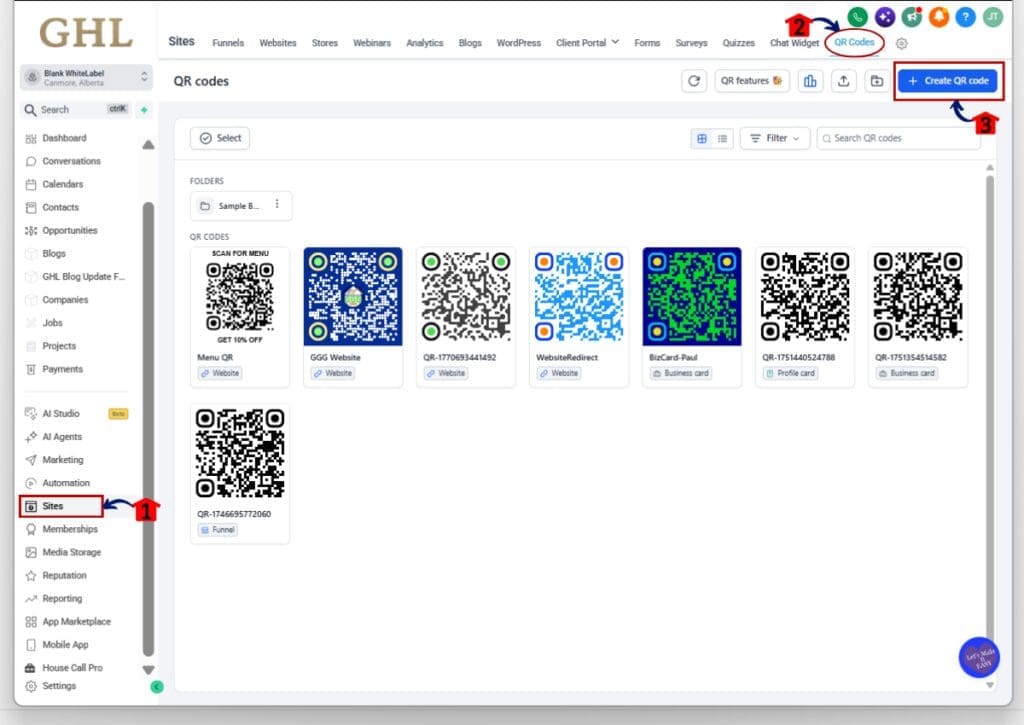
1.1 Click Sites from the main left-hand menu.
- This opens the main Sites area inside your GoHighLevel sub-account.
1.2 Click QR Codes from the top menu.
- You’ll now see your existing QR codes and QR code folders.
1.3 Click the Create QR code button in the top-right corner.
- This opens the QR code setup window.
Step 2.0 – Choose the Apps QR Code Type
2.1 Enter a name for your App QR Code.
- GoHighLevel will add a default QR name, but you can replace it with something easier to identify.
2.2 Select Apps from the available QR code types.
- This tells GHL that the QR code will be used for app downloads.
2.3 Click Next.
- You’ll move to the screen where you can add the destination links for each device type.

Step 3.0 – Add Your App Store Links
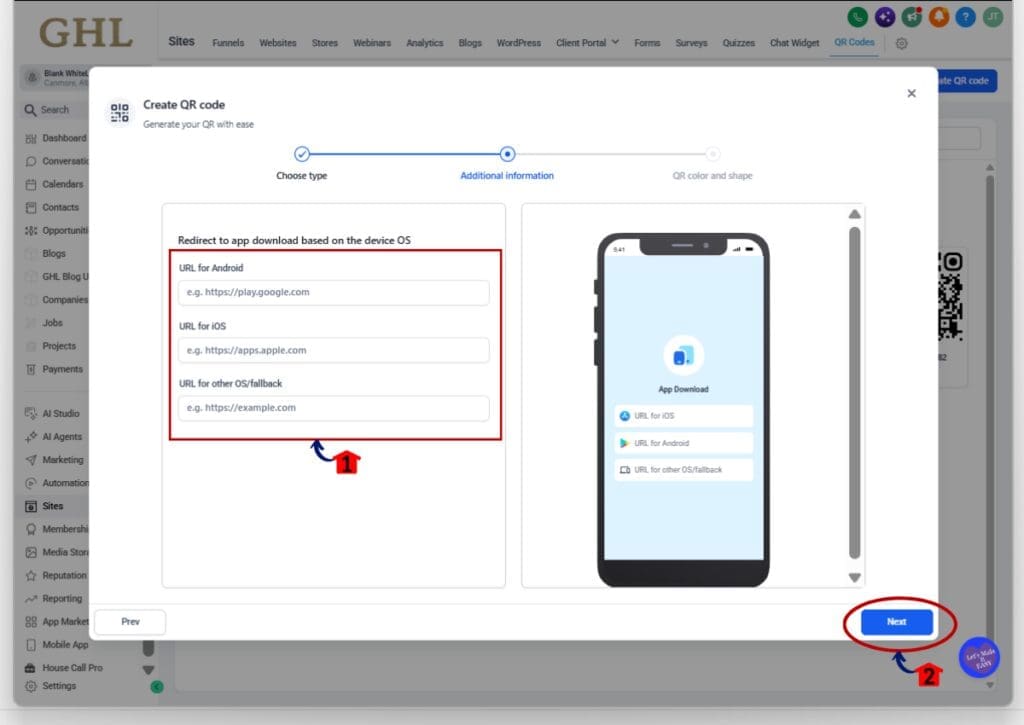
3.1 Add the URL for Android.
- Paste the Google Play Store link for your app into the URL for Android field.
3.2 Add the URL for iOS.
- Paste the Apple App Store link into the URL for the iOS field.
3.3 Add the URL for another OS or fallback.
- Use this field for devices that GHL cannot identify as Android or iOS.
• This could be your website, app landing page, or another useful destination.
3.4 Click Next.
- GoHighLevel will take you to the QR color and shape settings, where you can finish the design before saving the code.
- The existing QR Code design and customization experience remains unchanged, so you can style your App QR Code the same way you already do with other QR codes.
App QR Code Tips and Best Practices
A good App QR Code should make the next step easy for the person scanning it. Before you add it to a live campaign, take a few minutes to check the links and test the experience on more than one device.
Use the fallback URL for a page that still helps the visitor move forward. Your website, app landing page, or support page are all better choices than sending people somewhere with no clear next step.
Keep the design simple and easy to scan. Add a short line near the code, such as “Scan to Download,” so people know what will happen. It is also smart to test the final App QR Code before you print it on flyers, signs, or other materials.
Results You Can Expect from App QR Code
The App QR Code can make app promotion much easier to manage. Instead of creating separate codes for Apple and Android users, you can use one code and let GoHighLevel send each person to the right place.
For agencies, this can also cut down on setup time across client campaigns. The same App QR Code can be used on websites, flyers, posters, event materials, and other promotions without adding extra steps for the user.
A simple example is a client launching a new mobile app. You can place one QR code across all campaign materials, then let GHL handle the device routing in the background. That keeps the campaign cleaner and gives users a more direct path to download the app.
Frequently Asked Questions About App QR Code
App QR Code Makes App Promotion Easier
The new App QR Code gives GoHighLevel users a simpler way to promote mobile apps. One code can now send iPhone users to the Apple App Store, Android users to Google Play, and other devices to a fallback page.
For agencies and businesses, that means fewer QR codes to manage and a smoother path for users. You can use the same code across websites, print materials, events, and client campaigns without changing the design process you already know.
If you promote a mobile app, this is a small update that can make your campaigns easier to manage. Try it inside GHL and see where one App QR Code can replace several separate links or codes.
Scale Your Business Today.
Streamline your workflow with GoHighLevel’s powerful tools.


