- Introduction – Automate Internal Comments with Workflows
- Quick Summary – Automate Internal Comments
- What’s New: Automate Internal Comments
- Why Automate Internal Comments in GHL
- How to Automate Internal Comments in GHL
- Best Use Cases to Automate Internal Comments
- Quick Tips to Automate Internal Comments Better
- What Automating Internal Comments Means for Business
- FAQs About Internal Comments
- Automate Internal Comments and Keep Teams Moving
Introduction – Automate Internal Comments with Workflows
Automate Internal Comments in GHL to keep your team updated faster, share key context, and reduce the need for repetitive manual notes.
You can now automate internal comments inside a workflow instead of adding every private note by hand. So when something important happens with a lead, the workflow can leave the message for your team automatically.
That could be a quick heads-up about a hot lead, instructions for the salesperson taking over, or an @mention telling someone they need to jump in.
Before this, someone on the team had to go into the conversation and type the note themselves. That is not a big deal when things are quiet. Once leads start piling up, though, it is very easy for a note to get skipped.
The comment stays inside the conversation history and is only there for your team. The customer does not receive it.
In this guide, we’ll walk through how to automate internal comments in GHL and show you a few practical ways to use them in your workflows.
The latest GoHighLevel Changelog includes several other GHL feature updates that round out your daily workflow:
- Wait Action Enhancement: TikTok DM Replies
- India Recurring Mandate Support for Affiliate Indian Signup Pages
- Housecall Pro – More Workflow Actions & Triggers
- Email Services Dashboard for Agencies
- Email Sequences Now Available in Beta Labs
- Group Your Contacts by Source in Dashboards & Reporting
- MMLite Adoption Banner in Conversations
Keep reading for much more on all these updates and a deep dive into the Automate Internal Comments feature!

Quick Summary – Automate Internal Comments
Purpose: This update lets you automate internal comments inside GHL workflows so important team notes can be added without manual input.
Why It Matters: Your team gets useful customer context, follow-up instructions, and internal updates at the right moment without relying on someone to remember to leave a note.
What You Get: You can add private comments to conversations, include @mentions for team members, and keep internal instructions connected to the customer conversation.
Time To Complete: Most users can add and test the Internal Comment workflow action in a few minutes.
Difficulty Level: Beginner-friendly. If you already know how to edit a GHL workflow, the setup is straightforward.
Key Outcome: You can automate internal comments to create faster handoffs, reduce missed details, and keep your team better informed inside GHL.
What’s New: Automate Internal Comments
GHL now lets you add internal comments from inside a workflow.
Before this update, your team had to add each note themselves. Now that same step can happen automatically inside the workflow.
The action works well for quick updates between team members. You can explain what happened, leave instructions, or pass along details before someone else takes over. You can also tag the person who needs to act.
Automate marketing, manage leads, and grow faster with GoHighLevel.

A simple example would be a hot lead entering a workflow. GHL could add a private comment telling the salesperson to call quickly and include a few details about the lead so they are not starting cold.
The comment shows up in the conversation history with the rest of the contact activity.
Nothing is sent to the customer. It stays behind the scenes for your team.
Why Automate Internal Comments in GHL
Your team probably already has enough to remember.
Leaving an internal note should not be one more thing sitting in the back of someone’s mind.
With automated internal comments, GHL can add the message for you when the workflow reaches the right stage.
That can help when you need to:
- Flag a hot lead
- Pass a contact to sales
- Leave follow-up instructions
- Escalate a support issue
- Remind someone about an appointment
- Guide a client onboarding step
The useful part is that the note stays attached to the conversation.
Anyone opening the contact can see what happened and what needs to happen next.
That cuts down on separate messages, missing context, and the usual “Did anyone tell them?” problem.
For agencies, it is also a simple way to make client workflows more consistent from one subaccount to the next.
How to Automate Internal Comments in GHL
The Add Internal Comment workflow action gives you a simple way to place private team notes inside conversations automatically.
You do not need to manually open a conversation and leave the same note every time. Instead, you can add the action inside a workflow, write the message you want your team to see, include an @mention when needed, and let GHL add the comment automatically when the workflow runs.
- Access Workflows in GoHighLevel.
- Confirm the Workflow Trigger.
- Add the Internal Comment Action.
- Write the Internal Comment.
- Add an @Mention for a Team Member.
- Save and Publish the Workflow.
To start, make sure you are logged in to the correct GoHighLevel subaccount and have access to Automation and Workflows.
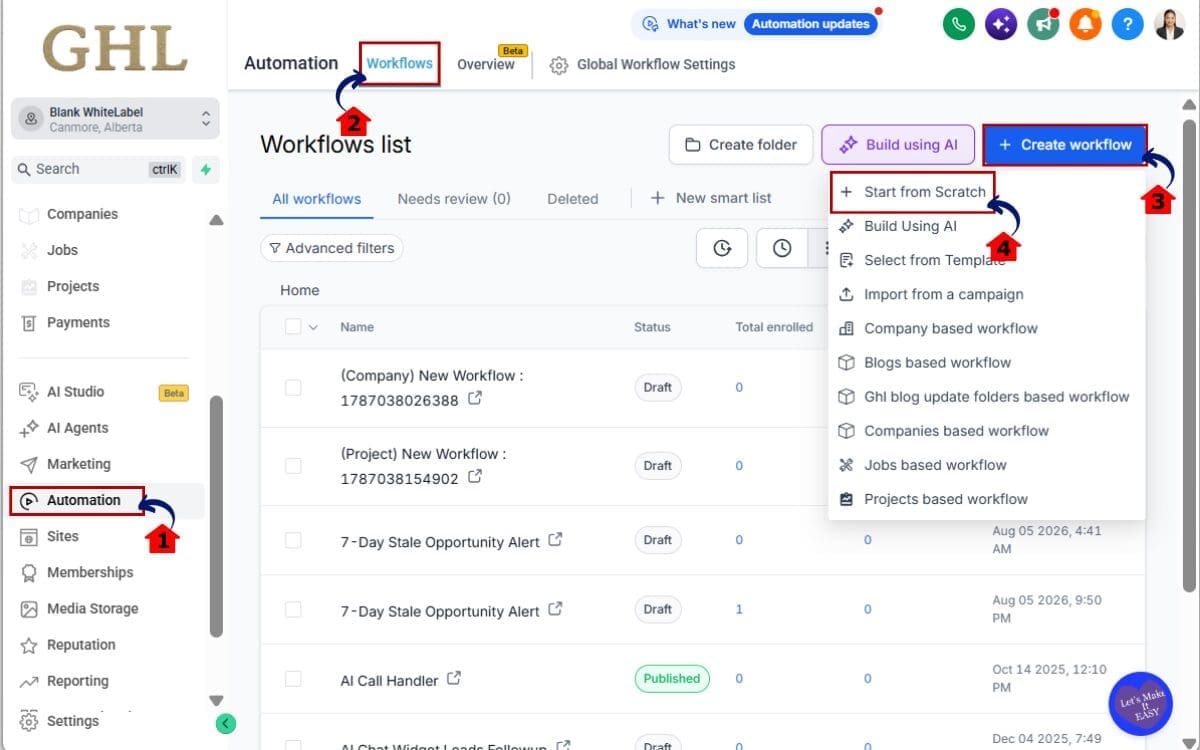
Step 01 – Access Workflows in GoHighLevel
- Start by logging in to the GoHighLevel sub-account where you want to build your automation.
1.1 Go to the main menu on the left side of your screen. Click Automation.
- This opens the Automation area where you can access and manage your GHL Workflows.
1.2 Open the Workflows section.
- This is where you’ll find your existing automations and the option to create a new Workflow.
1.3 Create a new Workflow.
- Starting a new Workflow gives you a clean setup for building your workflow from the beginning.
1.4 Click Start from Scratch.
- This opens a blank Workflow so you can add your triggers, RCS actions, and follow-up steps exactly where you need them.
Step 2.0 – Confirm the Workflow Trigger
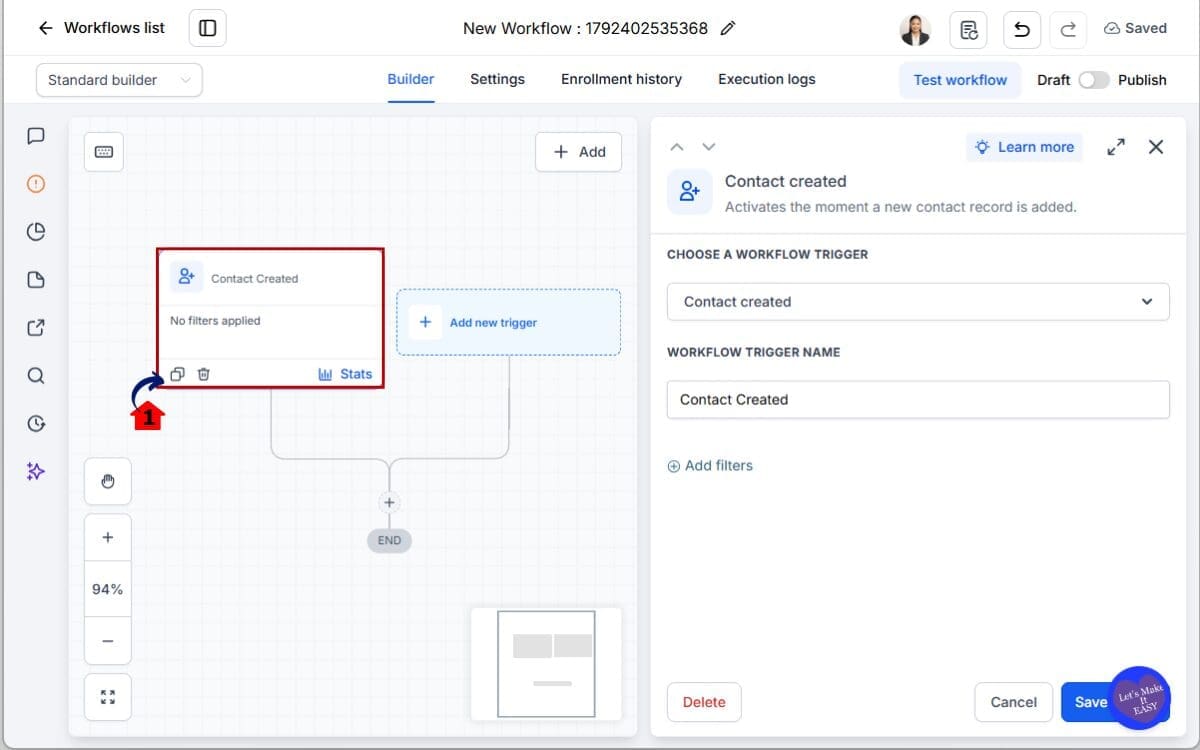
- Before adding the internal comment, make sure the workflow starts from the correct event.
2.1 Choose “Contact Created” Trigger
- Check what causes the contact to enter the workflow.
Step 3.0 – Add the Internal Comment Action
- Once the workflow trigger is correct, add the new action that will create the private comment.
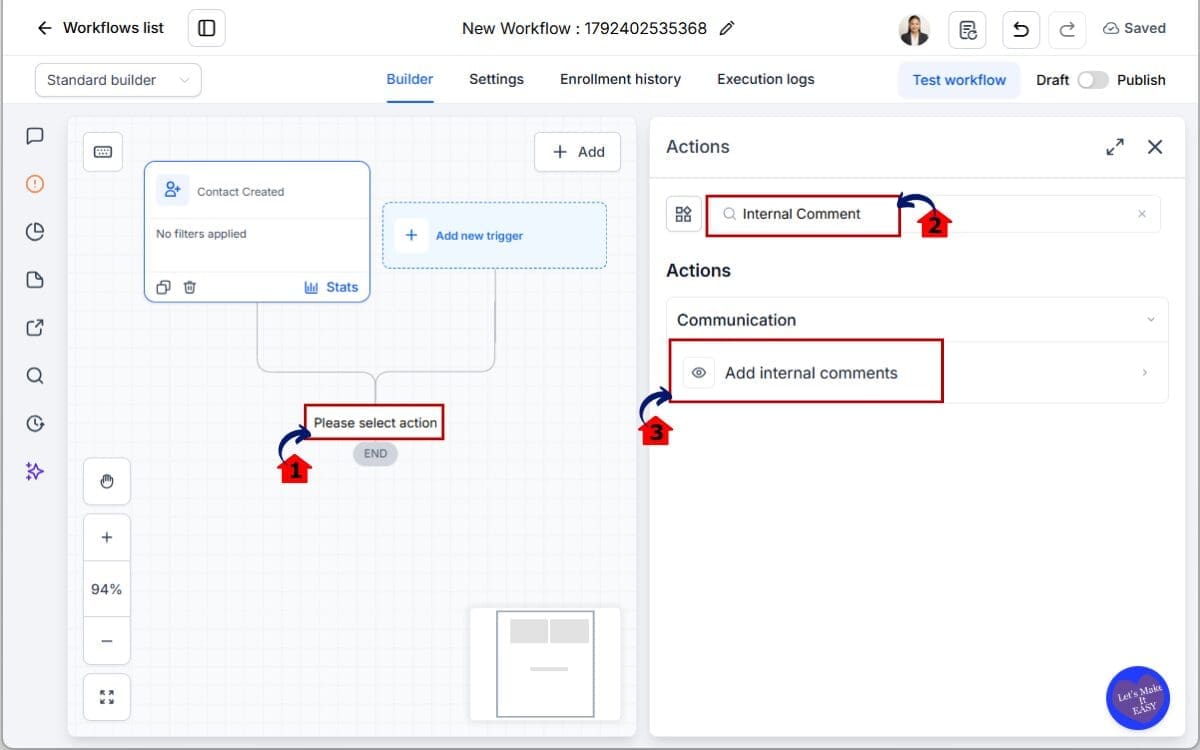
3.1 Click the plus icon to add a workflow action.
- Add the action at the point in the workflow where you want the internal comment to appear.
3.2 Find the Internal Comment action.
- Search the available workflow actions for Internal Comment.
3.3 Select Add Internal Comment.
- This opens the settings where you can create the private message.
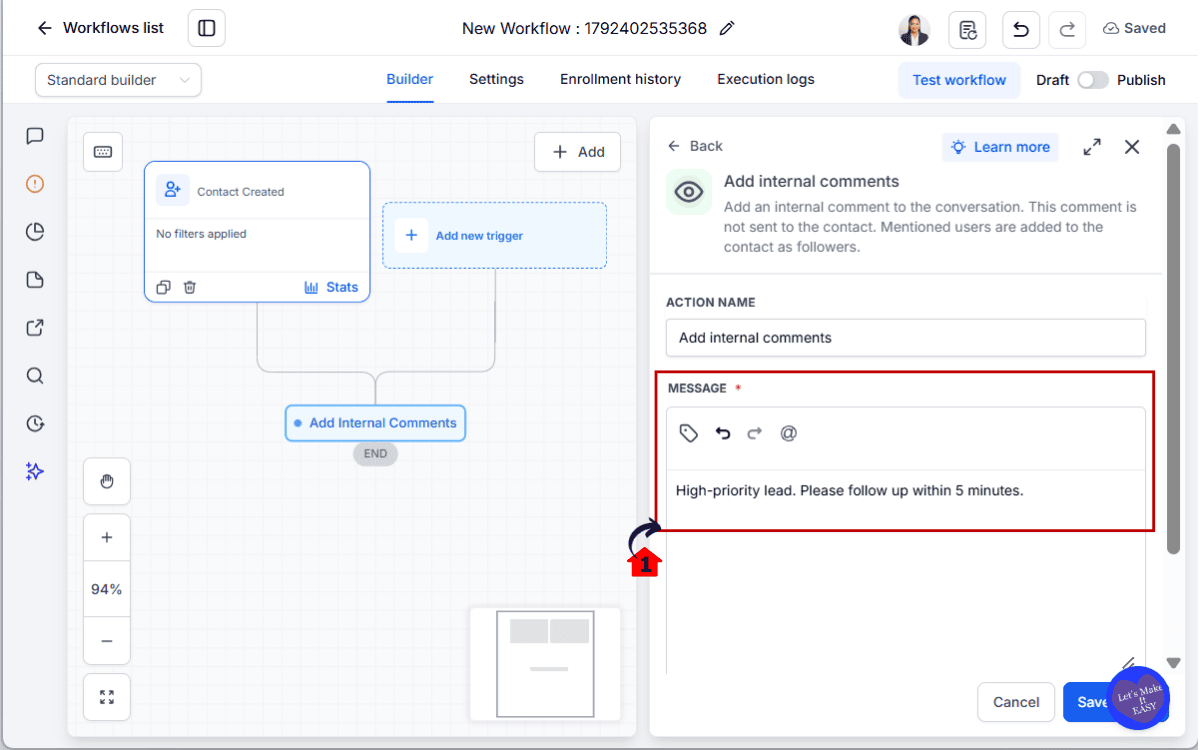
Step 4.0 – Write the Internal Comment
- The comment should give your team useful information without making them dig for context.
4.1 Enter the message you want GHL to add. Add clear next-step instructions.
- Write a short internal note that explains what happened.
Step 5.0 – Add an @Mention for a Team Member
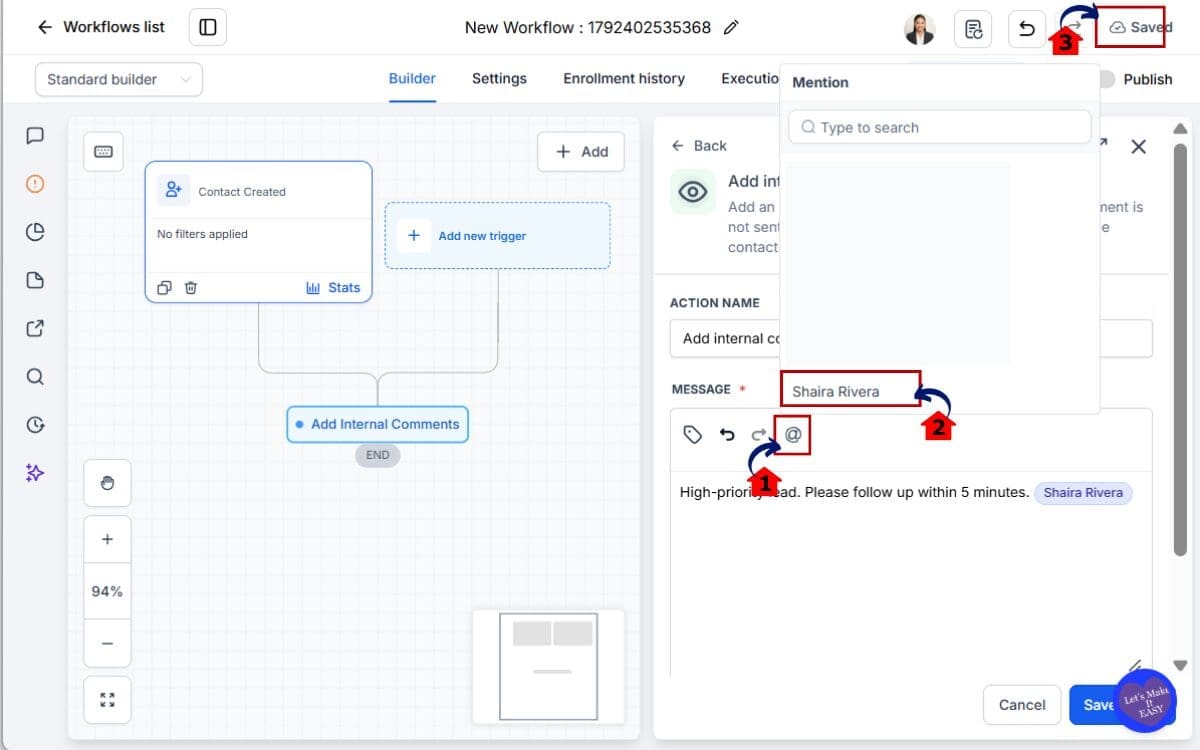
- You can also use the internal comment to get the attention of a specific user.
5.1 Add an @mention inside the comment.
- Mention the team member who needs to review or act on the message.
5.2 Choose the correct user.
- Make sure you are mentioning the person responsible for the next step.
Step 6.0 – Save and Publish the Workflow
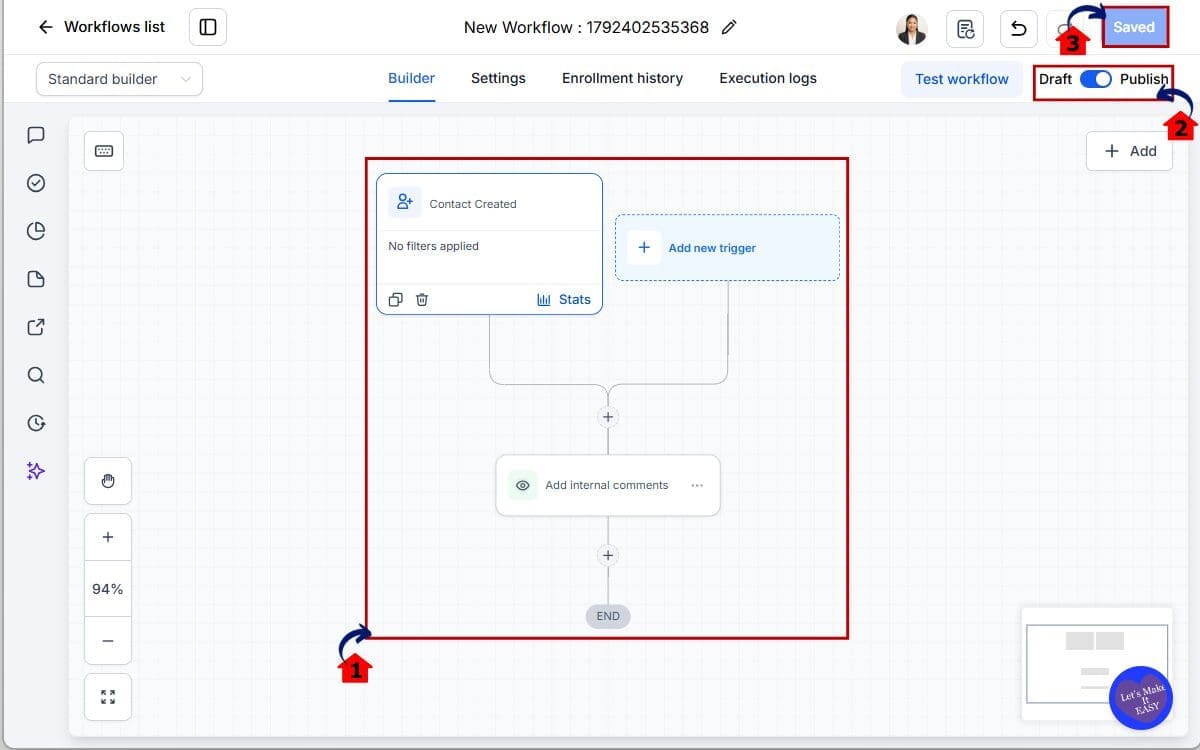
- Once the Internal Comment action is ready, review the workflow before making it active.
6.1 Review the full workflow.
- Check the trigger, conditions, delays, and other actions around the Internal Comment step.
6.3 Publish the workflow.
- Make the workflow active once everything looks correct.
6.4 Save the workflow.
- Make sure the automation is turned on and ready to run.
Internal comments are designed for your team and are not sent as customer-facing messages. The best approach is to keep each automated comment short, useful, and tied to a clear workflow event so your conversation history stays helpful instead of cluttered.
Best Use Cases to Automate Internal Comments
The Add Internal Comment action works best when it saves someone from having to explain the same thing over and over.
One example is hot lead handling.
A lead enters a priority stage, the workflow runs, and GHL adds a private note telling the salesperson what happened and what to do next.
Another good use is lead handoff.
When a prospect moves into the sales team’s hands, the comment can explain where things stand and save the rep from having to work it all out on their own.
Support teams can use it in the same way when an issue needs to move up the chain.
You can also use automated comments for:
- Appointment follow-ups
- Onboarding reminders
- Qualification notes
- Pipeline updates
- Lead source information
- Service handoffs
- Form follow-ups
- Survey follow-ups
Try to use the action where it removes uncertainty.
If that note saves the next person from guessing, it is probably doing its job.
For agencies, this can also make client processes more predictable across multiple locations.
Quick Tips to Automate Internal Comments Better
Internal comments should make things clearer for your team, not add another pile of notifications to ignore.
Keep the message tight. When someone opens the conversation, they should be able to understand the point of the note without reading a paragraph.
Be selective with @mentions too. Tag someone when they actually need to step in. If every comment pings a user, people will start tuning them out.
It also helps to say what caused the note to appear. “Lead moved into Hot Prospects” is far more useful than “Please check this.”
A few things that make this work better:
- Keep the message short.
- Put the important detail first.
- Use similar wording for similar workflow events.
- Do not stack several comments on the same trigger.
- Test the workflow before using it with a large number of contacts.
- Look through older workflows for notes that could be automated.
- Pair comments with tasks or assignments when someone needs to do something specific.
The comment should help the next person move forward without having to ask what happened.
What Automating Internal Comments Means for Business
It is the kind of feature that quietly takes some of the busywork off your team’s plate.
Your team spends less time writing the same notes and less time looking for context later.
When something important happens in the workflow, GHL can add the comment automatically.
That helps the next person understand the situation without opening three other tools.
For agencies, it also gives you a more consistent way to handle lead movement across client subaccounts.
A simple hot lead workflow shows how useful this can be.
The lead hits the right stage. GHL adds the internal note. The salesperson gets mentioned. The reason for the alert is right there in the conversation.
That is a cleaner handoff and a better record of what happened. The bigger win is not the time saved. It is taking one more thing off your team’s mental checklist.
FAQs About Internal Comments
Automate Internal Comments and Keep Teams Moving
This is a straightforward update, but it solves a very common problem.
Teams forget notes.
With the Add Internal Comment action, you can move that step into the workflow and let GHL handle it.
The next person gets the context inside the conversation, and the process does not depend so heavily on someone remembering what to write.
That can help with sales handoffs, support issues, onboarding, and priority leads.
Try it somewhere simple first.
Choose one workflow, add the comment, and run a test.
If that note makes the next step easier to understand, check your other workflows for similar manual updates you could replace.
Scale Your Business Today.
Streamline your workflow with GoHighLevel’s powerful tools.