- See contact journeys, compare workflow versions, spot performance issues, and export AI-powered reports without digging through multiple GHL logs.
- Quick Summary – Workflow Analytics at a Glance
- What Changed in Workflow Analytics?
- Why Workflow Analytics Matters to GHL Users
- How to Use Workflow Analytics in GoHighLevel
- Pro Tips for Better Workflow Analytics
- What Workflow Analytics Means for Your Business
- Frequently Asked Questions About Workflow Analytics
- Workflow Analytics Makes Troubleshooting Easier
See contact journeys, compare workflow versions, spot performance issues, and export AI-powered reports without digging through multiple GHL logs.
See What Happened Without Digging Through Logs
Workflow Analytics now makes it much easier to see what is happening inside your GoHighLevel workflows. Instead of checking Enrollment History, Execution Logs, and Version History one by one, you can ask Workflow AI a simple question and get the key details in one place.
You can trace a contact through a workflow, follow that contact across several workflows, compare workflow versions, review performance, and even create a PDF report. That means less digging through logs and less time trying to piece together what went wrong.
For agencies, this can make troubleshooting much easier. When a client asks why a lead got stuck, what changed in a workflow, or which automation is underperforming, Workflow Analytics gives you a faster way to find the answer and explain it clearly.
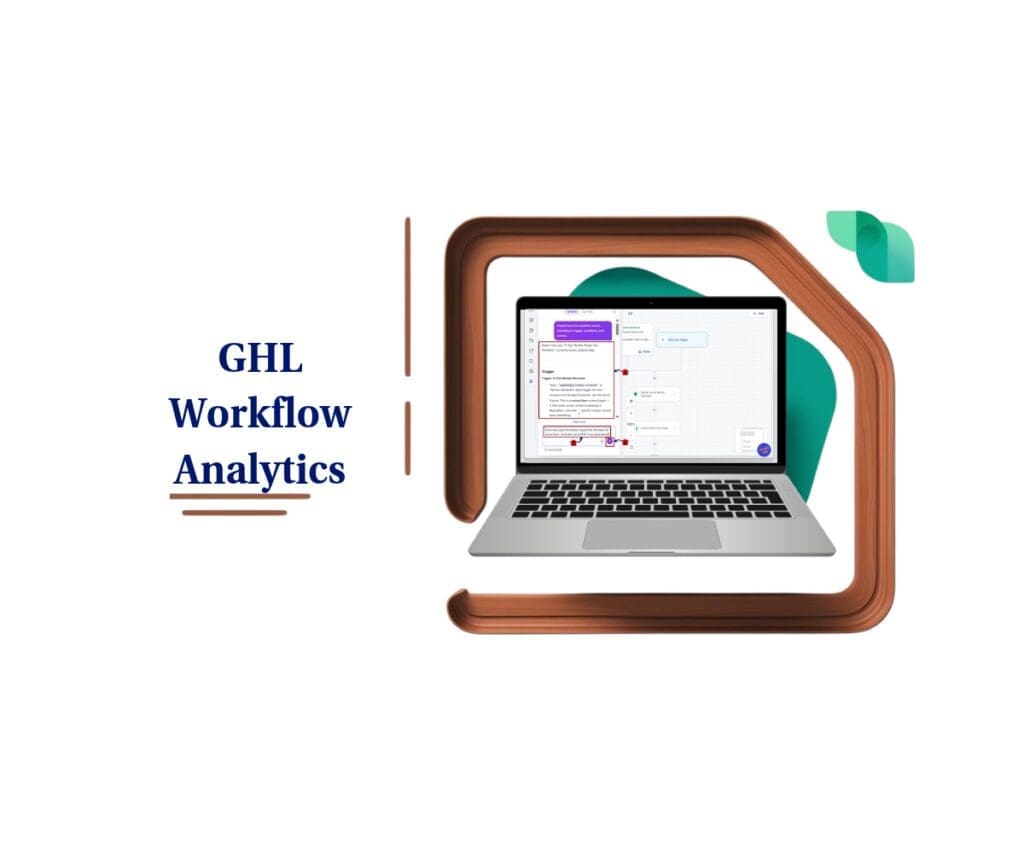
Workflow Analytics gives you a faster way to see exactly what happened inside your GHL automations without digging through separate logs and history screens. Trace contacts, compare workflow changes, find performance problems, and turn the results into client-ready reports from one AI chat.
Quick Summary – Workflow Analytics at a Glance
Purpose: Workflow Analytics helps you understand what happened inside a GoHighLevel workflow without checking several different logs.
Why It Matters: It gives agencies and teams a faster way to trace contacts, review workflow changes, and find performance issues.
What You Get: You can follow contact paths, compare workflow versions, compare workflow performance, review AI insights, and create PDF reports.
Time To Complete: Most checks only take a few minutes once you open Workflow AI and ask the right question.
Difficulty Level: Easy. You do not need technical skills or complex setup to start using Workflow Analytics.
Key Outcome: You get clearer answers, faster troubleshooting, and a simpler way to explain workflow results to clients or team members.
What Changed in Workflow Analytics?
Workflow Analytics now brings the main parts of workflow troubleshooting into one place. Before this update, you often had to jump between Enrollment History, Execution Logs, and Version History to work out what happened. Now you can ask Workflow AI a simple question and get a clear answer without digging through each area on your own.
You can trace one contact through a workflow, follow that same contact across several workflows, and see how each run ended. You can also compare workflow versions to see what changed, including steps that were added, removed, moved, or renamed. If something broke after an edit, Workflow AI can also tell you how closely that change lines up with the problem.
Automate marketing, manage leads, and grow faster with GoHighLevel.
Workflow Analytics also lets you compare workflow performance using enrollments, completions, completion rates, and error rates. If you need to share what you found, you can ask for a PDF report right from the chat. It is a much simpler way to see what changed, spot problems, and explain the results clearly.
Why Workflow Analytics Matters to GHL Users
Workflow Analytics helps you get answers faster when a workflow does not behave as expected. Instead of checking several screens and trying to match the details by hand, you can ask Workflow AI what happened and review the full path in one place.
This is especially useful for agencies, automation specialists, and account managers. You can see where a contact got stuck, check whether a recent edit may be linked to the issue, and compare workflow performance without spending so much time inside raw logs.
The real value is better visibility. Workflow Analytics gives you a clearer way to troubleshoot problems, review changes, and explain results to clients or team members. That can save time and make workflow management much easier.
How to Use Workflow Analytics in GoHighLevel
Using Workflow Analytics in GoHighLevel only takes a few steps. You’ll open the workflow you want to review, launch Workflow AI, then ask questions about the workflow, its performance, or the contacts moving through it.
Here are the main steps to use Workflow Analytics:
- Access the Workflow in GoHighLevel.
- Open Workflow AI and Ask Your Question.
To start, make sure you are logged in to your GoHighLevel sub-account.
Step 1.0 – Access the Workflow in GoHighLevel
1.1 Click Automation from the main left-hand menu.
- This opens the main Automation area inside your GoHighLevel sub-account.
1.2 Click Workflows from the top menu.
- You’ll now see the workflows available in that sub-account.
1.3 Click the workflow you want to review.
- Choose the workflow you want Workflow Analytics to analyze.
- This opens the workflow builder where you can access Workflow AI.

Step 2.0 – Open Workflow AI and Ask Your Question
2.1 Click the Workflow AI icon from the left side of the workflow builder.
- This opens the Workflow AI panel inside the workflow.
- You can use this area to ask questions about the workflow in plain language.

2.2 Enter your question or request into the Workflow AI chat box.
- You can ask Workflow AI to explain the workflow, trace contacts, compare versions, review performance, or prepare a report.
- Type your request into the prompt box.
For example:
“Explain how this workflow works, including its trigger, conditions, and actions.”
2.3 Click the purple arrow button to submit your request.
- Workflow AI will review the workflow and return its response inside the panel.

2.4 Review the Workflow AI response.
- Workflow AI will show the results directly inside the chat.
- Depending on your question, this may include workflow steps, triggers, actions, contact activity, version changes, or performance details.
2.5 Enter another question if you want to dig deeper.
- You can continue asking follow-up questions without leaving the workflow.
- For example: “Give me a performance report for the last 30 days here, and also as a PDF I can download.”
2.6 Click the purple arrow button again to submit the new request.

2.7 Click Download PDF if you asked Workflow AI to create a PDF report.
- Workflow AI will first show the analysis inside the chat.
- A Download PDF button will appear under the completed report.
- Click the button to download the report.

Once Workflow AI is open, you can keep asking questions about the same workflow without jumping between Enrollment History, Execution Logs, and other areas. Workflow Analytics lets you review what happened, check performance, and create reports from the same chat panel.
Pro Tips for Better Workflow Analytics
Workflow Analytics works best when your questions are clear and specific. Instead of asking something broad like “What happened?”, include the contact, workflow, version range, or date range you want Workflow AI to review.
Use follow-up questions to dig deeper. For example, if a workflow shows a drop in completion rate, ask what changed between recent versions. If a contact got stuck, ask where the contact stopped and whether they entered the workflow more than once.
For client reporting, ask for a clear performance summary and include the date range you need. If you want to share the findings, ask Workflow AI to create a PDF. This gives you a cleaner report than sending several screenshots from different parts of GHL.
What Workflow Analytics Means for Your Business
Workflow Analytics can make day-to-day workflow management much easier for agencies and teams. When something goes wrong, you can find the issue faster instead of checking several parts of GHL and trying to connect the dots yourself.
It also gives you a clearer way to explain problems to clients. You can show what happened, what changed, and how a workflow performed without relying on a pile of screenshots. If needed, you can turn the analysis into a PDF report and use it for client reviews or internal checks.
The biggest benefit is better control. Workflow Analytics helps you spot weak workflows, review recent changes, and understand where contacts are getting stuck. That can lead to faster fixes, cleaner reporting, and better workflow performance over time.
Frequently Asked Questions About Workflow Analytics
Workflow Analytics Makes Troubleshooting Easier
Workflow Analytics gives GoHighLevel users a much simpler way to understand what is happening inside their workflows. You can trace contacts, compare versions, review performance, and create reports without jumping between several different areas of GHL.
For agencies, this means faster answers and cleaner reporting. When a client asks what happened to a lead or why a workflow changed, you can use Workflow AI to find the details and explain them clearly.
If you manage active workflows in GHL, this is one update worth testing. Try it on one of your busiest workflows and see how much time it saves when you need to troubleshoot or review performance.
Scale Your Business Today.
Streamline your workflow with GoHighLevel’s powerful tools.