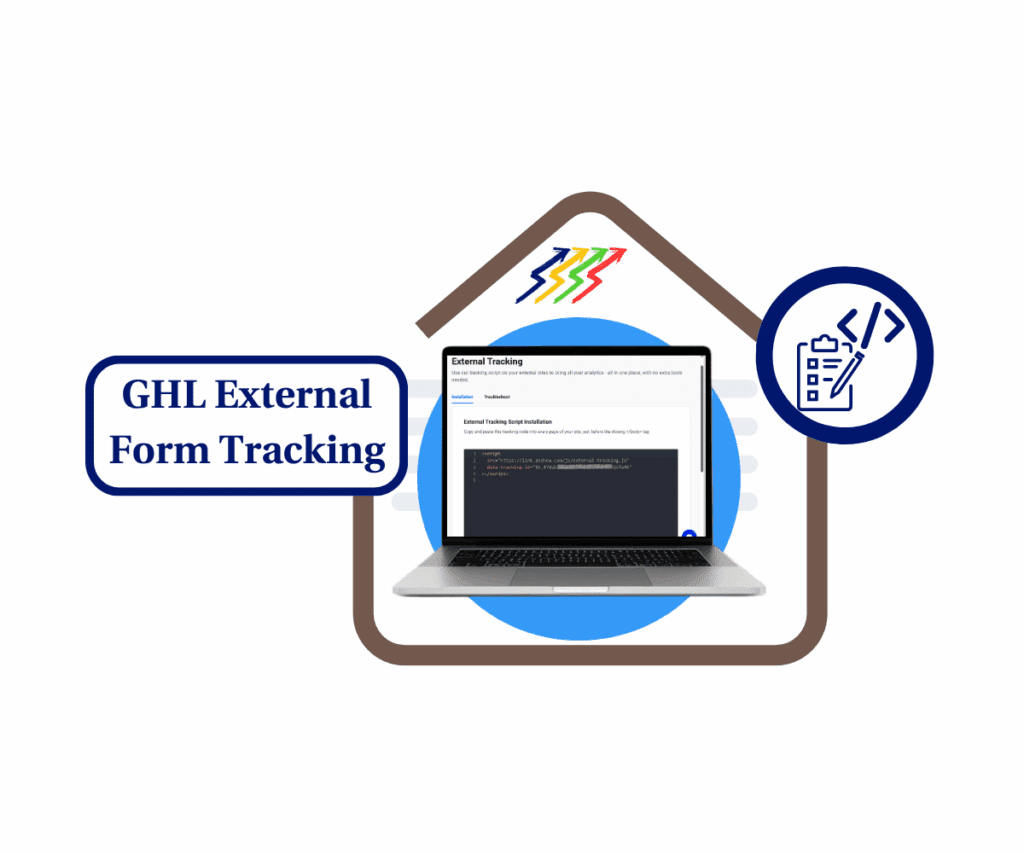
- Capture every custom field with precision using the new GHL form tracking upgrades.
- Quick Summary – Smarter Form Field Tracking at a Glance
- What’s New in Form Field Tracking
- What’s Changed with Custom Field Mapping
- Why This Matters for CRM Users
- How to Use the Enhanced Form Tracking
- Final Thoughts & What’s Coming Next
Capture every custom field with precision using the new GHL form tracking upgrades.
Ever lost a lead because your form didn’t catch the right data? If you’re only capturing name and email, you’re flying blind. But now, GoHighLevel just leveled up how forms work—with smarter form field tracking that actually captures the full picture. The latest update transforms both GHL forms and standard HTML forms into high-precision data collectors. From dropdowns and ratings to checkboxes and even file upload metadata—everything gets tracked and mapped where it belongs.
If you’re running campaigns, collecting leads, or automating onboarding, this update gives you cleaner data, fewer errors, and more control. The enhanced form field tracking in GHL lets you capture every detail from custom forms—text, dropdowns, ratings, files, and more. With smarter mapping logic and automatic handling of unmapped fields, you get cleaner CRM data and more reliable automations.

The enhanced form field tracking in GHL lets you capture every detail from custom forms—text, dropdowns, ratings, files, and more. With smarter mapping logic and automatic handling of unmapped fields, you get cleaner CRM data and more reliable automations.
Quick Summary – Smarter Form Field Tracking at a Glance
Purpose: This update enhances how form data is captured and mapped, allowing you to collect a wide range of custom field types from both GHL and external HTML forms.
Why It Matters: Accurate field mapping means better automation, cleaner CRM data, and less manual cleanup.
What You Get: Smarter mapping logic, expanded field type support, and automatic detection of unmapped fields.
Time to Complete: You can review and update most forms in under 15 minutes per form.
Difficulty Level: Easy for GHL users familiar with custom fields or form setup.
Key Outcome: More accurate lead data, fewer broken workflows, and better segmentation and automation across your CRM.
What’s New in Form Field Tracking
GoHighLevel’s form tracking just got a serious upgrade.
Until now, it mostly captured basic contact info—name, email, maybe a phone number. That’s fine for simple lead forms, but what about more complex data?
Automate marketing, manage leads, and grow faster with GoHighLevel.

This update changes everything.
You can now capture a wide range of field types, including:
- Single-line and multi-line text
- Dropdowns (single or multi-select)
- Checkboxes and radio buttons
- Ratings and scores
- Numbers, monetary values, and dates
- Boolean switches, source fields, and even captcha
Even file uploads and signature fields are supported—well, their metadata at least. You’ll get the file name, type, and size, even though the actual file isn’t stored.
And yes, this works with both GoHighLevel forms and regular HTML forms—so long as the fields are visible and use a proper name attribute.
It’s the kind of deep form field tracking you’ve probably hacked together with custom code before. Now it’s native, automatic, and accurate.
What’s Changed with Custom Field Mapping
With more field types now being captured, GHL didn’t just stop at collection—it reengineered the mapping process too.
Before this update, fields sometimes ended up in the wrong place (or nowhere at all) because GHL had to guess where to send them. Now, there’s a clearly defined priority order for how fields are matched to custom properties inside your CRM.
Here’s the new logic GHL uses to match form fields:
- Field name matches a GHL property or custom field key
- If that fails, field label matches a GHL display name
- If that fails, field name is compared to label text (case-insensitive)
- If no match is found, the field is saved as
unmapped_field
That last one is a game changer. No more losing data just because of a typo or mismatch. If something can’t be mapped, you’ll see it listed as unmapped_field, making it easy to catch and fix the issue.
It’s also important to note what doesn’t get captured:
- Hidden or disabled fields (unless you explicitly configure them to be)
- Third-party or iframe widgets that hide values in the DOM
- File uploads and signatures capture metadata only, not the actual content
This is a smarter, more reliable way to ensure the right data lands in the right spot.
Why This Matters for CRM Users
This update isn’t just about capturing more data—it’s about capturing the right data, cleanly and consistently.
Every agency, coach, or service provider using GoHighLevel relies on forms to feed their CRM. But when fields don’t map correctly, you get jumbled contact records, broken workflows, and missed opportunities. That’s over.
Now, with more input types supported and precise field mapping logic in place, your CRM can become the single source of truth it was meant to be.
You’ll be able to personalize emails based on dropdown responses, trigger workflows from checkbox selections, use scores or ratings for lead qualification, and even log context using metadata—from file uploads and signature fields.
Better inputs lead to sharper automations, cleaner pipelines, and smarter decisions. And because errors are flagged as unmapped_field, you can quickly audit and improve your forms without digging through failed automations.
How to Use the Enhanced Form Tracking
Getting started with the new form tracking upgrade is straightforward—but getting it right means paying close attention to how your fields are named and displayed.
First, make sure every form field you want to track is visible and has a proper name attribute. This applies to both GHL native forms and external HTML forms. Without a name, it won’t get picked up. Simple as that.
Next, double-check that your field names match existing GHL custom fields, or at least that the labels are close. This increases your chances of the system auto-mapping them correctly. GHL follows a clear order—name, label, fallback—so giving your fields logical names helps a lot.
Now, test your form. Submit a few dummy entries and go check the contact record in your CRM. You should see your custom field values exactly where you want them. If anything looks off, check for a new field called unmapped_field. That’s your clue that something didn’t connect, and you can fix it quickly.
Using external forms? Same rules apply. The field needs to be visible in the DOM and properly named. Third-party form widgets or iframes are only supported if the field value is readable and has a valid name.
And here’s a pro move—build a workflow that triggers when unmapped_field is populated. That way, your team can review and clean up those fields before they mess up your automations.
Quick Tips & Best Practices
Even with smarter tracking and mapping, a little prep goes a long way. If you want clean data and reliable automations, you need to follow a few simple rules when building or updating your forms.
First, keep your field names consistent. If you’ve already created a custom field in GHL, use that exact key for the field’s name attribute. That one step can eliminate a lot of mapping headaches.
Second, avoid hiding fields unless you’ve explicitly configured them for special use. Hidden or disabled fields are ignored by default, so if you’re trying to prefill something or pass hidden values—make sure you’ve tested thoroughly.
Third, be selective. Just because you can track everything doesn’t mean you should. Capture what matters to your workflows and lead qualification process. Too much noise makes your data harder to use.
Fourth, always test your forms. Submit dummy data, check how it appears in the CRM, and look out for the unmapped_field. If you see it, fix it before the form goes live.
Lastly, remember that HTML forms work too—but only when the field values are visible in the DOM and have valid name attributes. Don’t assume just because something looks right on the front-end that it’s being captured on the back-end.
Results You Can Expect
Once you start using the enhanced form tracking, the results will show up fast—right inside your CRM and workflows.
You’ll notice cleaner contact records. No more weird blank fields or duplicated data from mismatched form inputs. Everything you capture lands exactly where it’s supposed to.
Your automations will become more dependable too. Since the system can now distinguish between single-select and multi-select dropdowns, or understand boolean versus text inputs, you won’t need complex workaround filters or conditional checks.
Lead scoring? Easier. Personalized emails based on form responses? Way more accurate. Smart Lists and CRM segments? Instantly more powerful with all that extra data flowing in automatically.
You’ll also spend less time troubleshooting. The unmapped_field safety net lets you spot errors before they cause real damage. And since metadata is captured for file uploads and signatures, you’ll have an audit trail for submissions—even if you’re not storing the files.
In short, this update doesn’t just improve form tracking—it makes your whole CRM more intelligent, reliable, and useful.
Final Thoughts & What’s Coming Next
This update might seem like a backend improvement, but it unlocks serious front-end results—especially for agencies and marketers who rely on custom forms to capture quality leads.
If you haven’t already, go audit your existing forms. Check for missing name attributes, hidden fields, or inconsistent labeling. Even small tweaks can dramatically improve the quality of the data flowing into your CRM.
And don’t sleep on the unmapped_field—it’s your new best friend for catching issues early. Build a workflow around it or set up a Smart List to keep tabs on any fields that need attention.
Looking ahead, this level of precision in field mapping could pave the way for AI-powered form suggestions or auto-mapping in the future. Imagine building a form and having GHL auto-align every field to your custom setup—zero config required.
Until then, this update is your chance to tighten up your data game and create more scalable, error-proof systems across your entire funnel.
Scale Your Business Today.
Streamline your workflow with GoHighLevel’s powerful tools.