

- How to create QR code for forms, funnels, and offline marketing
- Quick Summary – Create QR Code Essentials
- How To Create a QR Code in GoHighLevel (Step-by-Step Guide)
- What it means to create QR code in GoHighLevel
- How to Create QR Code in GoHighLevel
- How to use QR code for offline marketing
- Common mistakes when you create QR code
- Pro tips to get better results when you create QR code
- Frequently Asked Questions
- Final thoughts
How to create QR code for forms, funnels, and offline marketing
Offline marketing isn’t dead. It just breaks down at the handoff. Someone sees a sign, a flyer, or a business card… then nothing happens. When you create QR code the right way, you remove friction and give people an instant next step instead of hoping they remember you later.
Most businesses create QR code using random tools, slap it on a poster, and call it done. No tracking. No follow-up. No clue if it worked. That’s not a QR code problem. That’s a setup problem. Inside GoHighLevel, you can connect that scan directly to forms, funnels, calendars, and automation that actually moves the lead forward.
If you want fewer dead-end scans and more real conversations, this matters. Learning how to create QR code inside your existing system turns offline interest into something you can measure, automate, and scale without adding more software to your stack.
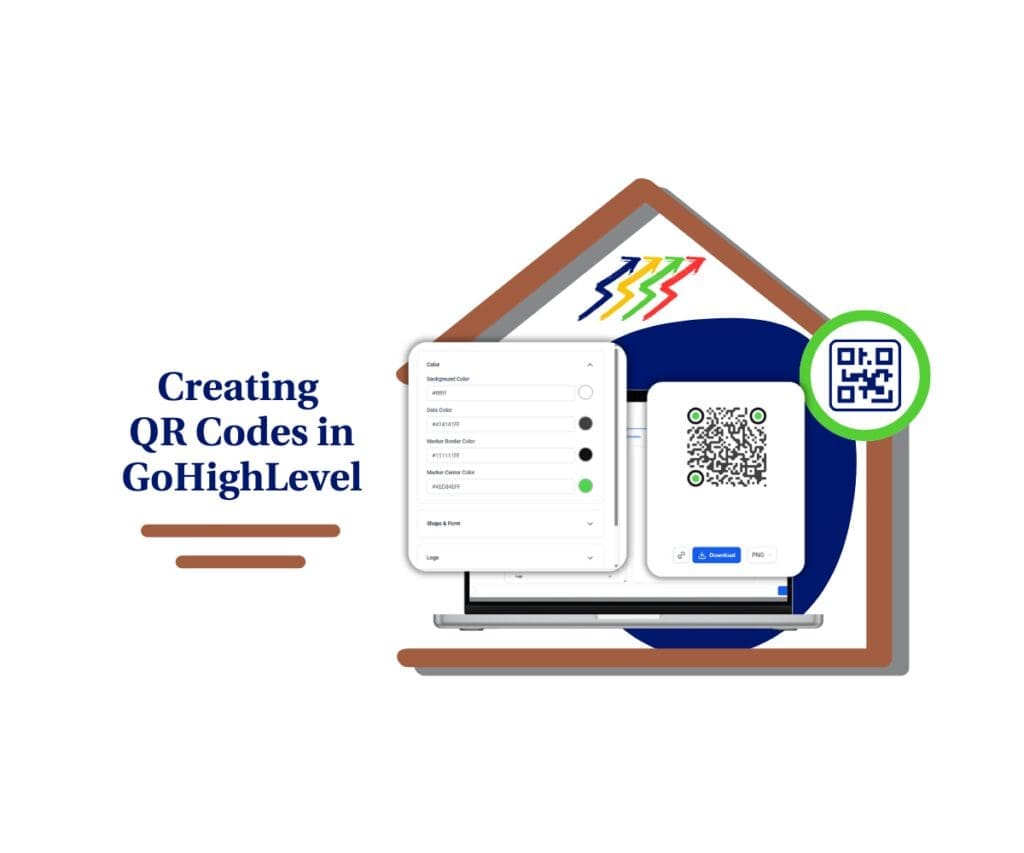
This guide shows you how to create QR code inside GoHighLevel so you can capture leads instantly, connect offline marketing to automation, and turn real-world attention into predictable pipeline growth.
Quick Summary – Create QR Code Essentials
Purpose: This mini-guide explains how to create QR code inside GoHighLevel so offline traffic turns into real, trackable actions instead of dead ends.
Why it matters: When you create QR code the right way, you connect print, in-person, and local marketing directly to forms, funnels, and automation without relying on third-party tools.
What you get: You learn exactly where to find the QR code feature, how to create QR code step by step, and how to use it for lead capture, events, and offline marketing.
Time to Complete: Most users can create QR code and deploy it in under 5 minutes once the destination is ready.
Difficulty Level: Beginner friendly with no technical setup required.
Key Outcome: You can create QR code that reliably captures leads, triggers follow-up, and turns real-world attention into measurable pipeline activity.
How To Create a QR Code in GoHighLevel (Step-by-Step Guide)
Still relying on third-party QR tools? In this quick walkthrough, you’ll learn how to create, customize, and manage QR codes directly inside GoHighLevel. No extra platforms needed.
What you’ll see:
Automate marketing, manage leads, and grow faster with GoHighLevel.

- Where to find the QR Codes dashboard inside the Sites tab.
- How to create a new QR code and connect it to any URL or phone number.
- Step-by-step design customization (colors, shapes, logos, and backgrounds).
- The best export formats to use (PNG, SVG, or PDF).
- How to edit, update, or manage your QR codes anytime from your GHL library.
What it means to create QR code in GoHighLevel
When you create QR code in GoHighLevel, you’re not just generating an image that points somewhere. You’re creating a direct bridge between real-world attention and a digital action you actually control. That’s a big difference from using a free online tool that gives you a QR code and leaves everything else up to chance.
Most QR tools stop at the scan. GoHighLevel doesn’t. When you create QR code here, the scan can lead to a form submission, a funnel step, a calendar booking, or any page tied into your automation. That means every scan has the potential to become a tracked lead instead of anonymous traffic.
Another key difference when you create QR code inside GoHighLevel is consistency. Everything lives inside the same system. The link, the destination, the follow-up, and the reporting all stay connected. You’re not jumping between platforms or trying to stitch data together after the fact.
This also matters for agencies. When you create QR code for clients inside GoHighLevel, you’re giving them something reusable and scalable. The same setup works for events, print materials, storefronts, and local promotions without reinventing the process every time.
At its core, to create QR code in GoHighLevel means building a simple entry point into your marketing system. One scan leads somewhere intentional, triggers something useful, and moves a prospect closer to action instead of letting interest fade.
How to Create QR Code in GoHighLevel
Creating custom scan codes is a great way to bridge the gap between your physical marketing and your digital funnels. Follow these steps to set up your GoHighLevel QR codes and start tracking your leads more effectively.
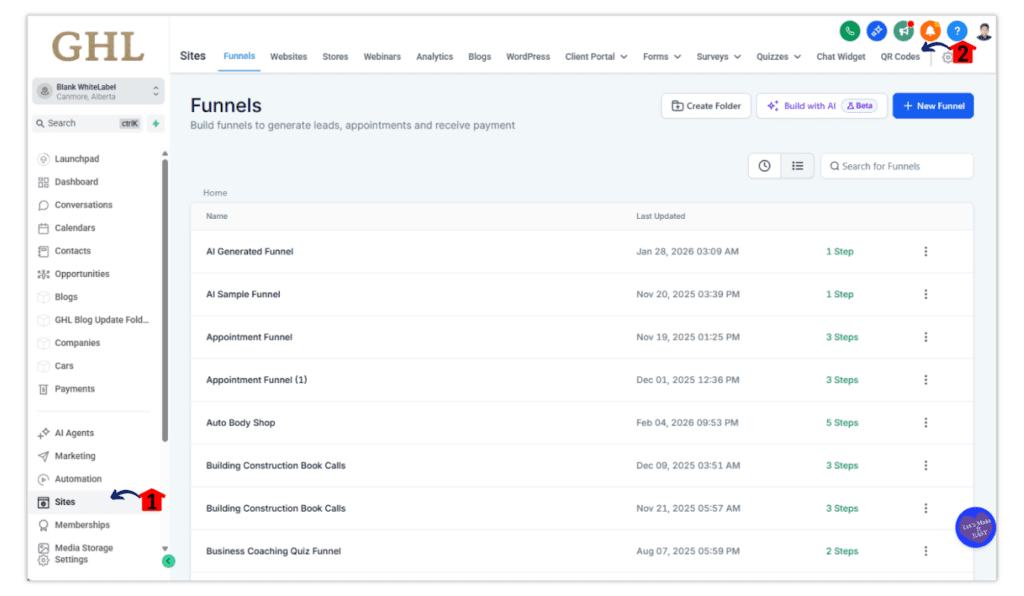
Step 01 – Access the Main Left Hand Menu in GoHighLevel
The Main Menu on the Left side of your screen has all the main areas that you work in when using GHL.
1.1 Click on the ‘Sites’ Menu Item.
- Access the ‘Sites’ section of GoHighLevel.
- You’ll now be in the ‘Sites’ section of GHL, where you can access the QR Codes section from the top menu.
1.2 Click on the ‘QR Codes’ menu link.
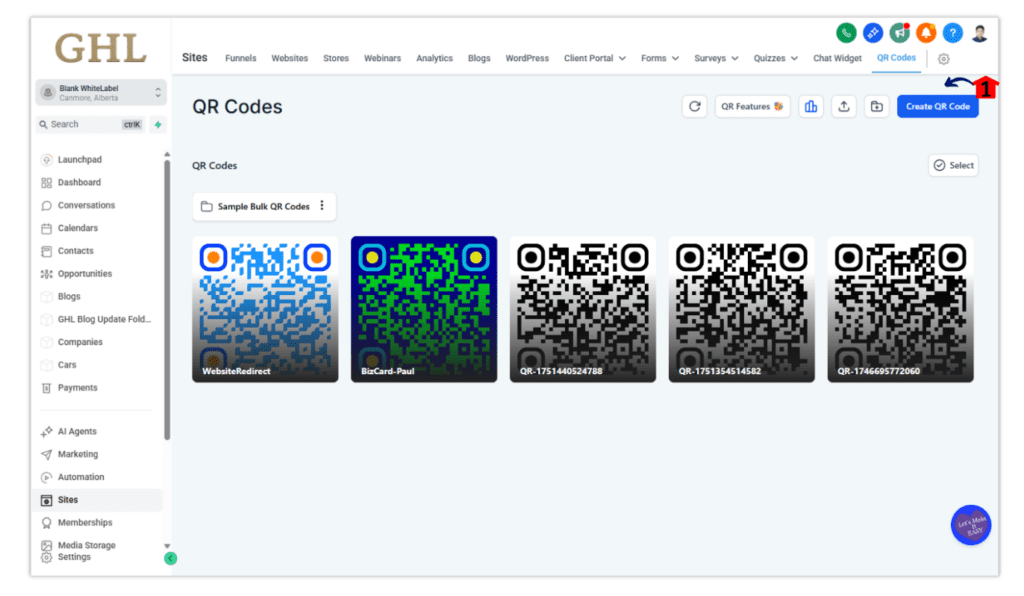
Step 02 – Initialize Your New QR Code
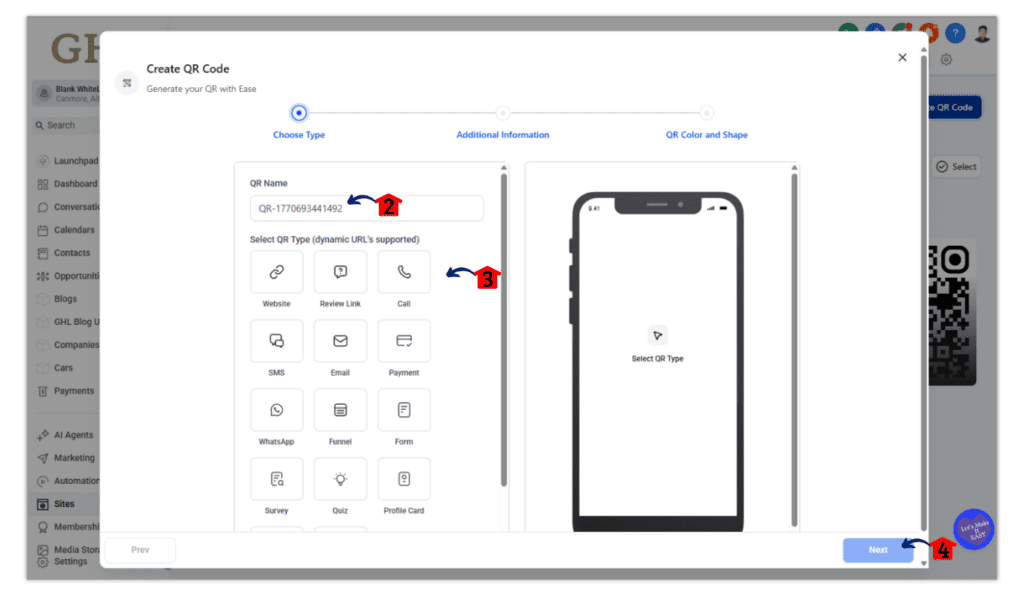
Once you are in the correct dashboard, you can start the creation process. This is where you will define the purpose of your GoHighLevel QR codes.
2.1 Click the ‘Create QR Code’ button in the top right or the ‘+ Create New’ button in the center.
2.2 Type a unique name for your QR code in the text field.
2.3 Select the type of code you want to make from the list.
- You can choose options like Website, Review Link, Funnel, Form, Quiz, Call, or SMS.
2.4 Click the ‘Next’ button.
Step 03 – Link Your Destination
This step ensures that your code directs users to the right place once they scan it with their mobile device.
3.1 Paste your URL or enter the required input like a phone number etc.
3.2 Click the ‘Next’ button to move to the design stage.
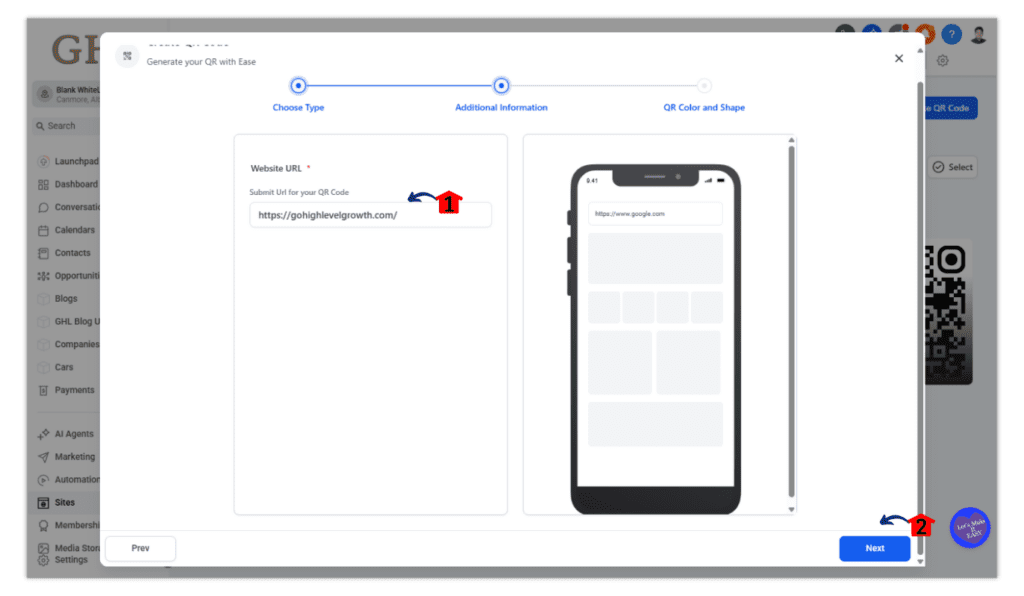
Step 04 – Style Your QR Code
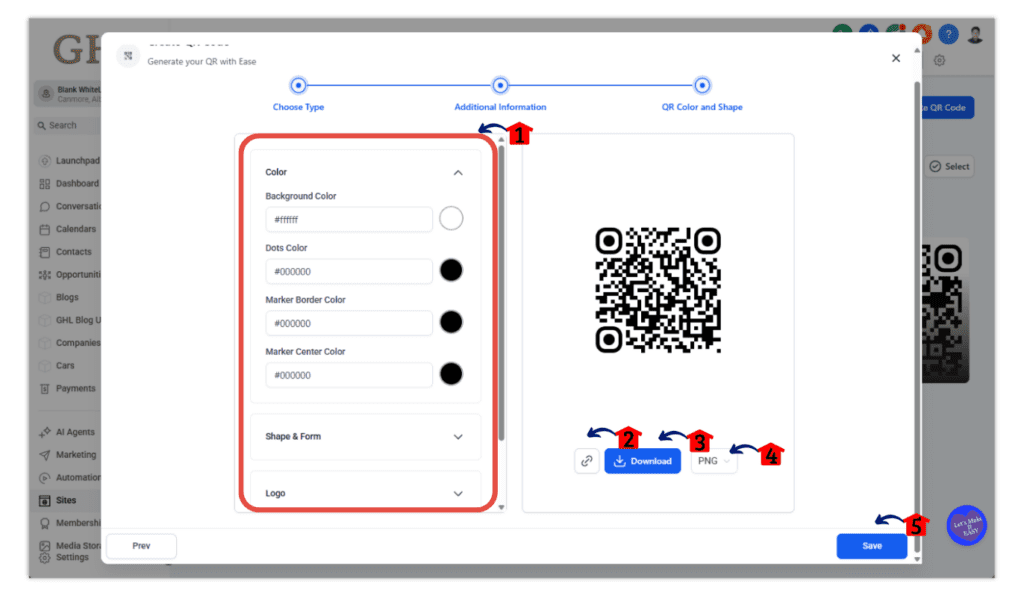
The GoHighLevel QR code builder provides a variety of design tools to make your code stand out and match your visual identity.
4.1 Use the customization tabs to adjust colors, shapes, logos, and backgrounds.
- Colors and Shapes: Change the background color, dot color, and dot style. You can also pick the shape and color of the corner markers.
- Logo: Upload your own brand logo or pick a preset icon like Google or YouTube to sit in the center of the code.
- Background Image: Choose to overlay the code on a specific image if you want a more creative look.
4.2 Select your preferred image format for the download.
- Choose PNG for standard digital use, SVG for high-quality scaling, or PDF for professional printing.
4.3 Click the download button to save the file to your computer.
4.4 Use the ‘Copyable Link’ option to get a direct URL for the QR code image.
4.5 Click ‘Save’ to keep the code in your GoHighLevel library for future edits.
Step 05 – Manage Your Existing QR Codes
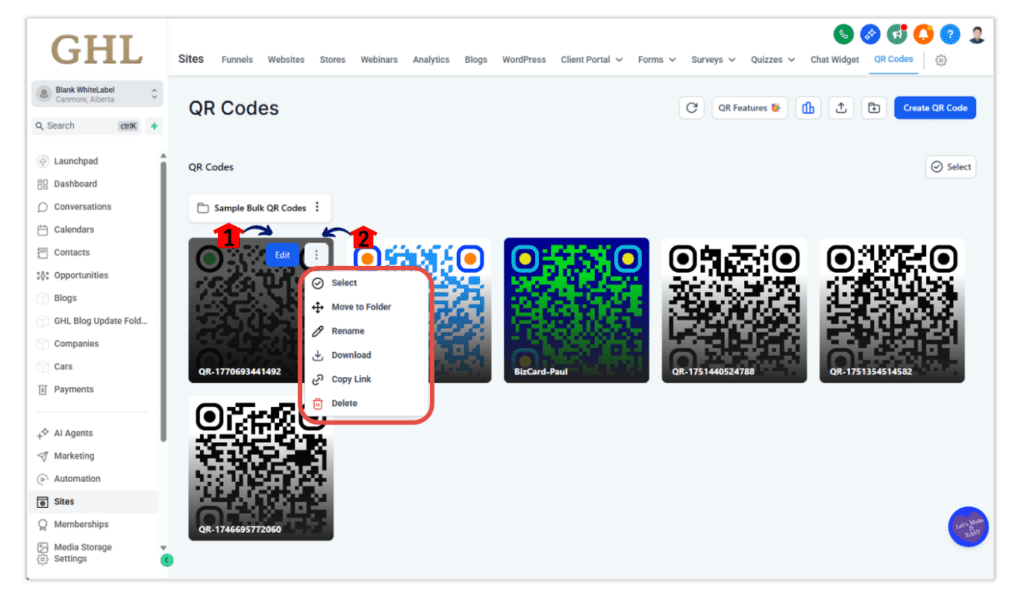
You can always come back to the dashboard to update or organize your saved codes.
5.1 Hover your mouse over any code and click the blue ‘Edit’ button if you need to change the link or the design.
5.2 Click the ‘3-dot’ icon to see more options like copy link, delete or download.
How to use QR code for offline marketing
Offline marketing works best when it gives people an easy next step. Posters, flyers, menus, business cards, and signage all get seen, but they usually fail at follow-up. When you create QR code and place it correctly, you turn passive attention into an immediate action.
The biggest mistake in offline marketing is assuming people will “check it out later.” They won’t. A QR code removes that delay. When you create QR code and put it in front of someone at the right moment, you give them a way to act while their interest is still fresh.
Here are practical ways businesses use QR code in offline settings:
- Storefront windows that capture leads after hours
- Business cards that link directly to a booking page
- Menus that collect reviews or feedback
- Event booths that send people to a giveaway or opt-in
- Printed mailers that drive traffic to a local offer
Placement matters just as much as the QR code itself. When you create QR code for offline use, it should be easy to spot, large enough to scan, and placed where people naturally pause. Eye level beats bottom corners. Clean backgrounds beat busy designs.
You also need to tell people why to scan. A QR code without context gets ignored. After you create QR code, add a short line of copy that explains the benefit. Something simple like “Scan to book” or “Scan for a free offer” works far better than “Scan here.”
Offline marketing becomes measurable when you create QR code with intention. Every scan becomes a tracked interaction, not a guessing game. That’s how printed materials finally start earning their keep instead of just looking nice.
Common mistakes when you create QR code
QR codes are simple, which is exactly why people mess them up. When you create QR code without thinking through the details, it still looks right… but it doesn’t perform. These mistakes are easy to avoid once you know what to watch for.
One of the most common issues is sending people to the wrong destination. When you create QR code, it should never drop someone on a generic homepage or a page that isn’t built for mobile. Scans usually happen fast and on the go. If the page feels confusing or slow, people bounce immediately.
Another mistake is skipping testing. It sounds basic, but plenty of businesses create QR code, print it, and never scan it themselves. Always test on your phone before anything goes live. Make sure it loads quickly, looks clean, and does exactly what you expect.
Here are a few mistakes that hurt results the most:
- Creating QR code that links to non-mobile-friendly pages
- Making the QR code too small to scan easily
- Placing the QR code where people don’t naturally stop
- Forgetting to explain why someone should scan
- Not connecting create QR code to any follow-up or automation
Design can also trip people up. Low contrast, busy backgrounds, or distorted sizing make scanning harder than it needs to be. When you create QR code, keep it clean and readable. White space helps more than fancy design.
Finally, don’t treat QR codes as “set it and forget it.” If you create QR code and never review where it sends traffic or how people interact with it, you’re missing opportunities to improve. Even small tweaks to the destination or copy can make a big difference.
Pro tips to get better results when you create QR code
Once you’ve created a few QR codes, you’ll notice something pretty quickly. Some get scanned constantly. Others get ignored. The difference usually isn’t the QR code itself. It’s how and why you used it.
Start by answering one simple question for the person scanning. What’s in it for them? When you create QR code and don’t explain the payoff, people hesitate. A short line like “Scan to book” or “Scan for a free guide” works way better than hoping curiosity does the heavy lifting.
A few small tweaks can make a big difference when you create QR code:
- Make it easy to scan by using strong contrast and clean backgrounds
- Put it where people naturally stop and look, not where it fits best in a design
- Tell people exactly what happens after they scan
- Keep the page they land on simple and mobile-friendly
This is where GoHighLevel really shines. When you create QR code inside the platform, you can connect that scan to automation. Tags get applied. Follow-ups fire. Conversations start automatically. The QR code stops being a static tool and starts working like part of your system.
Don’t overthink reuse either. You don’t need to create QR code from scratch for every flyer or poster. If the destination still makes sense, reuse it. Consistency helps, and it saves time.
If something isn’t working, don’t scrap the idea. Adjust it. Move the QR code. Change the copy. Tweak the destination. When you create QR code with even a little intention and testing, the results usually surprise you in a good way.
Frequently Asked Questions
Final thoughts
QR codes aren’t magic. They’re just tools. But when you create QR code with a clear purpose, they become one of the easiest ways to move people from offline interest to online action without friction.
The best time to create QR code is when someone is already paying attention. In a store. At an event. On a printed piece they’re holding in their hands. That moment matters. A QR code gives them a simple next step instead of asking them to remember you later.
You don’t need to overuse them. If everything has a QR code, nothing stands out. When you create QR code intentionally and pair it with a strong reason to scan, it feels helpful instead of gimmicky.
For GoHighLevel users, this is about leverage. When you create QR code inside the same system that handles your forms, funnels, and automation, you’re not just adding another marketing tactic. You’re tightening the gap between interest and follow-up.
If you take one thing away from this guide, let it be this: don’t create QR code just to have one. Create it with a destination, a reason, and a next step. That’s when QR codes stop being trendy and start being useful.
Scale Your Business Today.
Streamline your workflow with GoHighLevel’s powerful tools.


