

- Why the Email Builder UI Had to Evolve
- Quick Summary – Email Builder UI Overview
- What’s New in the Email Builder UI
- What Changed in the Email Builder UI
- Why the Email Builder UI Matters for Agencies
- How to Use the Email Builder UI
- Pro Tips to Maximize the Email Builder UI
- What the Email Builder UI Means for Execution
- Results You Can Expect from the Email Builder UI
- Email Builder UI FAQ
- The Email Builder UI Is Built for Execution
Why the Email Builder UI Had to Evolve
If creating Email Builder UI inside the platform has felt a bit awkward or slower than it should, you’re not crazy.
Speed matters. Flow matters. And when your tools get in the way of execution, you lose momentum.
That’s exactly why GHL upgraded the Email Builder UI.
The new Email Builder UI isn’t just a visual refresh. It’s a performance upgrade. It removes friction inside the editing workflow, simplifies navigation, and finally allows you to use Email AI side by side with manual editing. No more jumping back and forth. No more breaking your creative rhythm.
Agencies don’t need more tools. They need tools that move faster.
With cleaner navigation, stronger image and section controls, and a flexible edit panel layout, the Email Builder UI now aligns with the rest of the GHL builders. That means less confusion for new users and more efficiency for power users.

The improved Email Builder UI helps you build campaigns faster, design with more control, and seamlessly combine AI-assisted drafting with manual editing, all inside GHL.
Quick Summary – Email Builder UI Overview
Purpose: This update improves the Email Builder UI to make campaign creation faster, more flexible, and better aligned with the rest of the GHL platform.
Why It Matters: A cleaner workflow reduces friction, improves team efficiency, and allows AI-assisted drafting to work side by side with manual editing.
What You Get: Flexible edit panel positioning, image border controls, section background settings, and seamless Email AI integration.
Time to Complete: Less than 5 minutes to start using the new Email Builder UI and enable Email AI if needed.
Difficulty Level: Beginner-friendly with powerful benefits for advanced users and agencies.
Key Outcome: Faster campaign execution, stronger design control, and smoother AI collaboration inside GHL.
What’s New in the Email Builder UI
The upgraded Email Builder UI in GHL focuses on one thing: execution without friction.
This isn’t just cosmetic. It’s functional.
Automate marketing, manage leads, and grow faster with GoHighLevel.

First, the navigation is cleaner and more intuitive. The editing workflow feels tighter. You spend less time hunting for controls and more time building campaigns. Everything flows more naturally, especially if you’re already familiar with other GHL builders.
Next, image elements now support overall border control. That may sound small, but it’s not. Instead of hacking spacing or stacking elements to fake design polish, you can now control borders directly. That means cleaner layouts and better brand consistency across client campaigns.
Sections also now support background image settings. This gives you more visual flexibility without needing complex workarounds. Want depth? Texture? Brand styling? You’ve got it.
And here’s the big one.
The edit panel can now move to the right side of the screen.
Why does that matter?
Because you can run Email AI and manual editing side by side. Draft with AI. Refine manually. Adjust instantly. No more toggling back and forth or breaking your focus.
It’s flexible. It’s faster. And it finally matches how modern marketers actually work.
This version of the Email Builder UI aligns with the rest of the GHL platform. That means consistency across tools, faster onboarding, and less confusion for your team.
What Changed in the Email Builder UI
If you’ve been using the previous version, you know it worked.
But it wasn’t friction-free.
The old Email Builder UI had limitations that slowed teams down. The edit panel stayed locked in one position. That meant you couldn’t easily work side by side with Email AI. You had to switch views, break your rhythm, then come back to editing.
It wasn’t terrible.
It just wasn’t fluid.
Image styling also required more workarounds. If you wanted clean borders or better visual separation, you often had to stack elements or tweak spacing manually. That adds time. And time adds cost.
Section-level background image control wasn’t as flexible either. You had fewer layout options, which meant more compromises when designing branded campaigns.
Now?
The Email Builder UI removes those constraints.
You can reposition the edit panel. You can design with more control. You can draft with AI and refine instantly without toggling screens.
The biggest change isn’t just visual.
It’s workflow freedom.
This update transforms the Email Builder UI from a functional editor into a faster, more collaborative workspace inside GHL.
And when your workspace improves, your output improves.
Why the Email Builder UI Matters for Agencies
This isn’t just a nicer editor.
It’s a speed upgrade for your entire team.
When the Email Builder UI stops getting in your way, everything speeds up. Your team isn’t bouncing around the screen anymore. They’re building, tweaking, and shipping. That alone cuts turnaround time — and in agency life, faster delivery means more money in the door.
Then there’s design control.
With proper image border settings and section background images, you don’t need design hacks anymore. You can create polished, on-brand emails inside GHL without stacking elements or fighting spacing issues. That means cleaner templates and stronger brand consistency across all client accounts.
Now let’s talk AI.
The ability to move the edit panel and run Email AI side by side changes everything. You can draft copy with AI, tweak it instantly, adjust layout, refine headlines, and finalize messaging without breaking your workflow. It feels collaborative instead of clunky.
For new users, the updated Email Builder UI feels more intuitive and aligned with the rest of the platform.
For power users, it removes unnecessary steps.
Less friction. More control. Faster output.
And when your team executes faster, clients notice.
How to Use the Email Builder UI
If your team has ever lost speed bouncing between AI content and manual design tweaks, you’ve seen how small friction adds up. Every switch breaks concentration just enough to stretch timelines. The updated Email Builder experience removes that drag. Drafting, refining, and designing now happen in one continuous workflow. It feels tighter. More controlled. And a lot faster to execute.You can start using it immediately with just a few simple steps.
Step 01 – Open the Email Builder
1.1 Log in to your GHL sub-account.
1.2 From the left-hand menu, click Marketing.
1.3 Select Email Marketing.
1.4 Open an existing campaign or template in Edit mode.

The updated Email Builder UI loads automatically.
Step 02 – Enable Email AI (If Not Already Active)
To access side-by-side AI editing, Email AI must be enabled.
2.1 Go to Agency Settings.
2.2 Click Labs.
2.3 Navigate to Sub-Account Features.
2.4 Toggle ON Email AI.
2.5 Refresh your Email Builder.
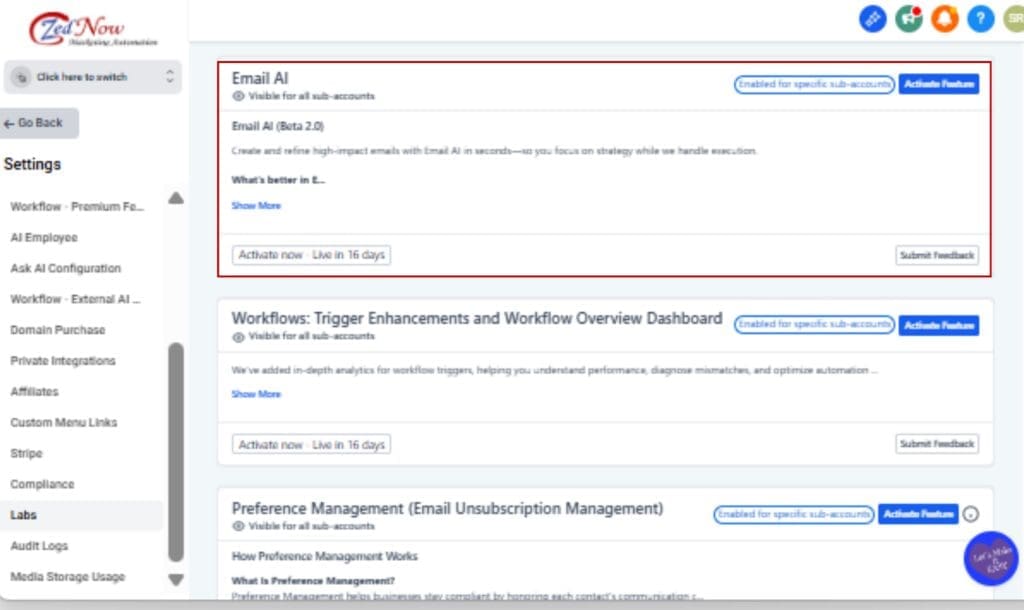
You will now see AI available inside the Email Builder UI.
Step 03 – Move the Edit Panel
3.1 Inside the Email Builder UI, locate the layout switch control.
3.2 Use the layout toggle to shift the edit panel over to the right side of your screen.
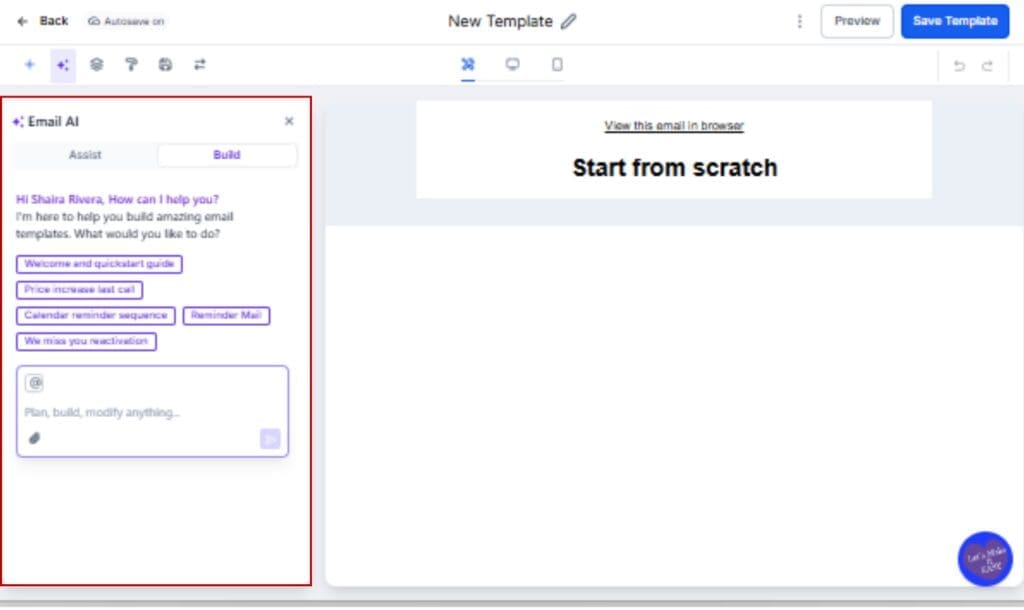
This allows you to run Email AI on one side while manually editing layout and content on the other. You can switch it back to the left at any time.
Step 04 – Add Image Border Controls
4.1 Drag an Image element into your email.
4.2 Click the image to open its settings panel.
4.3 Adjust the overall border settings including width, color, and style.
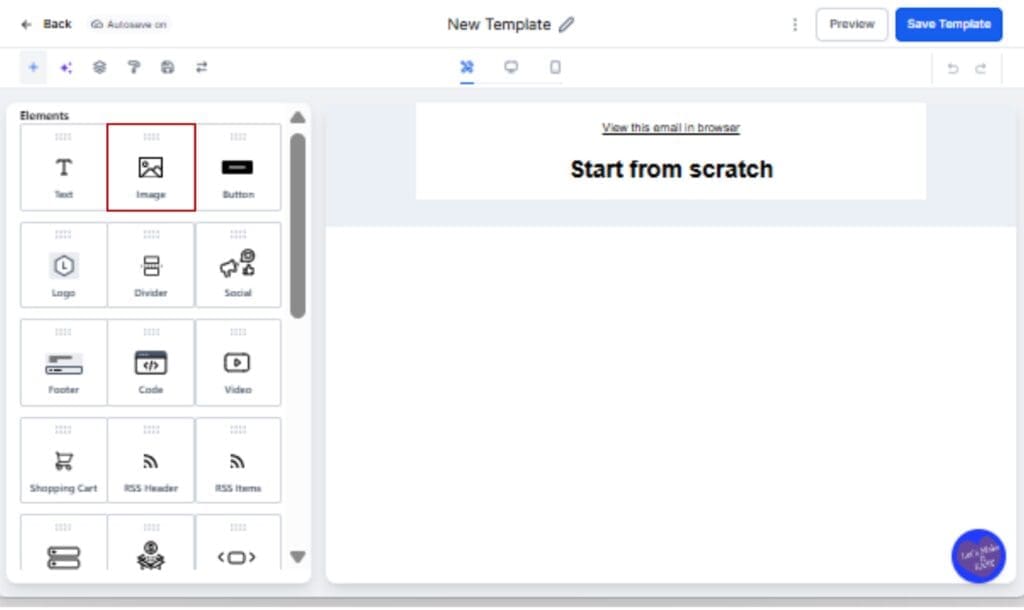
No more spacing tricks or stacking elements for clean design.
Step 05 – Add Section Background Images
5.1 Click on any Section block inside your email layout.
5.2 Open the Background settings panel.
5.3 Upload or select a background image.
5.4 Adjust alignment and styling as needed.

This gives you more visual flexibility and stronger brand presentation.
Step 06 – Save and Preview
6.1 Click Save.
6.2 Open the preview to double-check your layout and design.
6.3 Send yourself a test before pushing it live.

That’s it. You’re now using the upgraded Email Builder UI the way it was designed, faster, cleaner, and built for execution.
Pro Tips to Maximize the Email Builder UI
The upgraded Email Builder UI isn’t just about new features. It’s about smarter execution.
Here’s how to get the most out of it inside GHL.
First, use the right-side edit panel when drafting with AI.
Keep Email AI open on one side and manually refine structure, spacing, and layout on the other. This keeps your creative flow intact. Generate. Adjust. Improve. Repeat. No screen switching.
Second, build standardized templates using section background images.
If you manage multiple clients, create branded sections with background styling already in place. Save them as templates. This cuts production time dramatically and keeps brand consistency tight.
Third, use image border controls intentionally.
Borders aren’t just visual extras. They help break up sections and keep the eye focused. Adding a subtle frame around key content can make your message clearer. And clarity almost always improves engagement.
Build your Email Builder process around how your team already executes.
Let AI handle the starting point. Then let your team shape it into something sharp. When the process stays consistent, results stop feeling random.
Finally, update your snapshots.
If you’re reselling or deploying sub-accounts, ensure your saved templates reflect the improved Email Builder UI features. Your future setups will move faster.
This isn’t just a UI tweak.
It’s a workflow upgrade.
What the Email Builder UI Means for Execution
The upgraded Email Builder UI changes how fast you ship.
It wasn’t one big issue. It was the small stuff. Jumping between panels. Fixing spacing manually. Losing your rhythm when switching to AI. The builder worked, it just didn’t feel seamless.
Now it is.
When your Email Builder UI supports side-by-side AI and manual editing, campaign production becomes smoother. Your team can draft, design, refine, and finalize in one continuous motion.
That reduces build time.
And reduced build time means you can:
Launch campaigns faster.
Test more variations.
Respond to client requests quicker.
Increase output without increasing workload.
It also improves collaboration.
Design-focused team members can handle layout and styling while copy-focused team members refine messaging using Email AI. The workflow becomes layered instead of linear.
And because the Email Builder UI now aligns with the rest of the GHL platform, onboarding new team members becomes easier. There’s less confusion and fewer “where do I find this?” moments.
Less friction inside the tool means more focus on strategy.
And strategy is what actually drives results.
Results You Can Expect from the Email Builder UI
When the Email Builder UI removes friction, performance follows.
First, you’ll notice faster build times.
Campaigns that used to drag on start wrapping up a lot quicker. Edits that once felt tedious become straightforward. When your team isn’t wrestling with the tool, the work just moves.
Second, you get stronger design consistency.
With image border controls and section background settings, your emails look cleaner and more polished. That improves brand perception across every client account you manage inside GHL.
Third, AI becomes practical.
The side-by-side workflow inside the Email Builder UI turns Email AI into a real production tool instead of a novelty. You can draft headlines, tweak offers, refine calls to action, and adjust layout instantly without breaking focus.
Fourth, team efficiency improves.
When everyone uses the same structured workflow, AI draft, manual refine, design polish, output becomes predictable. That makes scaling easier.
Finally, you gain execution confidence.
You’re no longer hesitant to test ideas because building and editing is faster. And the more you test, the better your campaign performance becomes.
The upgraded Email Builder UI doesn’t just improve editing.
It improves momentum.
And momentum is what grows agencies.
Email Builder UI FAQ
The Email Builder UI Is Built for Execution
The tools you use shouldn’t slow you down.
The upgraded Email Builder UI does exactly that.
It removes friction.
It improves flexibility.
It aligns with the rest of the GHL platform.
And it finally allows AI and manual editing to work together instead of against each other.
This isn’t just about cleaner navigation or better design controls.
It’s about momentum.
When your Email Builder UI supports faster creation, stronger design precision, and seamless AI collaboration, your team executes better. Campaigns launch quicker. Revisions happen faster. Clients see results sooner.
And when execution improves, revenue follows.
If you haven’t explored the new layout yet, open a campaign today. Move the edit panel to the right. Draft with Email AI. Add image borders. Use section backgrounds.
Feel the difference for yourself.
Because GHL didn’t just update the editor.
They upgraded how you build.
Scale Your Business Today.
Streamline your workflow with GoHighLevel’s powerful tools.


