

- Drag Drop Workflows in GHL Made Simple
- Quick Summary – Drag Drop Workflows Essentials
- Here are this weeks HighLevel Updates
- Drag Drop Workflows in GHL Explained
- Drag Drop Workflows in GHL vs Before
- Drag Drop Workflows in GHL Benefits
- How to Use Drag Drop Workflows
- Drag Drop Workflows in GHL Tips
- Drag Drop Workflows in GHL Impact
- Drag Drop Workflows in GHL Results
- Drag Drop Workflows in GHL FAQs
- Drag Drop Workflows in GHL Wrap Up
Drag Drop Workflows in GHL Made Simple
Before this update, building automations inside the Advanced Workflow Builder in GoHighLevel using Drag Drop Workflows was powerful, but not always efficient. Adding triggers and actions often meant placing steps one by one, adjusting their position, and manually reconnecting parts of the workflow when changes were needed.
For agencies building workflows daily, that friction added up. Even though GHL gave you full control, creating or editing workflows could slow you down, especially when working with complex branches or making mid-build adjustments.
GoHighLevel has now significantly improved that experience.
Drag drop workflows let you build things the way you actually think. Just grab a trigger or action and drop it where you want it. GHL takes care of connecting everything, so you don’t have to mess around with linking steps manually.
What makes this update even more valuable is how it changes the way you approach workflow creation. Instead of building step-by-step, you can now visually map out your entire automation first, then configure each step after. The structure comes together faster, and the process feels far more intuitive.
What changed:
The Advanced Builder now supports drag drop workflows with auto-connecting steps. Users can drop triggers and actions anywhere on the canvas, either extending a branch or inserting between nodes, and the system automatically connects everything in the correct order.
Who this is for:
Agencies building client automations, marketers creating multi-step campaigns, teams managing complex workflows, and any GoHighLevel user who wants to build faster and with fewer errors.
What we’ll demonstrate:
How drag drop workflows work inside the Advanced Builder, how to place and connect steps instantly, how to structure workflows visually before configuring them, and how to use this feature to speed up your automation builds inside GHL.
The latest GoHighLevel Changelog includes several other GHL feature updates that round out your daily workflow:
- Version History Improvements: View & Restore Versions Across Builders
- [Compliance] Stay compliant with ACH payment on Stripe
- Canva Integration In Media Storage
- Bulk Import for Companies
- AI Builder: 52% Faster Workflow Generation
- Record IDs – Improved Visibility in Lists & Record Details
- Reselling Reporting on Agency Dashboard
- Blogs – Revamped URL Blog Importer Experience 🚀
Keep reading for much more on all these updates and a deep dive into the Drag and drop feature!
Quick Summary – Drag Drop Workflows Essentials
Purpose: This update helps you build workflows faster using drag drop workflows inside GHL’s Advanced Builder.
Why It Matters: It removes the need for manual connections and reduces friction when adding or editing steps, saving time on every workflow.
What You Get: You get a visual workflow-building experience where steps auto-connect instantly, making automation setup cleaner and easier to manage.
Time To Complete: Most workflows can now be structured in minutes instead of building step-by-step, especially for multi-branch automations.
Difficulty Level: Easy. The drag-and-drop interface is intuitive and requires no additional setup to start using.
Key Outcome: You can build, edit, and launch automations faster with fewer errors using drag drop workflows in GoHighLevel.
Here are this weeks HighLevel Updates
Version History Improvements: View & Restore Versions Across Builders
- What it does:
Access old versions and restore them across builders. - Where in GHL:
Found in Funnels, Websites, and other builders under version history. - Impact:
Quick fixes when changes don’t go as planned. - Who it’s great for:
Agencies and users making frequent updates.
Automate marketing, manage leads, and grow faster with GoHighLevel.

[Compliance] Stay compliant with ACH payment on Stripe
- What it does:
Helps make sure your ACH payments through Stripe follow the right rules by adding compliance checks. - Where in GHL:
You’ll see this when configuring ACH payments in the Payments and Stripe settings. - Impact:
Keeps you protected from potential compliance problems and makes payments more secure. - Who this is for:
Anyone collecting ACH payments, especially agencies and SaaS businesses.
Canva Integration In Media Storage
- What it does:
Allows you to access and import Canva designs directly into GHL’s media storage. - Where in GHL:
Media Library / Storage section when uploading or selecting files. - Impact:
Speeds up content creation by removing the need to download and re-upload assets. - Who this is for:
Marketers, designers, and agencies creating visual assets for funnels, emails, and ads.
Bulk Import for Companies
- What it does:
Enables bulk uploading of company records into GHL instead of adding them one by one. - Where in GHL:
CRM under Companies section (import/upload functionality). - Impact:
Saves time and simplifies onboarding large datasets or migrating client information. - Who this is for:
Agencies, sales teams, and businesses handling large volumes of company data.
AI Builder: 52% Faster Workflow Generation
- What it does:
Improves AI workflow generation speed, cutting build time by over half. - Where in GHL:
AI Workflow Builder inside Automation > Workflows. - Impact:
Speeds up automation creation, allowing faster testing and deployment. - Who this is for:
Agencies, automation builders, and marketers creating workflows frequently.
Record IDs – Improved Visibility in Lists & Record Details
- What it does:
Makes record IDs easier to see within lists and detailed views. - Where in GHL:
CRM records, lists, and detail pages. - Impact:
Improves tracking, integrations, and debugging when working with specific records. - Who this is for:
Developers, advanced users, and teams working with integrations or data tracking.
Reselling Reporting on Agency Dashboard
- What it does:
Adds reporting insights for reselling activities directly in the agency dashboard. - Where in GHL:
Agency Dashboard under reporting/analytics sections. - Impact:
Gives better visibility into revenue and performance from resold services. - Who this is for:
Agencies running SaaS mode or reselling GHL services.
Blogs – Revamped URL Blog Importer Experience 🚀
- What it does:
Improves the blog importer tool for pulling content from URLs into GHL. - Where in GHL:
Sites > Blogs > Import via URL. - Impact:
Makes moving your blogs over quicker and a lot easier to handle. - Who this is for:
Agencies, content marketers, and businesses migrating blogs into GHL.
Drag Drop Workflows in GHL Explained
They updated the workflow builder, and it actually fixes one of the more annoying parts of building automations.
Skip the order. Drag it in. Drop it where you want.
It connects automatically, which saves you from having to go back and fix things every time you add a step.
What’s nice is you can now sketch out the whole workflow first, then deal with the setup after. That’s a much better way to build, especially if the workflow is a bit more complex.
It just feels more flexible overall and less like you’re fighting the builder.
Drag Drop Workflows in GHL vs Before
Before this, building workflows in GoHighLevel felt pretty linear. You had to add each step one after the other, then make sure everything was connected properly.
It worked, sure—but it wasn’t always quick. Especially if you needed to make changes later.
Editing was where things got annoying. Adding something in the middle usually meant extra clicks, reconnecting steps, or adjusting parts of the workflow just to make it fit.
Now with drag drop workflows, that whole process feels a lot easier.
You can just place steps wherever you need them, end of a branch, middle of a flow, it doesn’t really matter. Everything connects on its own.
That also means no more manually linking things together. You drop it in, and it just works.
It’s not really about building in order anymore, you just map it out, then clean things up later.
Drag Drop Workflows in GHL Benefits
Drag drop workflows aren’t just a visual upgrade. They directly impact how fast and efficiently you can build automations inside GoHighLevel. For agencies and marketers who rely on workflows every day, this kind of improvement adds up quickly.
The biggest win here is how much faster everything feels. Instead of going through multiple clicks just to add and connect steps, you can build out a full workflow way quicker and get it live sooner.
Another thing you’ll notice is fewer mistakes. Since everything connects on its own, you’re less likely to run into broken paths or missing links, especially in bigger workflows.
For teams, this update also improves collaboration. Drag drop workflows make it easier for anyone to understand the structure of an automation at a glance. You don’t need to dig through each step to see how things connect. Everything is visible and organized on the canvas.
It also changes how you plan workflows. Instead of building as you think, you can now design first and configure later. This allows for better strategy, cleaner builds, and more scalable systems, especially when managing multiple client accounts.
Faster builds. Cleaner workflows. Easier to scale.
How to Use Drag Drop Workflows
Drag drop workflows are used inside the Advanced Builder in your Workflow Builder. You will add triggers and actions by dragging them from the sidebar and placing them directly onto the canvas.
In this section, you’ll learn how to place steps at the end of a branch or between existing steps, then configure and save them. Follow the steps below to start building workflows faster using drag drop workflows in GoHighLevel.
- Create a Workflow and start from scratch.
- Access Triggers and Actions in the builder.
- Add Actions using drag and drop.
- Drop to Extend a Branch or the workflow.
- Drop Between Existing Steps in the workflow.
- Configure the Step and Test Workflow.
To start make sure you are logged in to your GoHighLevel sub-account.
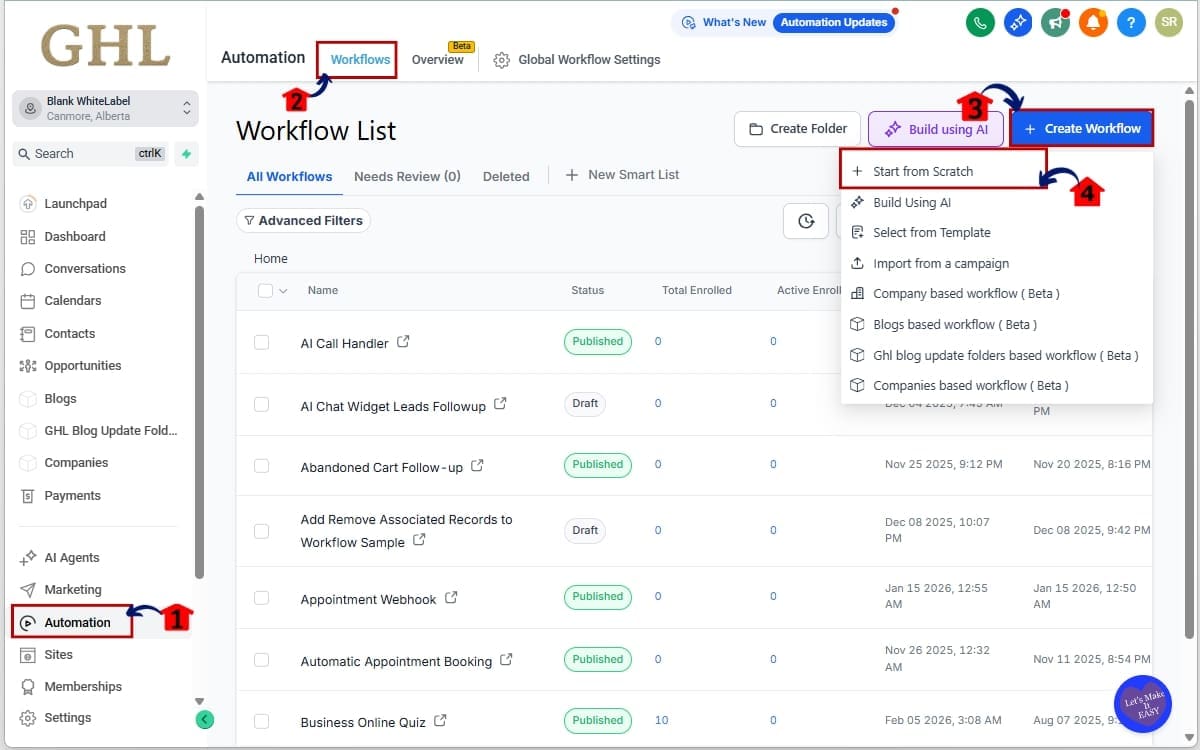
Step 01 – Create a Workflow and start from scratch
- This step takes you to the main area where you can create and manage automations inside GoHighLevel.
1.1 From your GHL dashboard left-hand menu, click Automation
- This section contains all automation-related tools, including workflows and triggers.
1.2 Then click Workflows
- This opens your workflow dashboard where all existing workflows are listed.
1.3 Select +Create Workflow
- This starts the process of creating a new workflow.
1.4 Click Start from Scratch
- This allows you to build a custom workflow using drag drop workflows without pre-built templates.
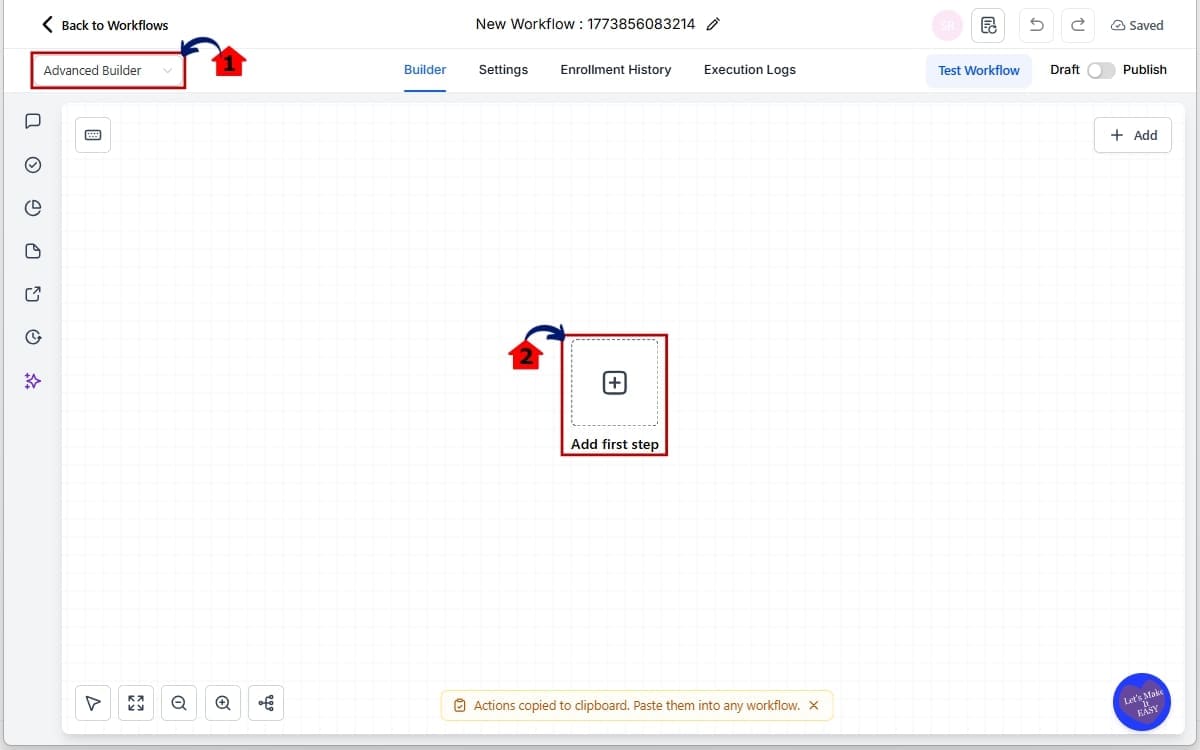
Step 02 – Access Triggers and Actions in the builder
- This step allows you to open the tools needed to add triggers and actions using drag drop workflows inside the builder.
2.1 Inside the workflow, open the Advanced Builder
- This switches you to the visual canvas where you can build and edit your workflow using drag and drop.
2.2 Click “Add First Step” to open Triggers/Actions
- This opens the sidebar where you can choose triggers or actions to add to your workflow.
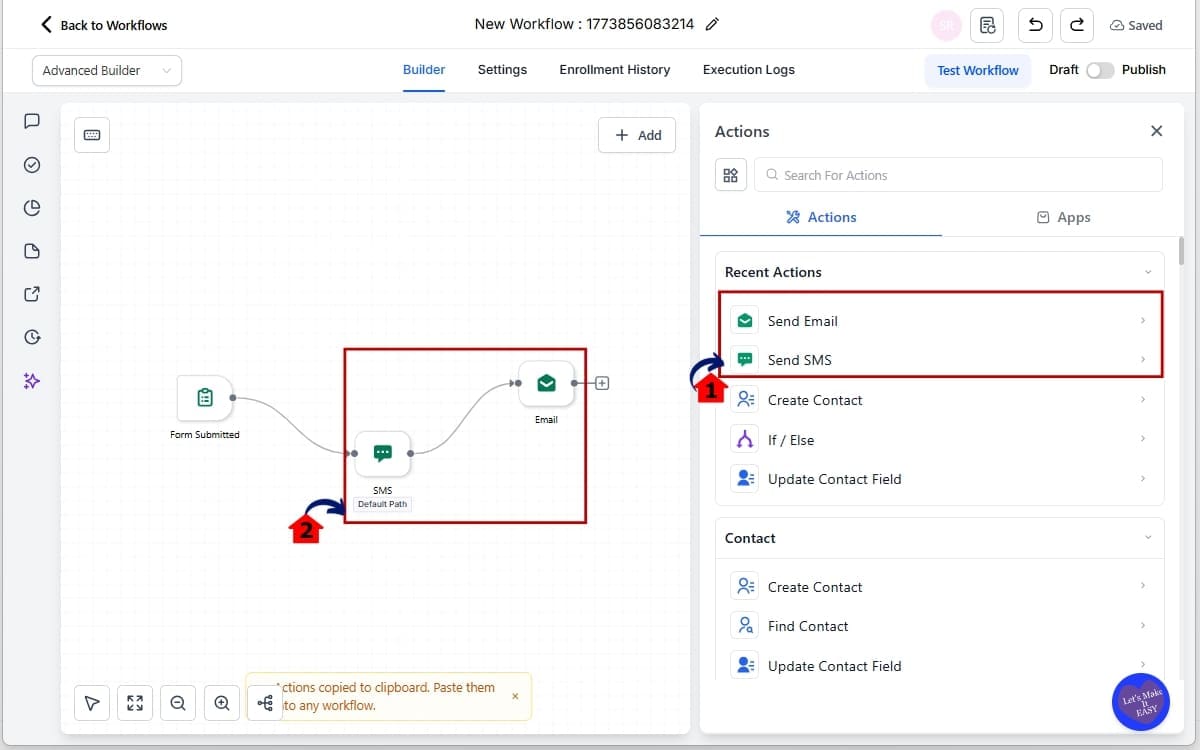
Step 03 – Add Actions using drag and drop
- This step is where you start building your workflow by selecting and placing triggers and actions onto the canvas.
3.1 Add triggers and actions using drag and drop
- Select the trigger or action you need from the sidebar to begin adding it to your workflow.
3.2 Click and hold, then drag it onto the canvas. Drag the selected item and place it onto the workflow canvas where you want it to appear.
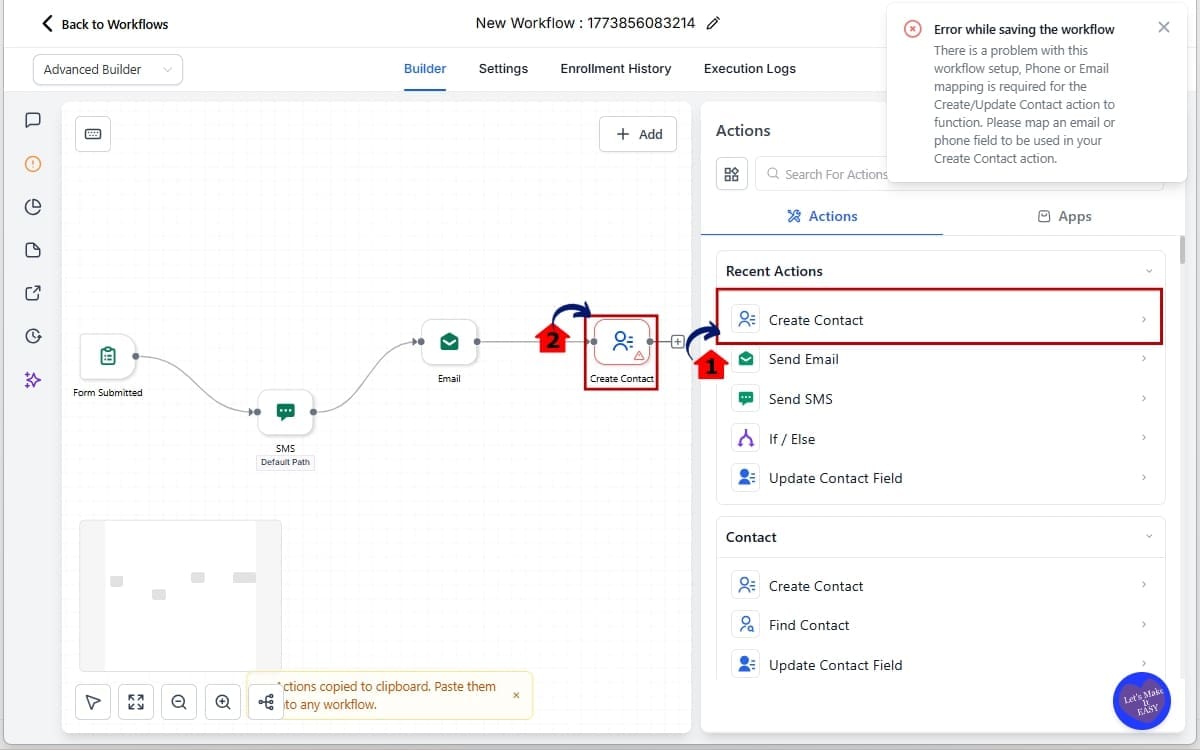
Step 04 – Drop to Extend a Branch or the workflow
- This step allows you to add a new action at the end of an existing workflow path and automatically extend the flow.
4.1 Select another action and drag it to the end of the workflow path
- Choose the next action from the sidebar and position it at the end of the current branch.
4.2 Release to drop the step
- Once placed, the step will automatically connect and extend the branch without manual linking.
Step 05 – Drop Between Existing Steps in the workflow
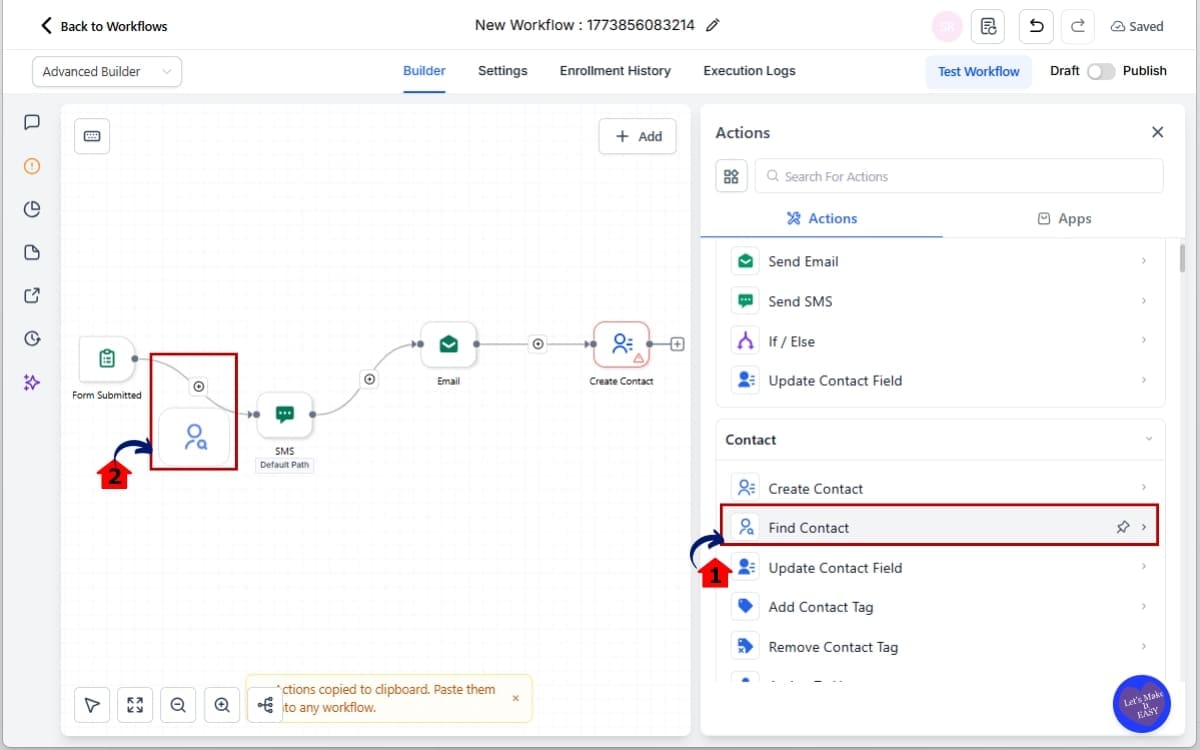
- This step lets you insert a new action in the middle of an existing workflow without rebuilding the path.
5.1 Drag the step between two existing nodes
- Select the action you want to add and move it into the space between two connected steps.
5.2 Release when the placement indicator appears
- Wait for the visual placement guide to show, then drop the step in position. GHL will auto-insert and connect it instantly
Step 06 – Configure the Step and Test Workflow
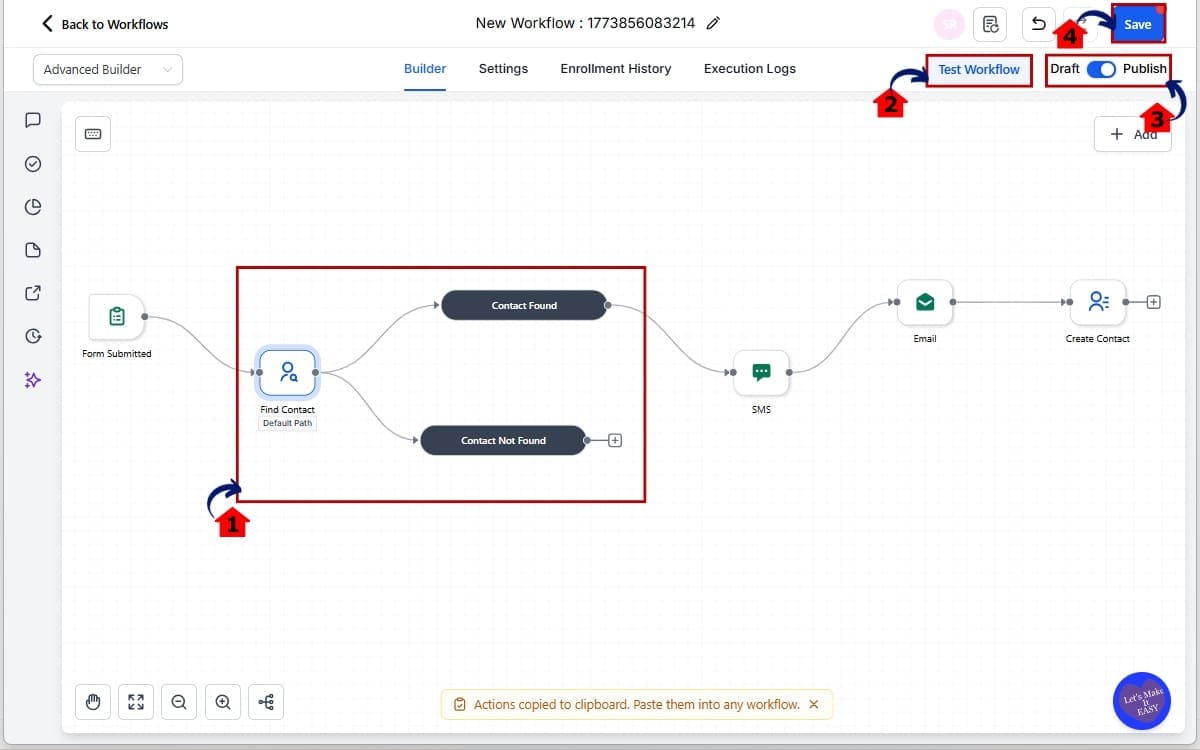
- This step makes sure your workflow is fully set up, tested, and ready to go live.
6.1 Click on the newly added trigger or action
- Open the step settings, fill in all required fields, and make sure nothing is left incomplete.
6.2 Click Test Workflow
- Run a test to confirm the workflow is working correctly before publishing.
6.3 Click Publish to publish the workflow
- This makes the workflow live so it can start running based on the trigger conditions.
6.4 Then click Save
- This stores your final changes and ensures your workflow setup is updated properly.
That’s it. Your workflow is now built using drag drop workflows, faster and with fewer errors inside GHL.
Drag Drop Workflows in GHL Tips
Once you start using drag drop workflows inside GoHighLevel, you’ll notice how much faster things feel. But to really get the most out of this feature, there are a few simple ways to level up how you build.
First, always map your workflow before configuring anything. Drag drop workflows are designed for visual planning. Lay out every step, branch, and path first. Once the structure is complete, go back and configure each action. This alone can cut your build time significantly.
Instead of rebuilding things from scratch, just move stuff around. If something feels off, adjust the steps or drop a new one in between.
One thing that helps is building it in parts. If the workflow gets complex, just work on one branch first, then move on once it’s laid out.
Also, don’t forget to double-check configurations. Even though drag drop workflows handle placement and connections, they don’t auto-fill settings. Any unconfigured step will not run, so always review each action before publishing.
Name your steps in a way that actually makes sense. It’ll save you later when things start piling up.
Finally, test as you go. After building your structure and configuring steps, run test contacts through the workflow. This helps you catch issues early and ensures everything flows exactly as expected.
When used the right way, drag drop workflows don’t just make things faster. They make your entire workflow-building process smarter and more scalable inside GHL.
Drag Drop Workflows in GHL Impact
This isn’t just a “nice to have” update, it actually changes how you work inside GHL.
You’re not stuck thinking in steps anymore. You can see the whole workflow, map it out, then go back and fix details after.
That alone makes things faster. Building, editing, adjusting, it all takes less time now.
If you’re running an agency, this matters. You can move quicker, handle more work, and not get stuck fixing small things.
Seeing the full layout makes it easier to keep things organized and notice if something’s off.
And honestly, it’s easier for new team members too. They can look at a workflow and understand it right away.
Drag Drop Workflows in GHL Results
You’ll notice the difference pretty fast once you start using it.
Workflows don’t take as long to build. What used to take a bunch of steps now feels quicker and more straightforward.
Less stuff breaks too. Since connections happen automatically, you’re not fixing things as often.
You can actually see what’s happening without digging around.
For teams, that means less confusion and faster updates.
And yes, you feel a bit more in control when building things.
Drag Drop Workflows in GHL FAQs
Drag Drop Workflows in GHL Wrap Up
Drag drop workflows are one of those updates that seem simple at first, but quickly become something you rely on every day inside GoHighLevel.
It takes away the need to connect things manually, and you can just put steps where they make sense. Feels way less rigid.
Where it really shows is in your everyday workflow. You’re building quicker, making changes on the fly, and not running into as many problems.
It also gives you a better way to think about automation. Instead of building as you go, you can now plan your entire workflow visually, then configure it after. This leads to better structure, clearer logic, and more reliable automations.
If you’ve got workflows running, open one up and test this out.
Give it a little time, it starts to feel way more natural, and going back to the old way feels slow.
Scale Your Business Today.
Streamline your workflow with GoHighLevel’s powerful tools.


