Step-by-step guide to set up and sell gift cards
To sell gift cards in GHL is easy when you follow this simple step-by-step process. You can set up your gift cards, add amounts, define terms, and make them available for customers to purchase. This lets you manage sales and track redemptions efficiently without extra tools or complicated setups.
When I used this feature in my own GHL account, I found that adding clear instructions for redemption prevented confusion and reduced support requests. Setting the right expiry dates also helped keep unused balances low, which made managing gift cards much smoother.
Gift cards can increase your revenue, with small businesses often seeing about a 20 percent boost when offering them. Many miss this opportunity because they do not automate the process. By following this guide, you will be able to sell gift cards in GHL, improve your sales, and make it simple for your customers to use them.
Quick Summary – Sell Gift Cards Essentials
Purpose: Show you how to create, manage, and sell gift cards step by step in GHL.
Why It Matters: Selling gift cards helps increase revenue, attract new customers, and encourage repeat purchases.
What You Get: A simple process to set up gift cards, customize terms, and track sales effectively.
Time To Complete: You can set up a gift card in about 10–15 minutes.
Difficulty Level: Easy to moderate, suitable for both beginners and experienced GHL users.
Key Outcome: You can confidently sell gift cards, manage them efficiently, and give your customers a smooth buying experience.
Video Guide: Selling Gift Cards in GHL
See how easy it is to create and sell gift cards in GHL. This video shows you the full process in simple steps.
Inside this video:
Automate marketing, manage leads, and grow faster with GoHighLevel.

- How to access the Gift Cards section in GHL.
- Steps to set up a gift card with name, description, and expiry.
- How to customize the card design and add terms.
- How to make the gift card available for sale and test it.
Learn to manage gift cards efficiently and offer your customers a smooth buying experience.
Benefits of Selling Gift Cards
Selling gift cards in GHL can help you grow your business in practical ways. They bring in new customers who may not have purchased before and encourage repeat visits. Customers often spend more than the gift card value, giving your revenue an extra boost.
Here are the main benefits you will see:
- Receive payments upfront for predictable cash flow.
- Manage redemptions, expiry dates, and terms easily in GHL.
- Save time compared to running manual promotions or discounts.
- Give customers flexible gift amounts they can use conveniently.
Using gift cards lets you increase revenue while keeping the process simple and organized. You can offer them to clients or customers confidently, knowing they are easy to manage and provide a clear benefit to your business.
Creating a Gift Card in GHL
Creating a gift card in GHL is a step-by-step process that lets you set up prepaid cards for your customers. You will enter all the card details, add terms and conditions, customize its appearance, and make it available for purchase.
The steps below guide you through the process clearly so you can create, review, and sell gift cards efficiently in your GHL account.
- Access the Create Gift Card button in the Payments Section’s Gift Cards tab.
- Enter the Basic Information of your Gift Card before Customizing it.
- Click the Create Gradient button.
- Add the Gradient Name and Colors of your gift card.
- Add and define the denominations and quantity of your gift card.
- Define and set the Gift Card Inventory and Tax Options.
- Review your Gift Card before creating it.
- Click the Sell button of your gift card.
- Sell gift cards to your prospects and clients.
- Test your Gift Card.
To start, make sure you are logged in to your GoHighLevel sub-account.
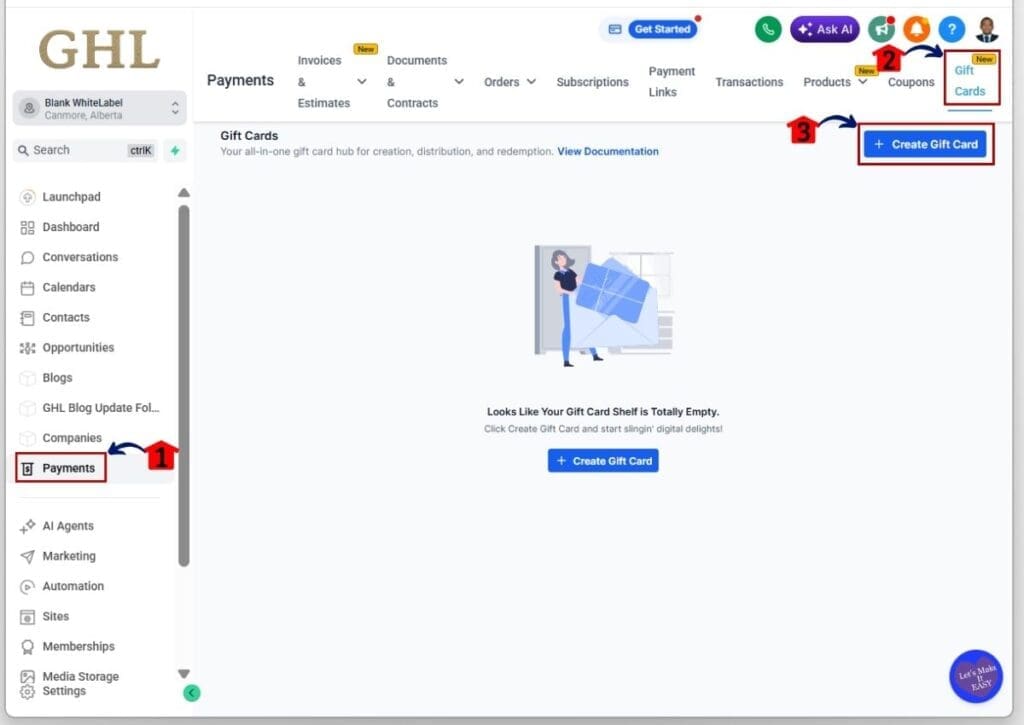
Step 01 – Access the Create Gift Card button in the Payments Section’s Gift Cards tab
- Start creating your gift card by clicking the Create Gift Card button in the Gift Cards tab of the Payments section.
1.1 Click the Payments section
- Access the Payments section of GoHighLevel
- You’ll now be in the Payments section, where you can create invoices, add products, and manage other payment tools
1.2 Click the Gift Cards tab
- You will be directed to the Gift Cards library, where your existing gift cards are displayed
1.3 Click the + Create Gift Card button
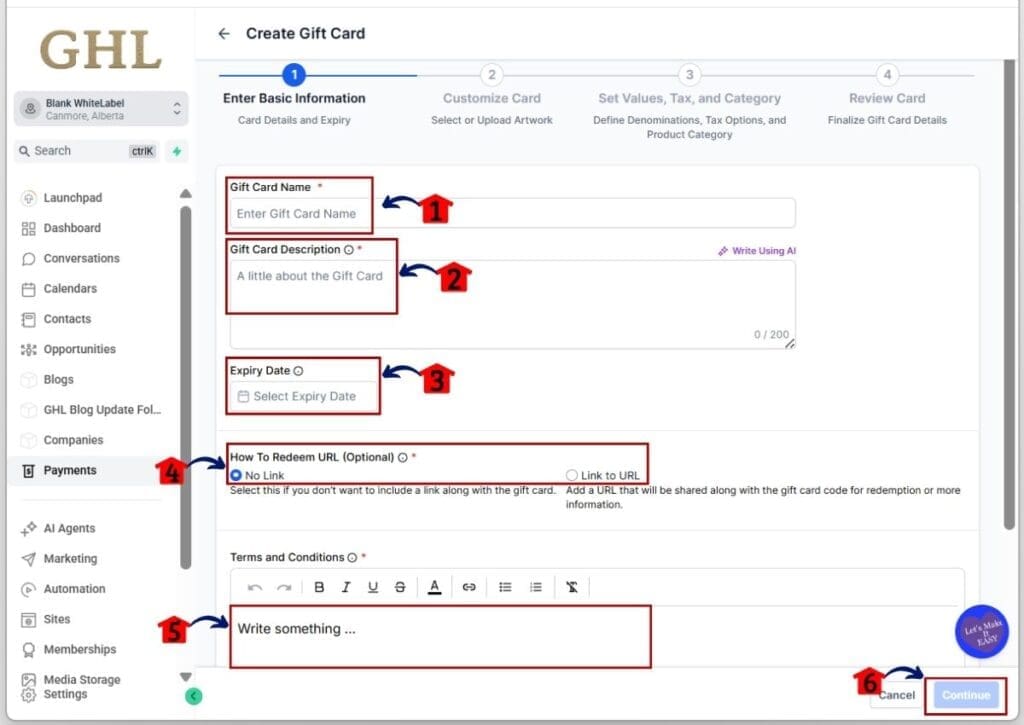
Step 02 – Enter the Basic Information of your Gift Card before Customizing it
- Add the Name, Description, Expiry Date, Redemption URL, and Terms and Conditions for your gift card.
2.1 Type in your Gift Card Name
- Enter a clear and concise name for your card
2.2 Add your Gift Card Description
- Write a short description that explains the gift card to your customers
2.3 Set the Expiry Date of your Gift Card
- Choose a date or duration for how long the gift card will remain valid
2.4 Toggle the option to add a redemption link
- For this example, select No Link
2.5 Type in the Terms and Conditions
- Provide complete and detailed information for legal purposes
2.6 Click the Continue button to customize your gift card
- You will be directed to the Card Customization section
Step 03 – Click the Create Gradient button
- This section is where you will start customizing your gift card.
3.1 Click the + Create Gradient button
- You will be directed to the card gradient customization area
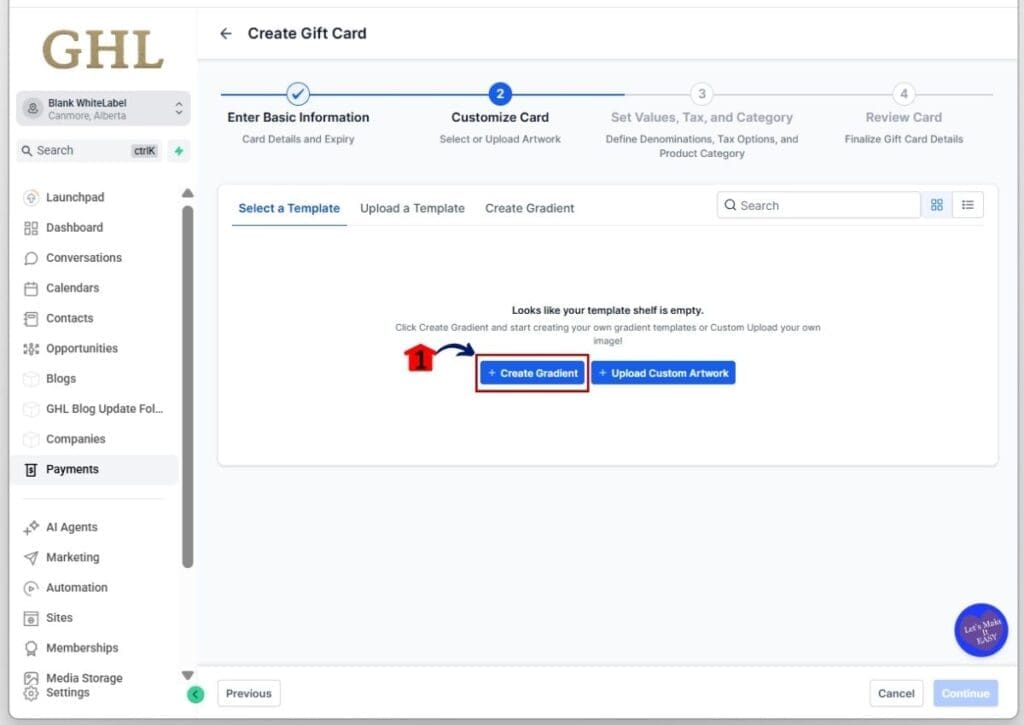
Step 04 – Add the Gradient Name and Colors of your gift card
- Add two distinct colors, set the color direction, and name your gradient.
4.1 Customize the Gradient Name, choose two hex colors, and set the direction
- A pop-up will appear to select your colors freely
4.2 Click the Continue button to proceed
- You will move to the section for setting denominations and tax options

Step 05 – Add and define the denominations and quantity of your gift card
- Add at least one denomination and set how many cards will be available.
5.1 Click at least one denomination option
- The chosen denomination will appear below the buttons when selected
5.2 Type in a specific amount
- You can enter a custom value and click Add
5.3 Click the Define Quantity checkbox
- An input box will appear for entering the card quantity
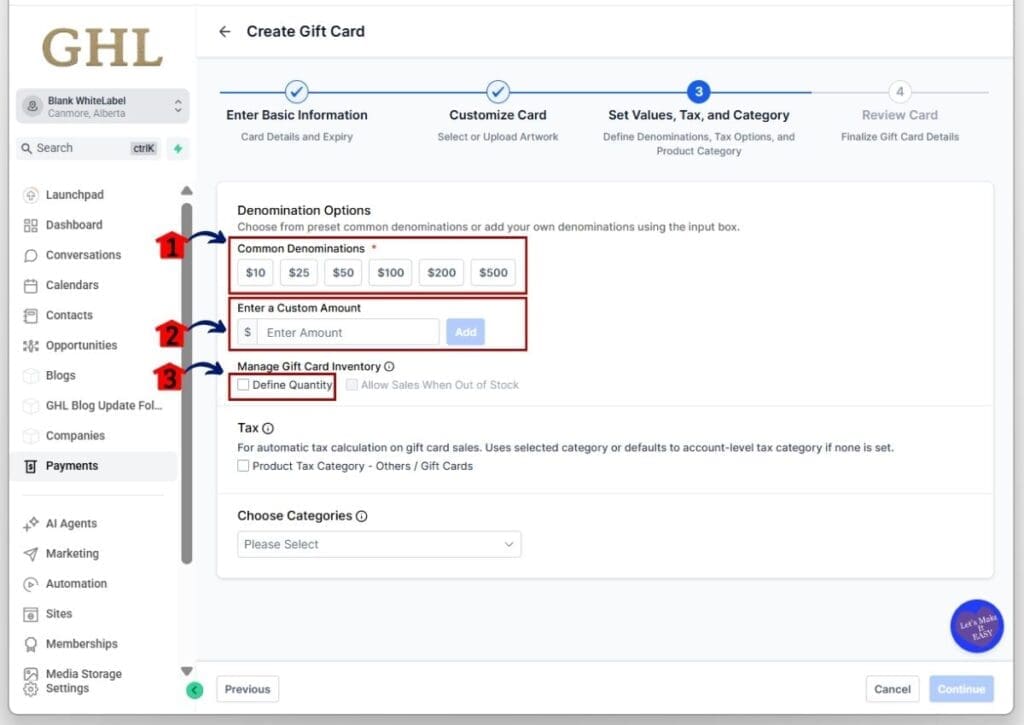
Step 06 – Define and set the Gift Card Inventory and Tax Options
- Set the available quantity and assign a Product Tax Category for the gift card.
6.1 Set the number of available gift cards
6.2 Toggle on the Product Tax Category
- This enables tax to be added upon purchase
6.3 Choose a category for the gift card
- A drop-down will appear to select the appropriate category
6.4 Click the Continue button to review your card
- You will move to the final review section
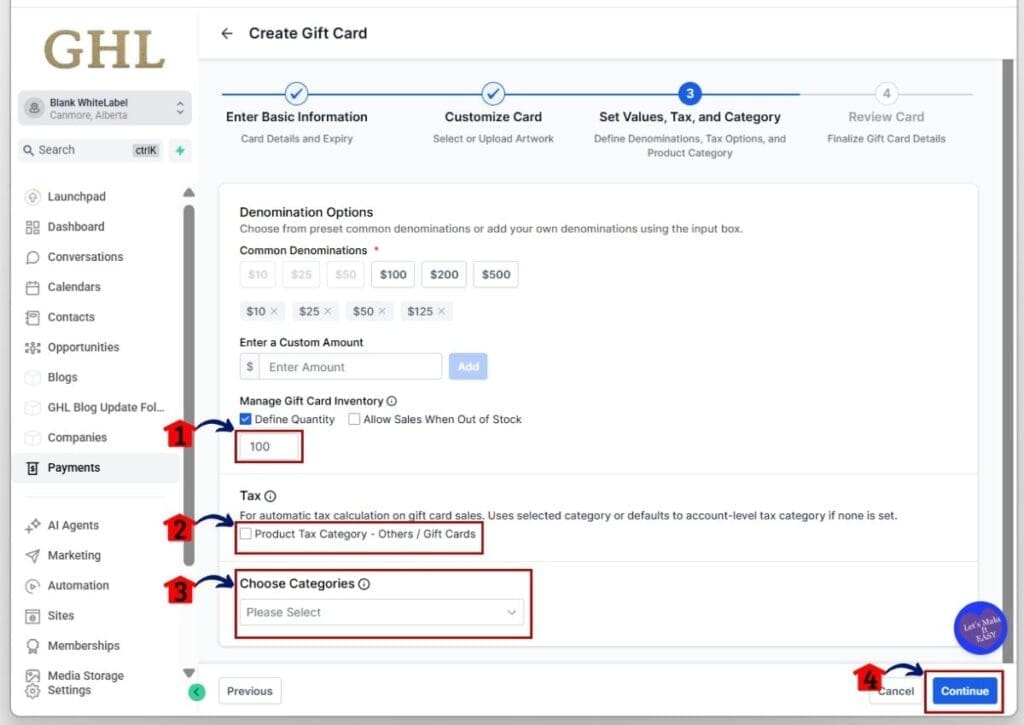
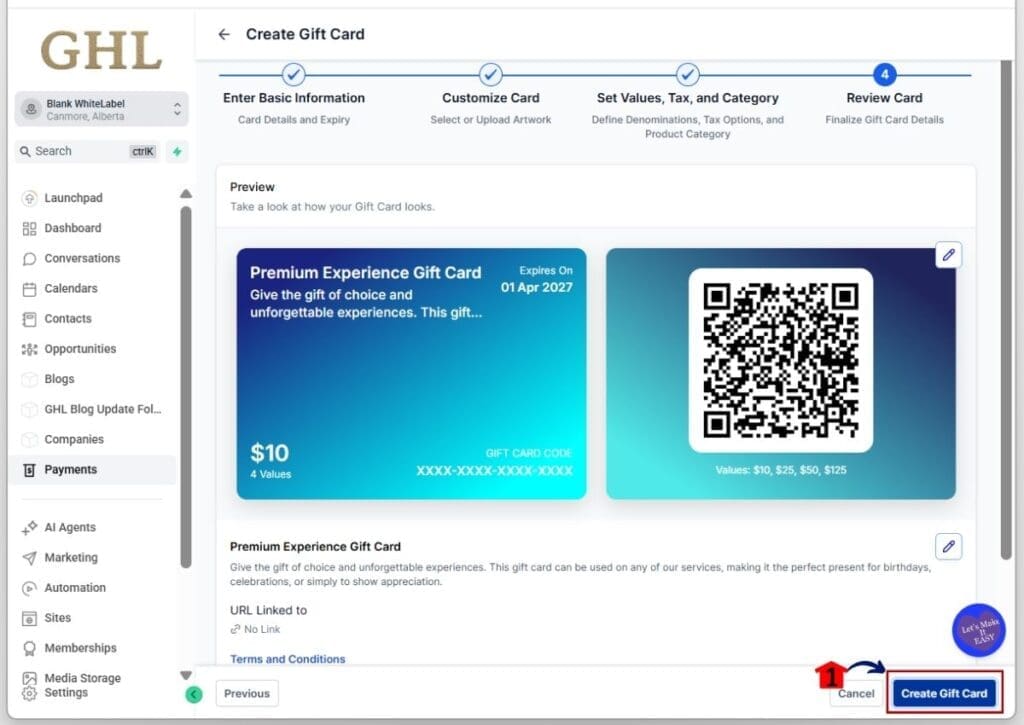
Step 07 – Review your Gift Card before creating it
- Make sure all information is correct before creating the card.
- For better transactions to sell gift cards, provide all the important details.
7.1 Click the Create Gift Card button
- Your new gift card will now appear in the Gift Cards library
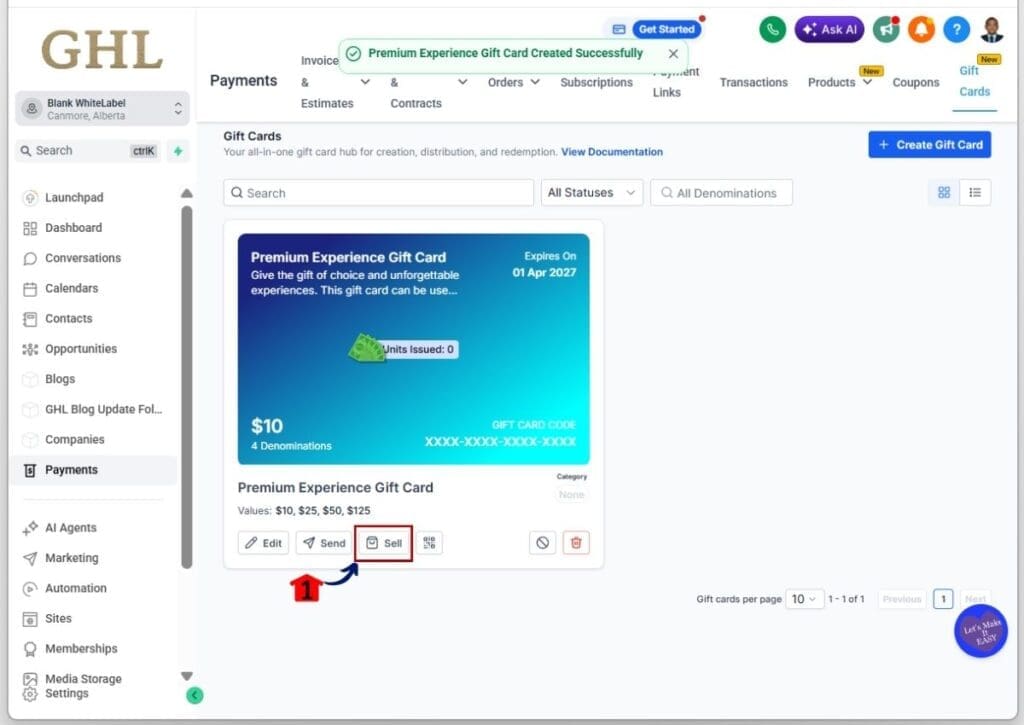
Step 08 – Click the Sell button of your gift card
- You will be directed to the Sell Gift Card section to retrieve checkout links.
8.1 Click the Sell button
- This button is located between the Send and QR icon buttons
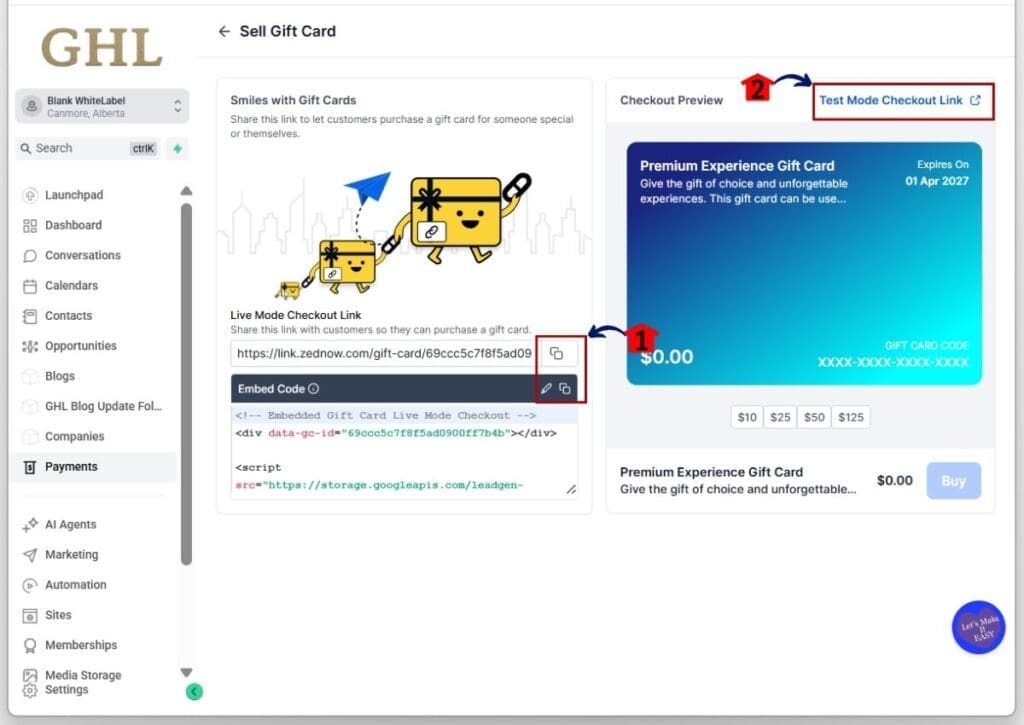
Step 09 – Sell gift cards to your prospects and clients
- You will be in the Sell Gift Cards section, where you can copy the checkout links and test the card.
9.1 Click the copy icon of your checkout link
- Alternatively, you can click the embed code to place it on a landing page
9.2 Click the Test Mode Checkout Link
- A new window will open to test the checkout page of your gift card
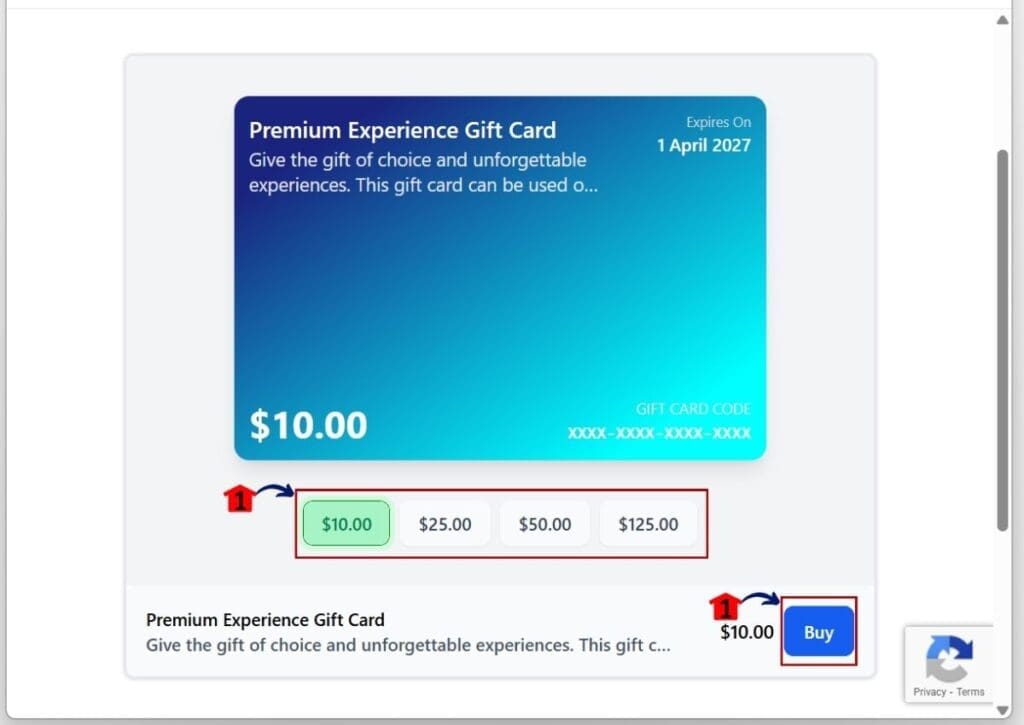
Step 10 – Test your Gift Card
- A new window will open where you can select a denomination and complete the checkout form.
10.1 Choose the denomination and click the Buy button
- You will go to the order page to fill in your purchase information before completing the transaction
Tips to Sell Gift Card for Success
Selling gift cards in GHL works best when you follow a few practical steps. These tips make it easier for your customers to buy and use gift cards while keeping management simple for you. Proper setup and testing help you avoid common issues and improve sales.
- Write clear descriptions so customers understand how the gift card works.
- Include easy-to-follow redemption instructions.
- Test the checkout link to make sure it works before promoting it.
- Share your gift cards on landing pages, emails, and social media to reach more customers.
- Set realistic expiry dates to reduce unused balances.
- Track sales and redemptions in GHL to see how your cards are performing.
Following these steps helps you sell gift cards efficiently while keeping the process organized and simple.
FAQs to Create and Sell Gift Cards
Here are some common questions you might have about selling gift cards in GHL. This section helps you understand how to manage gift cards and use them effectively for your business.
This FAQ makes it easier for you to sell gift cards in GHL, manage expectations, and ensure a smooth experience for your customers.
Conclusion on Selling Gift Cards
To sell gift cards in GHL gives you a practical way to increase revenue and bring in more customers. By setting up gift cards correctly, you provide a clear and easy option for your clients to buy your products or services.
When you follow the steps in this guide, your gift cards will be simple to redeem for customers and easy to track for you. You can manage sales, expirations, and terms without extra effort.
Using gift cards in GHL helps you grow your business while keeping the process organized. You offer convenience to your customers and gain a reliable tool to boost sales effectively.
Scale Your Business Today.
Streamline your workflow with GoHighLevel’s powerful tools.