- Cleaner exports, accurate totals, and smarter spreadsheets for every transaction
- Quick Summary – CSV Export Formatting Essentials
- What’s New in GHL’s CSV Exports
- Key Changes Across All CSV Types
- Why CSV Export Formatting Matters
- How to Use the New CSV Export Formatting in GHL
- Pro Tips for Finance Teams and Automation
- Frequently Asked Questions About CSV Export Formatting
- What This Update Means Going Forward
- Cleaner Exports, Smarter Accounting
Cleaner exports, accurate totals, and smarter spreadsheets for every transaction
Why CSV Export Formatting Got an Upgrade
CSV export formatting has always been a bit messy in GoHighLevel. If you’ve exported transactions or orders before, you probably ended up fixing columns or hunting down missing numbers just to make sense of the data.
That’s no way to run reports.
This update changes that. GoHighLevel has rolled out major improvements to the way CSVs are built across Transactions, Orders, and Subscriptions. Now you get well-organized spreadsheets that make it easier to track payments, taxes, and product details.
Whether you’re doing monthly reconciliations or setting up a report for a client, you can expect exports that are clearer and more complete. It’s a simple update with a big payoff: no more guessing what blank fields mean or trying to spot subtotal errors.
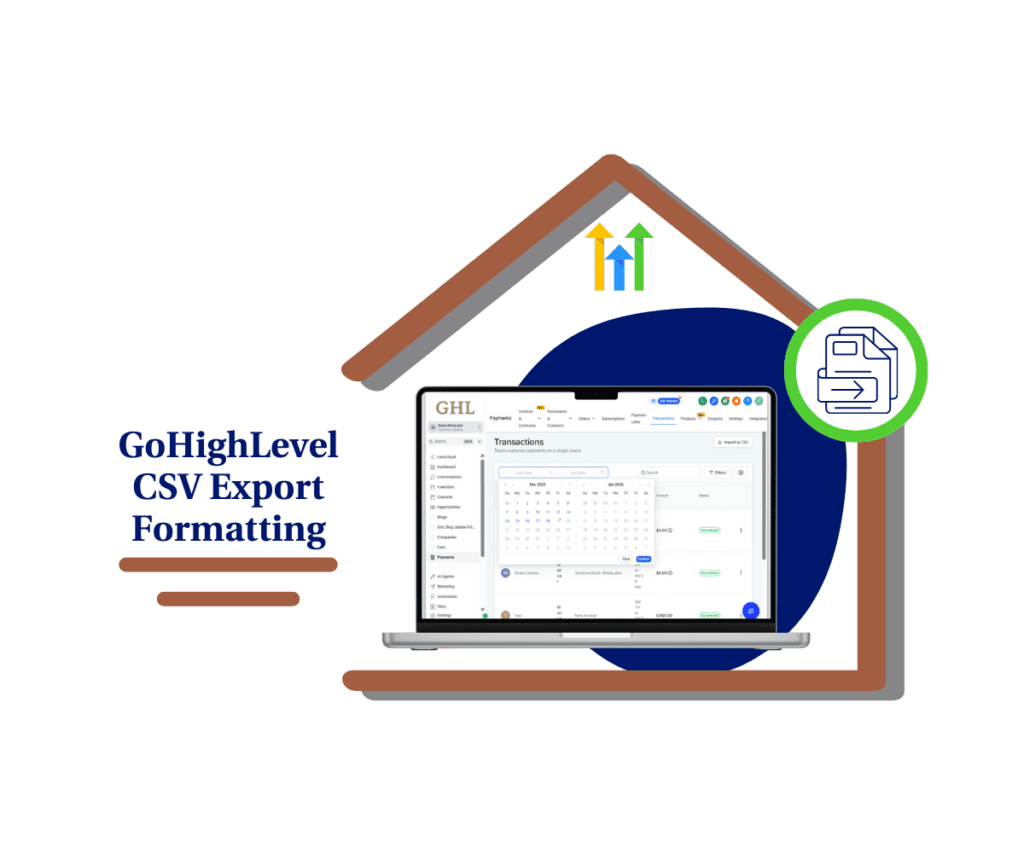
GoHighLevel’s new CSV export formatting helps you get clear, accurate spreadsheets without the usual mess. You’ll see totals, taxes, and line items exactly as they should be. It’s a smarter way to handle finances, whether you’re managing your own books or running reports for clients.
Quick Summary – CSV Export Formatting Essentials
Purpose: This update improves CSV export formatting across Transactions, Orders, and Subscriptions in GoHighLevel.
Why It Matters: Clean, consistent exports make it easier to track payments, report taxes, and build client-ready spreadsheets.
What You Get: Product-level details, clear tax fields, proper handling of discounts, and stable formatting in every export.
Time to Complete: Less than 5 minutes to locate and export data. No setup needed.
Difficulty Level: Beginner. If you can click “Export,” you can use this.
Key Outcome: More accurate financial data with less manual cleanup, fewer reporting errors, and faster reconciliation.
What’s New in GHL’s CSV Exports
The latest update to GoHighLevel brings major changes to how CSV export formatting works. If you’ve ever tried to organize exports from Transactions, Orders, or Subscriptions, you know it hasn’t always been smooth. Now, all three export types follow the same format, and it’s a big improvement.
With the new CSV export formatting, tax fields are much easier to understand. You’ll now see two types of tax: one that’s added on top of the price, and one that’s already included. This helps you track taxes more clearly, especially when you’re working with different pricing models.
Automate marketing, manage leads, and grow faster with GoHighLevel.

Product details have also been improved. Every export now shows the product name, ID, quantity, price, subtotal, and discount. When there are multiple products in one order, each item gets its own row. This includes the taxes for each product, so you can see exactly how the totals break down.
The new CSV export formatting also improves how payments are shown. You can now compare the amount due with the amount actually paid, which makes it easier to track partial payments. You’ll also see which payment method was used, whether it’s a card, ACH, or wallet.
These changes make the data easier to read and use. With consistent CSV export formatting across the board, you can spend less time fixing spreadsheets and more time using the data.
Key Changes Across All CSV Types
The updated CSV export formatting makes it easier to read, organize, and work with your data. These changes apply across every export file, so no matter what you’re downloading, the structure stays the same.
One of the most useful updates is how tax amounts are displayed. Now, you can see two separate fields: one for taxes added on top of the price and one for taxes already included in the product. This helps when you’re working with mixed tax setups and need to be exact in your reporting.
Another key improvement is the level of product detail. Each product now shows up on its own row, with its name, price, quantity, subtotal, and discount. Even invoice-level discounts are now listed next to each product. This gives you a full picture of what was sold and how the pricing breaks down.
CSV export formatting now handles zero and blank values the right way. A zero shows up only when a value is truly zero. A blank field means the value doesn’t apply. This small fix helps prevent errors when using tools like Excel, Google Sheets, or your accounting software.
Column order is now the same across all exports. You can count on the data showing up in the same spots every time. If you’ve been using scripts or automations with your exports, this consistency means you won’t need to keep adjusting them.
With these changes, CSV export formatting in GoHighLevel is now a reliable tool for any team that needs clean, accurate financial data.
Why CSV Export Formatting Matters
When your exports are messy, everything slows down. You spend more time fixing spreadsheets than using the data. That’s a problem, especially if you’re handling accounting, taxes, or client reports.
The new CSV export formatting helps solve that. With cleaner exports, you get the numbers you need without second guessing what each field means. Tax details are clear. Discounts are easy to track. And product-level data makes it simple to break down revenue by item or service.
This matters for agencies, especially those managing multiple clients or locations. You can now pull exports from different accounts and trust they’ll all look the same. That means faster reporting, fewer mistakes, and easier audits.
Finance teams will also notice the difference. Partial payments, tips, processing fees, and even redeemed gift cards are now clearly shown. You get a better picture of what was owed versus what was paid.
If you’ve ever built a dashboard or used exports in automation tools, you know how frustrating format changes can be. This update gives you stable CSV export formatting that plays nice with your BI tools, reconciliation workflows, and spreadsheet formulas.
How to Use the New CSV Export Formatting in GHL
Export cleaner, smarter data from Transactions, Orders, and Subscriptions
The new CSV export formatting is already built into GoHighLevel. You don’t need to enable anything or switch views. Just follow the steps below to download exports with product-level details, clearer tax breakdowns, and reliable totals.
Step 01: Access the Main Left Hand Menu in GoHighLevel
- The Main Menu on the Left side of your screen has all the main areas that you work in when using GHL
1.1 Click on the Payments Menu Item.
- Access the ‘Payments’ section of GoHighLevel
1.2 Choose the export you need:
- Transactions

- Orders

- Subscriptions

Step 02 – Choose the Right Date Range or Filters
- Narrow down what data you want to export.
2.1 Use the filter tools to set a date range, payment method, or status
2.2 Confirm the table shows only the entries you want
2.3 Click the export icon in the top-right corner of the table

Step 3.0 – Download the CSV File to Your Computer
- The export file will include new columns and better formatting.
3.1 Open the CSV in Excel, Google Sheets, or Numbers
3.2 Check that you see:
- Per-product names, prices, and quantities
- Subtotal and discount values for each item
- Clear tax columns (Included and Excluded)
- Payment method, amount paid, and amount due
3.3 If multiple products were sold in one order, you’ll see each on a separate row

That’s it. The new CSV export formatting in GoHighLevel gives you cleaner spreadsheets that work right away. You’ll spend less time fixing data and more time using it.
Pro Tips for Finance Teams and Automation
If you’re running accounting, reporting, or finance automations, these updates to CSV export formatting will save you time and reduce errors.
Here are a few smart ways to get more value out of the new structure:
Use the “Total Amount Paid” and “Total Amount Due” fields to catch partial payments fast. If you’re reconciling with QuickBooks or Xero, this lets you spot shortfalls without manual checking.
Build product-level revenue reports by grouping line items with the new product ID and subtotal fields. Now that each product has its own row, it’s easier to track what’s selling and how much you’ve earned.
Clean tax reporting is now much easier. Sort or filter by the “Included Tax” and “Excluded Tax” columns to separate blended tax totals. This helps when filing in regions with mixed rules or rates.
Automate alerts for missing or incomplete data using tools like Zapier or Make. With consistent CSV export formatting, you can set up checks for blank fields, unexpected totals, or discount mismatches without writing new logic every month.
Want to create dashboards in tools like Google Data Studio or Looker Studio? These new formats make that much easier. The multi-row layout is perfect for building pivot tables and charts based on product, payment method, or tax type.
These are just a few ways to use the improved formatting. Whether you’re doing month-end closeouts or building white-label reports for clients, the clean structure gives you a better starting point.
Frequently Asked Questions About CSV Export Formatting
What This Update Means Going Forward
This update isn’t just a small cleanup. It’s a big step forward for anyone who relies on CSV export formatting to manage payments, track revenue, or report numbers to clients.
With the new CSV export formatting, your spreadsheets are easier to read, more complete, and more consistent. That means fewer hours fixing columns or checking totals. You can now trust the data you export, no matter which report you’re working with.
For agencies, this saves time across the board. Whether you’re managing one brand or thirty sub-accounts, the formatting is now the same every time. That makes it easier to automate reports, run bulk exports, or build repeatable processes.
If you’re working with large exports, you’ll notice smoother performance. GoHighLevel plans to improve how big files are handled, which means faster downloads and better support for long-term data storage.
Clean CSV export formatting also sets the stage for bigger changes in the future. Now that the export structure is solid, it becomes easier to build dashboards, sync with BI tools, or even roll out API-based reporting.
This update is a foundation. And it’s one that will keep paying off as GHL adds more tools for reporting, finance, and automation.
Cleaner Exports, Smarter Accounting
The new CSV export formatting makes your financial data easier to understand and easier to use. You won’t need to clean up spreadsheets or guess what a blank field means. The data shows up right, every time.
Each product, tax, discount, and payment is now clearly labeled. You can see what was sold, how much was paid, and what tax was charged. The format is consistent across all exports, so you can trust what you’re looking at.
If you manage reports for clients or run monthly reconciliations, this update will save you hours. CSV export formatting now supports the kind of work agencies and finance teams do every day. It helps you move faster and avoid mistakes.
It may not be the flashiest update, but it’s one of the most useful. Clean, stable exports are the foundation of good reporting. With this fix, GoHighLevel gives you one less thing to worry about.
Scale Your Business Today.
Streamline your workflow with GoHighLevel’s powerful tools.