- Why Custom Chat Prompts Matter
- Quick Summary – Custom Chat Prompts Overview
- Editable Fields for Custom Chat Prompts
- Smarter Contact Form Behavior
- Better Branding, More Trust, Higher Conversions
- How to Use It: Custom Chat Prompts Widget Contact
- Pro Tips to Maximize Custom Chat Prompts
- FAQs About Custom Chat Prompts
- What This Means for Your Business
- What You’ll Gain from Custom Chat Prompts
- Customize Every Interaction, Convert More Leads
Why Custom Chat Prompts Matter
If you’re still using the default “Please share your contact details” in your GHL chat widget, you’re missing a major branding opportunity, and possibly turning leads away.
Let’s face it, hardcoded prompts feel robotic and generic. They’re the online equivalent of “Dear Sir/Madam.” That doesn’t work anymore.
This update lets each sub-account set their own chat prompt before the contact form appears, perfect for SaaS resellers who want everything branded their way.
When you use your own words in the chat prompt, it feels more personal, and that small touch helps build trust right away.

This update gives you full control over your chat widget’s contact request messages, so you can customize tone, reduce friction, and improve conversions with custom chat prompts.
Quick Summary – Custom Chat Prompts Overview
Purpose: This update allows full customization of the messages that appear before the contact form in your chat widget, giving you more control over the conversation flow.
Why It Matters: Hardcoded prompts are now optional. You decide how and when to ask for contact details, boosting trust, conversions, and user experience.
What You Get: Two new editable fields for chat prompts: one for auto-enabled forms, one for manual agent requests. Skip either by leaving it blank.
Time to Complete: 2–3 minutes per widget
Difficulty Level: Beginner
Key Outcome: A fully branded, frictionless lead capture experience inside your GHL chat widget, Custom Chat Prompts at the sub-account level.
Editable Fields for Custom Chat Prompts
GHL just introduced a quiet powerhouse of an update, two separate message fields that let you Custom Chat Prompts the prompts shown before the contact form in your chat widget.
Here’s what’s new:
Automate marketing, manage leads, and grow faster with GoHighLevel.

- Contact Form Intro Message (Auto Prompt)
This message appears automatically before the contact form is shown, only when the “Enable Contact Form” toggle is turned on in your Chat Widget settings.
- Default text: “Please share your contact details”
- Now fully editable to match your brand tone
- Leave it blank? The form skips the prompt and shows immediately
- Contact Form System Message (Agent-Triggered)
This message shows when a live agent clicks “Request Contact Details” during a chat.
- Always editable, whether or not the auto form is enabled
- Also defaults to the generic message, but now fully Custom Chat Prompts
- Again, leave it blank and the form appears with no message
These updates apply to both Live Chat and All-in-One Chat Widgets, so your personalization game just leveled up no matter which setup you’re running.
Smarter Contact Form Behavior
Before this update, the chat widget relied on a single, hardcoded system message:
“Please share your contact details.”
That prompt popped up in every contact form request, whether automated or triggered by a support agent. There was no flexibility, no way to skip it, and certainly no branding control.
Now, here’s what’s changed:
- Auto Prompt Behavior:
If “Enable Contact Form” is turned ON, your customized Intro Message appears automatically before the form is displayed. Want to skip the prompt entirely? Leave the field blank, your contact form will appear with zero friction. - Agent-Triggered Prompt Behavior:
Whenever an agent manually requests contact details in the chat interface, the System Message you define will display. If it’s empty, again, the form shows immediately, no filler copy needed.
The system now respects your choices:
Custom message → Personalized prompt.
Empty field → Direct form launch.
This subtle change creates a more polished and brand-consistent chat experience while giving you tighter control over lead flow logic.
Better Branding, More Trust, Higher Conversions
Here’s the truth: the little things matter. Especially when you’re asking someone for their contact info.
Now you don’t have to stick with the default message. You can say things your way, right from the start.
- More Trust from Visitors
People respond to natural, friendly messaging, not cold system text. When your chat prompt sounds like a real person, trust goes up. And when trust goes up, so do conversions. - Stronger White-Label Experiences
For agencies and SaaS resellers, this is a big win. Your sub-accounts can now use messaging that’s aligned with their voice and audience, without exposing the underlying GHL defaults. - Fewer Confused Users and Support Tickets
Hardcoded prompts caused unnecessary friction. Visitors didn’t know what came next. By personalizing or skipping the message entirely, you guide users clearly and smoothly into the form. - Optimized Conversion Flows
Whether it’s a warm welcome or a direct “How can we contact you?”, the ability to fine-tune your lead capture language can significantly improve response rates.
Bottom line: this isn’t just a UI tweak, it’s a trust-builder and lead-gen booster.
How to Use It: Custom Chat Prompts Widget Contact
Want to control the exact message people see before they fill out your chat widget’s contact form? This update gives you two message fields, one for auto-prompted forms and one for agent-triggered requests. You can edit both (or skip them entirely) in just a few steps. Here’s how to personalize them for each sub-account.
Step 01 – Open the Chat Widget Builder
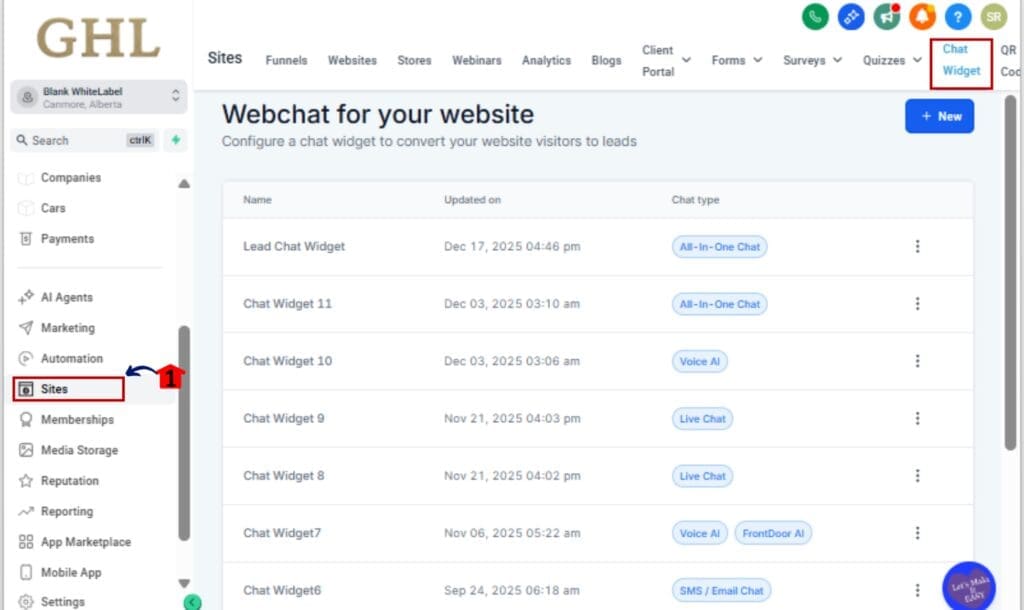
1.1 From your GHL sub-account, go to Sites in the left-hand menu
1.2 Click Chat Widget
1.3 Choose an existing widget or create a new one
Step 02 – Go to the Chat Window Tab
2.1 Inside the widget builder, click the Chat Window tab on the left sidebar
2.2 This is where all your display settings live

Step 03 – Edit the Contact Form Intro Message (Auto Prompt)
3.1 Scroll to Contact Form Intro Message
3.2 This shows before the form appears automatically
3.3 Enter your custom message (or leave it blank to skip the prompt)
Example: “Before we chat, can we grab your best contact info?”

Step 04 – Edit the Contact Form System Message (Agent Triggered)
4.1 Scroll to Contact Form System Message
4.2 This message shows when an agent clicks “Request Contact Details”
4.3 Customize the message or leave it empty to skip
Example: “To follow up after this chat, we’ll need a few details.”

Step 05 – Save and Preview
5.1 Click Save in the top-right
5.2 Preview your widget on your website or test via the live chat interface
5.3 Check both auto and agent-triggered flows to confirm prompt behavior

That’s it. Your contact forms now follow your brand’s voice, tone, and flow, every time. Want to automate this across sub-accounts? Add it to your snapshot setup.
Pro Tips to Maximize Custom Chat Prompts
Custom Chat Prompts is only the beginning. Here’s how to take it from good to great:
1. Match Your Brand Voice
Use tone and language that reflects your business, or your client’s. Friendly and casual? Try “Mind sharing your info so we can help faster?” Professional? Go with “Please provide your contact details to proceed.”
2. Short and Clear Wins
Try to keep your message short, under 120 characters is a good rule, especially since mobile users don’t have much screen space.
3. Leave It Blank for Speed
In high-intent funnels or support flows, removing the prompt can actually increase conversion speed. The form loads instantly, no extra clicks, no distractions.
4. SaaS? Set Defaults Per Sub-Account
For SaaS setups, just add your Custom Chat Prompts messages to a snapshot. Every new client gets the right prompts instantly, zero setup on their end.
5. Keep It Simple with Emojis
A single emoji can help the message feel less stiff, but don’t overdo it. Something like:
“Before we jump in, how can we get in touch? 📧”
6. Localize for Global Clients
Set up multilingual prompts for international sub-accounts. Consistency in native language builds trust fast.
These little changes only take a few seconds but can totally change how people feel about filling out your form.
FAQs About Custom Chat Prompts
What This Means for Your Business
You’re not just swapping out some text. You’re taking control of a small but important moment in how people connect with your business.
Here’s what it means in practice:
- Faster Lead Capture:
No more unnecessary delays before the form appears. You choose when and how the form is introduced, shaving off precious seconds in live interactions. - Better Brand Experience:
Every message your prospects see can now align with your tone, voice, and audience. No more generic system copy undermining your professionalism. - Stronger White-Label Value:
If you’re a SaaS reseller, this upgrade lets each of your clients sound like them, without ever knowing it’s powered by GHL. - Smoother Workflows for Agents:
Support and sales reps can now confidently click “Request Contact Details” knowing the experience is seamless, consistent, and customized. - Less Confusion, More Conversions:
By removing unclear or unnecessary prompts, your chat flows become more intuitive, and more effective.
It’s a small backend tweak with big front-end impact, especially when scaled across multiple client accounts or high-traffic websites.
What You’ll Gain from Custom Chat Prompts
Once you roll out this update across your chat widgets, here’s what you can expect to see:
1. Increased Contact Submission Rates
When your prompts are clear, human, and aligned with user intent, more visitors complete the form. That means more leads without changing anything else in your funnel.
2. Fewer Confused Users = Fewer Support Tickets
No more “What’s this for?” messages in your inbox. Users now get a clear, branded intro, or none at all if that’s what works best for your flow.
3. Faster Conversions in Live Chat
Skipping the prompt when unnecessary helps agents move faster. The form loads instantly when needed, keeping the conversation flowing.
4. Better Client Impressions for SaaS and Agencies
If you’re white-labeling GHL, this is a premium touch. Every sub-account can have tailored prompts, making your software feel truly custom.
5. Improved Trust and Brand Consistency
Even small details like a contact prompt affect how prospects view your brand. This change lets you show up with clarity and professionalism.
Think of this as a conversion multiplier. It doesn’t just look better, it works better.
Customize Every Interaction, Convert More Leads
This update might seem small, but it unlocks a big advantage.
By giving you control over the chat widget’s contact request messages, GHL has removed yet another “one-size-fits-all” constraint. Now, your brand voice comes through in every prompt, every time, whether it’s a sub-account, an agency client, or your own team asking for details.
The result?
A smoother, faster, more trust-building experience that turns more visitors into contacts, without lifting a finger post-setup.
So, here’s your move:
Head into your Chat Widget settings. Custom Chat Prompts. Test it live. And watch your lead-gen chat game get a sharp upgrade.
Need help rolling this out across client accounts? Add this to your snapshot strategy, and your SaaS offer just got even stronger.
Scale Your Business Today.
Streamline your workflow with GoHighLevel’s powerful tools.