- Introduction – Smart List Management Has a New Home
- Quick Summary – Smart List Management
- What Changed with Smart List Management
- Where Manage Smart Lists and Restore Live Now
- Why GoHighLevel Made This UI Update
- How to Use Smart List Management (New Location)
- What This Means for Daily CRM Workflows
- FAQ About the Smart List Change
- Final Takeaway for Agencies and Power Users
Introduction – Smart List Management Has a New Home
“If you opened GoHighLevel and immediately started scanning the screen thinking, ‘Wait… where did Manage Smart Lists go?’ you’re not alone. Nothing’s broken. Nothing was removed. The option just moved, but yeah, it definitely threw people off at first.”
This update rolled out as part of the revamped Contact List View and SmartLists experience. The goal was simple. Clean up the header. Reduce clutter. Put actions where they actually make sense. The problem is, when something you use all the time moves, your brain immediately assumes the worst.
Nothing actually changed with how Smart Lists work. Manage Smart Lists and Restore are both still there, and they work the same as before. They just aren’t in the header anymore, which is why people think something’s missing.
GoHighLevel even gave users a heads-up for over a month with an in-app message explaining the change. Still, once the header options disappeared on January 29, 2025, confusion followed. That’s normal. Muscle memory is a real thing.
This post walks you through exactly what changed, where Smart List Management lives now, and how to adjust your workflow fast without slowing your team down. No fluff. No guessing. Just a clear path forward so you can get back to running your CRM like a pro.

This Smart List Management update helps you find Manage Smart Lists and Restore faster, reduce CRM clutter, and adapt quickly to GoHighLevel’s improved Contacts workflow.
Quick Summary – Smart List Management
Purpose: This update explains where Smart List Management moved inside GoHighLevel and how to access Manage Smart Lists and Restore using the new actions menu.
Why It Matters: The change reduces header clutter and aligns Smart List Management with GoHighLevel’s updated, more consistent CRM interface patterns.
What You Get: Clear instructions on the new location of Manage Smart Lists and Restore, plus reassurance that no functionality or permissions were removed.
Time to Complete: Less than 1 minute once you know where to click.
Difficulty Level: Very easy. No setup or configuration required.
Key Outcome: You can confidently manage and restore Smart Lists from the new actions menu without slowing down your daily CRM workflow.
What Changed with Smart List Management
The change itself is simple. What threw people off was that the buttons were suddenly harder to spot. On January 29, 2025, GoHighLevel stopped showing Manage Smart Lists and Restore in the Contacts header and shifted them elsewhere as part of the updated Contact List view.
Important detail here. Deprecated does not mean deleted. It simply means those actions no longer live in the header. The functionality itself didn’t change. No features were stripped out. No permissions were altered. The buttons were moved to a more logical place on the same page.
Automate marketing, manage leads, and grow faster with GoHighLevel.

Before this update, the header had become crowded. Filters, actions, list controls, and management options were all competing for attention. Over time, that kind of layout slows people down instead of helping them move faster. This Smart List Management update was designed to clean that up.
Another key point most users missed is that GoHighLevel didn’t spring this on people overnight. For more than a month before the change went live, users saw an in-app header message explaining that Manage Smart Lists and Restore were moving. That message stayed visible specifically to help teams adjust before the old location disappeared.
Once the transition window ended, the header options were removed and the new flow became the default. If you logged in after that date without noticing the notice, it felt abrupt. But from a product standpoint, this was a planned and communicated UI shift.
Bottom line. Smart List Management still works exactly the same. You just won’t find it where your muscle memory expects it anymore.
Where Manage Smart Lists and Restore Live Now
This is the part most people just want answered fast, so let’s be crystal clear. Smart List Management didn’t disappear. It moved into a more contextual actions menu on the same page.
You’ll now find both Manage Smart Lists and Restore inside the three-dot actions menu (⋮) located next to the Add Contact button in the Contacts > SmartLists view. Same page. Same workflow. New placement.
The idea was to keep those options near the contact actions instead of floating in the header. Once you notice it, the page feels less cluttered when you’re jumping between lists.
The header was doing too much before. Moving list actions out of there and closer to the contacts themselves just fits better with how people actually use this screen.
Most people miss it at first. Look for the three vertical dots. That’s where the list options live now.
One more thing worth noting. GoHighLevel added a temporary informational banner at the top of the page that literally tells users where Smart List Management moved. That message stays visible until February 15, 2025 to reinforce the new location and reduce confusion during the transition.
After you find it a couple times, it’s faster. Your brain just needs a minute to catch up.
Why GoHighLevel Made This UI Update
This Smart List Management update wasn’t done just to shake things up. It’s part of a bigger shift inside GoHighLevel toward cleaner, more intentional CRM workflows. The old header layout was doing too much. Over time, it became a dumping ground for actions that didn’t really belong there.
When headers get crowded, users slow down. Important actions get buried. New users feel overwhelmed. Power users start clicking the wrong thing out of habit. None of that helps agencies move faster or manage contacts at scale.
By moving Smart List Management into the actions menu, GoHighLevel is following a more modern CRM pattern. Navigation stays focused on where you are. Actions stay tied to what you’re doing. That separation matters more as the platform grows.
It’s easier to find this stuff when you’re already in SmartLists. You’re not hunting through menus while you’re just moving around the app.
This change also improves consistency. You’ll notice the three-dot actions menu showing up more often across list views in GHL. That’s intentional. Once users learn the pattern, it applies everywhere. Fewer custom layouts. Fewer one-off UI decisions. Less friction long term.
For agencies, this matters more than it seems. A cleaner UI means fewer “where did this go?” questions from team members. It means easier onboarding. It means less documentation to maintain every time the interface evolves.
In short, Smart List Management didn’t move randomly. It moved to support a faster, more scalable Contacts experience that works better for both new users and seasoned pros.
How to Use Smart List Management (New Location)
If you’ve opened Contacts and thought Manage Smart Lists vanished, this is the fix. Smart List Management is still fully available in GoHighLevel, it’s just been moved to a more contextual spot. Once you know the new path, accessing it takes seconds and feels more natural inside your daily CRM flow. There’s nothing new to configure. No settings to toggle. Just a new access point you’ll want to lock into muscle memory.
Step 01 – Navigate to SmartLists
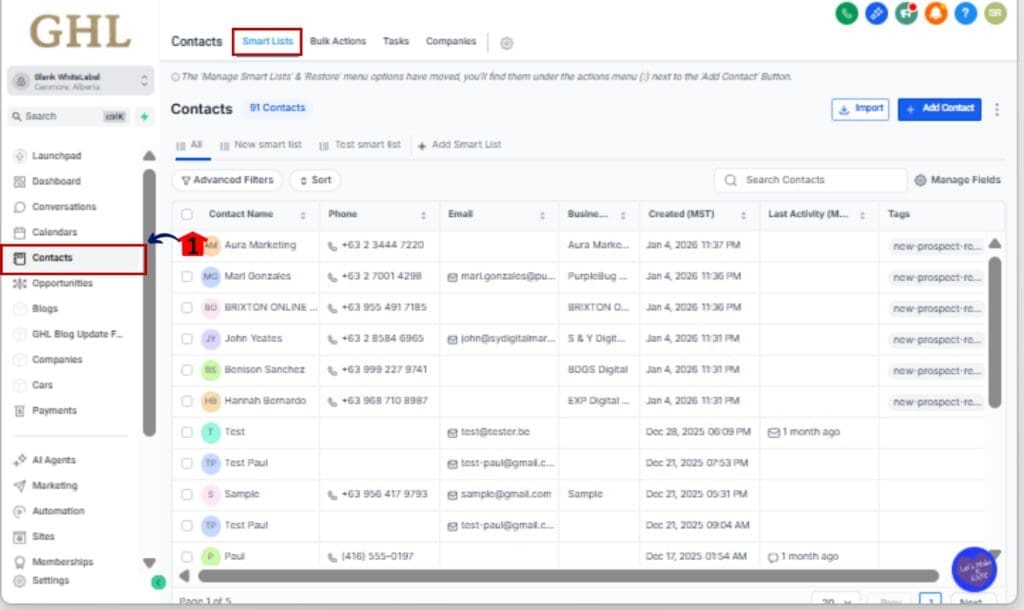
1.1 From your GoHighLevel account, use the left-hand menu.
1.2 Click Contacts.
1.3 Select SmartLists to open the Contact List View.
Step 02 – Locate the Actions Menu
2.1 Look to the top-right area of the page.
2.2 Find the Add Contact button.
2.3 You’ll see a small three-dot menu sitting right beside it.

Step 03 – Open Smart List Management
3.1 Open the three-dot actions menu.
3.2 Click Manage Smart Lists to edit, duplicate, share, or clean up your lists.
3.3 Select Restore to recover previously deleted Smart Lists.

Step 04 – Manage or Restore as Usual
4.1 Use the Manage Smart Lists panel exactly as before.
4.2 Restore Smart Lists the same way you always have, no functionality has changed.
4.3 Close the panel when finished and continue working inside SmartLists.

That’s it. No reconfiguration. No new permissions. Just a cleaner path to Smart List Management that aligns with GoHighLevel’s updated CRM layout.
What This Means for Daily CRM Workflows
Once the initial “where did it go?” moment passes, this Smart List Management update actually makes day-to-day CRM work smoother. The biggest change isn’t what you can do, it’s how focused the interface feels while you’re doing it.
Pulling those buttons out of the header cleaned things up a bit. When you’re spending a lot of time inside lists, that extra space actually helps.
For agencies, this also creates more consistent internal behavior. The three-dot actions menu is becoming a standard pattern across GoHighLevel. Once your team learns to look there for contextual actions, that habit carries over into other list views across the platform. Training gets easier. SOPs get simpler. New hires ramp faster.
Another quiet win is client-facing clarity. If you’re white-labeling GoHighLevel or giving clients limited access, a cleaner Contacts interface reduces confusion and support questions. Clients focus on contacts and lists, not buttons they don’t fully understand or shouldn’t be using anyway.
From a speed standpoint, nothing slows you down once the habit clicks. You’re still accessing Smart List Management in two clicks. The difference is those clicks now happen exactly where the action makes sense, instead of reaching up into a global header every time.
In short, this update nudges everyone toward a more intentional CRM workflow. Fewer accidental clicks. Cleaner screens. More predictable UI behavior as GoHighLevel continues to evolve.
FAQ About the Smart List Change
Final Takeaway for Agencies and Power Users
Here’s the short version. Smart List Management didn’t get removed. It didn’t get locked behind new permissions. It didn’t get watered down. It simply moved to a smarter location that fits how GoHighLevel wants users working inside the CRM going forward.
If you manage contacts daily, this change is more of a workflow upgrade than a disruption. Once your eyes adjust to using the three-dot actions menu next to Add Contact, managing and restoring Smart Lists feels more intentional and less cluttered. Two clicks. Same outcome. Cleaner screen.
For agencies, this is one of those small things that’s easy to overlook but ends up causing the most questions. A quick heads-up to your team now can save a bunch of Slack messages later.
This update also signals where GHL is heading. Expect more contextual actions. Expect fewer overloaded headers. Expect a CRM that prioritizes focus over feature sprawl. That’s a win if you’re managing multiple sub-accounts or supporting clients inside a white-labeled environment.
Bottom line. If you know where to click, Smart List Management works exactly as it always has, just in a cleaner, more scalable layout.
Scale Your Business Today.
Streamline your workflow with GoHighLevel’s powerful tools.