- Control Your Payment Schedule Emails
- Quick Summary – Payment Schedule Emails
- What’s New in GHL – Editable Payment Schedule Notifications
- What’s Changed – Before vs After
- Why This Update Matters for Agencies
- How to Use Payment Schedule Email Controls
- Pro Tips for Customizing Notifications
- FAQ About Payment Schedule Emails
- What This Means for Your Business
- Conclusion
Control Your Payment Schedule Emails
GoHighLevel just gave agencies a big win which is Payment Schedule Emails, especially if you’re serious about polished client communication.
You can now edit, disable, or completely redesign the “Payment Schedule Received” notification that goes out when customers get an invoice with installments. Before this update, the system auto-sent a generic message you couldn’t change. It didn’t matter if it matched your tone, brand, or even made sense for your business.
That’s over now.
This blog breaks down everything you need to know about this update, why it matters, and how to set it up the right way inside your GHL account.

GoHighLevel now gives you full control over payment schedule emails. You can personalize the message, match your brand voice, or turn them off completely, no more default auto-emails you can’t tweak.
Quick Summary – Payment Schedule Emails
Purpose: GoHighLevel just made it possible to fully edit, disable, or personalize the “Payment Schedule Received” notifications that go out with installment invoices.
Why It Matters: This gives agencies more control over customer communication, allowing for branded messaging, clearer payment instructions, or removing unnecessary emails.
What You Get: One-click toggle control, full email/SMS editor access, dynamic field support for installment schedules, and the ability to stop sending irrelevant system messages.
Time To Complete: You can update or disable this notification in under 10 minutes directly from the Invoices & Estimates settings tab.
Difficulty Level: Beginner-friendly and perfect for white-label agencies, freelancers, and billing teams that want tight control without complex workflows.
Key Outcome: Clearer, branded client communication, fewer support requests, and more control over automation touchpoints that impact how, and when, your clients pay.
What’s New in GHL – Editable Payment Schedule Notifications
This update adds full customization to the “Payment Schedule Received” notification, which is triggered when a customer is invoiced with installment payments.
Here’s what’s new:
Automate marketing, manage leads, and grow faster with GoHighLevel.

- You can enable or disable the payment schedule emails entirely
- You can now edit both Email and SMS templates from inside the notification settings
- You can add custom fields (like due dates, amounts, or contact info) to personalize each message
- The message won’t send if the invoice doesn’t include a Payment Schedule Emails, so you won’t confuse clients with empty fields
This gives you precise control over what gets sent, when, and how it looks, down to the tone and formatting.
No more worrying about awkward system-generated messages being sent on your behalf. Now, it’s all in your hands.
What’s Changed – Before vs After
Let’s break down the difference this update actually makes.
Before:
The “Payment Schedule Received” email was triggered automatically every time an invoice had installment payments. It used a static, system-generated message that:
- Couldn’t be edited
- Didn’t allow custom branding or tone
- Sent even if it wasn’t necessary
- Often caused confusion for clients
After:
You now have full control:
- Toggle the notification on or off for each sub-account
- Edit the message content using your own copy, layout, and custom fields
- Personalize with brand language, contact info, payment terms, or links
- Ensure clarity by removing the notification entirely when it’s not needed
This means your clients only get relevant, branded communication that actually helps them take action, while reducing your support load from confused customers.
Why This Update Matters for Agencies
If you’re managing recurring invoices or installment plans for clients, this update is a game changer.
Here’s why it matters:
- Brand Consistency:
Now you can write those payment emails the same way you’d talk to your clients, clear, on-brand, and actually useful. - Client Clarity:
When your payment emails are clear and easy to understand, clients stop asking follow-up questions, and you get paid faster. - Automation Without the Noise:
Sometimes those default notifications create more noise than value. Now, you can turn off emails that aren’t helpful or needed. - Flexible Communication Strategy:
Agencies finally have room to handle invoices their own way, start to finish, without being boxed in by generic system rules. - Scalable Control:
Rolling out branded notifications across multiple sub-accounts becomes easier, especially when used in snapshots or SaaS Mode setups.
This is a small update with big implications for how you manage customer communication, at scale.
How to Use Payment Schedule Email Controls
Tired of system emails that don’t reflect your brand, or worse, confuse your clients? Now you can take full control of the “Payment Schedule Received” notification and make it work for your agency, not against it. Here’s how to customize or turn it off in just a few steps.
Step 01 – Go to Notification Settings
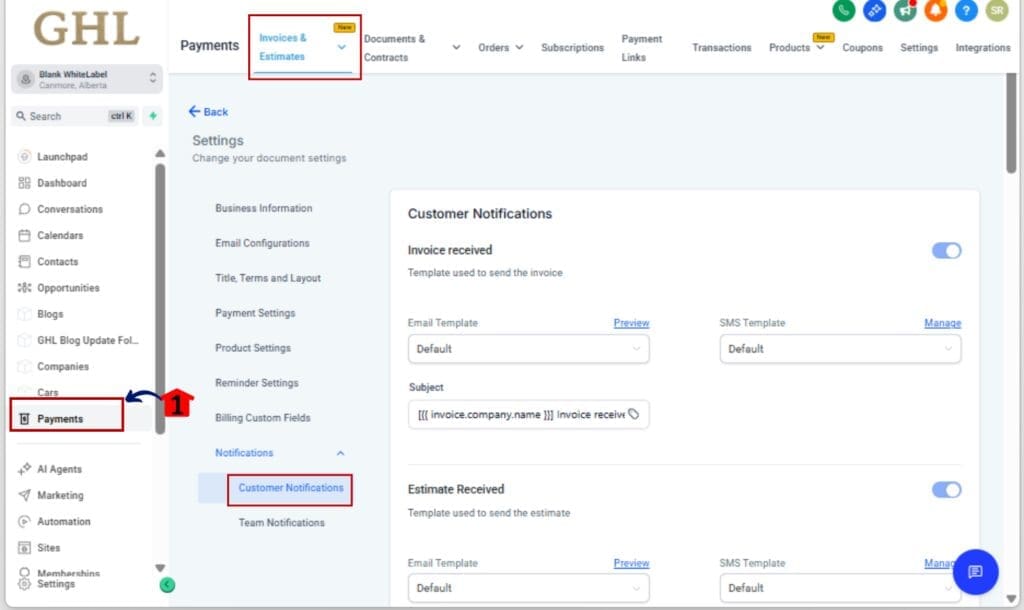
1.1 From your GHL account, click Payments in the left-hand menu.
1.2 Select Invoices & Estimates.
1.3 Click Settings in the top tab.
1.4 Then select Notifications > Customer Notifications.
Step 02 – Find the Right Notification
2.1 Scroll to locate “Payment Schedule Received.”
2.2 This is the automated email clients get when an invoice includes installment payments.

Step 03 – Turn It On or Off
3.1 Use the toggle to enable or disable this message completely.
3.2 If your agency doesn’t want to send it at all, flip it off and move on.

Step 04 – Customize the Email or SMS Template
4.1 Click Manage next to the Email or SMS template.
4.2 Update the subject line, message body, and formatting.
4.3 Add helpful details or brand voice for a better client experience.

Step 05 – Use Dynamic Payment Fields
5.1 Insert fields like:
• {{paymentSchedule.totalAmount}}
• {{paymentSchedule.dueDates}}
• {{invoice.paymentLink}}
5.2 Make sure your invoice actually uses a Payment Schedule Emails, otherwise, these will appear blank.

Step 06 – Save and Test Your Message
6.1 Save your changes.
6.2 Next, run a test with a Payment Schedule Emails invoice to see how your message actually shows up.

And just like that, your invoice emails are sharper, clearer, and finally sound like your business.
Pro Tips for Customizing Notifications
Now that you’ve unlocked the ability to edit payment schedule emails, here’s how to make them really work for you, not just look “less bad.”
1. Keep It Human, Not Robotic
Using canned text won’t do your brand any favors. Speak in a way your clients recognize, whether that’s relaxed and friendly or clear and to the point.
2. Add a Support Contact Line
Always include a fallback like:
“Need help with your payments? Just reply to this email or contact our billing team at [email protected]”
It builds trust and cuts down on support tickets.
3. Use Smart Conditional Messaging
Use if/else logic inside your custom fields or segments if you’re going advanced. Example: only show certain blocks if a payment is overdue or includes X number of installments.
4. Match Your Brand Style
When customizing with HTML or CSS, stick to your usual brand elements so your message looks like it came from you, not a patchwork of styles.
5. Test with Real Invoice Data
Always test using an invoice that actually has a Payment Schedule Emails attached. If you test on a regular invoice, your fields may come back blank, and your email will look broken.
6. Avoid Over-Automation
Just because you can send it doesn’t mean you should. Ask: does this notification actually help my client? If not, disable it and use your regular email sequences or workflows to communicate better.
FAQ About Payment Schedule Emails
What This Means for Your Business
It’s more than just an email tweak. It’s a solid step toward cleaner communication and smoother client handling.
Here’s the bigger picture:
1. More Professionalism, Less Confusion
You’re not stuck with outdated, robotic emails anymore. Now you can break down Payment Schedule Emails in a way that actually sounds like you.
2. Fewer Support Tickets
When clients know exactly what to expect, they’re less likely to email you with “What’s this charge?” or “When is my next payment due?” Better emails = fewer headaches.
3. Stronger Branding
Each email touchpoint is a branding opportunity. Customizing this notification helps you look polished and consistent, even in the smallest interactions.
4. Better Automation Strategy
This gives you control to decide which messages truly matter. Combine this with your workflows and follow-ups for a smarter client experience.
5. Flexibility Across Sub-Accounts
Managing multiple sub-accounts? You can customize this per location or roll out consistent templates using snapshots.
Doesn’t matter if you’re flying solo or running a full white-label operation, this helps you stay on top of the small stuff that keeps clients happy and sticking around.
Conclusion
Sometimes the smallest features create the biggest wins. This update to GHL’s invoice system finally gives agencies full control over a message that goes out every time a client receives a Payment Schedule Emails.
How you use it from here is in your hands.
Here’s what to do next:
- Take a quick look at what’s currently being sent. If your clients are still getting the stock message, it might be time for a refresh.
- Decide on your strategy: Want to turn it off completely? Add a personal touch? Or link to a help doc? Make a plan that matches your brand.
- Customize, test, and save: Edit your templates for both email and SMS, and test them using a real invoice with a Payment Schedule Emails.
- Make it uniform by pushing the update to all sub-accounts with GHL’s built-in snapshot or cloning features.
In a couple of minutes, you’ve tightened up a part of your client experience most agencies ignore, and that’s what sets the pros apart.
Scale Your Business Today.
Streamline your workflow with GoHighLevel’s powerful tools.