

- How AI-Powered Dynamic Custom Values Simplify Automation and Eliminate Workflow Branching
- Quick Summary – Dynamic Custom Values at a Glance
- What’s New with Dynamic Custom Values
- What’s Changed from Traditional If/Else Workflows
- Why Dynamic Custom Values Matter for Agencies
- Common Configurations for Dynamic Custom Values
- What This Means for Your Automation Strategy
- Frequently Asked Questions About Dynamic Custom Values
- Conclusion – Smarter Automation with Dynamic Custom Values
How AI-Powered Dynamic Custom Values Simplify Automation and Eliminate Workflow Branching
Dynamic Custom Values are changing how automation works inside GoHighLevel. If you have ever built large If/Else trees just to update a single field, you already know how messy that can get. One small mistake in your conditions can break the entire workflow. And fixing it later? Even worse. Until now, updating custom values based on context meant stacking branch after branch. You had to account for timezone differences, pipeline stages, date formats, day of the week, and contact data. Every new scenario added more complexity. Over time, your workflow became harder to manage and slower to maintain.
Dynamic Custom Values solve that problem. With the new AI Agent Update Custom Value tool, your automation no longer depends on rigid logic trees. Instead of forcing the workflow to follow preset branches, the AI evaluates the situation in real time. It understands the context and writes the correct value directly into the right custom field inside your sub-account. This means fewer actions, fewer conditions, and fewer chances for errors. Dynamic Custom Values allow you to replace dozens of workflow steps with a single intelligent AI action. You can choose a specific field to update, or let the AI decide which field and value make sense based on your instructions. This update does not just clean up your workflows. It changes how you build them.

Dynamic Custom Values allow your AI Agent to update fields intelligently without massive If/Else trees. You get cleaner workflows, faster automation builds, and smarter execution with less maintenance.
Quick Summary – Dynamic Custom Values at a Glance
Purpose:
This update introduces Dynamic Custom Values inside the AI Agent, allowing you to update custom fields using intelligent context instead of complex If/Else logic.
Why It Matters:
Dynamic Custom Values reduce workflow size, eliminate large branching trees, and simplify automation maintenance across sub-accounts.
What You Get:
You get a built-in AI tool that can update specific Custom Values or decide which field and value to use based on real-time reasoning.
Time To Complete:
Setting this up inside a workflow takes about 5–10 minutes once you understand the configuration options.
Difficulty Level:
This is beginner-friendly for GHL users who are familiar with Workflows and AI Agent actions.
Key Outcome:
You will build cleaner, faster, and more scalable automations by replacing rigid logic branches with Dynamic Custom Values.
What’s New with Dynamic Custom Values
The biggest change is simple. The AI Agent now includes Update Custom Value as a built-in tool inside workflow actions. That means the AI can write directly to custom values during execution without relying on complicated branching logic.
Before this update, setting custom values based on conditions required multiple If/Else steps. If the day was Monday, set this value. If the contact was in a different timezone, format the date differently. If the pipeline stage changed, update a related field. Each condition added another layer of logic.
Automate marketing, manage leads, and grow faster with GoHighLevel.

Now, Dynamic Custom Values allow the AI to evaluate the context in real time and decide what to write.
You can still choose a specific custom value field if you want full control. But you also have the option to select “Let AI decide.” When enabled, the AI determines which custom value should be updated and what the new value should be based on your instructions.
This familiar “Let AI decide” pattern is already used in other AI Agent tools, so the experience feels consistent inside GoHighLevel. The difference is that it now applies directly to custom values, which opens the door for smarter automation design.
Dynamic Custom Values remove the need for large decision trees and replace them with intelligent execution. Instead of building for every possible scenario, you let AI handle the decision-making at runtime.
That shift changes how workflows are built moving forward.
What’s Changed from Traditional If/Else Workflows
Before Dynamic Custom Values, building smart automation inside GoHighLevel often meant building long If/Else chains. You had to predict every possible outcome in advance. If today is Monday, do this. If the contact is in a different timezone, format it this way. If the pipeline stage equals “Closed Won,” update another field.
Every scenario required a branch.
As your automation grew, those branches multiplied. A simple workflow could quickly turn into twenty or thirty conditional paths. That made testing harder. It also made updates risky. Changing one condition could affect multiple outcomes.
Dynamic Custom Values remove that rigid structure.
Instead of forcing your workflow to follow preset branches, the AI Agent evaluates the situation during execution. It looks at the contact data, the trigger event, and your instructions. Then it decides what value should be written and where it should go.
The difference is not just fewer steps.
It is a different way of thinking about automation.
With traditional If/Else workflows, you had to design for every possible case. With Dynamic Custom Values, you design the intent and let AI handle the variation.
This reduces workflow size, lowers maintenance, and makes your backend cleaner. It also means you can scale automation across multiple sub-accounts without copying large logic trees every time.
That shift alone can save hours when managing client accounts.
Why Dynamic Custom Values Matter for Agencies
If you manage multiple client accounts inside GoHighLevel, Dynamic Custom Values are a big deal.
Agencies often build similar workflows across many sub-accounts. When those workflows rely on large If/Else trees, small changes become time-consuming. Updating logic across ten or twenty accounts can take hours. And one missed condition can cause errors that are hard to track down.
Dynamic Custom Values reduce that risk.
Instead of copying complex branching logic into every client workflow, you can use one intelligent AI action to handle variations. The AI evaluates context during execution and writes the correct value automatically. That means fewer workflow steps and fewer moving parts.
This makes maintenance easier.
It also makes scaling easier.
When you build snapshots or white-label systems, clean workflows matter. Simpler automation structures are easier to duplicate, easier to troubleshoot, and easier to explain to clients or team members. Dynamic Custom Values help keep your backend organized instead of cluttered.
There is also a performance benefit. Smaller workflows execute faster and are easier to test. That gives you more confidence when launching new campaigns or onboarding new clients.
For agencies focused on growth, this is not just a convenience update.
It is a smarter way to build automation from the start.
How to Use Dynamic Custom Values Inside AI Agent
Using Dynamic Custom Values inside GoHighLevel allows you to replace complex workflow branching with one intelligent AI step. In this section, you will learn how to access the AI Agent inside a Workflow, select the Update Custom Value tool, configure static or AI-decided fields, and test the execution. This process works inside any sub-account and can be added to new or existing workflows.
Here are the steps to configure Dynamic Custom Values inside GoHighLevel:
- Access the Workflows page
- Open or Create a Workflow
- Add the AI Agent Action
- Select the Update Custom Value Tool
- Configure the Custom Value Field
- Configure the New Value
- Test and Validate the Workflow
To start make sure you are logged in to your GoHighLevel sub-account.
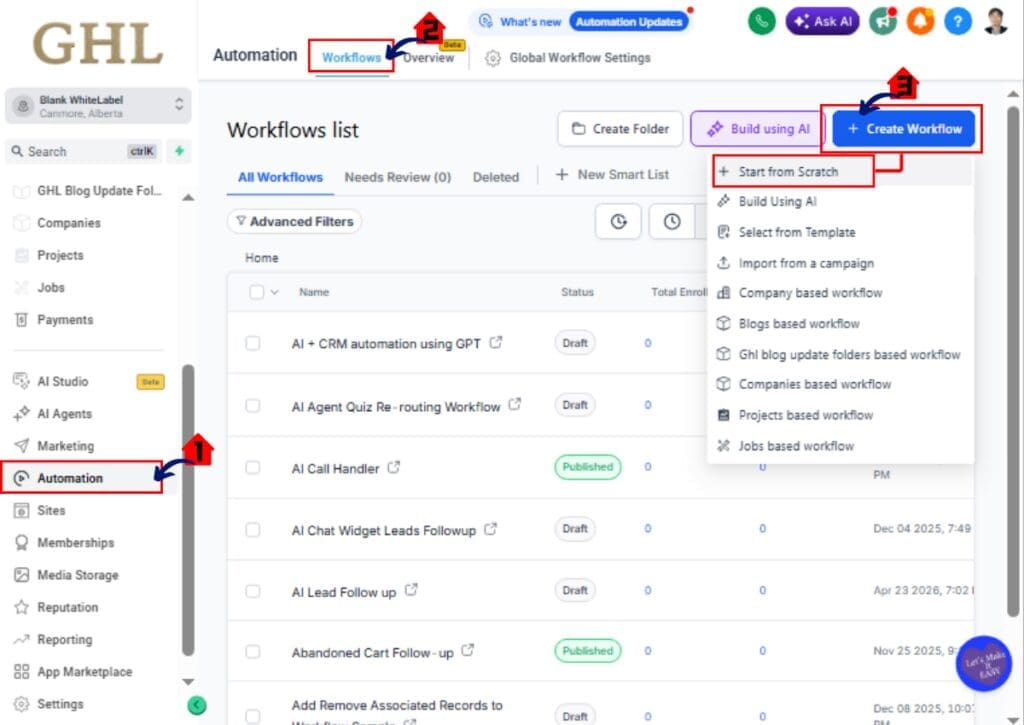
Step 01 – Access the Workflows page
The Main Menu on the Left side of your screen has all the main areas that you work in when using GHL.
1.1 Click Automation main menu item.
- Inside the Automation section you will find Workflows, Overview and Global Workflow Settings.
1.2 Click Workflows in the top menu if the Workflow List page is not already showing.
- The Workflows Page displays all existing workflows and folders.
- You can create new workflows or edit existing ones here.
1.3 Click Create Workflow to build a new workflow.
- This opens the Workflow Builder page.
- You can choose Start from Scratch or use a template.
Step 02 – Add the AI Agent Action
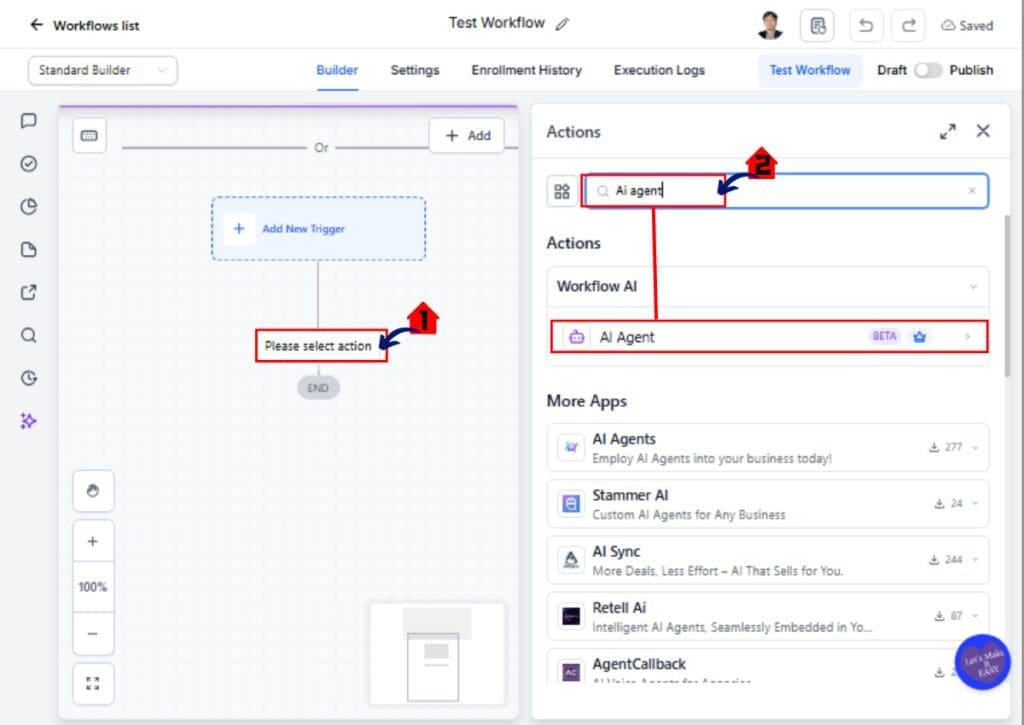
2.1 Inside the Workflow Builder, click the + Add Action button.
- This opens the Action selection panel.
2.2 In the action search bar, type “AI Agent.”
- Select AI Agent from the action list.
- The AI Agent configuration panel will open as a new Section overlay.
Step 03 – Select the Update Custom Value Tool
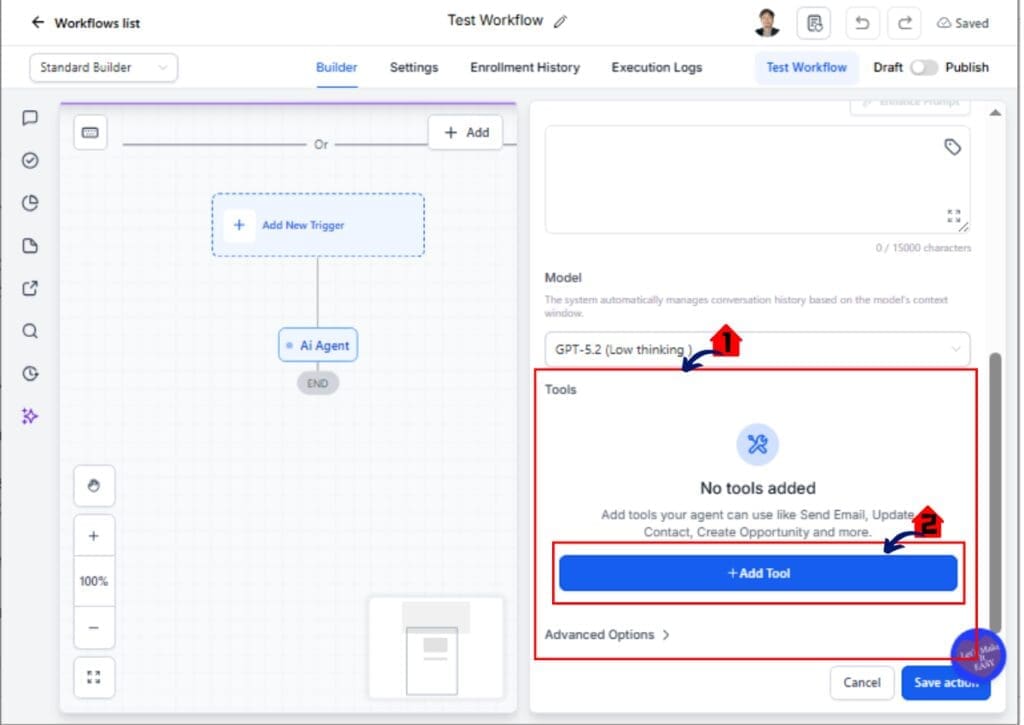
3.1 Inside the AI Agent configuration Section, locate the Tools area.
- This is where you choose what the AI Agent is allowed to do.
3.2 Click Add Tool if no tools are selected.
- A dropdown list of available AI tools will appear.
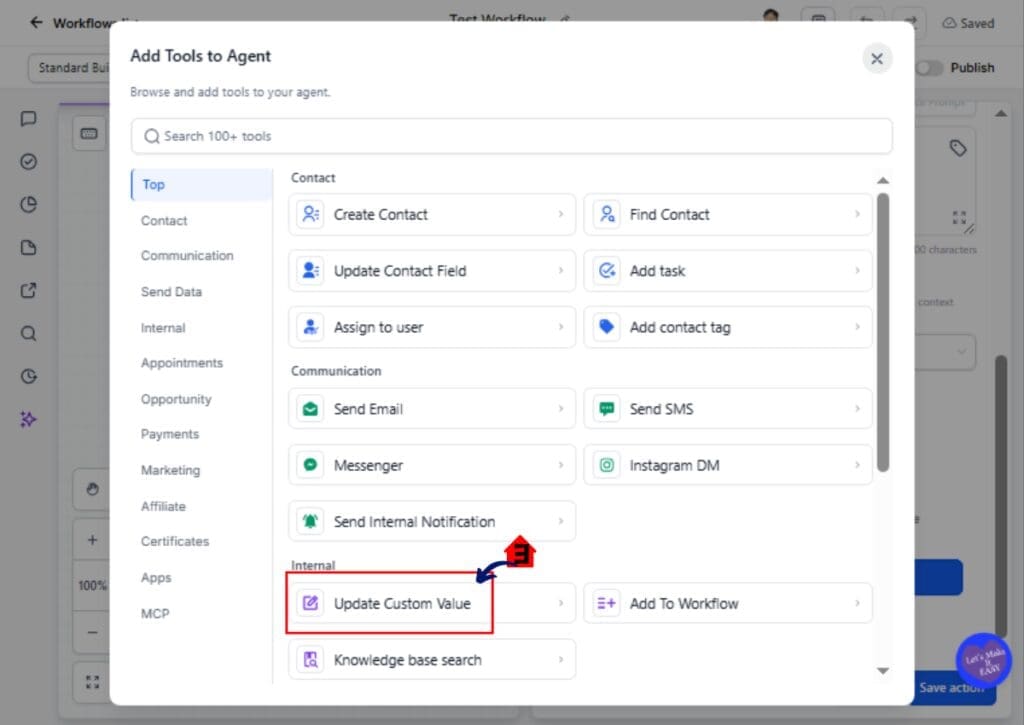
3.3 Select Update Custom Value from the tool list.
- The configuration fields for Custom Value and New Value will appear.
Step 04 – Configure the Custom Value Field
4.1 Click the Custom Value dropdown field.
- A list of available Custom Values in your sub-account will appear.
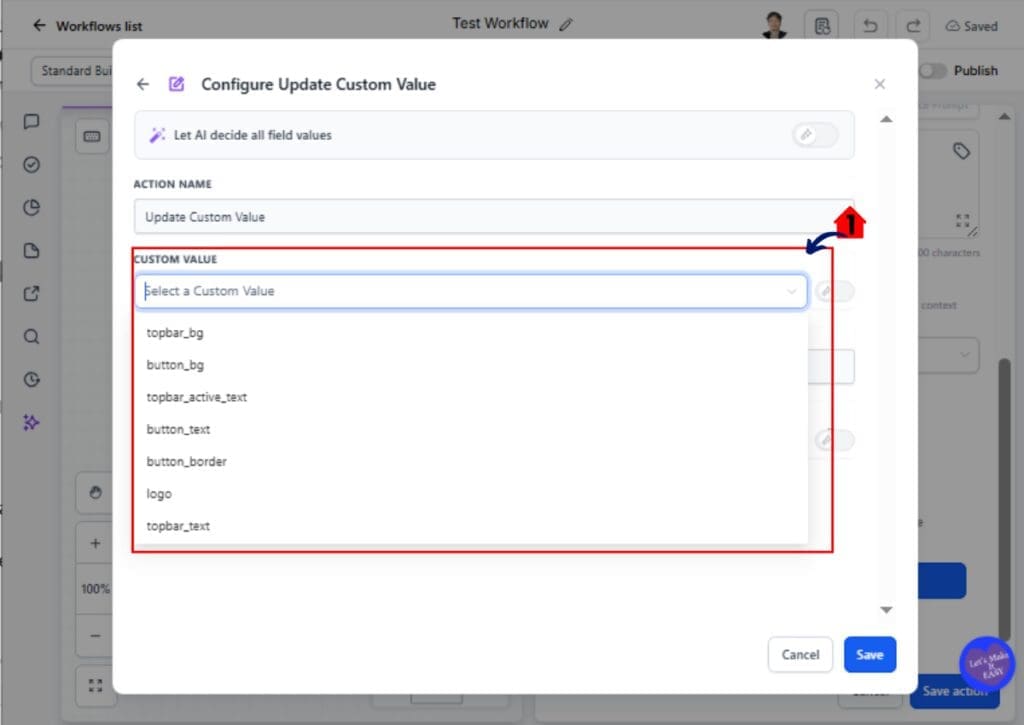
4.2 Select a specific Custom Value if you want to control which field is updated.
- The AI will write to this field only.
OR
4.3 Select Let AI decide if you want the AI to determine which Custom Value should be updated.
- This is best for context-based or multi-field scenarios.
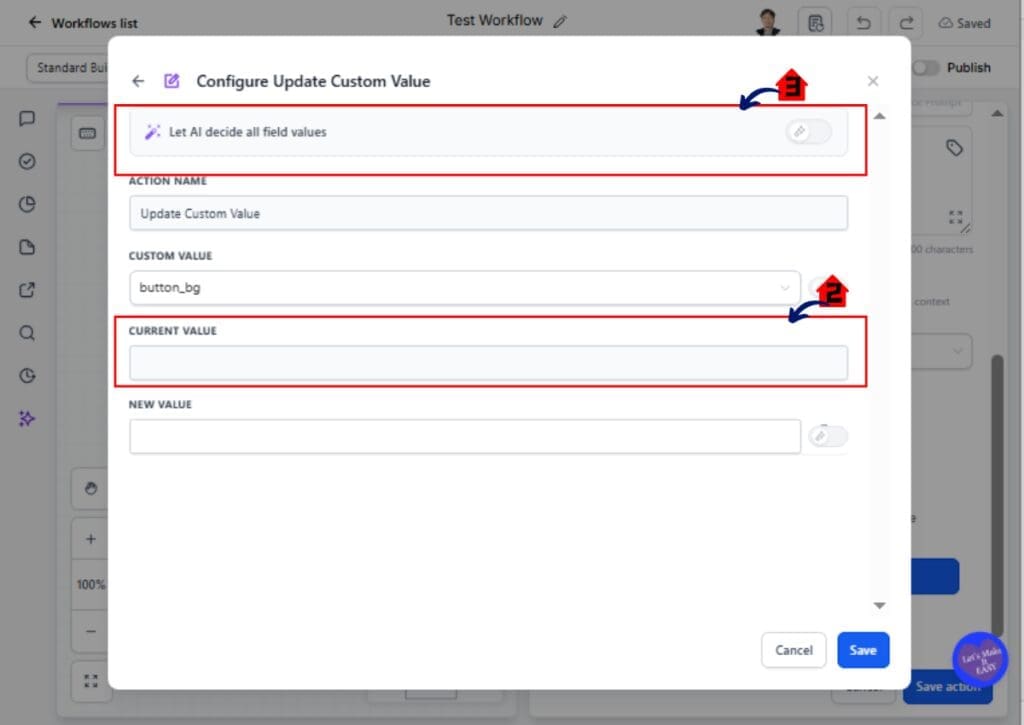
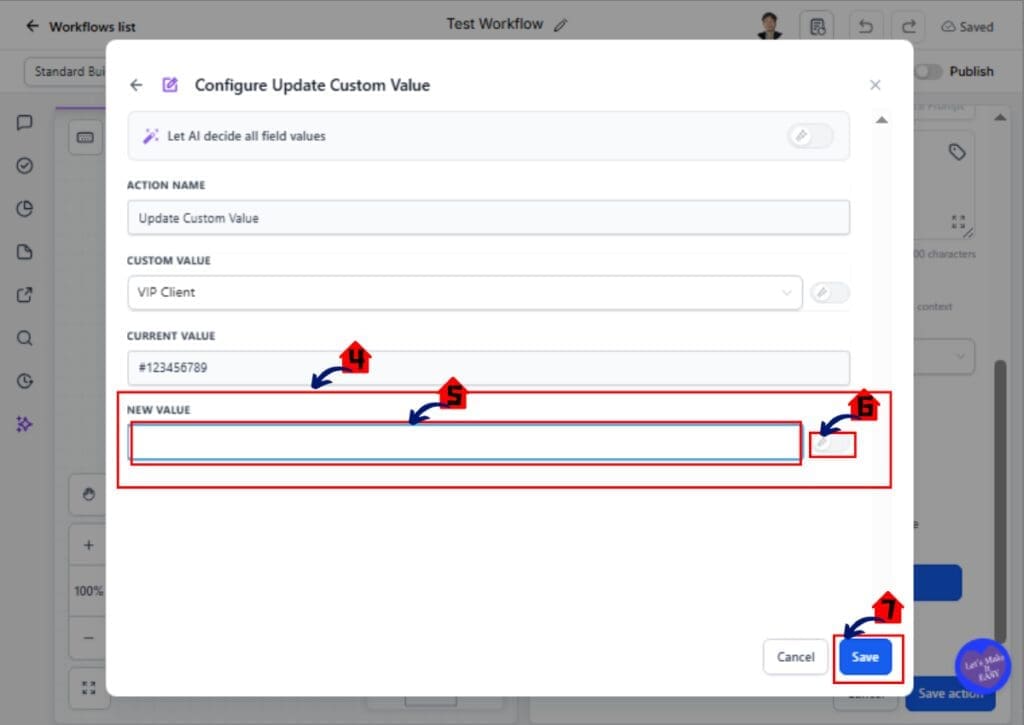
4.4 Click inside the New Value field.
- You can type a fixed value directly into the field.
- Enter a static value if the result should always be the same.
- Example: “Qualified Lead” or “Promo-2026.”
- Enter a static value if the result should always be the same.
4.5 Insert a variable reference if the value should pull from contact data.
- Click the variable icon to insert dynamic fields.
OR
4.6 Select Let AI decide if you want the AI to generate the value based on your prompt instructions.
- The AI will evaluate context during execution and determine the correct output.
4.7 Click Save in the top right corner of the Workflow Builder.
- Your AI Agent configuration will be stored.
Step 05 – Test and Validate the Workflow
5.2 Use Test Workflow with a sample contact.
- The workflow will execute using real contact data.
5.3 Navigate to the contact record and review the updated Custom Value field.
- Confirm the correct value was written.
5.4 If the result is not correct, adjust the AI prompt inside the AI Agent section.
- Clear instructions improve AI accuracy.
Common Configurations for Dynamic Custom Values
Dynamic Custom Values give you flexibility, but how you configure them depends on your goal.
The most common setup is selecting a specific Custom Value field while allowing the AI to decide the New Value. In this case, you control where the data is written, but the AI determines what should be written based on context. This works well for updating lead status notes, formatted dates, summaries, or calculated labels.
The second option is allowing the AI to decide both the Custom Value field and the New Value. This setup gives the AI full control. It is useful when different scenarios require updates to different fields. For example, if a contact moves through multiple pipeline stages, the AI can choose which field should reflect that change.
You can also use a static Custom Value field and a static New Value. This setup is simple and predictable. It works well when you want to trigger a standard update without adding conditional logic.
Dynamic Custom Values work best when your prompt clearly explains the outcome you want. The more context you provide, the better the AI performs. Choosing the right configuration depends on how much control you want versus how much flexibility you need.
The key is understanding that this tool replaces branching logic. You are designing intent instead of building conditions.
Pro Tips for Smarter AI Automation
Dynamic Custom Values work best when your AI instructions are clear and focused. The AI Agent is powerful, but it still follows the intent you give it. If your prompt is vague, the output may vary. Keep your instructions simple and specific.
Start by defining the outcome you want. Instead of saying “update the contact,” explain what should change and why. For example, tell the AI to update the Custom Value with a formatted date based on the contact’s timezone. Clear direction leads to consistent results.
Avoid overcomplicating your prompt. You do not need to describe every possible scenario. Dynamic Custom Values are designed to reduce complexity, not recreate it inside the prompt. Focus on the logic goal, not every condition.
It also helps to standardize your Custom Value naming. Use clear names that reflect their purpose. This makes it easier for the AI to select the correct field when you use the “Let AI decide” option.
Always test with real contact data. Run the workflow and review the updated fields inside the contact record. If something looks off, adjust the AI instructions and test again.
Dynamic Custom Values are strongest when paired with clean workflow design. The simpler your automation structure, the more effective the AI execution becomes.
Real-World Use Cases for Dynamic Custom Values
Dynamic Custom Values become powerful when you apply them to real marketing workflows.
One common use case is day-based scheduling. Instead of building separate branches for each day of the week, you can let the AI evaluate the current date and update a Custom Value with the correct schedule label. This removes seven separate conditions and replaces them with one intelligent action.
Another strong example is timezone formatting. If you work with leads across multiple regions, formatting dates and times can get messy. Dynamic Custom Values allow the AI to read the contact’s timezone and update a formatted field correctly without multiple If/Else paths.
Promo campaigns are another opportunity. Instead of building different branches for each campaign type, you can let the AI generate a rolling promo code and store it in a Custom Value. This keeps your automation clean while still personalizing the offer.
Pipeline stage updates also benefit from this feature. When a contact moves stages, the AI can update related fields automatically. It can adjust status labels, tracking fields, or internal notes based on context.
For agencies managing multiple sub-accounts, Dynamic Custom Values reduce duplication. You build one smart workflow and let AI handle the variation. That means faster deployment and easier scaling.
This is where automation shifts from rigid logic to adaptive execution.
What This Means for Your Automation Strategy
Dynamic Custom Values change how you think about automation inside GoHighLevel.
Instead of building workflows that try to predict every possible scenario, you now design around intent. You tell the AI what outcome you want, and it determines how to apply that logic during execution. This reduces the need for heavy branching and makes your workflows easier to understand.
Smaller workflows are easier to manage. They load faster. They are easier to test. They are also easier to duplicate across sub-accounts. If you build snapshots or white-label systems, this matters a lot. Clean workflows reduce errors and lower support requests from clients or team members.
Dynamic Custom Values also support long-term scalability. As your automation grows, you will not need to keep stacking new conditions on top of old ones. You can adjust your AI instructions instead of rebuilding entire logic trees.
This gives you more flexibility.
It also gives you more control.
For agencies and marketers focused on efficiency, this feature helps protect your time. You spend less effort maintaining complex workflows and more time improving campaigns.
Dynamic Custom Values are not just a new tool. They represent a smarter foundation for how modern automation should be built.
Frequently Asked Questions About Dynamic Custom Values
Conclusion – Smarter Automation with Dynamic Custom Values
Dynamic Custom Values are not just another small feature update inside GoHighLevel. They represent a smarter way to build automation.
Instead of stacking endless If/Else branches, you can now use the AI Agent to evaluate context and update Custom Values in real time. This reduces workflow size, lowers maintenance, and improves clarity inside your sub-accounts. For agencies managing multiple clients, that alone can save hours each month.
The real advantage is flexibility. You design the outcome you want, and the AI handles the variation. That means fewer broken workflows, fewer logic errors, and fewer updates when campaigns change.
Dynamic Custom Values allow you to move from rigid automation to adaptive automation.
If you have older workflows filled with condition trees, now is the time to simplify them. Replace heavy logic with a single AI step and test the results. Start with one workflow, measure the difference, and then scale it across your accounts.
Smarter workflows are easier to manage. Cleaner systems are easier to scale.
Have you tried using Dynamic Custom Values yet? Let me know how you are applying them in your automations.
And check back with GHL Growth Garage for more practical GoHighLevel feature guides built for agencies who want to move faster.
Scale Your Business Today.
Streamline your workflow with GoHighLevel’s powerful tools.


