

- Discover how the expanded Housecall Pro integration lets you automate leads, estimates, jobs, appointments, and customer management with powerful new workflow triggers and actions.
- Quick Summary – Housecall Pro Automation Overview
- What's New in Housecall Pro Automation?
- Why Housecall Pro Automation Matters
- New Workflow Triggers Explained
- New Workflow Actions Explained
- How to Connect Housecall Pro to GoHighLevel
- What Housecall Pro Automation Means for Your Business
- Frequently Asked Questions
- Conclusion
Discover how the expanded Housecall Pro integration lets you automate leads, estimates, jobs, appointments, and customer management with powerful new workflow triggers and actions.
Housecall Pro Automation has taken a huge step forward inside GoHighLevel. The latest update adds nine new workflow triggers and fourteen workflow actions, making it easier than ever to automate leads, estimates, jobs, appointments, and customer management from one platform. If you run a home service business or manage clients as a marketing agency, this update can save hours of manual work every week. Instead of updating records by hand or switching between systems, GoHighLevel can now automate many of those tasks for you. The expanded integration supports almost the entire field service lifecycle. You can automatically create leads, generate estimates, schedule jobs, update customers, and trigger follow-up campaigns based on real activity inside Housecall Pro.
Everything works together through GoHighLevel Workflows using a simple API key connection. The best part is that these new automation tools help you respond faster, reduce human error, and deliver a better customer experience. Whether you’re an HVAC company, plumber, electrician, cleaner, or the agency supporting them, you can build smarter workflows that keep your business moving without extra admin work. In this guide, you’ll discover everything included in the new Housecall Pro Automation update. We’ll explain the new workflow triggers and actions, show you how to connect your account, and walk through a real-world automation that takes a customer from quote request to completed job.

The new Housecall Pro Automation update makes it easier than ever to automate every stage of your customer journey—from capturing new leads to scheduling estimates, managing jobs, and following up after the work is complete. With powerful new workflow triggers and actions inside GoHighLevel, you can save hours of manual work while delivering a faster, more professional customer experience.
Quick Summary – Housecall Pro Automation Overview
Purpose:
This guide explains how to use the expanded Housecall Pro Automation features in GoHighLevel to automate leads, customers, estimates, jobs, and appointments from a single workflow.
Why It Matters:
The new integration reduces manual work by connecting your CRM and field service operations. It helps your team respond faster, improve accuracy, and deliver a better customer experience.
What You’ll Learn:
You’ll discover the nine new workflow triggers, fourteen workflow actions, how to connect your Housecall Pro account, and how to build practical automations using GoHighLevel Workflows.
Time to Complete:
Allow around 20–30 minutes to connect your account and build your first automation. More advanced workflows may take longer depending on your business needs.
Difficulty Level:
Beginner to Intermediate. Anyone familiar with GoHighLevel Workflows can follow this guide, even if it’s their first time using the Housecall Pro integration.
Key Outcome:By the end of this guide, you’ll know how to automate key stages of the customer journey, reduce repetitive admin tasks, and build more efficient workflows for your home service business or agency clients.
What’s New in Housecall Pro Automation?
The latest Housecall Pro Automation update gives GoHighLevel users much more control over their field service workflows. Instead of supporting only a few automation options, the integration now covers almost the entire customer journey. From capturing new leads to completing jobs and sending follow-up messages, you can automate more tasks without leaving GoHighLevel.
The update introduces nine new workflow triggers and fourteen workflow actions. These additions let your workflows react automatically when important events happen in Housecall Pro. You can trigger automations when a job is created, an estimate is scheduled, a customer is added, or a job is completed. This helps eliminate manual work and keeps your CRM and field service software in sync.
Automate marketing, manage leads, and grow faster with GoHighLevel.

The new workflow actions are just as powerful. You can create and update customers, generate estimates, create jobs, schedule appointments, and retrieve customer or job information directly from a workflow. Everything connects using a secure API key, and you can manage multiple Housecall Pro accounts from the same GoHighLevel account.
This update is especially valuable for home service businesses that rely on speed and accuracy. Instead of copying information between systems or chasing missed follow-ups, your workflows can automatically handle repetitive tasks while your team focuses on serving customers.
Whether you’re building automations for your own business or creating systems for clients, Housecall Pro Automation gives you the tools to build faster, smarter, and more reliable workflows.
Why Housecall Pro Automation Matters
Running a home service business means juggling leads, estimates, appointments, jobs, and customer follow-ups every day. When those tasks rely on manual updates, mistakes happen. Missed appointments, delayed responses, and duplicate data can quickly affect the customer experience.
Housecall Pro Automation helps solve these problems by connecting Housecall Pro with GoHighLevel Workflows. As information changes in Housecall Pro, your workflows can react automatically. This keeps your CRM up to date and ensures customers receive the right communication at the right time.
For agencies, this update creates new opportunities to deliver more value. You can build complete automation systems for plumbers, electricians, HVAC companies, landscapers, cleaners, and other home service businesses without relying on third-party tools. That means faster deployments, fewer support requests, and more scalable client solutions.
Home service businesses also benefit from faster operations. A new website enquiry can become a Housecall Pro lead in minutes. Estimate reminders can be sent automatically before appointments, while completed jobs can trigger review requests or follow-up campaigns without staff lifting a finger.
Instead of spending time on repetitive admin work, your team can focus on booking more jobs and delivering excellent service. That’s the real value of Housecall Pro Automation. It helps you build consistent customer experiences, improve operational efficiency, and create workflows that grow with your business.
New Workflow Triggers Explained
One of the biggest improvements in this update is the addition of nine new workflow triggers. These triggers allow GoHighLevel Workflows to respond automatically when key events happen in Housecall Pro. Instead of checking for updates manually, your automations can start the moment new activity is detected.
The triggers cover every major stage of the customer journey. Whether a new lead arrives, an estimate is booked, or a job is completed, you can launch the right workflow at the right time.
Job Triggers
The new job triggers help you automate every stage of a service appointment.
- Job Created – Start onboarding, notify your team, or assign internal tasks.
- Job Scheduled – Send appointment reminders, technician details, or preparation instructions.
- Job Finished – Trigger review requests, follow-up campaigns, or customer satisfaction surveys.
- Job Cancelled – Notify staff, stop scheduled automations, or begin a rebooking sequence.
Estimate Triggers
Stay connected with every estimate from start to finish.
- Estimate Created – Send confirmation emails or notify your sales team.
- Estimate Scheduled – Remind customers about upcoming estimate appointments.
- Estimate Finished – Deliver approval links, follow-up messages, or next-step instructions automatically.
Lead and Customer Triggers
Capture new opportunities without delay.
- Lead Created – Launch lead nurturing, notify your sales team, or create internal tasks.
- Customer Created – Start welcome sequences, onboarding workflows, or customer communication campaigns.
Trigger Timing
These triggers use scheduled polling to detect new activity in Housecall Pro.
- Creation events are checked every 5 minutes.
- Scheduling, completion, and cancellation events are checked every 10 minutes.
For most home service businesses, this timing delivers fast and reliable automation without requiring constant manual monitoring.
New Workflow Actions Explained
The new workflow actions make Housecall Pro Automation even more powerful. Instead of waiting for an event to happen, your GoHighLevel workflows can now create, update, and manage records inside Housecall Pro automatically. This gives you complete control over your field service processes without switching between platforms.
The fourteen new actions cover customers, jobs, appointments, estimates, and leads. You can combine these actions with emails, SMS, pipelines, AI, and other GoHighLevel features to create fully automated customer journeys.
Customer Management
Manage customer records directly from your workflows.
- Create New Customer – Add a new customer automatically.
- Get Customer Details – Retrieve customer information for later workflow steps.
- Update Customer – Keep customer records accurate and up to date.
- Find Customers – Search for existing customers before creating duplicates.
Customer Address Management
Manage service locations with less manual work.
- Get Customer Address – Retrieve an existing service address.
- Create Customer Address – Add a new address for future jobs and appointments.
Job Management
Create and manage service jobs automatically.
- Create Job – Generate a new job after an estimate is approved or another workflow is completed.
- Get Job Details – Retrieve job information to personalise customer communication or update your CRM.
Job Appointment Management
Keep appointments organised and customers informed.
- Create Job Appointment – Schedule a technician visit directly from a workflow.
- Update Job Appointment – Modify appointment details when schedules change.
Estimate Management
Speed up the sales process with automated estimates.
- Create Estimate – Generate a new estimate without manual data entry.
- Get Estimate – Retrieve estimate details for approvals, reminders, or follow-up campaigns.
Lead Management
Capture and manage new opportunities automatically.
- Create Lead – Send new enquiries from GoHighLevel into Housecall Pro.
- Get Lead – Retrieve lead information for qualification, notifications, or reporting.
With these new workflow actions, Housecall Pro Automation becomes much more than an integration. It becomes the engine that connects your CRM, customer communication, and field service operations into one automated system.
How to Connect Housecall Pro to GoHighLevel
Connecting Housecall Pro to GoHighLevel allows you to automate actions based on real service events. Once connected, you can trigger workflows when jobs are scheduled, rescheduled, or completed. You can also create new customer records in Housecall Pro directly from your GoHighLevel workflows.
This setup only takes a few minutes to complete. In the steps below, you will connect your Housecall Pro account, configure the new workflow triggers, and test the Create New Customer action so you can start using Service Business Automation in your business.
Here are the steps to connect Housecall Pro to GoHighLevel:
- Access the Workflows section in GoHighLevel.
- Open the Workflow Builder.
- Add a Housecall Pro Trigger or Action.
- Connect your Housecall Pro Account.
- Configure the Housecall Pro Trigger.
- Configure the Create New Customer Action.
- Test and Publish the Workflow.
To start make sure you are logged in to your GoHighLevel sub-account.
Step 01 – Access the Workflows section in GoHighLevel
The Main Menu on the Left side of your screen contains all the main areas that you work in when using GHL.
1.1 Click Automation main menu item.
- Inside the Automation section you will find Workflows, Overview, and Global Workflow Settings.
1.2 Click Workflows in the top menu if the Workflow List page is not already showing.
- The Workflow List page contains all your workflows.
- You can view workflows individually or organize them into folders and sub-folders.
- You can also create workflows manually or with the Build Using AI button.
1.3 Click Create Workflow.
- If you already have a workflow you want to update, open that workflow instead.
1.4 Select Start from Scratch or choose a workflow template.
- The Workflow Builder page will open.

Step 02 – Add a Housecall Pro Trigger or Action
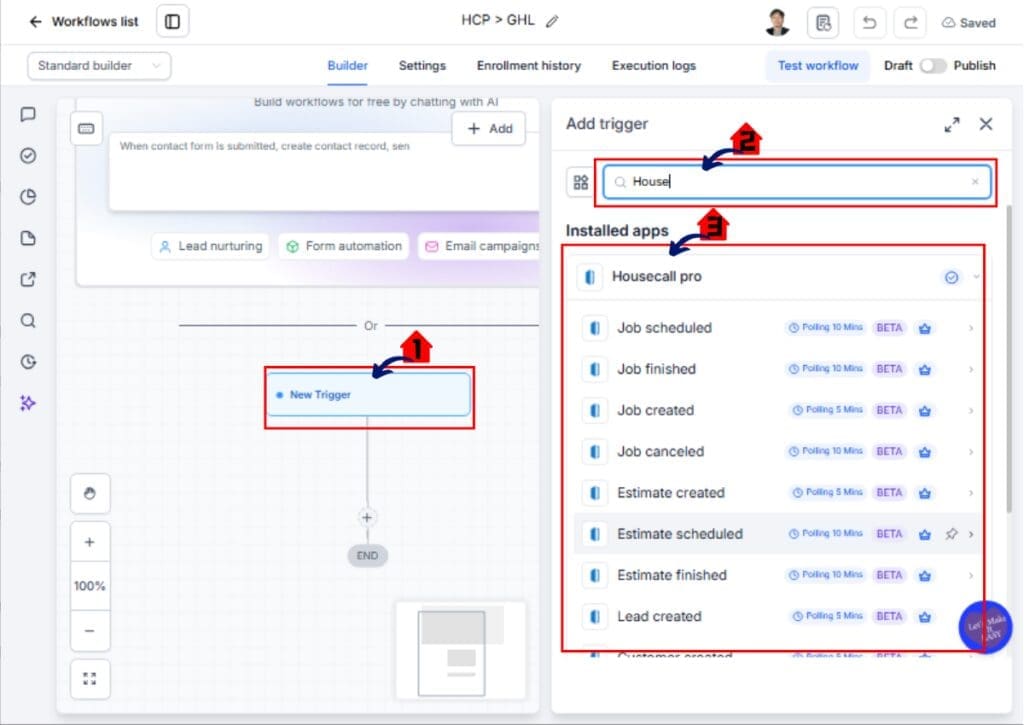
2.1 Click Add New Workflow Trigger.
- The Trigger Selection window will open.
2.2 Search for Housecall Pro.
- The available Housecall Pro workflow options will appear.
2.3 Select Job Scheduled, Job Completed, or Create New Customer.
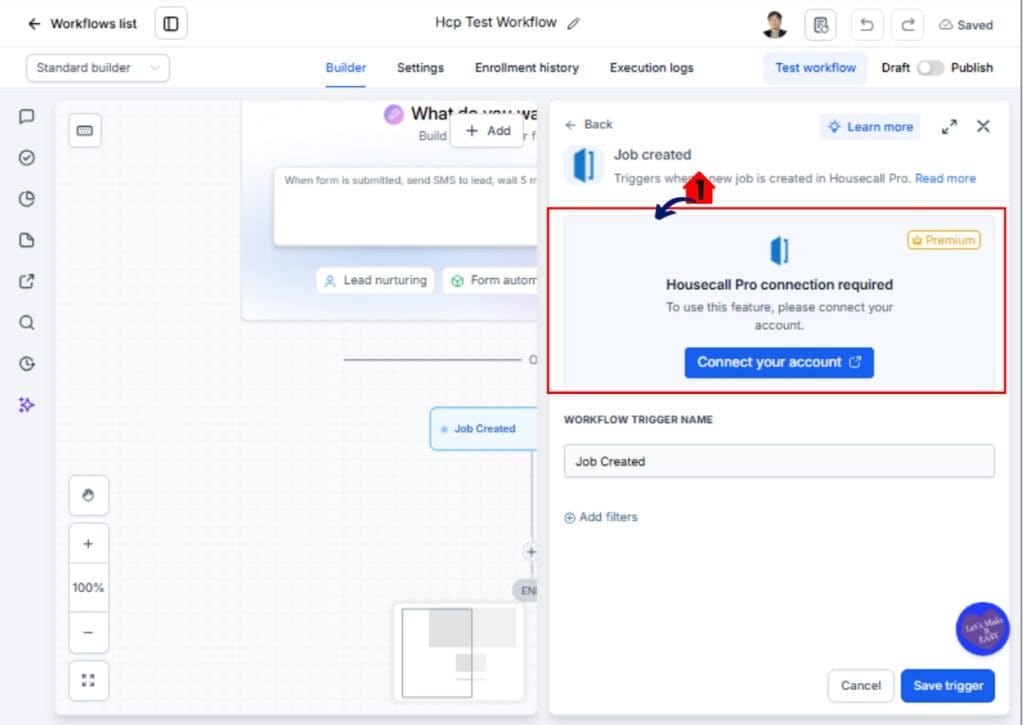
- Your selected trigger or action configuration screen will open.
Step 03 – Connect your Housecall Pro Account
3.1 Click Connect Account.
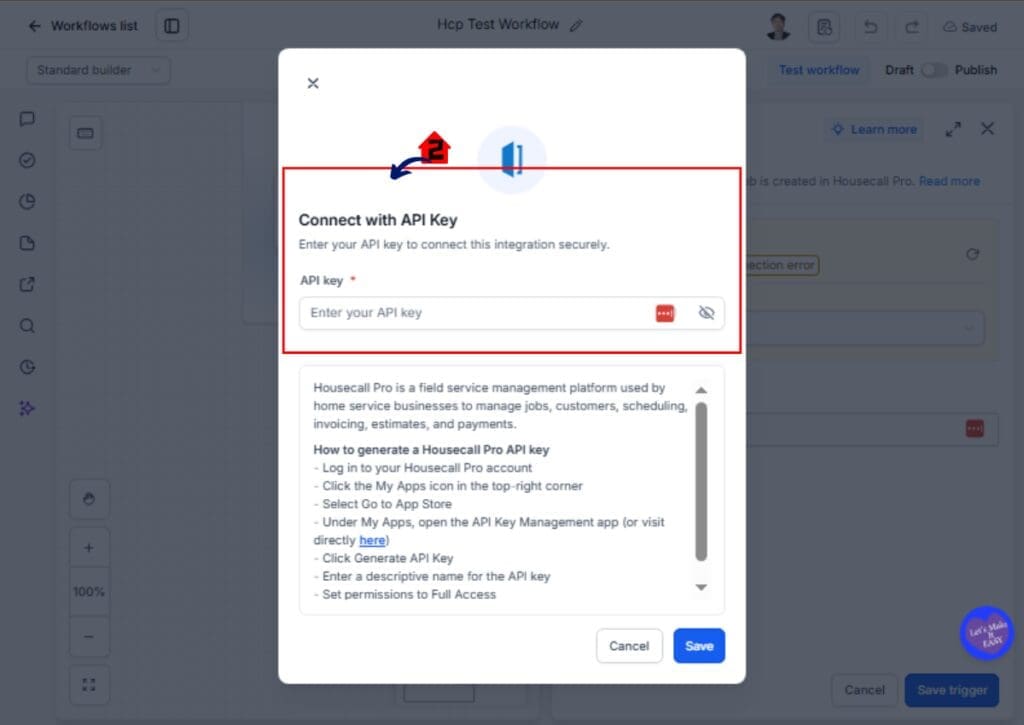
- The Connect with API Key section will open.
- In Housecall Pro, navigate to My Apps.
- Click Go to App Store.
- Open API Key Management.
- Click Generate API Key.
- Generate an API Key with Full Access permissions.
- Your Housecall Pro account will now be available in the Connected Account dropdown.
3.2 Copy the API Key.
- Paste the API Key into GoHighLevel.
Step 04 – Configure the Housecall Pro Trigger
4.1 Select your Connected Account.
- If multiple Housecall Pro accounts are connected, choose the account you want to use.
4.2 Click Add Filters if you want to limit which records trigger the workflow.
- You can filter by Customer, Employee, Job Tag, and other available fields.
4.3 Click Find New Records.
- GoHighLevel will retrieve a sample job record from Housecall Pro.
4.4 Review the sample data.
- The returned Job and Customer fields can be used later in workflow actions.
4.5 Click Save Trigger.
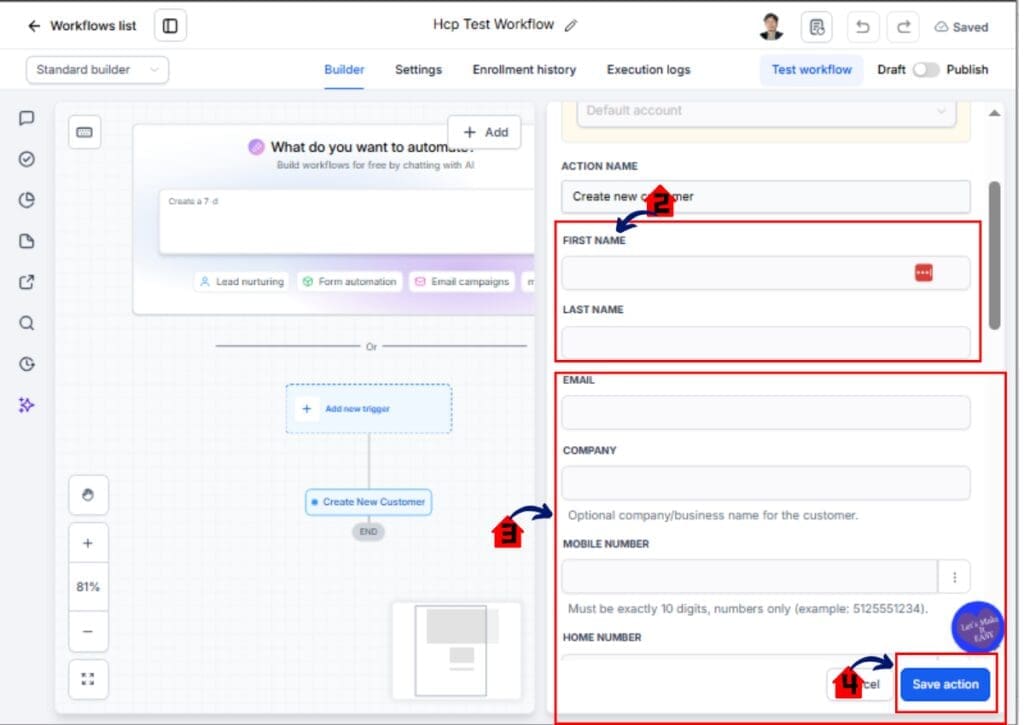
Step 05 – Configure the Create New Customer Action
5.1 Add the Create New Customer action.
- The Create Customer configuration screen will open.
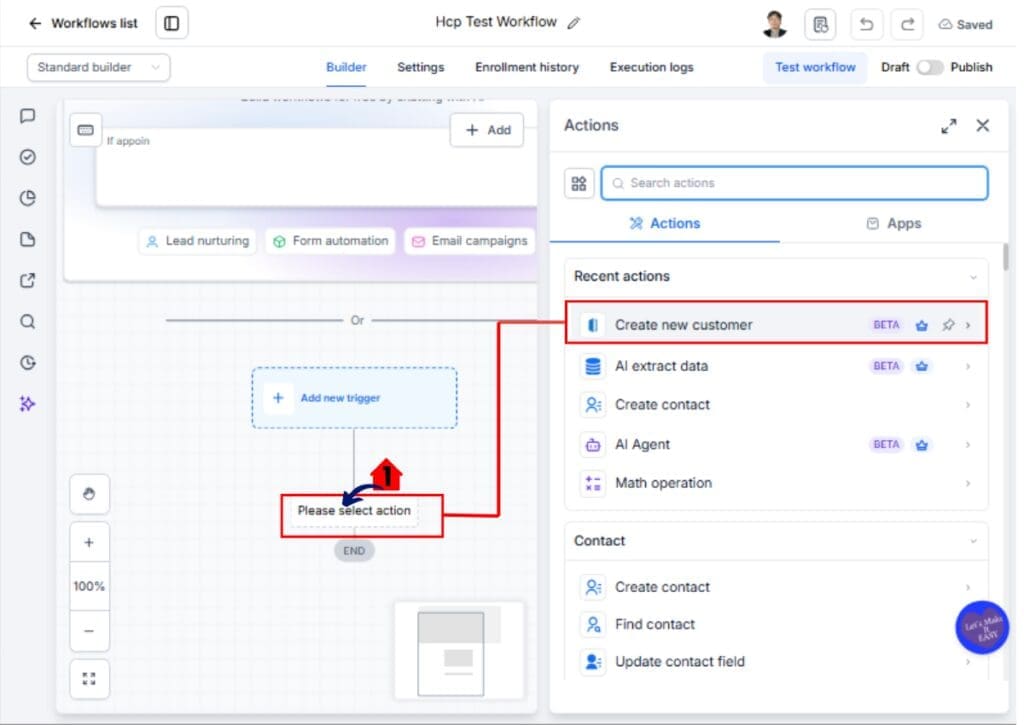
5.2 Complete the required fields.
- First Name
- Last Name
5.3 Complete any optional fields.
- Company
- Mobile Number
- Home Number
5.4 Click Save Action.
Step 06 – Test and Publish the Workflow
6.1 Click Save.
- Your workflow changes will be saved.
6.2 Click Publish.
- The workflow will become active.
6.3 Create a test booking, reschedule, completed job, or lead submission.
- Verify that the workflow runs correctly.
Your Housecall Pro integration is now ready to support automated customer communication and Service Business Automation inside GoHighLevel.
Your Housecall Pro Automation is now active and ready to respond whenever the selected trigger is detected.
Quick Tip
Start with a simple workflow before building larger automations. For example, automatically create a Housecall Pro lead whenever a website form is submitted. Once you’re comfortable with the setup, you can expand the workflow to create estimates, schedule jobs, send reminders, and request customer reviews automatically.
Pro Tips for Housecall Pro Automation
Once you’ve built your first workflow, there are several ways to make your automations even more effective. A little planning now can save you hours of manual work later.
Start by using workflow filters wherever possible. Filters ensure your automation only runs when specific conditions are met. This reduces unnecessary workflow executions and keeps your automations focused on the right customers or jobs.
Test every trigger and action before publishing your workflow. GoHighLevel lets you retrieve sample records and test actions, making it easy to confirm your field mapping and identify issues before they affect your customers.
If you manage multiple clients, create reusable workflow templates. You can duplicate successful workflows and adjust only the account connection or business-specific settings. This speeds up deployment and keeps your processes consistent.
Here are a few additional best practices:
- Keep your customer records updated to improve workflow accuracy.
- Use clear workflow names so your team can find automations quickly.
- Combine Housecall Pro actions with SMS, email, pipelines, and AI features for complete customer journeys.
- Review your workflows regularly as your business grows and your processes change.
- Remember that triggers use scheduled polling, so allow a few minutes for automations to begin after an event occurs.
The best automations are simple, reliable, and easy to maintain. Start with one workflow, test it thoroughly, and then build additional automations as your confidence grows.
What Housecall Pro Automation Means for Your Business
The new Housecall Pro Automation features do more than add workflow triggers and actions. They help you build a faster, more connected business. By reducing manual work, your team can spend less time updating records and more time serving customers.
For home service businesses, every minute counts. When leads, estimates, jobs, and appointments move automatically between Housecall Pro and GoHighLevel, your team can respond faster and stay organised. Customers receive timely updates, appointments are easier to manage, and follow-up tasks happen without anyone needing to remember them.
Agencies also gain a major advantage. You can build complete automation systems for plumbers, electricians, HVAC companies, landscapers, cleaners, and other service businesses. These workflows are easy to customise and can be reused across multiple clients, helping you deliver more value while reducing setup time.
Here are a few ways businesses can benefit from this update:
- Respond to new leads more quickly.
- Reduce manual data entry across multiple systems.
- Keep customer information accurate and up to date.
- Send automated reminders for estimates and appointments.
- Trigger review requests as soon as a job is completed.
- Build consistent customer journeys from the first enquiry to post-service follow-up.
As your business grows, these automations grow with you. Instead of adding more administrative work, you can rely on GoHighLevel and Housecall Pro Automation to handle repetitive tasks behind the scenes. That means a better customer experience, improved team productivity, and more time to focus on winning new business.
Frequently Asked Questions
Conclusion
The expanded Housecall Pro Automation integration is one of the biggest workflow improvements for home service businesses using GoHighLevel. With nine new workflow triggers and fourteen powerful workflow actions, you can automate every stage of the customer journey, from capturing a new lead to completing a job and requesting a customer review.
Instead of relying on manual updates, your workflows can now keep customer records, estimates, appointments, and jobs synchronised automatically. This saves time, reduces errors, and helps your team deliver a faster and more consistent customer experience.
Whether you’re a business owner looking to improve daily operations or an agency building automation systems for clients, this update gives you more flexibility and control than ever before.
Now is the perfect time to explore the new Housecall Pro Automation features and start building smarter workflows inside GoHighLevel. Even one well-designed automation can eliminate repetitive tasks and improve the way your business operates.
Have you started using the new Housecall Pro Automation features yet? We’d love to hear how you’re using them. Share your favourite workflow ideas in the comments, and be sure to visit GHL Growth Garage for more GoHighLevel feature guides, automation tips, and step-by-step tutorials.
Scale Your Business Today.
Streamline your workflow with GoHighLevel’s powerful tools.


