

- Match your checkout call to action to your offer, your brand, and the action you want customers to take.
- Quick Summary – Payment Button Text at a Glance
- What’s New With Payment Button Text
- Why Payment Button Text Matters
- How to Change Payment Button Text in GoHighLevel
- Quick Tips for Better Payment Button Text
- What Payment Button Text Means for Your Business
- Frequently Asked Questions About Payment Button Text
- Conclusion: Make the Final Click Clear
Match your checkout call to action to your offer, your brand, and the action you want customers to take.
Payment Button Text That Fits Your Offer
Payment Button Text can shape the final moment before a customer completes a purchase. If the wording feels clear and fits the offer, the checkout feels easier. If it feels vague or out of place, it can create doubt right when the customer is ready to act.
Until now, GoHighLevel Payment Links only gave you three button choices: Pay, Book, or Donate. That worked for some offers, but not for subscriptions, memberships, courses, events, and other services. A button that says “Join Now,” “Reserve Your Seat,” or “Get Instant Access” often makes more sense.
GHL now lets you add custom Payment Button Text inside the Payment Link builder. You can enter up to 50 characters, see the change in the live preview, and save it without code or workarounds. It is a simple update, but it gives you more control over your brand and the final step of the checkout process.

Custom Payment Button Text helps your checkout match the exact action you want customers to take. That means clearer offers, stronger branding, and less hesitation before the final click.
Quick Summary – Payment Button Text at a Glance
Purpose: This update lets you replace the default Payment Button Text with wording that better fits your offer.
Why It Matters: Clear button text can reduce doubt at checkout and make the final step easier to understand.
What You Get: You can choose Pay, Book, or Donate, or enter a custom label with up to 50 characters.
Time to Complete: Most users can update a Payment Link in less than one minute.
Difficulty Level: Beginner. No code or workarounds are needed.
Key Outcome: Your checkout button can now match your offer, your brand, and the action you want the customer to take.
What’s New With Payment Button Text
GoHighLevel now lets you change the Payment Button Text inside the Payment Link builder. Before this update, you had to use Pay, Book, or Donate. Those labels worked in some cases, but they did not fit every offer.
You can now open Advanced Options and type your own label, up to 50 characters. The new text shows in the checkout preview right away, so you can check it before you save the link.
Automate marketing, manage leads, and grow faster with GoHighLevel.

This gives you a cleaner way to match the button to the offer. You can use labels like “Join Now,” “Reserve Your Seat,” or “Get Instant Access” without code, extra notes, or other workarounds.
Why Payment Button Text Matters
Payment Button Text matters because it tells the customer what happens next. A clear label can make the final step feel simple, while a poor label can cause doubt at the worst time.
The button should match the offer. “Join Now” works well for a membership, while “Reserve Your Seat” fits an event. When the wording makes sense, the checkout feels more natural and easier to trust.
This small change also helps agencies keep each client’s brand consistent. You can use the same language from the sales page through to checkout, which creates a smoother experience from start to finish.
How to Change Payment Button Text in GoHighLevel
The Payment Button Text setting is found inside the Payment Links area in GoHighLevel. In this section, you’ll learn how to open Payment Links, create a new payment link, choose a custom button label, review the live preview, and save your changes.
Here are the steps we will follow:
- Access Payment Links in GoHighLevel.
- Create a new Payment Link.
To start, make sure you are logged in to the correct GoHighLevel sub-account.
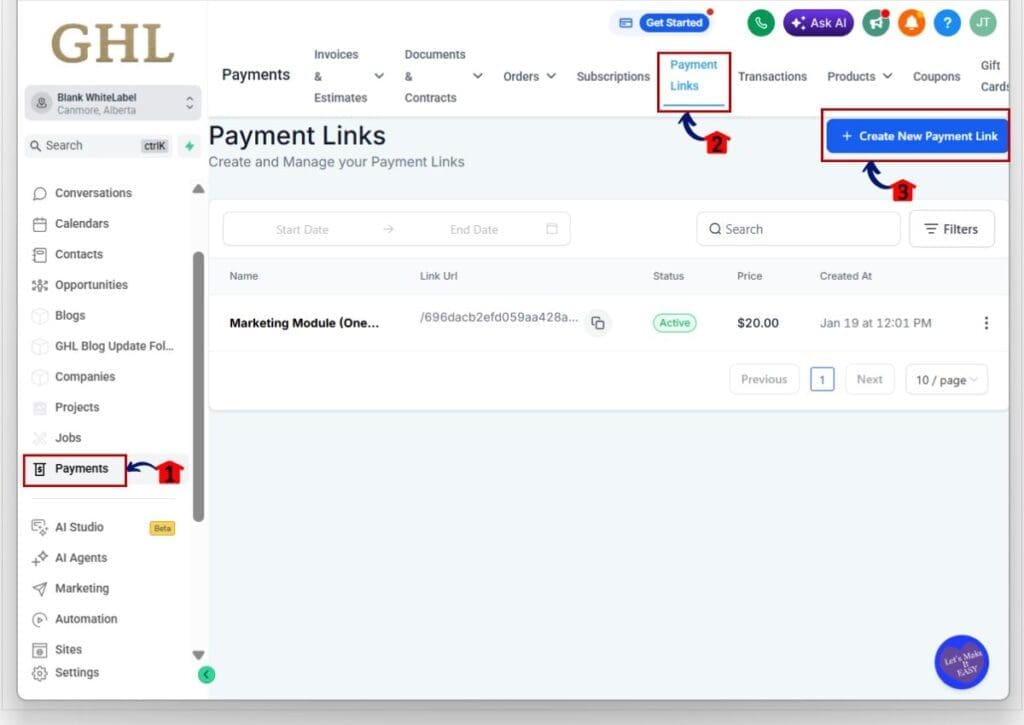
Step 01 – Access Payment Links in GoHighLevel
- The Payments area contains the tools used to manage invoices, orders, subscriptions, products, transactions, and Payment Links.
1.1 Click Payments in the left menu.
- This opens the main Payments area inside GHL.
1.2 Click Payment Links in the top navigation.
- This opens the Payment Links page, where you can view existing links or create a new one.
1.3 Click Create A New Payment Link button.
- This opens the Payment Link builder.
Step 02 – Add Custom Payment Button Text
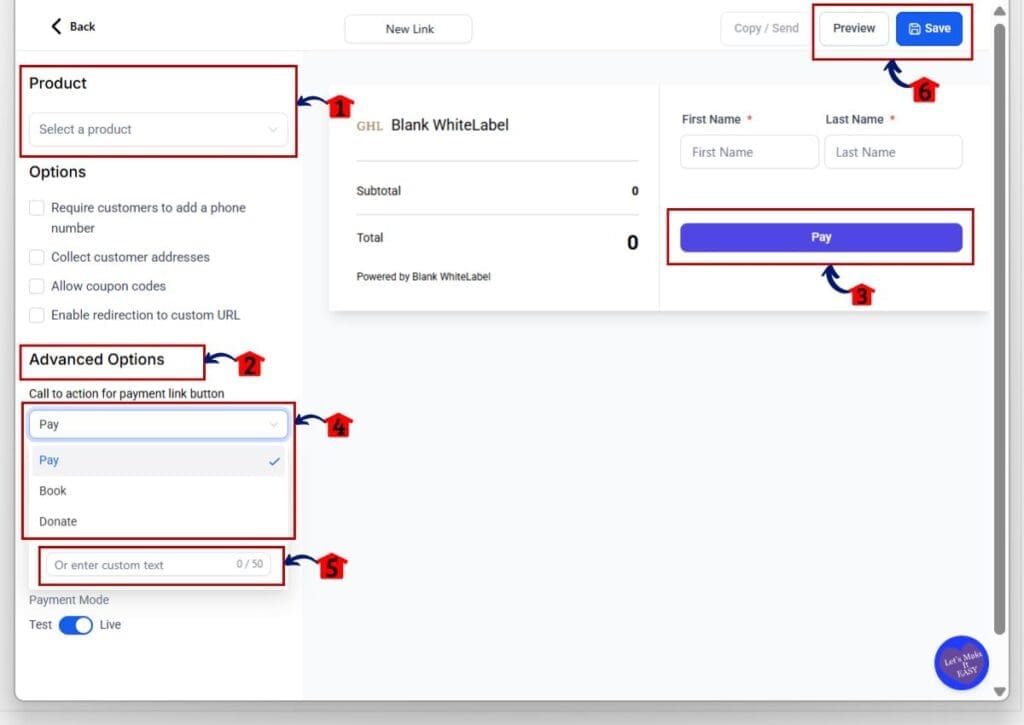
- The Payment Link builder contains the settings used to select a product, adjust checkout options, and control the button label customers see.
2.1 Select the product you want to sell.
- Use the Product dropdown near the top-left side of the builder.
2.2 Scroll down to Advanced Options.
- This section contains extra settings for the Payment Link checkout page.
2.3 Find Call to action for payment link button.
- This setting controls the Payment Button Text shown at checkout.
2.4 Open the dropdown menu.
- You can choose one of the default labels:
- Pay
- Book
- Donate
2.5 Click the custom text field.
- The field appears below the default button options.
2.6 Enter your custom Payment Button Text.
- You can use up to 50 characters.
- Choose wording that clearly matches the offer. For example:
- Join Now
- Reserve Your Seat
- Get Instant Access
- Start Your Subscription
- Complete Registration
2.7 Review the checkout preview on the right side of the page.
- The button text updates as you enter the new label, so you can check how it will look before saving.
2.8 Click Save in the top-right corner.
- This saves the custom button label and updates the Payment Link.
Once saved, new visitors will see the updated Payment Button Text on the checkout page. Customers who already had the Payment Link open may still see the old label until they refresh the page.
Quick Tips for Better Payment Button Text
Keep your Payment Button Text clear and close to the action the customer is taking. A membership may use “Join Now,” while an event may use “Reserve Your Seat.” Simple wording is easier to understand and gives the customer less to think about at checkout.
Try to match the button text with the words used on your sales page or booking page. If the page says “Start Your Subscription,” use the same words on the payment button. This keeps the message consistent and makes the checkout feel like the next natural step.
Avoid labels that are too long, vague, or clever. The goal is clarity, not wordplay. Check the live preview, keep the text under 50 characters, and test the link before you share it.
What Payment Button Text Means for Your Business
Custom Payment Button Text gives you more control over the final step of the checkout process. Instead of using a general word like “Pay,” you can choose a label that fits the offer and tells the customer what happens next.
This is useful for agencies that manage many types of client offers. A coaching program can use “Join the Program,” while an event can use “Reserve Your Seat.” The checkout feels more polished, and the wording stays consistent from the sales page to the payment page.
It also removes the need for awkward workarounds. You can update the button in less than a minute, keep the offer on-brand, and make the payment step easier to understand.
Frequently Asked Questions About Payment Button Text
Conclusion: Make the Final Click Clear
Custom Payment Button Text gives you a simple way to make checkout feel more natural. Instead of using a generic label, you can choose words that match the offer and tell the customer what happens next.
The update is easy to use, takes less than a minute, and works across all Payment Link types. It also helps agencies keep the checkout experience clear, consistent, and on-brand.
Review your current Payment Links and replace any button label that feels too general. Which custom label will you try first?
Scale Your Business Today.
Streamline your workflow with GoHighLevel’s powerful tools.


