- Introduction – GHL Community Workflow Triggers Explained
- Quick Summary – Community Workflow Triggers
- Here are this week's HighLevel Updates 🚀
- What Are Community Workflow Triggers?
- Why Community Workflow Triggers Matter
- How to Use Community Workflow Triggers
- Pro Tips – Get the Most from Community Workflow Triggers
- What This Update Actually Means for Your Business
- FAQs – Community Workflow Triggers
- Conclusion – Community Workflow Trigger
Introduction – GHL Community Workflow Triggers Explained
Community Workflow Triggers might sound like just another workflow update. Until you’re managing an active community where posts, comments, event registrations, and member requests are happening all day long.
You’ve probably seen it before. Someone creates a post that needs attention. A member asks to join your group. Another registers for your next event. Someone leaves a comment that deserves a quick reply.
Now imagine trying to keep up with all of that manually as your community grows.
You either spend your day checking for activity, or you miss important moments that could improve engagement, support your members, or even generate new business opportunities.
Until now, there wasn’t an easy way to automate some of the biggest moments inside your Communities. If someone posted, commented, or registered for an event, someone on your team usually had to notice it first before anything happened.
That’s now changed.
Every post, comment, or event registration can now keep things moving automatically, so your team spends less time managing the small stuff.
With the right workflow in place, every important member action becomes an opportunity to engage, organize, or follow up automatically, without adding extra work to your team.
The real benefit isn’t simply adding four new triggers.
It’s giving your community the ability to respond automatically at exactly the right moment.
Less manual work. Faster engagement. Smarter Community Workflow Triggers.
The latest GoHighLevel Changelog includes several other GHL feature updates that round out your daily workflow:
- Wait Action Enhancement: TikTok DM Replies
- India Recurring Mandate Support for Affiliate Indian Signup Pages
- Housecall Pro – More Workflow Actions & Triggers
- Email Services Dashboard for Agencies
- Email Sequences Now Available in Beta Labs
- Group Your Contacts by Source in Dashboards & Reporting
- MMLite Adoption Banner in Conversations
Keep reading for much more on all these updates and a deep dive into the Community Workflow Triggers feature!

Quick Summary – Community Workflow Triggers
Purpose: This guide explains how to use the new GHL Community Workflow Triggers to automate member activity inside your Communities. You’ll learn what each trigger does, when to use it, and how to build practical workflows that save time.
Why It Matters: Community Workflow Triggers allow GoHighLevel to respond automatically when members create posts, add comments, register for events, or have their group join requests rejected. This reduces manual work while improving engagement and moderation.
What You Get: You’ll discover four new Community Workflow Triggers, learn how to configure their filters, build your first automation, and explore real-world examples that agencies, coaches, and membership owners can implement immediately.
Time to Complete: Most users can create and publish their first Community Workflow Trigger workflow in approximately 10 to 20 minutes, depending on the complexity of their automation.
Difficulty Level: Beginner to Intermediate. If you’re familiar with creating basic GoHighLevel workflows, you’ll have no trouble setting up these new Community Workflow Triggers.
Key Outcome: By the end of this guide, you’ll know how to turn everyday community activity into automated workflows that improve engagement, strengthen moderation, reduce repetitive tasks, and help your Communities scale more efficiently.
Here are this week’s HighLevel Updates 🚀
Wait Action Enhancement: TikTok DM Replies
What’s New:
Instead of continuing after a fixed delay, your workflow can pause until someone replies to your TikTok DM.
Where in GHL:
Found in Automation → Workflows using the Wait action after sending a TikTok DM.
Automate marketing, manage leads, and grow faster with GoHighLevel.

Impact:
Your automation responds when someone actually joins the conversation, rather than after a timer runs out.
Recommended For:
Anyone using TikTok DMs to start conversations with potential customers.
India Recurring Mandate Support for Affiliate Indian Signup Pages
What’s New:
Supports recurring payment mandates for Indian affiliates, helping subscriptions comply with local banking requirements.
Where in GHL:
Available on Affiliate Program signup pages for users in India.
Impact:
Creates a smoother signup experience while reducing payment failures for recurring subscriptions.
Recommended For:
Agencies, SaaS businesses, and affiliate programs onboarding customers in India.
Housecall Pro – More Workflow Actions & Triggers
What’s New:
Adds new workflow triggers and actions for the Housecall Pro integration, giving you more ways to automate field service processes.
Where in GHL:
Inside Automation → Workflows when using the Housecall Pro integration.
Impact:
Expands automation possibilities between HighLevel and Housecall Pro, reducing manual work and improving operational efficiency.
Recommended For:
Home service businesses, field service companies, and agencies managing Housecall Pro clients.
Email Services Dashboard for Agencies
What’s New:
Introduces a centralized dashboard where agencies can monitor email services across their accounts.
Where in GHL:
Found in the Agency View under the new Email Services Dashboard.
Impact:
Makes it easier to monitor email health, identify issues, and manage deliverability from one place.
Recommended For:
Agency owners, support teams, and admins managing multiple client email services.
Email Sequences Now Available in Beta Labs
What’s New:
Introduces Email Sequences as a Beta Labs feature, providing another way to create structured email follow-up campaigns.
Where in GHL:
Enable it from Settings → Labs, then access Email Sequences after activation.
Impact:
Cuts down the time spent checking different areas just to see how your email services are performing.
Recommended For:
Marketers, agencies, coaches, and businesses running nurture campaigns or onboarding emails.
Group Your Contacts by Source in Dashboards & Reporting
What’s New:
Lets you organize contact reports based on where your leads originated.
Where in GHL:
Available within Dashboards & Reporting when viewing contact analytics.
Impact:
Makes it easier to compare lead sources and identify which marketing channels are producing the best results.
Recommended For:
Marketing teams, agency owners, and businesses tracking campaign performance across multiple lead sources.
MMLite Adoption Banner in Conversations
What’s New:
Displays a helpful banner inside Conversations to encourage users to adopt the new MMLite messaging experience.
Where in GHL:
Appears within the Conversations module for eligible accounts.
Impact:
Helps users discover and transition to MMLite while highlighting its benefits directly inside the messaging interface.
Recommended For:
Current HighLevel users exploring the latest messaging experience and teams preparing to migrate to MMLite.
What Are Community Workflow Triggers?
Community Workflow Triggers are new workflow triggers inside GoHighLevel that allow your automations to react instantly when members perform specific actions inside your Communities. Instead of waiting for someone on your team to notice what’s happening, GHL can now launch a workflow the moment an important activity takes place.
Think of them as event-based automations for your Communities.
Community activity creates plenty of follow-up work. Instead of handling it yourself, you can let GHL take care of many of those routine tasks while your team focuses on helping members.
Community activity has become much more useful. These four new triggers let your workflows respond to key member actions as they happen.
Group Joining Request Rejected
Sometimes you’ll need to decline a join request. Instead of leaving that person with no explanation, you can automatically send a message, notify your team, or point them toward a Community that’s a better fit.
Group Post Created
A new post doesn’t have to sit unnoticed anymore. As soon as someone starts a discussion in your Community, GHL can jump into action and keep the right people in the loop automatically.
Group Comment Created
Community conversations don’t stop with the original post. Every new comment can now trigger its own workflow, making it much easier to monitor discussions as they grow. You could alert your support team when members ask questions, identify comments containing important keywords, or automatically acknowledge members who actively contribute to the community.
Member Registered for Group Event
A new registration shouldn’t mean another task on your to-do list. Instead, let your workflow handle confirmations, reminders, tagging, and everything else that usually happens before your event goes live.
Not every community update deserves an automation. With the available filters, you can focus on specific groups, channels, events, posts, or comments so your workflows only run when it makes sense.
A new event registration probably needs a different response than a support question or a general discussion. These triggers let you build workflows that match the situation instead of sending everyone down the same path.
Why Community Workflow Triggers Matter
The real value isn’t that there are four new triggers. It’s what those triggers let you do. Member activity can now kick off workflows on its own, without someone watching the Community all day.
Most Community owners don’t notice the extra work straight away. It builds over time. More members mean more conversations, more notifications, and more follow-up than you probably planned for.
This update helps solve that problem.
Instead of constantly checking your Communities, GHL can now monitor the activity for you and automatically trigger the right workflow at exactly the right time. That means less time spent watching your groups and more time focusing on serving your members and growing your business.
Smarter Automation Where It Matters Most
Not every post, comment, or event registration deserves the same response. That’s why these new Community Workflow Triggers include filtering options that let you decide exactly when an automation should run.
You don’t have to let every post or comment kick off a workflow. Maybe you only care about certain keywords, activity inside one group, or registrations for a specific event. Set those rules once, and GHL ignores everything else.
Improve Member Engagement
Instead of relying on someone to notice every important interaction, you can let workflows handle the first response. Your team can then step in when a real conversation is needed.
Members receive quicker responses, while your team spends less time managing routine tasks.
Scale Without Adding More Admin Work
One of the biggest challenges of running a successful community is that manual work grows alongside your membership. More members usually mean more questions, more conversations, and more administrative tasks.
Community Workflow Triggers help break that cycle.
A growing Community shouldn’t automatically mean longer days. By automating the repetitive work, you can support more members without constantly adding more to your schedule.
Who Will Benefit the Most?
Almost anyone using GoHighLevel Communities can benefit from this update, but it’s especially valuable for:
- Marketing agencies managing private client communities.
- Coaches and consultants running paid membership groups.
- Course creators hosting student communities.
- SaaS businesses building customer education groups.
- Membership site owners who want better engagement without increasing their workload.
If your community generates regular activity, Community Workflow Triggers give you the tools to respond faster, stay organized, and deliver a better experience without adding more work to your day.
That’s the real value of this update. You’re not simply automating workflows.
Instead of relying on someone to notice every little update, you can let your workflows handle the routine tasks in the background.
How to Use Community Workflow Triggers
Getting started with Community Workflow Triggers is quick, and once you’ve built your first automation, you’ll begin to see just how much time this feature can save. Whether you’re welcoming new event attendees, monitoring community discussions, or notifying your team about important member activity, the setup process follows the same workflow you’re already familiar with in GoHighLevel.
In this guide, you’ll create a workflow, select one of the new Community Workflow Triggers, configure the available filters, and build the automation actions that should happen when the trigger fires. The steps below are beginner-friendly and can easily be followed while adding your own screenshots during the editing process.
- Access the Automation Area in GoHighLevel.
- Add a Community Workflow Trigger.
- Configure Your Trigger In Workflow.
- Build Your Workflow Actions and Save.
To start, make sure you are logged in ot your GoHighLevel sub-account.
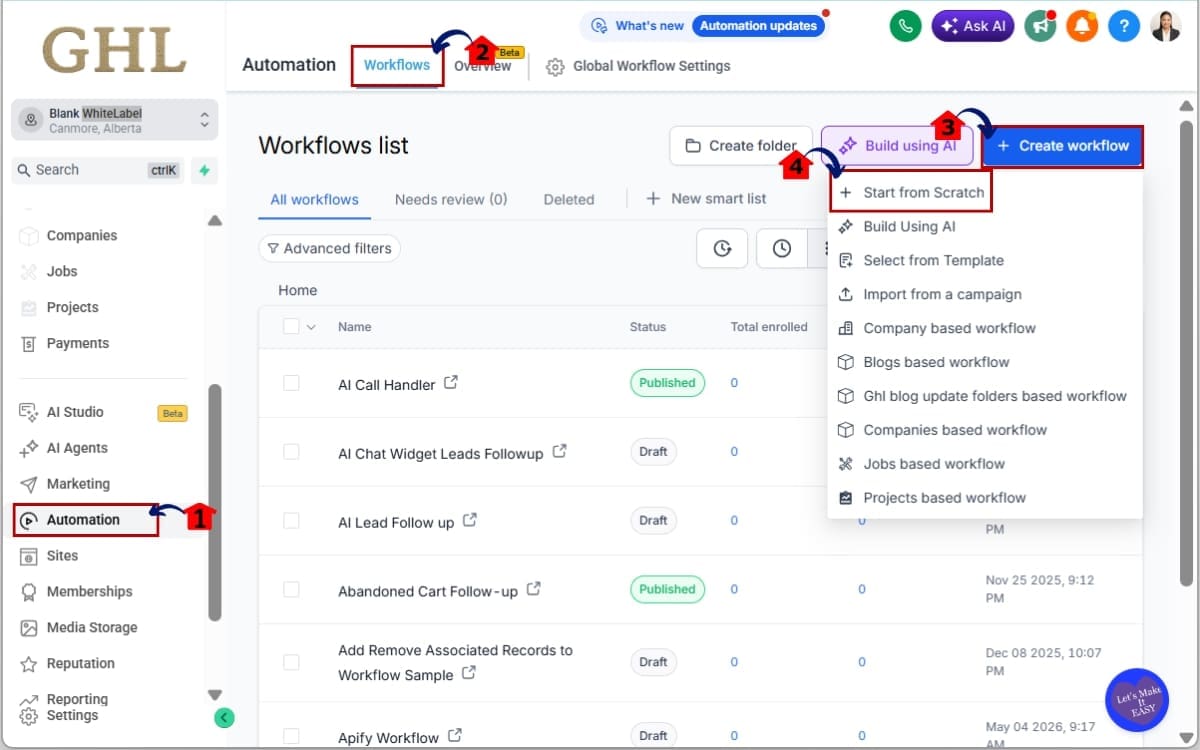
Step 01 – Access the Automation Area in GoHighLevel
- The Main Menu on the left side of your screen contains all of the primary areas you’ll use inside GHL.
1.1 Click Automation from the left-hand navigation menu.
- You’ll now enter the Automation section where all Workflows are created and managed.
1.2 Click Workflows from the top navigation.
- This opens your existing workflows and allows you to create new ones.
1.3 Click + Create Workflow if you’re building a new automation.
- Alternatively, open an existing workflow if you’d like to add one of the new Community Workflow Triggers to it.
1.4 Click Start from Scratch.
- Choose whichever option best suits your automation.
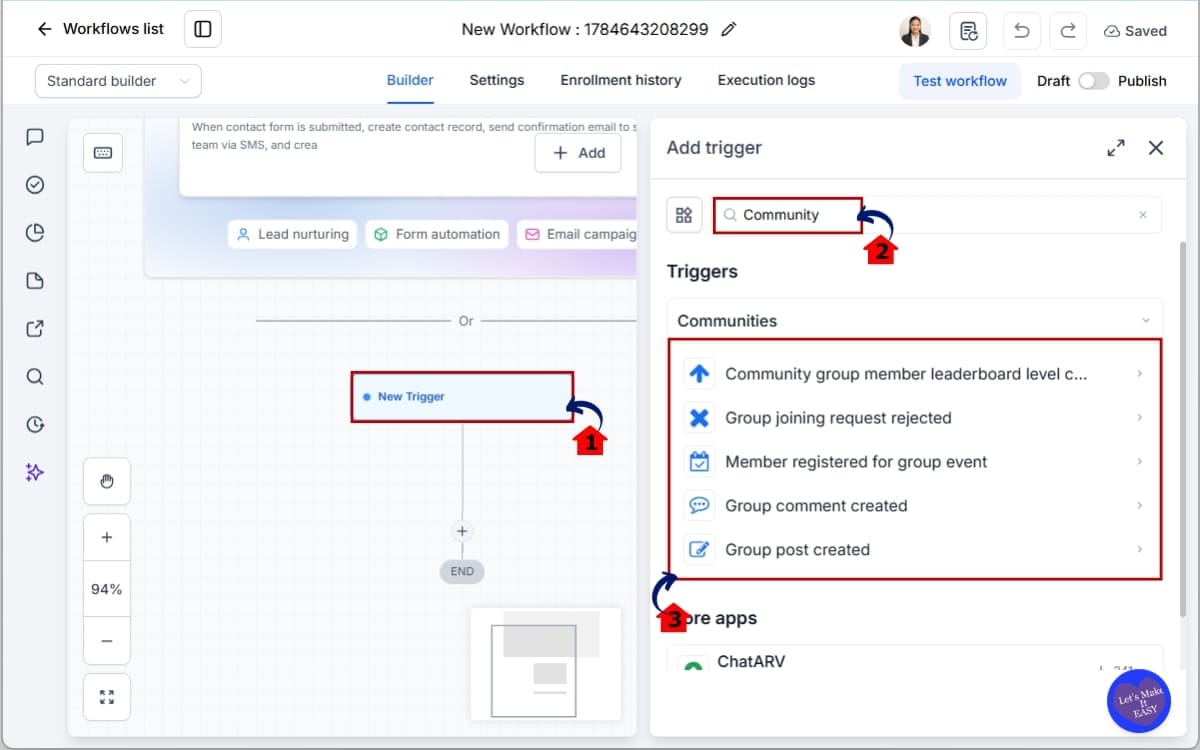
Step 02 – Add a Community Workflow Trigger
- In this step, you’ll choose the Community event that will start your workflow whenever a member performs a specific action.
2.1 Click Add New Trigger.
- This opens the list of available workflow triggers.
2.2 In the search box, type Community.
- You’ll now see the four new Community Workflow Triggers available.
2.3 Select the trigger that matches the member activity you want to automate.
Available triggers include:
- Group Joining Request Rejected
- Group Post Created
- Group Comment Created
- Member Registered for Group Event
Each trigger is designed to respond to a specific action inside your Community.
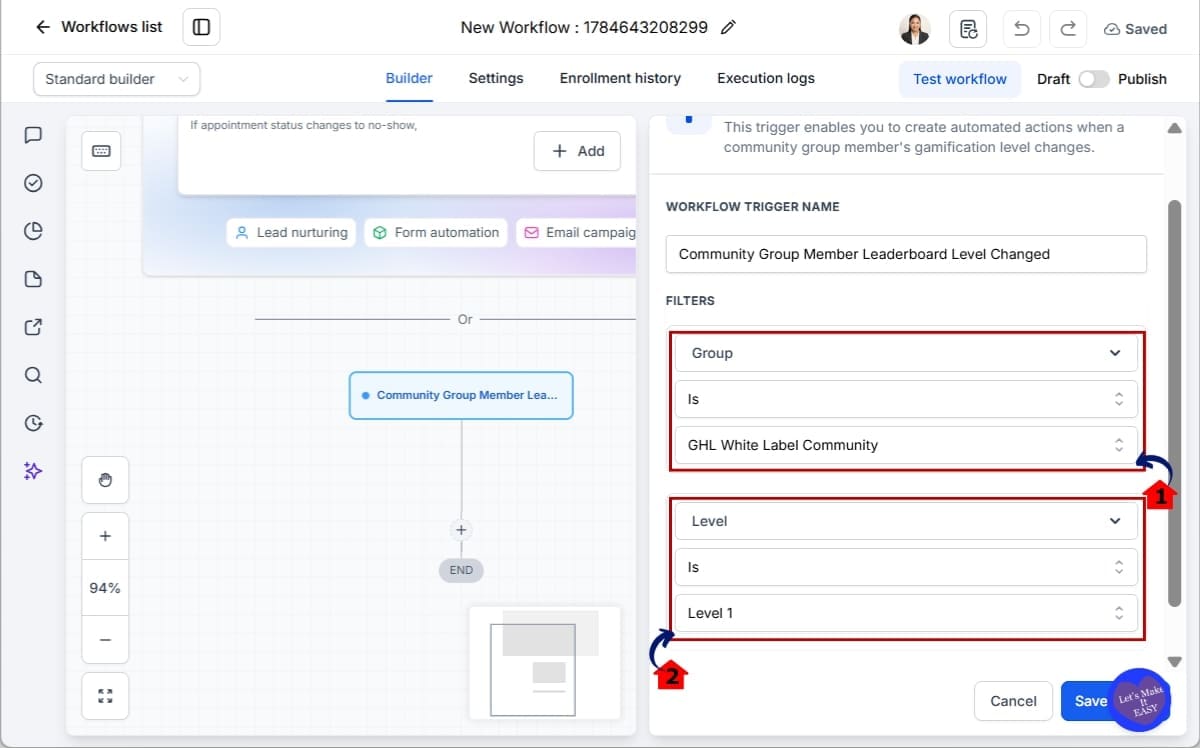
Step 03 – Configure Your Trigger In Workflow
- For example after selecting your trigger (Group Joining Request Rejected), you’ll need to define when it should activate.
3.1 Select the required Group.
- Every Community Workflow Trigger requires you to choose which Community Group the workflow will monitor.
3.2 Apply optional filters if needed.
Depending on the trigger you selected, you can filter using:
- Channel
- Post Title
- Post Content
- Comment Content
- Event Title
- Level
These filters help ensure your workflow only runs when the activity matches the conditions you’ve defined.
For example:
- Trigger only when a post contains a specific keyword.
- Monitor comments inside a private support channel.
- Launch a workflow only for registrations to a particular event.
Using filters keeps your automations accurate and prevents unnecessary workflow executions.
Step 04 – Build Your Workflow Actions and Save
- Once your trigger has been configured, it’s time to decide what should happen next.
4.1 Send an internal notification to your team and Create a task for a staff member.
- Keep your team informed whenever the selected Community activity occurs. You can add one action or combine multiple actions to build a complete automation.
4.2 Click Publish.
- Your workflow is saved and will begin running whenever the selected Community trigger is activated.
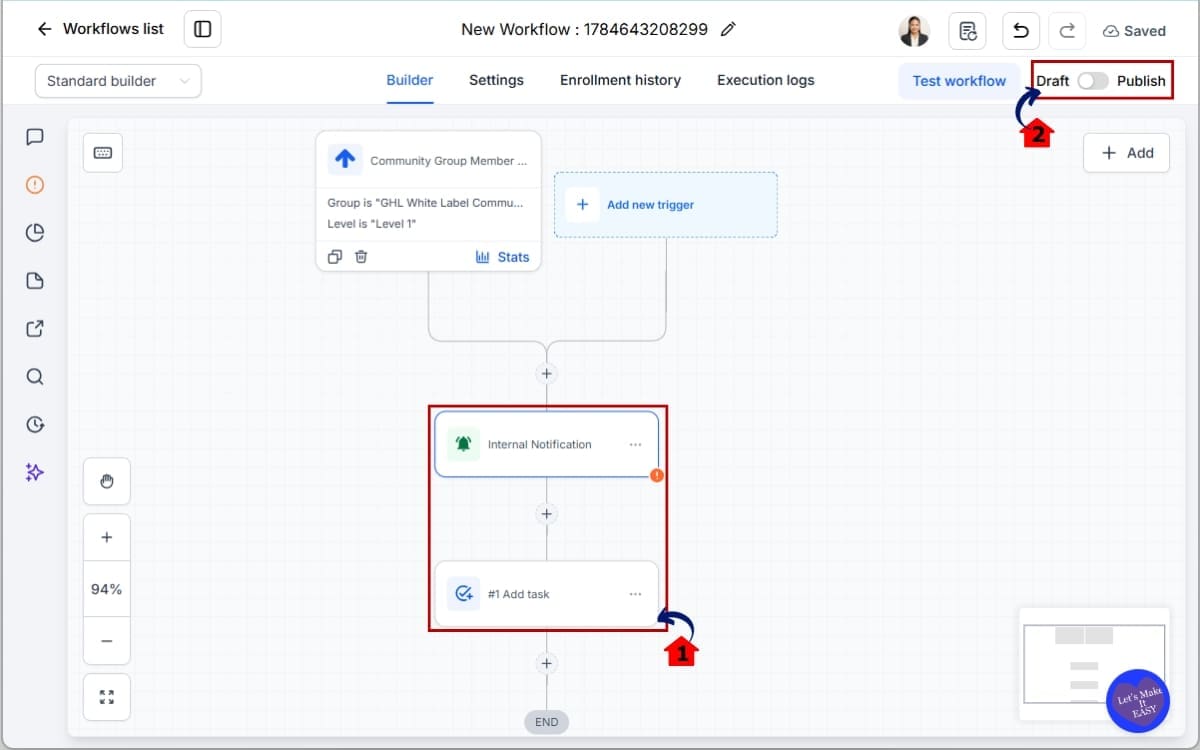
Before relying on your automation, it’s a good idea to test it yourself. Create a sample post, leave a comment, register for a test event, or submit a join request to confirm that everything works exactly as expected.
A few minutes spent testing today can save hours of troubleshooting later.
Once you’ve built your first Community Workflow Trigger, you’ll quickly realise how many repetitive tasks can now happen automatically. As your community grows, these automations become even more valuable, helping your team stay responsive while giving members a smoother, more engaging experience.
Pro Tips – Get the Most from Community Workflow Triggers
The new triggers are useful on their own, but they’re even more valuable once you start connecting them to the rest of your GHL setup. That’s when simple Community activity can kick off a chain of actions without anyone on your team getting involved.
Once you’ve got the basics working, try a few of these ideas to see what fits your Community best.
Tip #1 – Use Filters to Build Smarter Automations
Don’t trigger every workflow for every community activity.
Think carefully about what should trigger the workflow before you switch it on. Adding a few filters now usually leads to much more predictable results later.
For example, you could monitor only your Support channel for questions containing the word “help” or trigger a workflow only when members register for your monthly coaching webinar.
The more specific your filters are, the more useful your automations become.
Tip #2 – Reward Your Most Engaged Members
Community Workflow Triggers make it easy to identify members who actively participate in your community.
People notice when their effort gets recognised. If someone regularly joins the conversation or shares useful advice, it’s worth acknowledging that without relying on someone from your team to remember every time.
Tip #3 – Speed Up Community Moderation
Large communities can become difficult to monitor manually.
As your Community grows, keeping track of every conversation becomes harder. A workflow can monitor the activity for you and alert your team whenever something matches the conditions you’ve chosen.
Your moderation team spends less time watching the community and more time helping members.
Tip #4 – Connect Community Activity with Your CRM
One of the biggest advantages of Community Workflow Triggers is that they don’t stop inside your Community.
Every member interaction can update your CRM automatically.
A simple example is an event registration. As soon as someone signs up, the workflow can take over:
- Apply a tag.
- Update a custom field.
- Move them into a nurture sequence.
- Create a new Opportunity.
- Assign the contact to a team member.
When your Community activity feeds into your CRM, you start building a clearer picture of each contact without having to update records by hand.
Tip #5 – Test Before You Go Live
Even experienced GHL users should test every new workflow before publishing it.
Create a test group, submit a sample join request, publish a test post, leave a comment, or register for an event to confirm your automation behaves exactly as expected.
Most workflow problems aren’t difficult to fix. The trick is finding them before your members do, and that’s exactly what a test run is for.
Quick Mistakes to Avoid
Most people can build their first Community workflow without much trouble. It’s the small configuration details that usually make the biggest difference.
- Forgetting to select the correct Community Group.
- Leaving filters too broad, causing workflows to trigger unnecessarily.
- Publishing workflows without testing them first.
- Creating multiple workflows that respond to the same trigger and accidentally duplicate actions.
- Forgetting to review workflows as your community grows and your automation needs change.
Good automation isn’t about creating as many workflows as possible. It’s about finding the jobs you do over and over again and letting GHL take care of them.
What This Update Actually Means for Your Business
I’ve seen plenty of new GoHighLevel features over the years. Some become part of my daily workflow, while others barely get opened after the first week.
Community Workflow Triggers fall into the first category.
The biggest difference isn’t having more workflow options. It’s no longer having to remember every small task yourself as Community activity starts picking up.
When the routine work takes care of itself, your team can spend more of the day helping people instead of working through admin.
For Marketing Agencies
If you’re running Communities for clients, you’ve probably had moments where an important post slips by simply because nobody happened to be looking at the right time.
That’s the sort of problem these workflows help solve.
Picture one of your clients dropping a question into their private Community while your team is busy with other work. Instead of relying on someone to spot it later, the workflow can bring it to the right person’s attention straight away. Your team stays in the loop, and clients aren’t left wondering if anyone has seen their post.
For Coaches and Course Creators
If you’ve ever run a coaching Community, you’ll know there isn’t really such a thing as a quiet day. Someone’s asking for advice, another member is sharing a win, and before you’ve caught up with that, a few more people have already signed up for your next session.
The admin has a habit of creeping up on you. One follow-up turns into three, then someone registers for a workshop, another member needs a reply, and suddenly half the afternoon has disappeared. If the routine jobs can look after themselves, it’s much easier to stay focused on coaching.
For Membership Communities
Keeping members involved takes ongoing effort.
Most people don’t expect a perfect Community. They just want to know someone noticed their question or appreciated their contribution. That alone can encourage them to stay involved.
Automating those routine touchpoints helps keep the Community active without asking moderators to monitor every discussion from morning until night.
For SaaS Businesses
Many software companies now use Communities as part of their onboarding and support process.
I’ve noticed that growing Communities rarely become difficult because of one big event. It’s usually the steady flow of new questions, conversations, and member activity that gradually fills the day.
Customer Success teams already have enough on their plate. If the routine jobs are handled automatically, they can spend their day solving problems instead of working through admin.
Growing Without Adding More Admin Work
One thing I like about automation is consistency.
People are usually pretty understanding about response times. The bigger issue is wondering whether their post has disappeared into the void.
That doesn’t mean automation replaces the people behind your business.
It simply handles the repetitive jobs that nobody enjoys doing anyway, giving your team more room to focus on conversations, support, and building relationships with members.
As your Community grows, those small time savings start adding up. What feels like a handful of automated tasks today can save hours every week once hundreds, or even thousands, of members are taking part.
FAQs – Community Workflow Triggers
Conclusion – Community Workflow Trigger
Some GHL updates completely change the way you work overnight. This isn’t one of them. Instead, it quietly improves the everyday jobs that come with running an active Community.
The biggest change isn’t really the four new triggers themselves. It’s that Community activity can finally become the starting point for the automations you’ve already built.
I don’t think this update changes the Community itself. What it changes is the amount of manual work needed to keep everything running from one day to the next.
I expected to learn another workflow tool. Instead, it turned out the Community triggers fit straight into the builder I was already comfortable using.
I’d keep the first workflow simple. Once you’ve seen it working with real members, it’s much easier to figure out where another automation would actually save you time.
The team at GHL Growth Garage is excited to see how agencies, coaches, and business owners use Community Workflow Triggers to build stronger communities with less manual effort.
Have you started using the new Community Workflow Triggers yet?
Which automation are you planning to build first? We’d love to hear how you’re using this update to improve your GoHighLevel Communities.
Scale Your Business Today.
Streamline your workflow with GoHighLevel’s powerful tools.