- Take Control of Your Email Sender Domain
- Quick Summary – Email Sender Domain
- Here are this week's HighLevel Updates 🚀
- What’s New With the GHL Email Sender Domain
- Why the Email Sender Domain Matters
- How to Set Your Email Sender Domain in GHL
- Quick Tips for Your Email Sender Domain
- What the Email Sender Domain Means for Your Business
- A Real-World Email Sender Domain Example
- Email Sender Domain FAQs
- Get More Control With Your Email Sender Domain
Take Control of Your Email Sender Domain
The Email Sender Domain setting in GHL gives you more control over how emails are sent from individual workflows. Instead of relying on the same domain setup across your sub-account, you can now select a verified dedicated domain at the workflow level.
With this update, you can decide which sending domain makes sense for each workflow. Keep reminders and receipts on one domain, then use another for promos, nurture emails, or outreach. It’s a much cleaner way to manage different types of email inside GHL.
This matters because changing the From address doesn’t necessarily change the domain actually handling your email traffic. When different types of emails share the same sending setup, a poor-performing promotional campaign can create reputation concerns for more important customer communications.
With workflow-level domain selection, GHL gives you another layer of control. You can separate different types of email traffic, test a dedicated domain with selected workflows, and decide which verified domain should handle each automation.
The setup is straightforward too. Once your dedicated domains are verified, you can open a workflow, head into its settings, choose the sender domain, and configure your sender details. The email actions inside that workflow can then inherit those settings unless you’ve configured sender details at the individual email-action level.
For agencies managing client accounts with several types of automated emails, this makes the Email Sender Domain setting worth understanding. In this guide, we’ll break down what changed, why it matters, and how to set it up correctly.
The latest GoHighLevel Changelog includes several other GHL feature updates that round out your daily workflow:
- Wait Action Enhancement: TikTok DM Replies
- India Recurring Mandate Support for Affiliate Indian Signup Pages
- Housecall Pro – More Workflow Actions & Triggers
- Email Services Dashboard for Agencies
- Email Sequences Now Available in Beta Labs
- Group Your Contacts by Source in Dashboards & Reporting
- MMLite Adoption Banner in Conversations
Keep reading for much more on all these updates and a deep dive into the Email Sender Domain feature!

Quick Summary – Email Sender Domain
Purpose: The new Email Sender Domain setting lets you choose a verified dedicated sending domain for individual GHL workflows.
Why It Matters: Separating transactional and promotional workflows can help isolate sending reputation and give you more control over how different types of email traffic are handled.
What You Get: You can select a specific verified dedicated domain or use “All domains” to continue sending with your existing weighted domain distribution.
Time To Complete: Most users with an already verified dedicated domain should be able to configure the workflow-level setting in just a few minutes.
Difficulty Level: Easy. The main things to watch are sender overrides, domain mismatch warnings, and the priority of individual email action settings.
Key Outcome: Your Email Sender Domain can now be matched to the purpose of each workflow, making it easier to separate important transactional emails from promotional or higher-risk campaigns.
Here are this week’s HighLevel Updates 🚀
Wait Action Enhancement: TikTok DM Replies
What’s New:
Instead of continuing after a fixed delay, your workflow can pause until someone replies to your TikTok DM.
Where in GHL:
Found in Automation → Workflows using the Wait action after sending a TikTok DM.
Automate marketing, manage leads, and grow faster with GoHighLevel.

Impact:
Your automation responds when someone actually joins the conversation, rather than after a timer runs out.
Recommended For:
Anyone using TikTok DMs to start conversations with potential customers.
India Recurring Mandate Support for Affiliate Indian Signup Pages
What’s New:
Supports recurring payment mandates for Indian affiliates, helping subscriptions comply with local banking requirements.
Where in GHL:
Available on Affiliate Program signup pages for users in India.
Impact:
Creates a smoother signup experience while reducing payment failures for recurring subscriptions.
Recommended For:
Agencies, SaaS businesses, and affiliate programs onboarding customers in India.
Housecall Pro – More Workflow Actions & Triggers
What’s New:
Adds new workflow triggers and actions for the Housecall Pro integration, giving you more ways to automate field service processes.
Where in GHL:
Inside Automation → Workflows when using the Housecall Pro integration.
Impact:
Expands automation possibilities between HighLevel and Housecall Pro, reducing manual work and improving operational efficiency.
Recommended For:
Home service businesses, field service companies, and agencies managing Housecall Pro clients.
Email Services Dashboard for Agencies
What’s New:
Introduces a centralized dashboard where agencies can monitor email services across their accounts.
Where in GHL:
Found in the Agency View under the new Email Services Dashboard.
Impact:
Makes it easier to monitor email health, identify issues, and manage deliverability from one place.
Recommended For:
Agency owners, support teams, and admins managing multiple client email services.
Email Sequences Now Available in Beta Labs
What’s New:
Introduces Email Sequences as a Beta Labs feature, providing another way to create structured email follow-up campaigns.
Where in GHL:
Enable it from Settings → Labs, then access Email Sequences after activation.
Impact:
Cuts down the time spent checking different areas just to see how your email services are performing.
Recommended For:
Marketers, agencies, coaches, and businesses running nurture campaigns or onboarding emails.
Group Your Contacts by Source in Dashboards & Reporting
What’s New:
Lets you organize contact reports based on where your leads originated.
Where in GHL:
Available within Dashboards & Reporting when viewing contact analytics.
Impact:
Makes it easier to compare lead sources and identify which marketing channels are producing the best results.
Recommended For:
Marketing teams, agency owners, and businesses tracking campaign performance across multiple lead sources.
MMLite Adoption Banner in Conversations
What’s New:
Displays a helpful banner inside Conversations to encourage users to adopt the new MMLite messaging experience.
Where in GHL:
Appears within the Conversations module for eligible accounts.
Impact:
Helps users discover and transition to MMLite while highlighting its benefits directly inside the messaging interface.
Recommended For:
Current HighLevel users exploring the latest messaging experience and teams preparing to migrate to MMLite.
What’s New With the GHL Email Sender Domain
GHL has added a new Email Sender Domain dropdown under Sender details inside Workflow Settings. This lets you choose which verified dedicated domain should send emails for that specific workflow.
The dropdown displays the verified dedicated domains available in the sub-account, along with an “All domains” option. If the sub-account doesn’t have any verified dedicated domains, the new dropdown won’t appear.
When you choose “All domains,” you can enter your sender name and email prefix, such as “marketing.” GHL will continue sending across your configured domains using the weighted distribution already set up in the sub-account.
You can also select one specific Email Sender Domain. For example, if you select example.com and enter “marketing” as the email prefix, the sender address becomes [email protected].
There are also some important safeguards and overrides to know about. If you enter a full sender email that uses a different domain, that email address overrides the selected domain. GHL will display a Sender domain mismatch warning because a mismatch could affect email deliverability.
Individual email actions can override the workflow-level sender settings too. So, while your workflow settings provide the default Email Sender Domain, sender details configured directly inside an email action take final preference. This gives you workflow-wide control without taking away the ability to customize individual emails when needed.
Why the Email Sender Domain Matters
Your Email Sender Domain can play an important role in how you organize and protect your email sending reputation. Before this GHL update, workflows within a sub-account didn’t have this level of domain control. Different types of workflow emails could end up sharing the same sending-domain setup.
The trouble starts when your must-deliver emails are sitting alongside your marketing traffic. Customers expect their booking reminders and receipts to show up. Promotions and outreach are different. People interact with them differently, and that can put more pressure on the reputation of the domain sending them.
The new Email Sender Domain setting lets you separate those workflows. For example, you could send appointment reminders from one verified dedicated domain while running promotional nurture emails from another. If the promotional domain runs into reputation issues, you’ve created separation between that traffic and your critical customer communications.
This is especially useful for agencies managing GHL sub-accounts with several active workflows. Instead of treating every automated email the same, you can choose an Email Sender Domain based on what each workflow actually does.
You can also introduce new sending domains more carefully. Rather than moving every workflow at once, you can start with one workflow, monitor how the domain performs, and then decide whether to use it elsewhere.
It’s a small setting with a practical benefit: more control over which email traffic runs through each dedicated domain. That makes it easier to build a cleaner email setup around the different types of messages your business or clients send.
How to Set Your Email Sender Domain in GHL
You’ll set the Email Sender Domain from inside the workflow you want to update. Before you begin, make sure the GHL sub-account has at least one verified dedicated domain, otherwise the Sender domain option won’t appear.
The process covers opening the workflow settings, choosing your verified sending domain, adding your sender details, and checking the settings before you save. Here are the steps to set up an Email Sender Domain for a workflow in GoHighLevel.
- Access Workflows in GoHighLevel.
- Open Your Workflow Settings.
- Choose Your Email Sender Domain.
- Fill up the Email Sender Domain.
To start, make sure you are logged in to your GoHighLevel sub-account.
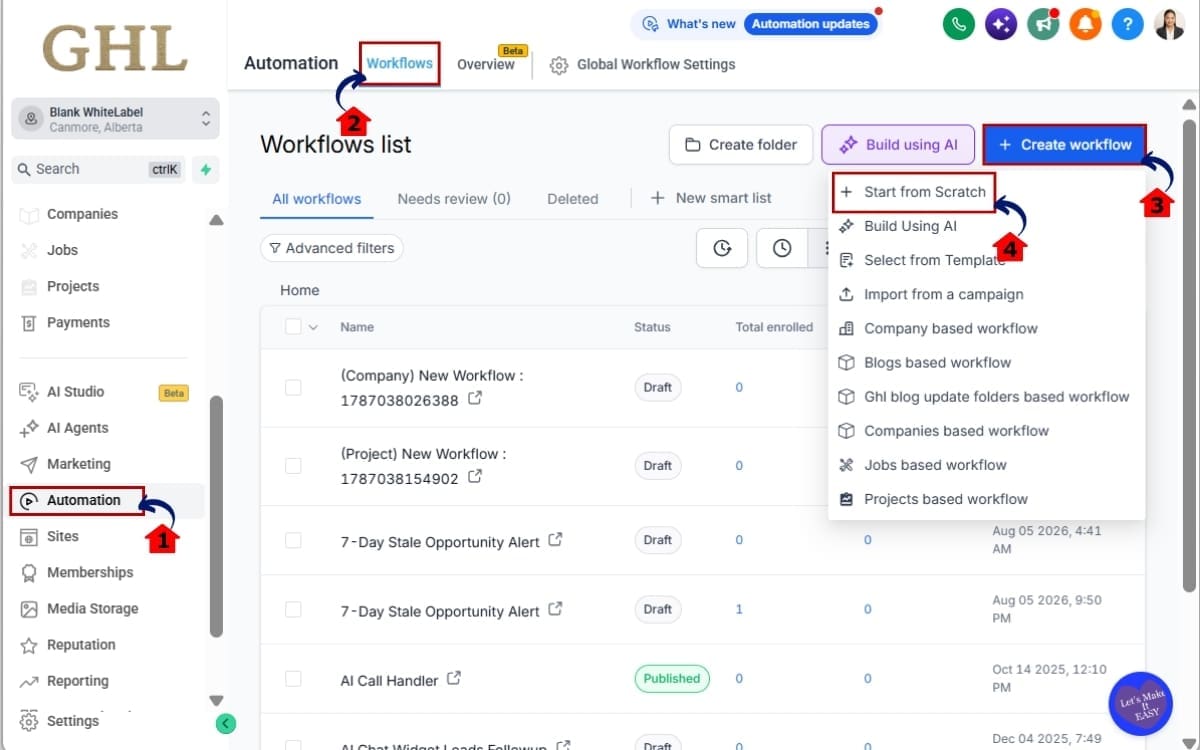
Step 01 – Access Workflows in GoHighLevel
- Start by logging in to the GoHighLevel sub-account where you want to build your automation.
1.1 Go to the main menu on the left side of your screen. Click Automation.
- This opens the Automation area where you can access and manage your GHL Workflows.
1.2 Open the Workflows section.
- This is where you’ll find your existing automations and the option to create a new Workflow.
1.3 Create a new Workflow.
- Starting a new Workflow gives you a clean setup for building your workflow from the beginning.
1.4 Click Start from Scratch.
- This opens a blank Workflow so you can add your triggers, RCS actions, and follow-up steps exactly where you need them.
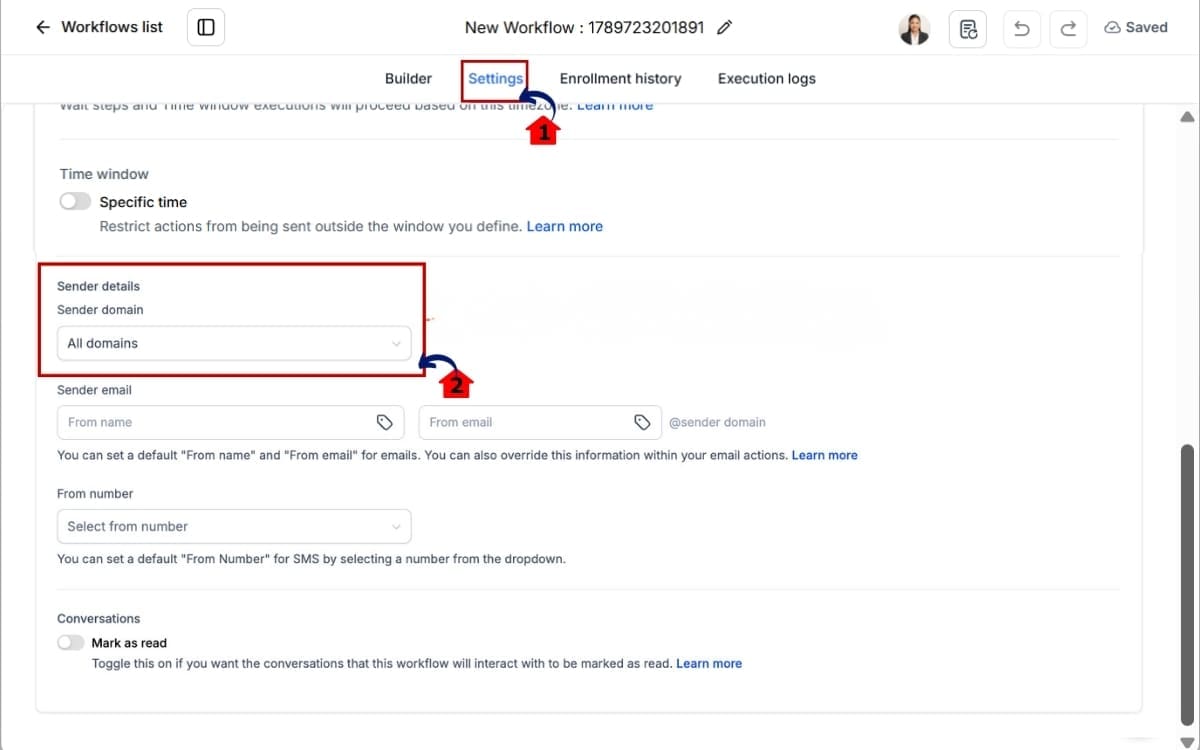
Step 02 – Open Your Workflow Settings
- This is where you’ll find the workflow-level sender controls, including the new Sender domain option.
2.1 Open the workflow’s Settings area.
- Inside Settings, look for the Sender details section where you can configure the domain and sender information.
2.2 Find the Sender details section.
- You should now see the new Sender domain dropdown.
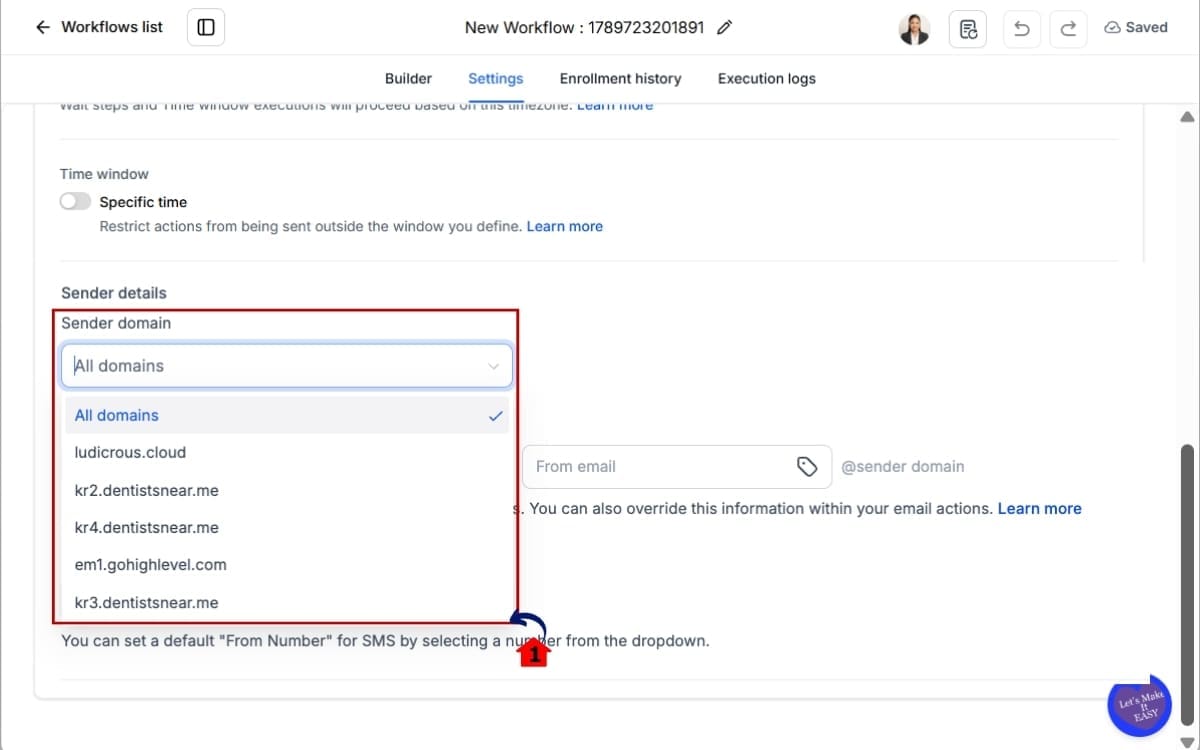
Step 03 – Choose Your Email Sender Domain
- This setting lets you decide which verified dedicated domain will be used for emails sent from this workflow.
3.1 Open the Sender domain dropdown.
- You’ll see the verified dedicated domains available in the sub-account, along with the “All domains” option.
Step 04 – Fill up the Email Sender Domain
- This is where you set the sender information that emails in the workflow will use by default.
4.1 Enter your From name and email prefix. For example, selecting example.com and entering “marketing” creates [email protected].
- Alternatively, choose “All domains” if you want GHL to continue sending across your configured domains using the weighted distribution set for the sub-account.
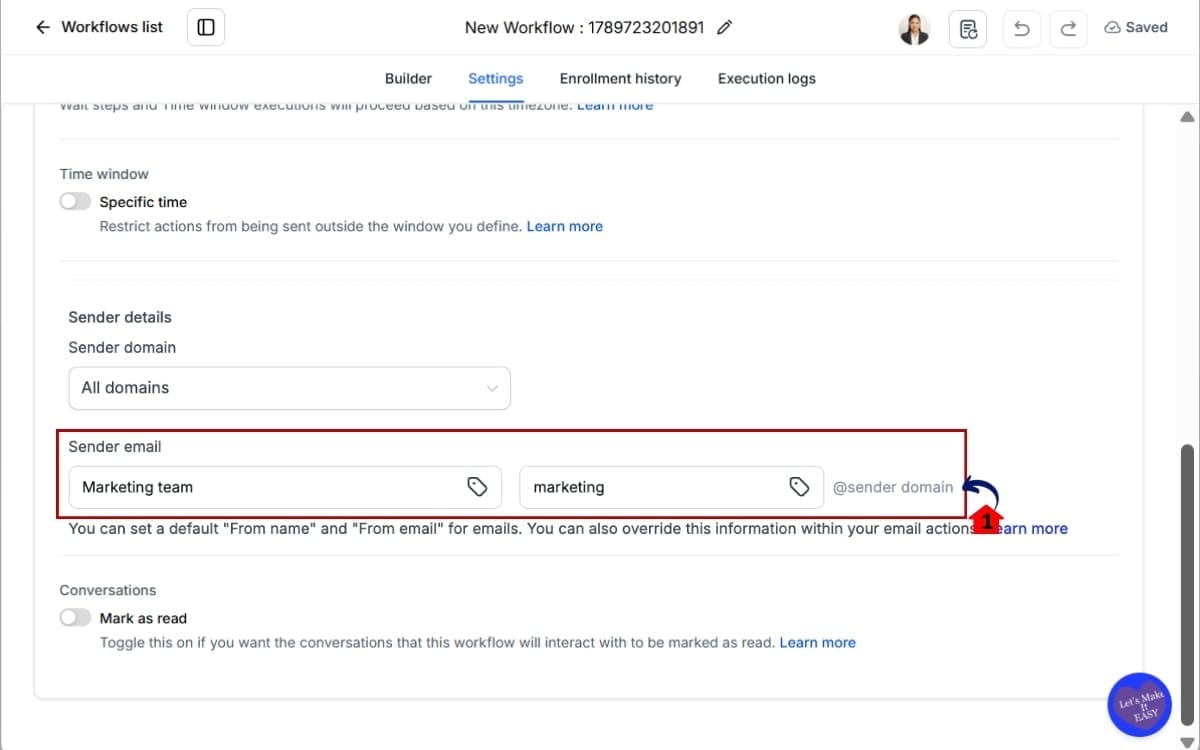
Individual email action sender details take preference over your workflow settings. Also watch for a Sender domain mismatch warning if you enter a full From email address using a domain different from the Email Sender Domain you selected.
Once everything matches, your workflow email actions can inherit the sender settings you configured at the workflow level.
Quick Tips for Your Email Sender Domain
Start by looking at the job each workflow is doing. Your booking reminders and receipts don’t necessarily need to send from the same domain as a sales sequence or promotional campaign. With Email Sender Domain, you can split those emails up based on their purpose.
Keep an eye on sender overrides. Your workflow-level Email Sender Domain acts as the default, but sender details added directly inside an individual email action take preference. If one email isn’t sending with the domain you expected, check that action first.
Be careful when entering a full From email address. If the domain in that address doesn’t match the dedicated domain selected in Workflow Settings, the full sender email overrides your selection. GHL will show a Sender domain mismatch warning because this setup may affect deliverability.
Remember that only verified dedicated domains appear in the Sender domain dropdown. If the domain you want isn’t listed, head back to Email Services > Dedicated Domains and confirm it has been properly verified.
You should also check your dedicated email settings. Email headers configured there take priority over your workflow settings, so understanding the order of these settings can save you a lot of troubleshooting.
Finally, don’t feel like you need to move every workflow to a new Email Sender Domain at once. You can start with one workflow, monitor how the new sending domain performs, and expand from there. For agencies managing busy client accounts, that gives you a simple way to make changes without overhauling the entire email setup.
What the Email Sender Domain Means for Your Business
The Email Sender Domain update gives businesses and agencies more control over how different types of automated emails are sent. Instead of treating every workflow the same, you can build a sending setup around the purpose of each workflow.
One setup might have all your day-to-day customer messages coming from the same domain. Receipts, confirmations, and reminders stay there, while marketing emails and outreach are handled by another domain altogether.
This separation can help you manage domain reputation more carefully. If a promotional campaign gets poor engagement or creates deliverability problems, you’ve separated that sending activity from the domain being used for critical customer emails. It doesn’t guarantee inbox placement, but it gives you more control over where different types of email traffic are sent.
For agencies, the update also makes GHL email setups easier to organize around each client’s needs. A client running a few simple workflows may only need one dedicated domain. A business with heavy promotional and transactional email activity may benefit from separating those workflows across multiple verified domains.
You can also make changes gradually. Assign a new Email Sender Domain to one workflow, monitor its performance, and then decide whether other workflows should follow.
The real benefit is control. GHL now lets you decide which verified dedicated domain a workflow should use instead of relying on one sending approach across every workflow in the sub-account. That gives you another practical tool for building a cleaner, more intentional email infrastructure.
A Real-World Email Sender Domain Example
Here’s a simple way to see how the Email Sender Domain setting can work in a real business.
Picture a clinic running most of its email through GHL. Patients get appointment reminders and receipts, but the clinic also sends a monthly promotion. Those messages aren’t doing the same job, so there’s a good reason to avoid lumping all of them onto one sending domain.
For the marketing side, the clinic could switch to news.acmeclinic.com. That’s where monthly promos and nurture sequences would go out. Since people react differently to marketing emails than they do to receipts or reminders, keeping them on another domain gives that traffic its own lane.
The clinic could move its marketing emails over to news.acmeclinic.com. Monthly offers and nurture sequences would send from there instead. Those campaigns can bring clicks, but they can also bring unsubscribes and complaints. Keeping them on their own domain means that activity isn’t mixed in with receipts and other patient emails.
If the promotional campaign develops reputation issues, the sending activity is isolated to its dedicated domain rather than sharing the exact same domain setup as the clinic’s reminders and receipts.
Agencies can apply the same Email Sender Domain strategy to many client accounts. You might separate customer notifications from lead nurture campaigns, or keep promotional workflows away from workflows containing important confirmations and receipts.
The goal isn’t to create extra domains just because you can. It’s to give each type of email traffic an appropriate home. With workflow-level domain selection in GHL, you now have more flexibility to build that structure around how each client actually communicates with their leads and customers.
Email Sender Domain FAQs
Get More Control With Your Email Sender Domain
The new Email Sender Domain setting gives you more control over how individual GHL workflows send email. Instead of relying on the same domain setup across your workflows, you can choose a verified dedicated domain based on the type of email each workflow sends.
This also means you don’t have to send everything through the same domain anymore. Keep your reminders, receipts, and other must-reach emails together, then send promotions and nurture campaigns from somewhere else.
The key is to set things up with purpose. Review your existing workflows and look at what each one sends. Then decide whether separating transactional and promotional traffic across different domains makes sense for your business or client.
Just remember the order of your sender settings. Your workflow-level Email Sender Domain provides the default, but sender details inside an individual email action can override it. A full From email using another domain can also trigger a mismatch warning, while headers configured in your dedicated email settings take priority over workflow settings.
If you already have verified dedicated domains in GHL, this update is worth putting to use. Start with one workflow, confirm your sender settings, and monitor how your domain performs before making larger changes.
For agencies, this is another useful piece of control you can build into your client setups. A cleaner domain strategy can make your email infrastructure easier to manage while keeping different types of sending activity better separated.
Scale Your Business Today.
Streamline your workflow with GoHighLevel’s powerful tools.