

- GPT-6 Sol and GPT-6 Luna bring faster, cleaner, and lower-cost AI automation to GHL Workflows.
- Quick Summary – AI Workflow Models Essentials
- See What’s New With AI Workflow Models in GHL
- Choose the Right AI Workflow Models for the Job
- How AI Workflow Models Improve Your GHL Automations
- How to Use the New AI Workflow Models in GoHighLevel
- Get More From Your AI Workflow Models
- Put AI Workflow Models to Work for Your Business
- AI Workflow Models Frequently Asked Questions for GoHighLevel Users
- Make the Most of AI Workflow Models
GPT-6 Sol and GPT-6 Luna bring faster, cleaner, and lower-cost AI automation to GHL Workflows.
Get Better AI Results Inside Your GoHighLevel Workflows
AI Workflow Models just got a major upgrade inside GoHighLevel, giving agencies and marketers more control over how their automations think, respond, and complete tasks. With GPT-6 Sol and GPT-6 Luna now available in the AI Agent action and GPT action, GHL users can choose the right model for the job instead of using a one-size-fits-all approach.
This update replaces the previous GPT-5.6 models with options that deliver more accurate outputs, cleaner responses, and lower costs. GPT-6 Sol is built for complex tasks that need deeper reasoning, while GPT-6 Luna is designed for faster, high-volume work like summaries, tagging, and quick replies.
In this guide, we’ll show you what changed, when to use each AI Workflow Model, and how to update your GoHighLevel Workflows so you can create smarter automations with less manual cleanup.
GoHighLevel’s new AI Workflow Models help agencies build more reliable automations with GPT-6 Sol and GPT-6 Luna. Choose the right model for each task to improve accuracy, reduce cleanup time, and run more AI-powered workflows at a lower cost.
Quick Summary – AI Workflow Models Essentials
Purpose: This update gives you two new AI Workflow Models, GPT-6 Sol and GPT-6 Luna, inside GoHighLevel Workflows.
Why It Matters: You can match the AI model to the task, helping you improve workflow results while reducing unnecessary AI costs.
What You Get: GPT-6 Sol is built for complex tasks, while GPT-6 Luna is designed for fast, high-volume work such as tagging, summaries, and classification.
Time to Complete: You can update an existing GPT action in just a few minutes.
Difficulty Level: Beginner-friendly. The new models are available from the Model dropdown inside the GPT action.
Key Outcome: You can build more flexible AI-powered workflows by choosing the model that best fits each task.
See What’s New With AI Workflow Models in GHL
GoHighLevel has improved the AI options available inside Workflows by replacing the previous GPT-5.6 models with the new GPT-6 Sol and GPT-6 Luna models. The AI Agent action and GPT action now include both models in the Model dropdown, giving users more flexibility when building automations.
Before this update, GHL users had fewer options when choosing the AI model behind their workflow actions. Now, you can match the model to the task instead of using the same option for every automation. GPT-6 Sol is designed for more complex workflows that require deeper reasoning, while GPT-6 Luna focuses on speed and efficiency for high-volume tasks.
Automate marketing, manage leads, and grow faster with GoHighLevel.

The biggest changes you’ll notice are improved accuracy, cleaner AI responses, and lower costs. GPT-6 Sol is built to handle multi-step business workflows with fewer factual mistakes, while GPT-6 Luna can handle tasks like classification, summaries, tagging, and quick replies at a lower cost. This gives GHL users a better way to build AI automations that fit their actual business needs.
Choose the Right AI Workflow Models for the Job
Not every task in GoHighLevel needs the same type of AI power. Some workflows need careful thinking and better decision-making, while others need quick and simple results. The new AI Workflow Models give you more control so you can choose the right option for each automation.
GPT-6 Sol is built for more complex tasks where accuracy matters. It works well for multi-step workflows, detailed lead reviews, and processes that need the AI to understand more information before taking action. GPT-6 Luna is made for speed and volume, making it a good fit for tasks like summaries, tagging, sorting, and quick replies.
The key is not using one model for everything. Match the model to the task. Use GPT-6 Sol when the workflow needs deeper reasoning, and use GPT-6 Luna when you need fast, repeatable results. This helps you build cleaner GoHighLevel automations that work better for your business.
How AI Workflow Models Improve Your GHL Automations
AI is only useful when it helps you save time and get better results. The new AI Workflow Models give GHL users more reliable options for building automations that handle real business tasks. Instead of spending time fixing poor outputs, you can choose a model that fits the job from the start.
With GPT-6 Sol and GPT-6 Luna, your workflows can become more accurate, easier to manage, and more cost-friendly. Better AI responses can help reduce problems like incorrect contact tags, missed details, or replies that need extra editing before they are ready. For agencies, this means more confidence when using AI across client accounts.
These improvements are especially helpful for agency owners, marketers, and teams managing a large number of tasks inside GoHighLevel. Whether you are sorting leads, creating follow-up messages, or handling customer communication, choosing the right AI Workflow Model can help your team work faster while keeping your automations running smoothly.
How to Use the New AI Workflow Models in GoHighLevel
The new AI Workflow Models are available inside the GPT action in GoHighLevel Workflows. In this walkthrough, we’ll add the GPT action to a workflow, open the Model dropdown, and select either GPT-6 Luna or GPT-6 Sol.
Here are the steps we will follow:
- Open the Workflows Area.
- Add the GPT Action.
- Find the GPT Action.
- Choose an AI Workflow Model.
- Save the GPT Action.
- Test or Publish the Workflow.
To start, make sure you are logged in to the correct GoHighLevel sub-account.
Step 01 – Open the Workflows Area
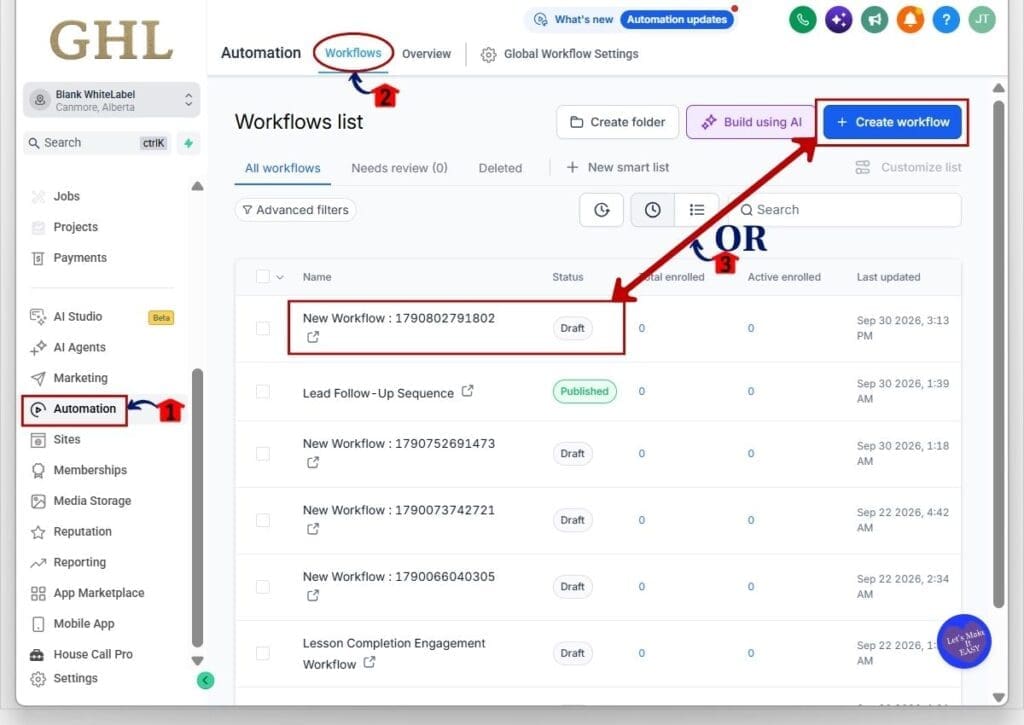
- The main menu on the left side of your screen includes the main areas you use in GoHighLevel.
1.1 Click Automation.
- This opens the Automation area in your GHL sub-account.
1.2 Click Workflows in the top menu.
- The Workflows list will open.
- You will see the workflows already created in the sub-account.
1.3 Click Create workflow or open an existing workflow from the list.
- The workflow builder will open.
Step 02 – Add the GPT Action
- The workflow builder is where you add triggers and actions to control what happens in your automation.
2.1 Open the workflow you want to use.
- The workflow builder will display the current triggers and actions.
- In this example, the workflow includes a GPT action.
2.2 Review the workflow before adding or changing the AI action.
- Make sure you are working in the correct workflow.
- You can test the workflow before publishing it using the Test workflow button at the top.
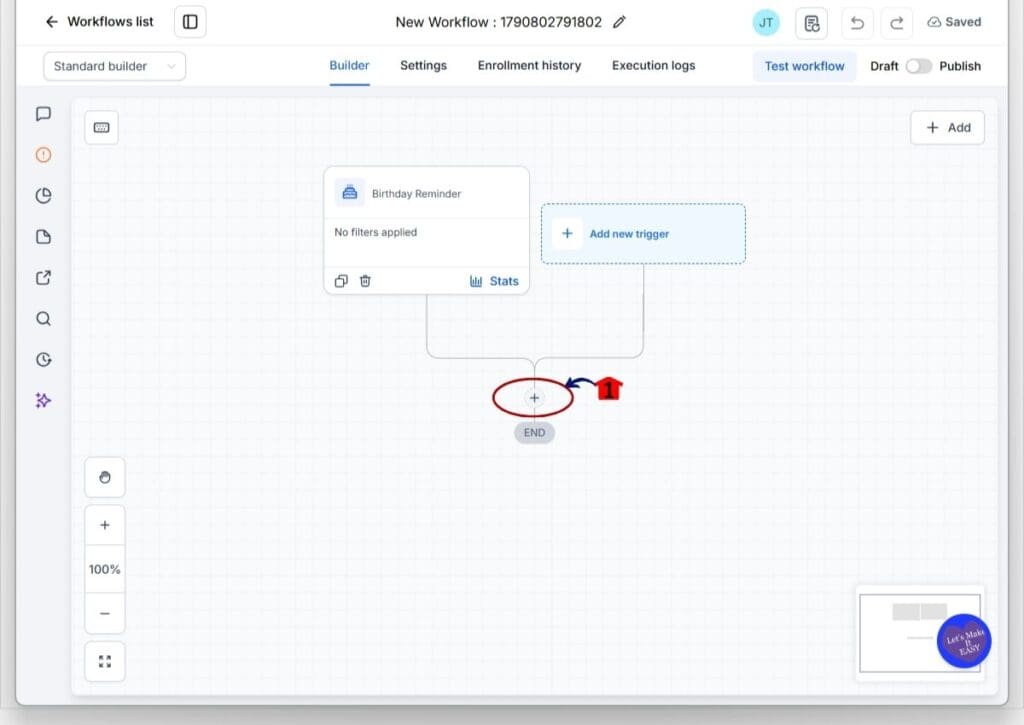
2.3 Locate the area where you want to add the GPT action.
- You can add the action below an existing trigger or another workflow action.
- You can add a new action from the plus icon inside the workflow builder.
2.4 Click the + icon where you want to add the action.
- The action selection panel will open.
2.5 Review the available action options.
- GHL provides different actions that can be added to your workflow.
- The available options may vary based on your account and setup.
Step 03 – Find the GPT Action
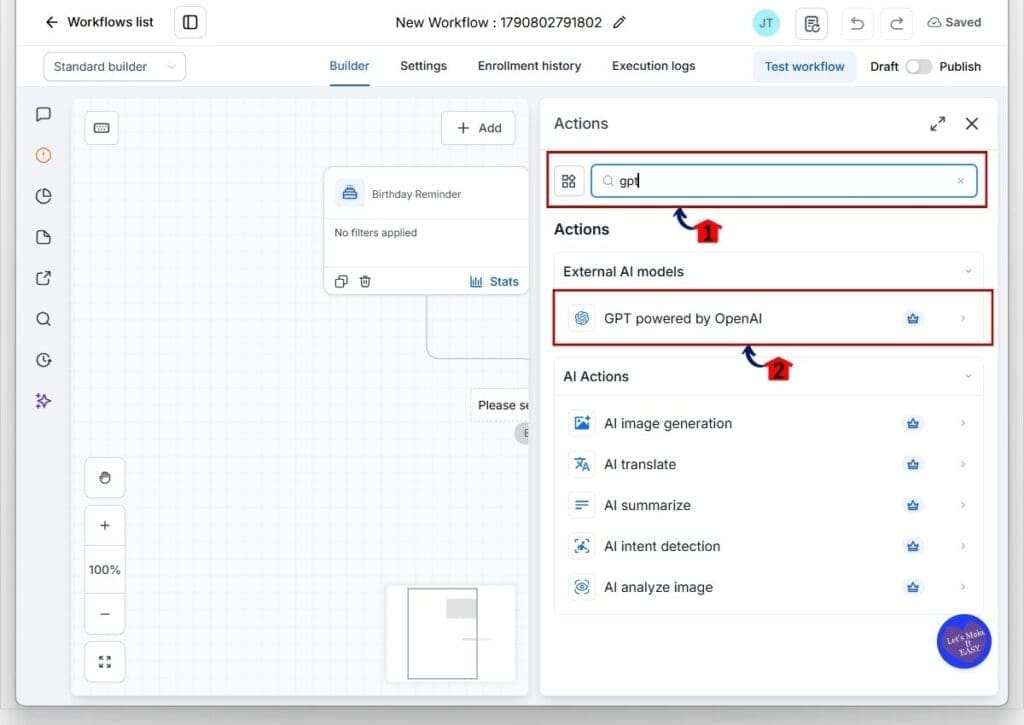
- The Actions panel includes a search field that makes it easier to find the action you need.
3.1 Click the Search field.
3.2 Type GPT.
- The available GPT action will appear under External AI models.
3.3 Click GPT powered by OpenAI.
- GHL will add the GPT action to your workflow.
- The GPT action settings will open on the right side of the screen.
Step 04 – Choose an AI Workflow Model
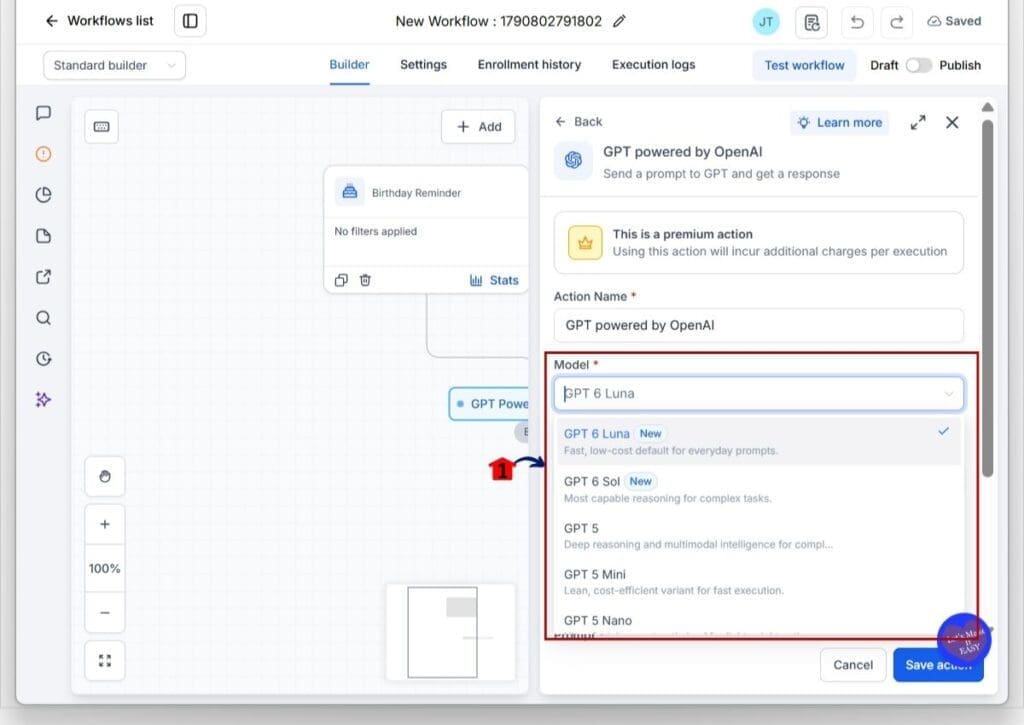
- The GPT action now includes the new GPT-6 model options in the Model dropdown.
4.1 Click the Model dropdown.
- The available models will appear.
4.2 Select GPT-6 Luna for fast, high-volume tasks.
- GPT-6 Luna is designed for tasks such as classification, summaries, tagging, and quick replies.
- It is the faster and lower-cost option for everyday prompts.
4.3 Select GPT-6 Sol for more complex tasks.
- GPT-6 Sol is designed for more capable reasoning and complex tasks.
- It is a better fit for multi-step work and workflows that need more careful reasoning.
4.4 Choose the model that best matches the task in your workflow.
- You do not need to use the same model for every AI action.
- Match the model to the type of work the action needs to complete.
Step 05 – Save the GPT Action
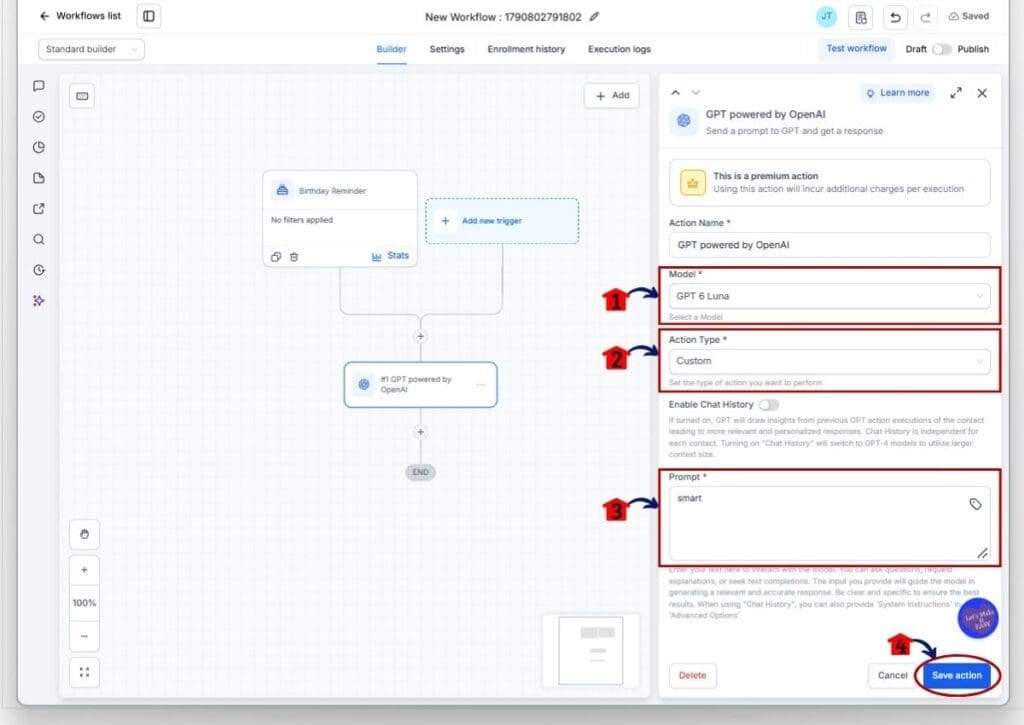
- After choosing your model, review the rest of the GPT action settings before saving.
5.1 Confirm the selected Model.
- Make sure GPT-6 Luna or GPT-6 Sol is selected based on the task.
5.2 Review the Action Type and other available settings.
- Check that the action is configured for the task you want the AI to complete.
5.3 Review the Prompt.
- Make sure the instructions tell the AI exactly what you want it to do.
- Check any information or workflow data included in the prompt.
5.4 Click Save action.
- The GPT action will be saved to the workflow.
- You can now continue building or testing the workflow.
Step 06 – Test or Publish the Workflow
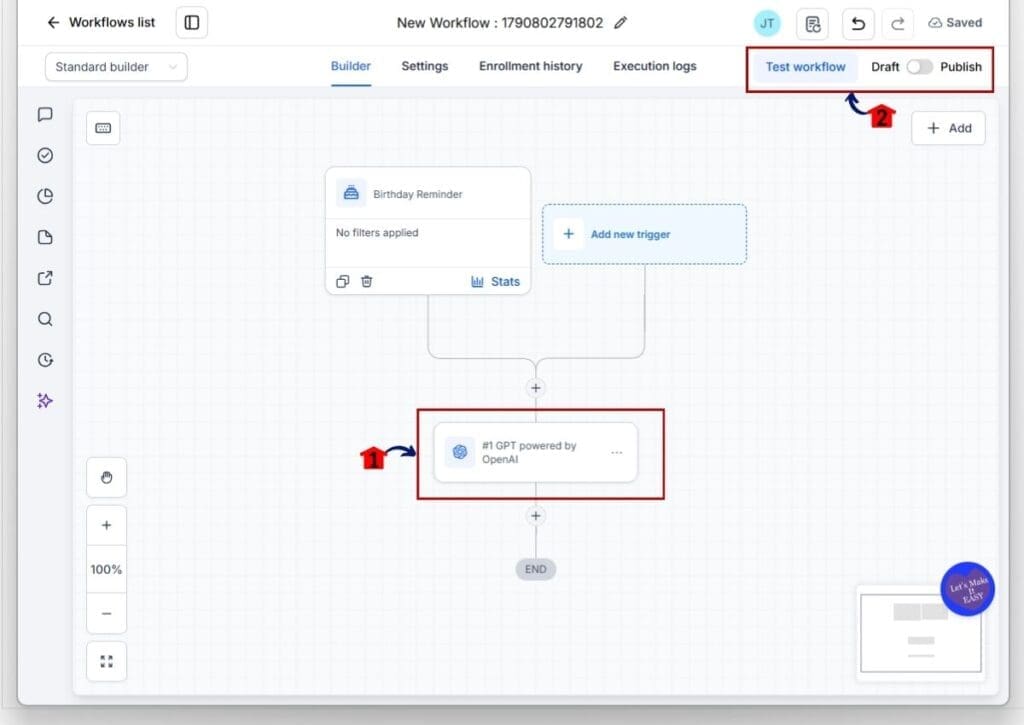
- After saving the GPT action, you will return to the workflow builder.
- The GPT action will now appear as part of the workflow.
6.1 Review the GPT powered by OpenAI action.
- Make sure the action appears in the correct place in your workflow.
- Confirm that you selected the correct AI Workflow Model.
6.2 Click Test workflow to check how the workflow runs.
- Testing lets you review the workflow before making it active.
- Check the GPT output and make sure it works with the next step in the workflow.
6.3 Review the workflow before publishing.
- Check the trigger, GPT action, prompt, and other workflow steps.
- Make sure the automation is ready to run as expected.
6.4 Turn on the Publish option when you are ready.
- This activates the workflow.
- Your selected GPT-6 model will then be used when the GPT action runs.
Once the workflow is saved, test it before using it at full volume. This gives you a chance to check the AI response and make sure the output works correctly with the next step in your automation.
Get More From Your AI Workflow Models
Choosing the right AI Workflow Model is only part of the process. You also want to make sure each model is being used for the right type of task. Start with GPT-6 Luna for simple, repeatable work such as tagging, summaries, classification, and quick replies. These tasks often run at higher volume, so a fast and lower-cost model can make sense.
Use GPT-6 Sol when the workflow has several steps or needs more careful reasoning. For example, if an AI action needs to review detailed information before deciding what to do next, GPT-6 Sol is designed for that type of work. You can also use different models in the same workflow when each step has a different job.
One more tip: test your workflow before turning it on for a large number of contacts. Review the AI output and check how it moves into the next workflow step. A quick test can help you catch an issue before it affects a larger number of contacts.
Put AI Workflow Models to Work for Your Business
The real value of these AI Workflow Models comes from how you use them in your daily workflows. Instead of using the same model for every task, you can match the model to the work. That gives you a simple way to balance speed, accuracy, and cost across your automations.
For example, an agency could use GPT-6 Luna to classify new leads, add tags, or create quick summaries. A later step could use GPT-6 Sol to review more detailed lead information and create a response that needs more careful reasoning. This lets each model handle the type of work it was built for.
The same approach can work across sales, marketing, support, and client workflows. As you add more AI actions to your GHL account, choosing the right AI Workflow Models can help you run more tasks without adding the same amount of manual work. The goal is simple: let AI handle the repetitive work, while your team focuses on the tasks that need a human touch.
AI Workflow Models Frequently Asked Questions for GoHighLevel Users
Make the Most of AI Workflow Models
The new AI Workflow Models give GoHighLevel users more flexibility when building AI-powered automations. GPT-6 Sol is built for complex tasks that need more careful reasoning, while GPT-6 Luna is designed for fast, high-volume work.
Both models replace the previous GPT-5.6 options and bring improvements in accuracy, response quality, and cost. The key is to match the model to the task instead of using the same option for every workflow.
If you’re already using AI inside GHL, now is a good time to review your existing workflows and see where the new models fit. Start with one workflow, test the results, and adjust from there.
Have you started using GPT-6 Sol or GPT-6 Luna in your GoHighLevel workflows? Which type of task are you using it for?
Scale Your Business Today.
Streamline your workflow with GoHighLevel’s powerful tools.


