

- Share videos and events with more context, right inside the Community feed.
- Quick Summary – Rich Link Previews at a Glance
- What Changed with Rich Link Previews
- Why Rich Link Previews Matter
- How to Use Rich Link Previews in GoHighLevel Communities
- Pro Tips for Better Community Engagement
- What This Means for Your Business
- Frequently Asked Questions About Rich Link Previews
- Keep More Community Activity in One Place
Share videos and events with more context, right inside the Community feed.
See More Without Leaving the Community
Rich Link Previews make sharing content inside GoHighLevel Communities much easier. Instead of showing a plain link, GHL can now display a preview that gives members more context before they click.
Supported links from platforms like YouTube and Loom can show richer previews, and some videos can play right inside the feed. Event mentions can also create preview cards with details such as the date, time, price, and registration status.
This may seem like a small update, but it removes extra steps for members. They can watch content, check event details, and register without leaving the conversation, which helps make Communities feel smoother and easier to use.

Rich Link Previews make GHL Communities easier to use by giving members more context without extra clicks. Videos, event details, and registration options can now sit right inside the conversation.
Quick Summary – Rich Link Previews at a Glance
Purpose: This update improves how links, videos, and events appear inside GoHighLevel Communities.
Why It Matters: Rich Link Previews give members more context without forcing them to leave the Community feed.
What You Get: Supported links can show richer previews, supported videos can play in the feed, and event cards can show key details with RSVP or registration options.
Time To Complete: About 2 to 5 minutes to create and publish a post using a supported link or event mention.
Difficulty Level: Easy. No extra setup is needed for supported previews.
Key Outcome: You can make Community posts more useful, easier to follow, and more interactive with fewer clicks for members.
What Changed with Rich Link Previews
Rich Link Previews now give GHL Community posts and comments more context right inside the feed. When someone shares a supported link, such as YouTube or Loom, GoHighLevel can create a preview automatically instead of showing only the URL.
Supported videos can play from the feed, and event mentions can now create preview cards with details like the event name, date, time, price, and registration status. Members can also register or RSVP from the event card without leaving the Community.
Automate marketing, manage leads, and grow faster with GoHighLevel.

Before this update, shared links were more basic and event details often meant extra clicks. Now, Rich Link Previews make it easier for members to see what matters and take action without breaking the flow of the conversation.
Why Rich Link Previews Matter
Rich Link Previews cut down on extra clicks and make Community posts easier to follow. Members can see what a video or event is about before they decide what to do next, which helps keep the conversation moving.
For agency owners, coaches, course creators, and membership teams, this can make shared content more useful. A training video can stay in the discussion, while an event card can show the details and let members register from the same place.
The main benefit is a smoother member experience. Rich Link Previews help keep people focused on the content instead of sending them around different pages just to get the basic details.
How to Use Rich Link Previews in GoHighLevel Communities
Rich Link Previews work directly inside GoHighLevel Communities. You can paste a supported link into a post or comment, and GHL will build the preview automatically. Rich previews work across both posts and comments.
You can also mention an event inside a Community post. GoHighLevel will create an event preview so members can see the key details without leaving the discussion.
In this walkthrough, we’ll show you how to open your Community, add a supported video link, view the finished Rich Link Preview, add an event, and check the published event preview.
Here are the steps we will follow:
- Open Your GoHighLevel Community.
- Create a Post With a Supported Link.
- View the Rich Link Preview.
- Create a Post With an Event.
- View the Published Event Preview.
To start, make sure you are logged in to the correct GoHighLevel account and can access the Communities area.
Step 01 – Open Your GoHighLevel Community
- Start from the main GoKollab area inside GoHighLevel.
1.1 Click the Communities icon on the left-hand menu.
- This opens the My Communities panel.
- You will see the Communities you have access to.
1.2 Click the Community you want to open.
- This takes you into the selected Community.
- From here, you can open discussions, create posts, and interact with other members.

Step 02 – Create a Post With a Supported Link
- Once you are inside the Community, start a new post.
2.1 Enter a title for your post.
- Keep the title short and clear.
- Tell members what the shared content is about.
2.2 Add your description and paste a supported link.
- Add a short message to give the link some context.
- Paste a supported URL, such as a YouTube or Loom link, into the description.
- GoHighLevel will use the link to create the Rich Link Preview after the post is published.
2.3 Click Post.
- Your new Community post will be published to the selected channel.

Step 03 – View the Rich Link Preview
- After the post is published, GoHighLevel automatically creates the preview for supported content.
3.1 Review the published post.
- Your title and description appear at the top of the post.
- The original link remains visible above the preview.
3.2 Check the Rich Link Preview.
- The preview can show the video thumbnail, title, and source information.
- Supported videos can be played directly from the Community feed.
- Rich Link Previews also work inside comments, so members can share supported content during an active discussion without creating a separate post.

Step 04 – Create a Post With an Event
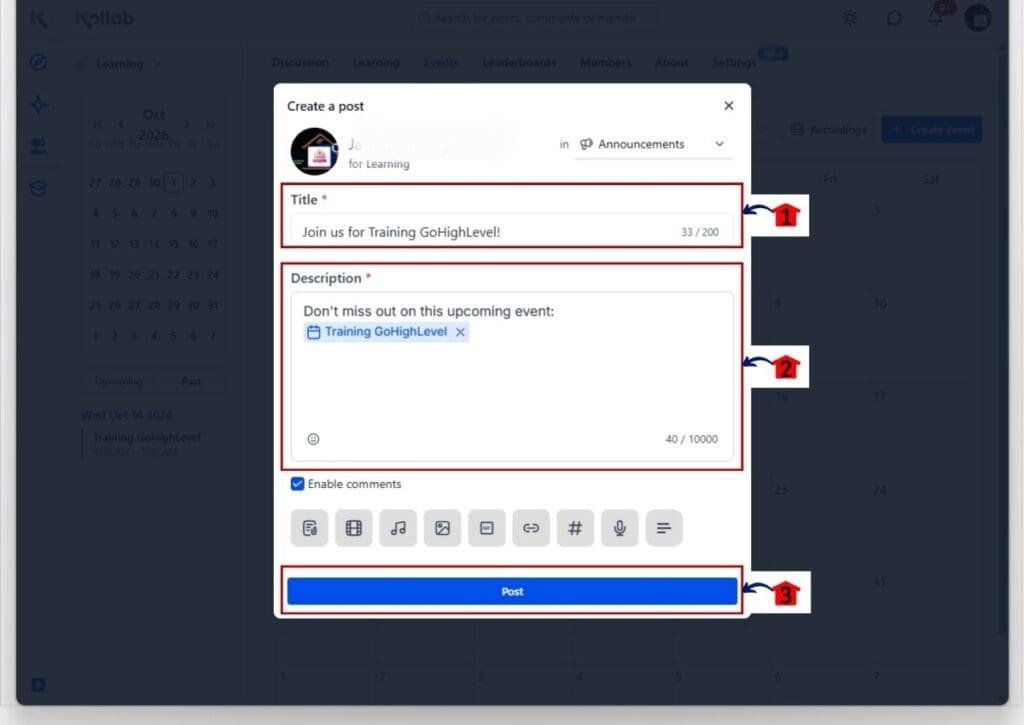
- You can also add an existing Community event to a post.
4.1 Enter a title for your event post.
- Use a title that tells members what the event is about.
4.2 Add your description and mention the event.
- Write a short message to introduce the event.
- Add the event mention inside the description.
- The selected event will appear as a linked event item before you publish.
4.3 Click Post.
- GoHighLevel will publish the post with the event attached.
Step 05 – View the Published Event Preview
- Once published, the event appears as part of the Community conversation.
5.1 Review the published event post.
- Check that the title and description appear correctly.
- Confirm that the correct event is attached to the post.
5.2 Open the event preview.
- Members can use the event preview to view more information about the event.
- Depending on the event setup, the preview can show details such as the event name, date, time, price, and registration status.
- Members can register or RSVP from the event preview without needing to search for the event separately.

Once these posts are published, Rich Link Previews give members more context without adding extra steps. Videos can stay inside the discussion, event details are easier to reach, and supported previews can be used in both posts and comments.
Pro Tips for Better Community Engagement
Rich Link Previews work best when the post gives members a reason to care. Do not just drop a link into the feed. Add a short line that explains what the video or event is about and why it is worth their time.
Keep each post focused. If you are sharing a video, use one main link and a clear title. If you are sharing an event, make sure the event details are correct before you publish. This makes the preview easier to understand and helps members know what to do next.
You can also use Rich Link Previews in comments to keep useful resources inside an active discussion. That works well for follow-up videos, training clips, or extra resources that support the main post without starting a new thread.
What This Means for Your Business
Rich Link Previews can make your Community easier to use and easier to follow. Members can watch supported videos, check event details, and take action without jumping between different pages.
For example, a coach could share a Loom video with a quick lesson, then post an event for a live Q&A. Members can watch the training, stay in the discussion, and then register for the event from the same Community.
The business value is simple. Fewer clicks can mean less friction. Rich Link Previews help you keep useful content, conversations, and event activity in one place, which can support stronger engagement over time.
Frequently Asked Questions About Rich Link Previews
Keep More Community Activity in One Place
Rich Link Previews make GoHighLevel Communities easier to use. Members can view supported video previews, check event details, and take action without leaving the feed.
For Community owners, that means fewer extra clicks and a smoother way to share training, updates, and events. The feature is simple, but it can make each post feel more useful and easier to follow.
Try Rich Link Previews with your next video or Community event and see how members respond. How do you plan to use this update inside your GoHighLevel Community?
Scale Your Business Today.
Streamline your workflow with GoHighLevel’s powerful tools.


