- Add forms while creating service and rental bookings.
- Quick Summary – Booking Form Attachment Overview
- Booking Form Attachment Adds More Control
- Why Booking Form Attachment Matters
- How to Use Booking Form Attachment
- Make Booking Form Attachment Work Better
- Booking Form Attachment Keeps Teams Better Prepared
- Frequently Asked Questions About Booking Form Attachment
- Booking Form Attachment Makes Manual Bookings Cleaner
Add forms while creating service and rental bookings.
Booking Form Attachment for Manual GHL Bookings
Booking Form Attachment is now easier to use inside GoHighLevel. You can attach a form while creating a service or rental booking from the appointment modal, so your team can collect the right details even when the customer does not book online.
Before this update, forms were mainly part of the booking page flow. Now, staff can complete the form for the customer during the booking process. GHL can also prefill the customer’s first name, last name, email, and phone, which helps cut down on repeat data entry.
This makes manual bookings more consistent with online bookings and keeps useful intake details tied to the appointment. It is a simple change, but it can save time and help your team start each booking with better information.

Booking Form Attachment helps your team collect the same intake details on manual bookings as online bookings. It keeps customer information organized, saves time, and gives your team better booking records from the start.
Quick Summary – Booking Form Attachment Overview
Purpose: Booking Form Attachment lets your team attach and complete a form while creating a service or rental booking inside GHL.
Why It Matters: Manual bookings can now collect the same intake details as online bookings, which helps keep customer information more consistent.
What You Get: You can select a form, use prefilled contact details, complete the form for the customer, and keep the submitted form linked to the appointment.
Time To Complete: Most bookings should only take a few extra minutes when the correct form is already set up.
Difficulty Level: Easy. The feature is built into the normal booking flow and does not require a complex setup.
Key Outcome: Your team gets cleaner booking records with the intake details they need before the appointment starts.
Booking Form Attachment Adds More Control
Booking Form Attachment now works when you create service and rental bookings inside GoHighLevel. You can open the appointment modal, choose the contact, and attach a form without sending the customer through the public booking page.
GHL also makes the process faster by preselecting the configured form and filling in the contact’s first name, last name, email, and phone. If needed, your team can switch to another available form before the booking is created.
Automate marketing, manage leads, and grow faster with GoHighLevel.

The in-app form is also trimmed down for staff use. CAPTCHA, product selling, and payment fields do not appear in this flow. The form is optional, so you can still create the booking without attaching one.
Why Booking Form Attachment Matters
Booking Form Attachment helps your team collect the same intake details on manual bookings as online bookings. That means fewer gaps in customer information and less chance of staff missing an important detail.
It also saves time. Since GHL can prefill basic contact details, your team does not need to enter the same information twice. This is useful for front desk staff, admins, and anyone who creates bookings for customers.
For service and rental businesses, better intake can also mean a smoother handoff. The right information is already attached to the booking, so the team can review it before the appointment and know what to expect.
How to Use Booking Form Attachment
Booking Form Attachment in GoHighLevel lets you add a form while creating a new service or rental booking from inside the contact record. This gives your team a simple way to collect intake details when they create the booking for the customer.
Here are the steps we will follow:
- Open the contact record.
- Start a New Service Booking.
- Attach a Booking Form.
- Choose the Booking Form.
- Confirm and Attach the Form.
- Review the Attached Form.
To start, make sure you are logged in to the correct GoHighLevel sub-account.
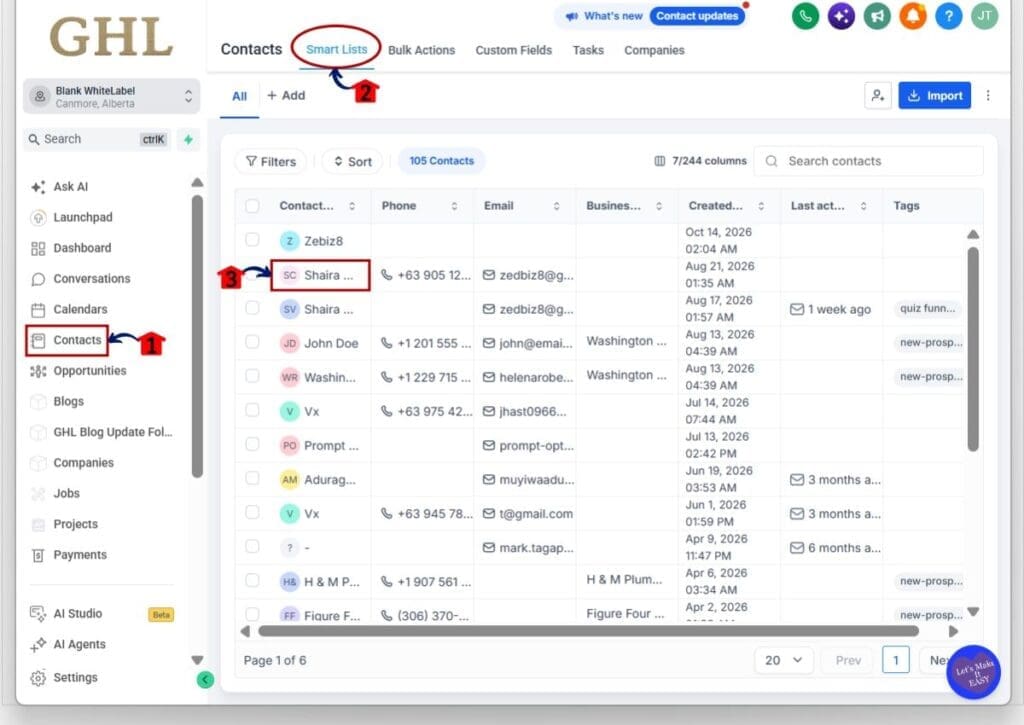
Step 01 – Open the Contact Record
- The Contacts area lets you open the customer record you want to use for the booking.
1.1 Click Contacts from the main left-hand menu.
- This opens the Contacts area in your GHL sub-account.
1.2 Click Smart Lists from the top menu.
- This shows the contacts available in the selected Smart List.
1.3 Click the contact you want to book.
- This opens the full contact record.
Step 02 – Start a New Service Booking
- The contact record includes an Appointments area where you can create bookings for that customer.
2.1 Click the Appointments icon on the right side of the contact record.
- This opens the appointment panel for the selected contact.
2.2 Click + Add.
- A dropdown menu will appear with the available booking types.
2.3 Click Services.
- This opens the New booking screen for a service booking.
- You can also use the Rentals option when creating a rental booking.

Step 03 – Attach a Booking Form
- The New booking screen now includes a Booking form section on the right side.
3.1 Find the Booking form section.
- If no form is attached, GHL will show No form attached.
3.2 Click Attach form.
- This opens the Booking form window.
- Your contact details will already be pulled into the booking from the selected contact.

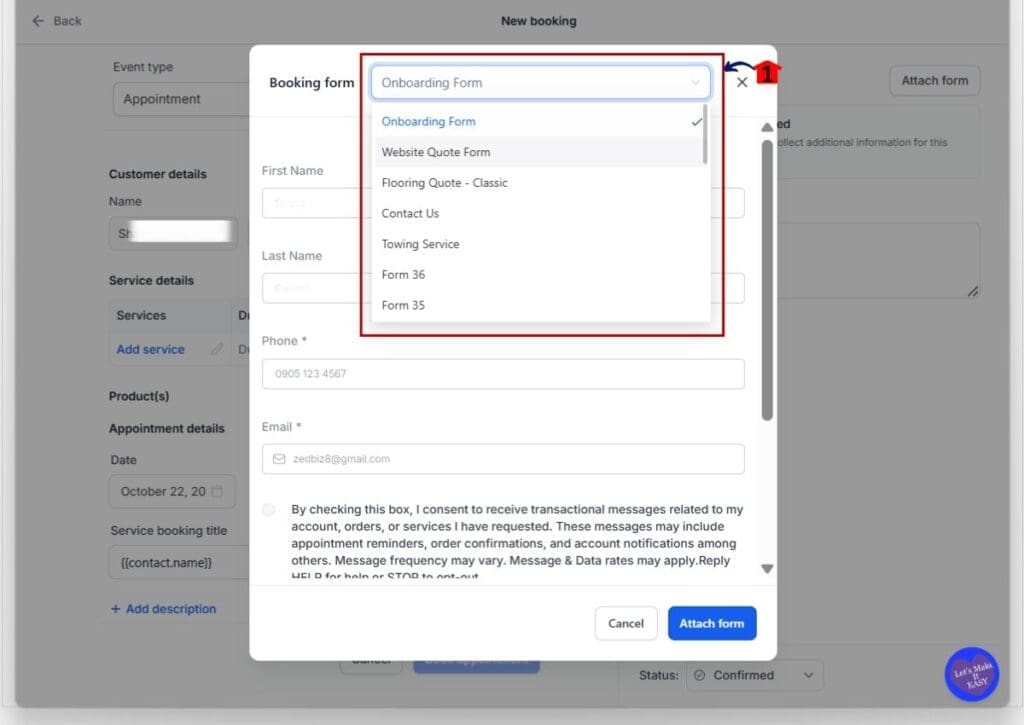
Step 04 – Choose the Booking Form
- GHL opens the form selector so you can choose the form you want to use with the booking.
4.1 Click the Booking form dropdown.
- You will see the available forms in your GHL account.
4.2 Select the form you want to attach.
- The configured form may already be selected.
- You can choose another available form when needed.
- In this example, the Onboarding Form is selected.
Step 05 – Confirm and Attach the Form
- Once the correct form is selected, review the available fields before attaching it to the booking.
5.1 Review the selected Booking form.
- Confirm that the correct form appears at the top of the window.
5.2 Review the customer details.
- First name, last name, phone, and email can be prefilled from the selected contact.
5.3 Click Attach form.
- GHL adds the selected form to the current booking.

Step 06 – Review the Attached Form
- The Booking form section now shows the form attached to the appointment.
6.1 Confirm the attached form.
- The form name will appear inside the Booking form section.
- You can use the edit icon to review the form before the booking is completed.
- You can also remove the form if the wrong one was attached.
6.2 Review the booking status.
- Use the Status dropdown at the bottom of the booking screen.
- Confirm the correct status before creating the appointment.

Once the form is attached, finish the remaining booking details and create the appointment as normal. The intake form stays linked to the booking, which gives your team the customer information they need in one place.
For now, Booking Form Attachment can only be added while the booking is being created. You cannot add or edit the attached form later, so check the form and customer details before you finish the booking.
Make Booking Form Attachment Work Better
Booking Form Attachment works best when your team keeps the process simple. Choose the form that matches the service or rental, and check the customer details before you move on. GHL can prefill the basic contact fields, but it is still worth giving them a quick review.
Keep each form focused on the details your team actually needs. If the form is too long, staff may skip questions or slow down the booking process. A short, useful form makes it easier to collect the right intake details without adding extra work.
One thing to remember is that the form can only be attached while the booking is being created. If you choose the wrong form, fix it before you finish the booking. That small check can save you from missing details later.
Booking Form Attachment Keeps Teams Better Prepared
Booking Form Attachment gives your team a cleaner way to handle manual bookings. Instead of creating the appointment first and chasing details later, staff can collect the right information while the booking is being made.
For service and rental businesses, this can make handoffs much easier. A front desk team member can create the booking, complete the form with the customer, and leave the next person with the details they need before the appointment starts.
That means less back and forth, fewer missing details, and a more consistent booking process across your GHL account.
Frequently Asked Questions About Booking Form Attachment
Booking Form Attachment Makes Manual Bookings Cleaner
Booking Form Attachment gives GHL users a simple way to collect intake details during manual service and rental bookings. Your team can attach the right form, review prefilled contact details, and keep that information linked to the appointment from the start.
The main benefit is consistency. Whether a customer books online or your team creates the booking inside GoHighLevel, you can now collect the same key information and reduce missing details.
If your team creates bookings for customers, this update is worth using. Have you tried Booking Form Attachment in your GHL account yet?
Scale Your Business Today.
Streamline your workflow with GoHighLevel’s powerful tools.