- Build a Custom Review Performance Dashboard With Reputation Widgets, Filters, Ratings, Response Metrics, and More
- Quick Summary – Reputation Dashboard Essentials
- What’s New in the Reputation Dashboard
- Why the Reputation Dashboard Matters
- How to Build a Reputation Dashboard in GoHighLevel
- Reputation Dashboard Pro Tips
- What This Reputation Dashboard Means for Your Business
- Frequently Asked Questions about Reputation Dashboard
- Keep Reputation Reporting Simple and Useful
Build a Custom Review Performance Dashboard With Reputation Widgets, Filters, Ratings, Response Metrics, and More
Track Reviews, Ratings, and Responses in One Place
A Reputation Dashboard in GoHighLevel is now much easier to build and use. With the latest update, you can add Reputation widgets directly to your Location Dashboard and track review requests, customer reviews, ratings, and response performance in one place.
This gives agencies and local businesses a simpler way to check reputation health without jumping between different sections. You can filter the data by date range, rating, source, and response status, then resize and arrange the widgets to match the way you want to report on performance.
For agencies, this can make client reporting much clearer. You can quickly show review activity, response speed, and rating trends, while also spotting gaps that may need attention. In this guide, we’ll look at what changed and how to build a useful Reputation Dashboard inside GoHighLevel.

The new Reputation Dashboard widgets give you one place to monitor review requests, customer feedback, ratings, and response performance. That means faster reporting, easier client updates, and a clearer view of reputation health without jumping between different areas of GHL.
Quick Summary – Reputation Dashboard Essentials
Purpose: This update lets you build a Reputation Dashboard inside the GoHighLevel Location Dashboard using 16 new Reputation widgets.
Why It Matters: You can track review requests, ratings, review trends, and response performance without jumping between different areas of GHL.
What You Get: You can add Reputation widgets, filter the data by date, rating, source, or response status, and arrange the layout around the metrics that matter most.
Time To Complete: Most users should be able to build a basic Reputation Dashboard in about 10 to 15 minutes.
Difficulty Level: Beginner. The widgets are added through the existing Dashboard editor, so there is very little setup involved.
Key Outcome: You get a clearer view of reputation performance that is easier to review, manage, and share with clients.
What’s New in the Reputation Dashboard
The Reputation Dashboard update adds 16 new Reputation widgets to the GoHighLevel Dashboard widget library. This gives you a clearer way to track the full review process from one place. You can now see review requests, customer reviews, and response performance alongside your other business metrics.
The new widgets cover key areas such as requests sent, request status, review ratings, review sources, sentiment, average rating, response rate, and response time. You can also see trends over time, which makes it easier to spot changes in review activity before they become a bigger issue.
Automate marketing, manage leads, and grow faster with GoHighLevel.

You can filter the Reputation Dashboard by date range, rating, source or page, and response status. Each widget can also be resized and moved, so you can build a layout that fits the way your team or clients like to view performance. This makes the dashboard much more useful for regular reporting and quick checks.
Why the Reputation Dashboard Matters
A Reputation Dashboard gives you a faster way to see what is happening with your reviews without digging through different parts of GoHighLevel. You can check request activity, ratings, review trends, response rates, and response times from one screen. That makes it easier to spot problems early and keep client reporting simple.
For agencies, this is especially useful when you need to show proof of work. Instead of pulling review data from several places, you can build one clear dashboard that shows what is being sent, what customers are saying, and how quickly your team is responding.
This update can also help local businesses keep a closer eye on their reputation health. If review volume drops, response times slow down, or ratings start to slide, the data is easier to see. That gives you a better chance to act before a small issue turns into a bigger one.
How to Build a Reputation Dashboard in GoHighLevel
Building a Reputation Dashboard in GoHighLevel is now done right inside the existing Location Dashboard. You can open the dashboard editor, find the new Reputation widget category, and choose the metrics you want to track.
Here are the steps we will follow:
- Open the Location Dashboard and Enter Edit Mode.
- Add Reputation Widgets to Your Dashboard.
To start, make sure you are logged in to the correct GoHighLevel sub-account.
Step 01 – Open the Location Dashboard and Enter Edit Mode
- The Location Dashboard is where you can view and organize key performance data for the selected sub-account.
1.1 Click Dashboard from the left-hand menu.
- This opens the main Location Dashboard for your sub-account.
- You will see your existing dashboard widgets and reporting data.
1.2 Click Edit dashboard in the upper-right corner.
- This opens the dashboard editor.
- From here, you can add new widgets and change the layout of your Reputation Dashboard.

Step 02 – Add Reputation Widgets to Your Dashboard
- GoHighLevel now includes a dedicated Reputation category inside the Dashboard widget library.
- This category contains 16 widgets for tracking review requests, customer reviews, ratings, and review responses.
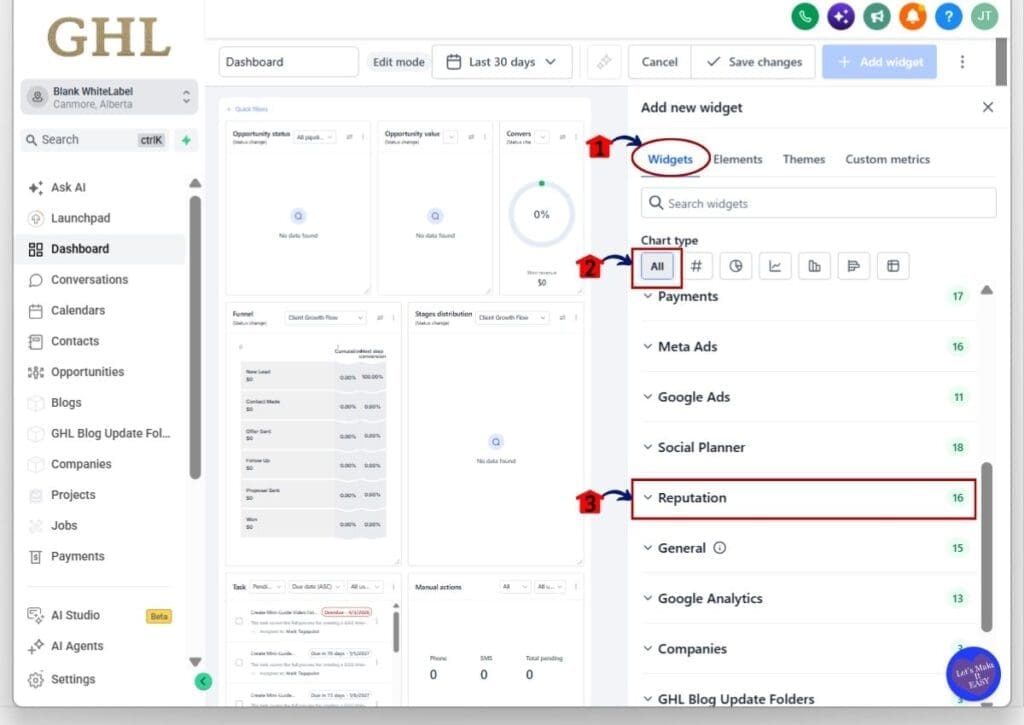
2.1 Make sure the Widgets tab is selected.
- This displays the available dashboard widget categories.
2.2 Select All under Chart type if you want to view every available Reputation widget.
- You can also use the other chart type options if you want to narrow down the type of widget you are looking for.
2.3 Scroll down and click Reputation.
- The Reputation section contains 16 available widgets.
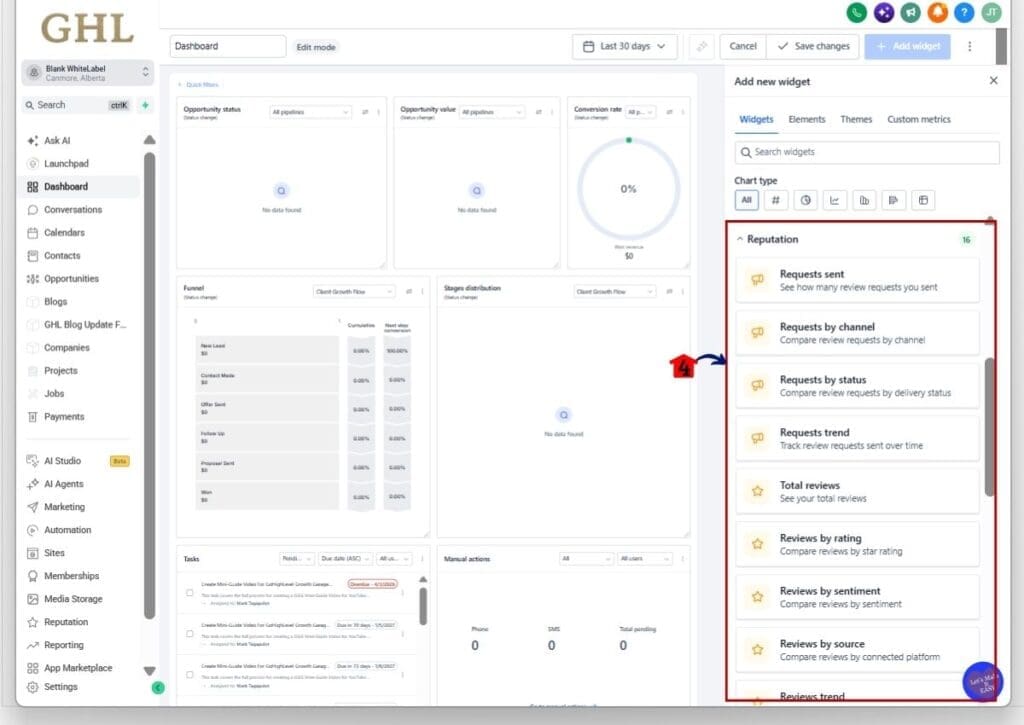
2.4 Review the available Review Request and Customer Review widgets.
- You can add widgets such as:
- Requests sent
- Requests by channel
- Requests by status
- Requests trend
- Total reviews
- Reviews by rating
- Reviews by sentiment
- Reviews by source
- These widgets help you see how many review requests are being sent and what kind of reviews your business is receiving.
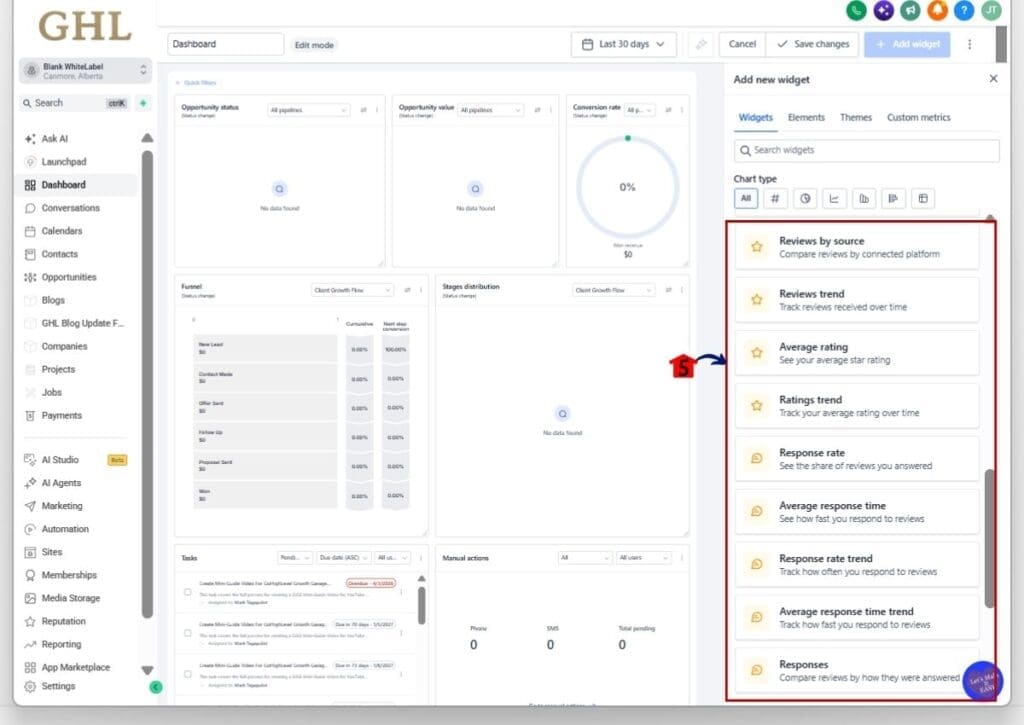
2.5 Scroll farther down the Reputation widget list to view the remaining options.
- You can also add widgets such as:
- Reviews trend
- Average rating
- Ratings trend
- Response rate
- Average response time
- Response rate trend
- Average response time trend
- Responses
- These widgets make it easier to monitor rating changes and see how well your team is responding to customer reviews.
- The Responses widget can also help you compare how reviews were answered.
2.6 Click the Reputation widget you want to add.
- Add the widgets that match the information you actually need to track.
- You do not need to use all 16 widgets.
2.7 Arrange your Reputation Dashboard around your most important metrics.
- Keep related widgets together so the dashboard is easy to scan.
- For example, you could place review request widgets first, customer review metrics next, and response performance widgets together below them.
Once your Reputation Dashboard is set up, use it as part of your normal reporting routine. You can quickly check how many review requests are being sent, how ratings are changing, and whether customer reviews are being answered on time.
For agencies, keep the dashboard simple. Start with the metrics your client actually cares about, then add more widgets only when they help tell a clearer story.
Reputation Dashboard Pro Tips
A good Reputation Dashboard should make the important numbers easy to see. Start with the metrics you check most often, such as review requests, average rating, response rate, and response time. You can always add more later if they help you make a better decision.
Keep related widgets together so the dashboard is easy to scan. Put review request data in one area, review results in another, and response metrics in their own section. This makes it easier to spot changes without digging through a crowded screen.
Use date ranges to match the way you report. A monthly view works well for client reports, while a shorter range can help you catch recent changes. Keep the Reputation Dashboard simple. If a widget does not help you understand performance, you probably do not need it.
What This Reputation Dashboard Means for Your Business
A Reputation Dashboard gives you a clearer way to show what is happening with your reviews. Instead of pulling numbers from different places, you can keep review requests, ratings, trends, and response data together. That makes regular checks and client reporting much easier.
For agencies, this can also help show the work being done behind the scenes. You can point to review volume, response rate, and rating changes during a client call without spending time building a separate report first.
For local businesses, the value is simple. You can spot problems faster. If review volume drops, ratings start to fall, or responses slow down, the Reputation Dashboard makes those changes easier to see and act on.
Frequently Asked Questions about Reputation Dashboard
Keep Reputation Reporting Simple and Useful
The Reputation Dashboard update gives GoHighLevel users a much clearer way to track review activity in one place. You can now monitor review requests, ratings, response rates, response times, and trends without jumping between different sections.
For agencies, this makes reporting easier and gives clients a better view of the work being done. For local businesses, it helps spot changes faster and keeps reputation performance easier to manage.
If you use reputation management as part of your service, this update is worth setting up. Start with the few widgets that matter most, keep the layout simple, and build from there. Which Reputation Dashboard widget do you think you will use the most?
Scale Your Business Today.
Streamline your workflow with GoHighLevel’s powerful tools.