

- AI Table Search in GHL Is a Game-Changer
- Quick Summary – AI Table Search Breakdown
- AI Table Search Now Supported in GHL Knowledge Base
- Smarter AI Table Search with Built-In AI
- AI Table Search Like Talking to a Human
- How to Use AI Table Search in GHL
- Use AI Table Search Like a Pro
- Common Questions About AI Table Search
- GHL AI Table Search Data Just Got Supercharged
AI Table Search in GHL Is a Game-Changer
Structured data is the backbone of most businesses, customer lists, billing records, product catalogs. But until now, GoHighLevel’s AI Knowledge Base couldn’t make sense of tables. That just changed.
With GHL’s latest update, you can now upload CSV and Excel files into your Knowledge Base and search them with natural language. No filters. No formulas. Just plain English.
Let that sink in. You can now ask things like “Show me customers from Texas” or “List products under $100” and get accurate, structured answers, powered by AI.
This update isn’t just a “nice-to-have.” It’s a shift in how agencies can store, access, and scale information across support teams, sales workflows, and client accounts.

With AI table search in GHL, you can now upload CSV or Excel files and instantly query your structured data, like customer lists or transaction logs, using plain English. This makes your AI agents smarter and your support faster.
Quick Summary – AI Table Search Breakdown
Purpose: Upload structured data (CSV/Excel) to the GHL Knowledge Base and search it with AI using natural language.
Why It Matters: Agents and teams can now instantly access customer lists, transactions, or product data without touching spreadsheets.
What You Get: Support for CSV/XLSX files, semantic AI search, auto schema detection, pagination, and customizable column settings.
Time to Complete: Setup takes under 10 minutes, including upload, schema review, and first search.
Difficulty Level: Beginner-friendly, no coding or tech experience required.
Key Outcome: Instant access to structured insights from your data, boosting agent accuracy and operational speed across locations.
AI Table Search Now Supported in GHL Knowledge Base
For the first time ever, GoHighLevel users can upload structured table data into the Knowledge Base using standard CSV and Excel (.xlsx) formats. Once uploaded, these files become fully searchable using natural language queries, just like unstructured content.
Got a spreadsheet full of client info or product SKUs? Now you can ask the AI bot a question, and it’ll find the answer in seconds, no filters, no formulas.
Automate marketing, manage leads, and grow faster with GoHighLevel.

Here’s what’s included:
- CSV & Excel Upload: Drag and drop your data files directly into the Knowledge Base.
- Just upload your spreadsheet: GHL will figure out the structure for you.
- You’ve got room for 30,000 rows per sub-account, giving each location its own dedicated AI Table Search space.
- Multi-File Support: Manage multiple table files at once, perfect for departments or data types.
This means less toggling between systems, fewer spreadsheets, and faster answers, especially for support teams, sales reps, and AI agents powered by GHL.
Smarter AI Table Search with Built-In AI
This isn’t your average “upload and sort” tool. GHL’s new AI Table Search feature is built on top of powerful AI, making it fast, flexible, and genuinely useful in real-world agency scenarios.
Here’s what stands out:
1. Semantic Search Powered by AI
You don’t need to remember column headers or guess filters. Just type what you’re looking for. GHL uses vector embeddings (the same tech behind ChatGPT) to understand what you mean, even if you say it differently than what’s in the AI Table Search.
2. Automatic Schema Detection
Upload a AI Table Search, and GHL instantly identifies your column types, string, number, date, boolean. It even extracts sample values and suggests key fields. No manual mapping. No headaches.
3. Paginated Data Access
Instead of dumping thousands of rows at once, GHL shows your data in batches of 100. That means no crashes, no lag, just clean browsing.
4. Flexible Column Configuration
You can mark columns as searchable, required, or even rename them for clarity. This gives you fine-tuned control over how your data is indexed and how queries are interpreted by the AI.
You don’t need to be a tech expert to use this. These tools let you handle structured data smoothly, right inside GHL.
AI Table Search Like Talking to a Human
Before this update, pulling info from structured datasets in GHL meant jumping between tools or manually sorting through spreadsheets. Now? You just ask.
This matters for one big reason: speed meets accuracy.
Here’s how that plays out:
- Support teams can instantly surface product specs, warranty info, or FAQs from a CSV, without needing a dev or data expert.
- Sales reps can pull targeted lists from customer data by asking, “Show me leads in healthcare with MRR over $1,000.”
- AI Agents can combine structured and unstructured sources to deliver smarter, more relevant answers.
The real power here is that you no longer need technical know-how to interact with technical data. Just ask questions the way you’d say them out loud, and GHL handles the rest.
This also dramatically improves agent accuracy, because AI can now reference not just articles or docs, but actual structured facts, like transactions, pricing, or customer details.
If your agency relies on data (spoiler: it does), this is a major upgrade to how you work.
How to Use AI Table Search in GHL
If you’ve ever fumbled through spreadsheets or needed fast answers from tabular data, this update changes the game. Dump in a spreadsheet. Walk away. GHL turns it into searchable brainpower for your AI bot, no code, no spreadsheet wizardry required. You’ll be set up and ready to go in no time.
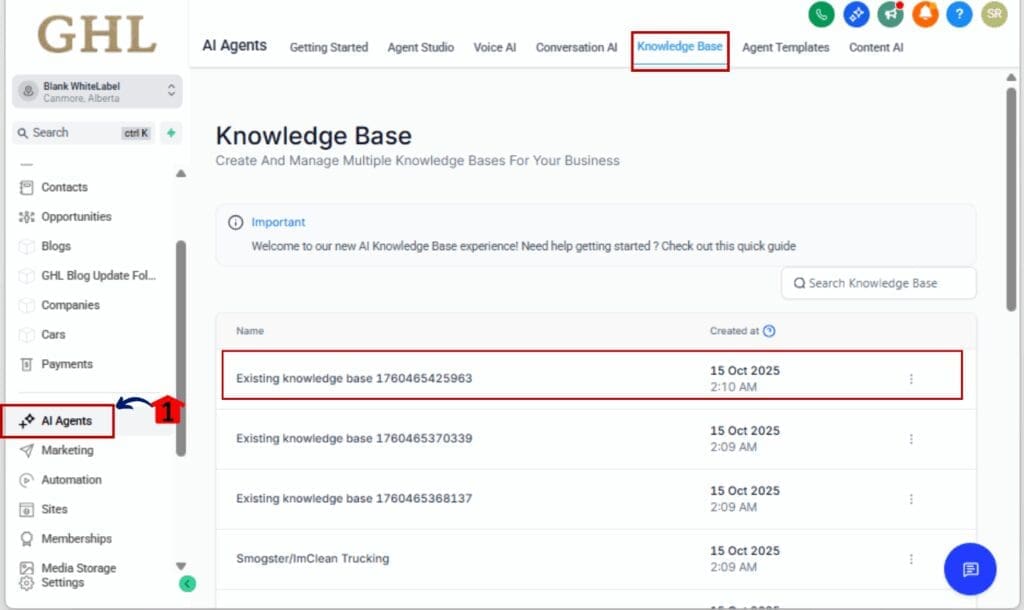
Step 01 – Go to the Knowledge Base
1.1 From your GHL account, select a AI Agents.
1.2 In the menu, go to Knowledge Base.
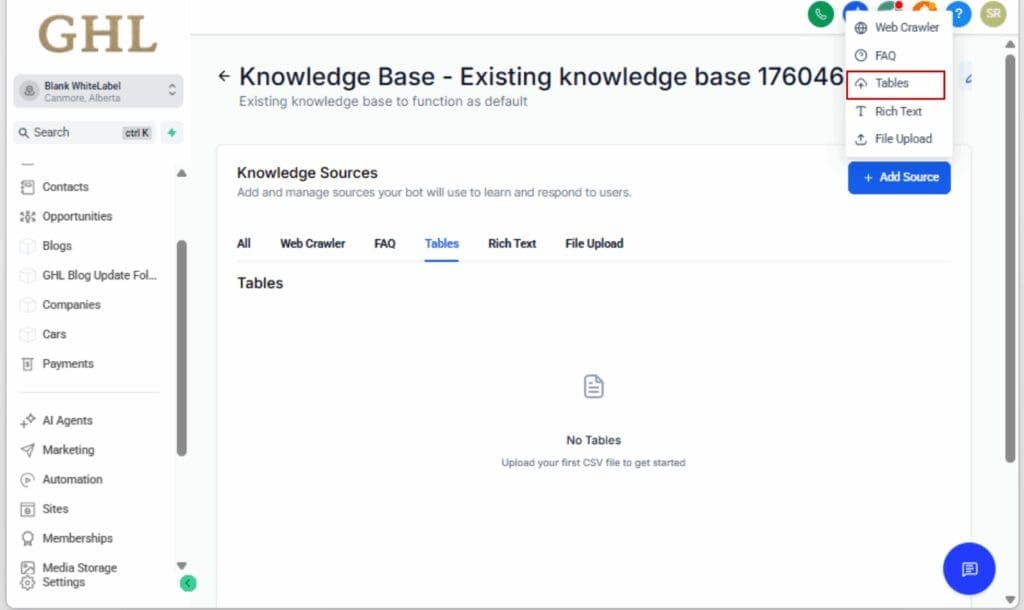
1.3 Click the new Table Data tab.
Step 02 – Upload a CSV or Excel File
2.1 Click Upload File.
2.2 Grab your data file, Excel or CSV, whatever you’ve got.
2.3 Just don’t go overboard: under 10MB and 20 columns or less.
Step 03 – Review Schema Detection
3.1 GHL will automatically detect column types like Text, Number, Date, or Boolean.
3.2 You’ll see a preview with sample values and suggested key columns.

Step 04 – Configure Your Columns (Optional)
4.1 Mark which columns should be searchable or required.
4.2 Customize the display names for easier reference.
4.3 Save your settings and proceed.

Step 05 – Let GHL Process Your File
5.1 The system runs data processing quietly in the background.
5.2 Files with more rows may need a few minutes to complete.
5.3 You’ll get the green light when it’s ready to roll.

That’s it. You’ve turned a boring spreadsheet into a smart data assistant.
Use AI Table Search Like a Pro
Here’s where the real magic kicks in, using AI table search to solve everyday agency problems faster and smarter. These tips go beyond basic use and unlock the real power of this update.
Tip #1 – Upload Your Client Lists
Start by uploading your most-used spreadsheets, customer lists, sign-up records, support logs. Once uploaded, you can use AI to instantly pull segments like “clients in New York,” “signed up last month,” or “VIP customers only.”
Tip #2 – Organize Product Catalogs for Sales Reps
If you sell or support products, this is gold. Upload your product catalog including SKUs, descriptions, categories, and prices. Your team can now ask, “What’s in stock under $500?” or “Find all items labeled organic.”
Tip #3 – Use for Transaction or Invoice Histories
Got CSVs of purchases or invoice records? Now you can search for “transactions over $1,000 last quarter” or “clients with late payments”, without needing to export or filter manually.
Tip #4 – Combine with Chatbot or AI Agent Flows
For even more power, pair this feature with an AI chatbot or employee. Let your bot answer structured questions in real time, without ever needing to touch the database.
Tip #5 – Customize Your Schema for Better Results
Take a minute to configure your column settings when uploading. Mark key columns as searchable or required to help the AI return more accurate and relevant responses.
Once you set it up, your data becomes an on-demand resource, accessible through conversation.
Common Questions About AI Table Search
GHL AI Table Search Data Just Got Supercharged
This update isn’t just about uploading spreadsheets, it’s about making your structured data work for you.
By adding AI table search to the Knowledge Base, GoHighLevel just gave agencies, support teams, and sales ops a massive boost in how they store and retrieve information. Whether you’re answering support tickets, qualifying leads, or helping clients navigate their services, now you can do it faster, with real data to back it up.
Upload a list of customers, products, or transactions and try questions like:
- “Which clients haven’t paid this month?”
- “Find skincare products under $50”
- “List leads from Texas added in September”
From support to sales to backend operations, AI Table Search search puts your data to work, without the work.
This isn’t a minor tweak. It’s a serious feature for serious users. If you’re running an agency and want to scale faster, smarter, and with better data access, this is your next move.
Scale Your Business Today.
Streamline your workflow with GoHighLevel’s powerful tools.


