

- How to Use Workflow Trigger Stats to Debug and Optimize Automations
- Quick Summary – Workflow Trigger Stats Essentials
- New Trigger Stats Panel in GHL
- Why Trigger Stats Matter in GHL
- How to Use Workflow Trigger Stats in GHL
- Fixing a Trigger with Workflow Stats
- Tips for Using Workflow Trigger Stats Effectively
- FAQs About Workflow Trigger Stats
- Final Thoughts on Workflow Trigger Stats
How to Use Workflow Trigger Stats to Debug and Optimize Automations
The new workflow trigger stats feature in GHL gives users a simple way to track automation triggers directly inside their workflows. It answers the common question: why didn’t this trigger run? Now, you can see exactly which contacts matched, which didn’t, and why.
Before this update, users had to dig through contacts, test conditions manually, or guess what went wrong. That made debugging slow and frustrating. With real-time stats now visible on each trigger, it’s easy to spot misfires, fix logic, and move forward with confidence.
This update adds visibility right where users build their workflows. No extra tools are needed, and the stats appear instantly with just one click.
This new GHL feature gives clear, real-time insights into workflow trigger performance. It helps users debug faster, reduce errors, and improve automation results using workflow trigger stats.
Quick Summary – Workflow Trigger Stats Essentials
Purpose: Show users how their workflow triggers are performing
Why It Matters: It makes automation easier to test, fix, and trust
What You Get: Contact-level stats with match results and reasons
Time to Complete: Takes just a few minutes to review
Difficulty Level: Easy to use
Key Outcome: Fewer errors and better workflow performance
New Trigger Stats Panel in GHL
GHL has added a new feature inside workflows called Stats View. It helps users see how each workflow trigger is performing without needing to test things manually. This update makes it much easier to answer a common question: did the trigger actually work?
Every trigger card now displays three key numbers:
Automate marketing, manage leads, and grow faster with GoHighLevel.

- Attempted shows how many contacts the trigger checked
- Matched shows how many contacts met the trigger conditions
- Unmatched shows how many didn’t qualify
These numbers are shown right on the trigger card. It’s quick and easy to tell if something went wrong. But there’s more.
Clicking on the trigger opens the new Trigger Stats Panel. Inside, users can view:
- Contact names and email addresses
- When each contact hit the trigger
- Whether they matched or not
- The reason a contact did not match, such as wrong value or missing data
To narrow things down, users can also:
- Filter the stats by a date range
- Search for a specific contact by name or email
This gives a clear and simple way to check if workflows are working as planned. Users now have access to workflow trigger stats right where they build and test automations. No more jumping between tabs or guessing why something didn’t fire.
Why Trigger Stats Matter in GHL
When a workflow doesn’t run as expected, it can be hard to figure out what went wrong. Most users end up testing things over and over, adjusting conditions, or guessing which part failed. This slows everything down and leads to missed opportunities.
The new workflow trigger stats in GHL help solve that problem. Instead of working in the dark, users can now see what happened with each contact in real time. It gives them the information they need to fix issues right away.
Here’s why this update matters:
- It helps users spot errors early and fix them before going live
- It speeds up workflow testing and reduces manual rework
- It provides clear insights that make automations more dependable
- It gives teams and clients more confidence in the system
This feature is especially useful for users managing high-volume workflows or running automations for clients. A simple mistake in a trigger can stop a whole system from working. With real-time stats, those mistakes are easier to find and fix.
By using workflow trigger stats regularly, users can keep their automations clean, accurate, and running smoothly.
How to Use Workflow Trigger Stats in GHL
The workflow trigger stats in GHL are built into every workflow. There’s nothing to turn on or install. You just need to know where to look.
Here’s how to use them:
Step 01 – Access the Main Menu in GoHighLevel
- The main menu on the left side of your screen includes all the main areas you work in when using GoHighLevel (GHL).
1.1 Click on the Automation menu item to access the Workflows section.
- You’ll now be in the Automation section, where you can access the Workflows tab from the top menu.
1.2 Click the Workflows tab.
1.3 Click any existing workflow.
- This workflow should have at least one trigger, and there should be at least one enrolled contact to view this update.
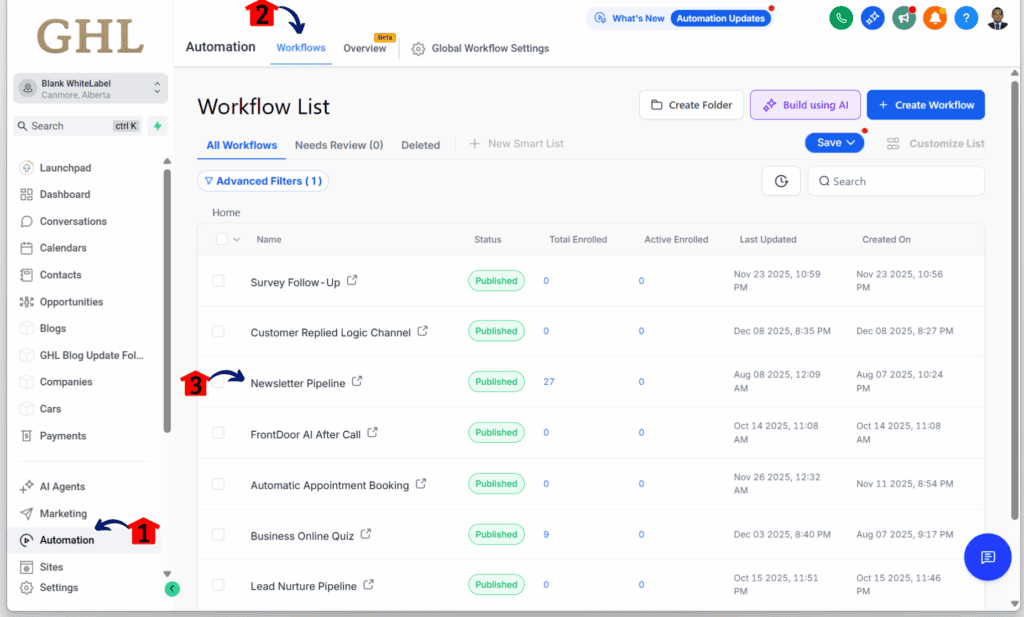
Step 02 – Review Workflow Stats
- You should now be inside the workflow editor.
2.1 Click the Stats icon located on the left panel.
2.2 Click any of the three key number labels.
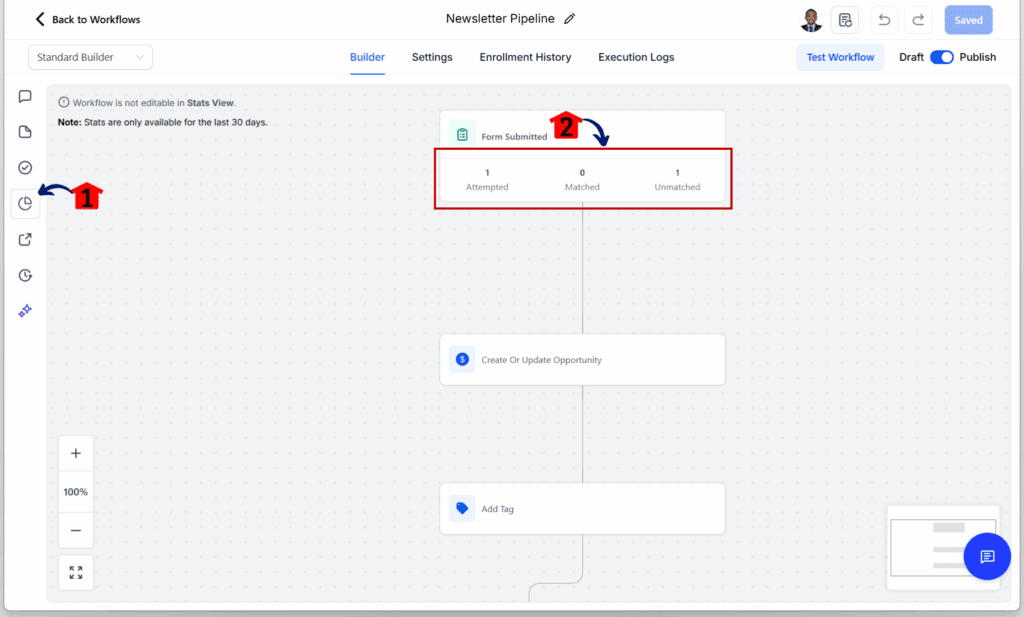
Step 03 – View Trigger Insights
- The workflow trigger stats pop up should now appear.
3.1 Choose one of the three key numbers you want to review.
3.2 The stats data should appear along with the enrolled contact information for this trigger.
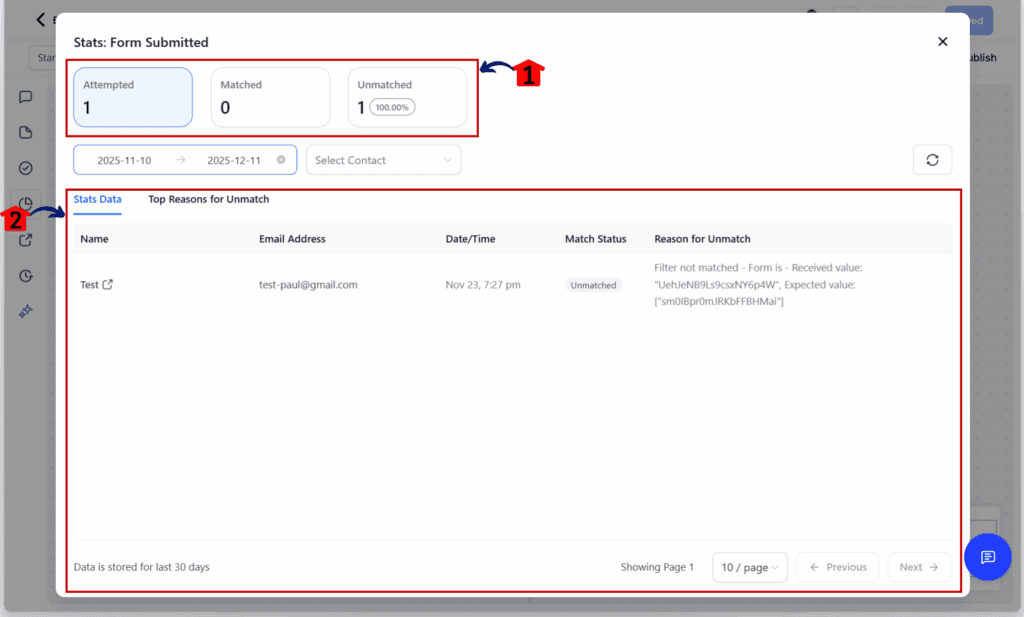
Stats update in real time, so you don’t need to refresh or wait. It’s a fast way to test and fine-tune your workflows without missing anything.
Fixing a Trigger with Workflow Stats
Here’s a simple example that shows how workflow trigger stats in GHL can help solve a common issue.
A user creates a workflow that starts when a new contact is added. The trigger includes a filter that says the contact type must be “Customer.” Everything seems fine. But after testing, most contacts are showing up as unmatched.
To figure out what’s going on, the user:
- Opens the workflow
- Turns on Stats View
- Sees a high number of unmatched contacts on the trigger card
- Clicks into the trigger to view the detailed stats panel
Inside the panel, the system shows clear information:
- The contact type for most entries is set to “Lead”
- The trigger filter expects the type to be “Customer”
- The panel shows “Received value: lead. Expected value: customer.”
This tells the user exactly what went wrong. They go back, update the filter, and test again.
After the fix:
- New contacts are matching the trigger
- The workflow starts running as planned
- The unmatched count drops, and matched numbers increase
This example shows how workflow trigger stats in GHL give users a fast way to spot problems and fix them. It’s a simple but effective way to make sure automations run the way they’re supposed to.
Tips for Using Workflow Trigger Stats Effectively
Workflow trigger stats in GHL are easy to use, but a few smart habits can make them even more useful. These tips can help users catch issues faster and keep automations running smoothly.
Try the following:
- Check stats before going live. Don’t wait until something breaks. Turn on Stats View while building and use it to catch errors early.
- Label triggers clearly. Use simple names that describe what each trigger does. This makes it easier to figure out which one needs attention.
- Watch for unmatched contacts. A high unmatched count usually means the data isn’t lining up with your conditions. It might be a wrong field, missing value, or just a small typo.
- Keep a list of common errors. If the same issues come up often, write them down. It makes future troubleshooting quicker.
- Use real examples for team training. Showing stats from past workflows is a great way to explain how triggers work. It’s easier to teach when you can point to actual results.
- Review stats often. Even if a workflow is running fine, it’s smart to check the trigger stats from time to time. Things change, and regular reviews can help avoid small problems turning into big ones.
These small steps can make a big difference in how well your automations perform. The more users rely on workflow trigger stats in GHL, the easier it gets to keep things running the way they should.
FAQs About Workflow Trigger Stats
Even though the new workflow trigger stats in GHL are easy to use, some users may still have a few questions. These answers can help clear things up and make it easier to get started.
This section gives users a quick way to understand the basics of workflow trigger stats without needing to look elsewhere.
Final Thoughts on Workflow Trigger Stats
The workflow trigger stats in GHL do one thing really well. They give users a clear look at what their automations are doing. No more guessing why a contact didn’t move forward. Now the answers are right there in the workflow.
This update might seem small, but it solves a real problem. It helps users catch issues early, understand what needs fixing, and avoid delays that waste time or lead to missed results.
For teams handling multiple workflows or client setups, it makes things easier to manage. It’s also a helpful tool for training others or checking on workflows that haven’t been touched in a while.
Good automation should run without constant questions. These stats help users build that kind of system. With clear data, it’s easier to trust that workflows are doing what they’re supposed to.
The next step is simple. Open a workflow, turn on Stats View, and start watching what happens. The more users rely on workflow trigger stats in GHL, the fewer problems they’ll need to fix later.
Scale Your Business Today.
Streamline your workflow with GoHighLevel’s powerful tools.


