

- Automate actions after calls using GHL triggers
- Quick Summary – Call Transcription Trigger Breakdown
- What’s New – The Call Transcript Trigger
- What’s Changed – Before vs After
- Why This Matters – Practical Use Cases
- How to Use the Call Transcription Trigger in GHL
- Pro Tips for GHL Users
- What This Means for Agencies
- Results You Can Expect
- FAQs – Using the Call Transcription Trigger
- Final Thoughts – Next Steps in GHL
Automate actions after calls using GHL triggers
The call transcription trigger in GHL helps automate important tasks right after a call ends. This new feature lets users take action as soon as the transcript is ready. It connects directly to the real words spoken during the call, not just a generic status update.
Before this update, many agencies had to wait for notes to be added or rely on someone to listen to recordings. That caused delays. With this trigger, the system can now respond instantly. If someone mentions buying intent, books an appointment, or brings up a concern, a workflow can kick in without lifting a finger.
This matters because timing and accuracy are key. Automations based on call status are helpful, but automations based on what was said are smarter. That’s how teams stay ahead and give leads the right next step without wasting time.
With the new call transcription trigger in GHL, users can launch workflows as soon as a call ends. It allows them to send summaries, update CRM fields, and create tasks using real transcript data.
Quick Summary – Call Transcription Trigger Breakdown
Purpose: The call transcription trigger in GHL lets users run workflows based on the actual words spoken during a call, not just when the call ends.
Why It Matters: It helps agencies move faster, stay organized, and follow up with better timing and better data.
What You Get: A new trigger that starts a workflow the moment a call transcript is ready, across Voice AI, IVR, or LC Phone.
Time to Complete: Most users can set it up in under 10 minutes using the workflow builder.
Difficulty Level: Easy to use. No special tools or advanced setup needed.
Key Outcome: Calls turn into clean, automatic actions like emails, updates, or tasks, all based on what was actually said.
What’s New – The Call Transcript Trigger
GoHighLevel has added a new workflow trigger called Call Transcript Generated. This trigger starts as soon as a transcript is finished after a call. It works with Voice AI, IVR, and standard LC phone calls.
With this update, users no longer need to wait or manually check recordings. The system can now use the actual words spoken on the call to trigger smart follow-up actions.
Automate marketing, manage leads, and grow faster with GoHighLevel.

Here are a few things users can now do with the call transcription trigger:
- Send call summaries by email right after the transcript is ready
- Tag contacts based on keywords used during the call
- Create tasks for team members depending on what was said
- Update CRM fields using data pulled from the conversation
- Route leads to the right pipeline or team based on context
This feature helps users move faster and make better use of their call data. Instead of relying on call status alone, workflows can now respond to real content from the conversation.
It is a small change with a big impact. Every call can now lead to the next step automatically, using what was actually said, not just when it happened.
What’s Changed – Before vs After
Before this update, GHL users could only trigger workflows based on basic call events. That usually meant using options like “Call Status” or “Call Ended.” While helpful, those triggers didn’t offer any details about what was said during the call.
Most teams had to wait for someone to listen to the recording or type out a summary. In busy agencies, that meant delays, missed follow-ups, and incomplete CRM notes.
Now with the call transcription trigger, the process is much simpler and faster.
- GHL creates the transcript right after the call ends
- Workflows can start based on real words from the conversation
- Tags, tasks, and CRM updates can happen automatically
- Leads can be routed without waiting on manual review
- Keywords can be used to filter and respond to intent
The biggest shift is that users no longer need to guess or wait. The system can take action based on the transcript, without anyone needing to step in.
This new trigger connects conversations directly to automation. It helps users move quicker, keep records accurate, and stay one step ahead.
Why This Matters – Practical Use Cases
The call transcription trigger in GHL helps agencies take faster and more accurate action after a call. Instead of waiting for someone to write notes or summarize what happened, workflows can now respond to what was actually said.
This makes it easier to stay on top of follow-ups, update CRM records, and assign tasks. It also helps agencies avoid common problems like missed steps or delayed responses.
Here are a few simple ways teams can use this feature:
- Send an email summary to a client once the transcript is ready
- Tag leads who mention interest, timeline, or budget
- Create a follow-up task if a call includes a question or concern
- Update CRM fields with specific details mentioned in the conversation
- Start a nurture workflow if the contact talks about future needs
- Assign a sales rep if the transcript includes phrases like “I’m ready”
- Route leads by region or product, based on what the caller said
These are tasks that often get skipped or done too late. With this trigger, they happen automatically and at the right time.
For agencies that handle a lot of calls, this feature helps keep everything moving without adding more to the to-do list.
How to Use the Call Transcription Trigger in GHL
The call transcription trigger in GHL is easy to set up and use. Once it’s added to a workflow, it lets the system take action as soon as a call transcript is ready. That means faster follow-ups and fewer manual steps.
Here is a step-by-step breakdown to get it working:
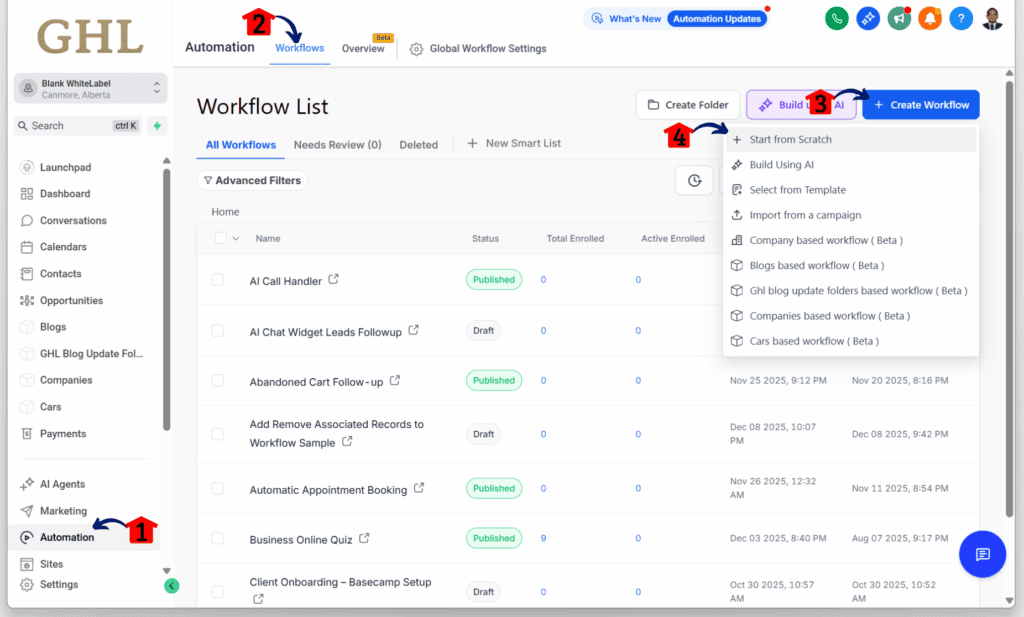
Step 01 – Access the Main Menu in GoHighLevel
- The main menu on the left side of your screen includes all the main areas you work in when using GoHighLevel (GHL).
1.1 Click on the Automation menu item to access the Workflows section.
- You’ll now be in the Automation section, where you can access the Workflows tab from the top menu.
1.2 Click the Workflows tab.
1.3 Click any existing workflow.
1.3 Click + Create Workflow.
1.4 Choose the Start from Scratch option.
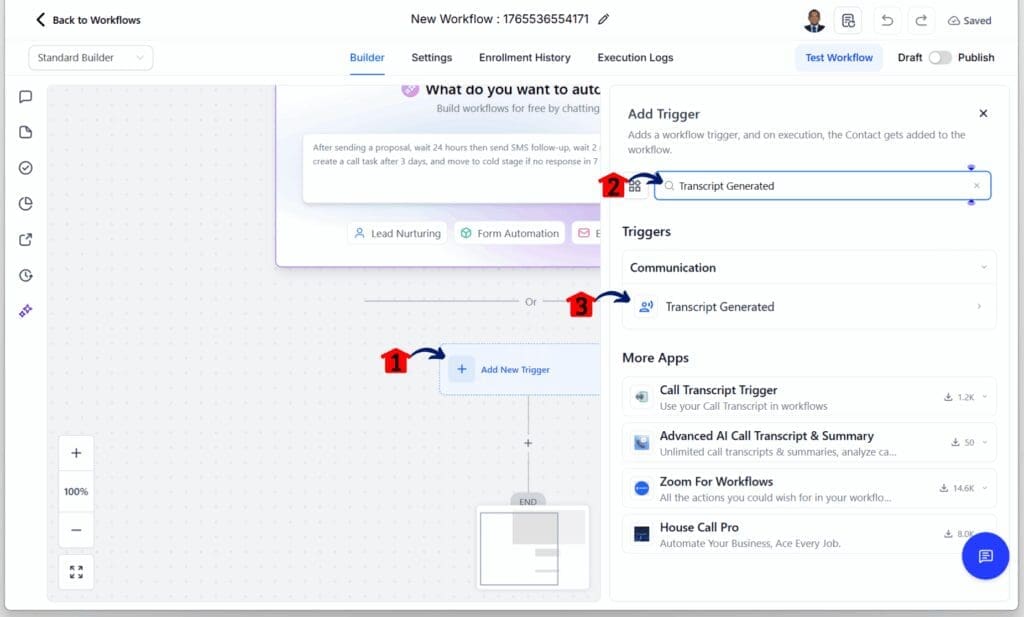
Step 02: Add a Transcript Generated Trigger to Your Workflow
- You should now be inside the workflow editor.
2.1 Click the Add New Trigger button.
2.2 Type Transcript Generated in the search bar.
- The Transcript Generated trigger element should appear in the search results.
2.3 Add the Transcript Generated element.
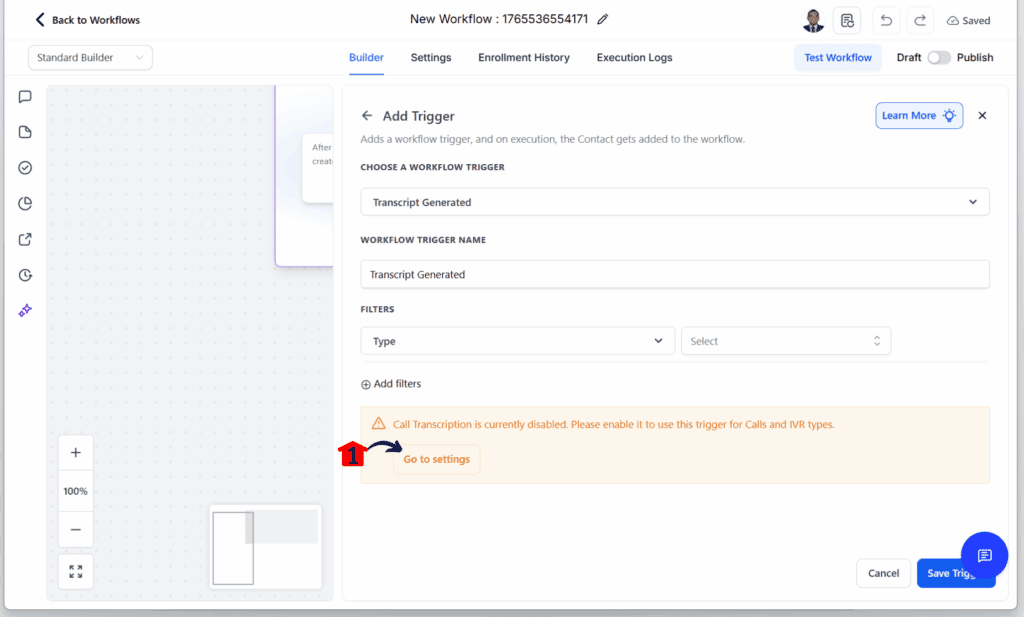
Step 03: Enable the Call Transcription Settings
- The Transcript Generated configuration slider should appear.
3.1 Click the Go to settings button and enable the Call Transcription settings.
- Make sure to follow the instructions.
Step 04: Configure the Transcript Generated Settings
- The Transcript Generated configuration slider should appear.
4.1 Add filters and set the transcription.
4.2 Click the Save Trigger button when you are done.

You can find all the transcript data in the Custom Value Picker. There is no need to do anything outside the GHL workflow builder.
This setup helps teams save time and improve how they follow up after calls. Everything runs off real conversation data, not just status updates or guesses.
Pro Tips for GHL Users
Once the call transcription trigger is working, there are a few ways to improve how it fits into your workflow. These tips are meant to help users save time, keep things simple, and use call data more effectively.
- Use keywords to guide decisions. Set up If/Else conditions to scan the transcript for words like “follow up,” “interested,” or “send info.” This helps the system respond based on what was said, not just when the call happened.
- Skip the short calls. Add a filter for call duration so the trigger only runs when a full conversation takes place. This keeps your workflows clean and avoids actions based on missed or dropped calls.
- Send summaries, not full transcripts. Instead of emailing long transcripts, use key phrases or notes to share the outcome. It’s easier to read and still gets the point across.
- Tag contacts based on behavior. If a lead asks about pricing or next steps, apply a tag like “ready to buy.” These tags help sort your lists and personalize follow-ups later.
- Keep CRM data up to date. Use what was said in the call to update fields like deal stage or interest level. This saves your team from having to listen to recordings or add notes manually.
These small tips make the call transcription trigger even more useful. With a little setup, it becomes a steady part of your daily process, working in the background while your team focuses on bigger tasks.
What This Means for Agencies
The call transcription trigger gives agencies a faster way to take action after every client call. It removes the need to wait for someone to write notes or listen to recordings. Now, the system can move forward based on what was actually said.
This matters because timing and accuracy are key. When leads mention a goal or ask for next steps, the workflow can respond right away. No more digging through transcripts or trying to remember what was discussed.
Agencies can also avoid errors that come from skipped follow-ups or unclear handoffs. If a caller mentions a specific location or product, the workflow can route that lead to the right team automatically.
It also helps keep records clean. Tags, CRM updates, and task creation all happen without extra input. That gives the team more time to focus on real conversations, not admin work.
The call transcription trigger does not replace human effort. It supports it. It helps agencies stay consistent and responsive without adding more to the daily workload.
Results You Can Expect
When the call transcription trigger is added to GHL workflows, it creates a smoother way to follow up after calls. It helps teams respond faster, stay organized, and reduce manual work.
Here are a few improvements most users will notice:
- Quicker follow-ups because actions start as soon as the transcript is ready
- Cleaner CRM records since updates use real call data
- Better lead routing based on the actual words from the call
- Fewer missed tasks with workflows that run on time
- More personal messages that reflect what the caller said
This trigger brings more consistency to daily work. Each time a transcript is created, the same actions can follow. That helps teams work with less guesswork and more confidence.
For busy agencies, these small wins can add up over time. The call transcription trigger becomes part of a reliable system that keeps leads moving and follow-ups clear.
FAQs – Using the Call Transcription Trigger
Below are a few common questions about using the call transcription trigger in GHL. These answers are meant to help users get started quickly and avoid confusion.
Final Thoughts – Next Steps in GHL
The call transcription trigger gives GHL users a simple way to connect real conversations to real actions. It turns what was said during a call into something the system can use right away.
This update is not about adding more tools. It is about using the ones already in place more effectively. Agencies can now send follow-ups, update records, and create tasks without slowing down.
For teams already using workflows, this trigger is easy to add. It fits into the builder like any other trigger and works with the tools users already know. No extra setup. No guesswork.
A good place to start is by testing the trigger on calls that often need follow-up. From there, it can be used to filter, tag, or update based on the words that actually came up in the conversation.
The call transcription trigger helps teams work faster, respond better, and spend less time sorting through call notes. It does the simple things right, and that is often what makes the biggest difference.
Scale Your Business Today.
Streamline your workflow with GoHighLevel’s powerful tools.


