- A new look with better speed and easier control.
- Quick Summary – Integration Page Redesign Essentials
- Turn On the Integration Page Redesign
- New Features in the Integration Page Redesign
- Under-the-Hood Changes in the Integration Page Redesign
- Why the Integration Page Redesign Matters
- How to Use the Integration Page Redesign
- Pro Tips for the Integration Page Redesign
- Results You Can Expect from the Integration Page Redesign
- Frequently Asked Questions About the Integration Page Redesign
- Final Thoughts on the Integration Page Redesign
A new look with better speed and easier control.
Integration Page Redesign Overview
The new integration page redesign in GHL is built to make things easier, faster, and more organized. If you’ve used the old version, you know it did the job but not without friction. This update changes that.
GoHighLevel’s integration page redesign brings in a cleaner layout, faster load times, and a more consistent experience across the board. It’s not just about looks. You’ll find a better way to search, connect, manage, and troubleshoot your integrations without extra steps.
This guide will walk you through what’s new, what’s improved, and how to start using the redesigned page to save time and cut down on confusion.

The GHL integration page redesign gives users a faster, cleaner, and more organized way to manage all their integrations. It improves page load times, simplifies workflows, and makes onboarding and troubleshooting easier for agencies.
Quick Summary – Integration Page Redesign Essentials
Purpose: This update improves the integration page redesign in GHL by making it faster, cleaner, and easier to use across all accounts.
Why It Matters: A simpler layout and faster load times help agencies manage integrations with less effort and fewer errors.
What You Get: A new card layout, built-in search, consistent modals, role-based access, and grey-labeled support docs for each integration.
Time to Complete: About 1 minute. Just toggle it on in Labs under Settings.
Difficulty Level: Easy. No setup or coding is needed.
Key Outcome: A smoother, more reliable way to connect, manage, and troubleshoot integrations in GHL.
Turn On the Integration Page Redesign
Here’s how to activate the new integration page redesign in GoHighLevel:
Step 1.0 – Access the Settings Area in GoHighLevel
Automate marketing, manage leads, and grow faster with GoHighLevel.

- Go to the left-hand sidebar, look all the way to the bottom.
1.1 Click on the gear icon ⚙️ labeled “Settings.”
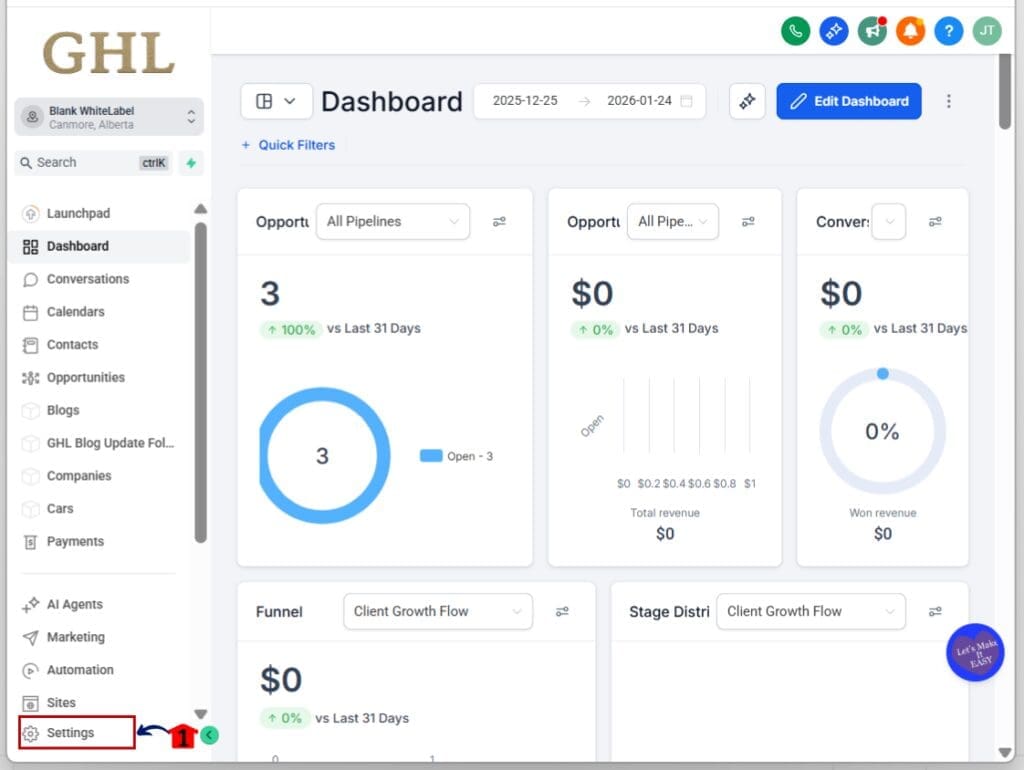
- You’ll now be in the main Settings dashboard, where you can access:
- Business Info
- Billing
- My Staff
- Phone System
- Labs
- and more.
1.2 Click into the Labs
- This is where you toggle on new update features
1.3 Look for Revamped Integration Page
1.4 Toggle it ON
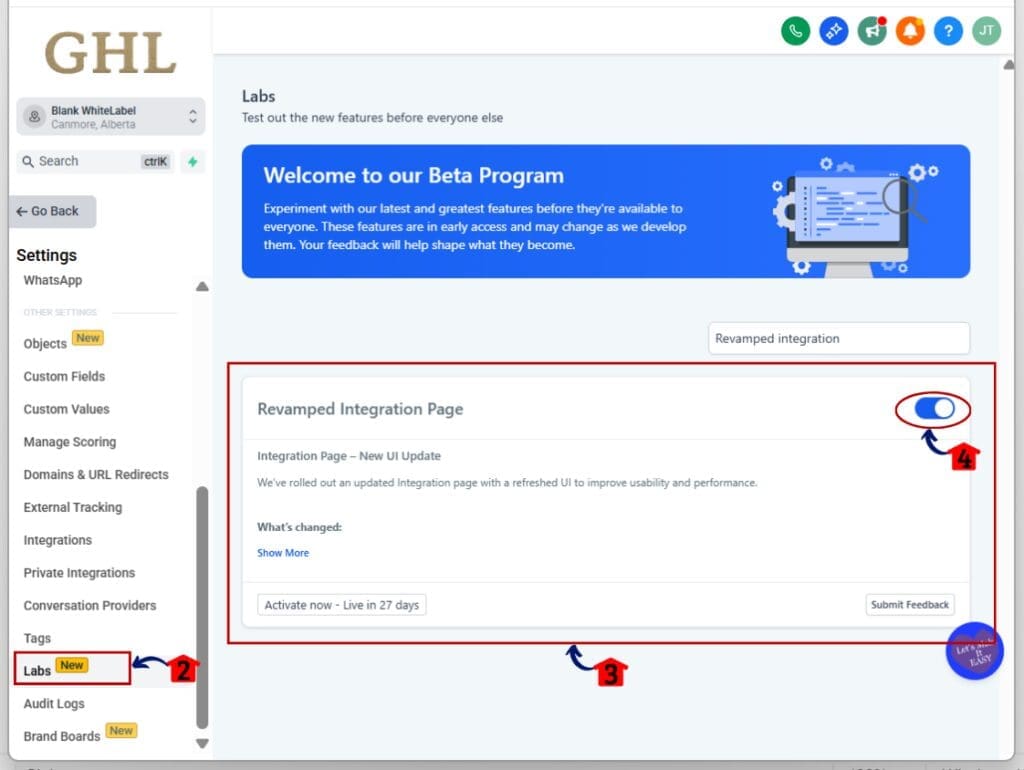
That’s it. Once enabled, your integration tab will refresh with the new layout and tools. The integration page redesign is now active and ready to help you manage your connections faster and more clearly.
New Features in the Integration Page Redesign
The latest integration page redesign in GHL is more than just a fresh look. It gives you a faster, simpler way to manage all your connected tools. If you’ve used the old layout, this one will feel cleaner and more organized right away.
Here’s what’s included in the new integration page redesign:
Card Layout with Clear Actions
- Each integration is now in its own card. There’s one main button, so it’s obvious what to do next. You won’t have to guess or dig around for settings.
Three-Dot Menu for Quick Access
- Click the three dots on any card to open extra options like support docs, form mapping, troubleshooting, disconnect, or integration settings.
Consistent Popups and Modals
- Whether you’re connecting Google, Slack, or another app, every popup now looks and works the same. The new integration page redesign gives you a smoother and more predictable setup process.
Search Bar Built In
- Need to find a tool fast? Just type it in. The built-in search saves time, especially when managing multiple accounts.
Improved Layout and Visuals
- Logos, labels, and error messages are now standardized. That means less confusion and a more polished look across the board.
Every part of this integration page redesign is built to help you move faster and stay focused. It’s easier to learn, easier to train your team on, and easier to use every day.
Under-the-Hood Changes in the Integration Page Redesign
The integration page redesign isn’t just about a new layout. GHL made several changes in the background that improve how everything runs. These updates make the page faster, more stable, and easier to manage for agencies.
Here’s what’s been improved:
Faster Load Speeds
- The integration page redesign cut down unused JavaScript by nearly half. That means the page loads quicker and uses less of your system’s resources.
Smarter API Connections
- Backend systems were upgraded to pull data more efficiently. The result is faster syncing when loading integrations, mapping forms, or checking account info.
Accessibility Improvements
- The integration page redesign now works better for all users. The accessibility score jumped from 77 to 90. It’s easier to navigate using a keyboard or screen reader.
Higher Performance Scores
- The page now scores 40 percent higher on Lighthouse tests. This means better overall performance, especially on slower devices or networks.
Role-Based Access is Now Standard
- The redesign includes stronger controls for teams. You can decide who can view, manage, or disconnect integrations based on their user role.
A Unified Design System
- The old layout used different styles across integrations. The new integration page redesign now runs on a single design system, so everything looks and feels consistent.
These changes make a big difference in how the integration area works. You’ll spend less time waiting, less time fixing, and more time actually using your tools.
Why the Integration Page Redesign Matters
The integration page redesign solves problems that have been around for a while. If you’ve felt like the old page was slow, confusing, or hard to manage, you’re not alone. This update is built to make your daily work smoother and more reliable.
Here’s why this redesign matters:
Fewer Bugs and Errors
- The old page had its fair share of glitches. The new integration page redesign cleans up the backend code to improve stability. You get fewer loading issues and more consistent results.
Simpler to Navigate
- Cards, search, and menus are all designed to help you find what you need fast. The new layout cuts down on guesswork, which makes training your team easier too.
Ready for More Integrations
- GHL continues to add more built-in tools. This integration page redesign gives the system room to grow without breaking. It’s designed with the future in mind.
Cleaner for Clients and Teams
- Whether it’s your staff or your clients, this page now feels easier to explain. It looks more organized and gives off a stronger, more polished first impression.
Smarter User Access
- You now have better control over who can do what. Role-based access is built in, so not everyone needs full permissions just to manage an integration.
In short, the integration page redesign isn’t just a cosmetic change. It’s a practical one. It makes your setup cleaner, your tools more reliable, and your workflow easier to manage.
How to Use the Integration Page Redesign
The integration page redesign works right inside your normal GHL workflow. You don’t need to install anything extra. Once you toggle it on in Labs, it’s ready to go. Here’s how to use the new features the right way.
Step 1.0 – Access the Settings Area in GoHighLevel
- Go to the left-hand sidebar, look all the way to the bottom.
1.1 Click on the gear icon ⚙️ labeled “Settings.”

- You’ll now be in the main Settings dashboard, where you can access:
- Business Info
- Billing
- My Staff
- Phone System
- Labs
- Integrations
- and more.
1.2 Click into the Integrations
- You’ll now see the redesigned integration page with a card-based layout.
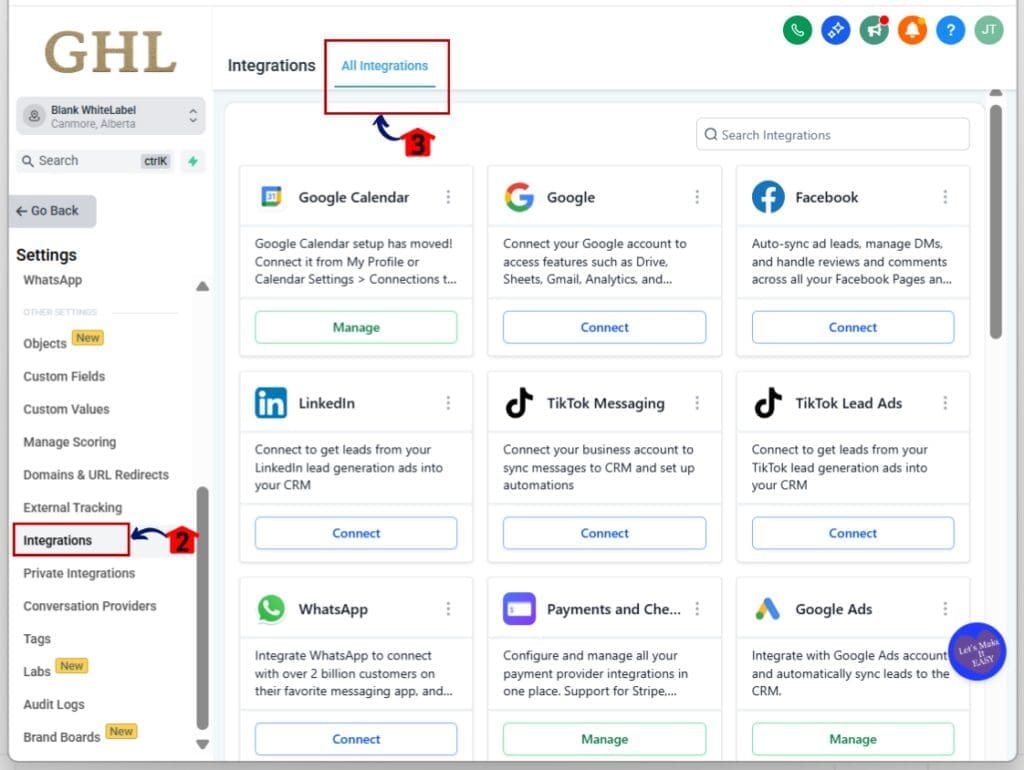
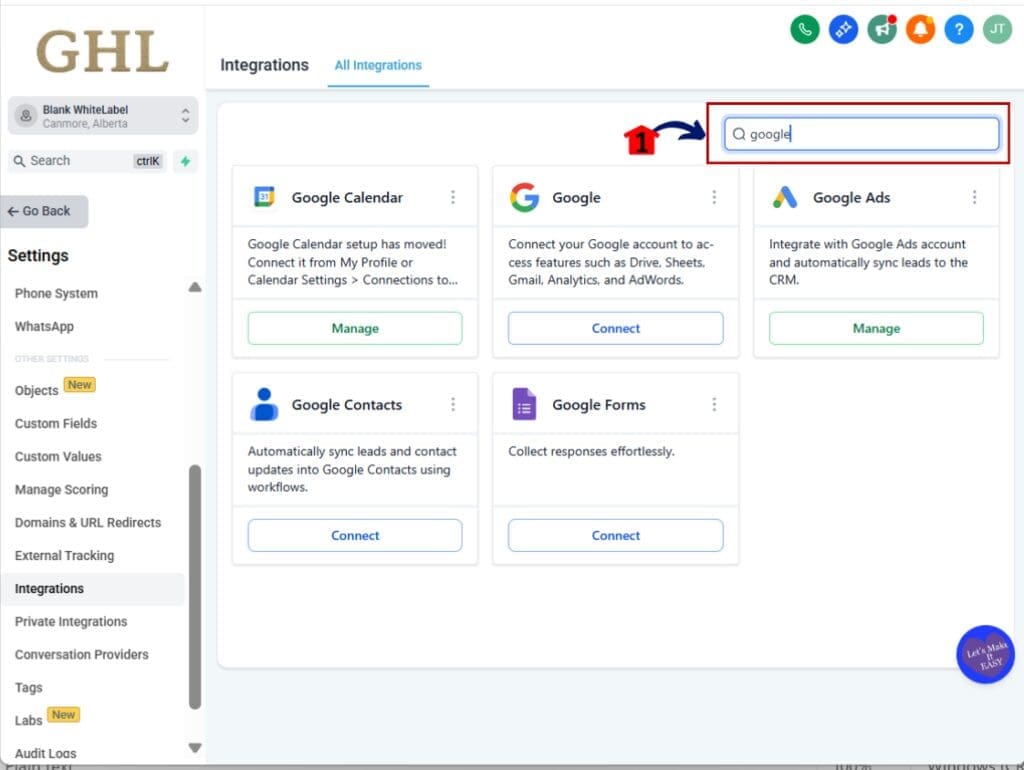
Step 02: Use the Search Bar to Find What You Need
- If you work with a lot of integrations, this will save you time.
2.1 Look at the top of the page for the Search box
2.2 Type in the name of the integration you want to use
- The list will filter in real-time, showing exact matches as you type
Step 03: Connect a New Integration
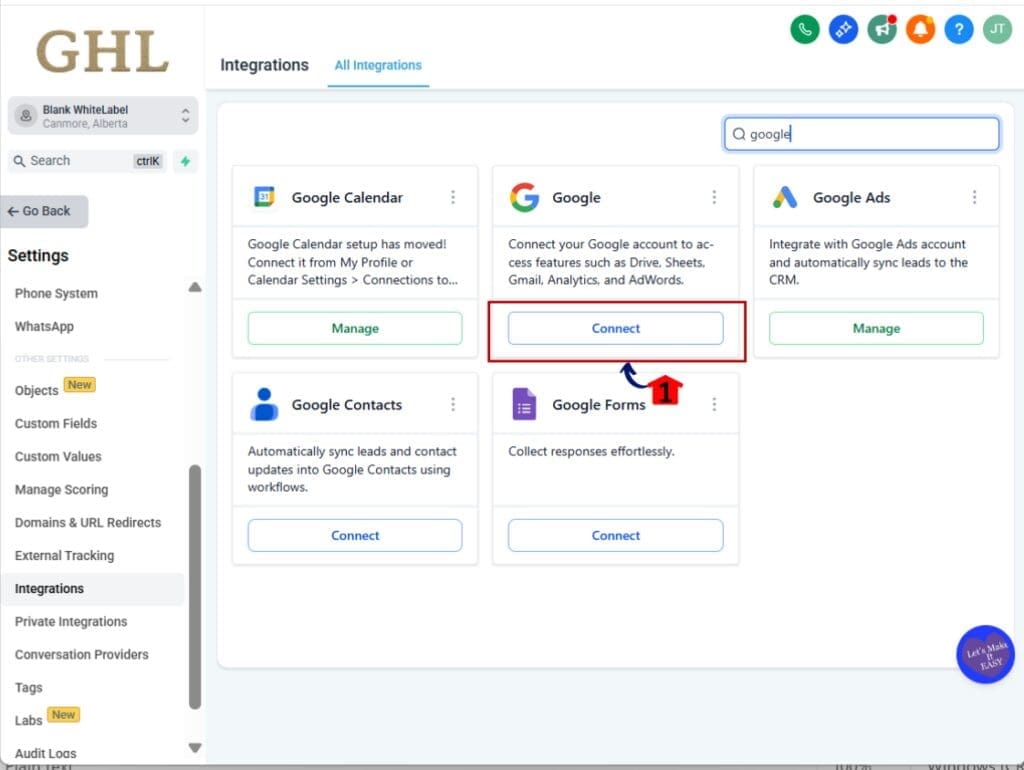
- Each integration card now has one clear button so you know what action to take.
3.1 Click the Connect button on the card
3.2 Follow the guided steps in the modal popup
3.3 You’ll get a success message once it’s connected
Step 04: Manage Existing Accounts
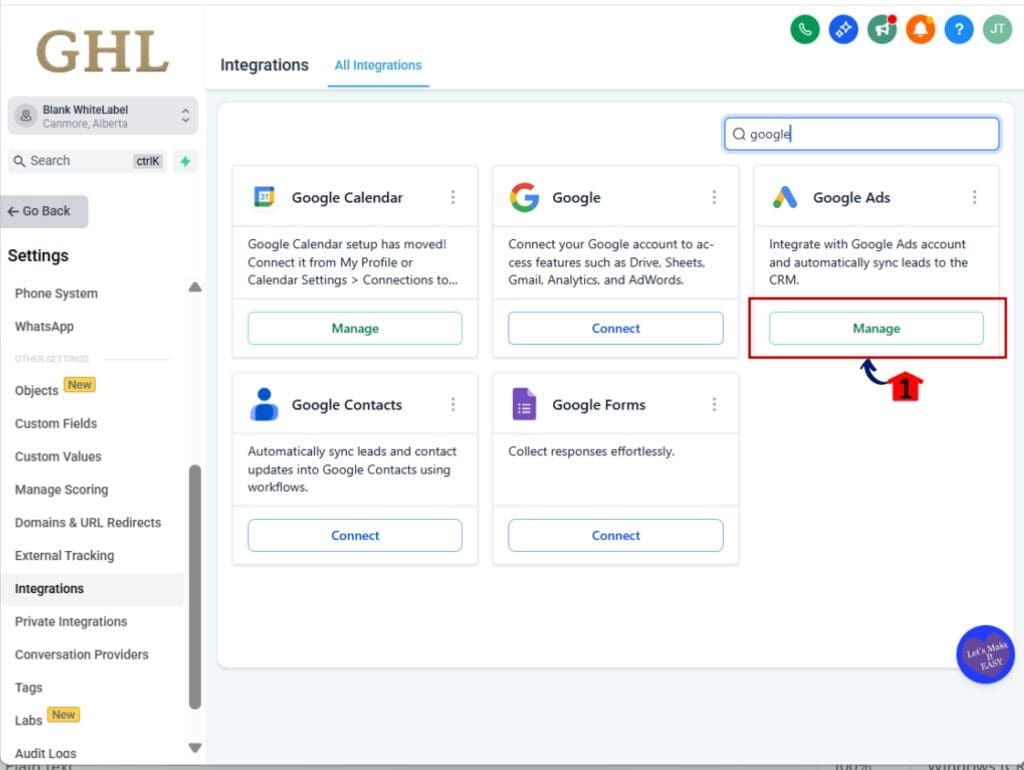
- If the integration is already connected, you’ll have management options.
4.1 Click the Manage button to open the account modal
4.2 Review connected accounts or update settings as needed
Step 05: Use the 3-Dot Menu for More Options
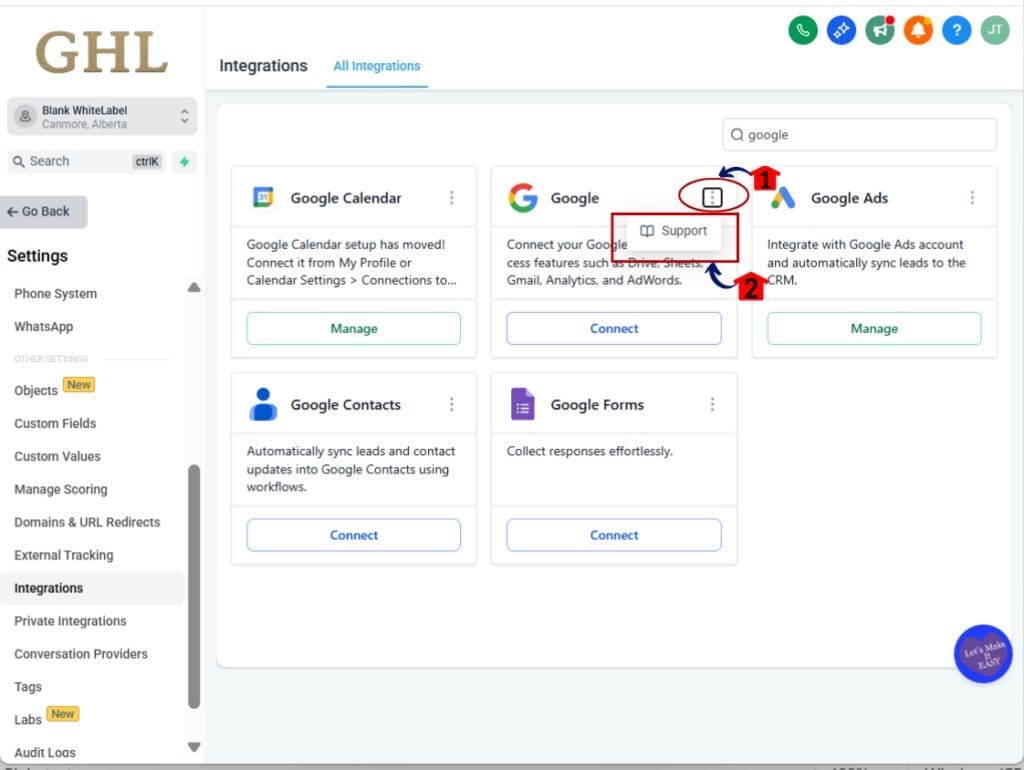
- Each card has its own dropdown menu with extra tools built in.
5.1 Click the 3-dot icon in the top corner of the card
5.2 Select support
5.3 A new window will open the support document
Step 06: Pay Attention to Alerts
- The integration page redesign includes smarter notifications.
6.1 Look for warning icons or messages on any integration card
6.2 Click the icon to view the error or alert details
- This helps you spot issues and fix them fast
That’s it. The new integration page redesign gives you a smoother experience from start to finish with fewer clicks, better tools, and a layout that just makes sense.
Pro Tips for the Integration Page Redesign
If you’re running an agency or managing a lot of accounts, the integration page redesign can save you time and prevent mistakes. Here are a few smart ways to get more from it.
Use the Search Bar to Move Quicker
- With the new integration page redesign, you don’t have to scroll through a long list of tools. Just type what you need in the search bar and jump right to it.
Share the Right Docs with Your Clients
- Each card has a support link. These guides are grey-labeled, so they look clean when you share them. Send them to clients when they have questions. It cuts down on back-and-forth.
Set the Right Roles for Your Team
- The integration page redesign includes role-based access. Use it. Give permissions only to the team members who need to manage connections. This keeps your accounts safer and cleaner.
Build an Onboarding Checklist
- The new layout is the same across all integrations. Use that to your advantage. Create a repeatable onboarding process your team can follow step by step.
Clean Up Old or Duplicate Connections
- Look through each integration card. If you spot anything that’s not in use, disconnect it. The redesign makes this easy, and it helps keep things organized.
Teach Your Team the 3-Dot Menu
- Each integration has a menu with form mapping, troubleshooting, and more. Make sure your team knows where to find these. The tools are right there, but easy to miss if you don’t look.
The integration page redesign gives agencies more control with less guesswork. Use it well and you’ll save hours every week.
Results You Can Expect from the Integration Page Redesign
The integration page redesign brings more than a better look. It changes how fast and smooth your setup runs. Here’s what you’ll notice after switching it on.
Faster Load Times
- The page now loads quicker, even with multiple connected tools. This makes a big difference when you’re working across many accounts.
Clearer Layout, Fewer Clicks
- The card layout and updated menus help you find what you need faster. You’ll spend less time hunting through screens and more time getting work done.
Fewer Bugs and Errors
- The redesign fixed a lot of legacy problems. Alerts now show up right on the integration card, so you know when something needs your attention.
Better Team and Client Support
- The consistent layout, grey-labeled docs, and role-based access make it easier to support clients and train new staff without confusion.
More Confidence in Your Tools
- When your integrations are easy to manage, your entire system feels more stable. You can trust the tools you’ve connected and fix issues faster when they come up.
The integration page redesign makes your workflow faster, cleaner, and more reliable. It’s a change worth turning on.
Frequently Asked Questions About the Integration Page Redesign
Got questions about the new integration page redesign in GHL? Here are a few quick answers to help you feel more confident using it.
Still unsure? Open the Labs tab, test the integration page redesign for yourself, and see how it fits into your daily work.
Final Thoughts on the Integration Page Redesign
The new integration page redesign makes a real difference in how you manage tools inside GHL. It’s not just a visual upgrade. It fixes slow loading, removes extra clicks, and helps you stay organized.
If you’ve been using the old version, give the integration page redesign a try. You’ll see cleaner cards, faster load times, and easier access to everything you need.
For agency teams, it helps reduce mistakes, keeps permissions clear, and saves time when setting up accounts or helping clients. It’s built for the way you actually work.
You can turn it on in Labs. Use it for a few days and see how it fits. The integration page redesign is simple, useful, and a solid improvement for everyday work in GHL.
Scale Your Business Today.
Streamline your workflow with GoHighLevel’s powerful tools.