

- Introduction – GHL Course Media Import Overview
- Quick Summary – Course Media Import Essentials
- Here are this weeks HighLevel Updates
- Why This Matters – Course Media Import Benefits
- What’s New – Import via Media Storage
- How to Use Course Media Import Storage
- Pro / Quick Tips – Maximize Course Media Import
- What This Means for Your Business – Real-World Application
- Frequently Asked Questions – Course Media Import
- Conclusion – Start Using Course Media Import Today
Introduction – GHL Course Media Import Overview
GoHighLevel just upgraded how course content is built by introducing Course media import, allowing you to pull existing audio and video directly from Media Storage into your lessons.
This GHL update removes a common frustration in course creation: re-uploading the same training files over and over again for different lessons or programs. Instead, you can now browse your Media Storage, select what you need, and import it instantly without duplicating content or wasting time.
What changed: Once you switch on the Labs feature called “Courses: Import from Media Storage,” a new button shows up inside your lesson editor, “Import via Media Library.” From there, you can browse through your existing audio and video files and drop them straight into your lesson. No uploading again. No extra setup. Just enable it and use it.
Who this is for: Agencies building white-label courses for multiple clients, coaches launching new programs, teams managing onboarding content, membership site owners reusing core training assets, and anyone who wants faster course creation inside GHL.
What we’ll demonstrate: How to enable Course media import in Labs, where to find the new import option inside the lesson builder, how to select and link media from storage, what happens after publishing, common mistakes to avoid, and how agencies can use Course media import to build courses faster and cleaner inside GoHighLevel.
The latest GoHighLevel Changelog includes several other GHL feature updates that round out your daily workflow:
- Deskphone-to-Deskphone Calling & Transfer
- AI Builder: Conversational Editing for If-Else & Wait Actions
- Voice Dictation in AI Builder & Assistant
- Highlight Contact Path — Enhanced Visual Debuggin
- New Email Template Update API 🚀
- Enhanced ESP Block Monitoring & Progressive Enforcement (AUP Update)
- Update – Agency Setup (SMTP Clarification) in Email Services setup
- AI-Powered WordPress Page Builder
- Show Complete Product Titles
Keep reading for much more on all these updates and a deep dive into the Course Media Import feature!

Quick Summary – Course Media Import Essentials
Purpose: This guide shows you how to enable and use Course media import inside GHL so you can reuse audio and video directly from Media Storage without duplicate uploads.
Why It Matters: Course media import removes unnecessary re-uploads, keeps your media centralized, and dramatically speeds up lesson creation for agencies and course creators.
What You Get: You get a cleaner Media Storage system, faster course builds, reusable training assets, and a more scalable content workflow inside GoHighLevel.
Time to Complete: Enabling and implementing Course media import takes less than 5 minutes inside your GHL sub-account.
Difficulty Level: Beginner-friendly. If you can edit a lesson in GHL, you can use Course media import.
Key Outcome: You upload once, reuse everywhere, and eliminate wasted time rebuilding the same lessons across multiple courses.
Here are this weeks HighLevel Updates
Deskphone-to-Deskphone Calling & Transfer
- What It Does:
Allows users to place calls and transfer calls directly between assigned deskphones inside the GHL phone system without external forwarding. - Where in GHL:
Phone System → Conversations → Call Interface
(Where deskphones are configured and assigned to users.) - Impact:
Improves internal call routing, enables seamless live transfers, and creates a more professional inbound call experience. - Who It’s Great For:
Agencies with sales teams, front-desk environments, appointment setters, and client businesses using physical deskphones for inbound lead handling.
Automate marketing, manage leads, and grow faster with GoHighLevel.

AI Builder: Conversational Editing for If-Else & Wait Actions
- What It Does:
Lets users modify existing If/Else logic and Wait steps using natural language inside AI Builder instead of manually editing each field. - Where in GHL:
Automation → Workflows → AI Builder (inside workflow editing) - Impact:
Speeds up workflow edits, reduces configuration errors, and makes complex logic easier to adjust. - Who It’s Great For:
Agency owners, automation specialists, VAs, and non-technical team members who want to adjust workflow logic quickly without digging through settings.
Voice Dictation in AI Builder & Assistant
- What It Does:
Enables users to speak automation instructions instead of typing. GHL transcribes and generates workflows or edits based on voice input. - Where in GHL:
AI Builder prompt box (microphone icon)
AI Assistant interface - Impact:
Removes friction from workflow creation and allows faster automation building using voice commands. - Who It’s Great For:
Busy agency owners, global users who prefer speaking in their native language, and teams who build workflows quickly and want hands-free creation.
Highlight Contact Path — Enhanced Visual Debugging
- What It Does:
Visually shows the exact path a contact took through a workflow, including which branches executed. - Where in GHL:
Automation → Workflows → Execution History
(Contact-level workflow activity view) - Impact:
Makes troubleshooting dramatically faster and removes guesswork when diagnosing workflow behavior. - Who It’s Great For:
Agencies managing complex If/Else automations, teams handling high lead volume, and anyone troubleshooting automation performance issues.
New Email Template Update API 🚀
- What It Does:
Allows developers to update existing email templates programmatically through the API instead of manually editing them. - Where in GHL:
Developer/API Access → Email Template endpoints - Impact:
Improves scalability for agencies managing multiple sub-accounts and allows bulk template updates. - Who It’s Great For:
Developers, SaaS agencies, snapshot builders, and teams managing standardized email templates across many accounts.
Enhanced ESP Block Monitoring & Progressive Enforcement (AUP Update)
- What It Does:
Introduces stronger monitoring of ESP block rates and progressive enforcement tied to Acceptable Use Policy thresholds. - Where in GHL:
Email Services → Deliverability Monitoring
(Backend monitoring tied to email reputation controls) - Impact:
Protects platform-wide deliverability, reduces spam-related abuse, and maintains higher sending reputation standards. - Who It’s Great For:
Agencies sending large email volumes, SaaS resellers, cold outreach operators, and businesses that rely heavily on email marketing performance.
Update – Agency Setup (SMTP Clarification) in Email Services Setup
- What It Does:
Clarifies SMTP configuration steps at the agency level to reduce confusion between agency and sub-account sending setups. - Where in GHL:
Settings → Email Services → SMTP Configuration - Impact:
Reduces setup mistakes, prevents sending errors, and improves deliverability consistency across accounts. - Who It’s Great For:
Agency owners onboarding new clients, SaaS operators configuring email services at scale, and teams managing multiple sending domains.
AI-Powered WordPress Page Builder
- What It Does:
Allows users to generate WordPress page structure and content using AI prompts instead of building manually. - Where in GHL:
Sites → WordPress → AI Page Builder Interface - Impact:
Speeds up website creation, reduces technical barriers, and accelerates client website launches. - Who It’s Great For:
Agencies building client sites, freelancers, non-technical users, and teams that want faster page deployment without hiring developers.
Show Complete Product Titles
- What It Does:
Displays full product titles instead of truncated versions in product selection dropdowns and product management areas. - Where in GHL:
Payments → Products
Funnels → Product selection dropdowns
Order forms and checkout configurations - Impact:
Improves clarity during product selection and reduces mistakes when managing large product catalogs. - Who It’s Great For:
E-commerce users, agencies selling multiple offers, course creators, and businesses managing detailed product variations.
Why This Matters – Course Media Import Benefits
Course media import fixes something small that creates big inefficiencies over time.
If you’ve ever built multiple courses inside GHL, you know the pattern. Upload video. Build lesson. Create another course. Upload the same video again. Repeat. It’s slow. It’s messy. And it clutters your storage.
Now you don’t have to do that.
Instead of re-uploading files, Course media import lets you reuse existing audio and video stored in Media Storage. That means one upload. Unlimited usage.
Here’s what that changes for you:
- Eliminates duplicate uploads
- Keeps all training content centralized
- Reduces storage clutter
- Speeds up lesson creation
- Makes scaling courses easier
For agencies, this is huge.
If you’re building white-label courses for multiple clients, you can create a master training library once and deploy it everywhere. No rework. No wasted time.
For coaches and course creators running multiple offers, this means you don’t have to rebuild the same intro lessons every time. Your onboarding, compliance training, and bonus content can be reused wherever it fits, no starting over.
For teams managing internal SOP training, you upload once and assign it to every department course you create.
The bigger your content library grows, the more valuable this becomes.
Course media import turns Media Storage into a true content hub instead of just a file dumping ground.
And when your content is organized and reusable, your course production speed increases dramatically.
What’s New – Import via Media Storage
Course media import introduces a simple but powerful change inside the lesson builder.
Once you enable the Labs feature, a new option appears inside your lesson editor called “Import via Media Library.” This is where everything changes.
No more digging through your desktop to upload the same file over and over:
- Browse your existing Media Storage
- View previously uploaded audio files
- View previously uploaded video files
- Select the exact file you want
- Import it directly into your lesson
The key difference?
The media is linked directly from Media Storage. It is not duplicated. It is not re-uploaded. It simply connects.
This means:
- Faster lesson builds
- Cleaner file management
- Less confusion about which version is correct
- Easier content updates in the future
Before this update, even if you had already uploaded a training video for one course, you had to upload it again for another lesson in a different course.
Now you don’t. You import once. Use everywhere.
It’s a small interface addition, but it changes how course libraries are managed inside GHL.
And because it lives in Labs, early adopters can immediately gain an operational edge while others are still manually re-uploading content.
How to Use Course Media Import Storage
Course media import is enabled inside Labs and used directly within the lesson editor of your course. In this section, you will first activate the feature in your sub-account, then access a course lesson and import existing audio or video from Media Storage.
You will learn where to find the setting, how to turn it on, how to locate the new import option inside the lesson builder, and how to properly save and publish your lesson. Follow the steps below to start reusing media without creating duplicate uploads in GoHighLevel.
- Open the Courses you want to edit.
- Open the Lesson You Want to Modify.
- Import Media from Storage.
- Select the file and insert in the lesson.
- Save Your Changes and Publish the Lesson.
To start make sure you are logged in to your GoHighLevel sub-account.
Step 01 – Open the Course You Want to Edit
- This section shows you how to locate and access the correct course inside your sub-account.
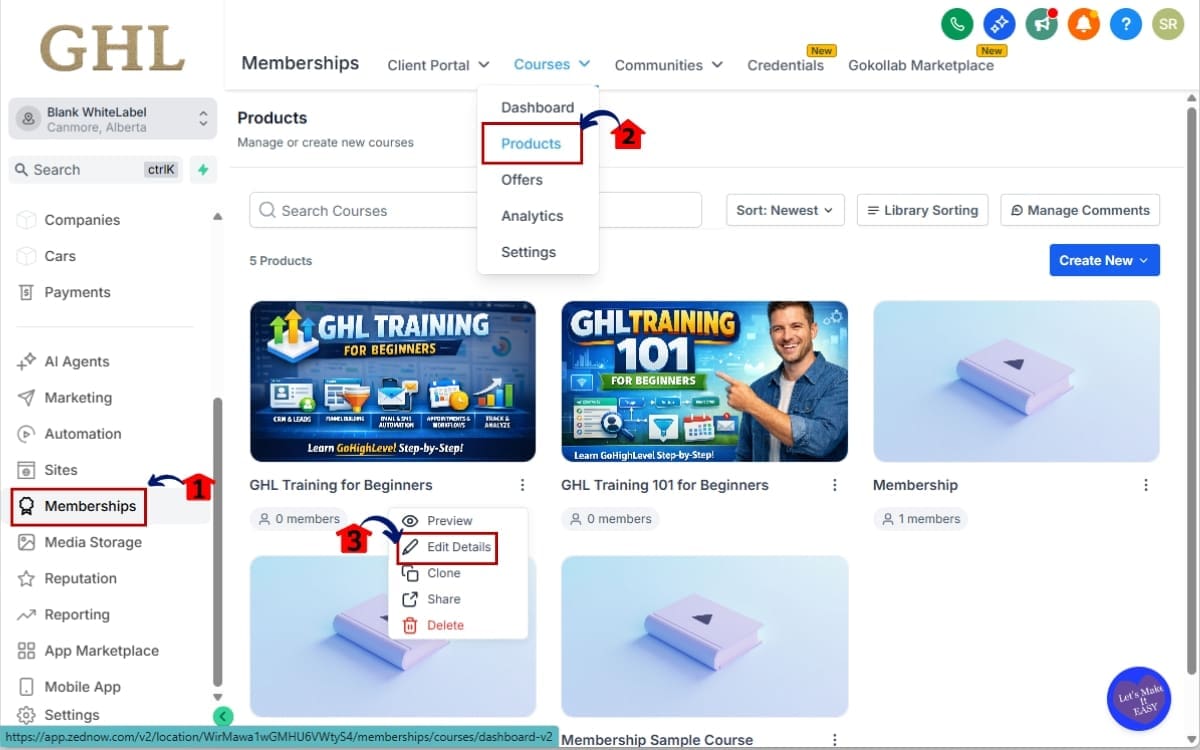
1.1 Click on Memberships from the left side.
- This opens the area where all your products and courses are stored.
1.2 In the dropdown under Memberships, click Products.
- This displays the list of all course products available in your account.
1.3 Select the course you want to edit and click Edit Details.
- This opens the course settings and allows you to access modules and lessons for editing.
Step 02 – Open the Lesson You Want to Modify
- This section shows you how to access the lesson editor inside your selected course.
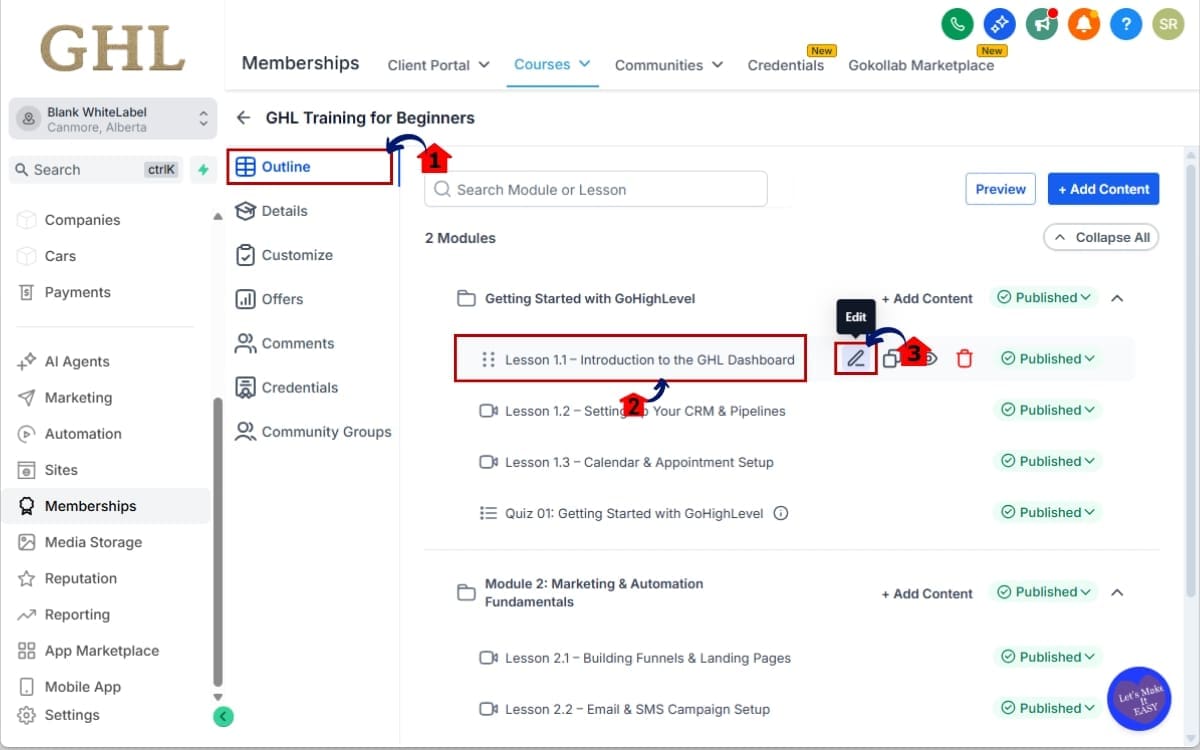
2.1 Inside the course, click Outline.
- This displays all modules and lessons within the course.
2.2 Select the lesson you want to edit.
- This opens the lesson preview panel.
2.3 Click Edit Lesson.
- This opens the lesson editor where you can modify content and import media.
Step 03 – Import Media from Storage
- This section shows you how to insert existing audio or video from Media Storage into your lesson.
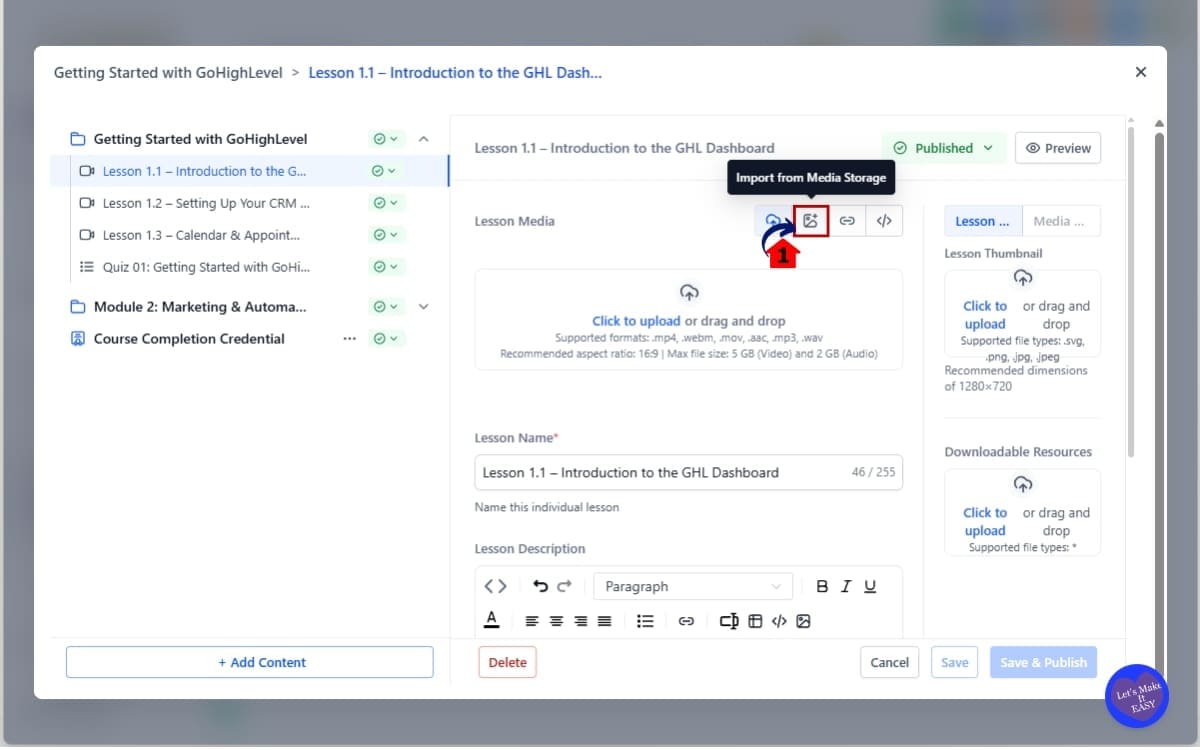
3.1 Inside the lesson editor, click Import via Media Library
- This opens the Media Storage window where you can select an existing audio or video file.
Step 04 – Select the file and insert in the lesson
- This step confirms your media selection and adds it to the lesson.
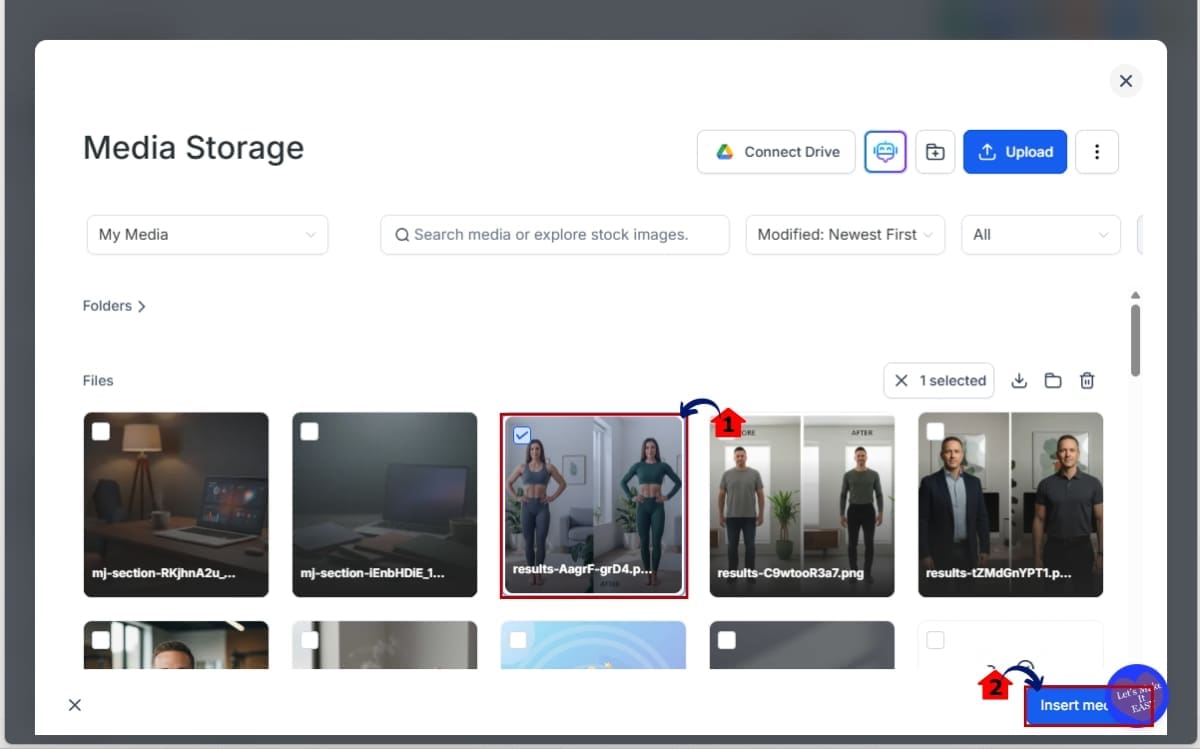
4.1 Select the file you want to use.
- Click on the audio or video file inside the Media Storage window.
4.2 Click Confirm or Insert (depending on interface label).
- The selected file will be added to your lesson content area.
Step 05 – Save Your Changes and Publish the Lesson
- This step ensures your media is properly attached and visible to students.
5.1 Check the file you added.
- Preview the lesson to confirm the correct audio or video is displaying and playing properly.
5.2 Click Save & Publish if the lesson is ready to go live.
- This makes the updated lesson available to students.
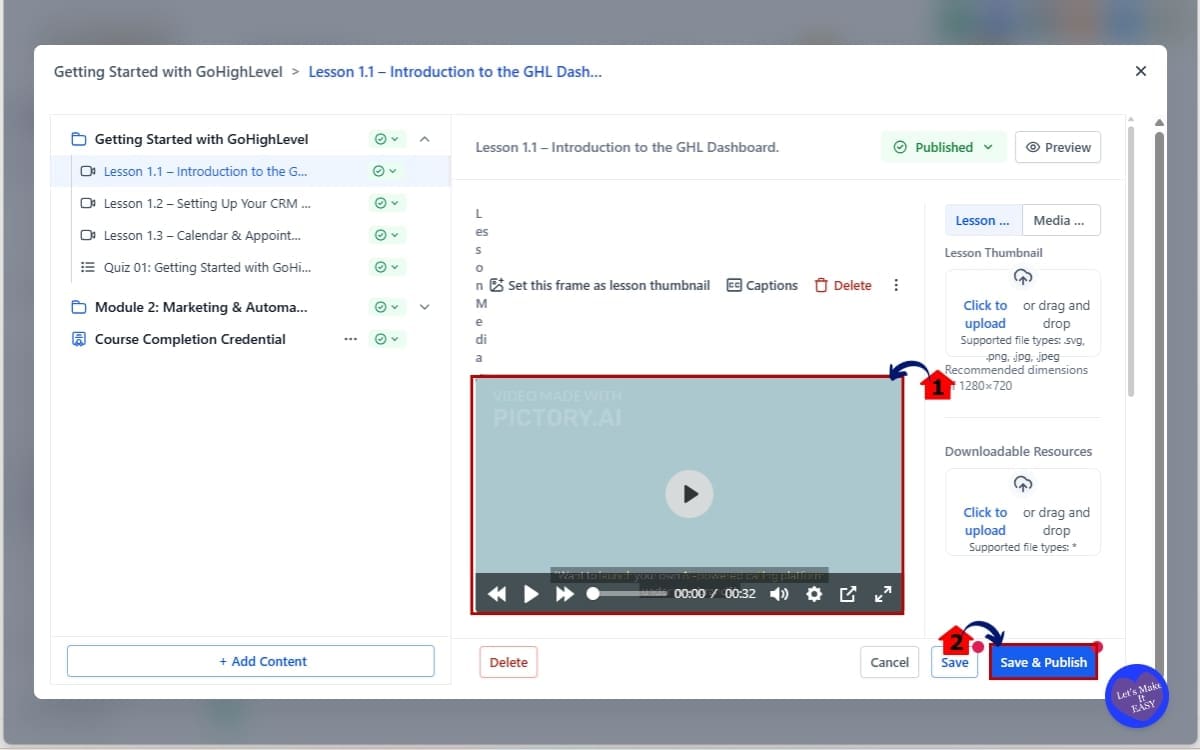
That’s it. The media is now linked directly from Media Storage. It is not duplicated. It is not re-uploaded.
If you update the source file in Media Storage later, your lesson stays clean and organized without creating multiple versions of the same content.One upload. Unlimited reuse.
Pro / Quick Tips – Maximize Course Media Import
Course media import is simple to use.
But if you use it strategically, it becomes a serious time-saver for agencies and course creators.
Here’s how to get the most out of it.
Organize Media Before You Import
Don’t treat Media Storage like a junk drawer.
Create folders for:
- Core Training
- Client Onboarding
- Bonus Content
- Compliance Modules
- Internal SOP Videos
When your files are organized, importing into lessons takes seconds.
Use Clear Naming Conventions
Instead of naming a file “FinalVideoV2.mp4,” use:
- Client-Onboarding-Intro.mp4
- Module-01-Overview.mp4
- Sales-Training-Part-3.mp4
Clear naming makes browsing Media Storage much faster when importing.
Build a Reusable Core Content Library
If you’re an agency, create a master library of:
- Onboarding videos
- Explainer tutorials
- System walkthroughs
- SOP recordings
Upload once. Deploy across every new client course you build.
Avoid Deleting Linked Media
Remember, Course media import links to Media Storage. Delete the file from Media Storage, and your lesson could end up with missing content. Always confirm where a file is being used before removing it.
Test Before Publishing
After importing media:
- Click Save
- Preview the lesson
- Confirm video or audio plays correctly
Do this before publishing to avoid broken lessons.
Common Mistakes to Avoid
- Forgetting to enable Labs
- Uploading duplicate versions anyway
- Not refreshing browser after enabling feature
- Importing the wrong file version
Small mistake. Big confusion later. Stay organized and this feature becomes a powerful scaling tool.
What This Means for Your Business – Real-World Application
Course media import isn’t just a convenience feature. It’s a workflow accelerator. If you’re building one course, it saves a little time. If you’re building ten courses, it saves hours.
Here’s how this plays out in the real world.
Agency Use Case – White-Label Course Builders
You build onboarding or training programs for multiple clients.
Before: You upload the same “Welcome” video into every client course manually.
Now: You upload it once to Media Storage. Then import it into every client lesson in seconds.
That alone can cut your build time significantly. Membership Site Scaling
You run tiered programs.
- Starter Course
- Pro Program
- VIP Masterclass
Some modules overlap. Instead of rebuilding those lessons, you reuse your core training videos across multiple products. This keeps your content consistent and your production speed high.
Internal Team Training
Agencies with growing teams often build internal SOP libraries. Upload your training videos once.
Import them into:
- Sales training
- Support onboarding
- Admin processes
- Client fulfillment systems
You now have one centralized content vault feeding multiple learning environments. That’s operational efficiency.
Content Updates Become Easier
When your media is centralized, it’s easier to manage versions. You’re not hunting through different lessons wondering which copy of the file is the newest.
Everything flows from Media Storage. Less chaos. More control.
Course media import may look like a small feature on the surface. But for agencies scaling education, onboarding, and training systems inside GHL, it becomes a compounding time-saver.
And time saved is profit earned.
Frequently Asked Questions – Course Media Import
Conclusion – Start Using Course Media Import Today
Course media import might look like a small update inside GHL. But small workflow upgrades compound fast.
Upload it once. That’s it. From there, you can drop that same file into any lesson without repeating the process. Media Storage becomes your go-to library, and building courses suddenly feels a lot less messy.
For agencies, this means:
- Faster white-label builds
- Cleaner client course structures
- Less storage clutter
- More scalable training systems
For coaches and creators, it means:
- Reusing onboarding modules
- Deploying bonus content across programs
- Updating core lessons without rebuilding entire courses
When you’re not stuck organizing files, you can focus on building things that actually bring in money.
That’s the real win. If you haven’t enabled Course media import yet, go into Labs and turn it on today. Test it in your next lesson build and feel the difference immediately.
And if you’re serious about mastering GoHighLevel features like this, check back with GHL Growth Garage for more tactical breakdowns designed to help you build faster, smarter systems inside GHL.
Have you started using Course media import yet? How much time is it saving you? Let me know.
Scale Your Business Today.
Streamline your workflow with GoHighLevel’s powerful tools.


