

- Rich Text Editor Upgrade for GHL Service Descriptions
- Quick Summary – Rich Text Editor Essentials
- Here are this weeks HighLevel Updates
- Rich Text Editor for GHL Service Descriptions
- Why the Rich Text Editor Matters for Booking Pages
- How to Use the Rich Text Editor in Service Descriptions
- Pro / Quick Tips for Using the Rich Text Editor
- Real-World Examples Using the Rich Text Editor
- Rich Text Editor in GHL Services FAQ
- Rich Text Editor Makes GHL Service Pages Clearer
Rich Text Editor Upgrade for GHL Service Descriptions
Until now, writing service descriptions meant working with basic text only. That usually led to cluttered paragraphs where key details could easily get lost. The new rich text editor changes that by giving you formatting tools like headings, lists, and hyperlinks. Now you can organize information clearly and create a booking page that’s easier for customers to read.
What changed: GoHighLevel has upgraded the service description field by adding a Rich Text Editor. When editing a service in Calendars → Services, you can now apply formatting like headings, bullet lists, links, and text colors. This makes service details easier to organize and read.
Who this is for: Agencies selling consultations, coaches offering structured sessions, local businesses listing service packages, and anyone using GoHighLevel booking pages who wants their services to look more professional and easier to understand.
What we’ll demonstrate: Where to access the Rich Text Editor inside Calendars → Services, how to format service descriptions properly, how formatting appears on booking pages, common formatting mistakes to avoid, and how agencies can use structured service descriptions to create cleaner, higher-converting booking experiences in GHL.
The latest GoHighLevel Changelog includes several other GHL feature updates that round out your daily workflow:
- Send prospects directly to your pipelines
- Documents & Contracts: Staff Selection in Templates
- Invoices, Estimates: Open in new tab
- Import from Media Storage in Courses ( Labs )
- Manus triggers and actions in Workflows
- Introducing New Templates
- Workflows: Expanded Error Highlight feature
- Deskphone-to-Deskphone Calling & Transfer
- AI Builder: Conversational Editing for If-Else & Wait Actions
Keep reading for much more on all these updates and a deep dive into the Rich Text Editor feature!

Quick Summary – Rich Text Editor Essentials
Purpose:
This guide explains how the new Rich Text Editor in GHL Services v2 allows users to format service descriptions with headings, lists, links, and styled text to create clearer booking pages.
Why It Matters:
Plain text descriptions can make booking pages look messy and hard to read. The Rich Text Editor helps organize service information so customers quickly understand what they’re booking.
What You Get:
You get a full walkthrough of where to find the Rich Text Editor in GoHighLevel, how to use formatting tools inside service descriptions, and practical tips to make booking pages more professional.
Time To Complete:
Most users can update and format a service description in about 5–10 minutes once they know where to find the editor inside the Calendars → Services settings.
Difficulty Level:
Beginner friendly. The Rich Text Editor works like a basic document editor, so anyone familiar with writing formatted text can use it immediately.
Key Outcome:
After using the Rich Text Editor, your service descriptions will look cleaner, be easier to read, and help customers understand exactly what they are booking before scheduling an appointment.
Here are this weeks HighLevel Updates
Send Prospects Directly to Your Pipelines
- What It Does:
Allows you to send prospects straight into a specific pipeline stage without manual movement after capture. Instead of creating a contact and then assigning them later, the system pushes them directly into your sales flow. - Where in GHL:
Found inside forms, funnels, workflows, and lead capture configurations where pipeline stage selection is available. You’ll see it when assigning opportunities during automation or submission actions. - Impact:
Removes friction between lead capture and sales follow-up. Reduces missed follow-ups. Ensures every prospect enters the correct pipeline stage immediately. - Who It’s Great For:
Sales teams, agencies managing multiple pipelines, appointment-based businesses, and anyone who wants tighter lead-to-opportunity automation.
Automate marketing, manage leads, and grow faster with GoHighLevel.

Documents & Contracts: Staff Selection in Templates
- What It Does:
Allows you to pre-assign or dynamically select staff members inside document and contract templates. This helps ensure the right team member is connected to the agreement. - Where in GHL:
Inside Documents & Contracts when creating or editing templates. Staff selection options now appear within template configuration. - Impact:
Improves contract accuracy and accountability. Reduces confusion around who owns a client agreement. Saves time during document generation. - Who It’s Great For:
Agencies with multiple account managers, service businesses with assigned reps, and teams that rely on clear ownership in contracts.
Invoices & Estimates: Open in New Tab
- What It Does:
Adds the ability to open invoices and estimates in a new browser tab instead of replacing your current screen. - Where in GHL:
Inside Payments → Invoices and Estimates when selecting or previewing a document. - Impact:
Improves workflow speed. Makes multitasking easier. Prevents losing your place when reviewing multiple financial documents. - Who It’s Great For:
Finance teams, agencies reviewing multiple client invoices, and users who process payments while navigating other GHL sections.
Import from Media Storage in Courses (Labs)
- What It Does:
Allows you to import files directly from Media Storage into Courses without re-uploading content. - Where in GHL:
Inside Online Courses (Labs) when adding course content. You’ll now see an option to import from Media Storage. - Impact:
Reduces duplicate uploads. Saves time. Keeps your content organized in one central media hub. - Who It’s Great For:
Course creators, membership site owners, agencies building training portals, and anyone managing large content libraries.
Manual Triggers and Actions in Workflows
- What It Does:
Introduces manual workflow triggers and/or actions that can be executed intentionally rather than automatically firing based on an event. - Where in GHL:
Inside Workflows when configuring triggers and actions. Manual options now appear in available selections. - Impact:
Adds flexibility. Gives teams more control over when automations execute. Helps prevent accidental automation runs. - Who It’s Great For:
Agencies testing workflows, teams that want approval-based automation, and businesses that need controlled execution steps.
Introducing New Templates
- What It Does:
Adds new pre-built templates inside relevant GHL builders (Workflows, Emails, Funnels, etc.) to speed up setup. - Where in GHL:
Inside template libraries when creating new assets across supported builders. - Impact:
Speeds up implementation. Reduces guesswork. Helps newer users launch faster with proven frameworks. - Who It’s Great For:
Beginners, agencies onboarding clients quickly, and teams that want plug-and-play automation.
Workflows: Expanded Error Highlight Feature
- What It Does:
Expands workflow error detection so more configuration issues are flagged before publishing or running automations. - Where in GHL:
Inside the Workflow Builder. Error highlighting appears directly on misconfigured triggers and actions. - Impact:
Prevents broken automations. Reduces troubleshooting time. Protects leads from falling through the cracks. - Who It’s Great For:
Agencies cloning workflows, advanced automation builders, and anyone managing complex If/Else logic paths.
Deskphone-to-Deskphone Calling & Transfer
- What It Does:
Enables direct deskphone-to-deskphone calling and live call transfers within GHL’s phone system. - Where in GHL:
Inside Phone settings and calling interface when deskphone integrations are configured. - Impact:
Improves internal communication. Makes call routing smoother. Reduces reliance on third-party call systems. - Who It’s Great For:
Sales teams, support desks, multi-agent businesses, and call-heavy operations.
AI Builder: Conversational Editing for If/Else & Wait Actions
- What It Does:
Allows you to edit If/Else conditions and Wait steps using conversational prompts inside the AI Builder. - Where in GHL:
Inside Workflows when using AI Builder to configure or modify automation logic. - Impact:
Speeds up workflow building. Reduces technical friction. Makes complex automation logic easier to adjust. - Who It’s Great For:
Agencies building advanced automations, users uncomfortable with logic configuration, and teams wanting faster workflow edits.
Rich Text Editor for GHL Service Descriptions
GoHighLevel’s new Rich Text Editor allows service descriptions in Services v2 to include formatted content such as headings, lists, links, and highlighted text. This makes service details easier to structure and read.
Inside Calendars → Services, the description editor now includes a toolbar with formatting tools. The layout works much like a simple document editor, making it easier to organize your service details.
Here are some of the formatting tools now available inside the GHL Rich Text Editor:
- Text Appearance Tools – Change text style with bold, italic, underline, or strikethrough formatting.
- List Formatting Tools – Arrange service features or instructions using bullet points or numbers.
- Hyperlinks – Add clickable links to guide customers to relevant pages or documents.
- Color Highlights – Apply text or background color to draw attention to specific information.
- Headings and Paragraphs – Break long descriptions into clean, readable sections.
- Text Placement Tools – Move text into position using left, center, or right alignment.
The update gives service descriptions a more organized and professional appearance.
For those running booking pages in GoHighLevel, this makes it easier to lay out service information clearly so customers know what they’re signing up for before they schedule.
Why the Rich Text Editor Matters for Booking Pages
Your booking page typically gives customers their first impression of a service. When descriptions are messy or hard to read, it can discourage bookings. The Rich Text Editor in GHL Services v2 helps improve that experience.
In earlier versions, service descriptions were just plain text. This meant important details could easily get buried inside large blocks of text. The Rich Text Editor now helps organize the information more clearly.
Better Customer Understanding
Clear formatting helps people scan service descriptions faster.
Rather than making customers read a long paragraph, you can organize the details this way:
- What the service includes
- How long the appointment lasts
- What the customer should prepare beforehand
- What happens after the booking
This allows customers to quickly determine whether the service fits their needs.
More Professional Booking Pages
Presentation matters.
Using headings and bullet points helps booking pages look cleaner and more reliable. Clear details make customers more confident about scheduling.
This small improvement can make your entire booking system feel more premium and professional.
Higher Booking Conversion Potential
Clear information helps customers feel confident about scheduling.
Using the Rich Text Editor allows you to highlight:
- Key service benefits
- Important instructions
- Preparation steps
- Policies and terms
This helps customers avoid misunderstandings before the appointment.
Perfect for Agencies and Service Businesses
This feature is particularly helpful for businesses that need to clearly explain their services, including:
- Marketing agencies offering strategy calls
- Coaches running consultation sessions
- Local businesses listing service packages
- Consultants explaining session structure
With structured descriptions, customers arrive at their appointment better informed and more prepared.
How to Use the Rich Text Editor in Service Descriptions
The Rich Text Editor in GoHighLevel makes it easy to create clean, organized service descriptions that customers can quickly understand before booking. In this section, we’ll walk through exactly where to find the editor and how to use the formatting tools inside GHL Services v2.
You’ll learn how to access the service settings, open the description editor, apply formatting like lists and headings, and preview how it appears on your booking page.
To start, make sure you are logged into your GoHighLevel sub-account.
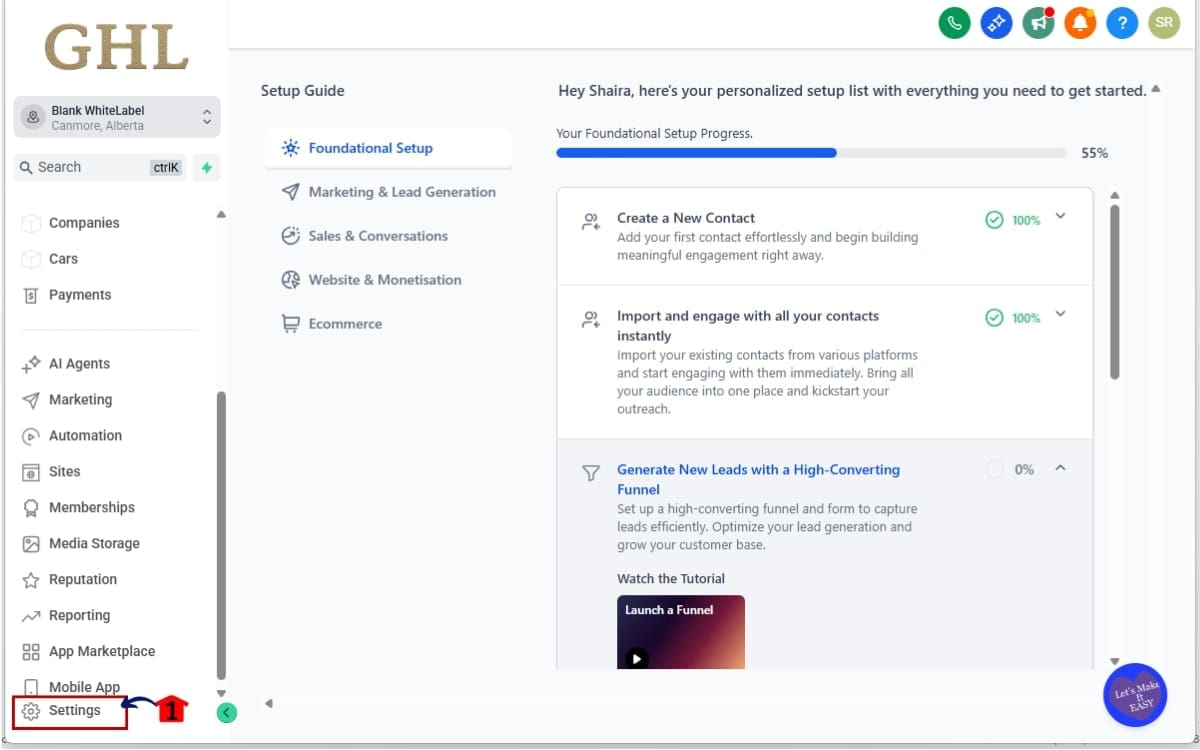
Step 01 – Access the Settings Area in GoHighLevel
- Access the Settings section in your GoHighLevel dashboard
1.1 Click the gear icon ⚙️ labeled “Settings”
- This opens the Settings dashboard where account and system configurations are managed.
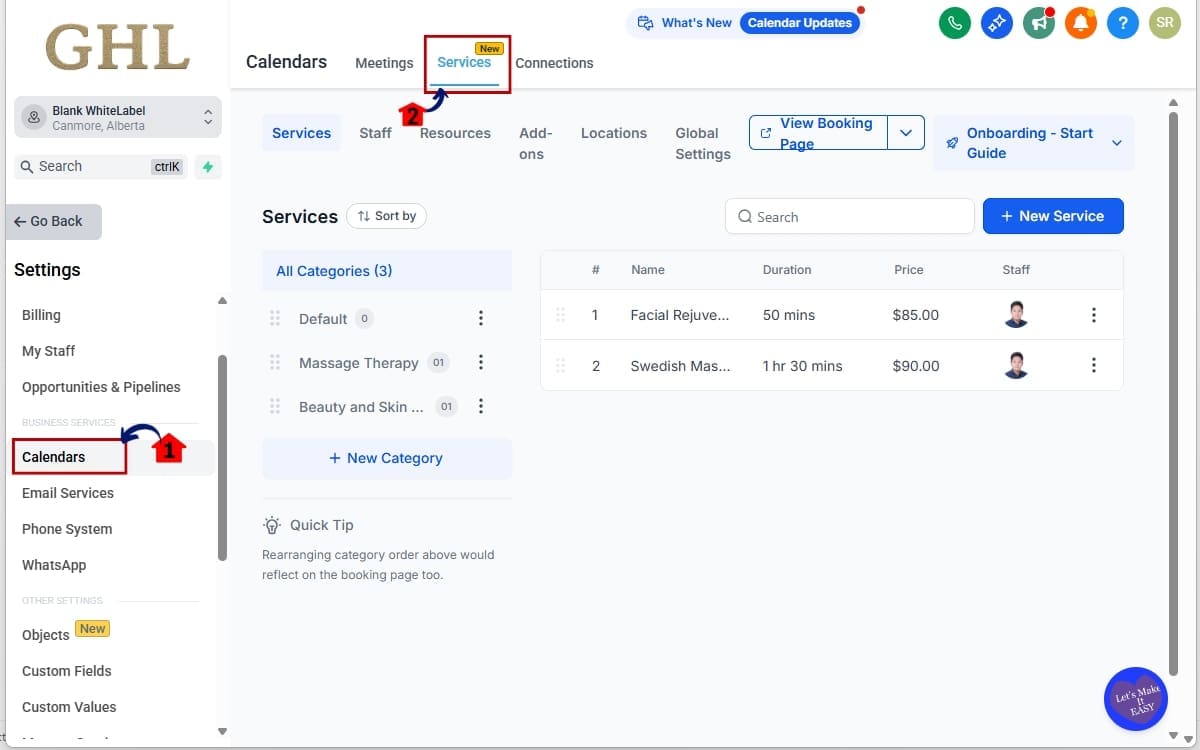
Step 02 – Open Calendar Service Settings
- This section allows you to manage calendars and the services connected to your booking pages.
2.1 Click “Calendars”
- This opens the calendar management section.
2.2 Navigate to the Services tab.
- This section is where you create and manage the services that appear on your booking pages.
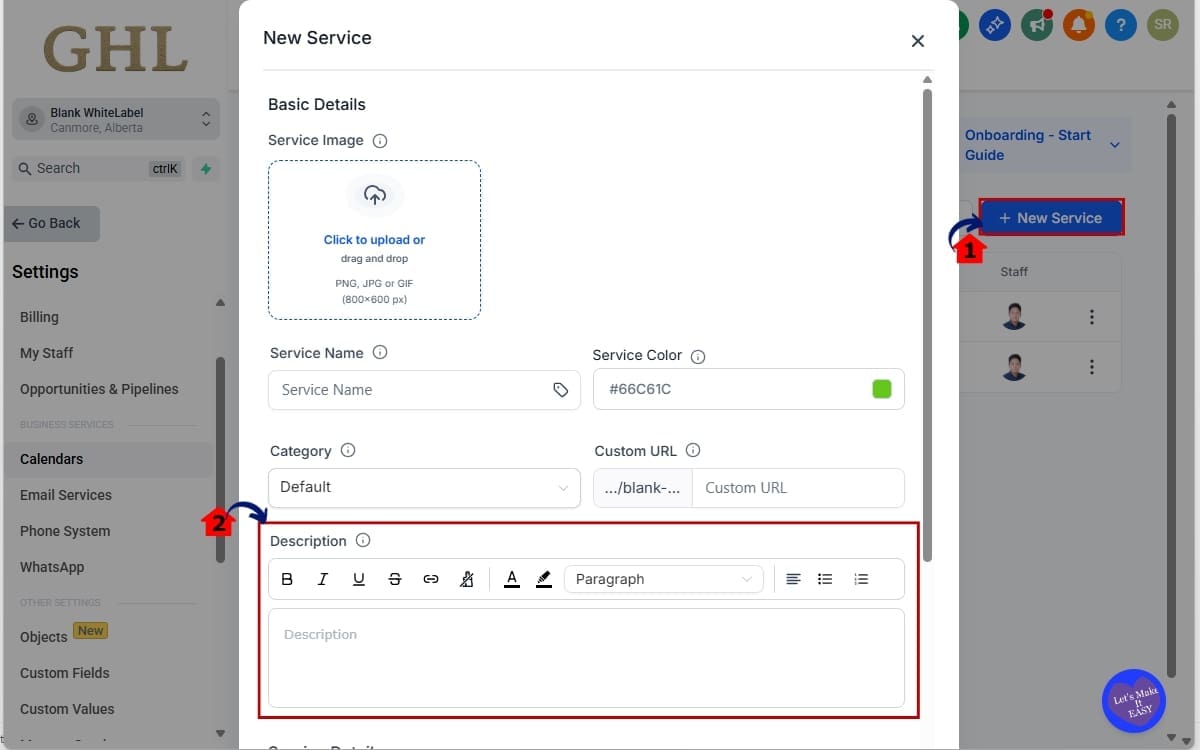
Step 03 – Create a Service in Calendars
- You can create a new service in calendars settings.
3.1 Click “New Service” to add a new service
- Use this option if you want to set up a brand-new service for your booking page.
3.2 Scroll down until you see the Description field.
- This is where the Rich Text Editor toolbar appears.
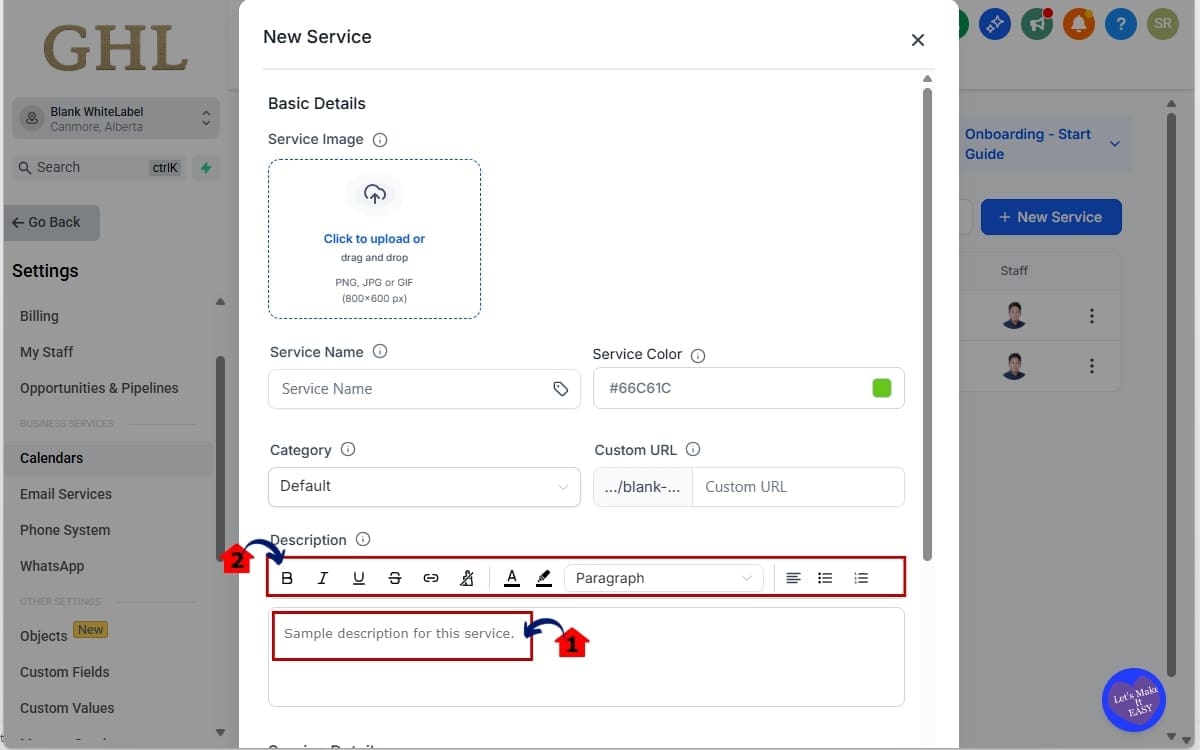
Step 04 – Format Your Service Description
- This allows you to organize the service details so customers can easily read and understand them.
4.1 Type your service description in the editor field.
- Enter the details that explain what the service includes.
4.2 Use the toolbar to apply formatting such as:
• Bold or italic text to highlight key details
• Bullet lists to outline what the service includes
• Numbered lists to explain steps or processes
• Headings to organize longer descriptions
• Hyperlinks to connect customers to policies or resources
• Text colors or background highlights to emphasize important notes
• Text alignment to adjust layout
Using these formatting tools helps turn a basic description into a clear and structured service overview.
Step 05 – Save and Preview the Service
- Save your formatted service description. This applies the changes you made in the Rich Text Editor.
5.1 Click Add Services once your description is formatted.
- This stores the updated description and formatting for the service.
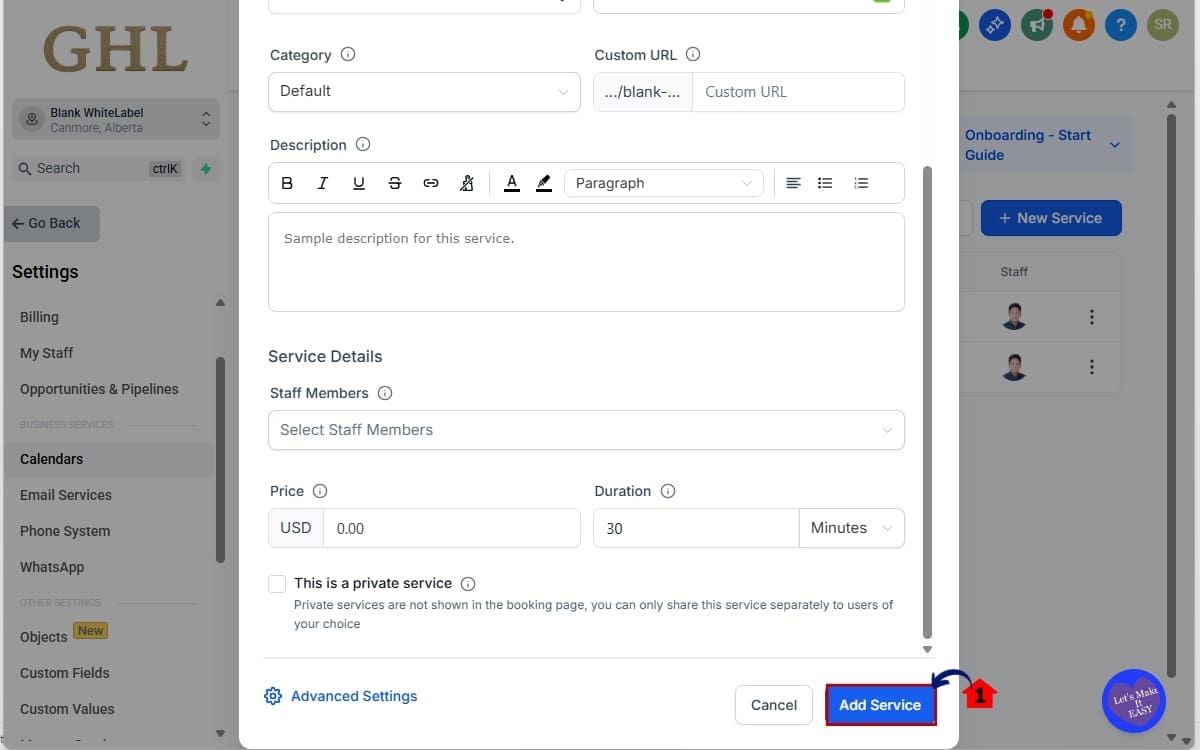
Using the Rich Text Editor this way allows you to present your services in a much more organized and professional format. Customers can quickly scan the information, understand the value of the service, and feel confident moving forward with the booking.
Pro / Quick Tips for Using the Rich Text Editor
Now that you understand the tool, the next step is using it to create clearer service descriptions. This helps customers quickly understand the service.
The following tips can help you get more value from the Rich Text Editor.
Use Headings to Organize Your Description
Headings help break long descriptions into clear sections.
Instead of one long paragraph, organize your service like this:
Example structure
- What This Service Includes
- Who This Service Is For
- What Happens During the Appointment
- What Happens After the Call
This helps customers quickly locate the details they’re looking for.
Use Bullet Points for Service Features
Bullet lists are one of the most effective formatting tools in the Rich Text Editor.
Instead of writing:
“This consultation includes a strategy review, marketing audit, and customized action plan.”
Write it like this:
- Strategy review of your current marketing
- Full audit of funnels and campaigns
- Customized action plan for the next 90 days
This format is much easier to read on both desktop and mobile booking pages.
Highlight Important Information
You can use bold text or colored highlights to draw attention to critical details.
For example:
Important: Please complete the intake form before your appointment.
This helps prevent missed steps or confusion before the meeting.
Add Links to Policies or Resources
The Rich Text Editor allows you to add clickable links inside service descriptions.
You can link to things like:
- Cancellation policy
- Terms of service
- Client onboarding forms
- Preparation instructions
This keeps your booking page clean while still giving customers access to important information.
Avoid Overformatting
Just because you can use colors, highlights, and multiple styles doesn’t mean you should use them all.
Too much formatting can make a page feel messy.
Stick to:
- Headings
- Bullet points
- Occasional bold text
This keeps your service descriptions clean, professional, and easy to read.
Using these small formatting strategies with the Rich Text Editor can dramatically improve how your services appear on your booking page, and make the entire booking experience smoother for your customers.
Real-World Examples Using the Rich Text Editor
The Rich Text Editor in GHL becomes much more powerful when you apply it to real services your customers are booking. Instead of a plain paragraph explaining the service, you can now structure the description so visitors instantly understand what they’re getting.
Below are a few common ways agencies and businesses are already using the Rich Text Editor to create clearer, higher-converting booking pages.
Example 1 – Marketing Agency Strategy Call
Agencies often offer discovery calls, audits, or strategy sessions. These services usually involve several steps, which makes them perfect for structured formatting.
Instead of a long paragraph, you could organize the description like this:
What’s Included in Your Strategy Call
- Review of your current marketing funnels
- Analysis of traffic and lead generation channels
- Identification of growth opportunities
- Action plan for the next 90 days
Before the Call
- Complete the intake questionnaire
- Prepare access to analytics or ad accounts if needed
This format makes the service clear, structured, and professional.
Example 2 – Coaching or Consulting Sessions
Coaches often need to explain what happens during a session so clients know what to expect.
Using the Rich Text Editor, a session description might look like this:
What Happens During the Session
- Goal review and progress discussion
- Strategy adjustments based on results
- Action steps for the next phase
Session Length:
45 minutes
Important: Please arrive prepared with your progress notes.
By using headings and bullet points, clients can quickly understand how the session works.
Example 3 – Local Service Businesses
Local businesses such as salons, clinics, or repair services can also benefit from structured descriptions.
Example:
Full Service Consultation
- Initial consultation and service review
- Personalized recommendations
- Estimated timeline and pricing overview
Preparation Instructions
- Please arrive 10 minutes early
- Bring any previous records or documents if applicable
This structure helps customers feel more prepared before their appointment.
Why These Examples Matter
These examples show how the Rich Text Editor transforms a simple service description into a clear, organized booking experience.
Customers can quickly see:
- What the service includes
- How long it lasts
- What they need to prepare
- What happens next
That clarity reduces confusion, builds trust, and helps customers feel comfortable clicking the Book Appointment button.
Rich Text Editor in GHL Services FAQ
Rich Text Editor Makes GHL Service Pages Clearer
The new Rich Text Editor in GHL Services v2 is a simple update, but it has a big impact on how your booking pages look and perform. Instead of cramming everything into plain text, you can now structure service descriptions with headings, lists, links, and styled text that are easier for customers to read.
Clear service descriptions lead to better customer understanding. When visitors can quickly scan what’s included, how the appointment works, and what they should prepare, they feel more confident booking. That means fewer confused clients and smoother appointments.
For agencies and service businesses using GoHighLevel, this update also makes booking pages feel more professional and polished. Small improvements like organized content and highlighted details can make a big difference in how your services are perceived.
If you haven’t updated your service descriptions yet, now is a good time to take advantage of the Rich Text Editor. Add headings, break information into bullet points, and highlight important instructions so your customers know exactly what to expect before they book.
The team here at GHL Growth Garage will keep sharing practical guides like this to help you get more value from GoHighLevel.
Have you tried the Rich Text Editor for service descriptions yet? Try it out inside your Calendars → Services settings and see how much cleaner your booking pages can look.
Scale Your Business Today.
Streamline your workflow with GoHighLevel’s powerful tools.


