

- Step-by-step guide to design and save certificates and badges
- Quick Summary – Course Certificates and Badges Essentials
- Video Walkthrough: Creating GHL Course Certificates and Badges
- Why Course Certificates and Badges Matter
- Overview of GHL Memberships and Credentials
- Step-by-Step Guide to Creating a Certificate
- Step-by-Step Guide to Creating a Badge
- Pro Tips for Course Certificates and Badges
- Practical Applications of Course Certificates and Badges
- FAQs About Course Certificates and Badges
- Conclusion and Next Steps for Course Certificates and Badges
Step-by-step guide to design and save certificates and badges
Course certificates and badges in GHL let users create professional, branded recognition for online courses. This step-by-step guide explains how to design, customize, and save certificates and badges using templates or fully personalized elements. Following these steps ensures learners get clear, high-quality acknowledgment for completing courses and milestones.
When testing this feature, experts found that adding personal branding and simple design touches makes a big difference. Templates alone often look generic, but customizing colors, fonts, and images makes certificates and badges feel meaningful. This attention to detail helps learners take notice and value their achievements more.

Research shows that over 60 percent of students feel more motivated when they receive visual recognition like badges or certificates. GHL provides easy-to-use tools and drag-and-drop elements to create these credentials. By following this guide, users can build certificates and badges that boost engagement, reinforce course credibility, and reward learners professionally.
Quick Summary – Course Certificates and Badges Essentials
Purpose: This guide explains how to create course certificates and badges in GHL so learners get clear recognition for completing courses.
Why It Matters: Certificates and badges help learners feel accomplished, boost motivation, and make courses look professional and credible.
What You Get: Step-by-step instructions for designing, customizing, and saving certificates and badges using GHL templates and branding tools.
Time To Complete: About 15–30 minutes to create your first certificates or badges, depending on how much you customize them.
Difficulty Level: Easy to moderate; a basic understanding of GHL Memberships and Credentials is enough.
Key Outcome: Learners receive meaningful recognition for their achievements, and agencies can keep course branding consistent across all programs.
Video Walkthrough: Creating GHL Course Certificates and Badges
Give your courses a professional touch with certificates and badges in GHL. This video shows how to make them step by step.
Inside this walkthrough:
Automate marketing, manage leads, and grow faster with GoHighLevel.

- How to access the Memberships and Credentials section.
- Choosing a template and customizing fonts and colors.
- Adding elements, signatures, and logos to your certificates and badges.
- Saving and previewing certificates and badges for your learners.
This video makes it simple to design certificates and badges that boost engagement and recognize learner achievements.
Why Course Certificates and Badges Matter
Course certificates and badges in GHL give learners a clear way to see their progress. When students complete a course or a module, receiving a certificate or badge helps them feel accomplished. This recognition encourages them to stay engaged and finish the course.
Experts say that adding branding and visual touches makes a big difference. Key tips for effective certificates and badges include:
- Use your brand colors, fonts, and logos to make credentials look professional.
- Keep the design clean and easy to read.
- Include completion dates or custom messages for a personal touch.
Research shows that over 60 percent of learners feel more motivated when they earn visual recognition like certificates or badges. For course creators and agencies, this means:
- Learners are more engaged and complete more courses
- Milestones and achievements are easy to see
- Courses feel professional and credible, improving trust in the content
Overview of GHL Memberships and Credentials
GHL’s Memberships and Credentials feature makes managing course certificates and badges simple and professional. Users can create, customize, and organize credentials all in one place. This ensures that every learner receives consistent recognition for completing courses or modules.
The feature includes practical tools for easy design and branding:
- Pre-built templates for certificates and badges are ready to use.
- Drag-and-drop editing for fonts, colors, and layout.
- Upload logos or icons to match course branding.
- Rename and save credentials for reuse across multiple courses.
By centralizing certificates and badges, GHL helps educators and agencies stay organized and maintain professional standards. Whether managing a small online course or a large membership program, users can quickly create branded credentials that give learners a sense of achievement and credibility.
Step-by-Step Guide to Creating a Certificate
Creating a course certificate in GHL is done entirely within the Memberships and Credentials area. You can either select a template or fully customize your certificate with fonts, colors, and images to match your course branding.
The steps below will guide you through accessing the feature, choosing a template, editing elements, and saving your certificate so learners receive professional recognition.
Here are the steps to create a certificate in GHL:
- Access the Certificate Builder in the GHL Membership Credentials section.
- Click the From Template option inside the Create New Certificates pop-up.
- Start creating a certificate after choosing a certificate template.
- Edit the font, color, size, and alignment of each element.
- Add, remove, or duplicate elements using the Elements Library.
- Rename and Save your certificate.
To start, make sure you are logged in to your GoHighLevel sub-account.
Step 01 – Access the Certificate Builder in the GHL Membership Credentials section
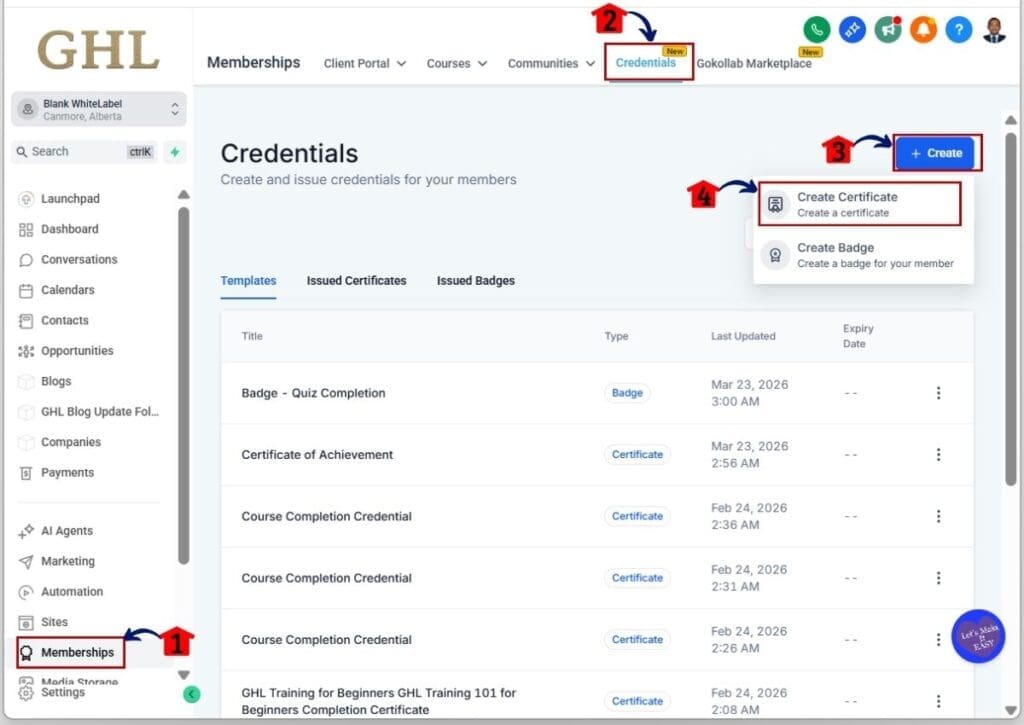
- The button to create a certificate is located on the upper right of the Memberships Credentials section.
1.1 Click the Memberships section
- Inside Memberships, you will see Client Portal, Courses, Communities, Credentials, and Gokollab Marketplace.
1.2 Click the Credentials tab in the top menu
- This is located between the Communities and Gokollab Marketplace tabs.
- Here, you will see a list of your created Badges and Certificate templates.
1.3 Click the + Create button
- A dropdown will appear with two options: Create Certificate and Create Badge.
1.4 Click the Create Certificate option
- The Create New Certificates pop-up will appear with two options: From Scratch and From Template.
Step 02 – Click the From Template option inside the Create New Certificates pop-up
- You will see a pop-up offering the choice to create a certificate from scratch or from a template.
- For this example, we will use a template.
2.1 Click the From Template radio button
- A blue rectangle will appear around the From Template option to confirm your selection.
- You will then see another pop-up where you can choose a certificate template.

Step 03 – Start creating a certificate after choosing a certificate template
- Choose a template that matches your course’s goal.
3.1 Click and select a certificate template
- A blue rectangle will appear around your chosen template.
- The Create button in the lower right of the pop-up will now be clickable.
3.2 Click the Create button to start editing your template
- You will be directed to the certificate builder, where you can begin editing.

Step 04 – Edit the font, color, size, and alignment of each element
- You will see the base template of your certificate.
4.1 Click on the element you want to edit
- A blue rectangle will appear around the element.
- The configuration box will appear at the top of the builder.
4.2 Edit the element’s font, size, color, and other settings
- Adjust each element to fit your course’s branding and design goals.

Step 05 – Add, remove, or duplicate elements using the Elements Library
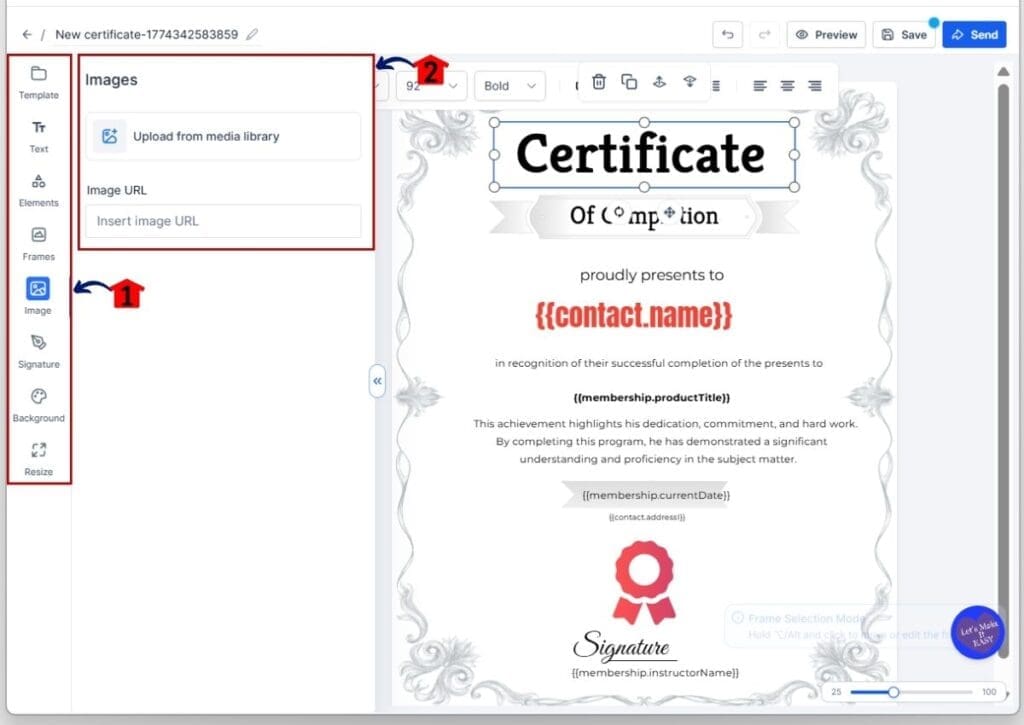
- The Elements Library appears on the left side of the builder, letting you add logos, images, frames, and other elements.
5.1 Choose an element type in the library
- The library includes Templates, Text, Elements, Frames, Image, Signature, Background, and Resize options.
5.2 Configure the element
- Settings for the chosen element appear next to the library.
Step 06 – Rename and Save your certificate
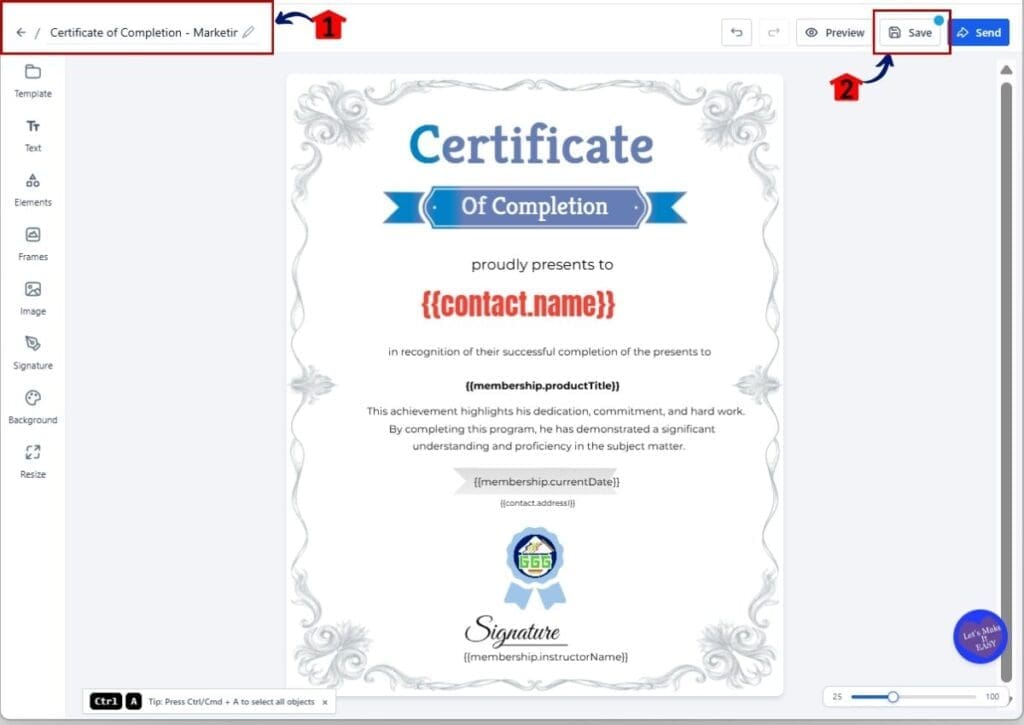
- Rename and save your certificate after finishing your design.
6.1 Rename your course certificate
- The rename option is at the upper left of the canvas.
- Click the pencil icon to rename it.
6.2 Click the Save button
- The Save button is at the upper right of the builder.
- A green circle shows that the template is unsaved and disappears after saving.
Step-by-Step Guide to Creating a Badge
Creating a course badge in GHL is done entirely within the Memberships and Credentials area. You can select a template or fully customize your badge with fonts, colors, and images to match your course branding.
The steps below will guide you through accessing the feature, choosing a template, editing elements, and saving your badge so learners receive clear and professional recognition for their achievements.
Here are the steps to create a badge in GHL:
- Access the Badge Builder in the GHL Membership Credentials section.
- Click the From Template option inside the Create New Badges pop-up.
- Start creating a badge after choosing a badge template.
- Edit your badge using the Elements Library.
- Rename and Save your badge template.
To start, make sure you are logged in to your GoHighLevel sub-account.
Step 01 – Access the Badge Builder in the GHL Membership Credentials section
- The button to create a badge is located on the upper right of the Memberships Credentials section.
1.1 Click the Memberships section
- Inside Memberships, you will see Client Portal, Courses, Communities, Credentials, and Gokollab Marketplace.
1.2 Click the Credentials tab in the top menu
- This is located between the Communities and Gokollab Marketplace tabs.
- Here, you will see a list of your created Badges and Certificate templates.
1.3 Click the + Create button
- A dropdown will appear with two options: Create Certificate and Create Badge.
1.4 Click the Create Badge option
- The Create New Badges pop-up will appear with two options: From Scratch and From Template.

Step 02 – Click the From Template option inside the Create New Badges pop-up
- You will see a pop-up offering the choice to create a badge from scratch or from a template.
- For this example, we will use a template.
2.1 Click the From Template radio button
- A blue rectangle will appear around the From Template option to confirm your selection.
- You will then see another pop-up where you can choose a badge template.

Step 03 – Start creating a badge after choosing a badge template
- Choose a template that matches your course’s goal.
3.1 Click and select a badge template
- A blue rectangle will appear around your selection.
- The Create button at the lower right of the pop-up will now be clickable.
3.2 Click the Create button to start editing your template
- You will be directed to the badge builder, where you can begin editing.

Step 04 – Edit your badge using the Elements Library
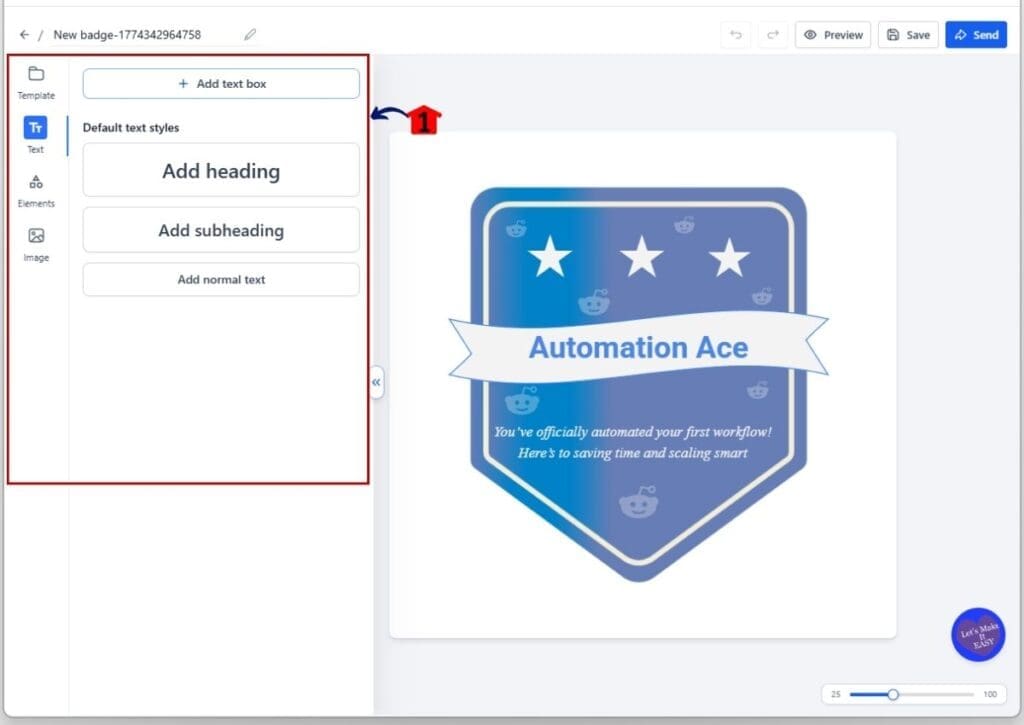
- The Elements Library works the same way as when creating certificates.
4.1 Add, remove, or duplicate badge elements
- Add text, elements, or images to customize your badge.
Step 05 – Rename and Save your badge template
- Rename and save your badge after finishing your edits.
5.1 Rename your badge
- The rename option is at the upper left of the canvas.
- Click the pencil icon to rename it.
5.2 Click the Save button
- The Save button is at the upper right of the builder.
- A green circle shows that the template is unsaved and disappears after saving.

Pro Tips for Course Certificates and Badges
Creating course certificates and badges in GHL is straightforward, but a few design choices can make them more meaningful. Well-branded and visually polished credentials help learners recognize their achievements and reflect the professionalism of your courses. This section shares practical tips to improve both look and impact.
Key tips for effective certificates and badges include:
- Use brand colors and fonts consistently across all certificates and badges.
- Keep layouts clean and easy to read.
- Add logos, icons, or images that represent your course or organization.
- Include completion dates, milestones, or short custom messages.
- Balance text and visuals so the certificate or badge is clear and attractive.
Following these tips ensures your course certificates and badges feel professional and valued. Learners are more likely to notice and appreciate credentials that are visually appealing, and agencies can maintain a consistent look across all courses. Well-designed certificates and badges help boost engagement and encourage learners to complete courses.
Practical Applications of Course Certificates and Badges
Course certificates and badges in GHL are more than just visuals. They give learners clear recognition for completing courses and help agencies and educators make programs feel professional and engaging. When used correctly, they can encourage learners to stay motivated and finish modules.
Here are practical ways to use course certificates and badges:
- Reward learners for finishing courses or specific modules.
- Highlight milestones such as certifications or skill levels.
- Offer badges for participation in challenges or extra activities.
- Display achievements within membership portals or course dashboards.
- Include badges in marketing or portfolio materials to show learner success.
Using certificates and badges thoughtfully helps learners feel recognized and valued. Programs gain credibility, engagement improves, and learners are more likely to complete courses and share their achievements with others.
FAQs About Course Certificates and Badges
Managing course certificates and badges in GHL can raise common questions for new users. This FAQ section answers the most frequent concerns and provides practical guidance to help you use the feature effectively.
Conclusion and Next Steps for Course Certificates and Badges
Course certificates and badges in GHL make it easy for learners to see and feel their achievements. Using the Memberships and Credentials feature, you can design professional credentials that reflect your brand and motivate students to finish courses. This adds real value to both small and large programs by making accomplishments tangible.
Following the steps in this guide ensures certificates and badges are easy to customize, visually appealing, and consistent across all your courses. Adding your branding and milestone details helps learners feel recognized and engaged throughout the program.
The next step is to implement these certificates and badges in your courses and membership portals. Track how learners respond and adjust designs if needed to keep them professional and motivating. For more guidance, you can explore other GHL marketing guides on course management and membership tools to enhance the learner experience even further.
Scale Your Business Today.
Streamline your workflow with GoHighLevel’s powerful tools.


