- A fresh UI and smart options now let you redirect full domains, even outside GHL.
- Quick Summary – Domain Redirects Overview
- What’s New in the GHL Redirect Interface
- What’s Changed from the Old Setup
- Why This Update Is a Big Deal for Agencies
- How to Use Domain Redirects in GHL
- Pro Tips for Smooth Domain Redirects in GHL
- Frequently Asked Questions About Domain Redirects in GHL
- What This Means for Your Workflow
- Results You Can Expect from Smarter Domain Redirects
- A Smarter Way to Use Domain Redirects in GHL
A fresh UI and smart options now let you redirect full domains, even outside GHL.
Why Domain Redirects Matter Now
Domain redirects are a key part of managing traffic, SEO, and client handoffs inside GHL. Whether you’re moving pages, switching domains, or launching something new, redirects make sure people land in the right place without broken links or errors.
Before this update, setting up domain redirects in GHL could be tricky. The old interface was basic and didn’t support redirecting an entire domain to an external site. That meant workarounds, custom code, or extra help from a developer.
Now, that’s changed.
GHL rolled out a better way to manage domain redirects. The new interface is simple to use and gives you more control over how redirects behave. You can now send traffic from a full domain to another domain, even if that domain isn’t part of your GHL setup.
If you handle migrations, SEO cleanups, or client rebrands, this update saves time and cuts confusion. No extra tools. No advanced setup. Just better domain redirects, done right inside GHL.

GHL’s new domain redirects update helps you point full domains or pages anywhere you need, even outside GHL. No more guesswork or tech help needed.
Quick Summary – Domain Redirects Overview
Purpose: This update improves how you manage domain redirects inside GHL, giving you more control and flexibility.
Why It Matters: You can now redirect entire domains to custom destinations, including external domains not connected to your GHL account.
What You Get: A new user interface, live redirect previews, smart error checking, and full-domain support.
Time to Complete: You can set up a working domain redirect in under 5 minutes.
Difficulty Level: Beginner. No tech skills or coding required.
Key Outcome: Clean redirects that protect SEO, reduce errors, and keep traffic flowing to the right place.
What’s New in the GHL Redirect Interface
GHL just gave domain redirects a much-needed upgrade. The new layout is clean, easy to follow, and takes you step by step through the setup. You no longer have to guess where traffic is going or worry about breaking something.
You can now choose to redirect a specific page or an entire domain. If you want to send all traffic from one domain to another, the new interface makes that simple. You also have the option to redirect to an external domain, even if it’s not part of your GHL account. That means you can send traffic to sites outside GHL without extra steps.
Automate marketing, manage leads, and grow faster with GoHighLevel.

When using domain redirects, you’ll see a live preview of where the link will take users. This helps you catch mistakes before they go live. It’s a small feature that makes a big difference, especially for teams moving fast.
The update also adds real-time error checks. If your URL isn’t valid or you try to set up a duplicate redirect, GHL flags it before you save.
With smarter options and built-in checks, domain redirects are now easier to manage and harder to mess up.
What’s Changed from the Old Setup
The old way of handling domain redirects in GHL worked, but it left a lot to be desired. You had to know exactly what you were doing. There were no previews, no smart checks, and no easy way to send traffic to an external domain.
Now, domain redirects are much more flexible. You can redirect a full domain without needing to connect that domain to GHL first. That’s a major shift. It means you can quickly send traffic wherever you need without adding or verifying a new domain in your account.
Another big change is the new popup flow. Instead of a plain form, GHL now walks you through each step. You pick your source domain, choose whether to redirect a path or the full domain, then select your destination. It’s simple, but it works.
There’s also a new rule: once you create a domain redirect, the source details are locked. You can still update where the redirect points, but you can’t change where it starts. This helps protect your setup and prevents accidental changes.
All of this makes domain redirects feel more reliable. Less trial and error. More control.
Why This Update Is a Big Deal for Agencies
Domain redirects are one of those tasks that should be simple, but often turn into a mess. If you’ve ever tried to redirect an old domain to a new one, you know what that looks like. You had to mess with DNS records, get outside help, or explain to a client why their links weren’t working yet.
This update changes that for good.
Now you can handle domain redirects directly inside GHL, without leaving the platform. You can send traffic from a full domain to another domain, even one that’s not connected to GHL. That makes it easier to manage rebrands, client launches, or legacy site cleanups.
It also cuts down on mistakes. Before, domain redirects often involved guesswork. Now there’s a step-by-step flow, live previews, and built-in error checks. You know what’s happening before you hit save.
Most importantly, this lets your team move faster. You don’t need to loop in a developer or wait for domain access. You can set up domain redirects right away and keep projects on track.
If you run an agency, this is one of those updates that saves hours over time and helps you deliver cleaner results for every client.
How to Use Domain Redirects in GHL
The new domain redirects tool is built right into GHL. There’s no setup required. Just follow this flow to redirect a path or full domain to another location.
Step 1.0 – Access the Settings Area in GoHighLevel
- Go to the left-hand sidebar, look all the way to the bottom.
1.1 Click on the gear icon ⚙️ labeled “Settings.”
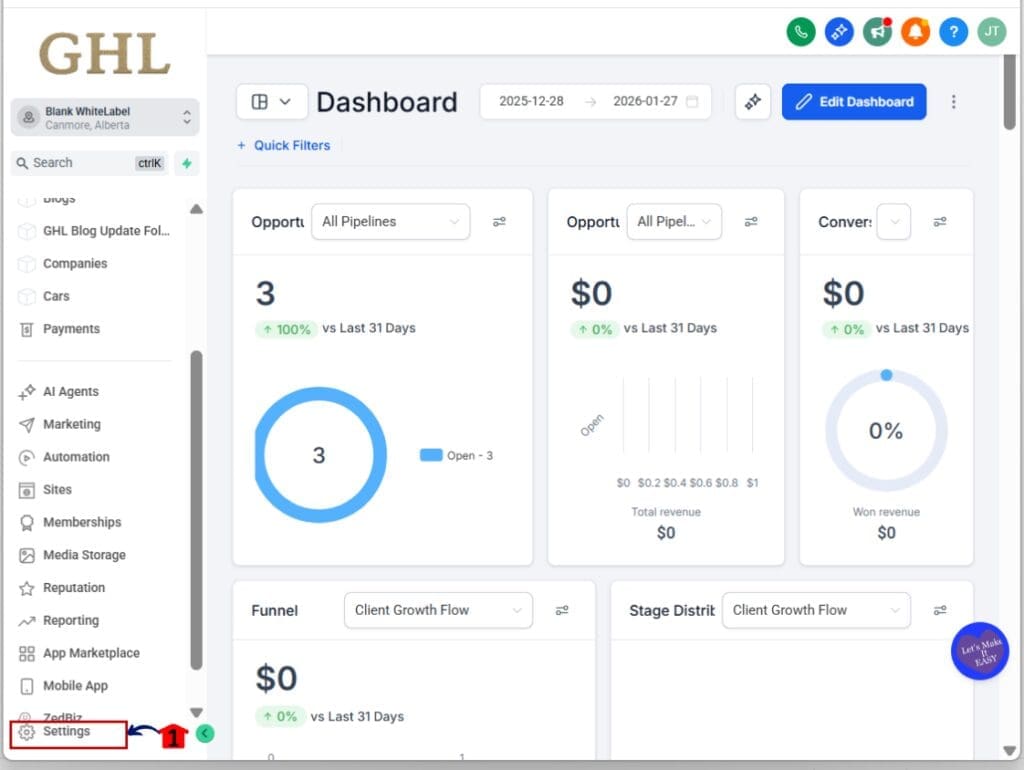
- You’ll now be in the main Settings dashboard, where you can access:
- Business Info
- Billing
- My Staff
- Phone System
- Labs
- Domains & URL Redirects
- and more.
1.2 Click into the Domains & URL Redirects
1.3 Click into the URL Redirects menu tab
1.4 Click the “+ Add a Redirect” button to open the setup window.
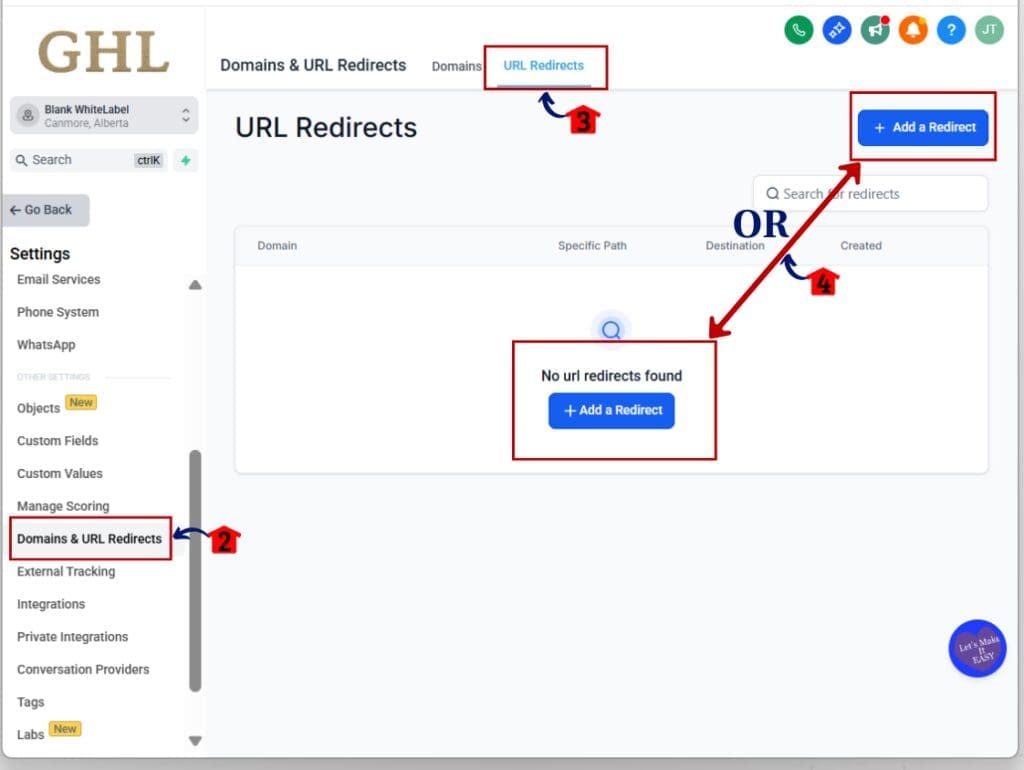
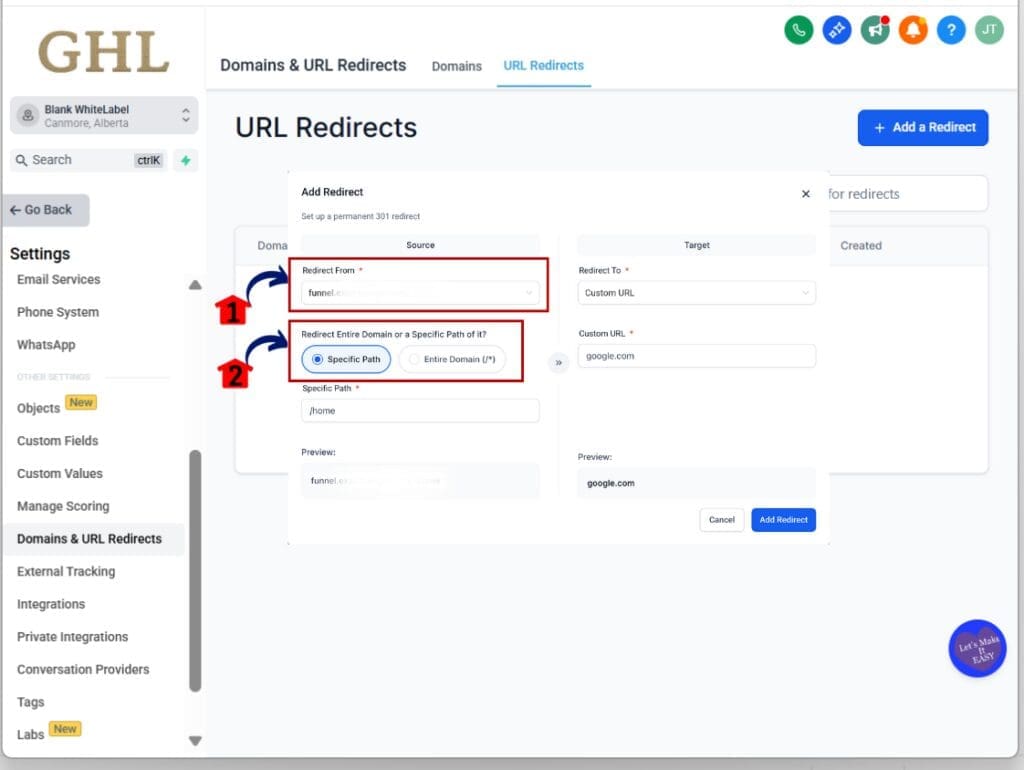
Step 02: Choose the Domain to Redirect
2.1 Select the source domain from the dropdown list.
2.2 Choose whether to redirect a specific path (like /blog) or the Entire domain (all pages).
2.3 If you pick “Entire Domain,” path input will give you an option to redirect to custom domain or existing domain
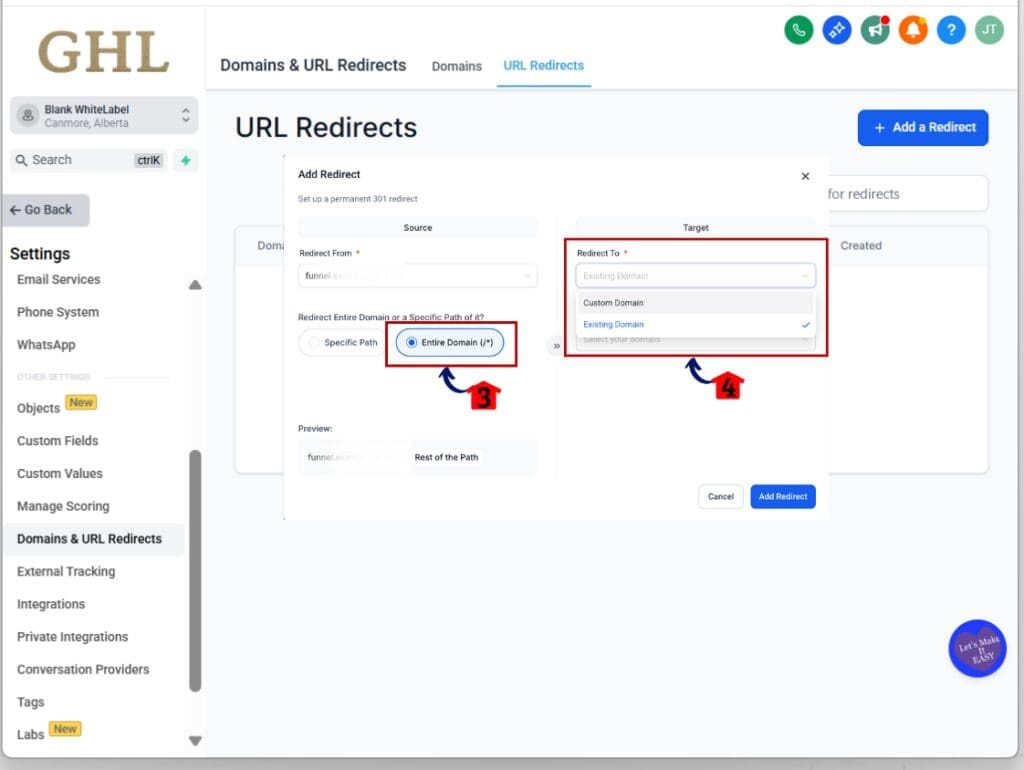
Step 03: Pick the Redirect Destination for Specific Path
3.1 Choose one of the three redirect types:
- Funnel Step
- Website Page
- Custom URL
3.2 If using “Custom URL,” enter a full domain or subdomain (like example.com or sub.example.com)
3.3 GHL will not allow partial paths like /about when using a full domain redirect.
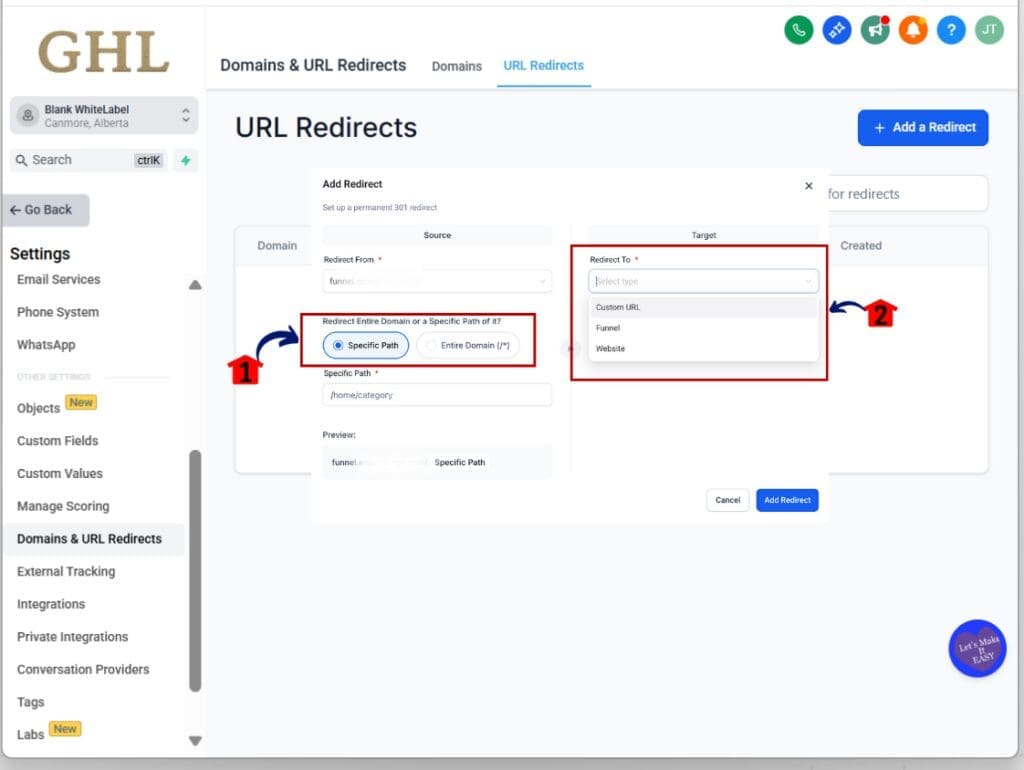
Step 04: Review the Live Preview
4.1 Look at the dynamic preview that appears.
4.2 Confirm that the redirect goes where you expect.
4.3 Fix anything before you save.
That’s it. GHL makes domain redirects faster and easier without needing extra tools or technical help.
Pro Tips for Smooth Domain Redirects in GHL
Now that domain redirects in GHL are easier to use, here are a few tips to keep everything running smooth.
Plan your domain redirects before you start.
- Make a quick list of what needs to move. If you’re redirecting a full domain, be sure you’re not missing important pages.
Use full domain redirects for big moves.
- If you’re changing brands or moving everything to a new domain, use the full domain option. For small updates, a path-level redirect works better.
Keep your destination simple.
- If you’re redirecting to a custom domain, make sure the domain is live and works. GHL only accepts full domains or subdomains—not paths.
Always preview before saving.
- Domain redirects can be powerful. Use the live preview to make sure the traffic goes exactly where you want. If it doesn’t look right, fix it before saving.
Don’t reuse the same source.
- You can’t create two domain redirects from the same starting point. GHL will block it, so plan ahead to avoid duplicate redirects.
Remember: the source gets locked.
- Once you save a domain redirect, you can still change where it points, but you can’t edit the source domain or path. This helps keep things safe and stable.
Smart use of domain redirects helps your SEO, improves user experience, and keeps your projects moving without delay.
Frequently Asked Questions About Domain Redirects in GHL
What This Means for Your Workflow
Domain redirects are used to slow things down. You had to jump through extra steps, deal with outside tools, or get help from a developer just to point traffic from one place to another. That’s no longer the case.
With GHL’s updated domain redirect feature, your workflow gets a lot smoother. You can manage redirects directly in the platform without leaving your dashboard. That means fewer delays, fewer errors, and no more switching between tools.
This also helps during client onboarding. If someone comes in with an old domain or outdated links, you can set up domain redirects on the spot. No DNS changes. No waiting for access. Just type, preview, and save.
It also means better SEO handoffs. You won’t lose traffic when switching domains or launching a new funnel. Redirects keep the link equity and help users land in the right place every time.
If you manage websites or client accounts in GHL, these changes make your job easier and more reliable.
Results You Can Expect from Smarter Domain Redirects
Once you start using the new domain redirects tool in GHL, you’ll feel the difference right away. Things just work better.
You’ll save time. Setting up redirects no longer takes a support request or a long back-and-forth with a developer. You can handle it on your own, in just a few clicks.
You’ll make fewer mistakes. The live preview and real-time error checks help you catch issues before they go live. That means cleaner redirects and fewer broken links.
Your launches will move faster. Whether you’re starting a new funnel, changing domains, or helping a client switch from another platform, you can use domain redirects to smooth out the transition.
You’ll keep your SEO strong. Clean domain redirects protect your rankings by making sure search engines and users land in the right place.
You’ll deliver better work. When your systems are tight, your projects run better. This update helps you do that.
A Smarter Way to Use Domain Redirects in GHL
Domain redirects are one of those tools that should be simple. With this update, GHL finally made them work the way they should.
You can now manage domain redirects inside GHL without needing extra tools or support. You can redirect a single path or an entire domain. You can even send traffic to a domain that isn’t part of your GHL setup. That kind of flexibility helps with client launches, site updates, and SEO cleanups.
The new interface is easy to follow. The live preview and built-in checks help you get it right the first time. You don’t have to second-guess where your traffic is going or worry about breaking something.
If domain redirects have been a pain in the past, now’s your chance to fix that. Take a few minutes to check your current redirects and try out the new tool the next time you set up a site or funnel.
It’s faster, cleaner, and it works. Just like it should.
Scale Your Business Today.
Streamline your workflow with GoHighLevel’s powerful tools.