

- Introduction – AI Studio Permissions in GHL
- Quick Summary – AI Studio Permissions
- Here are this weeks HighLevel Updates
- What Are AI Studio Permissions in GHL?
- What’s New With IAM V2 and Access Control
- Why AI Studio Permissions Matter for Agencies
- How to Set Up AI Studio Permissions in GHL
- Pro Tips for Managing AI Studio Permissions
- What This Means for Your Business
- FAQs About AI Studio Permissions in GHL
- Conclusion – AI Studio Permissions in GHL
Introduction – AI Studio Permissions in GHL
AI Studio Permissions were powerful. Until they weren’t controlled. You’ve seen it.
Too many people with access. Junior staff editing prompts. No clear line between “viewer” and “manager.” AI assets wide open to anyone with broad permissions.
The AI worked. But the governance? Sloppy.
If you’ve spent any time inside AI Studio in GHL, you’ve probably run into this. Someone tweaks a prompt. Someone updates a workflow. Someone creates a new AI resource without alignment. Now you’re backtracking. Asking who changed what. Hoping nothing critical broke.
That’s not a scalable system. It creates risk. It creates confusion. It creates internal friction.
AI Studio Permissions fix that gap. You now choose intent first.
Should this user only view AI resources? Or should they manage them? Click the permission. Assign the role. Done.
With IAM V2 running behind the scenes, AI Studio now respects user roles properly. Team members only see the tools and options they’re supposed to access, while editing and management features stay in the hands of the people responsible for them.
Cleaner structure. Stronger governance. Safer AI operations. And finally, real control over your AI tools in GHL.
The latest GoHighLevel Changelog includes several other GHL feature updates that round out your daily workflow:
- New QR Code Styling Options: Shapes, Borders, and Rim Text
- Collapse & Resize Pipeline Stages in Kanban View
- Notes just got smarter for the contacts page!
- New Asana actions in workflows – Find Project and Find section
- Email AI + Knowledge Base Integration 🚀
- Dialer: Auto-minimize, Pin & Drag
- Schema Markup Using AI
Keep reading for much more on all these updates and a deep dive into the AI Studio Permissions feature!

Quick Summary – AI Studio Permissions
Purpose
AI Studio Permissions give you structured control over who can view or manage AI tools inside your GHL sub-account. This update moves AI Studio under IAM V2 for standardized, role-based access enforcement.
Why It Matters
Without defined AI access control, teams can accidentally modify prompts, workflows, or AI configurations. AI Studio Permissions protect your automation systems and reduce internal risk.
What You Get
You get two clear permission levels: View AI Studio for read-only access and View & Manage AI Studio for full control. Both are enforced at the UI and API level through IAM V2.
Time to Complete
Setting up AI Studio Permissions takes less than five minutes per user once you’re inside the Settings area.
Difficulty Level
Beginner-friendly. If you can edit a user role inside GHL, you can configure AI Studio Permissions.
Key Outcome
Cleaner team structure, safer AI management, and stronger operational governance for scaling agencies using GHL.
Here are this weeks HighLevel Updates
New QR Code Styling Options: Shapes, Borders, and Rim Text
What it does:
Lets you stop using boring QR codes. You can now tweak the shape, style the border, and add text around the edge.
Where in GHL:
Accessible via Sites → QR Codes and within QR tools embedded in Funnel and Website builders.
Automate marketing, manage leads, and grow faster with GoHighLevel.

Impact:
Improves visual presentation and brand alignment while increasing scan appeal.
Best suited for:
Agencies that care about branding, small businesses running local promotions, online stores, and teams pushing QR campaigns.
Collapse & Resize Pipeline Stages in Kanban View
What it does:
Lets you hide pipeline stages you’re not actively using and adjust column widths so your board fits the way you work.
Where in GHL:
Inside Opportunities when you’re viewing your pipeline in Kanban mode.
Impact:
No more dragging your screen forever just to find the deals that matter.
Best suited for:
Owners running multi-stage pipelines, reps working deals every day, and anyone fed up with a messy board.
Notes Just Got Smarter for the Contacts Page
What it does:
Upgrades the notes area so it’s easier to write, review, and keep things organized inside a contact record.
Where in GHL:
Found directly within each contact’s profile under Notes.
Impact:
Makes it simpler to see what’s been discussed and who added what — without digging through clutter.
Best suited for:
Teams collaborating on accounts and businesses that document every client touchpoint.
New Asana Actions in Workflows – Find Project & Find Section
What it does:
Lets your workflow check what already exists in Asana before adding anything new.
Where in GHL:
Go to Workflows, add an action, and choose the Asana integration.
Impact:
No more duplicate projects. No more messy task boards. Just cleaner automation.
Best suited for:
Operations teams and agencies that rely on Asana to manage client delivery.
Email AI + Knowledge Base Integration
- What it does:
Allows Email AI to reference your Knowledge Base for smarter, more accurate responses. - Where in GHL:
Found in Conversations → Email composer with AI enabled and Knowledge Base settings under AI configuration. - Impact:
Smarter email suggestions that understand your business and help you reply quicker. - Best suited for:
Support teams, agencies managing inboxes, and businesses scaling communication with AI.
Dialer: Auto-Minimize, Pin & Drag
- What it does:
Lets you auto-minimize the dialer during calls, pin it in place, and drag it anywhere on screen. - Where in GHL:
Found in Conversations → Dialer. - Impact:
Cleaner workspace and easier multitasking during sales or support calls. - Best suited for:
Sales teams, outbound callers, appointment setters, and agencies making daily calls.
Schema Markup Using AI
- What it does:
Generates structured schema markup automatically using AI for SEO enhancement. - Where in GHL:
Found in Sites → Website or Funnel settings within AI or SEO sections. - Impact:
Improves search visibility without manual coding. - This works well for:
Teams building websites that need stronger search visibility, from agencies to small local businesses.
What Are AI Studio Permissions in GHL?
AI Studio Permissions are the new role-based access controls that determine who can view and who can manage AI Studio inside GHL. Simple as that.
Before this update, access to AI Studio was tied to broader user permissions. That meant if someone had high-level access inside a sub-account, they could often interact with AI Studio without much restriction.
Now, it’s structured. AI Studio Permissions are powered by IAM V2, which is GHL’s updated Identity and Access Management framework. This system standardizes how permissions are enforced across the platform.
Instead of loose access rules, you now have defined control levels.
Here are the two new permission types:
- View AI Studio – This gives a user read-only access. They can see AI Studio resources. They can review prompts. They can observe configurations. But they cannot create, edit, or delete anything.
- View & Manage AI Studio – This gives full read and write access. Users can create AI resources, modify prompts, adjust configurations, and manage AI assets completely.
That separation matters.
It creates a clean line between:
- Observers
- Operators
- Decision-makers
And because AI Studio is now fully integrated into IAM V2, permissions are enforced at both the interface level and the system level.
That means, If a user doesn’t have permission to manage AI Studio, the UI components are restricted. The backend APIs are also protected. No workarounds. No hidden access paths.
Everything is standardized through the IAM V2 framework.
In simple terms? If they don’t have the permission… they can’t touch it. This isn’t just a surface-level toggle. It’s infrastructure-level enforcement.
And for agencies running multiple team members across multiple sub-accounts, that kind of structure is critical.
What’s New With IAM V2 and Access Control
AI Studio Permissions didn’t just add two new toggles. They rebuilt how access works under the hood.
AI Studio is now powered by IAM V2. That means permission enforcement is standardized across the platform instead of being loosely tied to broader role settings.
Before this update? Access to AI Studio depended heavily on general user roles. If someone had high-level permissions, they often had AI access by default. There wasn’t a clean separation between viewing and managing.
Now there is.
Here’s what changed:
- AI Studio UI components are protected – If a user does not have AI Studio Permissions, the interface elements simply don’t appear. They can’t click what they can’t see.
- AI Studio APIs are protected – Even if someone tried interacting through backend requests, IAM V2 enforces permission checks at the system level.
Two clear permission tiers exist
- View AI Studio = Read-only access
- View & Manage AI Studio = Full access
Permission enforcement is standardized – Instead of custom or feature-level logic, IAM V2 handles access rules consistently across tools.
This matters more than most people realize. Because real security doesn’t happen at the surface. It happens at enforcement.
IAM V2 ensures:
- No accidental edits from unauthorized users.
- No hidden access through technical loopholes.
- No confusion over who can do what.
It also brings AI Studio in line with how enterprise-level SaaS platforms manage access control. That’s a big step forward.
Especially for agencies running:
- Multiple staff
- Virtual assistants
- AI strategists
- Client-facing automation teams
You now have structural clarity. And structural clarity prevents operational chaos. This isn’t just a feature enhancement. It’s governance maturity.
Why AI Studio Permissions Matter for Agencies
AI Studio Permissions are not just about restricting buttons. They’re about control.
When you run an agency inside GHL, you don’t just have “users.” You have different levels of responsibility.
Strategists. VAs. Media buyers. Automation builders. Client managers. And not all of them should be touching AI logic.
Without structured AI Studio Permissions, you risk:
- Prompts being modified without approval.
- AI agents being reconfigured mid-campaign.
- Tone or brand voice being altered.
- Workflows behaving differently overnight.
That’s not a technical issue. That’s an operational risk. AI Studio Permissions fix that.
Now you can:
- Let junior team members review AI setups without changing them.
- Give full access only to your AI strategist or automation lead.
- Prevent accidental deletions of AI resources.
- Separate execution from oversight.
This becomes even more important if you are running:
- White-labeled SaaS accounts
- Multiple client sub-accounts
- Tiered team structures
- Offshore or outsourced staff
The reality is that access management gets harder as your team expands. What feels manageable with a few users can quickly become messy when more people are involved. Clear permissions help keep things running smoothly.
And trust is everything when clients are relying on AI-powered automation inside their funnels, conversations, and workflows. There’s also a compliance angle here.
If you are working in industries like:
- Legal
- Healthcare
- Financial services
You need tighter internal access control.
IAM V2-backed AI Studio Permissions help you show that only authorized users can modify AI logic. That strengthens your operational credibility.
Bottom line? If you treat AI Studio like a serious business asset, you need serious permission control around it.
This update gives you that. Cleaner delegation. Safer automation. Stronger governance. That’s what scaling agencies actually need.
How to Set Up AI Studio Permissions in GHL
AI Studio Permissions are managed from the user settings area inside your GHL sub-account. In this section, you’ll learn how to access staff permissions, locate the new AI Studio access controls, and assign the appropriate permission level for each team member.
You’ll also learn how to verify that permissions are working as expected so the right users can view or manage AI Studio resources. Here are the steps to configure AI Studio Permissions in GoHighLevel.
- Access the Settings Area and Open a User Profile.
- Assign AI Studio Permissions.
- Verify Permission Behavior.
To start, make sure you are logged in to your GoHighLevel sub-account.
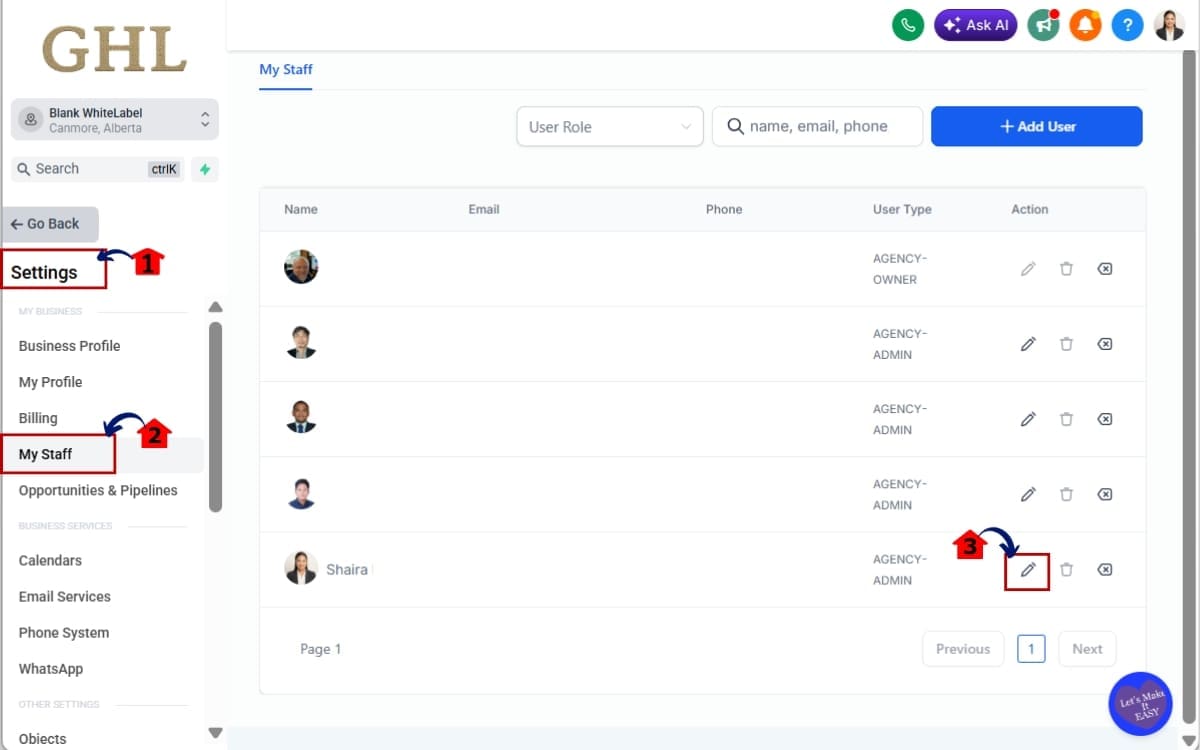
Step 01 – Access the Settings Area and Open a User Profile
- The Settings area is where user accounts, permissions, and account-level configurations are managed within your GHL sub-account.
1.1 Go to the left-hand sidebar. Scroll all the way to the bottom.
- Click on the gear icon labeled “Settings.”
1.2 Click on “My Staff” (or Team Management depending on your view).
- This is where all users inside the sub-account are listed.
1.3 Select the team member you want to edit.
- This opens their user settings panel. Each user profile contains individual permission settings, including the new AI Studio access controls.
Step 02 – Assign AI Studio Permissions
- In this step, you’ll locate the AI Studio permission controls and assign the appropriate level of access for the selected team member.
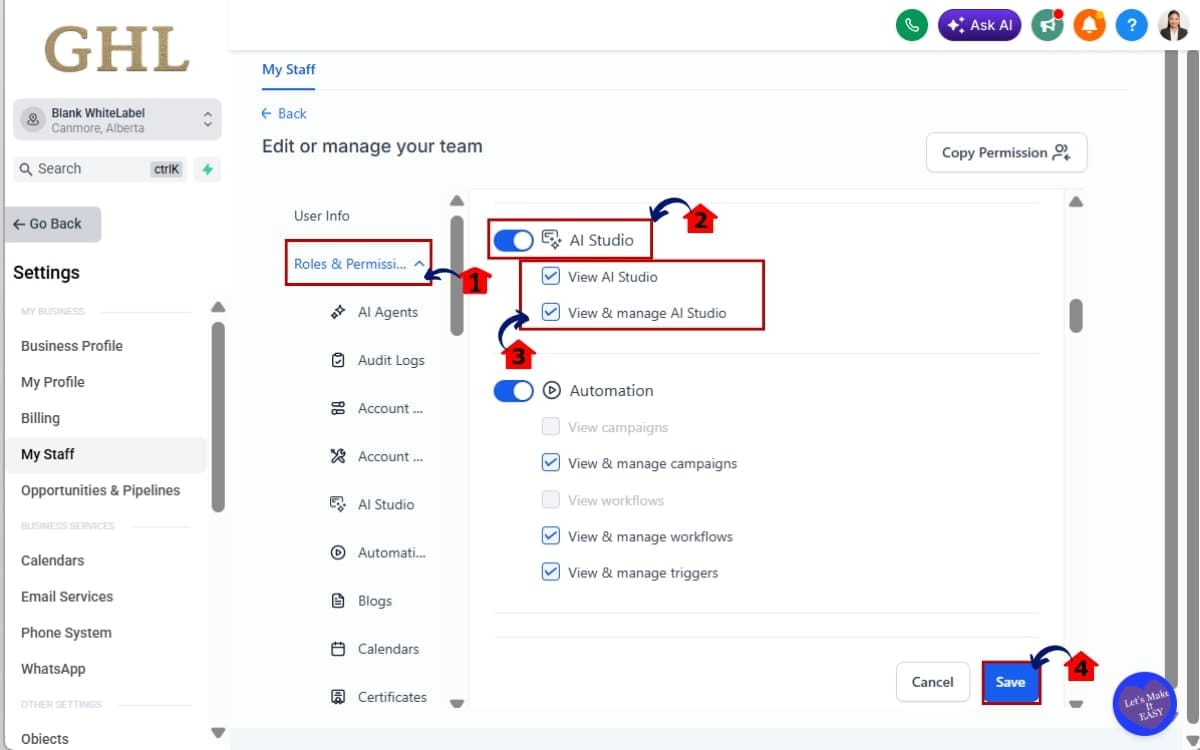
2.1 Locate the Roles and Permissions section inside their profile.
- Scroll down until you see the available permission categories and user access settings.
2.2 Locate “AI Studio Permissions.”
- Look for the dedicated AI Studio permission options within the permissions list.nYou will see two permission options available:
– View AI Studio
-View & Manage AI Studio
2.3 Choose the appropriate permission level.
- Select “View AI Studio” if the user only needs read-only access and Select “View & Manage AI Studio” if the user is responsible for building or editing AI resources.
2.4 Click Save.
- Save the updated permission settings before leaving the page.
Step 03 – Verify Permission Behavior
- This step is optional but recommended for agencies.
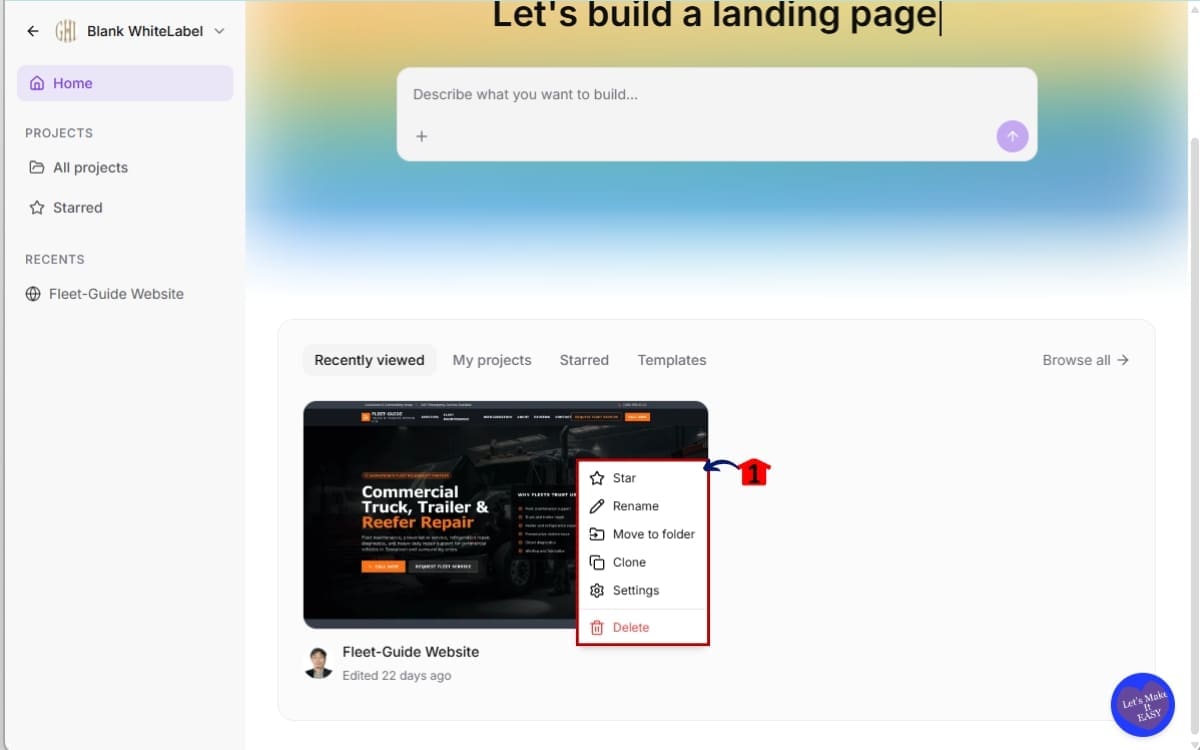
3.1 Navigate to AI Studio. Confirm access level behavior.
If the user has View AI Studio:
- They should be able to see resources.
- Edit, create, or delete options should be restricted.
If the user has View & Manage AI Studio:
- They should have full control.
- All editing and management tools should be available.
Common Mistakes to Avoid
- Giving full access by default to all staff.
- Forgetting to save changes.
- Not testing permissions after assigning.
- Overlapping admin roles that bypass restrictions.
That’s it. You now have structured control over who can interact with AI Studio inside GHL. No more guesswork. No more loose access. Just clean, intentional permission management.
Pro Tips for Managing AI Studio Permissions
AI Studio Permissions are simple to assign. But smart agencies don’t just assign permissions. They design structure.
Here’s how to use AI Studio Permissions like a pro inside GHL.
Use View-Only for Execution Roles
Not everyone needs editing power. Give “View AI Studio” access to:
- Virtual assistants
- Content reviewers
- Client success managers
- Junior automation staff
They can review prompts. They can understand AI logic. But they can’t break anything. This keeps your AI strategy protected.
Limit Full Access to AI Strategists
Only assign “View & Manage AI Studio” to:
- AI leads
- Senior automation builders
- Agency owners
- Technical directors
These are the people responsible for performance, optimization, and system design. Too many managers creates chaos. Fewer decision-makers creates clarity.
Create Role Standards
Instead of assigning permissions randomly, define internal standards. For example:
- Level 1 – View Only
- Level 2 – Workflow Builder
- Level 3 – AI Strategist
It’s worth taking a few minutes to define who gets access to what. Having a clear framework makes onboarding easier and helps avoid permission issues later.
Audit Permissions Quarterly
It’s surprising how often outdated permissions go unnoticed. A quick review every 90 days can help identify unnecessary access and keep your account organized as the business grows.
- Who has View & Manage access
- Who no longer needs access
- Whether permissions align with responsibilities
This protects your agency long-term.
Avoid Blanket Admin Access
The biggest mistake agencies make? Giving everyone admin. Admin overrides structure.
If someone doesn’t need global power, don’t give it to them. AI Studio Permissions work best when you respect separation of responsibilities.
Pair with Audit Logs (If Available)
If you use audit logs inside GHL, combine them with AI Studio Permissions. That way you know:
- Who changed what
- When it was changed
- What was modified
Permissions prevent problems. Audit logs trace them. Together, they create accountability.
Bottom line? AI Studio Permissions aren’t about restriction. They’re about intentional control.
The agencies that scale smoothly are the ones that design internal structure early. And now GHL gives you the framework to do it.
What This Means for Your Business
AI Studio Permissions are not just a settings improvement. They’re a scaling tool.
When your agency grows past a small team, structure becomes everything. Without defined access control, things get messy fast.
Imagine this. You have five team members inside a GHL sub-account:
- One AI strategist
- Two automation builders
- One VA
- One client account manager
Before AI Studio Permissions, if multiple people had high-level access, anyone could modify AI prompts or configurations.
Now imagine this scenario: Your VA opens AI Studio to review messaging. They accidentally edit a core system prompt. The tone shifts. Lead qualification logic changes. Campaign results drop.
Now you’re troubleshooting something that shouldn’t have happened in the first place.
AI Studio Permissions prevent that. With proper assignment:
- Your AI strategist has View & Manage AI Studio
- Your automation builders may have limited management
- Your VA has View AI Studio only
- Your account manager can review but not modify
That separation protects performance. It also protects client trust.
If you’re running white-labeled SaaS inside GHL, this becomes even more important. When clients rely on AI tools for appointment booking, conversations, or workflow automation, you cannot afford accidental edits.
Structured permissions create:
- Cleaner workflow management
- Safer AI experimentation
- Clear ownership of AI logic
- Reduced internal conflict
And most importantly — predictable results. Operationally, this is what mature agencies do.
They define roles. They define authority. They protect core systems.
AI Studio Permissions help you move from “everyone can touch everything” to “only the right people control the engine.”
That’s not restriction. That’s leadership. And leadership is what scales.
FAQs About AI Studio Permissions in GHL
Conclusion – AI Studio Permissions in GHL
AI Studio Permissions in GHL are not just another feature release. They’re a maturity upgrade.
You now have structured control over who can view and who can manage your AI tools. With IAM V2 enforcing permissions at both the interface and system level, access is no longer loose or implied.
It’s intentional. That means:
- Fewer accidental edits.
- Clear ownership of AI logic.
- Safer automation systems.
- Stronger internal governance.
For growing agencies, this is critical. Because as your team expands, informal access breaks down. What worked with two people does not work with ten.
AI Studio Permissions allow you to scale without losing control.
Give visibility where it’s needed. Give authority where it’s earned. Protect the systems that power your automation.
If you’re serious about building structured, scalable operations inside GHL, this is one setting you should configure today.
The team here at GHL Growth Garage was excited to see this one roll out. It’s one of those updates that doesn’t scream flashy… but changes everything under the hood.
Have you set up AI Studio Permissions in your account yet? If not, go assign roles now.
And if you have — what structure are you using for your team? Let us know.
Scale Your Business Today.
Streamline your workflow with GoHighLevel’s powerful tools.

