- Never Miss a Required Step Again with the New AI Workflow Checklist in GoHighLevel
- Quick Summary – AI Workflow Builder Checklist Overview
- What’s New – AI Workflow Builder Now Includes a To-Do List
- How the AI Workflow Builder To-Do List Works
- Why This Matters for Agencies & Automation Builders
- How to Use the AI Workflow Builder To-Do List in GoHighLevel
- Pro Tips to Maximize the AI Workflow Builder
- Frequently Asked Questions About the AI Workflow Builder To-Do List
- Conclusion – Smarter Publishing with the AI Workflow Builder
Never Miss a Required Step Again with the New AI Workflow Checklist in GoHighLevel
The AI Workflow Builder just got a powerful upgrade, and it fixes one of the biggest automation headaches inside GoHighLevel. If you use the AI Workflow Builder to create workflows fast, you know AI can build the structure in seconds. But it still needs human input before everything works correctly.That’s where this new feature comes in. After AI generates your workflow, a built-in To-Do List now appears.
It shows every action and trigger that still needs your attention. If something is missing, you will see it right away. Before this update, it was easy to miss small but critical details. A missing pipeline. An unselected calendar. An integration that was never connected. Those small gaps can break automations or cause contacts to move incorrectly. Now, everything incomplete is clearly highlighted before you publish. That means fewer mistakes, safer automations, and more confidence when you go live.
The new AI Workflow Builder To-Do List ensures every required action and trigger is completed before publishing, reducing automation errors and protecting your workflows from costly mistakes.
Quick Summary – AI Workflow Builder Checklist Overview
Purpose: The AI Workflow Builder To-Do List ensures every required trigger and action is completed before publishing a workflow in GoHighLevel.
Why It Matters: It prevents broken automations, missed integrations, and incorrect pipeline settings that can affect contacts or client campaigns.
What You Get: A built-in checklist that highlights incomplete fields and allows you to jump directly to the exact workflow step that needs attention.
Time to Complete: Clearing the checklist usually takes just a few minutes after generating your workflow.
Difficulty Level: Beginner-friendly. No advanced automation skills required.
Key Outcome: Safer, cleaner, and more reliable workflows created with the AI Workflow Builder.
What’s New – AI Workflow Builder Now Includes a To-Do List
The AI Workflow Builder now includes a post-generation To-Do List that appears immediately after AI creates your workflow. This checklist highlights every action and trigger that still requires human input before publishing.
This feature is built on top of the existing Workflow Highlights system inside GoHighLevel. But instead of scanning the canvas step by step, you now get one clear, consolidated view of everything incomplete.
Automate marketing, manage leads, and grow faster with GoHighLevel.

- If an action needs an account selected, it shows up.
- If a trigger needs a pipeline chosen, it shows up.
- If a wait step needs a defined condition, it shows up.
Nothing hides inside the workflow.
Each item in the list includes a pencil icon. When you click it, you jump directly to that step on the workflow canvas. You don’t waste time searching. You don’t guess which step needs fixing.
Once all required fields are completed, the workflow is ready to publish.
This makes the AI Workflow Builder more reliable. It adds a built-in quality check before anything goes live. For agencies and automation builders, that layer of protection matters.
How the AI Workflow Builder To-Do List Works
The process is simple. But it is powerful.
First, you generate a workflow using the AI Workflow Builder inside GoHighLevel. AI builds the full automation structure based on your prompt. It adds triggers, actions, delays, and conditions.
Once the workflow appears on the canvas, the system runs a quick scan. It checks every trigger and action for required fields that still need human input.
If something is missing, it gets added to the To-Do List.
Instead of hunting through the workflow step by step, you now see one clear checklist. Each item tells you exactly what needs attention. It might be an integration connection, a selected pipeline, a calendar choice, or a defined wait condition.
Next to each item is a pencil icon. Click it, and GoHighLevel takes you directly to that exact step on the workflow canvas. You make the update, save it, and the item clears from the list.
Once all required fields are completed, the checklist is clean.
At that point, your AI Workflow Builder automation is ready to publish with confidence.
Why This Matters for Agencies & Automation Builders
If you build workflows often, you know small mistakes can cause big problems. One missing setting can stop an automation from working. A wrong pipeline can move leads to the wrong stage. An unconnected integration can block payments or emails.
That costs time. And sometimes money.
The AI Workflow Builder is fast. It saves hours of manual setup. But speed without validation can create risk. That is why this update is important.
The new To-Do List acts like a built-in quality check. It forces you to complete required fields before you publish. That means fewer broken automations and fewer support tickets.
For agencies, this is huge. If you manage multiple sub-accounts, mistakes multiply fast. One missed step inside a snapshot can affect every client account.
For VAs and team members, this adds clarity. They do not need to guess what still needs setup. The checklist shows them exactly what to fix.
The AI Workflow Builder is now not just fast. It is safer and more reliable.
How to Use the AI Workflow Builder To-Do List in GoHighLevel
When you generate a workflow using the AI Workflow Builder, GoHighLevel now provides a built-in To-Do List that highlights any missing required fields. This checklist helps you complete all necessary settings before publishing your automation.
In this section, you will learn how to access the AI Workflow Builder, generate a workflow, locate the To-Do List, fix incomplete steps, and publish your workflow safely.
Here are the steps to use the AI Workflow Builder To-Do List inside GoHighLevel:
- Access the Automation section
- Open the Workflows page
- Create a workflow using AI
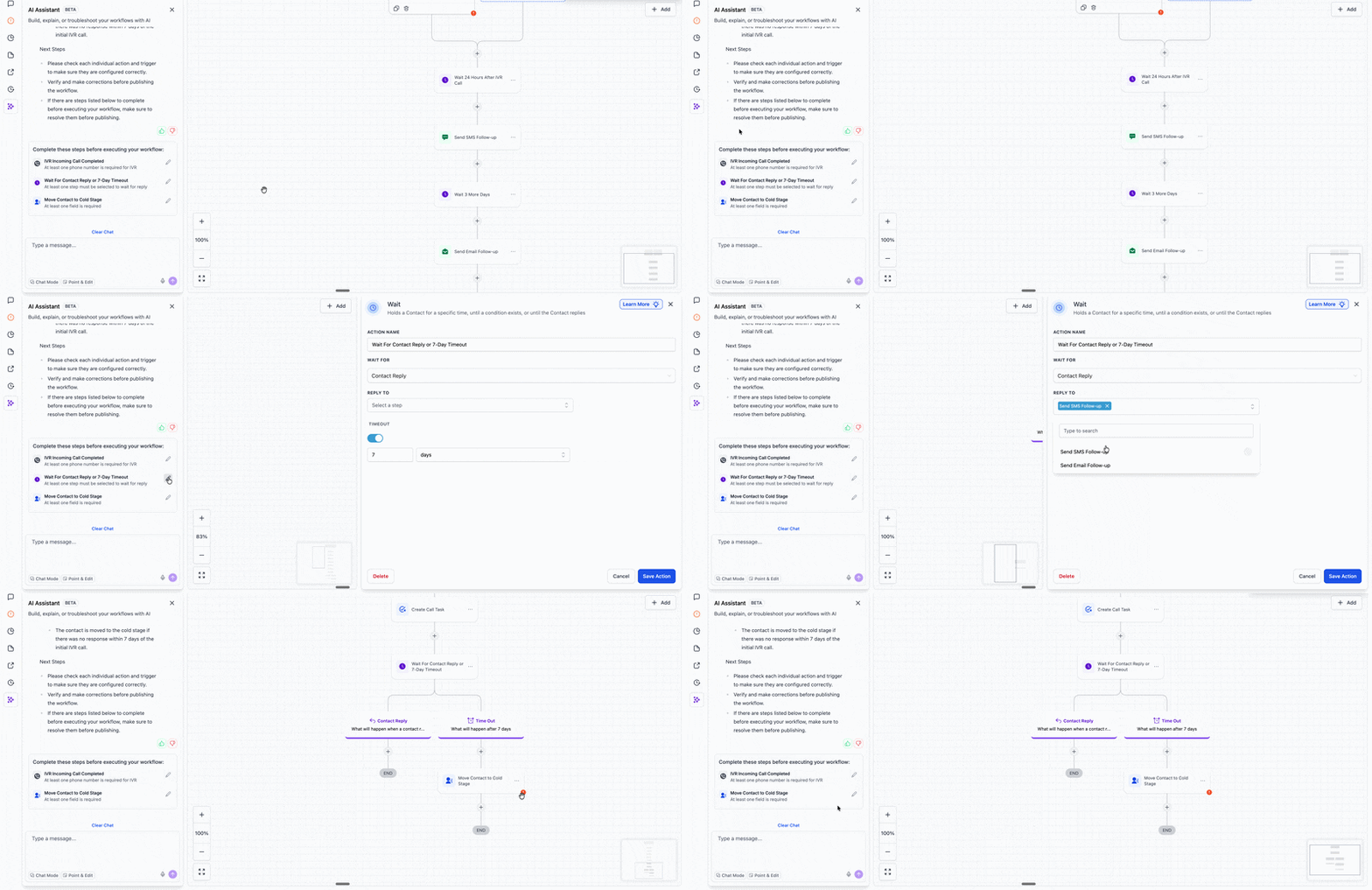
- Locate the To-Do List
- Complete required workflow fields
- Publish and test your workflow
To start make sure you are logged in to your GoHighLevel sub-account.
Step 01 – Access the Workflows page of GoHighLevel
The Main Menu on the Left side of your screen has all the main areas that you work in when using GHL.
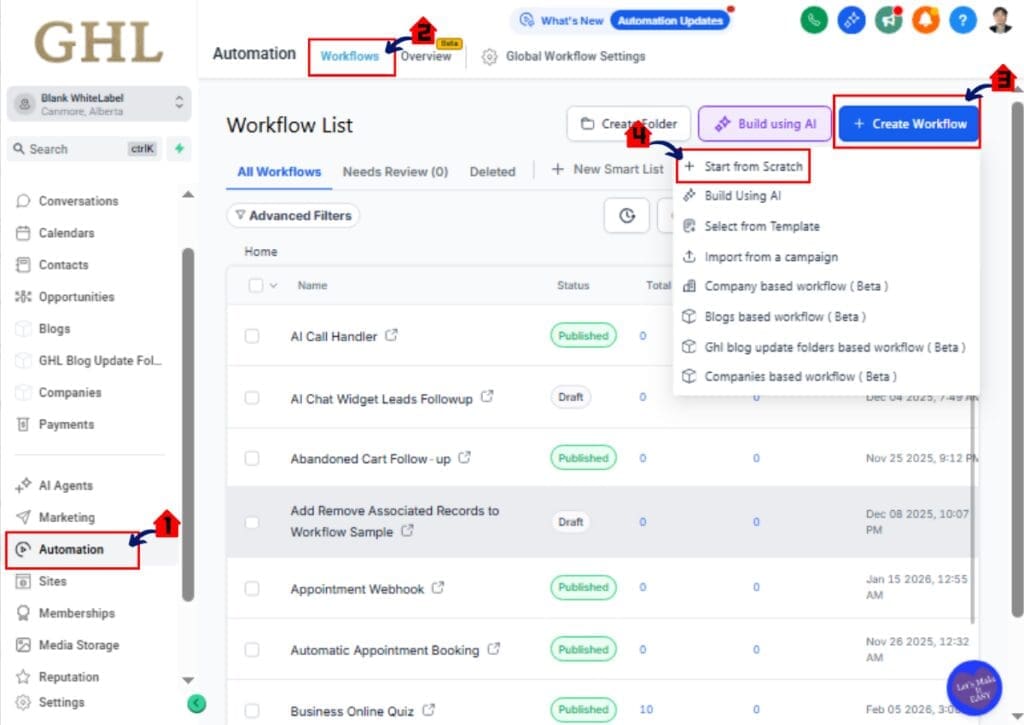
1.1 Click Automation main menu item.
- Inside the Automation section you will find Overview, Workflows, and Global Workflow Settings.
1.2 Click Workflows in the top menu if the Workflow List page is not already showing.
- The Workflow List page contains all your existing workflows.
- You can view workflows organized in folders or create new ones.
1.3 Click the Create Workflow button.
1.4 Select Build Using AI.
- A new screen will open with workflow creation options.
- This opens the AI Workflow Builder prompt window.
Step 02 – Generate Your Workflow
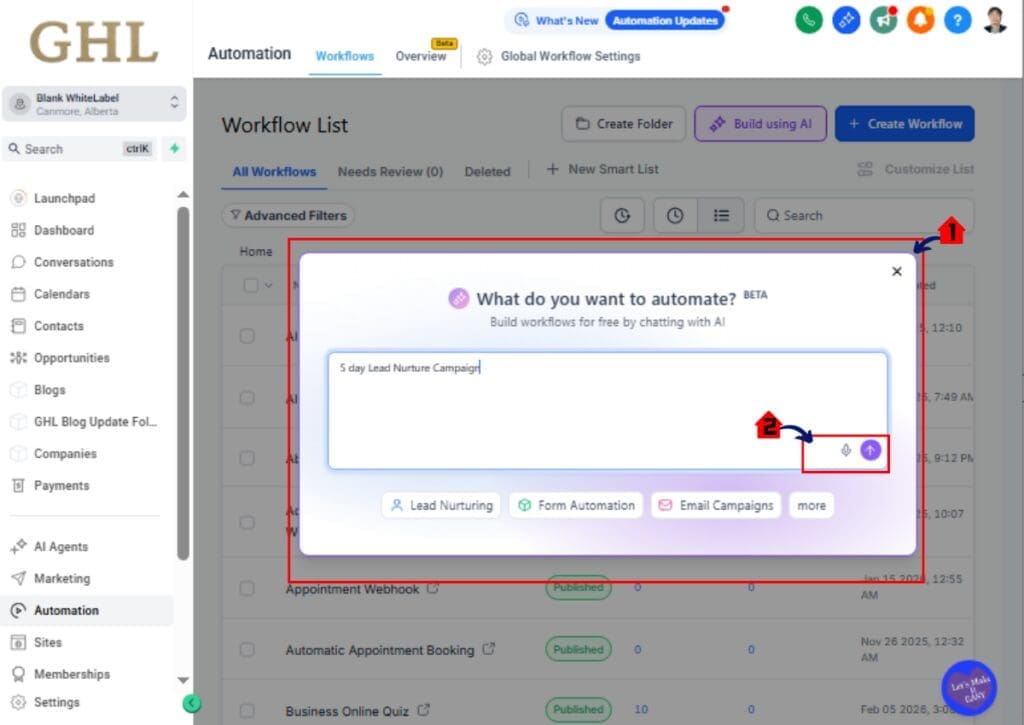
2.1 Enter your automation instructions inside the prompt box.
- Be clear and specific about what you want the workflow to do.
- Example: “Create a 5-day lead follow-up sequence with SMS and email.”
2.2 Click Generate.
- The system will build your workflow automatically.
- The workflow canvas will load with triggers, actions, and delays already added.
Step 03 – Locate the To-Do List Section
4.1 Look for the To-Do List panel after the workflow loads.
- The system automatically scans your workflow for incomplete required fields.
- Any missing settings will appear in this list.
4.2 Review each item carefully.
- Each item represents an action or trigger that needs additional input.
[Include Screenshot of To-Do List panel. Highlight checklist items with yellow bar if needed.]
Step 04 – Complete Required Workflow Fields
4.1 Click the pencil icon next to any item in the To-Do List.
- The system will jump directly to that step on the workflow canvas.
4.2 Fill in the required field inside that action or trigger.
- This may include selecting a Pipeline.
- Choosing an Opportunity Stage.
- Connecting a Payment integration.
- Selecting a Calendar.
- Choosing a From Email.
- Defining a Wait condition.
4.3 Click Save Action after completing the required settings.
- The To-Do List will automatically update.
- The completed item will disappear from the checklist.
Repeat this process until the To-Do List shows no remaining items.
Step 05 – Publish and Test Your Workflow
5.1 Confirm the To-Do List is empty.
- No incomplete items should remain.
5.2 Click Publish in the top right corner.
- Your workflow is now active.
5.3 Add a test contact to confirm the automation works as expected.
- Monitor trigger behavior.
- Confirm messages send correctly.
- Verify pipeline movement if included.
Once complete, your AI Workflow Builder automation is ready to run safely and efficiently.
Pro Tips to Maximize the AI Workflow Builder
The AI Workflow Builder is fast. But speed is not the same as accuracy. The new To-Do List gives you protection, but you still need to use it the right way.
Here are some smart ways to get more value from it.
Always clear the To-Do List before you publish. Even if you think everything looks correct, scan the checklist. Small things like a missing “From Email” or an unselected pipeline can stop your automation from working.
Double-check integrations first. If your workflow includes payments, email, or SMS, confirm the correct account is selected. This prevents failed sends or missed charges.
Review Wait steps carefully. AI may add delays, but you must define the exact condition or duration. If you leave it blank, the workflow can stall.
Train your team to treat the checklist as mandatory. VAs and junior staff should never publish until the To-Do List is empty. This reduces agency-level mistakes.
If you build Snapshots, use the AI Workflow Builder checklist as a quality control step before exporting. Clean workflows protect every future client account.
This feature is not just a reminder. It is your built-in safety net.
Real-World Agency Use Case of the AI Workflow Builder
Let’s make this practical.
Imagine you run a marketing agency. A new client signs up. You need a lead follow-up workflow with SMS, email, and pipeline movement.
Instead of building it from scratch, you use the AI Workflow Builder. You type your instructions, and within seconds the workflow is created.
It looks complete.
But inside that automation, there is a payment trigger that requires a Stripe account. There is also a pipeline action that needs the correct Opportunity Stage selected.
Before this update, you might miss that. You publish. The workflow runs. Payments fail. Leads do not move stages. Now your team is troubleshooting.
With the new To-Do List, those missing items appear instantly. You see “Select Pipeline” and “Connect Integration” listed clearly.
- You click the pencil icon.
- Fix the settings.
- Clear the checklist.
Now you publish with confidence.
For agencies managing multiple sub-accounts, this protects client results. It reduces mistakes. It keeps automations clean.
The AI Workflow Builder is no longer just fast. It is reliable.
Common Mistakes the AI Workflow Builder To-Do List Prevents
Small mistakes inside automations can create big problems. That is why this update matters so much.
One common mistake is publishing a workflow without selecting a Pipeline. The trigger fires, but leads do not move anywhere. Your reporting becomes messy.
Another issue is forgetting to select the correct Opportunity Stage. The workflow runs, but the contact lands in the wrong stage. Now your sales team is confused.
Missing integrations are another big one. If Stripe is not connected, payments fail. If the From Email is not selected, emails do not send. If a Calendar is not chosen, bookings cannot happen.
Wait steps can also cause trouble. If you forget to define the time delay or condition, the automation may stall or behave in ways you did not expect.
Before this update, you had to manually inspect every action and trigger. That takes time. And humans miss things.
Now the AI Workflow Builder highlights these gaps before you publish. It forces you to fix them first.
That means fewer broken automations, fewer support tickets, and smoother client campaigns.
Frequently Asked Questions About the AI Workflow Builder To-Do List
Conclusion – Smarter Publishing with the AI Workflow Builder
The AI Workflow Builder was already a powerful tool inside GoHighLevel. It could build full automations in seconds. But speed without verification can lead to mistakes.
Now, with the built-in To-Do List, you get both speed and safety.
This update makes sure every required action and trigger is completed before you go live. No more missed Pipelines. No more unconnected integrations. No more broken Wait steps hiding inside your workflow.
For agencies, this is a serious upgrade. It reduces errors across sub-accounts. It protects client automations. It saves your team from troubleshooting simple setup issues.
For solo users, it adds confidence. You can move faster without worrying that something small will break later.
The AI Workflow Builder is no longer just a smart assistant. It is a guided system that helps you publish clean, reliable automations every time.
If you have not tested it yet, go build a workflow today and see the difference.
And as always, check back with GHL Growth Garage for more GoHighLevel feature guides that help you build smarter and scale faster.
Have you tried the new checklist yet? Let us know how it is working inside your account.
Scale Your Business Today.
Streamline your workflow with GoHighLevel’s powerful tools.