- Personalize Your Appointments with Custom Calendar Fields
- Quick Summary – Custom Calendar Fields
- Use Custom Calendar Fields Across Services
- Easily Insert Custom Values with the New Selector
- Custom Calendar Fields Make Personalization Easy
- How to Use Custom Calendar Fields
- Get the Most from Custom Calendar Fields
- Common Questions About Custom Calendar Fields
- Why Custom Calendar Fields Matter
Personalize Your Appointments with Custom Calendar Fields
Still sending generic appointment reminders? That’s a missed opportunity. With GHL’s latest update, you can now use custom calendar fields, your own custom values, inside Calendars, Services, and Rentals. No more copy-pasting or relying only on {{contact.name}} and {{appointment.time}}. Now, your calendar settings can reflect your brand voice, your workflow, and your client’s exact details.
Whether you’re a fitness coach, agency, or consultant, this update lets you tailor appointment experiences like never before. Think dynamic session types, locations, staff names, client goals, you name it.
Custom calendar fields help you connect with your clients on a more personal level. Better personalization means fewer no-shows and more trust. And trust drives revenue.
You’ll see exactly what changed, where to find it, and how to start using it without getting stuck.

Customize your appointment flows with the exact info that matters, automatically. With access to your own fields in the calendar setup, you’ll save time and make every client message feel personal.
Quick Summary – Custom Calendar Fields
Purpose: This update allows users to insert their own custom values into calendar titles, meeting locations, and reminders across GHL Calendars.
Why It Matters: It enables deep personalization for appointment workflows without manual edits or workarounds.
What You Get: A searchable “Custom Values” section in the calendar merge tag selector, supporting all your sub-account-level fields.
Time to Complete: Setup takes less than 10 minutes, especially if your custom values are already defined.
Difficulty Level: Easy. No coding or complex configuration required, just a few clicks inside the Calendar builder.
Key Outcome: Stronger branding, more personal communication, and increased show-up rates through fully dynamic calendar setups.
Use Custom Calendar Fields Across Services
Here’s what just dropped inside GoHighLevel: your custom values, the ones you create, are now available throughout the entire Calendars setup.
Before this, you could only use default system fields like {{contact.name}}, {{appointment.start_time}}, or {{location.name}}. Helpful, sure, but limited. If you wanted to personalize appointment titles with the service name, staff name, or anything unique to your process, you had to do it manually or find a workaround.
Automate marketing, manage leads, and grow faster with GoHighLevel.

Now? You can plug your own fields directly into:
- Appointment titles
- Meeting location fields
- Confirmation and reminder messages
- Calendar Service settings
- Even within rental booking structures
This includes any field you’ve defined in your Sub-Account > Custom Values section. That means appointment workflows can now reflect your brand, your processes, and your client’s details, without extra work.
What’s even better? These values aren’t just “available”, they’re searchable. The selector now includes a Custom Values section and a search bar, making it easy to find the exact merge tag you need.
This update turns static calendar setups into dynamic, fully personalized booking flows.
Easily Insert Custom Values with the New Selector
The first thing you’ll notice? The merge field selector just got a serious upgrade.
When you’re editing calendar settings, like appointment titles, meeting locations, or confirmation emails, you’ll now see a new “Custom Values” section inside the dropdown menu.
Here’s what’s changed:
- Custom Values Are Now Visible: Your sub-account-level custom values now appear directly in the merge field selector. No more guesswork or manual input.
- Search Bar Added: Need to find a custom value quickly? Just start typing. The search functionality helps you pull up the right value instantly, especially helpful if you’ve got dozens.
- No More Limitations: Previously, the selector was hard-coded to only show system values. That’s gone. Now it supports any value you’ve created in the Custom Values manager.
This means when you write “Appointment with {{custom.full_name}} at {{custom.gym_location}},” it just works. The system automatically pulls the right value based on the contact or booking context.
It’s cleaner. It’s faster. And it eliminates one of the most frustrating personalization bottlenecks in the calendar builder.
Custom Calendar Fields Make Personalization Easy
If you book clients for anything, services, coaching, or consults, this update’s going to save you some serious time.
Because generic just doesn’t cut it anymore. Your clients want to feel like you actually know them, not like they’re booking with a robot.
Here’s why custom calendar fields are a game-changer:
- More Personal, Less Robotic – Add specific service types, locations, staff names, or even client goals directly into booking confirmations and reminders.
- No More Manual Workarounds – You no longer need to hardcode details or duplicate calendar services just to customize titles or instructions.
- Stronger Brand Consistency – Align the client experience across your site, emails, and booking flows by using custom fields that reflect your exact language and offers.
- Higher Show-Up Rates – Personalized messages aren’t just nice, they drive action. The more specific the reminder, the less likely a client is to flake.
Whether you’re running 1-on-1 strategy calls, therapy sessions, classes, or rentals, this feature lets you automate personalization at scale, without breaking your setup.
You’ll come across more polished, save time on setup, and give your clients a better experience, without the tech headaches.
How to Use Custom Calendar Fields
Want your appointment titles or reminders to include your client’s location, service name, or coach? This update makes it easy to inject that custom data right into your calendar setup, no hacks or copy-paste needed. You can now personalize calendars with custom values in just a few quick steps.
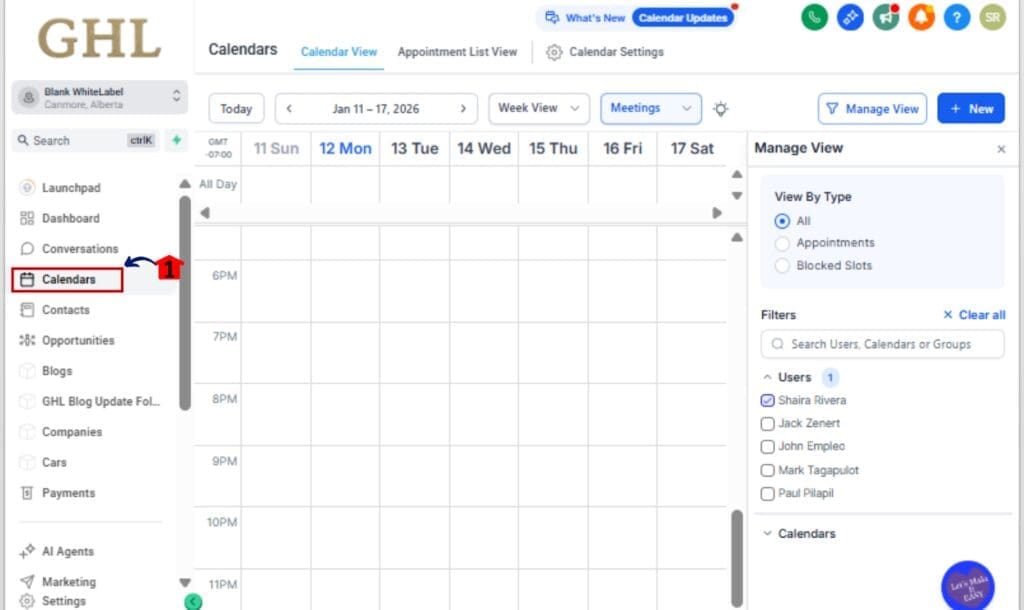
Step 01 – Open the Calendar Settings
1.1 Go to your GHL Sub-Account.
1.2 On the left, select “Calendars.”
1.3 Choose the one you need to tweak or personalize.
Step 02 – Choose a Field to Personalize
2.1 Inside the calendar setup, locate a field like:
– Appointment Title
– Meeting Location
– Confirmation Message
– Email or SMS Reminder Content
2.2 Click inside the text box.

Step 03 – Launch the Custom Value Selector
3.1 Click the {} merge field selector icon.
3.2 In the dropdown, scroll to the new “Custom Values” section.
3.3 Or type in your field name to search quickly.

Step 04 – Insert the Custom Field
4.1 Select your custom value (e.g., {{custom.session_type}}) from the list.
4.2 It will now be embedded into the field dynamically.

Step 05 – Create or Edit Custom Values (If Needed)
5.1 Navigate to Sub-Account Settings > Custom Values.
5.2 Click “+ Add Custom Value.”
5.3 Give it a clear name and default value (e.g., coach_name = Sarah Smith).

Step 06 – Test Your Booking Flow
6.1 Open your calendar link and book a test appointment.
6.2 Verify the appointment title, meeting details, and reminders show the correct custom values.

That’s it. You’ve now got a personalized, automated calendar experience, built exactly for your brand.
Get the Most from Custom Calendar Fields
Used well, custom fields can save time and seriously boost personalization. Used wrong? They’ll just create confusion. Here’s how to stay on track.
Use Clear and Consistent Naming
When creating new custom values, keep the naming short and intuitive. For example:
- {{custom.coach_name}} is better than {{custom.coachassignedtothisuser}}
Clean naming helps when scanning through the selector later.
Standardize Fields Across Calendars
If you use the same field across multiple calendars (like gym_location), keep the field name consistent. This makes it easier to replicate settings or include them in Snapshots.
Preview Messages Before Sending
Always run a test booking. Check how your appointment title or reminder message renders with the custom value. Typos in field names won’t resolve and could confuse clients.
Update Values at the Sub-Account Level
If your default value for a custom field (like meeting_platform) changes, update it in the Custom Values settings so all automations stay in sync.
Pair with Workflows for Automation
Use these custom values alongside workflows to auto-send reminders, trigger internal notifications, or add notes, all based on dynamic field content.
Snapshot Ready? Double Check!
When adding these to a reusable system, ensure your custom values are included in the Snapshot so they carry over for future use.
This small update can give your calendar flows a big upgrade, if you set it up intentionally.
Common Questions About Custom Calendar Fields
Why Custom Calendar Fields Matter
This update may seem small, but the impact is huge.
This update gives you full control over how your bookings show up, titles, reminders, and all, without adding more work to your plate.
No more generic messages. No more duplication. No more hacks.
Instead, you get:
- Tailored appointment titles that reflect your actual services
- Dynamic reminders that feel personal and specific
- Faster calendar builds with less manual editing
- Improved brand consistency across every client touchpoint
This is the kind of change that quietly boosts client satisfaction, increases show-up rates, and keeps your systems running clean behind the scenes.
If you’re serious about automation and scaling your agency, custom calendar fields should be in your toolkit today.
Scale Your Business Today.
Streamline your workflow with GoHighLevel’s powerful tools.