- This scoped deletion update keeps your main website pages intact and makes the “Delete Store” vs “Delete Website” difference clear in GHL.
- Quick Summary – Delete Store Essentials
- What’s New: Delete Store Deletes Only Store Pages
- What Changed When You Delete Store in GoHighLevel
- Why This Matters: Delete Store Without Panic
- How To Use Delete Store Safely in GoHighLevel
- Pro / Quick Tips: Delete Store Without Breaking Stuff
- What This Means for Your Business: Delete Store With Less Risk
- Results You Can Expect After You Delete Store
- Frequently Asked Questions About Delete Store
- Delete Store Is Finally Predictable
This scoped deletion update keeps your main website pages intact and makes the “Delete Store” vs “Delete Website” difference clear in GHL.
Delete Store without site loss
Delete Store should remove a store, not your whole website in GoHighLevel. If you have ever clicked it and felt that sinking feeling, you are not alone. This update makes the action safer and easier to trust.
Now, when you delete a store, GHL only deletes store pages. That includes the Products List, Product Details, Cart, Checkout, and Thank You pages. Your main website pages like Home, About, Services, and Contact stay in place.
The behavior is also consistent everywhere. It works the same whether you delete from the Stores list or inside Store Settings, and the confirmation message is clearer. Quick reminder: Delete Store removes store pages only, but Delete Website still deletes the entire website and any store pages tied to it.

With the new scoped Delete Store behavior in GoHighLevel, you can remove store pages (product list, product details, cart, checkout, thank you) without touching your core website pages. It’s a simple safety win that helps agencies avoid client disasters and keeps cleanup predictable.
Quick Summary – Delete Store Essentials
Purpose: This post explains the updated Delete Store behavior in GoHighLevel and what it removes when you delete a store.
Why It Matters: Delete Store now deletes only store pages, which reduces the risk of accidentally deleting a full website during store cleanup.
What You Get: You get a clear breakdown of what changes with Delete Store, plus a step-by-step process to delete a store the safe way using the updated confirmation flow.
Time To Complete: Most users can complete the Delete Store process in about 2 to 5 minutes, plus a quick link check after.
Difficulty Level: This is beginner-friendly, but it should be limited to trusted team members since deletion is permanent.
Key Outcome: You can delete a store without impacting your main website pages while keeping a clear separation between Delete Store and Delete Website in GoHighLevel.
What’s New: Delete Store Deletes Only Store Pages
Delete Store now works the way most people expected it to work in GoHighLevel. When you delete a store, GHL removes only the pages tied to that store. It will not touch the rest of your website.
Here’s what gets removed when you Delete Store:
Automate marketing, manage leads, and grow faster with GoHighLevel.

- Products List page
- Product Details page
- Cart page
- Checkout page
- Thank You page
Your main website pages stay in place. Pages like Home, About, Services, and Contact will not be affected by this store deletion update.
This change is also consistent no matter where you start. If you delete from the Stores list using the three-dot menu, you get the same result as deleting from inside Store Settings. That means fewer surprises for you and anyone on your team.
One important detail did not change. If you delete a website from the Websites section, GoHighLevel will still delete the entire website, including any store pages tied to it. The platform now keeps a clearer separation between “Delete Store” and “Delete Website.”
Lastly, the delete confirmation message is clearer, so you can see what will be removed before you confirm. That small UI change helps prevent the kind of mistake that causes real damage.
What Changed When You Delete Store in GoHighLevel
Delete Store used to feel like a high-risk button because the results were not always clear. You might have been trying to remove a store, but you still worried it could take more with it. This update tightens that up and makes the outcome predictable.
Here’s the core change. When you Delete Store, GoHighLevel now deletes only the pages that belong to the store. These are the pages GHL creates to run ecommerce, like product pages and checkout steps. Your regular website pages are treated as separate, so they stay put.
Before vs after looks like this:
Before
- Deleting a store could feel unsafe because it was not always clear what would be removed.
- Some users worried it could impact the wider website.
After
- Delete Store removes only store pages: Products List, Product Details, Cart, Checkout, and Thank You.
- Your main pages like Home and About are not impacted.
Delete Website is still a different action, and it still deletes the whole website, including any store pages tied to it. The confirmation message is also clearer now, so you can see that you are deleting store pages only before you type DELETE and confirm.
Why This Matters: Delete Store Without Panic
Delete Store is one of those actions that can go wrong fast if the platform is not clear about what gets removed. For agencies, one bad delete can turn into a support fire, a rebuild, and an uncomfortable client call. This update removes that risk by keeping store deletion scoped to store pages only.
Here’s what you get out of it:
- Fewer “oops” moments when cleaning up ecommerce builds.
- Less fear when a VA or team member is doing maintenance.
- More confidence when you need to remove a test store or an old store setup.
- Cleaner websites, because you can remove store pages without touching core pages like Home and About.
This is especially useful when you are:
- Rebuilding a client website but keeping the main site pages live.
- Removing a temporary store used for a short promo.
- Cleaning up a duplicated sub-account where a store was created by mistake.
- Managing multiple sites and stores in the same location and you need clear separation.
Bottom line: Delete Store should be a safe tool. This change makes it safer, and it makes the platform easier to manage as you scale.
How To Use Delete Store Safely in GoHighLevel
Delete Store is done inside the Stores area under Sites. You will open the Stores list, choose the store, open the action menu, and confirm deletion by typing DELETE. The new confirmation message also makes it clear that only store pages will be removed, not your main website or funnel pages.
Here are the steps to Delete Store in GoHighLevel.
- Open the Stores list.
- Open the store action menu.
- Confirm Delete Store by typing DELETE.
To start make sure you are logged in to your GoHighLevel sub-account.
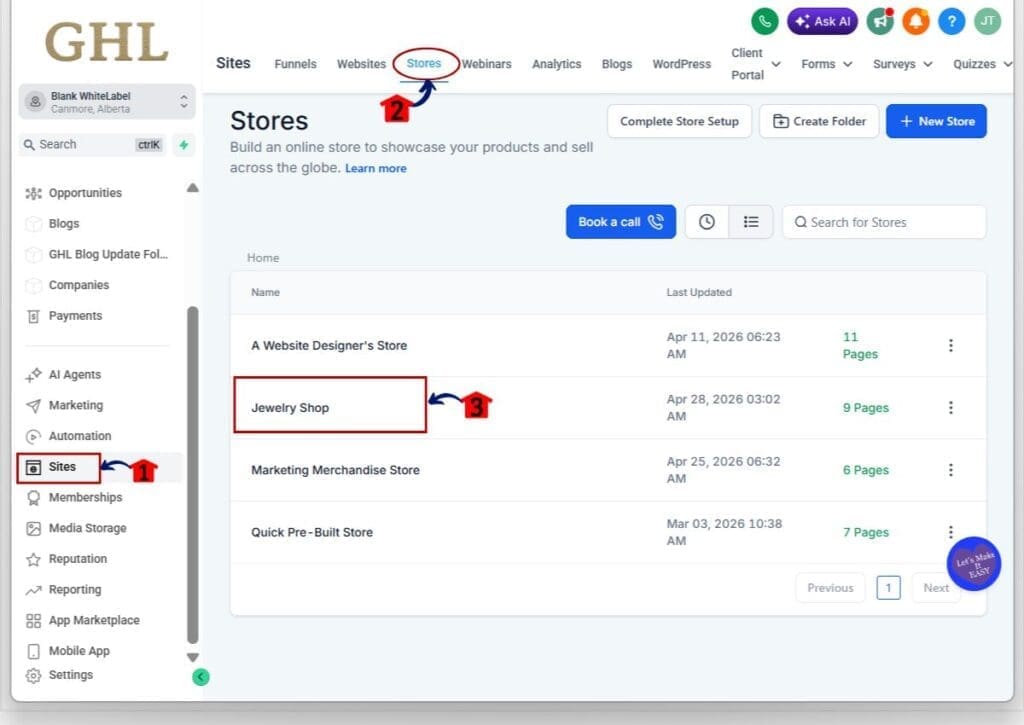
Step 01 – Open the Stores list
- The Main Menu on the left side of your screen has all the main areas that you work in when using GHL.
1.1 Click Sites in the left-hand menu.
- This opens the Sites section.
1.2 Click Stores in the top Sites menu.
- This opens the Stores list.
1.3 Find the store you want to delete.
- This is the store you are removing from this sub-account.
Step 02 – Open the store action menu
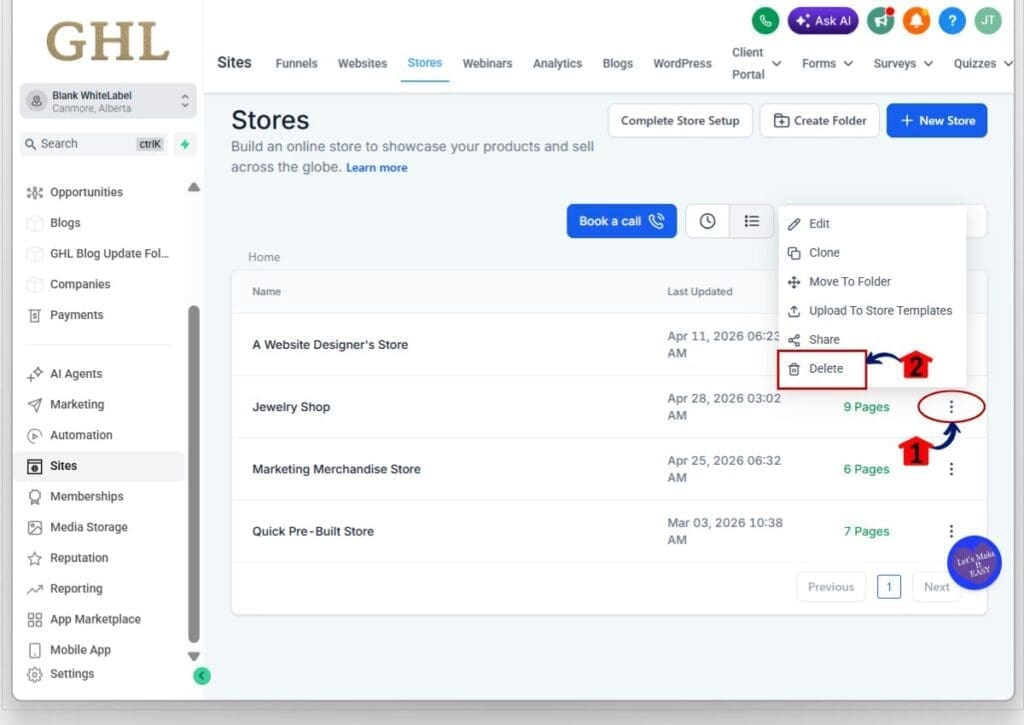
2.1 Find the three-dot menu on the far right of the store row.
- This is the actions menu for that store.
2.2 Click the three-dot menu.
- This opens the dropdown actions list.
2.3 Click Delete in the dropdown actions list.
- This opens the Delete store confirmation window.
Step 03 – Confirm Delete Store by typing DELETE
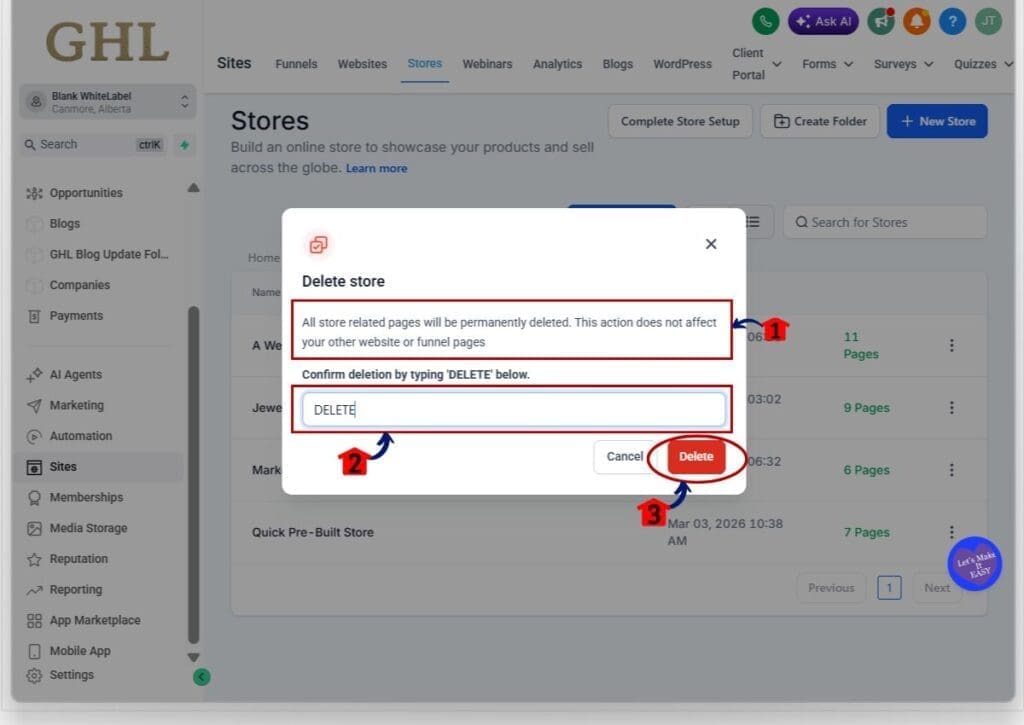
3.1 Read the confirmation message in the Delete store window.
- It should say store-related pages will be deleted and your other website or funnel pages will not be affected.
3.2 Type DELETE in the input box.
- This confirms you want to proceed.
3.3 Click Delete button.
- The store will be deleted and only store pages will be removed.
Pro / Quick Tips: Delete Store Without Breaking Stuff
Delete Store is safer now, but it is still a permanent action. If you manage client accounts, you want this to be boring and predictable every time. A couple of quick checks make sure it stays that way.
First, confirm you are in the right sub-account and looking at the right store name. Then glance at the Pages count beside the store. It is a simple sanity check before you click Delete Store, especially when you have several stores that look similar.
After the delete, do a fast sweep for links. If your website menu, buttons, or funnels point to Cart, Checkout, or other store pages, update them so visitors do not hit a dead page. And keep this straight: Delete Store removes store pages only, but Delete Website still removes the entire website.
What This Means for Your Business: Delete Store With Less Risk
Delete Store is one of those small updates that saves you from a big mess. If you manage client accounts, you already know the real cost of a bad delete. It is not the click. It is the scramble after, the rebuild, and the client trust hit. This change makes store cleanup safer, so your team can move faster without stepping on a landmine.
It also makes your internal process easier to manage. When Delete Store behaves the same from every entry point, you can write one SOP and stick to it. That matters when you have VAs, new hires, or contractors working inside GoHighLevel. You do not have to guess what will be removed based on where they clicked.
The practical win is simple. You can remove ecommerce pages you no longer need, while keeping the main website pages intact. That keeps client sites stable, reduces support tickets, and helps you avoid downtime during rebuilds or migrations. And if you really do want everything gone, Delete Website is still the correct tool for that job.
Results You Can Expect After You Delete Store
Delete Store now gives you a clean and predictable outcome. The store is removed, and only store pages like Products List, Product Details, Cart, Checkout, and Thank You are deleted. Your main website pages stay in place, so the rest of the site keeps running like normal.
You should also see fewer support issues caused by confusion. The delete message is clearer, and the behavior is consistent whether you delete from the Stores list or from Store Settings. That consistency lowers the chance of a team member making the wrong assumption about what will happen.
For agencies, the biggest result is peace of mind during cleanup. You can remove test stores, old store builds, or unused ecommerce pages without risking a full site wipe. If you actually need everything deleted, that is still handled by Delete Website in the Websites section.
Frequently Asked Questions About Delete Store
Delete Store Is Finally Predictable
Delete Store should have always been a scoped action, and now it is. When you delete a store in GoHighLevel, only store pages are removed. Your main website pages stay intact, and the delete behavior is consistent no matter where you trigger it.
For agencies, this is a quiet but important safety upgrade. It lowers the risk of accidental site damage, makes team training easier, and keeps cleanup work simple. If you want to remove a store, use Delete Store. If you want to remove everything, use Delete Website.
That is the main takeaway. Cleaner deletes, fewer surprises, and a lot less stress when you are maintaining client accounts. Check back to the GHL Growth Garage blog for more GoHighLevel updates and step-by-step guides.
Scale Your Business Today.
Streamline your workflow with GoHighLevel’s powerful tools.