- Introduction – Edit Service Appointments in GHL
- Quick Summary – Edit Service Appointments
- What’s New – Full Control Over Appointment Edits
- Why This Matters – Save Time and Reduce Booking Friction
- How to Edit Service Appointments in GHL
- Quick Tips – Make the Most of the Update
- FAQ – Your Questions Answered
- Results You Can Expect – From This GHL Calendar Update
- Conclusion – Try Editing Appointments Today
Introduction – Edit Service Appointments in GHL
Updating appointments shouldn’t feel like starting over. If you’ve ever canceled and rebooked just to make a quick change, this update is for you.
You can finally edit service appointments in GHL without wiping them out and starting over. Whether it’s changing the provider, updating the time, or adding a discount, it’s now a quick fix, not a full rebuild.
This update makes managing appointments way easier. Here’s how it works.

This GHL update lets you edit service appointments without canceling or rebooking. Whether it’s fixing a time, swapping staff, or applying a coupon, you can now make changes instantly, saving time and keeping your clients happy.
Quick Summary – Edit Service Appointments
Purpose: This update allows GHL users to edit unpaid Edit Service Appointments without canceling or rebooking, saving time and reducing friction.
Why It Matters: It streamlines scheduling workflows, prevents duplicate bookings, and makes managing appointments faster and more client-friendly.
What You Get: The ability to change services, staff, time, coupons, and more directly from the appointment screen, plus a duplicate option for paid bookings.
Time to Complete: Less than 1 minute per edit.
Difficulty Level: Beginner, just a few clicks from inside your calendar.
Key Outcome: You’ll save time, clean up your calendar workflows, and offer a smoother experience to both staff and clients.
What’s New – Full Control Over Appointment Edits
The new GHL update gives you full editing power over unpaid Edit Service Appointments. No more canceling and rebooking. Now, you can:
- Add or remove services
- Update add-ons
- Change appointment title, date, time, and timezone
- Switch staff or service variants
- Apply or adjust coupon codes
- Change the location
Automate marketing, manage leads, and grow faster with GoHighLevel.

And all of this happens directly in the appointment modal, just click the pencil icon, make your changes, and hit save. Simple as that.
What about paid appointments? Those still have restrictions on major edits (like changing the service or assigned staff), but GHL added a new shortcut: Duplicate Appointment. You can now clone a paid booking, tweak the details, and rebook it fast, without starting from scratch.
Even better, GHL clearly shows what can and can’t be edited inside the modal, so there’s no guessing or frustration.
Why This Matters – Save Time and Reduce Booking Friction
Before this, updating an appointment meant deleting it entirely and creating a new one. It made even simple fixes feel like a chore.
Now, with the ability to edit service appointments in place, the workflow is faster, cleaner, and way more client-friendly.
Here’s why it matters:
- You’ll move faster. Change anything mid-stream, no duplicate records, no lost time slots.
- Clients stay informed. Their appointment gets updated, not erased.
- Fewer errors = better results. It’s easy to fix what needs fixing before it becomes a problem.
- Improves operational flexibility. Especially helpful for salons, clinics, coaches, and any service-based business juggling schedules on the fly.
For agencies managing calendars across multiple client accounts, this update reduces admin overhead and makes GHL even more of a no-brainer platform for service providers.
How to Edit Service Appointments in GHL
If you’ve ever had to cancel and rebook an appointment just to tweak a service, time, or staff member, this update is for you. Now you can edit unpaid Edit Service Appointments directly, without starting over. Follow these quick steps to make edits fast and friction-free:
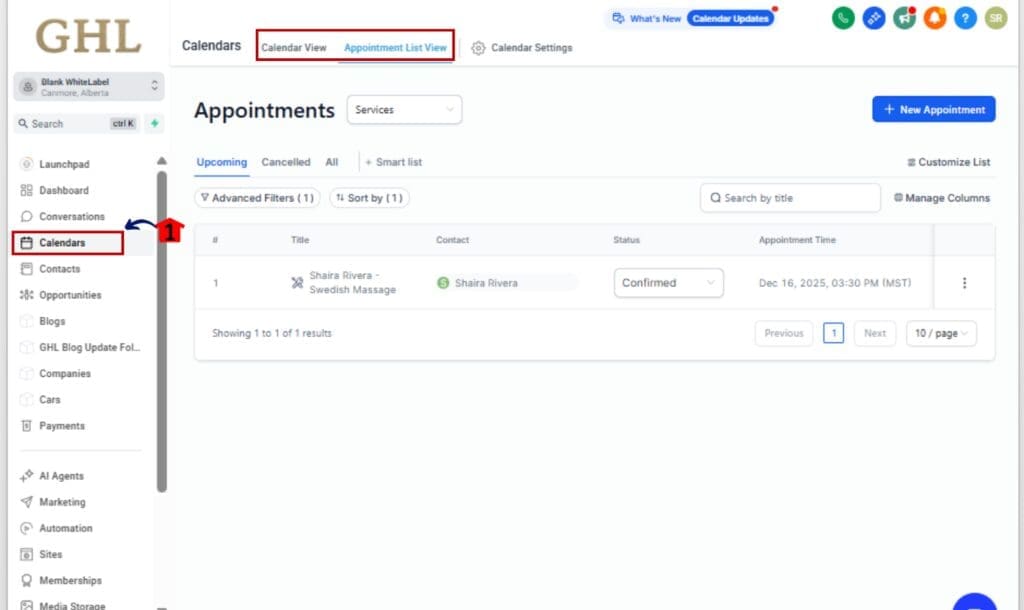
Step 01 – Open the Calendar in GHL
1.1 From your GHL dashboard, go to the left-hand menu.
1.2 Click on Calendars.
1.3 Choose either Calendar View or Appointment List View.
Step 02 – Select a Edit Service Appointments
2.1 Click on any unpaid Edit Service Appointments you want to edit.
2.2 This opens the appointment detail screen.

Step 03 – Click the Edit (Pencil) Icon
3.1 Look to the top-right of the appointment window and hit the pencil icon.
3.2 That’ll open up everything you can change on the booking.

Step 04 – Make Your Changes
4.1 You can update any of the following:
- Services
- Add-ons
- Staff or Service Variant
- Appointment Title
- Date, Time, or Timezone
- Location
- Coupon Code

Step 05 – Save the Appointment
5.1 After making changes, click Save.
5.2 Your updated appointment is live instantly, no cancellations or client confusion.

What About Paid Appointments?
If the appointment is already paid, major fields like services or staff can’t be changed, but:
- You’ll now see a Duplicate Appointment button.
- Click it to clone the appointment, adjust details, and rebook without hassle.
Quick Tips – Make the Most of the Update
This update isn’t just about editing, it’s about working smarter with your schedule. Here’s how to squeeze every drop of efficiency from it:
Use Duplicate for Repeat Clients
Paid appointment? No problem. Just hit Duplicate, tweak the service or time, and rebook. It’s perfect for regulars who want “the usual” with one small change.
Don’t Forget Add-Ons
Need to make a quick change to the services included? You can easily add or remove extras now, no need to start over. This is ideal for businesses with flexible offerings.
Know the Limits
Editing is wide open for unpaid appointments, but remember, paid ones still can’t change structural elements like service or staff. GHL makes this super clear inside the modal.
Work Faster with Calendar Filters
Use Calendar View filters to jump straight to the right team member, service, or time block. This makes finding and editing appointments lightning fast.
Hold Tight for Mobile Access
Just a note, mobile support isn’t available yet. For now, all appointment edits need to be done on desktop.
FAQ – Your Questions Answered
Results You Can Expect – From This GHL Calendar Update
This feature may seem simple, but the ripple effect is massive. When you streamline appointment editing, everything else gets easier, fast.
Here’s what you can expect after rolling it out:
- Faster calendar management for your team or your clients
- Fewer appointment errors, no more forgetting to reapply settings when rebooking
- Improved client satisfaction from seamless scheduling updates
- Higher rebooking rates thanks to the Duplicate feature
- Cleaner CRM records, no more clutter from canceled/recreated bookings
- More professional user experience inside your white-labeled portal
You save time, your calendar runs cleaner, and your clients walk away satisfied. Hard to beat that combo.
Conclusion – Try Editing Appointments Today
This update might just become your new favorite time-saver.
No more canceling or rebooking just to fix a detail. GHL now lets you adjust appointments on the spot, which means smoother days and fewer headaches, whether you’re handling a packed schedule or just want things to run more efficiently.
Remember:
- It’s live now on the web app
- Paid appointments? Use the Duplicate feature
- Mobile support is on the way
Log in, try it out, and pass this on to your team or clients. They’ll thank you the next time a client asks, “Can you just move me to Thursday?”
Scale Your Business Today.
Streamline your workflow with GoHighLevel’s powerful tools.