- Import emails from any platform or inbox, convert them instantly with Email AI, then optimize and launch faster without rebuilding.
- Quick Summary – Email Template Import Overview
- What’s New: Email Template Import in GHL
- What’s Changed: Email Template Import in GHL
- Why This Matters: Email Template Import in GHL
- How to Use Email Template Import in GHL
- Pro / Quick Tips for Email Template Import in GHL
- Common Issues (Email Template Import in GHL)
- Frequently Asked Questions about Email Template Import in GHL
- Results You Can Expect (Email Template Import in GHL)
- Conclusion: Email Template Import in GHL
Import emails from any platform or inbox, convert them instantly with Email AI, then optimize and launch faster without rebuilding.
Email Template Import in GHL
Email template import in GHL fixes one of the most annoying parts of moving accounts. If a client’s best emails are stuck in HubSpot, Mailchimp, ActiveCampaign, or even just sitting in your inbox, you usually have to rebuild them by hand. That takes time and slows down your launch.
Now you can bring those emails into GHL and turn them into fully editable templates in minutes. You import the email; Email AI converts it, and you can start editing right away. No copying blocks, no messy rebuild, and no guessing what the original layout was supposed to be.
You’ll find this under Marketing → Emails → Templates once Email AI is enabled in Labs. After the import, you can update branding, fix links, and tighten the copy before you send. It’s a simple way to move faster while keeping what already works.
With Email template import in GHL, you can turn any email from your inbox or an old platform into an editable template in minutes. That means faster client onboarding, quicker campaign launches, and less time rebuilding what already works.
Quick Summary – Email Template Import Overview
Purpose: This post shows how Email template import in GHL lets you convert any email into a fully editable template using Email AI.
Why It Matters: It removes the need to rebuild emails by hand when you onboard a client or move campaigns from another platform.
What You Get: You get a repeatable import workflow plus a clean template you can edit, brand, and reuse inside GHL.
Time To Complete: Most imports and clean-up take about 5 to 10 minutes per email, depending on formatting and links.
Difficulty Level: Easy, as long as Email AI is enabled and you run a quick test send after import.
Key Outcome: You can launch emails faster, keep proven messaging, and spend more time optimizing instead of rebuilding.
What’s New: Email Template Import in GHL
Email template import in GHL now lets you take almost any email and turn it into a clean, editable template inside Email AI. That includes emails from HubSpot, ActiveCampaign, Mailchimp, and other tools. It also includes emails already sitting in your inbox.
The big change is you do not have to rebuild the email layout by hand. You send or forward the email to the import address, and Email AI converts it into a template you can edit right away. Once it is inside GHL, you can tweak the design, update the copy, and adjust links like a normal template.
Automate marketing, manage leads, and grow faster with GoHighLevel.

This is especially useful when onboarding a new client. You can bring in their best-performing emails on day one, then make quick updates to match their new offers and branding. It helps you launch faster while keeping the parts that already work.
What’s Changed: Email Template Import in GHL
Email template import in GHL changes the work from “rebuild” to “convert.” Before, if you wanted a proven email inside GHL, you had to copy text, rebuild sections, re-add buttons, and then fix spacing until it looked right. That was slow, and it was easy to miss details.
Now the process is much simpler. You start an import in Templates, copy the dynamic email ID, then send or forward the email you want to bring in. Email AI converts it into a template you can edit inside GHL, so you can make updates right away instead of starting from zero.
This also makes migrations smoother. When a client moves platforms, you can pull in their best emails quickly, clean them up, and get campaigns live sooner. It keeps momentum high during onboarding and helps you deliver faster without cutting corners.
Why This Matters: Email Template Import in GHL
Email template import in GHL matters because time is usually the first thing you lose during onboarding. A client shows up with years of emails in another platform, and you have two bad choices. You either rebuild everything from scratch, or you launch with a rushed setup and fix it later. Both options slow results.
This update removes that bottleneck. You can import a client’s best emails in minutes, then edit them like normal inside GHL. That means you keep the structure, the messaging, and the offer flow that already worked. You just clean it up, update the brand, and move on.
For agencies, this is also about consistency. You can create repeatable template packs by niche, reuse proven layouts, and still tailor the copy per client. You will spend less time rebuilding and more time improving the parts that actually change performance.
How to Use Email Template Import in GHL
Email template import in GHL is done in two places: the Settings area (to enable Email AI) and the Templates page (to import and convert the email).
Here are the steps to import an email and convert it into a fully editable template.
- Access the Settings area in GoHighLevel.
- Enable Email AI in Labs.
- Open the Templates page.
- Start an Import in Templates.
- Copy and send the dynamic email ID.
- Choose the editor and create the template.
To start, make sure you are logged in to the correct GoHighLevel sub-account.
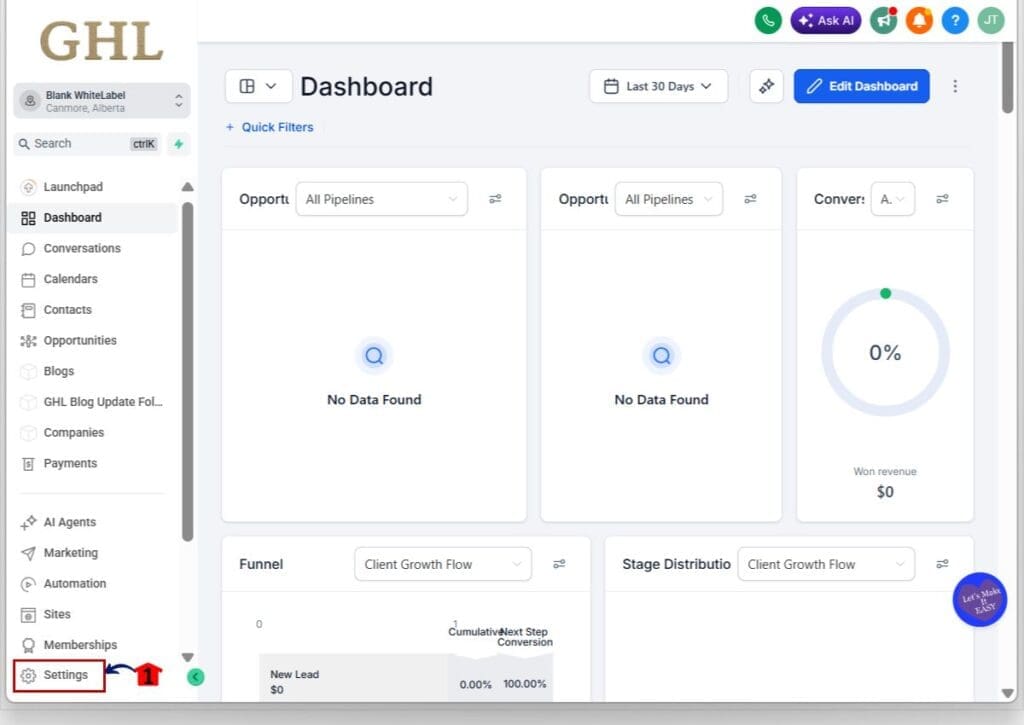
Step 01 Access the Settings area in GoHighLevel
- Go to the bottom of the Main Menu on the left-hand sidebar.
1.1 Click Settings (gear icon).
- This opens the Settings dashboard.
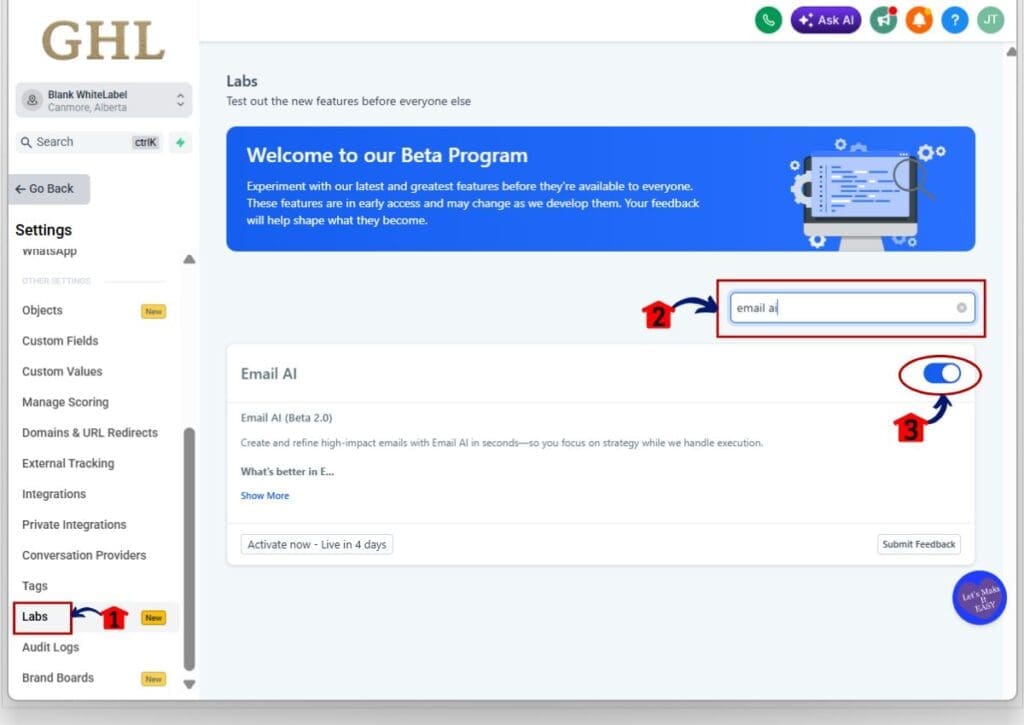
Step 02 Enable Email AI in Labs
- You must enable Email AI before you can use Email template import in GHL.
2.1 In Settings, click Labs.
- This opens the Labs page with feature toggles.
2.2 Find the Email AI using the search bar.
2.3 Turn Email AI using the toggle on.
- This enables Email AI features for the sub-account.
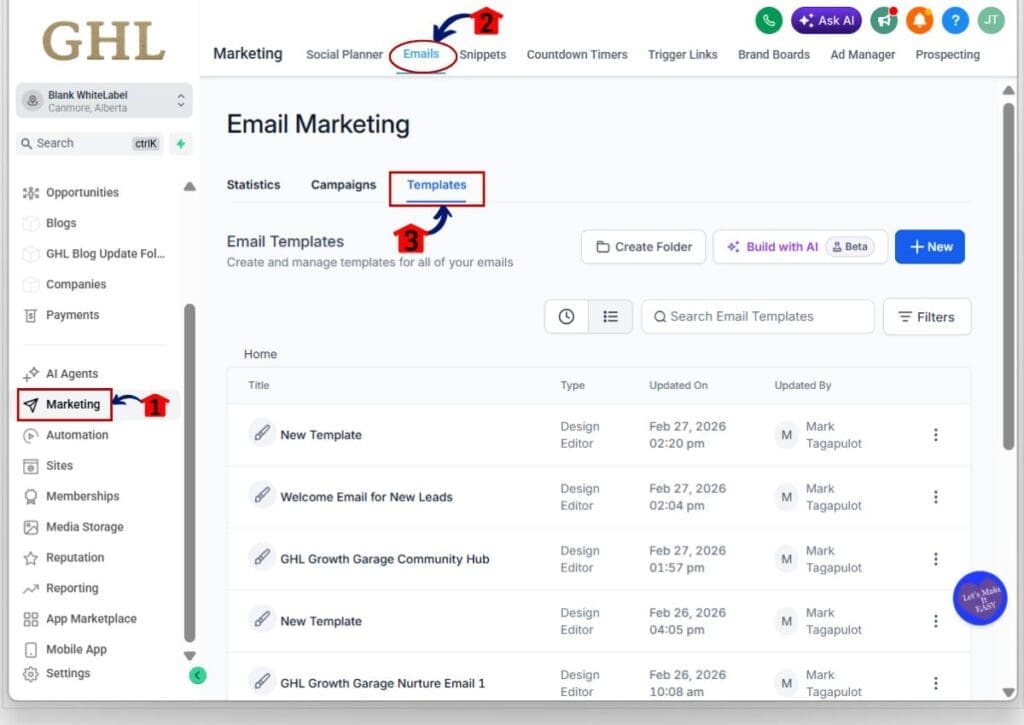
Step 03 Open the Templates page
- This is where you create and manage reusable email templates.
3.1 Click Marketing in the Main Menu.
3.2 Click Emails.
3.3 Click Templates.
- This opens the Templates page.
Step 04 Start an Import in Templates
- This is where you generate the import address for your email.
4.1 On the Templates page, click New.
- This opens the New template options.
4.2 Click Import Email.
- This opens the Import section and shows a dynamic email ID.
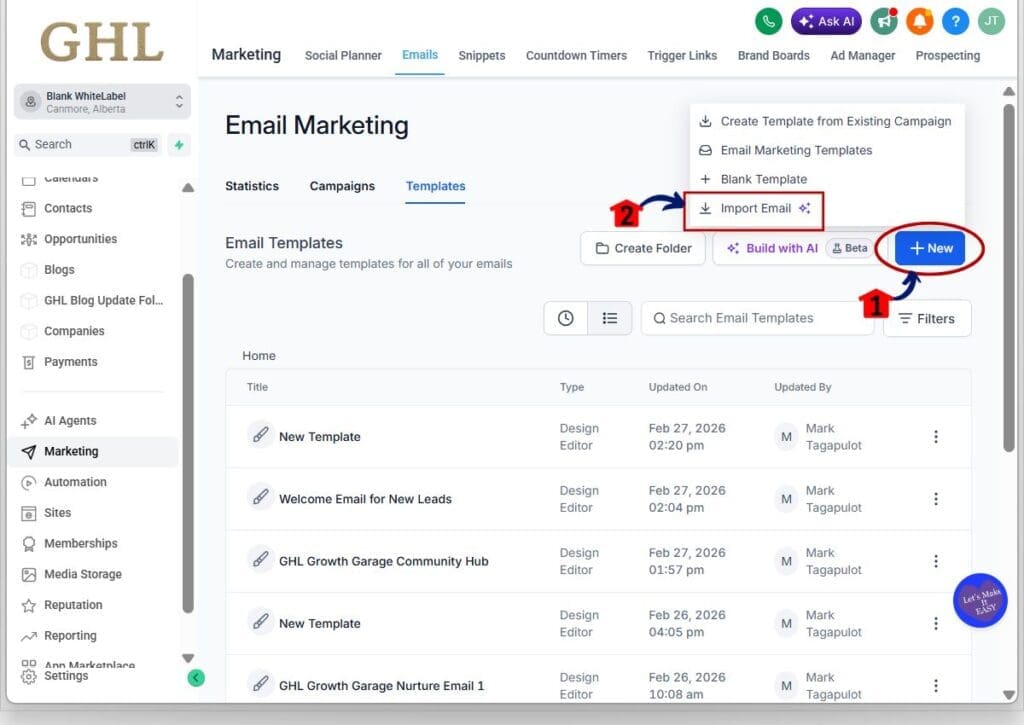
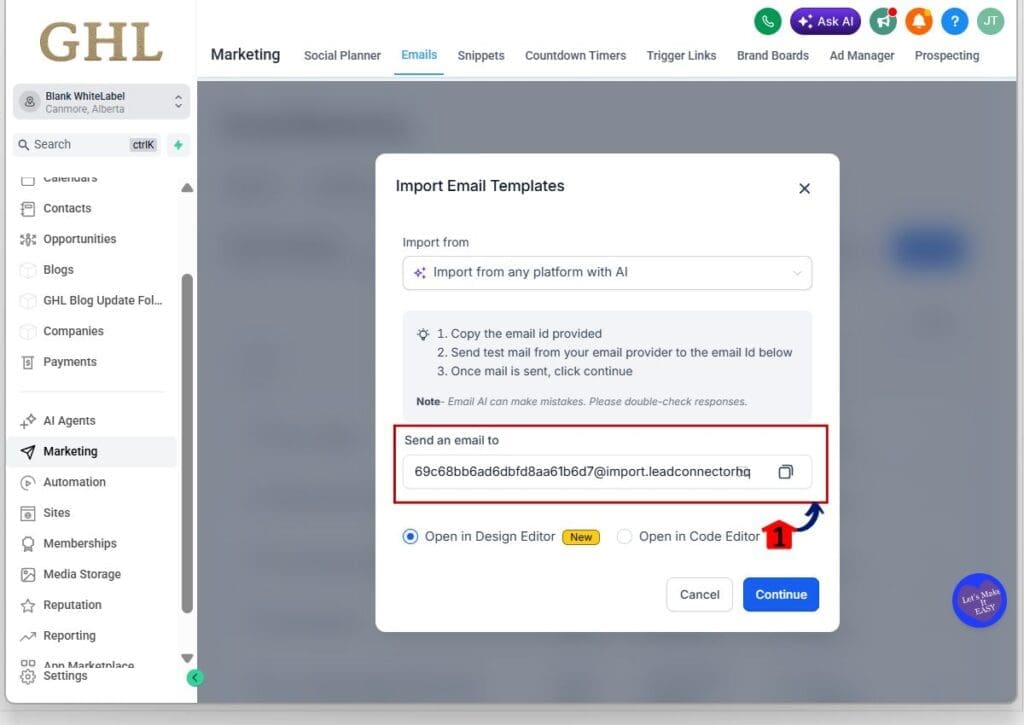
Step 05 Copy and send the dynamic email ID
- You will send your email to this address so GHL can convert it.
5.1 In the Import section, copy the dynamic email ID.
- This copies the import address you will use in the next step.
5.2 Forward the email you want to import to the dynamic email ID, or send it as a test email to that dynamic email ID.
- GHL receives the email and prepares it for conversion.
Step 06 Choose the editor and create the template
- This is where the email becomes a fully editable template.
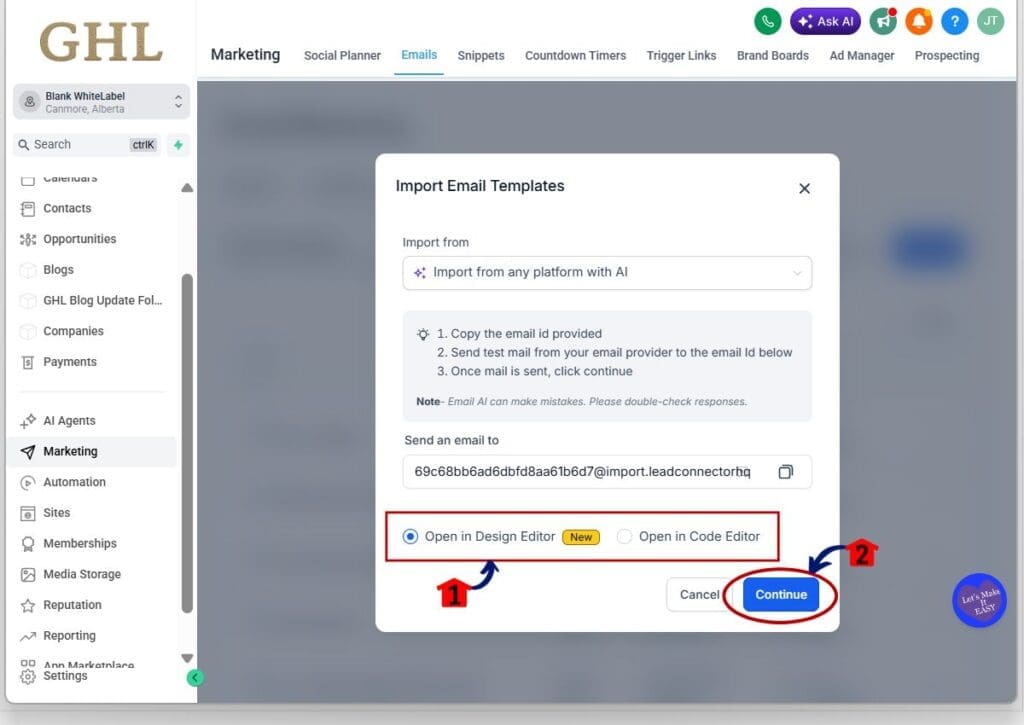
6.1 Continue the Import flow and select the editor you want to import into.
- This sets which editor your new template will use.
6.2 Click Continue button.
- This moves you to the final create step.
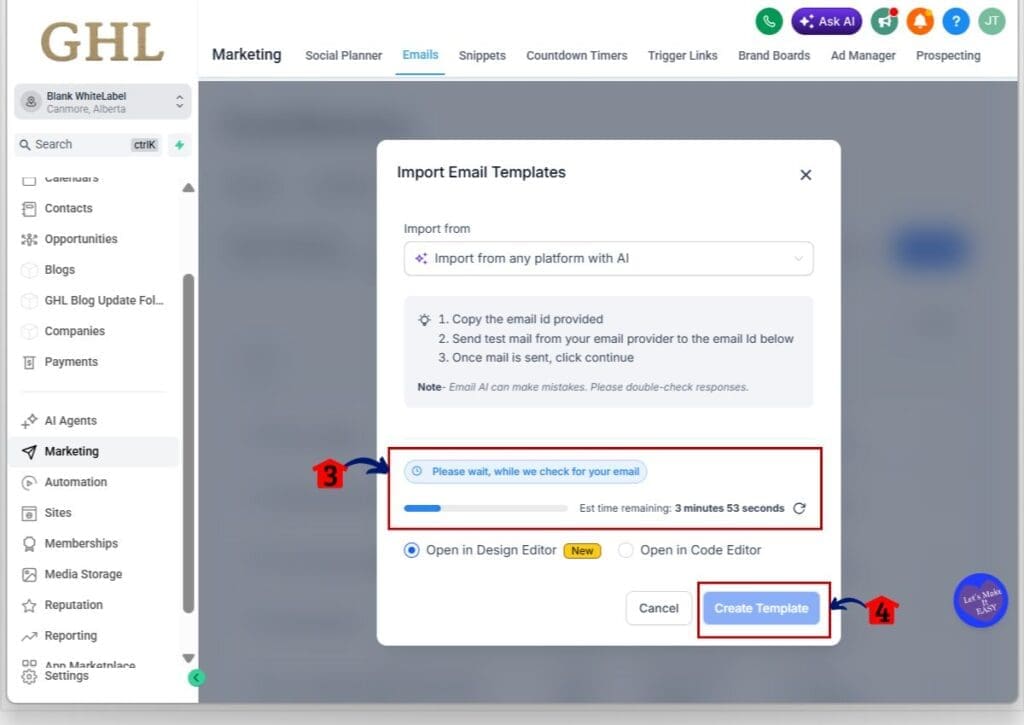
6.3 Wait while it loads.
6.4 Click Create Template button.
- This creates the editable template and saves it in Templates.
Pro / Quick Tips for Email Template Import in GHL
Email template import in GHL works best when you start with emails that already proved themselves. If you are onboarding a client, ask for their top 5 to 10 emails by opens, clicks, or booked calls. Import those first, then build the rest later. This gives you faster wins without creating a big cleanup project.
Always do a quick brand pass right after the import. Swap the logo, colors, footer details, and any address or compliance lines. Many imported emails still show the old platform’s styling or an outdated footer, so this step protects your client and keeps things consistent.
Watch for links and buttons. Some emails include tracking links from the old provider. After import, click every button and link inside the template and update them if needed. If you are using personalized links, make sure the right tokens or merge fields are in place before you send.
Pick a simple naming system so your templates stay organized. For example: “ClientName | Offer | Stage | Date” or “Niche | Type | Version.” This matters more than people think, especially when you are storing many templates across sub-accounts.
If you are importing an email you like from outside your business, treat it as a starting point, not a copy job. Change the structure, rewrite the copy in your client’s voice, and replace all brand elements. Use Email AI to help you rewrite sections, tighten the message, and create a second version for testing.
Common Issues (Email Template Import in GHL)
Email template import in GHL is quick, but you should still do a short review before you send. Most problems come from formatting, tokens, and links that do not carry over perfectly from the original platform.
First, check the layout on desktop and mobile. Some emails import with extra spacing, odd line breaks, or buttons that look off. Send yourself a test email, then adjust padding, fonts, and button spacing until it looks clean.
Next, scan for personalization and URLs. If the original email used merge fields from another tool, replace them with the correct GHL custom values. Also click every link and button to make sure you are not using old tracking links, and re-upload any images that do not load correctly.
Frequently Asked Questions about Email Template Import in GHL
Results You Can Expect (Email Template Import in GHL)
Email template import in GHL helps you move faster right away, especially during client onboarding. Instead of spending hours rebuilding old emails, you can bring in proven messages in minutes. That means you can get campaigns live sooner and avoid delays that slow down the first wins.
You can also expect better consistency across accounts. Once you import and clean up a few strong templates, you can reuse layouts, keep branding tight, and build a reliable starting library for each niche. Your team spends less time on design busywork and more time improving copy, offers, and follow-ups.
Over time, this makes testing easier too. Since templates become fully editable, you can quickly create variations, adjust subject lines, and refine calls to action without starting over. The end result is simpler production and faster iteration inside GHL.
Conclusion: Email Template Import in GHL
Email template import in GHL removes the slowest part of email setup. You can take a real email from a past platform or your inbox, convert it into an editable template, and get to work right away.
For agencies, this makes onboarding smoother and faster. You can bring over a client’s best-performing emails, clean them up, and launch without spending days rebuilding layouts.
If you want a simple next step, pick one proven email today and import it into GHL. Edit the branding, check links, send a test, and then use it in a campaign or workflow.
Scale Your Business Today.
Streamline your workflow with GoHighLevel’s powerful tools.