- AI Studio Forms Can Now Trigger GHL Workflows
- Quick Summary – AI Studio Forms
- Here are this week's HighLevel Updates 🚀
- What’s New With AI Studio Forms
- Why AI Studio Forms Matter for GHL Users
- How to Use AI Studio Forms in GHL Workflows
- Quick Tips for AI Studio Forms and Workflows
- What AI Studio Forms Mean for Your Business
- AI Studio Forms – FAQs
- Put AI Studio Forms to Work in GHL
AI Studio Forms Can Now Trigger GHL Workflows
AI Studio Forms just got a much stronger connection to GoHighLevel automation. You can now use the dedicated AI Studio Form Submitted trigger to start a GHL Workflow automatically whenever a visitor submits a connected form on an AI Studio website.
GHL Workflows are great at taking a new lead and handling what happens next without someone on your team manually moving things along. But getting an AI Studio form submission into the right automation needs a reliable starting point.
That’s where the new AI Studio Form Submitted trigger comes in.
Open a Workflow and you can now add the AI Studio Form Submitted trigger as the starting point for your automation. When someone submits a connected AI Studio form, GHL can start the Workflow and move that contact straight into your follow-up process.
AI Studio Forms get even more useful once you start adding actions after that trigger. You could send an email or SMS, notify your sales team, add a contact tag, create an opportunity, or build a longer lead nurturing sequence.
That could mean a prospect submits a quote request and immediately receives a confirmation message while your sales team gets notified. Or you could tag the contact as an AI Studio lead, create an opportunity in the right pipeline, and start a follow-up sequence without anyone touching the contact record.
There’s also some good news if you’re already using External Tracking. The existing External Tracking script and trigger will continue to work alongside the new AI Studio Form Submitted trigger. You don’t have to treat this update as a replacement for your existing External Tracking setup.
There is one important catch for older AI Studio Forms. If your form was connected before this new trigger was released, you’ll need to refresh its tracking setup before using the new trigger. That means re-triggering the form integration inside AI Studio, reconnecting CRM tracking, publishing the project, and submitting a test entry.
AI Studio Forms now give agencies a cleaner way to connect AI-built websites with GHL automation. Instead of collecting a form submission and figuring out what happens afterward, you can have your Workflow ready to take over as soon as that lead comes in.
For agencies using AI Studio to build lead-generation websites, that’s a useful step forward. You can capture the lead, automate the follow-up, alert your team, and move the opportunity forward using the GHL Workflows you’re already building.
The latest GoHighLevel Changelog includes several other GHL feature updates that round out your daily workflow:
- Wait Action Enhancement: TikTok DM Replies
- India Recurring Mandate Support for Affiliate Indian Signup Pages
- Housecall Pro – More Workflow Actions & Triggers
- Email Services Dashboard for Agencies
- Email Sequences Now Available in Beta Labs
- Group Your Contacts by Source in Dashboards & Reporting
- MMLite Adoption Banner in Conversations
Keep reading for much more on all these updates and a deep dive into the AI Studio Forms feature!
Quick Summary – AI Studio Forms
Purpose: AI Studio Forms can now use the dedicated AI Studio Form Submitted trigger to start GHL Workflows automatically when a visitor submits a connected form.
Why It Matters: You can move new AI Studio leads into your follow-up process immediately instead of relying on someone to manually handle each form submission.
What You Get: The trigger can start a Workflow that sends emails or SMS messages, notifies your team, adds contact tags, creates opportunities, and handles additional follow-up actions.
Time to Complete: A basic AI Studio Forms Workflow should only take a few minutes to configure and test. Existing forms may take a little longer because their CRM tracking connection needs to be refreshed first.
Difficulty Level: Beginner-friendly. If you’re already comfortable creating basic GHL Workflows, the new trigger should be straightforward to add and configure.
Key Outcome: AI Studio Forms can become the starting point for a complete automated lead follow-up process, helping your team respond consistently while reducing manual work.
Here are this week’s HighLevel Updates 🚀
Wait Action Enhancement: TikTok DM Replies
What’s New:
Instead of continuing after a fixed delay, your workflow can pause until someone replies to your TikTok DM.
Where in GHL:
Found in Automation → Workflows using the Wait action after sending a TikTok DM.
Automate marketing, manage leads, and grow faster with GoHighLevel.

Impact:
Your automation responds when someone actually joins the conversation, rather than after a timer runs out.
Recommended For:
Anyone using TikTok DMs to start conversations with potential customers.
India Recurring Mandate Support for Affiliate Indian Signup Pages
What’s New:
Supports recurring payment mandates for Indian affiliates, helping subscriptions comply with local banking requirements.
Where in GHL:
Available on Affiliate Program signup pages for users in India.
Impact:
Creates a smoother signup experience while reducing payment failures for recurring subscriptions.
Recommended For:
Agencies, SaaS businesses, and affiliate programs onboarding customers in India.
Housecall Pro – More Workflow Actions & Triggers
What’s New:
Adds new workflow triggers and actions for the Housecall Pro integration, giving you more ways to automate field service processes.
Where in GHL:
Inside Automation → Workflows when using the Housecall Pro integration.
Impact:
Expands automation possibilities between HighLevel and Housecall Pro, reducing manual work and improving operational efficiency.
Recommended For:
Home service businesses, field service companies, and agencies managing Housecall Pro clients.
Email Services Dashboard for Agencies
What’s New:
Introduces a centralized dashboard where agencies can monitor email services across their accounts.
Where in GHL:
Found in the Agency View under the new Email Services Dashboard.
Impact:
Makes it easier to monitor email health, identify issues, and manage deliverability from one place.
Recommended For:
Agency owners, support teams, and admins managing multiple client email services.
Email Sequences Now Available in Beta Labs
What’s New:
Introduces Email Sequences as a Beta Labs feature, providing another way to create structured email follow-up campaigns.
Where in GHL:
Enable it from Settings → Labs, then access Email Sequences after activation.
Impact:
Cuts down the time spent checking different areas just to see how your email services are performing.
Recommended For:
Marketers, agencies, coaches, and businesses running nurture campaigns or onboarding emails.
Group Your Contacts by Source in Dashboards & Reporting
What’s New:
Lets you organize contact reports based on where your leads originated.
Where in GHL:
Available within Dashboards & Reporting when viewing contact analytics.
Impact:
Makes it easier to compare lead sources and identify which marketing channels are producing the best results.
Recommended For:
Marketing teams, agency owners, and businesses tracking campaign performance across multiple lead sources.
MMLite Adoption Banner in Conversations
What’s New:
Displays a helpful banner inside Conversations to encourage users to adopt the new MMLite messaging experience.
Where in GHL:
Appears within the Conversations module for eligible accounts.
Impact:
Helps users discover and transition to MMLite while highlighting its benefits directly inside the messaging interface.
Recommended For:
Current HighLevel users exploring the latest messaging experience and teams preparing to migrate to MMLite.
What’s New With AI Studio Forms
There’s now a simpler way to connect AI Studio Forms with your GHL automations. When someone fills out a connected form on your AI Studio website, the new trigger can kick off a Workflow right away.
That gives you a clear starting point for automating what happens after the form submission.
Once you’ve added the AI Studio Form Submitted trigger, decide what you want to happen next. GHL can send a message, alert your team, tag the new contact, create an opportunity, or handle several of those jobs in the same Workflow.
Say you’ve built a lead-gen site for a client using AI Studio. Someone lands on the site and asks for a quote. From that one submission, GHL can confirm the request, give the sales team a heads-up, tag the lead, and put a new opportunity into the pipeline.
The big change here is the dedicated trigger. You no longer have to rely only on the existing External Tracking functionality when you want an AI Studio form submission to start automation.
External Tracking isn’t disappearing, though. The existing External Tracking script and trigger will continue to work alongside the new option. That gives you another way to build your automation without forcing you to immediately replace an External Tracking setup that already works.
Just remember that AI Studio Forms connected before this trigger was released need an extra refresh before they can use it. We’ll cover that process step by step later in this guide.
Why AI Studio Forms Matter for GHL Users
AI Studio Forms matter because collecting the lead is only the first part of the job. What happens immediately after someone submits the form can make a much bigger difference to your sales process.
A new form entry doesn’t have to sit around until somebody spots it. The trigger can send that contact straight into your GHL Workflow, so the follow-up gets moving while the lead is still fresh.
For an agency, that opens up plenty of practical options. You could notify a client’s sales team about a new inquiry, send the lead an immediate confirmation message, apply a tag for easier tracking, or create an opportunity so the lead appears in the correct pipeline.
You can also combine those actions into one automated process. A new lead could submit an AI Studio form, receive an SMS, get tagged based on the form source, enter a lead nurturing sequence, and appear as a new opportunity for the sales team.
That helps remove some of the small manual jobs that are easy to miss when things get busy.
It also makes AI Studio Forms more useful as part of a complete lead generation system. You’re not just building a website and collecting contact details. You’re connecting that website to the GHL automation that handles the next stage of the customer journey.
For agencies managing multiple client accounts, that can mean faster follow-up, a more consistent process, and fewer leads sitting around waiting for someone to take action.
How to Use AI Studio Forms in GHL Workflows
Setting up AI Studio Forms to trigger a GHL Workflow is straightforward. You’ll connect your form, add the new AI Studio Form Submitted trigger, build your follow-up actions, and test everything before sending real leads through it.
There is one important difference for older forms. If your AI Studio form was connected before this trigger was released, you’ll need to refresh the form integration first. We’ve included those extra steps below so you can complete the entire setup in one place.
- Open Your Workflow in GHL.
- Add the AI Studio Form Submitted Trigger.
- Configure AI Studio Form Submitted Trigger.
- Add Your Lead Follow-Up Actions.
- Test Your AI Studio Forms Workflow.
To start, make sure you are logged in to your GoHighLevel sub-account.
Step 01 – Open Your Workflow in GHL
- Start by opening the workflow area where you’ll create your Company-based workflow.
1.1 Click Automation in your GHL sub-account.
- You’ll find Automation in the main left-hand menu of your sub-account.
1.2 Open Workflows in the submenu.
- This takes you to the area where you can view, create, and manage your workflows.
1.3 Click + Create Workflow.
- This opens the options for creating a new workflow in GHL.
1.4 Click Company Based Workflow.
- This creates a workflow that runs around Company records rather than individual Contact records.

Step 02 – Add the AI Studio Form Submitted Trigger
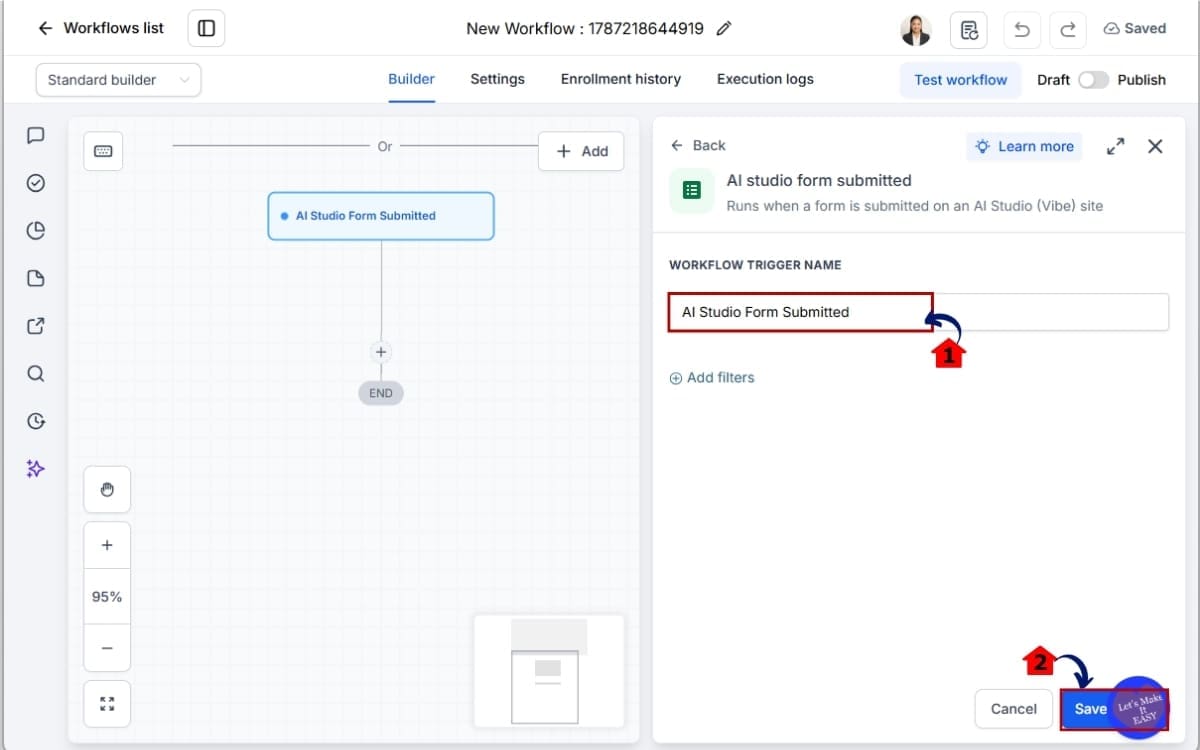
- This trigger tells GHL to start the Workflow when someone submits your connected AI Studio form.
2.1 Add a new trigger to the Workflow.
- This creates the starting point that tells GHL when the Workflow should begin.
2.2 Find and select AI Studio Form Submitted.
- Choose this option so submissions from your connected AI Studio form can trigger the Workflow.

Step 03 – Configure AI Studio Form Submitted Trigger
- Now you’ll connect the trigger to the AI Studio form you want this Workflow to watch.
3.1 Configure the trigger for your connected AI Studio form.
- Choose the connected form you want to use so GHL knows which form submission should start this Workflow.
3.2 Save your trigger settings.
- Saving locks in your trigger setup so you can move on to building the follow-up actions.
Step 04 – Add Your Lead Follow-Up Actions
- This is where you decide what should happen after someone submits your AI Studio form.
4.1 Click the plus icon to add your first Workflow action.
- The plus icon lets you add the first follow-up action after the form submission trigger.
4.2 Choose the action you want GHL to perform.
- Pick an action that matches how you want to handle the new lead.
Depending on your follow-up process, you could:
- Send an email to confirm you received their submission.
- Send an SMS message for a quick response.
- Send an internal notification to alert your team.
- Add a tag to help identify or organize the contact.
- Create an opportunity to move the lead into your sales pipeline.
4.3 Click Save.
- Saving adds the action to your Workflow so you can continue building the rest of your follow-up.
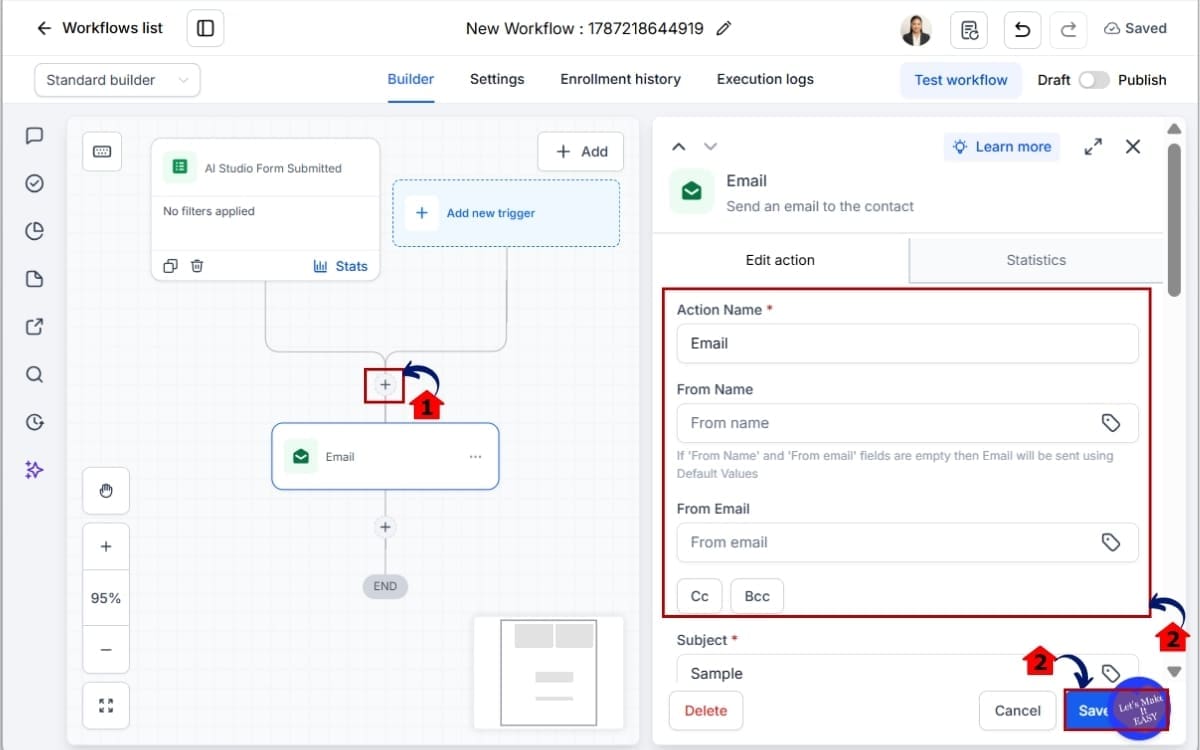
For example, a new AI Studio lead could receive an immediate confirmation message while GHL adds an “AI Studio Lead” tag, alerts your sales team, and creates an opportunity in the correct pipeline.
Step 05 – Test Your AI Studio Forms Workflow
- A quick test helps you catch any problems before real leads start entering the Workflow.
5.1 Click Test Workflow.
- Run a test to make sure the trigger and follow-up actions are working the way you intended.
5.2 Click Publish.
- Once you’re happy with the test, publish the Workflow so it’s ready to handle new AI Studio form submissions.

If you added an email, SMS, notification, tag, or opportunity, check each action individually.
Once your test submission successfully moves through the Workflow, your AI Studio Forms automation is ready for real leads.
And remember, the existing External Tracking script and trigger can continue working alongside this new trigger. You don’t need to remove an External Tracking setup simply because you’re adding the dedicated AI Studio Form Submitted trigger.
Quick Tips for AI Studio Forms and Workflows
AI Studio Forms are easy to connect to GHL Workflows, but a few small setup choices can make your automation much more useful. The goal isn’t just to trigger a Workflow. It’s to make sure every new lead gets handled the right way.
Start by testing the entire journey, not just the form submission. Submit the form like a real visitor, then check the contact record, messages, tags, notifications, and opportunities created by your Workflow. A trigger firing correctly doesn’t always mean every action after it is set up correctly.
Use a dedicated tag for AI Studio Forms leads when it makes sense. Something simple like “AI Studio Lead” can help you identify where contacts came from, create Smart Lists, and build additional automation around those leads.
Don’t make your sales team keep checking GHL for new inquiries. If someone asks for a quote or books a consultation, send the right person a notification as soon as that form comes through. They’ll know there’s a lead waiting without having to go looking for it.
You can also create an opportunity automatically for sales-focused forms. Instead of leaving a new inquiry sitting as another contact in the CRM, use your Workflow to place the lead into the correct pipeline and stage.
For agencies managing multiple clients, keep the follow-up relevant to the form. A simple contact form may only need a confirmation and notification. A quote request might need an opportunity, tags, SMS follow-up, and a longer nurturing sequence.
And don’t forget about older forms. If an existing AI Studio form isn’t available when you configure the new trigger, refresh its integration using the “Re-trigger form integration” process before troubleshooting anything more complicated.
Finally, you don’t need to remove External Tracking just because this new trigger exists. HighLevel says the existing External Tracking functionality will continue working alongside the dedicated AI Studio Form Submitted trigger.
What AI Studio Forms Mean for Your Business
AI Studio Forms become much more valuable when the form submission is only the beginning of the process. With the new GHL trigger, you can connect that first action to the rest of your lead follow-up without relying on someone to manually move things forward.
Say you’ve just launched an AI Studio site for a local plumber. Someone needs a quote, finds the site, fills in the form, and hits submit.
That submission can now start the GHL Workflow automatically.
The lead could immediately receive an SMS or email confirming their request. At the same time, GHL could notify the sales team, add a source tag to the contact, and create an opportunity in the correct pipeline.
From there, the Workflow can continue handling whatever follow-up process you’ve built.
That’s where AI Studio Forms can make a practical difference for agencies. You’re connecting the website, CRM, and automation instead of treating each one as a separate part of the lead generation process.
This is especially handy when you’re managing several client accounts. Instead of hoping each client spots a new lead and remembers what to do with it, you can have the Workflow take care of those routine steps every time.
The result is simple: fewer manual handoffs and a clearer path for every new lead.
For agencies using AI Studio to build lead-generation websites, this gives you another way to turn those websites into complete automated systems. The form captures the inquiry, GHL handles the next steps, and the sales team can focus on the conversations that actually need a human.
AI Studio Forms – FAQs
Put AI Studio Forms to Work in GHL
A submitted AI Studio form can now be the thing that gets your Workflow moving. As soon as that lead comes through, GHL can pick it up and start working through whatever follow-up you’ve put in place.
You can keep things simple. Send the lead a quick “we got your message” email and give your team a heads-up. If the lead needs more attention, GHL can also text them, tag the contact, add an opportunity, and keep the follow-up going.
The important part is what happens after the form gets submitted.
Instead of relying on someone to spot every new inquiry and manually decide what comes next, you can build those steps into your GHL Workflow. For agencies managing lead generation for multiple clients, that can create a much more consistent process.
Just remember the extra setup required for older AI Studio Forms. If the form was connected before this trigger was released, re-trigger the form integration, reconnect CRM tracking, publish the project, submit a test entry, and refresh your Workflow builder before configuring the new trigger.
And if you already use External Tracking, there’s no need to rip apart a setup that works. The existing External Tracking functionality will continue working alongside the new trigger.
AI Studio Forms are no longer just another place to collect contact details. Connect them to the right GHL Workflow, and they can become the starting point for an automated lead follow-up system.
Have you tried the AI Studio Form Submitted trigger yet? Think about the first manual step your team normally takes after receiving a form submission. That’s probably a good place to start automating.
Scale Your Business Today.
Streamline your workflow with GoHighLevel’s powerful tools.