- AI Workflow Editing in GHL Just Got Smarter
- Quick Summary – AI Workflow Editing Essentials
- Here are this weeks HighLevel Updates
- Why AI Workflow Editing Changes Automation Speed
- What’s New With AI Workflow Editing in GHL
- From Manual Logic to Conversational AI Workflow Editing
- How to Use AI Workflow Editing
- Pro Tips to Master AI Workflow Editing in GHL
- How AI Workflow Editing Impacts Agency Growth
- Real Marketing Scenarios Using AI Workflow Editing
- Results You Can Expect With AI Workflow Editing
- AI Workflow Editing FAQs for GHL Users
- Why AI Workflow Editing Is a Big Deal for GHL Users
AI Workflow Editing in GHL Just Got Smarter
GoHighLevel just upgraded how automations are refined inside AI Builder by unlocking full conversational editing for two of the most painful workflow actions: If-Else and Wait.
This GHL update removes the friction of jumping out of the AI conversation to manually reconfigure complex logic. Instead, you can stay in the chat and tell AI Builder what you want changed, and it updates the workflow while keeping your existing branches and downstream actions intact.
What changed: You can now edit If-Else and Wait actions directly through conversation. That includes adjusting wait delays, windows, reply conditions, timeout branches, and even converting between wait types. For If-Else, you can add or remove branches, update conditions, switch AND/OR logic, and extend condition segments without rebuilding the workflow node structure.
Who this is for: Agencies building client automations, team members responsible for optimizing workflows, anyone running multi-branch nurture sequences, and GHL users who are tired of breaking workflow logic every time they tweak one condition.
What we’ll demonstrate: How conversational editing works inside AI Builder step by step, how to update Wait settings safely, how to modify If-Else branches without breaking downstream steps, what to say to get clean edits from the AI, what limitations to watch for, and how agencies can use conversational workflow editing to iterate faster and ship better automations in GHL.
The latest GoHighLevel Changelog includes several other GHL feature updates that round out your daily workflow:
- Increase Products Per Page Count in Product List Page
- Conversation AI – Generate Conversation Summary & Transcript
- Kollab App – More Control, Better Playback, Stronger Security
- Configure payment provider by channel ⚙️
- Configure Granular Permissions for Sub-Account Settings
- Communities Learning Tab- Private Course/ Member-Specific Course Access
- Introducing New Templates
- Standard Builder: Drag-and-drop triggers and actions
- OpenRouter Actions & Triggers
- Monday.com actions and triggers
Keep reading for much more on all these updates and a deep dive into the new Product Title Display feature!
Quick Summary – AI Workflow Editing Essentials
Purpose: This update enhances AI workflow editing inside GHL by allowing users to modify If-Else and Wait actions conversationally without switching to manual configuration panels.
Why It Matters: Complex branching logic is where most automation errors happen. AI workflow editing reduces friction, preserves downstream actions, and makes workflow refinement faster and safer for agencies.
What You Get: You can update wait delays, modify AND/OR conditions, add or remove branches, convert wait types, and refine multi-branch logic directly inside AI Builder using natural language.
Time To Complete: Most edits take under 2–5 minutes once you’re inside AI Builder, depending on workflow complexity.
Difficulty Level: Beginner to Intermediate. If you can clearly describe what you want changed, you can use AI workflow editing effectively.
Key Outcome: Faster optimization cycles, fewer logic errors, cleaner workflow structures, and more confident scaling of complex automations inside GoHighLevel.
Here are this weeks HighLevel Updates
Increase Products Per Page Count in Product List Page
- What it does: Puts more of your products in front of buyers at once instead of hiding them behind extra clicks.
- Where in GHL: Product List Page settings inside your Store and Funnel product listings.
- Who it’s great for: If you’ve got a packed catalog or manage stores with tons of SKUs, this makes browsing a whole lot smoother.
- Impact: Improves browsing efficiency, reduces pagination friction, and increases the likelihood of customers viewing more products per session, leading to higher average order value opportunities.
Automate marketing, manage leads, and grow faster with GoHighLevel.

Conversation AI – Generate Conversation Summary & Transcript
- What it does: Saves you from digging through long message threads by generating a short recap plus the full conversation log.
- Where in GHL: Conversation AI within the Conversations tab and supported communication channels.
- Who this is really for: Teams handling conversations all day, sales reps, support staff, and agencies keeping up with client messages.
- Impact: Saves time reviewing conversations, improves accountability, enhances coaching, and creates clean documentation for client reporting or compliance.
Kollab App – More Control, Better Playback, Stronger Security
- What it does: Enhances Kollab App functionality with improved playback controls, increased user permissions, and stronger security measures.
- Where in GHL: Kollab App within agency or sub-account collaboration environments.
- Who benefits: Shared-account teams that need better permission control.
- Impact: Keeps collaboration smooth while tightening up who can see and change sensitive areas.
Configure Payment Provider by Channel ⚙️
- What it does: Allows businesses to assign specific payment providers to different sales channels.
- Where in GHL: Payment and product settings within your sub-account.
- Who it’s built for: Stores that don’t rely on just one payment processor and need flexibility behind the scenes.
- Impact: Increases flexibility, improves transaction routing, reduces payment failures, and allows smarter financial operations.
Configure Granular Permissions for Sub-Account Settings
- What it does: Enables detailed control over who can access and modify specific sub-account settings.
- Where in GHL: Staff & Team Settings within Sub-Account permissions.
- Who should pay attention: If you’re running a team inside sub-accounts or reselling GHL as SaaS, this gives you better guardrails.
- Impact: Reduces risk, improves operational control, prevents accidental misconfiguration, and strengthens internal security management.
Communities Learning Tab – Private Course / Member-Specific Course Access
- What it does: Allows you to restrict course access to specific members within the Learning Tab of Communities.
- Where in GHL: Communities > Learning Tab > Course access settings.
- Who wins here: Businesses turning education into revenue.
- Impact: Lets you control who sees what, charge for different levels of access, and keep your premium material protected.
Introducing New Templates
- What it does: Adds new pre-built templates to streamline setup across funnels, workflows, and campaigns.
- Where in GHL: Template library inside relevant builders (Funnels, Workflows, etc.).
- Who wins here: Anyone who wants campaigns up and running faster.
- Impact: Gets campaigns live faster with fewer mistakes during setup.
Standard Builder: Drag and Drop Workflows
- What it does: You build workflows by dragging in triggers and stacking actions visually instead of configuring everything line by line.
- Where to find it: Inside Automation > Workflows.
- Who it’s for: Marketers and agencies building automations regularly who want to actually see how everything connects.
- Why it matters: Makes complex workflows easier to understand and faster to launch.
OpenRouter Actions & Triggers
- What it does: Adds OpenRouter integration with native actions and triggers for advanced AI-powered automation.
- Where in GHL: Workflows under Actions & Triggers integrations.
- Who this is for: Agencies and teams building serious AI automations inside GHL.
- Impact: Expands AI automation capabilities, improves customization, and enables advanced AI-driven business logic inside GHL.
Monday.com Actions and Triggers
- What it does: Integrates Monday.com with native workflow actions and triggers inside GHL.
- Where in GHL: Integrations > Workflows > Monday.com triggers and actions.
- Who wins here: Teams using Monday.com as their command center.
- Impact: Keeps your CRM and Monday.com working together so you’re not copying updates back and forth.
Why AI Workflow Editing Changes Automation Speed
Let’s be honest.
If you’ve ever built complex automations inside GHL, you know where things slow down. It’s not creating the workflow. It’s refining it.
- You build an If-Else branch.
- Then you need to adjust one condition.
- Then you realize the Wait step needs a timeout branch.
- Then suddenly… you’re clicking through panels trying not to break anything.
That friction adds up.
AI workflow editing removes that friction.
Instead of switching to manual configuration, you stay inside AI Builder and describe the change. The system updates the logic. Your existing structure stays intact. Your downstream actions don’t disconnect.
That alone saves serious time.
But here’s the bigger win.
Complex workflows involve multiple branches and permutations. One wrong edit can break the entire automation path. With conversational editing, GHL preserves the existing branch nodes when you’re modifying attributes only. That reduces risk.
For agencies, that’s huge.
You can:
- Optimize nurture sequences without rebuilding logic
- Adjust reply-based waits on the fly
- Refine AND/OR conditions during campaign testing
- Add new branches without restructuring the workflow
If you manage multiple client automations, this upgrade compounds fast.
- Less rework.
- Fewer logic mistakes.
- Faster iteration cycles.
And when you iterate faster, you improve results faster.
AI workflow editing isn’t just a convenience feature.
It’s an efficiency multiplier for agencies using GHL at scale.
What’s New With AI Workflow Editing in GHL
This update isn’t a small tweak.
It unlocks full multi-turn AI workflow editing for two of the most complex actions inside GHL: Wait and If-Else.
Before this update, AI Builder could create these actions. But if you wanted to change them? You had to switch to manual configuration. That broke your flow and increased the risk of misconfiguring logic.
Now, you stay in conversation.
- You describe the change.
- AI updates the action.
- Your workflow structure remains intact.
Let’s break down what that means.
Wait Action Editing Just Got Easier
Wait steps are more complex than most people realize. They can include time delays, time windows, reply conditions, timeout branches, and multiple paths.
Now with AI workflow editing, you can:
- Update time delays (example: change from 1 day to 3 days)
- Modify wait window settings
- Adjust reply-based conditions
- Add or remove timeout branches
- Convert between wait types
- From “wait for email reply”
- To a simple time delay
- Or to a conditional wait
And here’s the important part.
If you are only modifying attributes, GHL preserves your existing branch configurations. That means downstream nodes stay connected.
No rebuilding required.
If-Else Action Editing Without Breaking Logic
If-Else branches are where workflows get complicated fast.
- Multiple conditions.
- AND/OR logic.
- Nested logic segments.
- Downstream actions tied to each path.
With AI workflow editing, you can now:
- Add new branches
- Remove existing branches
- Update branch conditions
- Change AND/OR operators
- Append new condition segments
And the system maintains existing branch nodes and downstream actions during updates.
That’s critical for agencies.
Because the bigger the workflow, the higher the risk when editing logic manually.
Now, you can refine complex branching logic conversationally without dismantling the structure.
Multi-Turn Editing for Complex Logic
This isn’t just single-command editing.
You can refine logic step by step.
Example flow:
- “Change the wait time to 2 days.”
- “Now add a timeout branch after 3 days.”
- “Add a new If branch for contacts tagged VIP.”
Each instruction builds on the last one.
That’s true multi-turn AI workflow editing.
And it keeps you inside AI Builder the entire time.
From Manual Logic to Conversational AI Workflow Editing
Let’s talk about what actually changed inside GHL.
Before this update, AI Builder could help you generate workflows. It could create If-Else branches. It could build Wait steps.
But editing those complex actions?
That required manual configuration.
- You had to click into the action.
- Adjust settings in the side panel.
- Recheck your AND/OR logic.
- Make sure you didn’t disconnect a branch.
And if you made a mistake?
You might break downstream actions without realizing it.
That was the friction.
Now, AI workflow editing keeps everything inside the conversational experience.
You no longer exit AI Builder to refine logic.
You stay in the prompt.
You describe the change.
The system interprets your intent and updates the action while maintaining branch integrity.
Here’s the real shift.
Before:
- AI created complex actions
- Editing required manual panel adjustments
- Branch structures were easy to disrupt
- Iterating meant clicking through multiple configuration layers
Now:
- AI creates and edits complex actions
- Modifications happen conversationally
- Existing branch nodes remain intact
- Downstream actions are preserved
- Multi-step logic refinement happens in sequence
This changes how agencies iterate.
Instead of “build → exit → edit → test → fix,” it becomes “build → refine → refine → publish.”
Cleaner flow. Less risk. Faster deployment.
AI workflow editing moves GHL from assisted automation creation to full conversational automation refinement.
That’s not a small upgrade.
That’s workflow evolution.
How to Use AI Workflow Editing
Editing If-Else and Wait actions now happens directly inside AI Builder using conversational commands. You will access your workflow, open AI Builder, and modify complex logic without entering manual configuration panels. There is no additional setup required.
In the steps below, you’ll learn exactly where to find AI Builder, how to update a Wait action, how to modify an If-Else branch, and how to validate your changes before publishing. Follow these steps to safely refine your workflow logic while keeping all branch connections intact.
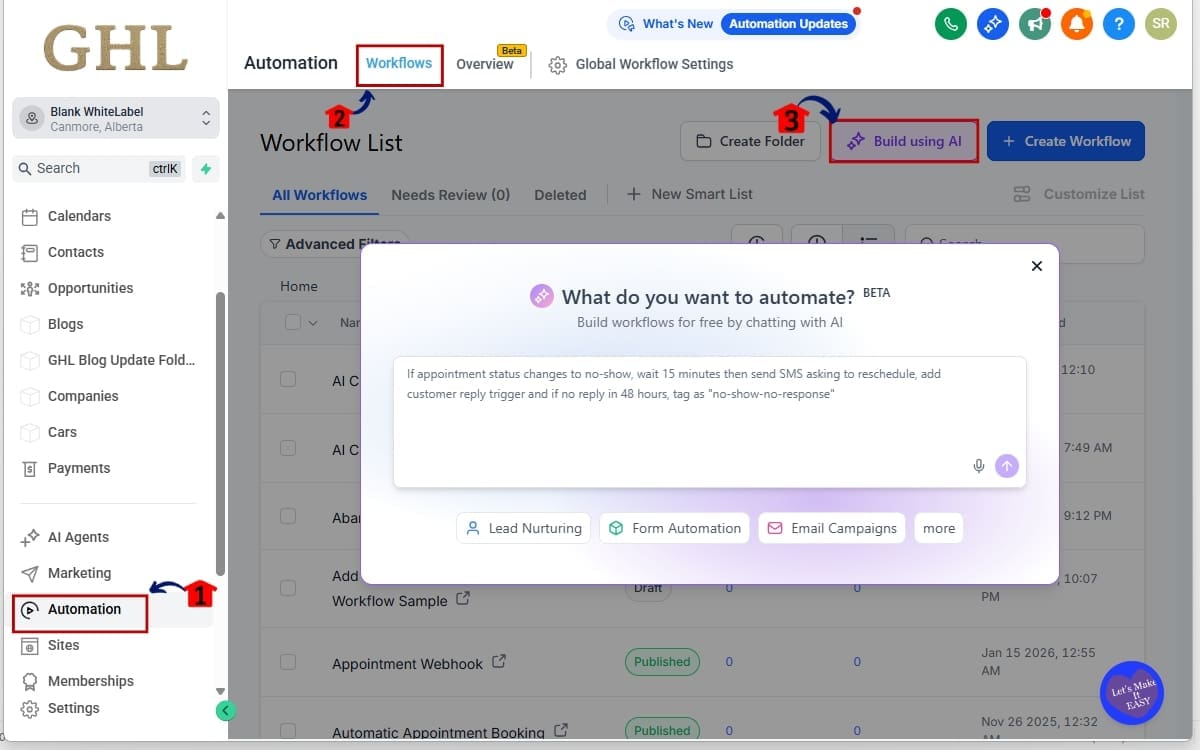
- Go to the Automation and Build using AI.
- Add your prompt with if/else action.
- GHL AI Builder is Generating your Workflow.
- Modify an Existing Wait Action Step.
- Review the Existing Wait Action Settings.
- Modify an Existing If-Else Branch Action.
- Review If/Else action, Save and Test Your Workflow.
To start make sure you are logged in to your GoHighLevel sub-account.
Step 1.0 – Go to the Automation and Build using AI
1.1 From the left menu, go to Automation
1.2 Click workflow
1.3 Click Build using AI.
Step 2.0 – Add your prompt with if/else action
2.1 Add your prompt with if/else action
2.2 Click Arrow up (Submit)
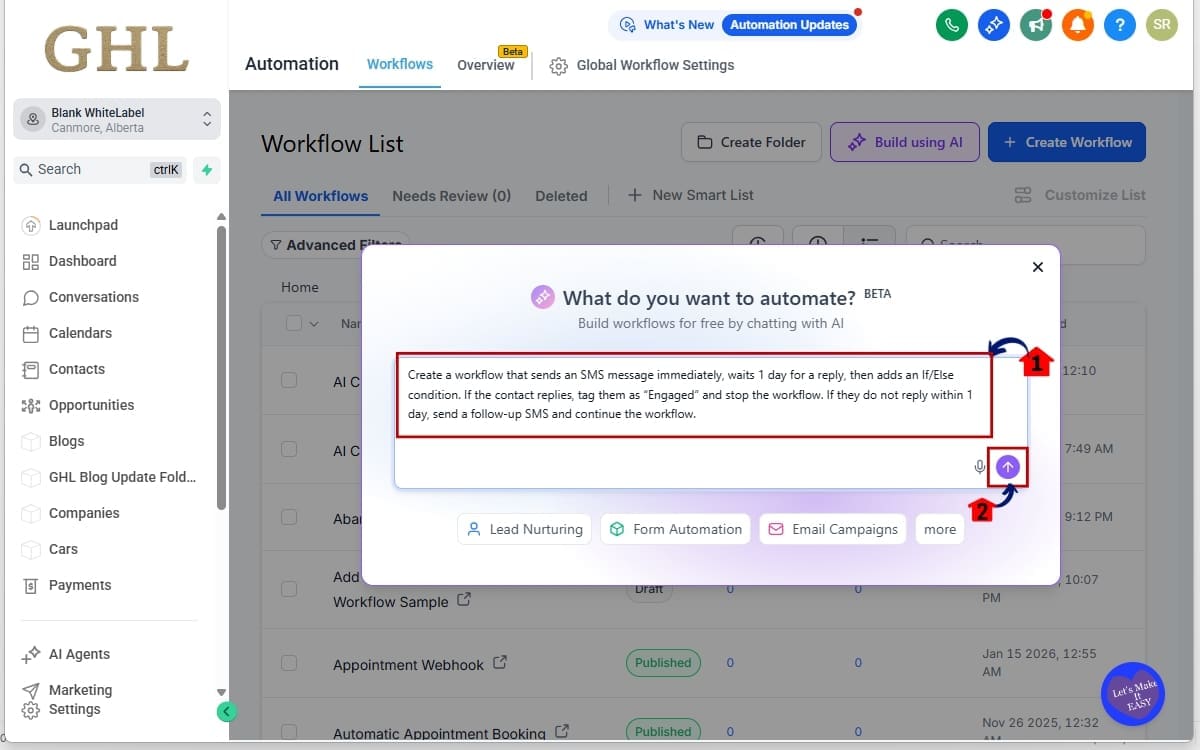
Step 3.0 – GHL AI Builder is Generating your Workflow
3.1 The Voice Workflow Builder begins Generating Your Workflow
- The generation process usually takes about 1–3 minutes
3.2 During this time, you’ll see the AI processing your request as it prepares the workflow on your canvas.
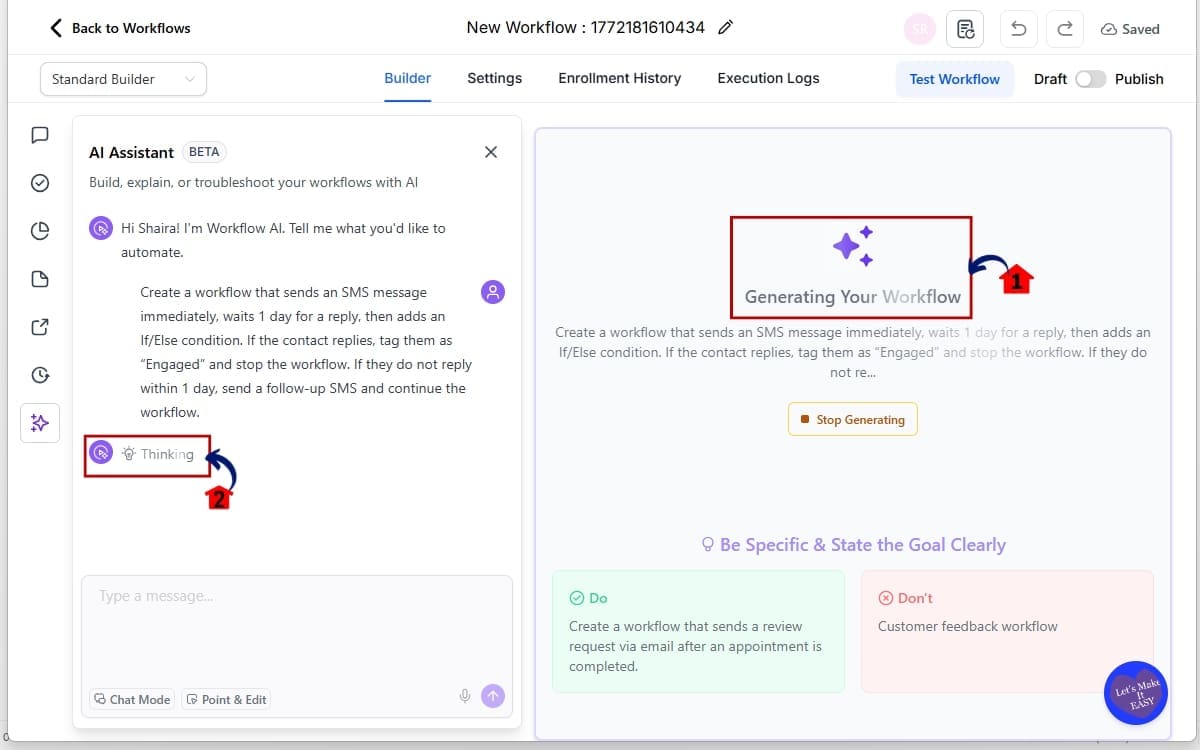
Step 04 – Modify an Existing Wait Action Step
4.1 Type in AI Assistant what changes for Wait action inside your workflow.
Examples:
• “Change the wait time to 2 days.”
4.2 Click arrow up (Submit)
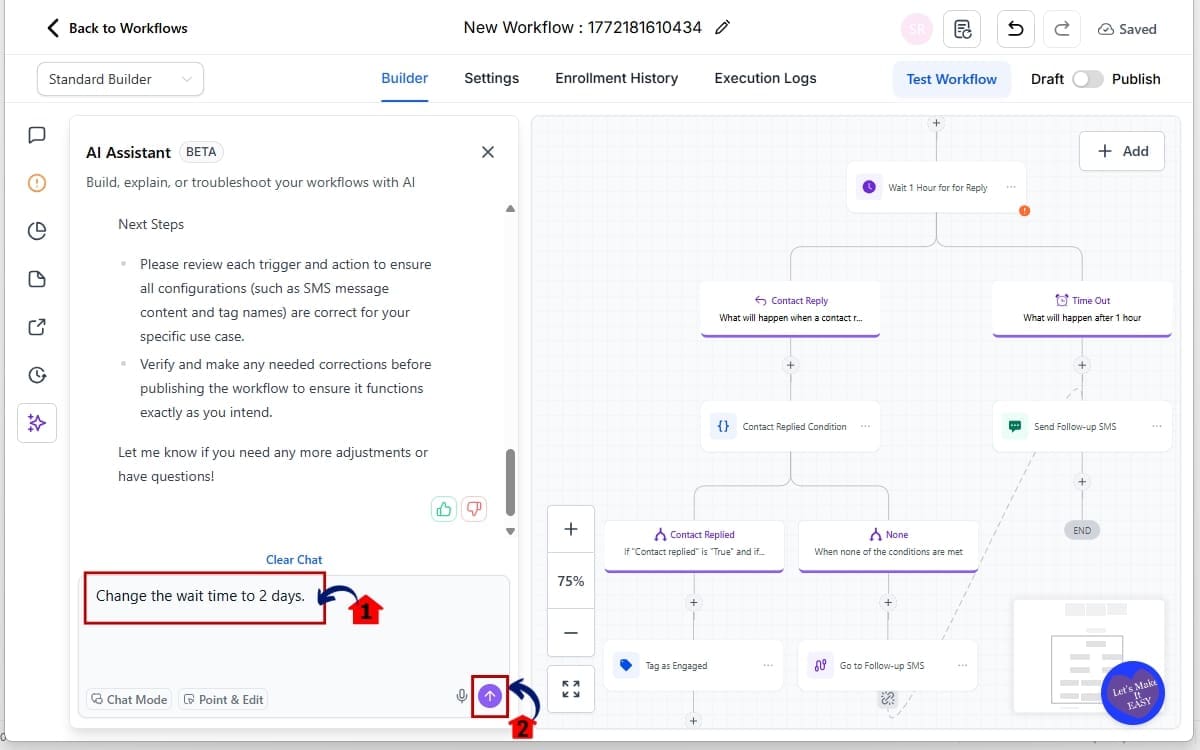
Step 05 – Review the Existing Wait Action Settings
5.1 Review the request you made.
5.2 Confirm downstream actions remain connected.
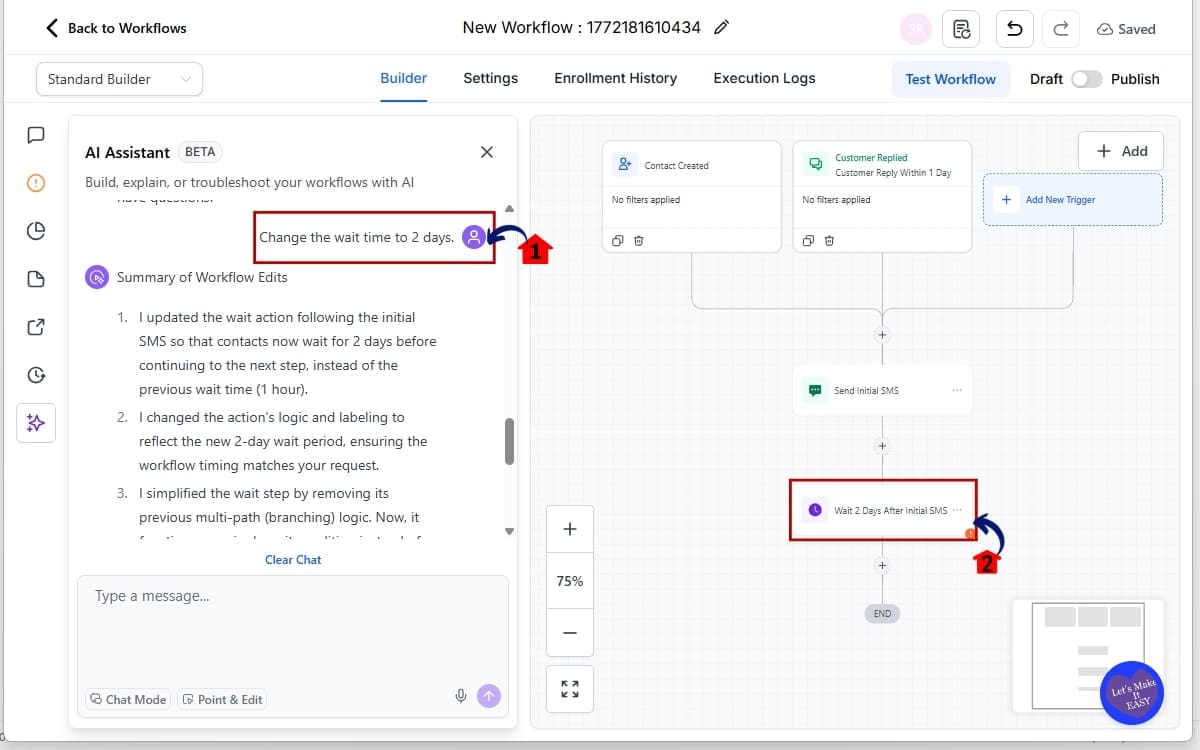
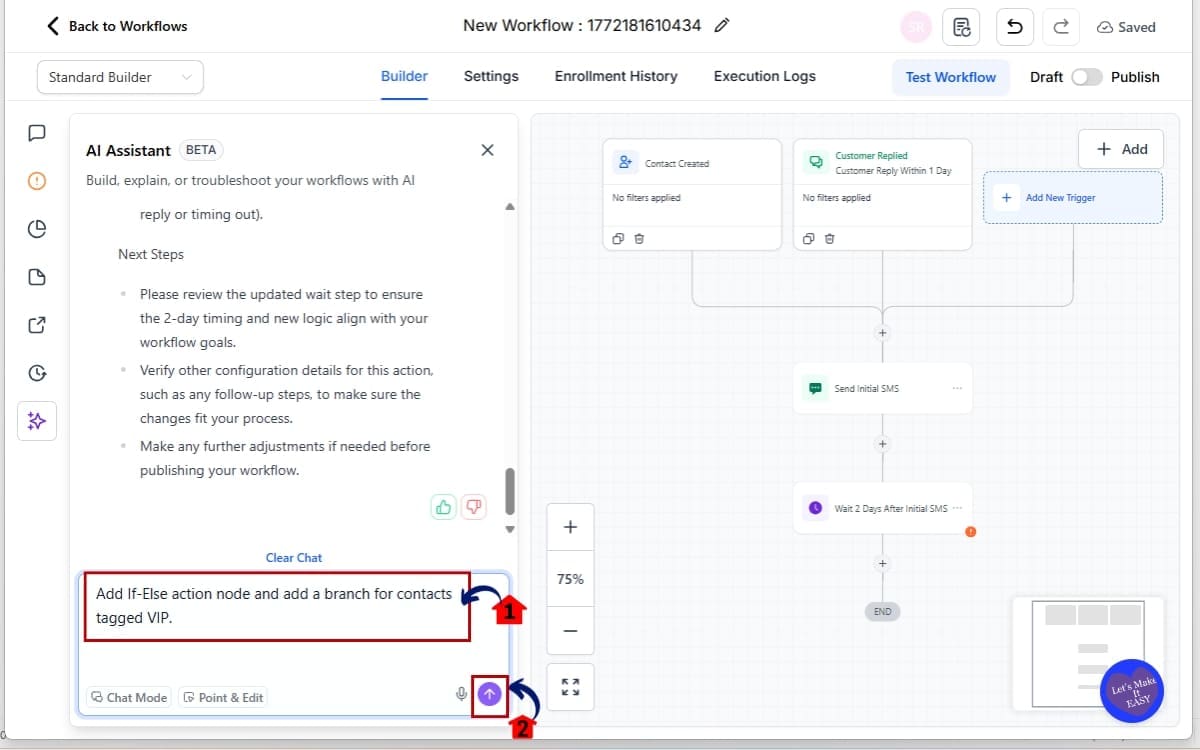
Step 06 – Modify an Existing If-Else Branch Action
6.1 Click on the If-Else action node.
Examples:
• “Add If-Else action node and add a branch for contacts tagged VIP.”
6.2 Click arrow up (Submit)
Step 07 – Review If/Else action, Save and Test Your Workflow
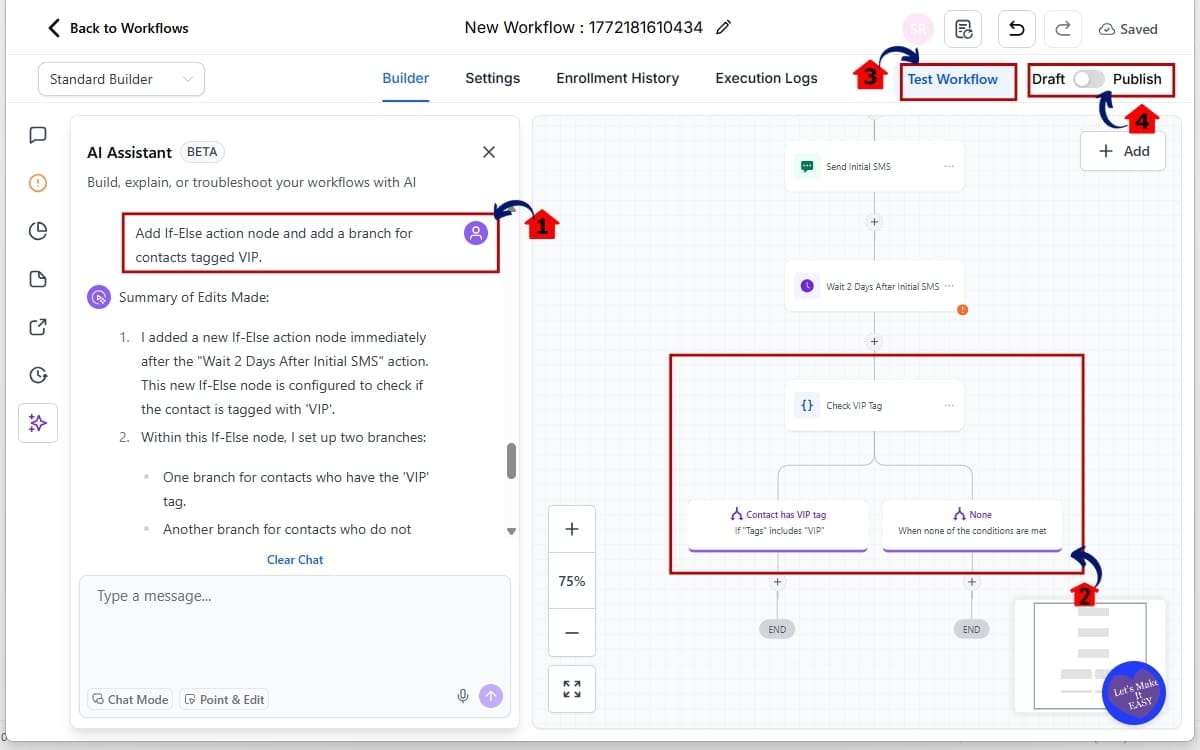
7.1 Check In AI Builder your request.
7.2 Review the updated branch logic.
7.3 Test the workflow using a sample contact.
7.4 Click Publish once verified.
That’s it. You just edited complex workflow logic using conversation instead of manual configuration. Faster edits. Less risk. Cleaner automation.
Pro Tips to Master AI Workflow Editing in GHL
AI workflow editing is powerful.
This isn’t magic. It follows instructions. The clearer you are, the better it performs. So don’t be vague.
Vague prompts create vague logic.
Instead of saying: “Change the wait.”
Say:
- “Change the wait time to 2 days.”
- “Add a timeout branch after 3 days.”
- “Change AND to OR in the second condition.”
Clear instructions = clean edits.
Modify Attributes Before Restructuring
If you only need to adjust timing or conditions, modify attributes instead of rebuilding branches.
Example:
Change delay length instead of deleting and recreating the Wait step.
This helps preserve downstream nodes automatically.
Use Multi-Turn Editing Strategically
Don’t try to fix everything in one giant prompt.
Refine step by step:
- Adjust wait time
- Then add timeout
- Then modify branch condition
Layer your changes.
This reduces confusion and keeps the workflow clean.
Always Validate Branch Paths
Even though GHL preserves branch integrity, you should still manually review:
- Each If branch
- Each Else path
- Each timeout branch
- Each downstream action
Never publish without checking. Test With Real Scenarios. Use test contacts with different tags and behaviors.Trigger each branch intentionally. Confirm that logic behaves exactly as expected. Keep Branch Logic Clean. Avoid stacking too many nested AND/OR conditions inside one branch.
If logic becomes too complex:
- Split into separate workflows
- Or simplify conditions
Clean logic scales better. Save Before Major Edits. If you’re making large structural updates, duplicate the workflow first.
This gives you a rollback option. Smart agencies never edit critical automations without a backup. Use It for Optimization, Not Just Creation. AI workflow editing isn’t just for building new automations.
It’s for improving existing ones.
- Tighten delays
- Refine reply detection
- Improve lead routing
- Adjust nurture pacing
Small refinements compound into better results.
When you use it properly, editing workflows stops feeling dangerous and starts feeling manageable.
How AI Workflow Editing Impacts Agency Growth
This isn’t just a convenience feature. AI workflow editing changes how fast your agency can move inside GHL.
Most agencies don’t struggle with ideas. They struggle with execution speed. You know the automation you want to build. You know the branch logic you want to test. But refining it takes time.
Clicking. Adjusting. Rechecking conditions. Making sure you didn’t break anything.
Now that friction is gone.
Faster Campaign Optimization
Let’s say a client wants:
- Shorter follow-up delays
- A new VIP branch
- Reply detection added mid-sequence
Before, that meant manual edits and careful logic checks.
Now, you describe the change. AI updates the action. You validate. You publish.
What used to take 15–20 minutes now takes a few conversational refinements. Multiply that across 10 clients. That’s hours saved every week. Cleaner Workflow Scaling
As automations grow, complexity grows with them.
Multi-branch nurture sequences. Conditional upsells. Behavior-based routing.
AI workflow editing allows you to refine these structures without dismantling them.
That means:
- Less risk when updating live automations
- Safer changes to high-performing funnels
- Faster iteration on conversion improvements
Easier Team Delegation. Not every team member is comfortable editing nested If-Else logic.
But most people can explain what they want changed.
Instead of teaching junior staff how to reconfigure branch operators manually, you can train them to give clear conversational instructions.
That lowers your operational bottlenecks.
Real-Time Client Adjustments
Client call at 3 PM.
They want:
- A longer wait before SMS
- A new branch for warm leads
- A condition added for email opens
You can update it live. Inside AI Builder. Without rebuilding logic.
That responsiveness builds trust. Compounding Efficiency. Small time savings don’t look dramatic.
But inside GHL, automation refinement happens constantly.
Every tweak. Every improvement. Every test.
AI workflow editing compresses that cycle.
And when your iteration speed increases, your results improve faster.
That’s how agencies scale smarter.
Real Marketing Scenarios Using AI Workflow Editing
Let’s bring this down to real-world use. Because features are nice. But application is what matters.
Here’s how agencies are going to use AI workflow editing inside GHL starting immediately.
Lead Nurture Optimization. You launch a 10-day nurture sequence.
After reviewing performance, you realize:
- Day 2 email needs a longer delay
- SMS should only trigger if email wasn’t opened
- VIP leads need a faster path
Instead of manually reworking multiple branches, you tell AI Builder what to change.
“Extend the wait to 3 days.” “Add condition: email not opened.” “Create VIP fast-track branch.” Done. Faster optimization. Cleaner logic. No rebuild required.
Appointment Reminder Improvements. Your client wants fewer no-shows.
You decide to:
- Add a conditional reminder if no confirmation reply
- Insert a timeout branch
- Change reminder timing from 24 hours to 12 hours
AI workflow editing allows you to refine that reminder logic without recreating the sequence. You adjust it conversationally and test immediately. Upsell and Cross-Sell Logic. Let’s say you’re running a post-purchase upsell flow.
You need to:
- Add a branch for customers who bought Product A
- Exclude customers tagged “Refund Requested”
- Change AND logic to OR
These are small but sensitive edits. With AI workflow editing, you modify the branch conditions while preserving downstream fulfillment actions. That reduces risk when working on revenue-generating automations. Multi-Channel Follow-Up Adjustments.
Maybe your workflow includes:
- SMS
- Voicemail
- Conditional reply waits
When you tweak one timing delay or reply condition, you don’t want to disrupt the entire flow. Now you don’t have to. You adjust only what’s necessary. And GHL maintains the structure. Faster Client Turnaround. Client feedback cycle shrinks dramatically.
Instead of: “Let me rebuild that and get back to you.” It becomes: “Give me two minutes.” Update. Validate. Publish.
That level of responsiveness separates average agencies from high-performance ones.
AI workflow editing doesn’t just help you build. It helps you adapt. And in marketing, adaptability wins.
Results You Can Expect With AI Workflow Editing
When you remove friction from automation building, results follow. Not because the feature is flashy. But because speed and clarity improve everything. Here’s what you can realistically expect from using AI workflow editing inside GHL. Faster Workflow Build Times. Editing complex If-Else and Wait logic used to slow teams down.
Now, you stay inside AI Builder and refine logic conversationally. What once took multiple clicks and configuration checks now takes a few clear instructions. That compresses build time significantly. Reduced Logic Errors. Manual edits increase risk.
Wrong operator. Disconnected branch. Broken timeout path.
AI workflow editing preserves existing branch nodes when modifying attributes and maintains downstream actions during updates.
That reduces costly automation mistakes. Cleaner Automation Structures. When editing becomes easier, you stop avoiding improvements.
You refine logic more often. You simplify where needed. You test smarter.
That leads to cleaner, more intentional workflow design. Faster Optimization Cycles. Marketing performance improves through iteration. Change. Test. Measure. Refine.
AI workflow editing shortens that loop. And when you shorten feedback loops, you increase performance velocity. Stronger Agency Efficiency
Multiply small time savings across:
- 10 workflows
- 20 clients
- Weekly optimization cycles
That’s hours recovered. Hours that can be reinvested into strategy, client growth, or new revenue opportunities. More Confident Automation Scaling. As workflows grow more complex, hesitation grows with them. No one wants to touch a live automation that’s working.
Now you can refine confidently. Because structural integrity remains intact. AI workflow editing gives agencies more control with less risk. And that combination is powerful.
AI Workflow Editing FAQs for GHL Users
Why AI Workflow Editing Is a Big Deal for GHL Users
GoHighLevel didn’t just improve automation building. It improved automation refinement.
AI workflow editing removes one of the biggest friction points inside GHL, manually reconfiguring complex If-Else and Wait logic.
You can now:
- Modify time delays without breaking branches
- Add or remove conditional paths safely
- Update AND/OR logic conversationally
- Convert wait types without rebuilding workflows
- Refine automations in real time
All inside AI Builder. No jumping between panels. No dismantling branch structures. No accidental disconnects.
For agencies, this compounds fast. Faster edits mean faster optimization. Fewer errors mean cleaner automation. Cleaner automation means better campaign performance. And better performance is what clients actually pay for.
This update shifts workflow building from a cautious, click-heavy process to a conversational refinement system. That’s not just convenient. That’s operational leverage.
If you’re using GHL regularly, start testing AI workflow editing immediately inside your active automations. Refine something small. Adjust a delay. Add a branch. Change a condition.
You’ll feel the difference. And if you want more tactical breakdowns like this, check back with GHL Growth Garage for more GoHighLevel mini-guides built specifically for agencies scaling with automation.
Have you tested AI workflow editing yet? What workflow are you updating first?
Scale Your Business Today.
Streamline your workflow with GoHighLevel’s powerful tools.