

- Introduction – GHL Contact Page Customization Explained
- Quick Summary – Contact Page Customization
- Here are this week's HighLevel Updates 🚀
- What Is GHL Contact Page Customization?
- What's New in Contact Page Customization?
- Why These Changes Matter
- How to Use Contact Page Customization
- Pro Tips for Contact Page Customization
- What This Means for Your Business
- FAQs – Contact Page Customization
- Conclusion – Contact Page Customization
Introduction – GHL Contact Page Customization Explained
Contact Page Customization might sound like another small interface update. Until you’re opening dozens of contact records every day and constantly scrolling to find the information you actually need.
You’ve probably done it before. Open a contact. Look for a custom field. Scroll. Need to check the tags? They’re somewhere else. Looking for the owner? That’s in another spot.
Now repeat that process hundreds of times every week. The Contact Page Customization information is there. The tools are there. But the layout doesn’t always work the way your team does.
Every business uses GoHighLevel differently. Sales teams want quick access to lead information. Customer support teams need notes and Contact Page Customization details front and center. Agencies often rely on custom fields, tags, and owners to keep client records organized.
Before this update, everyone had to work with almost the same Contact Page Customization. There wasn’t much flexibility to organize the workspace around the information you used most.
That’s now changed. GHL Contact Page Customization gives you much more control over your Contact Page Customization. You can resize panels, move tags to a better location, display your most important custom fields on the contact card, rename and reorder tabs, and even decide whether Owners and Followers appear independently.
Small changes? Maybe. But together they create a cleaner, faster, and far more personalized CRM experience.
The real benefit isn’t just a better-looking Contact Page Customization. It’s the time your team gets back every single day by finding information faster.
Less scrolling. Less clutter. Better Contact Page Customization.
The latest GoHighLevel Changelog includes several other GHL feature updates that round out your daily workflow:
- Wait Action Enhancement: TikTok DM Replies
- India Recurring Mandate Support for Affiliate Indian Signup Pages
- Housecall Pro – More Workflow Actions & Triggers
- Email Services Dashboard for Agencies
- Email Sequences Now Available in Beta Labs
- Group Your Contacts by Source in Dashboards & Reporting
- MMLite Adoption Banner in Conversations
Keep reading for much more on all these updates and a deep dive into the Contact Page Customization feature!

Quick Summary – Contact Page Customization
Purpose: Learn how to personalize your GoHighLevel Contact Detail page using the latest Contact Page Customization features to create a faster and more organized CRM workspace.
Why It Matters: A customized Contact Detail page reduces unnecessary clicks, improves visibility, and helps your team access the information they need more efficiently.
What You Get: This guide walks you through every new feature, including resizable panels, customizable tabs, flexible tag placement, custom fields, Owners and Followers controls, and Dynamic Tabs improvements.
Time to Complete: Most users can customize their Contact Page Customization in approximately 10–15 minutes, depending on their preferred layout.
Difficulty Level: Beginner. No coding or technical knowledge is required, just a few simple configuration changes inside GHL.
Key Outcome: You’ll create a cleaner, more personalized Contact Page Customization that helps your team work faster, stay organized, and deliver a better customer experience every day.
Here are this week’s HighLevel Updates 🚀
Wait Action Enhancement: TikTok DM Replies
What’s New:
Instead of continuing after a fixed delay, your workflow can pause until someone replies to your TikTok DM.
Where in GHL:
Found in Automation → Workflows using the Wait action after sending a TikTok DM.
Automate marketing, manage leads, and grow faster with GoHighLevel.

Impact:
Your automation responds when someone actually joins the conversation, rather than after a timer runs out.
Recommended For:
Anyone using TikTok DMs to start conversations with potential customers.
India Recurring Mandate Support for Affiliate Indian Signup Pages
What’s New:
Supports recurring payment mandates for Indian affiliates, helping subscriptions comply with local banking requirements.
Where in GHL:
Available on Affiliate Program signup pages for users in India.
Impact:
Creates a smoother signup experience while reducing payment failures for recurring subscriptions.
Recommended For:
Agencies, SaaS businesses, and affiliate programs onboarding customers in India.
Housecall Pro – More Workflow Actions & Triggers
What’s New:
Adds new workflow triggers and actions for the Housecall Pro integration, giving you more ways to automate field service processes.
Where in GHL:
Inside Automation → Workflows when using the Housecall Pro integration.
Impact:
Expands automation possibilities between HighLevel and Housecall Pro, reducing manual work and improving operational efficiency.
Recommended For:
Home service businesses, field service companies, and agencies managing Housecall Pro clients.
Email Services Dashboard for Agencies
What’s New:
Introduces a centralized dashboard where agencies can monitor email services across their accounts.
Where in GHL:
Found in the Agency View under the new Email Services Dashboard.
Impact:
Makes it easier to monitor email health, identify issues, and manage deliverability from one place.
Recommended For:
Agency owners, support teams, and admins managing multiple client email services.
Email Sequences Now Available in Beta Labs
What’s New:
Introduces Email Sequences as a Beta Labs feature, providing another way to create structured email follow-up campaigns.
Where in GHL:
Enable it from Settings → Labs, then access Email Sequences after activation.
Impact:
Cuts down the time spent checking different areas just to see how your email services are performing.
Recommended For:
Marketers, agencies, coaches, and businesses running nurture campaigns or onboarding emails.
Group Your Contacts by Source in Dashboards & Reporting
What’s New:
Lets you organize contact reports based on where your leads originated.
Where in GHL:
Available within Dashboards & Reporting when viewing contact analytics.
Impact:
Makes it easier to compare lead sources and identify which marketing channels are producing the best results.
Recommended For:
Marketing teams, agency owners, and businesses tracking campaign performance across multiple lead sources.
MMLite Adoption Banner in Conversations
What’s New:
Displays a helpful banner inside Conversations to encourage users to adopt the new MMLite messaging experience.
Where in GHL:
Appears within the Conversations module for eligible accounts.
Impact:
Helps users discover and transition to MMLite while highlighting its benefits directly inside the messaging interface.
Recommended For:
Current HighLevel users exploring the latest messaging experience and teams preparing to migrate to MMLite.
What Is GHL Contact Page Customization?
The Contact Page Customization is where most of the day-to-day work gets done in GHL. From checking customer information to following up on conversations, it’s a screen your team will visit again and again.
The problem is that no two businesses use their CRM the same way.
Not everyone uses GHL the same way. A salesperson is usually looking for lead details and who’s responsible for the account. Someone in customer support is more interested in recent conversations and notes. Agencies often need quick access to custom fields and tags because they’re managing multiple clients at once.
Trying to make one fixed layout work for everyone has always been a compromise.
This update is all about flexibility. You decide what deserves the most space, where important information appears, and how your Contact Page Customization is organized.
This update introduces several improvements that work together to create a more flexible CRM experience, including:
- Resizable panels that make better use of available screen space.
- Independent Owners and Followers controls so you can display only what matters.
- Two custom fields displayed directly on the contact card for instant visibility.
- Choose where your contact tags appear instead of leaving them fixed in one place.
- Customizable tabs that can be renamed and reordered to match your workflow.
- Dynamic Tabs that automatically expand their contents when opened for faster navigation.
None of these features completely changes how GoHighLevel works.
Instead, they improve something you’ll use every single day.
The result is a cleaner workspace, faster navigation, and a Contact Page Customization that adapts to your business instead of forcing your business to adapt to it.
None of these updates reinvent the CRM. They simply make the Contact Page Customization easier to use, and that’s something your team will appreciate every single day.
What’s New in Contact Page Customization?
This isn’t one big feature. It’s six practical improvements that work together to make your Contact Page Customization cleaner, faster, and much easier to use.
Some save you clicks. Some reduce clutter. Others simply make the information you use every day easier to find. Let’s look at what’s new.
Resize Your Workspace
One of the biggest improvements is the ability to resize the Contact Page Customization panels.
Some Contact records felt crowded simply because the left panel couldn’t expand to show more information.
Need a little more room? Just drag the panel until it feels right for the way you work.
If your team relies heavily on contact details, notes, or custom information, this extra space makes a noticeable difference throughout the day.
Show Only Owners or Followers
Owners and Followers are no longer linked together.
You can now choose to display:
- Owners only
- Followers only
- Both Owners and Followers
- Neither option
This gives every business more control over what appears on the Contact Card and removes information that isn’t relevant to a particular workflow.
For agencies with multiple team members, this helps create a cleaner and more focused workspace.
Display Important Custom Fields
Custom fields are now even more useful. You can select two custom fields to appear directly on the Contact Card, giving your team instant visibility without opening additional sections.
These fields are displayed in read-only mode, helping keep the Contact Card clean while still making key information immediately available.
You can view the information from the Contact Card, but any edits still happen inside the All Fields tab.
It’s a small improvement that can save countless clicks over the course of a busy week.
Move Tags Where They Make Sense
Tags have always been useful for organizing contacts. Now they’re also more flexible.
Instead of taking up valuable space on the Contact Card, you can decide whether tags appear in the left panel or the center panel.
That means you can build a layout around the information your team uses most instead of letting tags dictate the design.
Rename and Reorder Tabs
Every business works differently. Now your Contact Page Customization can reflect that.
The default tab names aren’t set in stone anymore. Rename them to better suit the way your business works.
You can also reorder tabs so your most frequently used sections appear exactly where you want them.
It’s a simple change that helps your team work faster with less searching.
Dynamic Tabs Open Ready to Use
Dynamic Tabs have received a quality-of-life upgrade too. Any module placed inside a Dynamic Tab now opens fully expanded by default.
Open a Dynamic Tab, and the content is already there waiting for you—no extra click required.
It’s a small change, but one that removes another unnecessary click from your daily workflow.
More Improvements Are Already Coming
GoHighLevel isn’t stopping here. According to the roadmap, several more Contact Page Customization improvements are already planned, including:
- The ability to place the same module multiple times across different panels.
- User permissions for creating and editing customized Contact page layouts.
- Opening the native GHL email composer instead of your computer’s default email application when selecting the email icon.
These upcoming enhancements will make Contact Page Customization even more flexible and give teams greater control over how they organize and manage their CRM workspace.
Why These Changes Matter
At first glance, these updates might seem like small interface improvements.
Teams that work inside GHL every day will probably appreciate these changes more than anyone else.
A few extra clicks here and there might not seem like a problem at first. After a full day in the CRM, though, they become a lot more noticeable.
That’s exactly what GHL Contact Page Customization is designed to improve.
Build a CRM Around Your Workflow
Every business works differently.
A sales representative wants quick access to contact ownership, lead details, and next actions. A customer support team may prioritize notes, conversations, and account information. Marketing teams often rely on tags and custom fields to segment contacts and trigger automations.
Your sales team, support staff, and marketing team all look for different information. Now you can arrange the Contact Page Customization to reflect that.
Everything is easier to find, so moving around the Contact Page Customization page becomes much less of a hassle.
Reduce Clicks and Save Time
One of the biggest benefits of this update is speed.
Displaying important custom fields on the Contact Card means your team no longer needs to open additional tabs just to verify common information.
Resizable panels make better use of available screen space, while customizable tabs place frequently used sections exactly where users expect to find them.
Even the small improvement to Dynamic Tabs removes unnecessary clicks by expanding modules automatically.
Individually, each enhancement saves only a few seconds.
Together, they create a noticeably faster CRM experience.
Create a Cleaner Contact Record
Not every business needs to see every piece of information all the time.
A cleaner Contact Page Customization starts with showing only what your team actually needs each day.
A cleaner workspace doesn’t just look better.
Keeping the Contact Page Customization organized makes everyday tasks feel a little less frustrating, especially for new team members.
Improve Team Consistency
The more people using your CRM, the more important a shared layout becomes.
The more consistent your Contact Page Customization is, the easier it becomes for everyone to work the same way.
Instead of every user developing their own workaround, everyone benefits from a layout that’s intentionally designed to support the way your business operates.
Small Changes. Big Daily Impact.
Many GoHighLevel updates introduce brand-new features.
This one improves something your team already uses countless times every day.
That’s what makes it so valuable.
GHL Contact Page Customization isn’t about adding more tools.
It’s about making everyday work inside GHL feel a little less frustrating.
Nobody opens GHL hoping to spend the day clicking around the interface. A better layout lets you get in, do what you need to do, and move on to the next customer.
How to Use Contact Page Customization
Now that you know what’s changed, it’s time to put these new customization tools to work. The great thing about this update is that you don’t need to learn an entirely new system. Everything happens inside the familiar Contact Page Customization, making it easy to personalize your workspace in just a few minutes.
Whether you want to display important custom fields, reorganize your tabs, or create a cleaner Contact Card for your team, the process is straightforward.
- Access a Contact Record in Contacts.
- Resize the Contact Panels.
- Configure Owners and Followers.
- Add Custom Fields to the Contact Card.
- Choose Where Contact Tags Appear.
- Rename and Reorder Tabs.
- Review Dynamic Tabs.
To start, make sure you are logged in to your GoHighLevel sub-account.
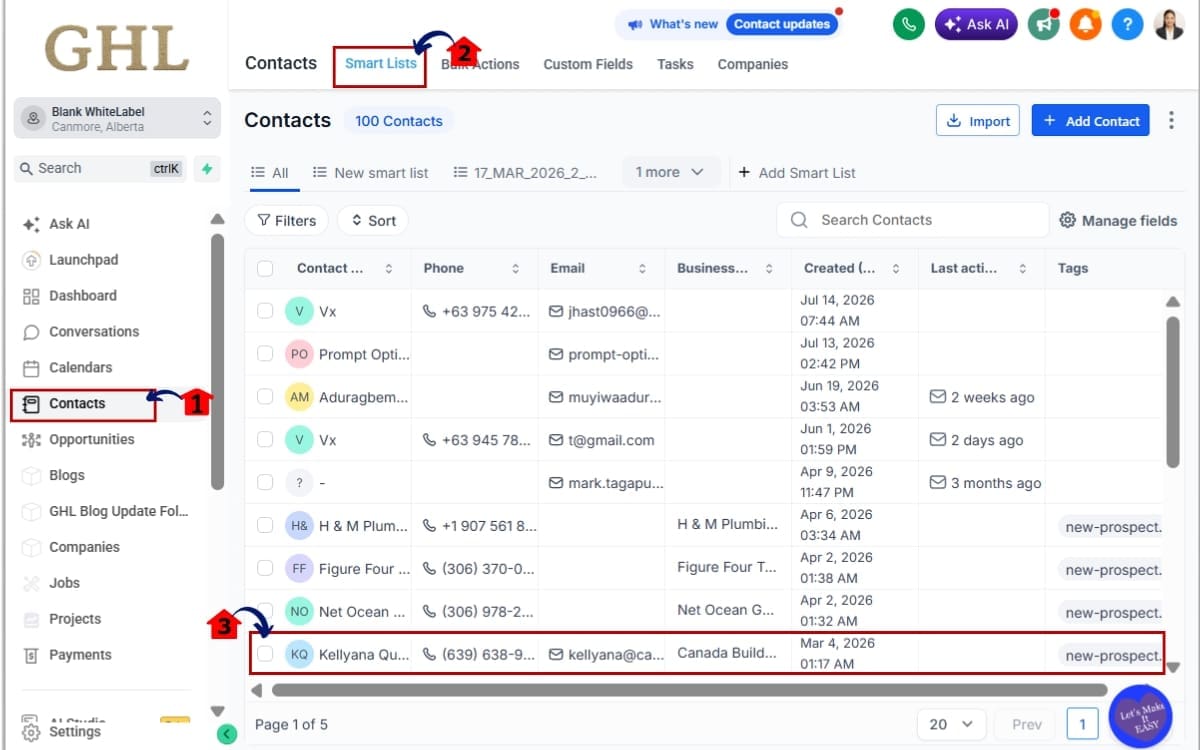
Step 01 – Access a Contact Record in Contacts
- The Contact Detail page is where all of these new customization options are available.
1.1 From the left-hand navigation menu, click Contacts.
- This opens your contact database and gives you access to all saved contact records.
1.2 Open Smartlists from the top navigation if needed.
- Smart Lists displays your contact list, making it easy to search for and select a specific contact.
1.3 Select any existing contact to open the Contact Detail page.
- Once opened, you’ll see the Contact Card along with tabs such as All Fields, DND, and Actions, where the new layout enhancements are displayed.
Step 02 – Resize the Contact Panels
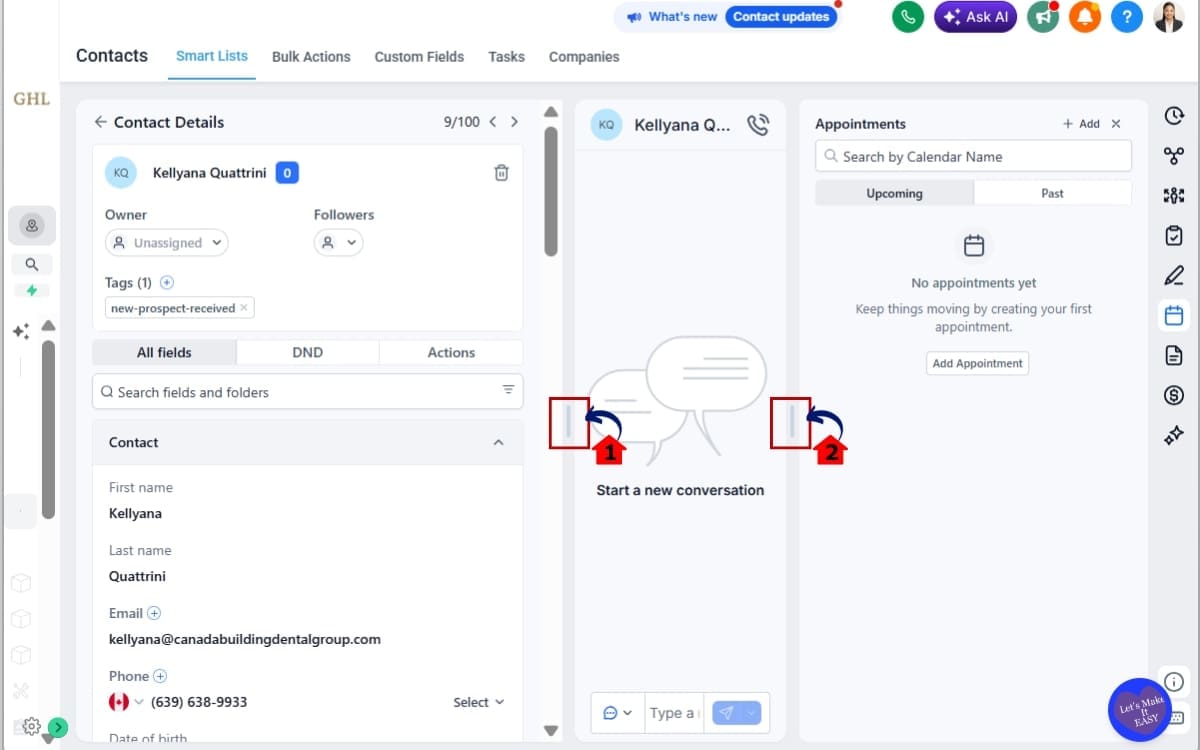
- You can now adjust the width of the Contact Detail page panels to better suit your workflow.
2.1 Locate the divider between the left panel and the main content area.
- Hover your cursor over the divider until the resize cursor appears.
2.2 Click and drag the divider left or right.
- Increase the width if you want more room for contact details. Reduce the width if you’d rather maximize the center workspace.
Step 03 – Configure Owners and Followers
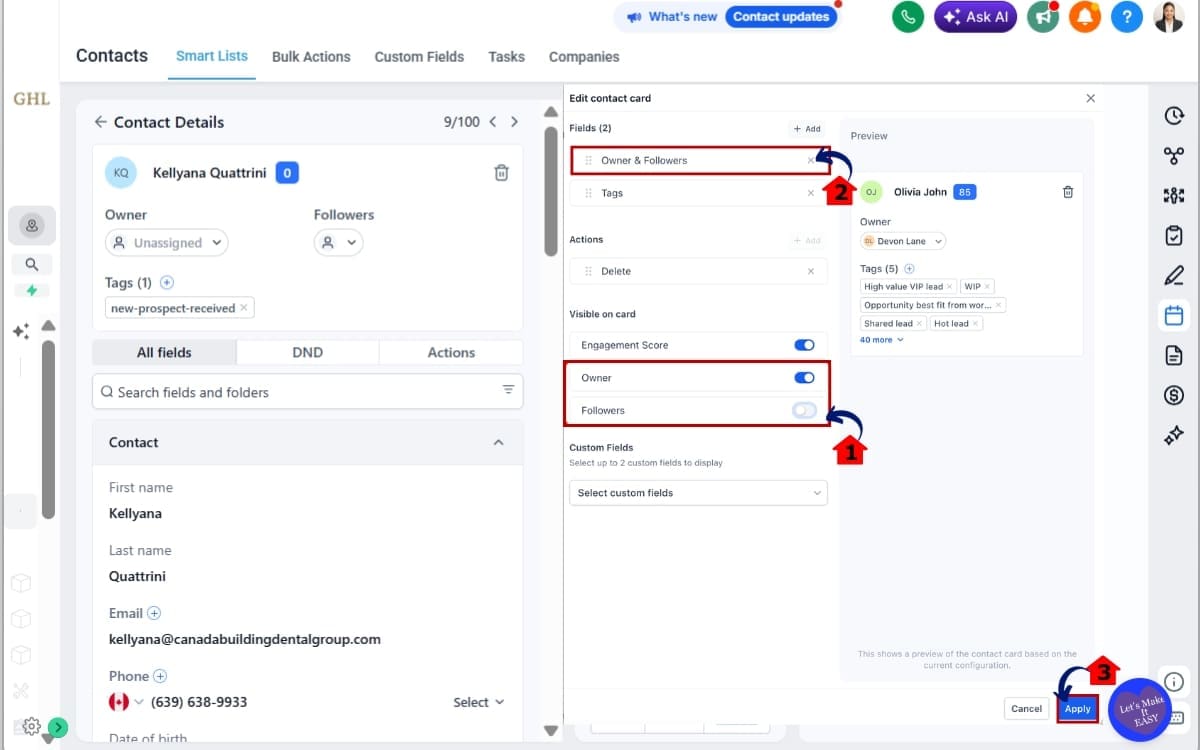
- Owners and Followers can now be managed independently.
3.1 Open the Contact Card customization options. Locate the Owners display setting. Locate the Followers display setting.
- These independent toggles allow you to control whether each item appears on the Contact Card.
3.2 Choose the layout that best suits your team.
Available options include:
- Owners only
- Followers only
- Both Owners and Followers
- Hide both sections
3.3 Save your changes and click apply.
- Once saved, the Contact Card will immediately reflect your selected visibility settings.
Step 04 – Add Custom Fields to the Contact Card
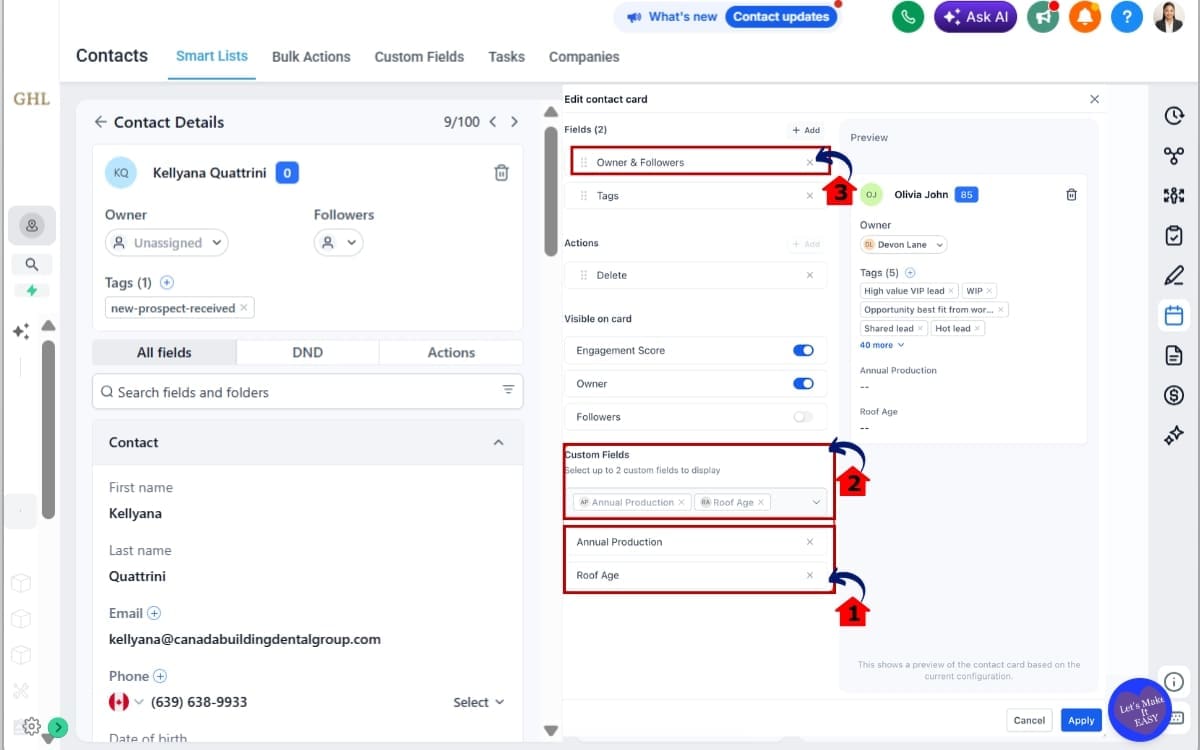
- You can now display two custom fields directly on the Contact Card for quicker access.
4.1 Open the Contact Card customization settings. Select the first custom field you want displayed. Select the second custom field.
- This section lets you choose which custom fields will appear on the Contact Card.
4.2 Review the Contact Card to confirm both fields appear correctly. Continue using the All Fields tab whenever you need to edit their values.
- Remember that these fields are displayed in read-only mode.
Step 05 – Choose Where Contact Tags Appear
- You now have more flexibility over where tags are displayed.
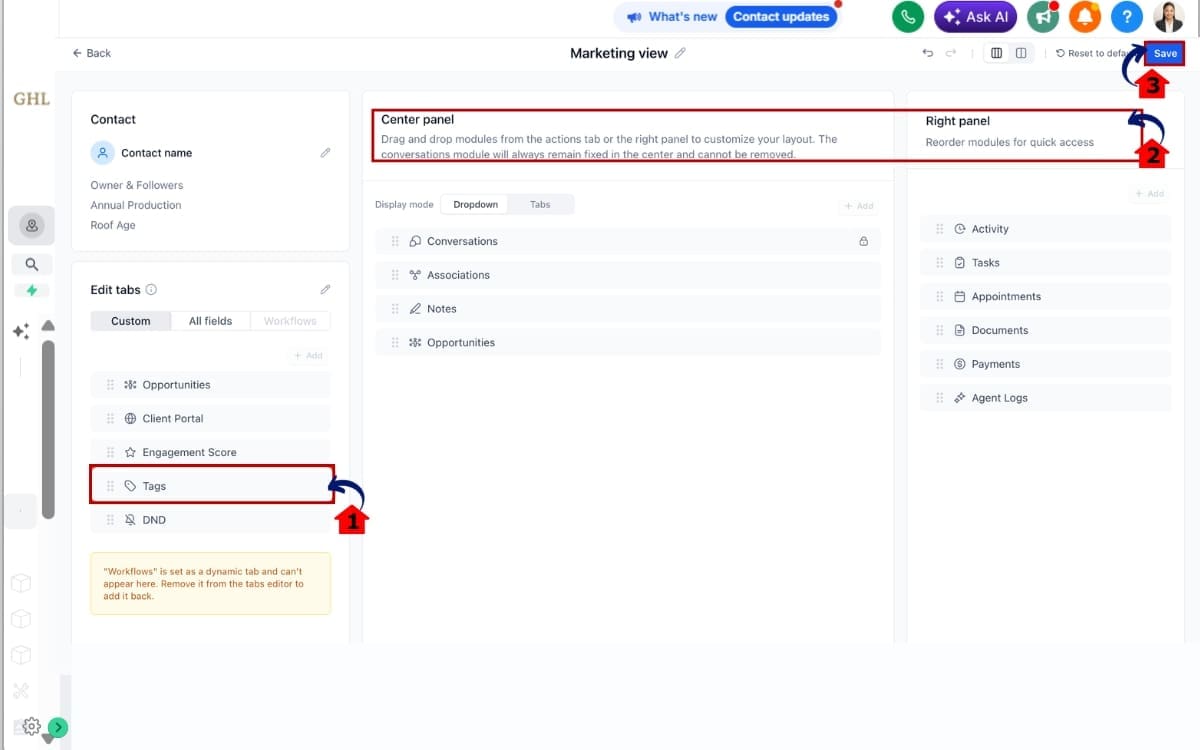
5.1 Open the Contact Page customization settings. Locate the Tags Placement option.
- This setting lets you control where contact tags appear within the Contact Detail layout.
5.2 Choose whether tags appear in:
- The left panel
- The center panel
5.3 Save your preferred layout.
- Open a Contact record to confirm that the tags appear in your selected location.
Step 06 – Rename and Reorder Tabs
- Your most-used tabs should always be the easiest to reach.
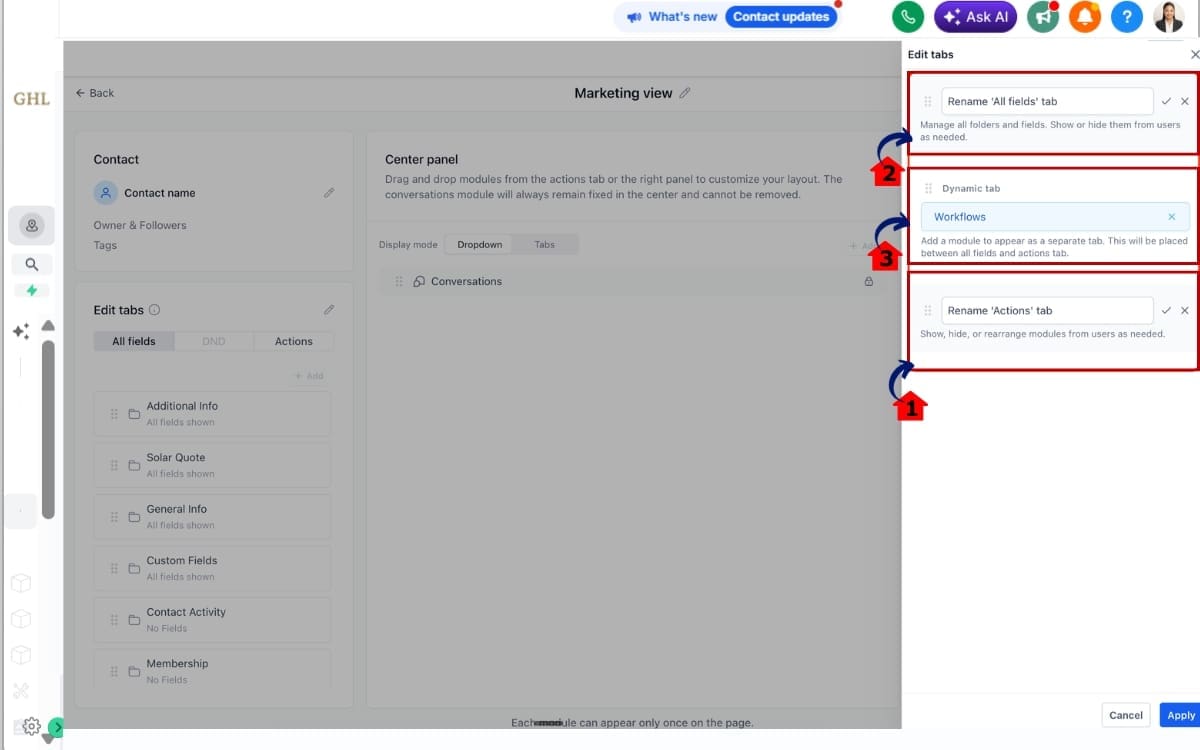
6.1 Open the tab customization settings. Rename the Actions tab if it better suits your workflow.
- This is where you can edit the names and order of the available tabs.
6.2 Rename the All Fields tab if required.
- Use a name that better reflects your workflow or internal terminology.
6.3 Drag and drop tabs into your preferred order.
- Updating the tab name can make navigation clearer for both new and existing users.
Step 07 – Review Dynamic Tabs
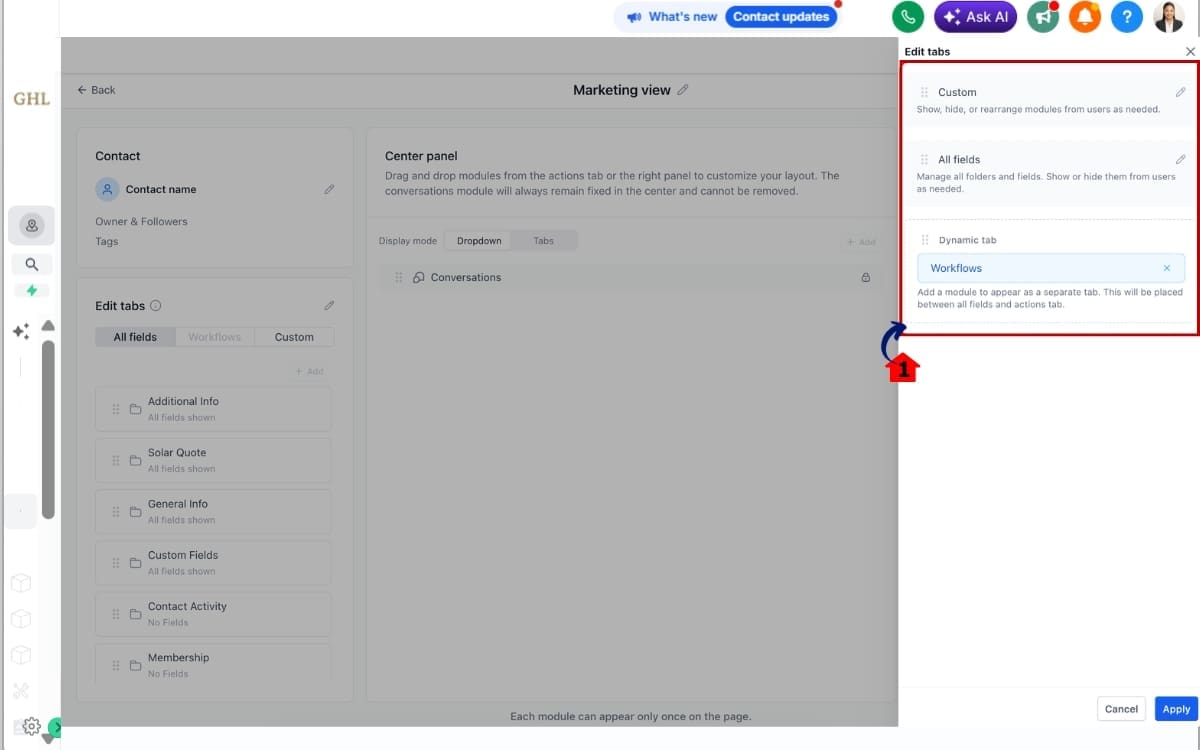
- Dynamic Tabs now automatically expand when opened.
7.1 Open any Dynamic Tab on the Contact Detail page. Confirm that every module inside the tab is already expanded. Review the information without needing additional clicks.
- This small improvement helps speed up navigation throughout the Contact Detail page.
The goal isn’t simply to customize the Contact Detail page. It’s to build a workspace that helps your team work faster, reduce unnecessary clicks, and find important information without having to think about where it’s located.
Pro Tips for Contact Page Customization
The real benefit isn’t just a better-looking Contact Page Customization. It’s the time your team gets back every single day by finding information faster.
These simple tips can help your team stay organized, work faster, and create a more consistent CRM experience.
Put Your Most Important Information First
Think about what your team looks for every time they open a contact.
If you regularly check a customer’s membership level, account manager, renewal date, or lead source, display those as your two custom fields on the Contact Card.
Keeping important details in plain sight means your team can get straight to work.
Build Layouts Around Your Team’s Workflow
Different teams use the same Contact Page Customization for different reasons.
A sales team may want Owners, lead information, and custom fields front and center.
A customer support team may benefit from keeping notes, conversations, and tags easy to access.
Design your Contact Page Customization around the people using it every day, not around every available option.
Keep the Contact Card Clean
More information isn’t always better. Keep the Contact Card focused on what your team actually uses.
Only keep the details your team uses regularly on the Contact Card.
Moving tags to another panel and hiding unnecessary sections can create a much cleaner workspace that’s easier to scan at a glance.
Rename Tabs Using Familiar Language
Your team shouldn’t have to guess where information is located.
If another tab name makes more sense for your business, rename it to match the language your team already uses.
Simple labels make onboarding easier and reduce confusion for new staff members.
Review Your Layout Every Few Months
Your business will change over time.
New automations, custom fields, and processes may become more important than the ones you use today.
Your Contact Page Customization doesn’t have to stay exactly the same. Update it whenever your team’s priorities change.
Prepare for Future Updates
GoHighLevel has already announced additional improvements, including duplicate module placement and user permissions for customized views.
You don’t need to rebuild everything every time GHL releases an update. A solid layout makes future changes much easier.
Avoid These Common Mistakes
No layout is perfect forever. As your business changes, it’s worth keeping these points in mind:
- Displaying custom fields that are rarely used.
- Leaving unnecessary sections visible.
- Overcrowding the Contact Card with too much information.
- Forgetting to gather feedback from the people who use the CRM every day.
A good Contact Page Customization isn’t about showing more information. It’s about making the information you actually need easy to find.
What This Means for Your Business
Some updates introduce new tools. Others improve the ones you’re already using every day. This update definitely falls into the second category.
These improvements don’t ask you to change your workflow. They simply make the Contact Page Customization easier to use throughout the day.
One extra click doesn’t seem like much until you’ve repeated it fifty times before lunch.
Everyday Tasks Feel Less Interrupted
Opening a Contact record is something most teams do countless times throughout the day.
One minute you’re preparing for a sales call. The next, you’re updating a Contact record after speaking with a client or checking an earlier conversation for context.
When everything is where you expect it to be, you can get on with the job instead of hunting through the Contact record.
The Contact Detail page simply gets out of your way and lets you focus on the customer instead of the layout.
A Layout That Fits the Way Your Team Works
No two businesses use GHL in exactly the same way.
Sales teams often care about pipelines and ownership. Customer support usually heads straight for notes and conversations. Agencies might spend more time looking at custom fields and client-specific details.
Rather than asking every team to work from the same setup, you can arrange the Contact Detail page around the information your people actually use.
That makes the page feel more familiar from the moment someone opens a Contact record.
Easier to Share Work Across Your Team
Once more people start working in the same CRM, everyone benefits from knowing exactly where things are.
One person can finish where another started without spending time looking around the page.
New team members can settle in much faster when every Contact page looks familiar.
Grows With Your Business
The nice thing about this update is that it fits into the way your team already works.
You can keep your existing processes and simply improve the page your team already spends most of its time using.
As more contacts and team members are added, having a Contact page everyone already understands becomes increasingly useful.
The Value Shows Up Over Time
At first glance, these changes might seem fairly minor.
Give it a week or two, though, and you’ll probably notice you’re spending less time looking around the Contact Detail page.
That’s really what this update is about.
Not adding another feature you’ll only use occasionally, but making one of the busiest pages in GoHighLevel a little more comfortable to work in every single day.
FAQs – Contact Page Customization
Conclusion – Contact Page Customization
Not every GHL update changes the way you work overnight.
Some changes don’t stand out straight away. You only notice them after a few days of using the platform.
If Contact records are where you spend most of your time, it’s worth experimenting with the new layout options. A couple of small adjustments can completely change how the page feels to use.
We’ll continue breaking down every important GoHighLevel release here at GHL Growth Garage, so you can spend less time figuring out what’s new and more time putting it to work.
Have you changed your Contact Detail page yet? We’d love to hear which layout works best for you.
Scale Your Business Today.
Streamline your workflow with GoHighLevel’s powerful tools.


