- Conversation Summaries Now Built Into GHL
- Quick Summary – Conversation Summaries
- Here are this weeks HighLevel Updates
- What’s New With Conversation Summaries
- How Conversation Summaries Actually Work
- Why Conversation Summaries Matter for Agencies
- How to Use Conversation AI Summary & Transcript
- Workflow & Automation Power Moves
- Real-World Use Cases for Conversation Summaries
- FAQs About Conversation Summaries
- Results You Can Expect From Conversation Summaries
- Final Thoughts – Turn Conversation Summaries Into Assets
Conversation Summaries Now Built Into GHL
GoHighLevel just rolled out a smarter way to handle AI chats. With Conversation Summaries, your bot conversations don’t just sit in a thread anymore, they turn into usable CRM data. Every session now feeds directly into your automations, so what was said can actually trigger action.
What changed: You can now automatically generate Conversation Summaries and full AI session transcripts based on inactivity, bot sleep events, human handoff, or session boundaries. Each summary can be saved to contact records, trigger workflows, send internal email notifications, or fuel GPT-powered CRM updates inside GHL.
Who it impacts: Agencies, sales teams, support teams, and any business using Conversation AI inside GHL that wants visibility, audit-ability, and smarter automation from AI-driven chats.
What we’ll demonstrate: How to enable Conversation Summaries inside Agency Labs, configure inactivity and message thresholds, trigger workflows automatically, and use transcripts to drive CRM actions and revenue-generating follow-ups.
The latest GoHighLevel Changelog includes several other GHL feature updates that round out your daily workflow:
- Kollab App – More Control, Better Playback, Stronger Security
- Configure payment provider by channel ⚙️
- Configure Granular Permissions for Sub-Account Settings
- Communities Learning Tab- Private Course/ Member-Specific Course Access
- Introducing New Templates
- Standard Builder: Drag-and-drop triggers and actions
- OpenRouter Actions & Triggers
- Monday.com actions and triggers
- Find Contact: Additional Email/Phone Search
Keep reading for much more on all these updates and a deep dive into the new AI Conversation feature!
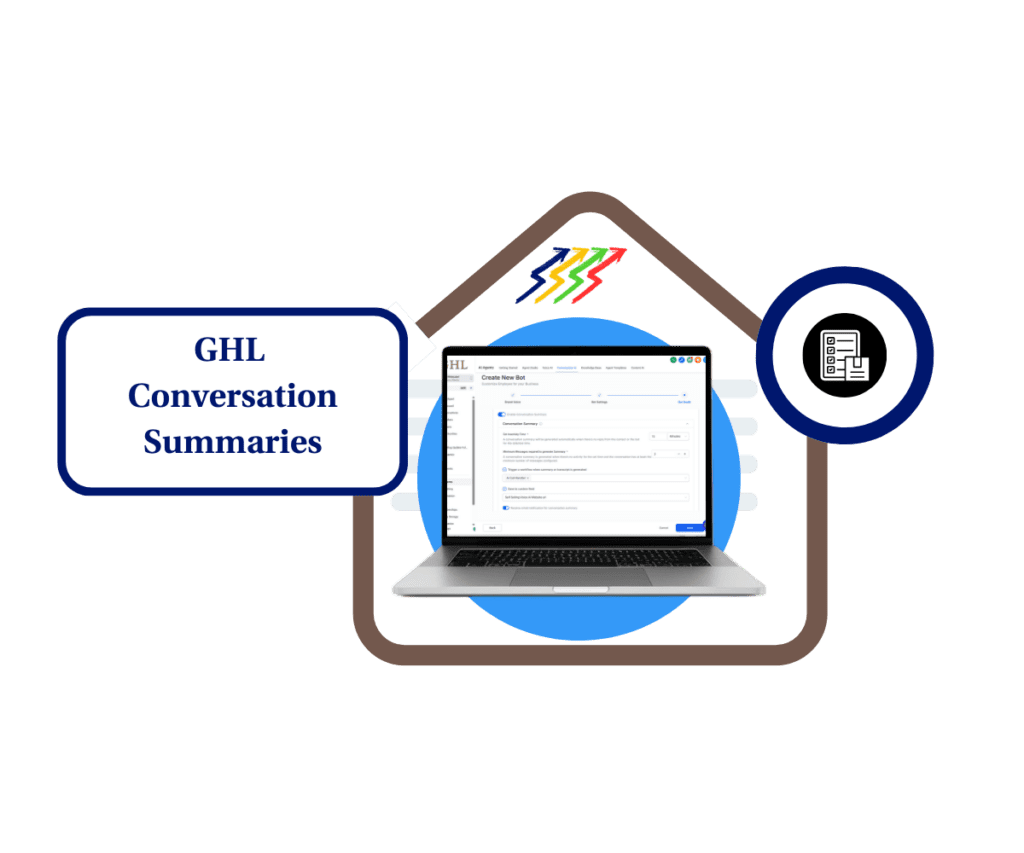
Quick Summary – Conversation Summaries
Purpose: Conversation Summaries automatically generate structured AI session recaps and transcripts inside GHL so every Conversation AI interaction becomes usable CRM intelligence.
Why It Matters: This feature gives agencies visibility, audit-ability, and automation power by turning AI chats into workflow triggers and actionable data instead of isolated message threads.
What You Get: You get automatic session-based summaries, full transcripts, workflow trigger capabilities, GPT data extraction options, CRM field updates, and real-time internal notifications.
Time To Complete: Setup takes less than five minutes, with additional time depending on how advanced your workflow automation strategy is.
Difficulty Level: Beginner to intermediate for basic setup, advanced if layering GPT actions and complex workflow logic.
Key Outcome: Faster follow-ups, cleaner CRM records, smarter automation decisions, and full control over your AI conversation data inside GHL.
Here are this weeks HighLevel Updates
Kollab App – More Control
- What it does
- Gives your team tighter control over how collaboration actually happens inside Kollab, especially when it comes to shared tasks and internal approvals.
- Where in GHL
- Kollab App → Project / Task Settings → Updated collaboration controls.
- Who benefits most
- Agencies managing internal production teams.
- Businesses using structured task workflows.
- Teams coordinating client deliverables across departments.
- Impact
- Improves operational clarity and reduces task confusion. This is about smoother teamwork and tighter internal execution.
Automate marketing, manage leads, and grow faster with GoHighLevel.

Better Playback, Stronger Security
- What it does
- Enhances media playback performance across the platform while strengthening access controls and security around shared content.
- Where in GHL
- Media / File Access Areas → Playback & Security Settings.
- Who benefits most
- Agencies delivering video content or digital assets.
- Teams sharing internal training materials.
- Businesses handling sensitive files or private resources.
- Impact
- Smoother playback improves user experience. Stronger security reduces risk. This is an operational stability upgrade, less buffering, fewer access issues, and better protection of shared content. It’s about performance and trust, not flash.
Configure Payment Provider by Channel
- What it does
- Allows businesses to configure different payment providers depending on the sales channel being used.
- Where in GHL
- Settings → Payments → Channel-Based Payment Configuration.
- Who benefits most
- E-commerce brands.
- Agencies running multi-channel funnels.
- Businesses separating online vs. in-person payments.
- Impact
- More flexibility in payment processing. Better financial tracking and channel-level control.
Configure Granular Permissions for Sub-Account Settings
- What it does
- Introduces more detailed permission control inside sub-account settings, allowing admins to restrict specific configuration access.
- Where in GHL
- Agency View → Sub-Account Settings → Permissions & Roles.
- Who benefits most
- Agencies managing multiple clients.
- Teams with tiered staff access levels.
- Businesses wanting tighter account security.
- Impact
- Stronger access control. Less risk. Better role-based governance.
Communities Learning Tab – Private Course / Member-Specific Access
- What it does
- Enables private course access within Communities, allowing content to be restricted to specific members or groups.
- Where in GHL
- Communities → Learning Tab → Course Access Settings.
- Who benefits most
- Coaches and course creators.
- Membership site owners.
- Agencies running paid communities.
- Impact
- Improves monetization control and member segmentation. More structured content delivery.
Introducing New Templates
- What it does
- Adds new pre-built templates to accelerate page, workflow, or asset creation.
- Where in GHL
- Templates Library → Select Template Type → Apply.
- Who benefits most
- Agencies deploying quickly.
- New sub-accounts.
- Teams wanting faster build times.
- Impact
- Speeds up execution and reduces build friction.
Standard Builder – Drag-and-Drop Triggers and Actions
- What it does
- Introduces a drag-and-drop interface for building workflows using triggers and actions visually.
- Where in GHL
- Automation → Workflows → Standard Builder.
- Who benefits most
- Automation-heavy agencies.
- Users building complex workflows.
- Teams wanting better visualization.
- Impact
- Improves clarity in automation building. Faster workflow creation. Fewer logic mistakes.
OpenRouter Actions & Triggers
- What it does
- Adds OpenRouter integration actions and triggers for expanded AI model connectivity inside workflows.
- Where in GHL
- Automation → Workflow Actions & Triggers → OpenRouter.
- Who benefits most
- Advanced AI users.
- Agencies building AI-powered automations.
- Developers integrating multi-model AI workflows.
- Impact
- Expands AI flexibility and automation intelligence across models.
Monday.com Actions and Triggers
- What it does
- Enables direct workflow triggers and actions tied to Monday.com boards and updates.
- Where in GHL
- Automation → Workflow Actions & Triggers → Monday.com.
- Who benefits most
- Agencies using Monday for project management.
- Businesses syncing CRM and task systems.
- Operations-focused teams.
- Impact
- Stronger cross-platform workflow automation. Reduces manual syncing.
Find Contact – Additional Email/Phone Search
- What it does
- Enhances contact lookup functionality by allowing searches using additional email addresses or phone numbers.
- Where in GHL
- Contacts → Search Bar → Additional Email / Phone Fields.
- Who benefits most
- High-volume CRM users.
- Support teams.
- Agencies handling duplicate or multi-contact records.
- Impact
- Improves data accuracy and reduces contact duplication. Faster contact retrieval.
What’s New With Conversation Summaries
GHL just changed how Conversation AI sessions are recorded and used.
With Conversation Summaries, every AI session now generates a structured summary and a full transcript automatically. No manual logging. No copy-paste. No digging through message threads.
Here’s what’s new.
Summaries are generated per session, not per conversation thread. That means each AI interaction is treated as its own event. Once a session ends, whether by inactivity, bot sleep, workflow conditions, message limits, or human handover, GHL creates a fresh Conversation Summary.
It only pulls in messages that happened after the last recap, inbound and outbound, so the record stays clean and complete.
And this isn’t just about storage.
These Conversation Summaries can automatically save to contact records, trigger workflows instantly, and even send email notifications to admins, users, or assigned reps. You can also define inactivity time limits and set minimum message thresholds before a summary is generated.
Important note: This feature must be enabled in Agency Labs, and summaries only capture data while it’s active. It’s not retroactive.
This is a structured, session-based AI logging system built directly into GHL.
How Conversation Summaries Actually Work
To use Conversation Summaries properly, you need to understand how sessions are defined inside GHL.
A summary is generated per session, not per contact and not per entire conversation history. That’s a key difference.
A session ends when one of the following happens:
- The configured inactivity time expire
- The bot is put to sleep
- The maximum message limit is reached
- A workflow forces a bot sleep
- A Stop Bot condition is triggered
- A human handover occurs
- A manual or workflow message interrupts the session
Once that boundary is hit, GHL generates a new Conversation Summary.
The transcript is different from the summary.
The transcript is the raw recording. The summary is the condensed version. Same conversation, different levels of detail.
One important detail: Conversation Summaries are only generated for messages that occur while the feature is enabled. If it’s off, nothing is logged retroactively.
This is clean, session-based AI tracking built for automation.
Why Conversation Summaries Matter for Agencies
If you run an agency, Conversation Summaries aren’t just a nice feature. They’re control.
Before this update, AI conversations lived inside message threads. There was no centralized, structured recap. No easy way to audit what the bot said. No clean way to trigger automation based on actual conversation outcomes.
Now you have visibility.
Conversation Summaries give you a session-based record of every AI interaction. That means you can review performance, catch mistakes, improve prompts, and protect client accounts. If a bot mishandles an objection or gives incomplete information, you’ll see it.
That’s operational power.
But it goes deeper than audits.
You can now trigger CRM actions automatically based on real conversation data. Move opportunities. Update custom fields. Tag hot leads. Notify sales reps instantly. Send follow-ups without anyone touching the keyboard.
For agencies managing multiple sub-accounts, this is huge. It standardizes AI oversight across clients and turns chat data into measurable automation.
Instead of AI conversations being temporary, they become structured assets.
And structured data is what drives scalable growth inside GHL.
How to Use Conversation AI Summary & Transcript
Conversation Summaries must first be enabled in Agency Labs before they can be configured inside your Conversation AI bot. In this section, you’ll learn how to activate the feature, adjust the key settings, and connect summaries to workflows.
You can enable and configure this You’ll follow a step-by-step process to ensure each AI session generates a structured summary and transcript that can trigger automation, update contact records, and notify your team automatically.in just a few quick steps.
- Open Conversation AI and Select or Create a Bot.
- Choose if Guided Form Setup, Prompt Base Bot or Flow Based Builder.
- Select Your Bot Type and Proceed.
- Select the brand voice in your new bot.
- Set up and configure your bot’s core settings.
- Enable Conversation Summaries.
- Configure Smart Settings in Bot Goals.
This new update is still in GHL Labs, therefore before using this process, please turn on the Conversation AI Summary & Transcript lab for your sub-account. Go to your Agency View, open Settings, click Labs, find Conversation AI Summary & Transcript, and activate the feature.
To start make sure you are logged in to your GoHighLevel sub-account.
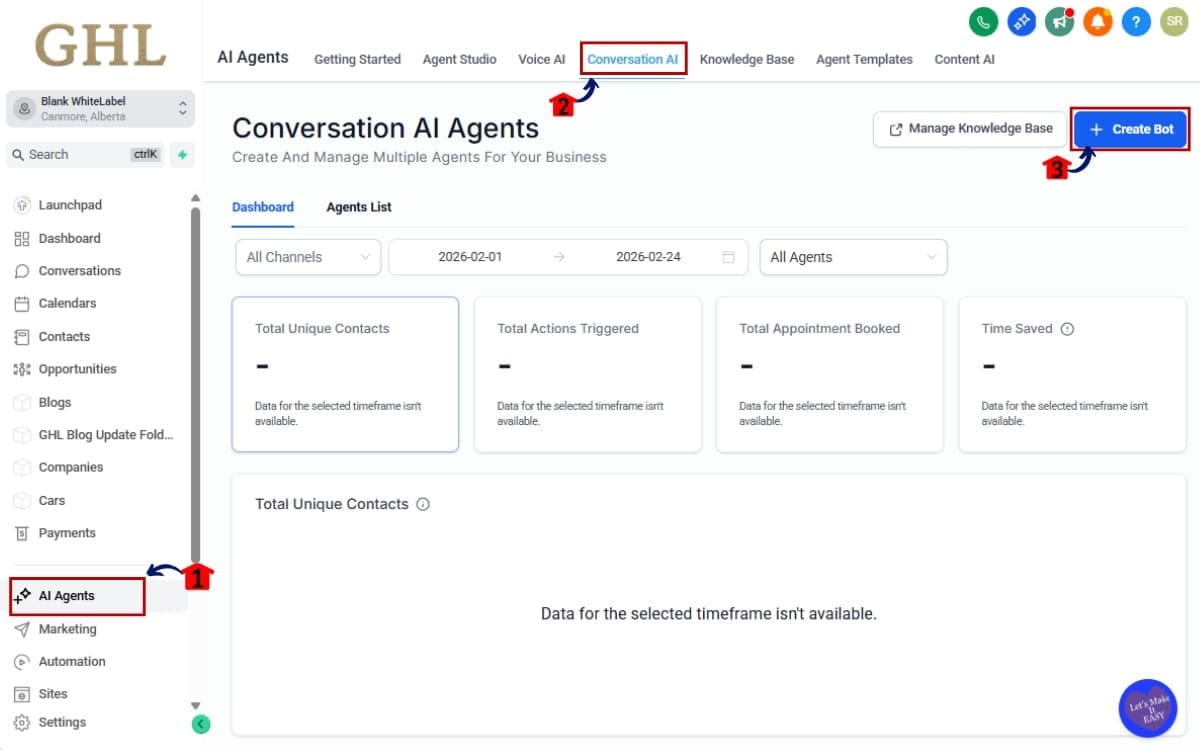
Step 1.0 – Open Conversation AI and Select or Create a Bot
- Access the Conversation AI area to manage or create a bot.
1.1 Navigate to AI Agents > Conversation AI.
- Opens the main Conversation AI dashboard.
1.2 Click the create bot.
- Starts the process of creating a new Conversation AI bot.
Step 2.0 – Choose if Guided Form Setup, Prompt Base Bot or Flow Based Builder
- Choose the method you want to use to build your new bot.
2.1 Choose and click if Guided Form Setup, Prompt Base Bot or Flow Based Builder.
- Selects the framework that will determine how your bot is configured.
2.2 Click create new bot.
- Confirms your selection and launches the bot setup process.
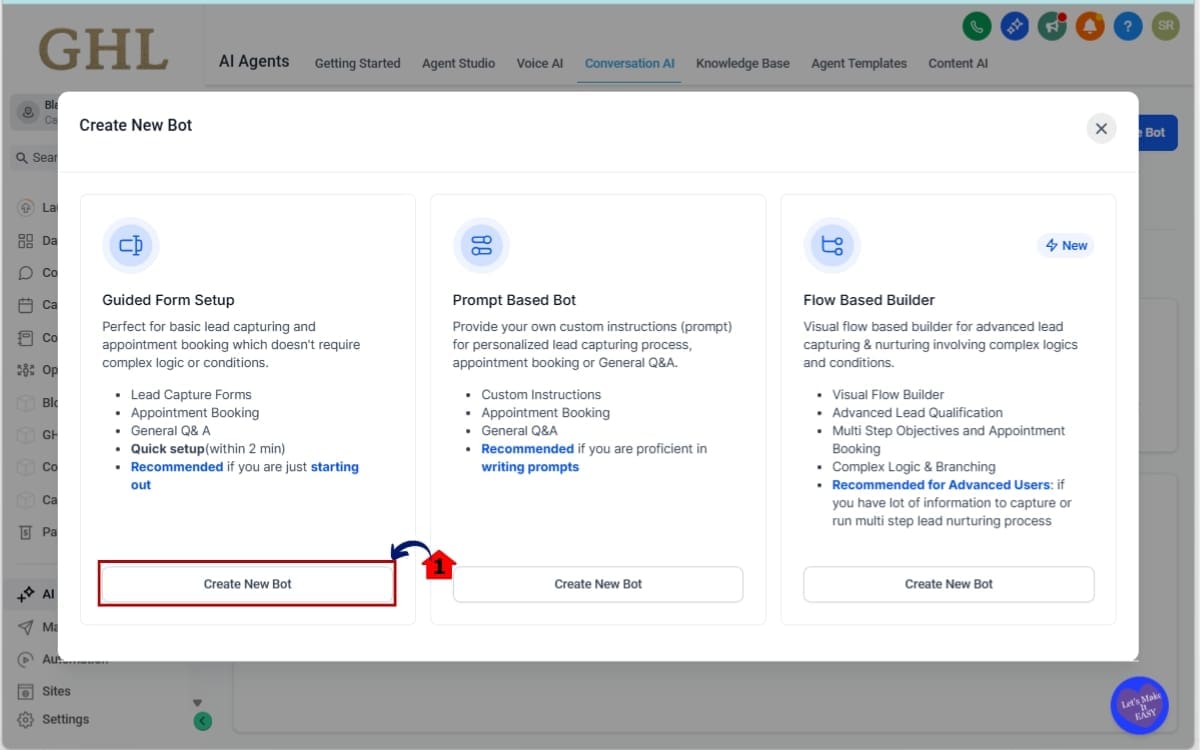
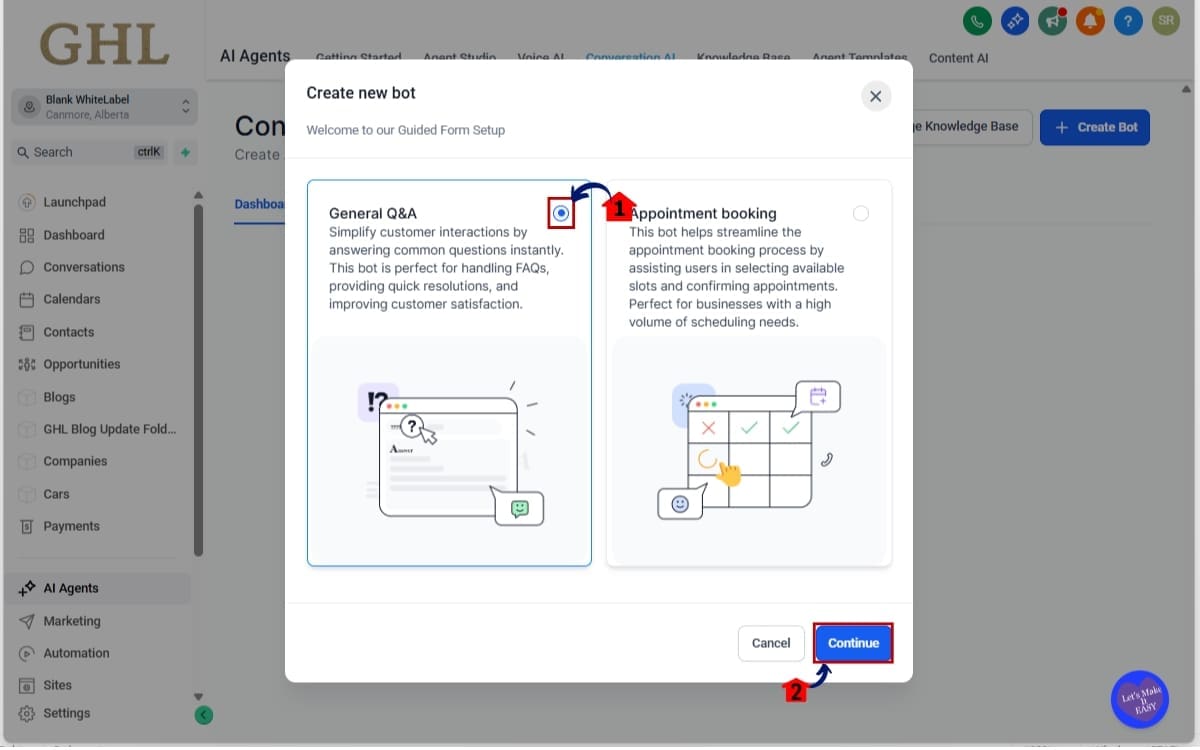
Step 3.0 – Select Your Bot Type and Proceed
- Define the primary function of your bot before proceeding.
- In this step, you’ll choose whether the bot will handle general questions or book appointments.
3.1 Then select if General Q&A or Appointment booking.
- Sets the bot’s main interaction type.
3.2 Click continue.
- Confirms your selection and moves you to the next setup stage.
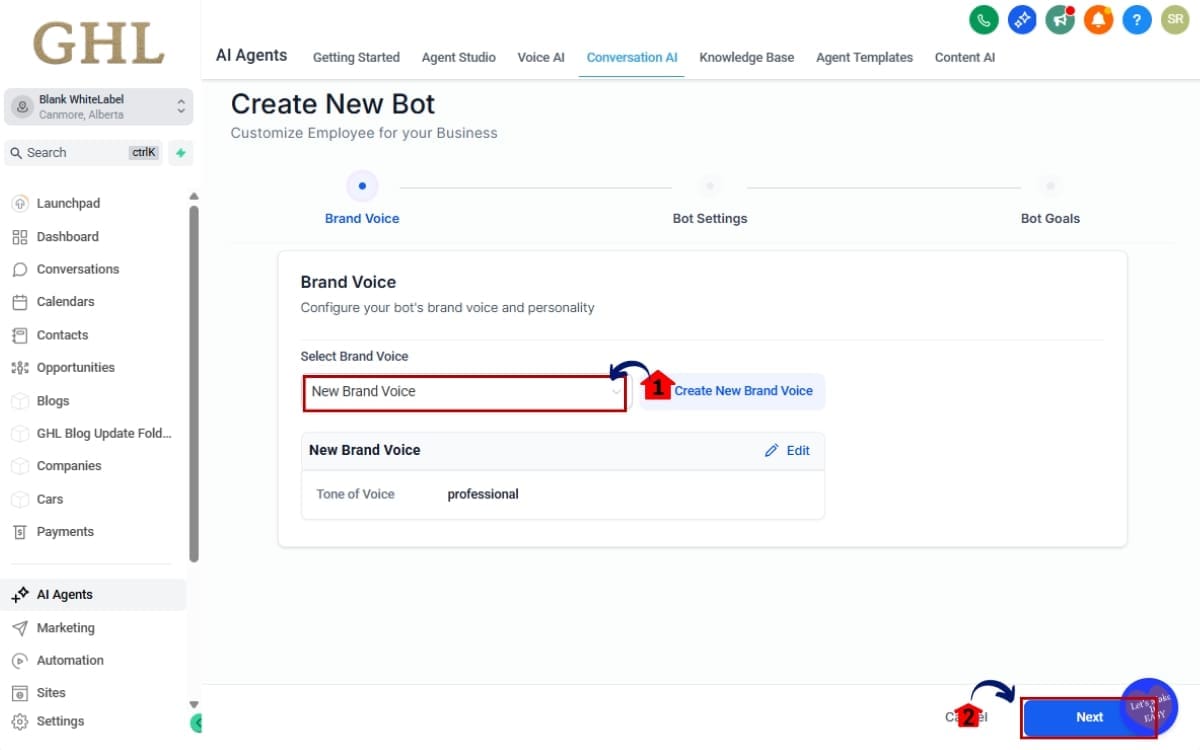
Step 4.0 – Select the brand voice in your new bot
- Choose the tone and personality your bot will use when responding.
- In this step, you’ll define how your bot communicates with users by selecting a brand voice that aligns with your business style.
4.1 Select the brand voice.
- Sets the communication tone for the bot’s responses.
4.2 Then click next.
- Saves your selection and moves you to the next configuration step.
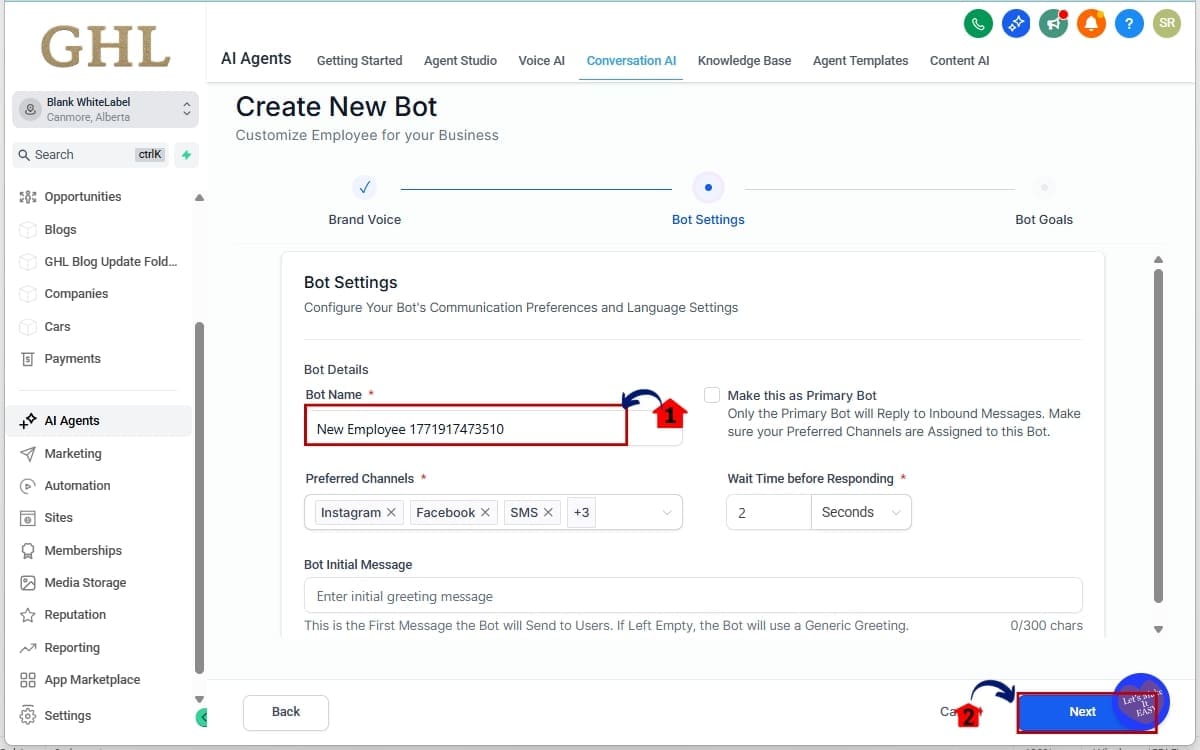
Step 05 – Set up and configure your bot’s core settings
- Enter the required details to initialize your new bot.
- In this step, you’ll define the basic information needed to create and identify your bot.
5.1 Fill up your bot name.
- Assigns a clear name to your bot for identification inside Conversation AI.
5.2 Then click next.
- Saves the bot name and moves you to the next configuration step.
Step 06 – Enable Conversation Summaries
- Activate the session-based summary feature for your bot.
- In this step, you’ll turn on Conversation Summaries so each AI session generates a structured recap and transcript.
6.1 Locate Enable Conversation Summary option.
- Finds the setting inside the Bot configuration panel.
6.2 Toggle it ON.
- Activates automatic summary generation for new sessions.
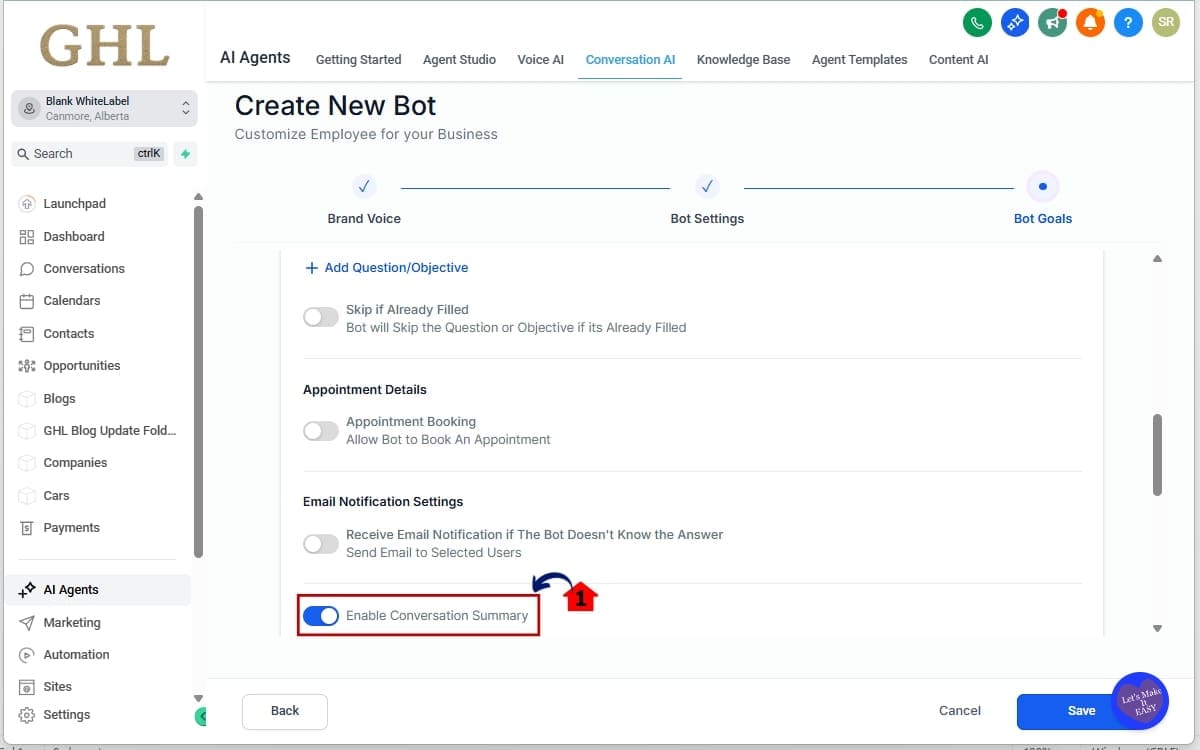
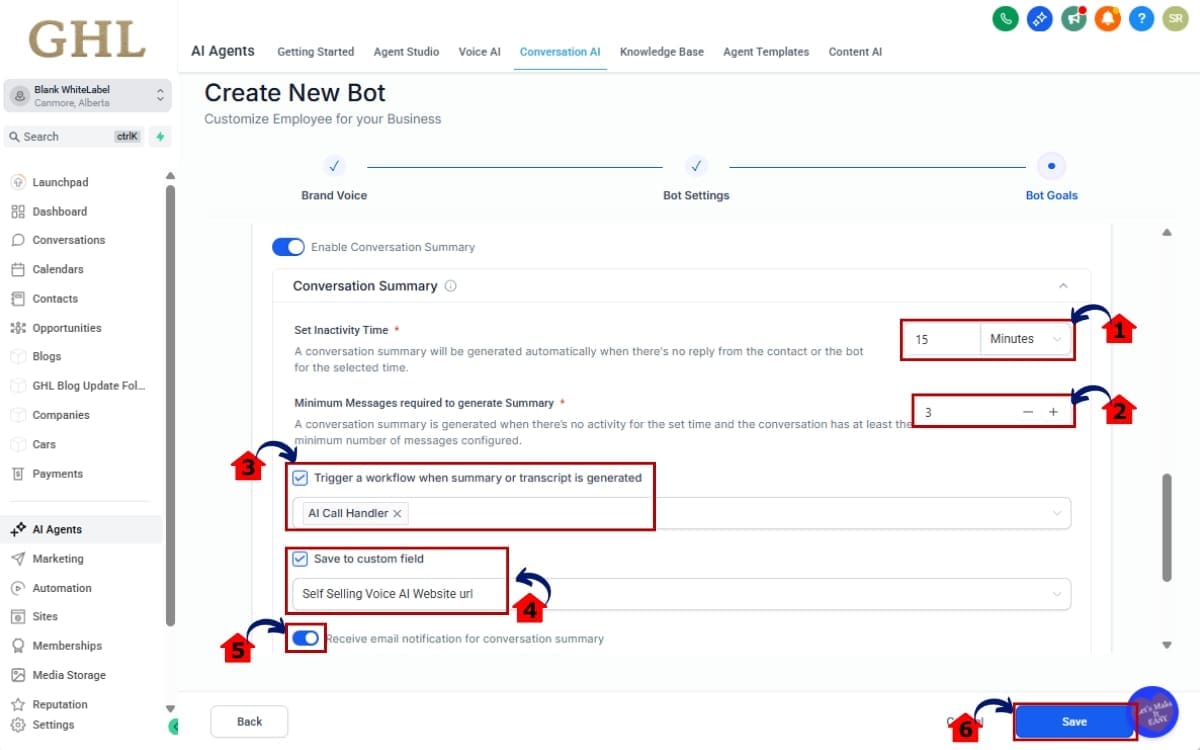
Step 07 – Configure Smart Settings in Bot Goals
- Adjust how and when Conversation Summaries are generated and used.
- In this step, you’ll define the conditions that control summary creation, automation triggers, and notification settings.
7.1 Set an Inactivity Time (example: 15 minutes).
- Determines how long the system waits before ending a session and generating a summary.
7.2 Define a Minimum Message Count required before a summary generates.
- Prevents summaries from being created for very short interactions.
7.3 Enable workflow trigger when a summary is created.
- Automatically starts a workflow once a session summary is generated.
7.4 Choose whether to automatically save the summary to a custom field.
- Stores the latest session summary directly in the contact record.
7.5 Configure email notifications (All admins, All users, Assigned user, Specific users, or Custom emails).
- Sends alerts when a new summary is created.
7.6 Then save
- Applies your configuration settings to the bot.
Your AI conversations are now logged, summarized, and driving CRM action automatically.
Workflow & Automation Power Moves
This is where Conversation Summaries stop being “nice to have” and start becoming serious leverage.
When a summary is generated, you can trigger a workflow instantly. No traditional trigger required. The session ends, the Conversation Summary is created, and your automation fires.
Inside workflows, you can access two powerful variables:
- Conversation AI → Summary
- Conversation AI → Transcript
That means you’re not just reacting to a tag or a button click. You’re reacting to what was actually said.
Here’s where it gets fun.
You can use GPT actions inside workflows to:
• Extract key buying signals
• Identify objections
• Pull out budget or timeline details
• Update custom fields automatically
• Score leads based on conversation tone
• Append multiple summaries into long-term contact history
You can automatically move an opportunity to a new pipeline stage based on summary content. You can alert a sales rep if negative sentiment appears. You can send internal notifications when a hot keyword is detected.
This turns Conversation Summaries into a decision engine.
Instead of reviewing chats manually, your CRM responds in real time.
That’s automation with context.
Real-World Use Cases for Conversation Summaries
Now let’s talk execution.
Conversation Summaries aren’t just about record keeping. They’re about turning AI conversations into revenue-driving actions.
Here are real-world ways agencies can deploy this immediately.
Auto-Tag Hot Leads
Let GPT scan the summary for buyer intent, phrases about pricing, timelines, or starting soon. If it spots them, tag the lead as hot and notify sales immediately.
Move Opportunities Automatically
If the summary includes intent-based language, move the opportunity to the next pipeline stage without manual review.
Escalate Negative Sentiment
If a transcript shows frustration or dissatisfaction, trigger an internal alert or create a task for immediate follow-up.
Extract Key Data
Pull out budget, timeline, service type, or location from the Conversation Summary and update custom fields automatically.
Build an AI Call Recap
Send an internal email summary to your sales team after each session. No one has to read through the full transcript unless needed.
Create a Knowledge Base
Over time, you can review transcripts to spot repeat objections and common questions. Then adjust your bot replies or create content that answers those issues upfront.
This is where Conversation Summaries become strategic.
You’re not just storing AI conversations.
You’re training your automation to think.
FAQs About Conversation Summaries
Results You Can Expect From Conversation Summaries
Once Conversation Summaries are running inside your account, things get cleaner. Faster. Smarter.
First, you gain visibility.
You can finally see what your AI is doing across every session. No more guessing. No more scrolling through long chat threads trying to piece together what happened.
Second, your automations get sharper.
Instead of triggering workflows based on surface-level actions, you’re now reacting to actual conversation outcomes. Conversation Summaries give your CRM context. And context is what makes automation powerful.
Third, your follow-ups speed up.
Hot leads get flagged instantly. Sales reps get notified automatically. Opportunities move without manual review. That alone can shave hours off your response time.
Fourth, your CRM gets cleaner.
Key details like budget, service type, objections, and intent can be extracted directly from transcripts and stored properly. No more relying on memory or manual notes.
And long term?
You build a smarter system.
The more Conversation Summaries you analyze, the better your AI prompts, workflows, and sales processes become. You start spotting patterns. You refine responses. You close gaps.
This isn’t just logging.
It’s operational intelligence built into GHL.
Final Thoughts – Turn Conversation Summaries Into Assets
AI conversations are data.
And data without structure is wasted opportunity.
Before this update, your Conversation AI sessions lived inside threads. Useful in the moment. Hard to review later. Almost impossible to automate intelligently without extra steps.
Now, Conversation Summaries change that.
Every AI interaction becomes structured, session-based intelligence. It can be stored. Triggered. Analyzed. Extracted. Automated.
That’s a massive shift.
Instead of treating AI like a chat tool, you start treating it like a data engine. Every conversation feeds your CRM. Every session can drive a workflow. Every transcript becomes insight you can act on.
For agencies, this is control at scale.
You can audit bots across sub-accounts. Improve prompts based on real conversations. Automatically escalate issues. Identify buying signals instantly. And build smarter automations that respond to what people actually say.
That’s how AI should work.
Using Conversation AI already? Switch this on and wire it into your automations. Not using it yet? Now might be the time.
Because conversations shouldn’t disappear.
They should compound.
Scale Your Business Today.
Streamline your workflow with GoHighLevel’s powerful tools.