- Custom Object Import in GHL Just Got Easier
- Quick Summary – Custom Object Import Overview
- Here are this weeks HighLevel Updates
- Custom Object Import Features in GHL
- Why Custom Object Import Matters for Agencies
- How to Use Custom Object Import in GHL
- Custom Object Import Tips for GHL Users
- Custom Object Import Questions in GHL
- Custom Object Import Results in GHL
- Custom Object Import in Makes Data Management Faster
Custom Object Import in GHL Just Got Easier
Before this update, importing data into Custom Objects in GoHighLevel wasn’t as smooth as importing Contacts or Opportunities. CSV imports worked well for those areas, but Custom Objects often required extra manual work or creative workarounds.
For agencies managing structured datasets, like service records, memberships, or internal tracking systems, that added friction. Large datasets couldn’t always be uploaded quickly, and updating existing records in bulk was harder than it should have been.
GoHighLevel’s Custom Object Import feature now fills that gap.
After uploading your CSV, simply map each column to its matching field. Then choose whether the import should create records, update them, or perform both actions. Unique fields help prevent duplicate entries, and you can control whether empty values overwrite existing information.
What changed: There’s now a CSV import option for Custom Objects in GoHighLevel. Upload your file, match the columns to your object fields, and run the import. Afterward, check Bulk Actions to see the results and identify any rows that didn’t go through.
Who this is for: Agencies managing structured CRM data with Custom Objects, businesses migrating data from external systems, teams onboarding large datasets, and any GoHighLevel user who wants a faster way to create or update Custom Object records at scale.
What we’ll demonstrate: Where to enable the feature inside Subaccount → Labs, how to upload and configure a Custom Object Import using a CSV file, how to choose between Create, Update, or Create + Update modes, how unique field duplicate logic works, and how to track import results inside Bulk Actions.
The latest GoHighLevel Changelog includes several other GHL feature updates that round out your daily workflow:
- Audit Logs for Deleted Builder Assets
- All-in-One Chat widget support in Customer Replied trigger
- Rich Text Editor Now Available for Service Descriptions! (Services v2)
- Client Portal & Communities – Password & Magic Link updates
- ✨ Multi-Date Selection for Date-Specific Hours (Meetings & Rentals)
- Send prospects directly to your pipelines
- Documents & Contracts: Staff Selection in Templates
- Invoices, Estimates: Open in new tab
Keep reading for much more on all these updates and a deep dive into the Bulk Import feature!
Quick Summary – Custom Object Import Overview
Purpose: This update introduces Custom Object Import in GoHighLevel, allowing users to bulk create or update Custom Object records using a CSV file instead of manually entering records one at a time.
Why It Matters: Agencies and businesses often manage large datasets inside Custom Objects. The new import capability makes it much easier to migrate data, onboard new records, and maintain structured CRM information at scale.
What You Get: Users can upload a CSV file, map fields to Custom Object properties, choose between Create, Update, or Create + Update modes, and track the results directly inside Bulk Actions with full success and error reporting.
Time To Complete: Setting up and running a Custom Object Import typically takes only a few minutes once your CSV file is prepared and your fields are mapped correctly.
Difficulty Level: Easy to moderate. The process follows the same familiar import workflow used for Contacts and Opportunities inside GoHighLevel.
Key Outcome: Agencies can now manage large Custom Object datasets faster, reduce manual data entry, prevent duplicate records using unique field logic, and scale structured CRM data inside GHL more efficiently.
Here are this weeks HighLevel Updates
Audit Logs for Deleted Builder Assets
- What it does:
Tracks and records when builder assets like funnels, pages, emails, or other builder elements are deleted. This gives admins a clear audit trail of who removed assets and when the deletion happened. - Where in GHL:
Settings → Audit Logs - Impact:
Improves account accountability and troubleshooting. Agencies can quickly identify accidental deletions or team mistakes and understand when assets were removed. - Who it’s great for:
Agencies with large teams, admins managing multiple users, and businesses that need better activity tracking and accountability.
Automate marketing, manage leads, and grow faster with GoHighLevel.

All-in-One Chat Widget Support in Customer Replied Trigger
- What it does:
Allows workflows to trigger when customers reply through the All-in-One Chat widget, with filtering by chat type and widget configuration. - Where in GHL:
Automation → Workflows → Customer Replied Trigger - Impact:
Makes chat automation far more precise by letting users control which chat source triggers workflows. - Who it’s great for:
Businesses using website chat widgets, agencies managing multiple chat widgets for clients, and support teams running live chat conversations.
Rich Text Editor Now Available for Service Descriptions (Services v2)
- What it does:
Adds a rich text editor to service descriptions so users can format text using headings, bold text, lists, and styling. - Where in GHL:
Payments → Products → Services (Services v2) - Impact:
Improves the appearance and readability of service listings, helping businesses present offers more professionally. - Who it’s great for:
Coaches, consultants, agencies, and businesses selling services who want better formatted service descriptions and clearer offers.
Client Portal & Communities – Password & Magic Link Updates
- What it does:
Enhances login options by improving password access and magic link authentication for Client Portal and Communities users. - Where in GHL:
Client Portal / Communities → Login & Access settings - Impact:
Improves login flexibility and user access security while making it easier for members to access portals. - Who it’s great for:
Businesses running membership portals, client dashboards, or online communities inside GoHighLevel.
Multi-Date Selection for Date-Specific Hours (Meetings & Rentals)
- What it does:
Allows users to select multiple dates at once when configuring date-specific availability hours for calendars. - Where in GHL:
Calendars → Availability Settings → Date Specific Hours - Impact:
Saves time when configuring custom availability across multiple days instead of setting each date individually. - Who it’s great for:
Businesses offering appointments, bookings, or rental scheduling, especially those managing event schedules or seasonal availability.
Send Prospects Directly to Your Pipelines
- What it does:
Allows prospects to be automatically sent into a pipeline opportunity when they take specific actions, streamlining lead tracking. - Where in GHL:
Opportunities / Pipelines → Automation & lead capture workflows - Impact:
Speeds up lead management by ensuring prospects instantly appear in sales pipelines without manual entry. - Who it’s great for:
Sales teams, agencies managing lead funnels, and businesses that rely heavily on pipeline-based sales processes.
Documents & Contracts – Staff Selection in Templates
- What it does:
Lets users assign or select specific staff members directly within document or contract templates. - Where in GHL:
Payments → Documents & Contracts → Template Settings - Impact:
Improves workflow efficiency by automatically linking contracts with the correct staff member responsible for the deal or client. - Who it’s great for:
Agencies, service businesses, and teams that use contracts or agreements tied to specific team members.
Invoices & Estimates – Open in New Tab
- What it does:
Adds the option to open invoices and estimates in a new browser tab instead of replacing the current page. - Where in GHL:
Payments → Invoices & Estimates - Impact:
Improves workflow navigation and productivity by allowing users to review invoices without losing their current page.
Who it’s great for: Businesses managing multiple invoices, finance teams, and agencies handling client billing.
Custom Object Import Features in GHL
GoHighLevel has added the ability to import Custom Object records from a CSV file. This update allows users to upload spreadsheets and manage large batches of records instead of entering them individually. The overall workflow is similar to the import process already used for Contacts and Opportunities.
This update is especially helpful for agencies that store structured data inside Custom Objects. Tasks that previously required manual entry or complicated workflows can now be handled with a simple import.
The feature includes three import options. Create adds new records from the CSV file. Update modifies existing records and requires the Record ID so the correct entries can be updated. Create + Update combines both actions, updating records when the ID exists and creating new ones when it doesn’t.
The system also includes duplicate protection through unique fields. If a row being imported matches another record that already uses that unique value, the system simply skips it. This helps avoid duplicate entries and keeps the data more reliable.
Users can also monitor the entire import process in the Bulk Actions area. This section shows progress updates, success counts, and any rows that failed so they can be reviewed and corrected.
Why Custom Object Import Matters for Agencies
Within GoHighLevel, Custom Objects have become a go-to feature for agencies working with structured data. They allow teams to store and organize information that doesn’t really belong in standard contact or opportunity records. Many businesses use them to manage things like memberships, service logs, onboarding steps, assets, or internal client information.
But as those datasets grow, managing them manually becomes harder.
It works at first—adding records one by one. But as your data grows, it becomes slow and inefficient. Moving data from another system only makes it tougher.
This is where Custom Object Import makes a real difference.
You don’t have to create records one by one anymore. Upload a CSV file, match the fields, and import everything in bulk within minutes.
For agencies migrating systems or syncing external data sources, this can save a huge amount of time.
It also makes bulk updates easier. If something changes across many records, like membership status or service details, the update can be applied through a CSV file instead of editing each record manually.
GoHighLevel also helps keep the data clean by checking unique fields during the import. If a duplicate is detected, the conflicting row simply won’t be added.
In the end, Custom Object Import turns Custom Objects into a much more scalable tool for agencies handling large datasets.
How to Use Custom Object Import in GHL
The Custom Object Import process in GoHighLevel allows you to upload a CSV file, match your fields, and control how records are created or updated.
Follow the steps below to set up your import, configure your options, and successfully bring your data into your Custom Object.
- Open the Custom Object You Want to Import Into.
- Select Objects to Start Importing Process.
- Choose Import Mode and Upload Files.
- Map CSV Fields to Custom Object Fields.
- Confirmimport settings and Finalize Import.
- Start the Import and wait for the process.
- Track Import Results and Review.
This new update is still in GHL Labs, therefore before using this process, please turn on the Company and Custom Object Import lab for your sub-account. Go to your Agency View, open Settings, click Labs, find Company and Custom Object Import, and activate the feature.
To start make sure you are logged in to your GoHighLevel sub-account.
Step 1.0 – Open the Custom Object You Want to Import Into
- Go to the section where your Custom Objects are stored so you can access the correct dataset before starting the import.
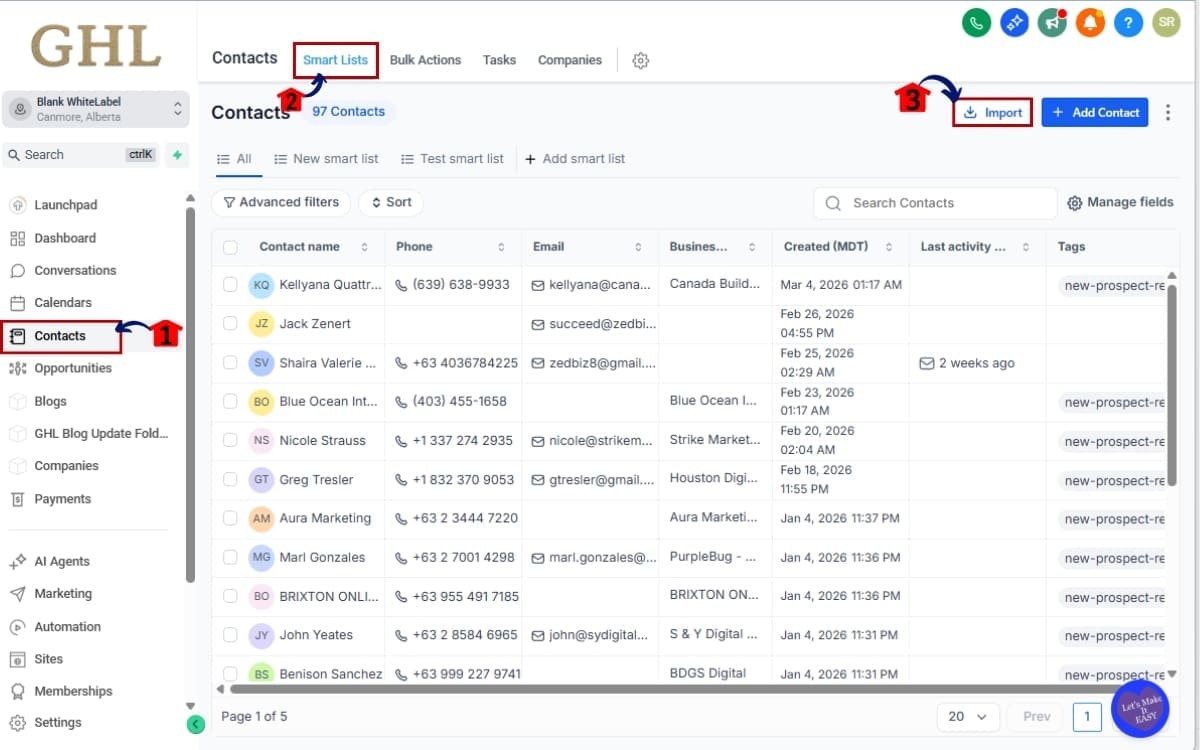
1.1 From the left menu, go to Contacts
- This is where all your CRM data lives in GoHighLevel, including access to Custom Objects and related records.
1.2 Select Smart Lists
- Smart Lists allow you to view and manage filtered data inside your CRM, and they also provide access to import-related actions.
1.3 Choose the Custom Object where you want to import records
- Select the specific Custom Object you want to work with so your imported data goes into the correct structure.
Step 2.0 – Select Objects to Start Importing Process
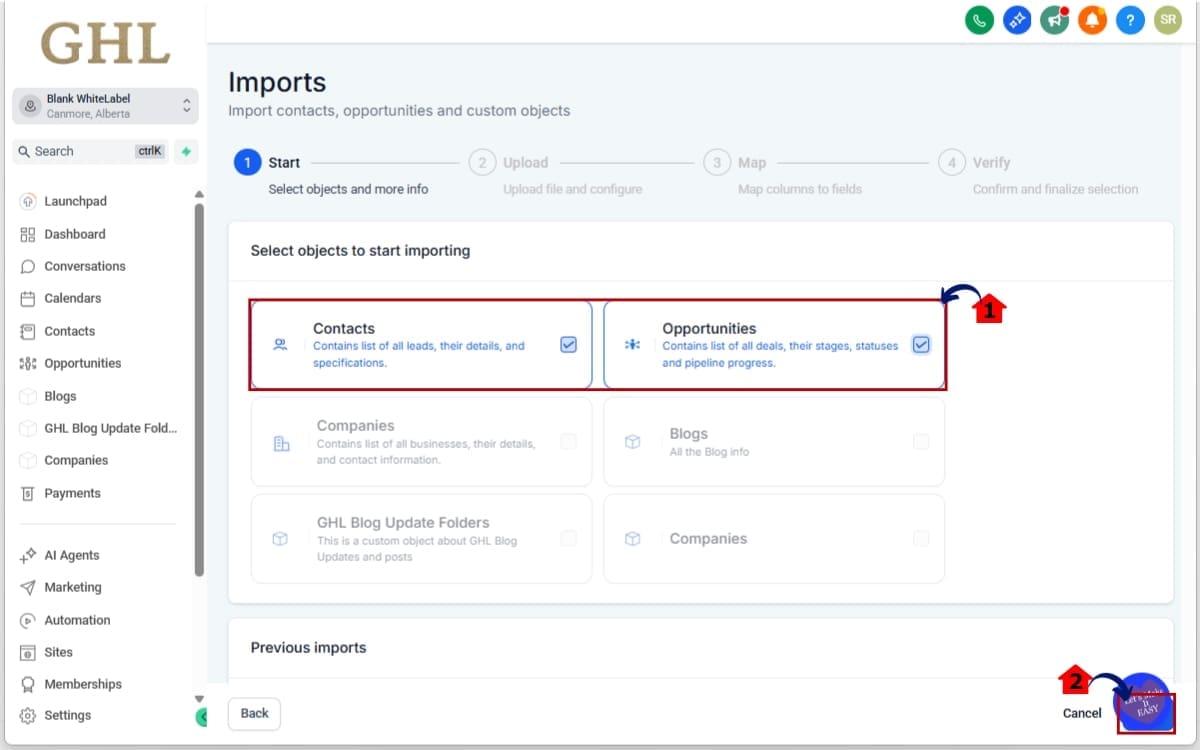
- Choose the data type you want to import so GoHighLevel knows which records will be created or updated.
2.1 Inside the Custom Object, click Contacts and Opportunities
- This step allows you to define how the Custom Object connects to existing CRM records, such as Contacts or Opportunities, during the import.
2.2 Click Next to continue
- After selecting the appropriate options, click Next to move forward to the import setup and configuration stage.
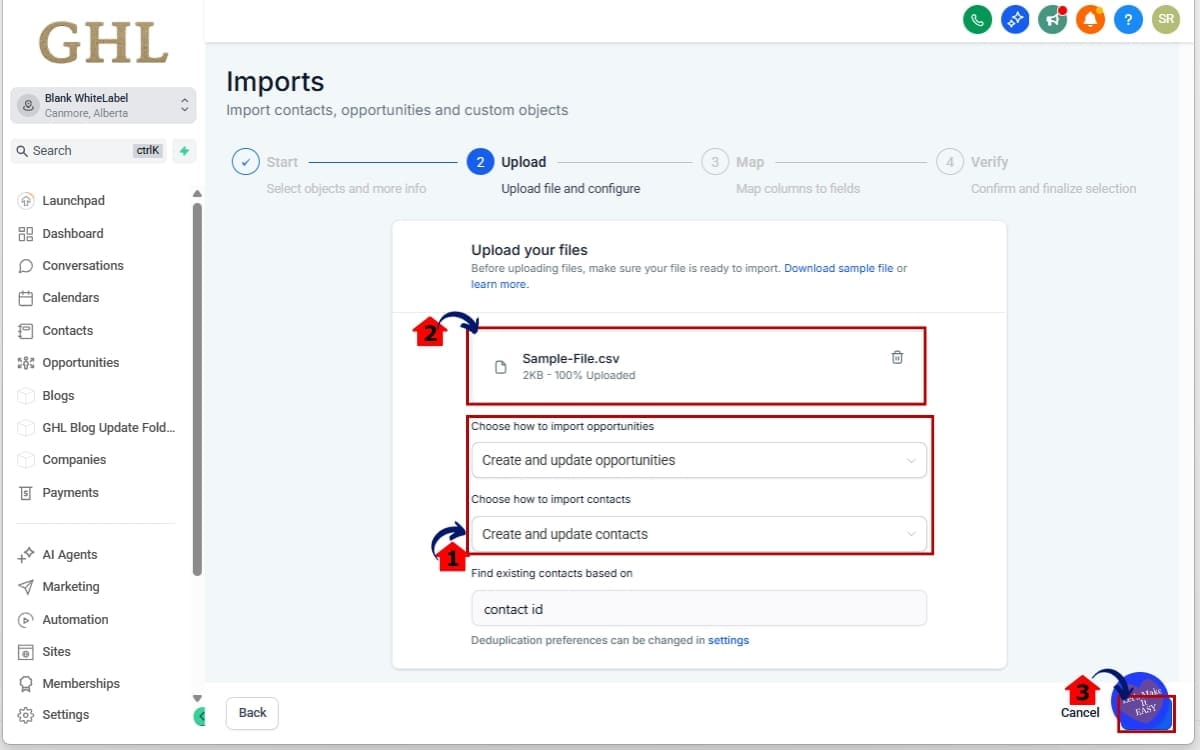
Step 3.0 – Choose Import Mode and Upload Files
- Decide how you want your data to be processed, then upload your CSV file to begin the import setup.
3.1 Select how the records should be processed
- Choose the import mode based on whether you’re adding new data, updating existing records, or doing both.
- Create – Creates new Custom Object records only
• Use this when you’re importing fresh data that doesn’t already exist in your system. - Update – Updates existing records using Record ID
• Use this when you need to modify records that are already in your Custom Object. This requires the Record ID to match records correctly. - Create + Update – Updates records if Record ID exists, otherwise creates new ones
• Use this when syncing data. Existing records will be updated, and new ones will be created automatically if no match is found.
3.2 Upload your CSV file
- Select and upload the file that contains the data you want to import into your Custom Object.
3.3 Click Next to continue
- Once your file is uploaded and import mode is selected, click Next to move to the field mapping step.
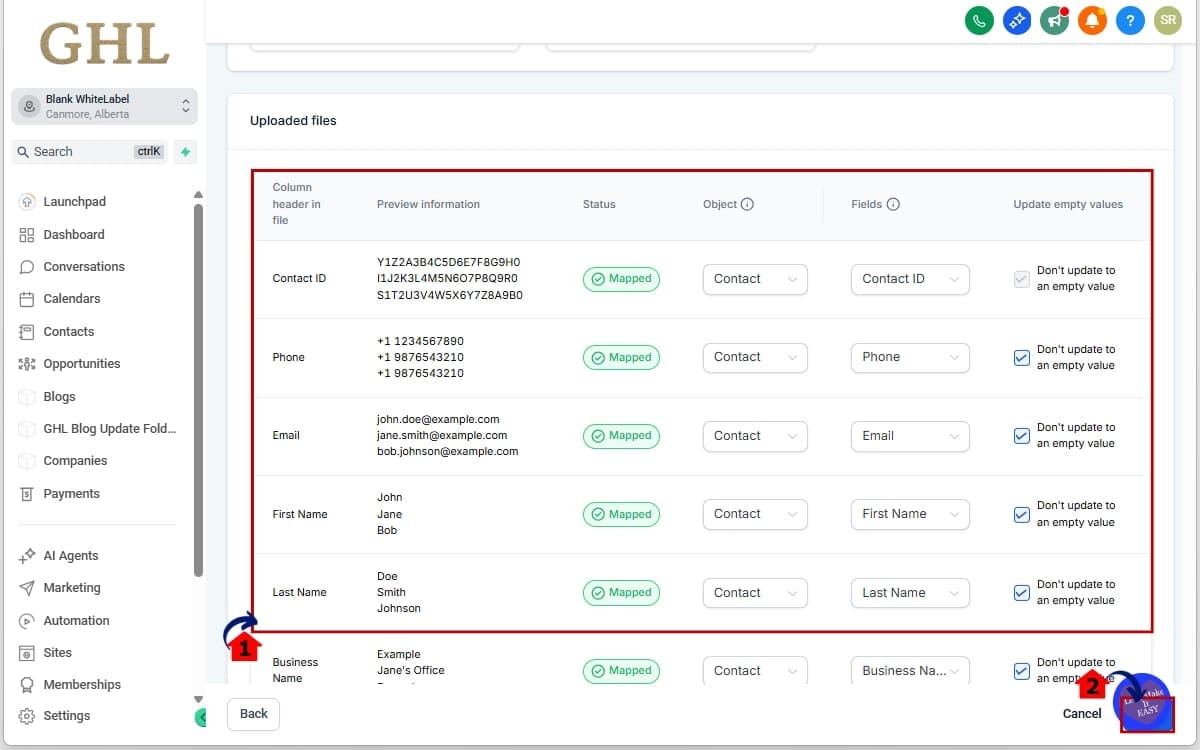
Step 4.0 – Map CSV Fields to Custom Object Fields
- Connect the data from your CSV file to the correct fields inside your Custom Object to ensure everything is imported properly.
4.1 Match each CSV column with the corresponding Custom Object field
- Go through each column in your CSV file and assign it to the correct field in your Custom Object. This ensures your data is placed in the right location.
4.2 Click Next to continue
- Once all fields are mapped and reviewed, click Next to move forward with the import process.
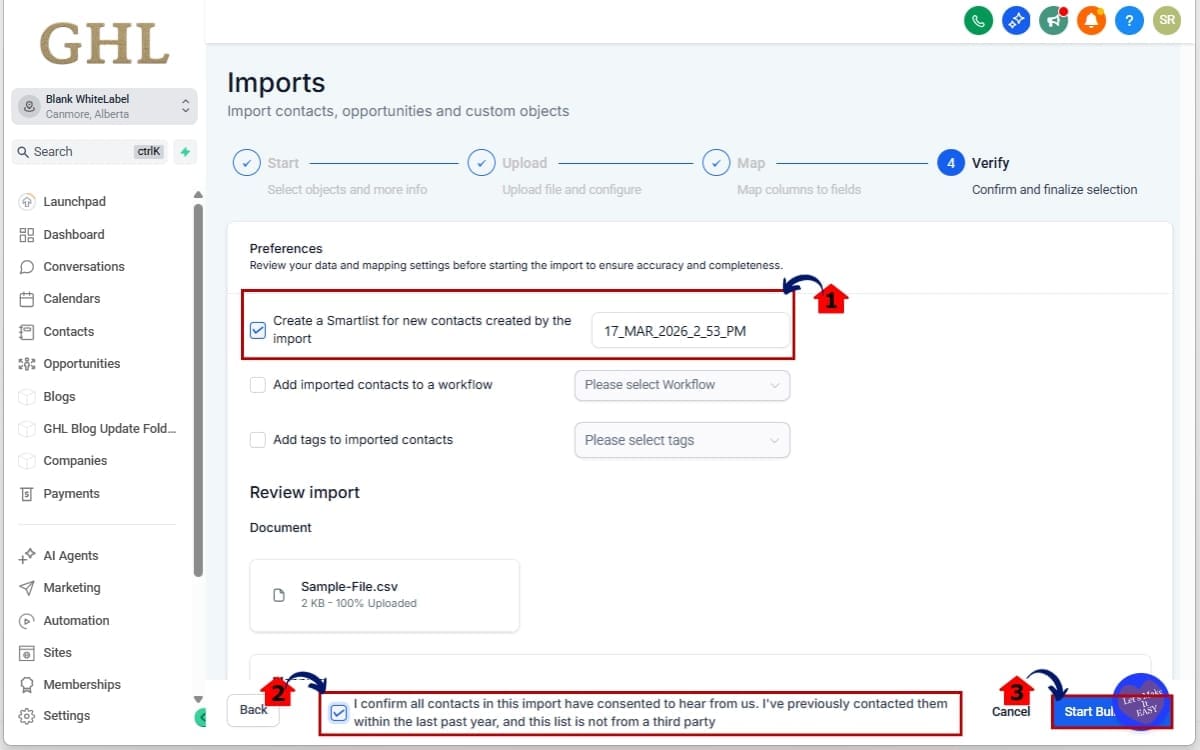
Step 5.0 – Confirm Import Settings and Finalize Import
- Review your import settings and confirm everything is correct before starting the bulk import process.
5.1 Create a Smart List for imported records (optional)
- Enable this option if you want GoHighLevel to automatically group all newly imported records into a Smart List for easy tracking and filtering.
5.2 Confirm data consent
- Check the confirmation box to ensure that all records being imported have the proper consent and meet compliance requirements.
5.3 Click Start Bulk Import
- Once everything is reviewed and confirmed, click Start Bulk Import to begin processing your data.
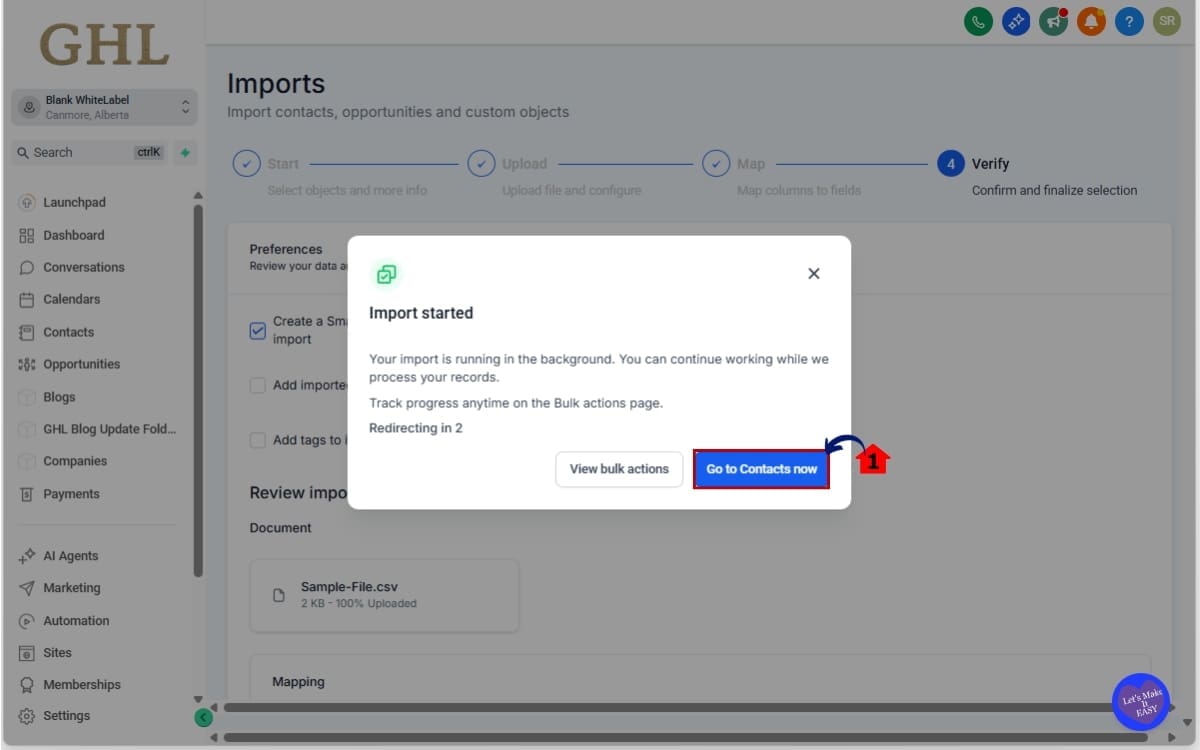
Step 6.0 – Start the Import and wait for the process
- Begin the import process and move to the next screen to monitor your data being processed.
6.1 Click “Go to Contacts”
- After starting the import, select Go to Contacts to return to your CRM where you can track the imported records and view updates in real time.
Step 7.0 – Track Import Results and Review
- Monitor the progress of your import and review the outcome to ensure your data was processed correctly.
7.1 Navigate to Bulk Actions
- Go to the Bulk Actions section in your GoHighLevel account to access all import activity and history.
7.2 Monitor progress and review results
- Check the import status, including how many records were successfully processed and which rows failed. Use this information to identify errors and make any necessary corrections.
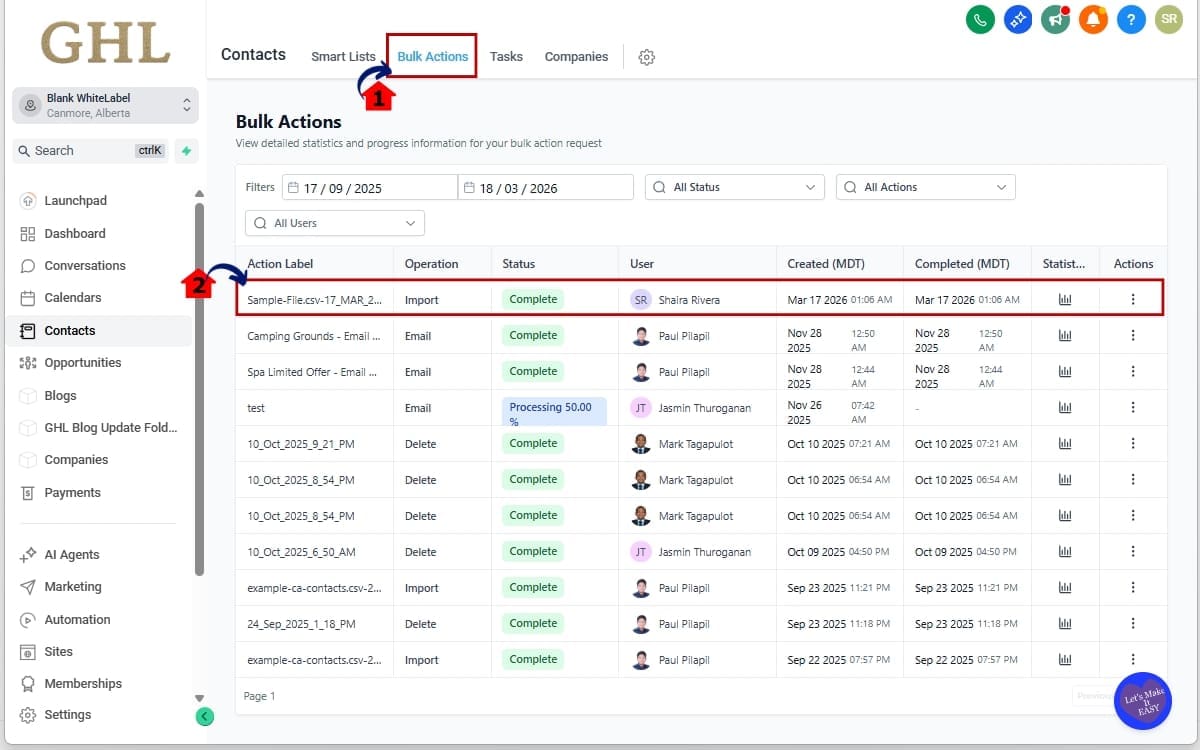
That’s it. Your Custom Object Import will create or update records automatically, allowing you to manage large datasets inside GoHighLevel much faster.
Custom Object Import Tips for GHL Users
Custom Object Import is a big time-saver, but it works best when your data is prepared properly.
Start by cleaning your CSV file. Remove duplicates, extra columns, and any incomplete rows. This helps reduce errors during the import.
Make sure your fields are mapped correctly. If a column is off, your data can end up in the wrong spot.
Try importing a few records first—it’s an easy way to catch mistakes early.
If you’re updating existing data, the Create + Update option is usually the safest. It updates records when possible and creates new ones when needed.
Don’t forget to check your unique fields, since they control how duplicates are handled.
Once the import is done, review everything in Bulk Actions. You’ll see what was successful and what needs fixing.
Custom Object Import Questions in GHL
Custom Object Import Results in GHL
Once you start using Custom Object Import in GoHighLevel, one of the first things you’ll notice is how much faster it becomes to manage structured data. Instead of creating records one by one, you can now import entire datasets in minutes using a CSV file.
For agencies onboarding new clients, this can dramatically reduce setup time. Many businesses maintain important information in spreadsheets or external systems before moving into GoHighLevel. With Custom Object Import, those datasets can be transferred into Custom Objects quickly, allowing teams to start using automation, reporting, and CRM workflows much sooner.
Another major benefit is improved data consistency. Since the import process includes unique field duplicate protection, you can maintain cleaner records inside your CRM. This helps prevent multiple entries for the same record and ensures your Custom Object data remains accurate.
The ability to update records in bulk also creates huge efficiency gains. Businesses often need to modify large groups of records when services change, membership statuses are updated, or additional fields are introduced. With Custom Object Import, those updates can be applied to hundreds or thousands of records through a single CSV update instead of manual edits.
You’ll also gain better visibility into your data operations. Because all imports are tracked inside Bulk Actions, users can monitor progress, review success and error statistics, and quickly identify rows that require correction. This makes troubleshooting much easier and gives teams confidence when working with large datasets.
Overall, Custom Object Import makes Custom Objects far more scalable. Agencies can import data faster, maintain structured records more efficiently, and manage complex CRM datasets without the limitations of manual entry.
Custom Object Import in Makes Data Management Faster
Managing structured data inside GoHighLevel becomes much easier with the introduction of Custom Object Import. Instead of creating or updating records one at a time, users can now upload a CSV file and process large datasets in just a few steps.
This update brings Custom Objects closer to the same level of flexibility already available for Contacts and Opportunities. Agencies can now create new records, update existing ones, or combine both actions in a single import workflow. That means less manual data entry and more efficient CRM management.
For businesses that rely heavily on structured data, this feature unlocks a lot of new possibilities. Whether you’re onboarding a new client database, migrating information from another system, or updating hundreds of records at once, Custom Object Import provides a faster and more scalable solution.
The built-in duplicate protection using unique fields also helps maintain data accuracy. Instead of risking duplicate records, GoHighLevel can detect conflicts and prevent incorrect entries from being created during the import process.
Another major advantage is the visibility provided through Bulk Actions. After running an import, users can immediately review success rates, identify errors, and quickly fix any rows that failed. This makes it much easier to manage large data imports with confidence.
Overall, Custom Object Import is a powerful improvement for agencies and businesses using Custom Objects to organize CRM data. By enabling bulk record creation, updates, and smarter duplicate handling, GoHighLevel makes it easier to scale structured data management across your entire account.
Scale Your Business Today.
Streamline your workflow with GoHighLevel’s powerful tools.