- Introduction – Custom Object Notes in GHL
- Quick Summary – Custom Object Notes Overview
- Here are this weeks HighLevel Updates
- What’s New – Custom Object Notes in GHL
- Why It Matters – Custom Object Notes in GHL
- How to Associate Notes Across Records in GHL
- Practical Tips for Using Custom Object Notes
- Real-World Use Cases for Custom Object Notes in GHL
- Results You Can Expect from Using Custom Object Notes
- Frequently Asked Questions About Custom Object Notes
- Conclusion – Custom Object Notes in GHL
Introduction – Custom Object Notes in GHL
Before this update, Custom Objects inside GHL were powerful — but lacked a dedicated place to store contextual notes directly within each record. Teams often relied on Contact or Opportunity notes, which meant critical information wasn’t always tied to the exact data entity it belonged to.
For agencies managing complex workflows, client assets, or custom pipelines, this created unnecessary friction. Important updates could become scattered across multiple records, making it harder to maintain clarity and collaboration. One team member might leave a note on a Contact, while another searched for that same context inside a Custom Object — slowing down productivity and increasing the risk of missed details.
GHL has now removed that limitation.
Custom Object Notes allow you to create and manage notes directly within your Custom Object records, keeping every detail exactly where it belongs. This ensures your team always has the full picture without jumping between records or duplicating information.
What changed:
Custom Object Notes can now be added directly to any Custom Object record. Notes can also be associated across Contacts, Opportunities, and Custom Objects for shared visibility. The feature uses the same familiar note editor found throughout GHL, along with smart filters and search capabilities to quickly locate important updates.
Who this is for:
Agency owners managing advanced CRM structures, SaaS resellers building scalable systems, marketers tracking detailed client data, and any GHL user leveraging Custom Objects to organize complex workflows.
What we’ll demonstrate:
We’ll walk through what’s new, explain why Custom Object Notes matter, show you how to enable the feature in Labs, provide step-by-step instructions for creating and associating notes, and highlight practical use cases that improve collaboration, organization, and efficiency inside GHL.
The latest GoHighLevel Changelog includes several other GHL feature updates that round out your daily workflow:
- Version History Improvements: View & Restore Versions Across Builders
- [Compliance] Stay compliant with ACH payment on Stripe
- Canva Integration In Media Storage
- Bulk Import for Companies
- AI Builder: 52% Faster Workflow Generation
- Record IDs – Improved Visibility in Lists & Record Details
- Reselling Reporting on Agency Dashboard
- Blogs – Revamped URL Blog Importer Experience 🚀
Keep reading for much more on all these updates and a deep dive into the Custom Objects feature!
Quick Summary – Custom Object Notes Overview
Purpose:
This guide explains how to enable and use Custom Object Notes in GoHighLevel to improve CRM organization and streamline data management across your account.
Why It Matters:
Custom Object Notes keep important updates tied directly to the correct records, eliminating scattered information and improving collaboration across your team.
What You Get:
You gain a centralized way to document key details, associate notes across Contacts and Opportunities, and maintain full visibility within your CRM workflows.
Time to Complete:
Enabling and implementing Custom Object Notes takes approximately 5–10 minutes, making it a quick yet impactful upgrade to your GoHighLevel system.
Difficulty Level:
Beginner to intermediate. The feature is easy to activate and use, with a familiar interface already integrated into the GHL platform.
Key Outcome:
By using Custom Object Notes, you create a more organized, efficient, and scalable CRM environment that enhances teamwork, improves data clarity, and supports long-term business growth.
Here are this weeks HighLevel Updates
Version History Improvements: View & Restore Versions Across Builders
- What it does:
Access old versions and restore them across builders. - Where in GHL:
Found in Funnels, Websites, and other builders under version history. - Impact:
Quick fixes when changes don’t go as planned. - Who it’s great for:
Agencies and users making frequent updates.
Automate marketing, manage leads, and grow faster with GoHighLevel.

[Compliance] Stay compliant with ACH payment on Stripe
- What it does:
Helps make sure your ACH payments through Stripe follow the right rules by adding compliance checks. - Where in GHL:
You’ll see this when configuring ACH payments in the Payments and Stripe settings. - Impact:
Keeps you protected from potential compliance problems and makes payments more secure. - Who this is for:
Anyone collecting ACH payments, especially agencies and SaaS businesses.
Canva Integration In Media Storage
- What it does:
Allows you to access and import Canva designs directly into GHL’s media storage. - Where in GHL:
Media Library / Storage section when uploading or selecting files. - Impact:
Speeds up content creation by removing the need to download and re-upload assets. - Who this is for:
Marketers, designers, and agencies creating visual assets for funnels, emails, and ads.
Bulk Import for Companies
- What it does:
Enables bulk uploading of company records into GHL instead of adding them one by one. - Where in GHL:
CRM under Companies section (import/upload functionality). - Impact:
Saves time and simplifies onboarding large datasets or migrating client information. - Who this is for:
Agencies, sales teams, and businesses handling large volumes of company data.
AI Builder: 52% Faster Workflow Generation
- What it does:
Improves AI workflow generation speed, cutting build time by over half. - Where in GHL:
AI Workflow Builder inside Automation > Workflows. - Impact:
Speeds up automation creation, allowing faster testing and deployment. - Who this is for:
Agencies, automation builders, and marketers creating workflows frequently.
Record IDs – Improved Visibility in Lists & Record Details
- What it does:
Makes record IDs easier to see within lists and detailed views. - Where in GHL:
CRM records, lists, and detail pages. - Impact:
Improves tracking, integrations, and debugging when working with specific records. - Who this is for:
Developers, advanced users, and teams working with integrations or data tracking.
Reselling Reporting on Agency Dashboard
- What it does:
Adds reporting insights for reselling activities directly in the agency dashboard. - Where in GHL:
Agency Dashboard under reporting/analytics sections. - Impact:
Gives better visibility into revenue and performance from resold services. - Who this is for:
Agencies running SaaS mode or reselling GHL services.
Blogs – Revamped URL Blog Importer Experience 🚀
- What it does:
Improves the blog importer tool for pulling content from URLs into GHL. - Where in GHL:
Sites > Blogs > Import via URL. - Impact:
Makes moving your blogs over quicker and a lot easier to handle. - Who this is for:
Agencies, content marketers, and businesses migrating blogs into GHL.
What’s New – Custom Object Notes in GHL
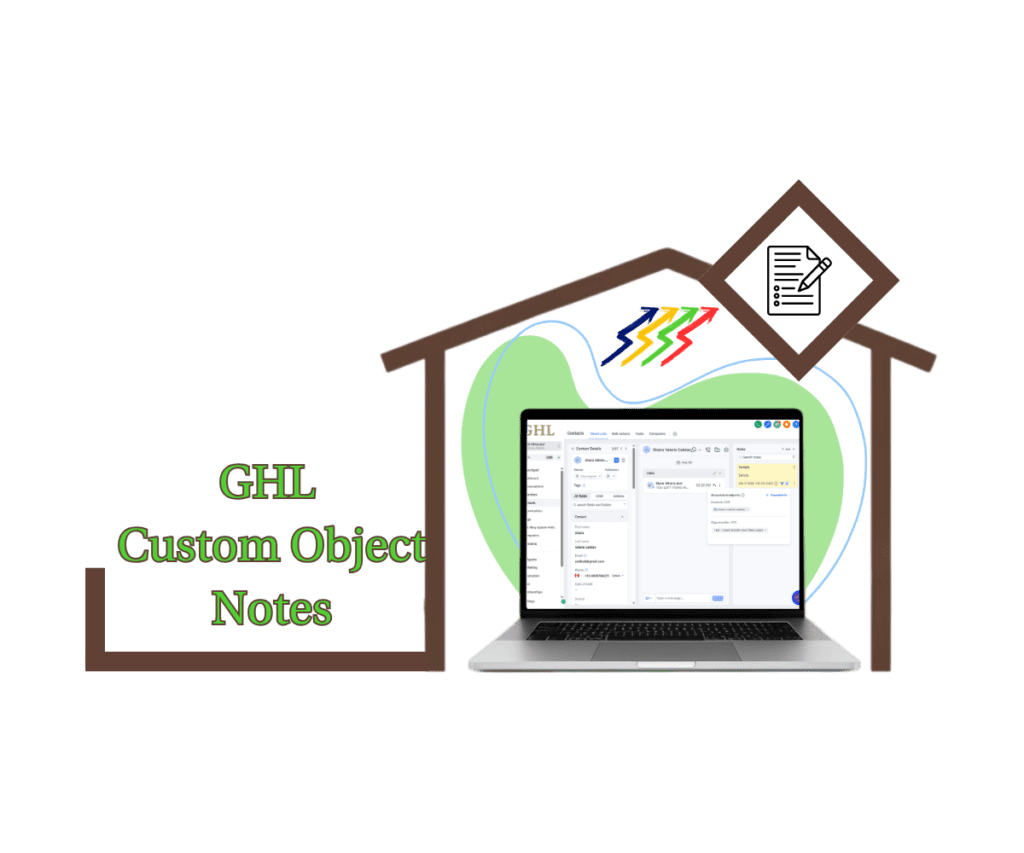
GoHighLevel just made your CRM smarter and more organized. With the introduction of Custom Object Notes, you can now add and manage notes directly inside your Custom Object records, keeping every detail exactly where it belongs.
By eliminating the need to store updates across multiple records, Custom Object Notes improve organization and team collaboration. Whether you’re tracking projects, documenting client feedback, or recording internal updates, this feature provides a centralized solution.
What’s included:
- Notes created directly within Custom Object records
- Ability to associate notes across Contacts, Opportunities, and Custom Objects
- A consistent note editor already familiar to users
- Advanced filtering and keyword search for quick retrieval
Why It Matters – Custom Object Notes in GHL
When managing detailed processes in GoHighLevel, organization is key. Custom Object Notes provide a precise way to store information directly within the correct records, helping reduce errors and improve team efficiency.
Previously, teams relied on Contact or Opportunity notes to track Custom Object-related information. This often led to scattered updates and difficulty locating important details. With Custom Object Notes, all relevant context is now centralized within the appropriate record.
For expanding agencies and teams, this feature brings greater clarity to daily operations. Notes connected to Custom Object records ensure everyone works from the same accurate information without duplication.
Collaboration across departments becomes more efficient as different teams contribute updates within a single record. The result is clearer communication, stronger ownership, and greater consistency across operations.
Overall, Custom Object Notes support more structured CRM management, enabling GoHighLevel users to scale efficiently while maintaining clear, organized workflows.
How to Associate Notes Across Records in GHL
Associating notes across multiple records allows you to keep information connected between Contacts, Opportunities, and Custom Objects. Instead of duplicating updates, you link a single note to the records that need visibility.
In this section, you’ll learn how to create a note and associate it with multiple records step by step. By following the process, you’ll maintain a single source of truth inside your CRM and reduce manual data entry across your workflows.
- Access a Contact Record in Contacts.
- Create a New Note Within the Record.
- Enter title and description of the Notes.
- Associate the Note with a Custom Object.
- Select Associate the Note of opportunities.
- Verify the Note Association.
This new update is still in GHL Labs, therefore before using this process, please turn on the Notes for Custom Objects lab for your sub-account. Go to your Agency View, open Settings, click Labs, find Notes for Custom Objects, and activate the feature.
To start make sure you are logged in to your GoHighLevel sub-account.
Step 01 – Access a Contact Record in Contacts
- Before you associate a note, you need to open the record where the note currently exists. This can be a Contact or an Opportunity record.
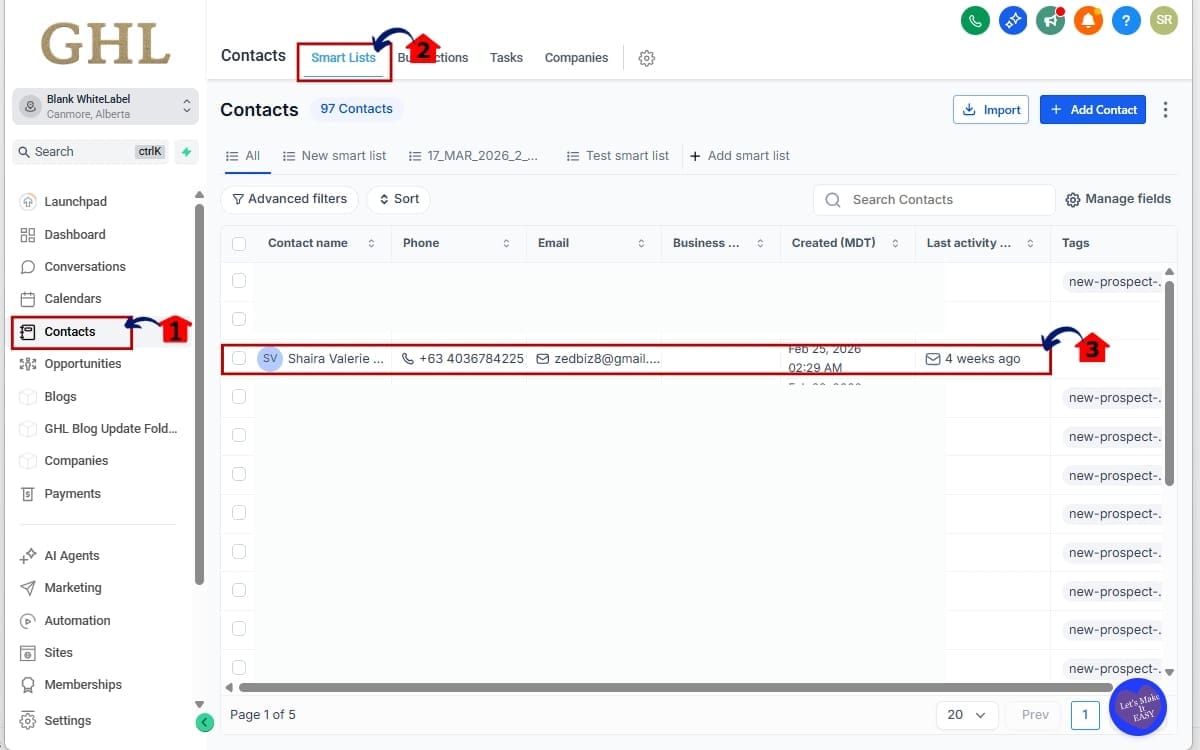
1.1 From the main left-hand menu, click Contacts.
- This opens your Contacts dashboard, where all contact records are stored and managed inside your sub-account.
1.2 Click Smart Lists.
- Smart Lists allows you to filter and locate specific contacts quickly using saved filters or search criteria. This helps you find the exact record you need without scrolling through your entire database.
1.3 Select the specific Contact record you want to work with.
- Click on the contact’s name to open their full record view. From here, you will be able to access the Notes section and either create a new note or associate an existing one.
Step 02 – Create a New Note Within the Record
- Once you are inside the Contact or Opportunity record, you can create a new note that will later be associated with a Custom Object.
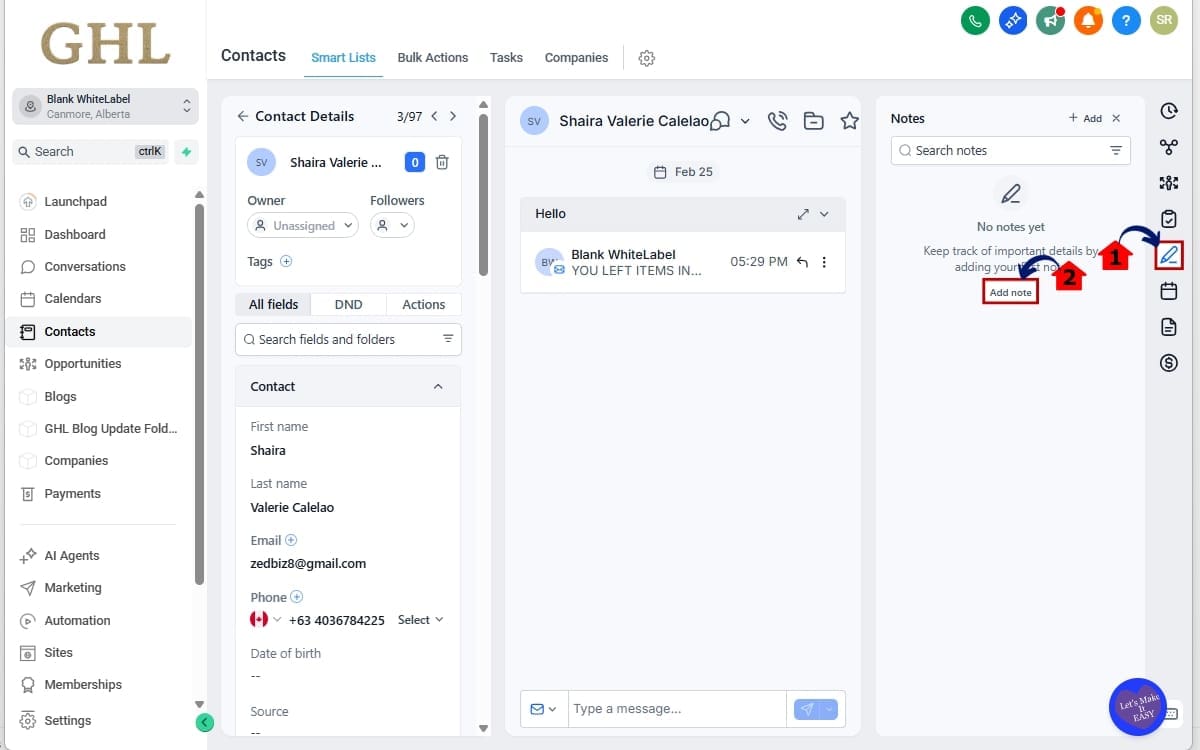
2.1 Click the Notes icon.
- Locate and click the Notes tab or notes icon within the record. This opens the Notes panel, where all existing notes for that record are displayed.
2.2 Click Add Note to create a new note.
- Select Add Note to open the note editor. Enter the relevant details, updates, or context you want to document. Once complete, save the note so it can be associated with additional records in the next steps.
Step 03 – Enter the Title and Description for the Note
- After opening the note editor, you will need to enter the required details before saving. This ensures your note is clear, organized, and easy for your team to understand later.
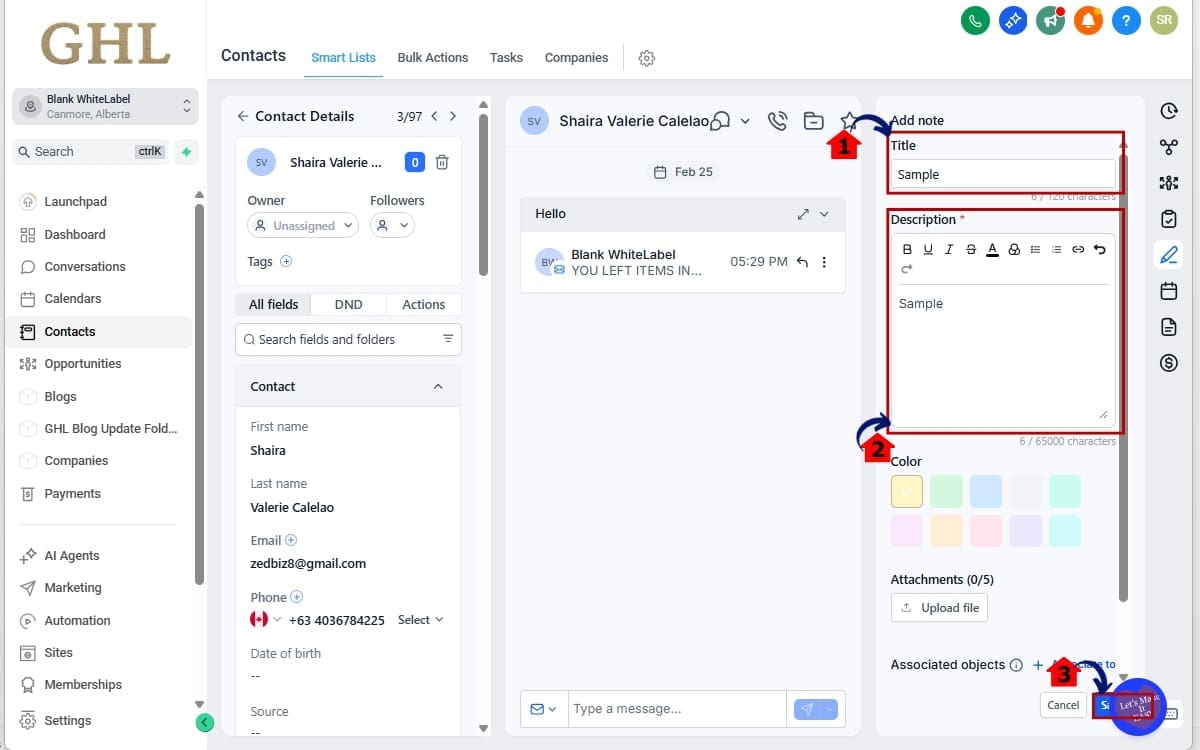
3.1 Enter the note title and relevant details.
- Add a clear and descriptive title that summarizes the purpose of the note. In the description field, enter the important updates, context, decisions, or information your team needs to reference. Be specific and concise so the note is easy to scan.
3.2 Review the note for accuracy.
- Before saving, quickly review the title and description to confirm the information is correct and complete. This helps prevent confusion or the need for edits later.
3.3 Click Save.
- Select Save to store the note inside the Contact or Opportunity record. Once saved, the note will appear in the Notes section and will be available for association with a Custom Object record.
Step 04 – Associate the Note with a Custom Object
- After saving your note, the next step is to link it to the appropriate Custom Object record. This allows the same note to be visible across multiple related records without duplication.
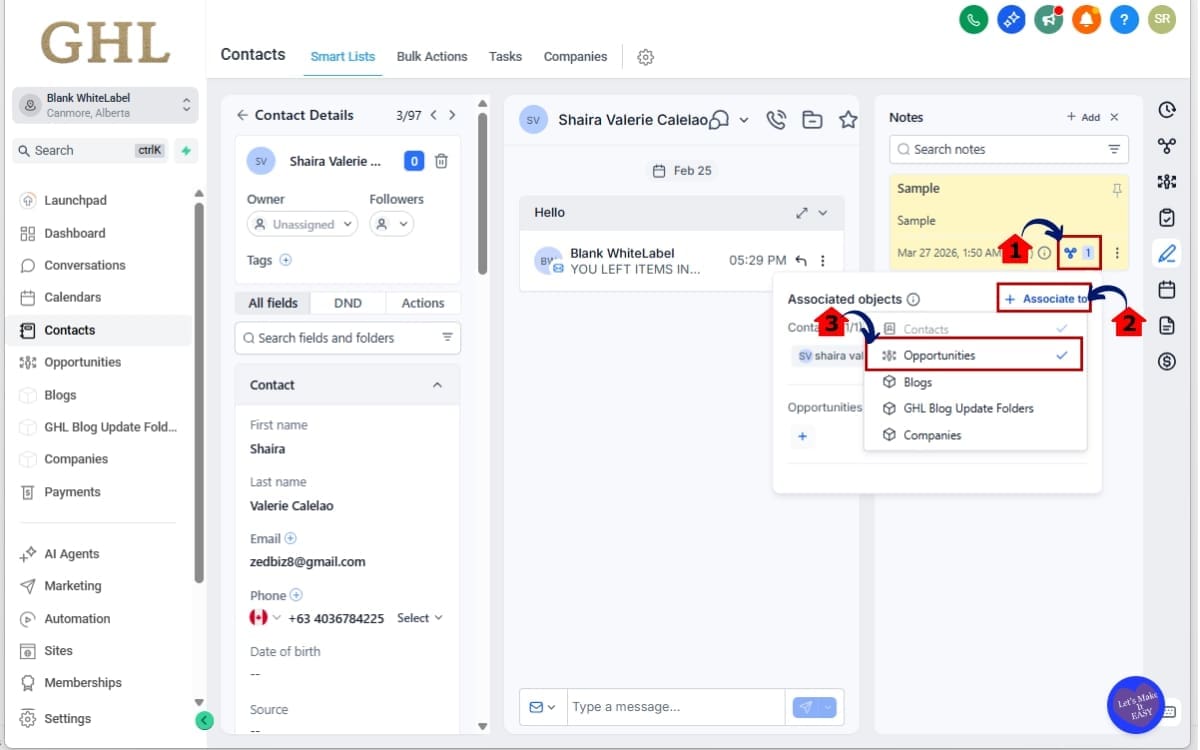
4.1 Locate the Associated Objects icon within the note.
- Inside the saved note, look for the Associated Objects option (usually represented by a link or connection icon). Click this to manage record associations.
4.2 Click + Associate To.
- Select + Associate To to begin linking the note to another record.
4.3 (Optional) Associate with an Opportunity if needed.
- If the note should also be visible within an Opportunity record, select Opportunities from the dropdown and choose the correct deal. This ensures full visibility across sales and fulfillment teams.
Step 05 – Associate the Note with an Opportunity
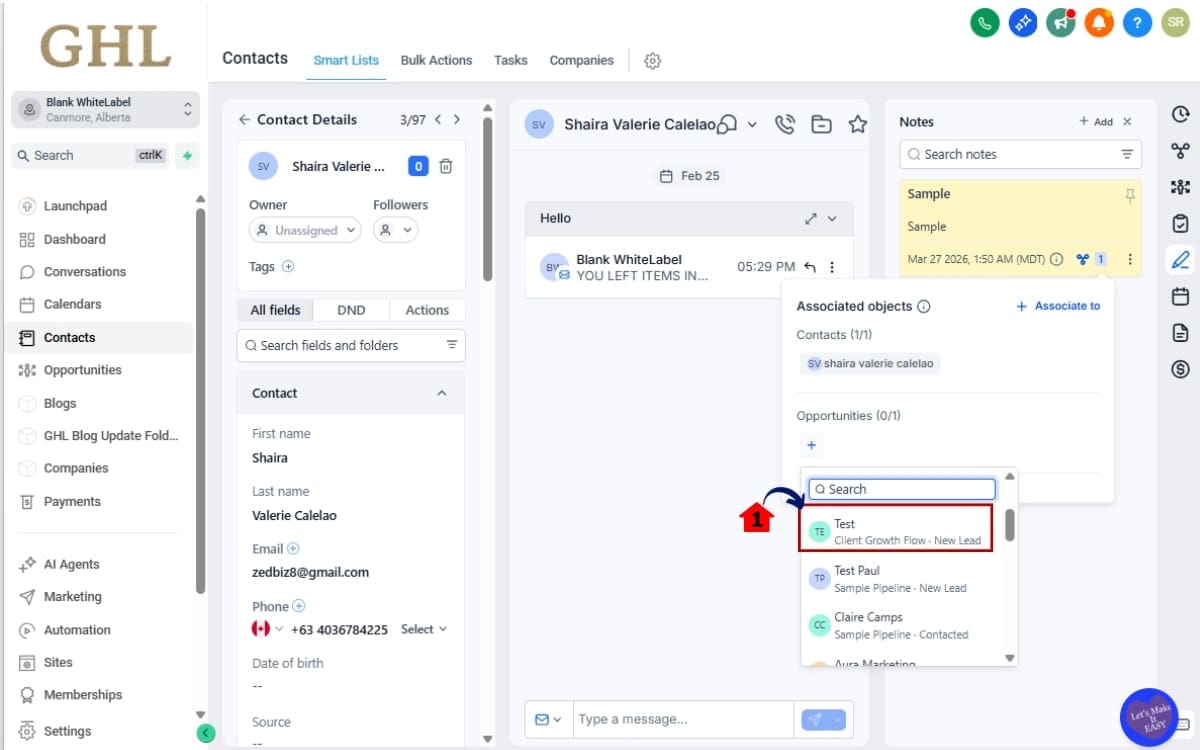
- If the note should also be visible inside a related Opportunity record, you will need to associate it directly with that deal. This ensures sales and delivery teams
5.1 Choose the correct Opportunity record (Example: “Test”).
- Select the specific Opportunity that relates to this note. For example, choose the Opportunity labeled “Test” or the appropriate deal name in your pipeline. Once selected, confirm the association.
Step 06 – Verify the Note Association
- After associating the note, you should confirm that it appears correctly in all linked records. This ensures the association was successful and that your team has proper visibility.
6.1 Review the note details and associations.
- Open the note and verify that the Associated Objects section reflects all linked records, including the Contact, Opportunity, and Custom Object (if applicable).
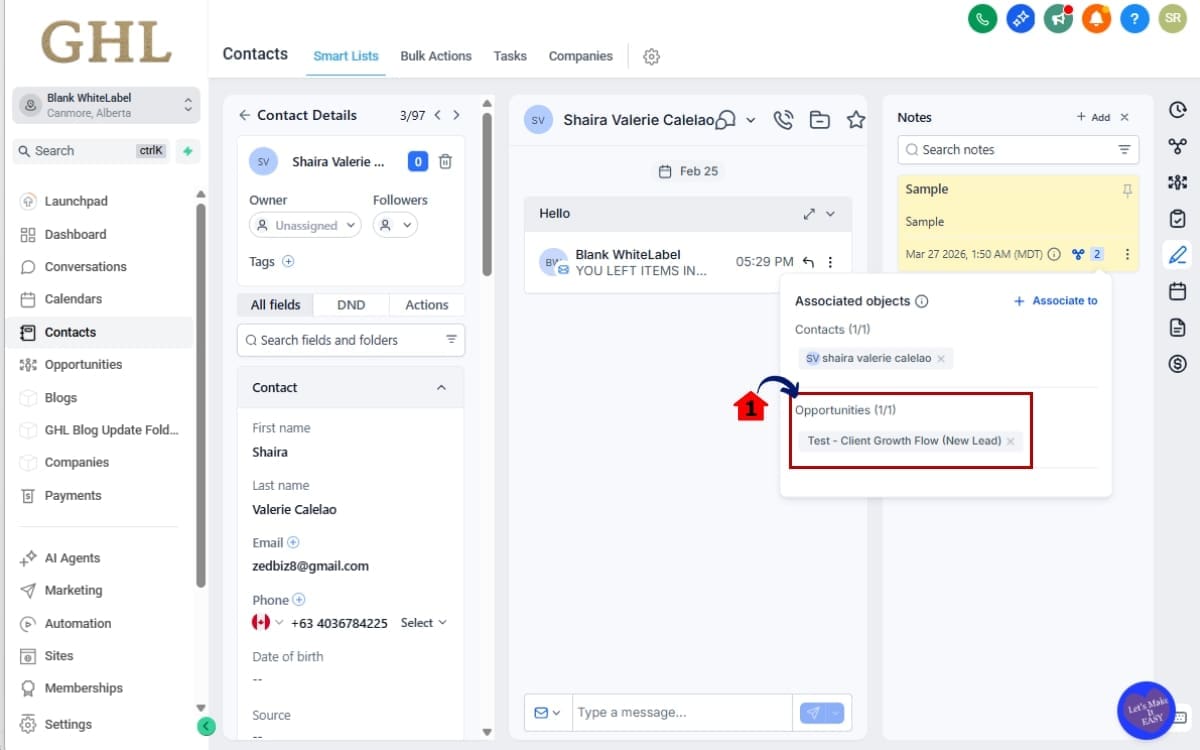
By associating notes across records, you eliminate duplicate data entry and improve collaboration between teams. Whether you’re managing client communications, tracking project updates, or coordinating internal workflows, this feature keeps your CRM organized and efficient.
Practical Tips for Using Custom Object Notes
If you want Custom Object Notes to truly support your workflow, consistency is key. A few simple practices can help your team stay aligned while keeping your CRM neat and easy to manage.
It helps to agree on a simple note style across your team. A date and a short recap are usually enough. When everyone follows the same approach, updates are easier to understand and you avoid those “what was this about?” moments.
And instead of copying notes from one record to another, just connect them. Linking keeps everything in sync without cluttering your CRM with duplicates. One update, multiple touchpoints, much cleaner.
Once your CRM starts filling up, scrolling through records just isn’t practical anymore. Filters and search make it easier to jump straight to what you’re looking for instead of digging around.
Try to document important moments when they happen. Project changes, client feedback, internal decisions, they all add up. Capturing them in real time gives your team the context they’ll need later.
And above all, get your team into the routine of actually using notes properly. When everyone follows the same approach, your system becomes reliable. That consistency is what keeps collaboration smooth.
Real-World Use Cases for Custom Object Notes in GHL
Once you’ve enabled Custom Object Notes, the next step is using them where they actually matter. The value shows up in day-to-day operations — especially if you’re managing multiple moving parts inside GHL.
Client Management
Agencies deal with overlapping campaigns and constant updates. Keeping client-specific notes directly inside the related Custom Object means no more hunting through contact records to find context.
Campaign Tracking
Running paid ads? Email sequences? Funnel launches? Instead of storing updates in random places, log them inside the campaign’s Custom Object. Everything tied to that initiative stays in one place.
Onboarding New SaaS Clients
Onboarding can get messy fast. Setup notes, access credentials, technical adjustments — when documented inside the right Custom Object, nothing gets overlooked.
Sales and Delivery Alignment
When a deal moves from sales to fulfillment, context often gets lost. Associating notes between opportunities and Custom Objects keeps expectations clear and reduces handoff issues.
Operations and Process Notes
Internal teams can track approvals, system updates, and workflow changes without relying on external tools. The CRM itself becomes the record of truth.
Managing Multiple Locations
For franchises or regional brands, each location can maintain its own set of updates while still operating inside the same system. That balance makes scaling smoother.
Over time, using Custom Object Notes this way reduces friction. Less duplication. Fewer misunderstandings. More clarity across the board.
Results You Can Expect from Using Custom Object Notes
Turning on Custom Object Notes isn’t just a small upgrade — it changes how your team works inside GoHighLevel. For agencies, marketers, and SaaS teams, having notes tied directly to the right records removes a lot of friction you may not even realize is slowing you down.
When information stays attached to the correct Custom Object, things stop getting scattered. You’re no longer guessing where an update was logged or digging through unrelated records. Everything lives where it makes sense, which keeps your CRM cleaner and easier to trust.
As your account grows, speed matters. Being able to search by keyword or filter by record saves you from wasting time clicking around. That alone can shave minutes off daily tasks — which adds up quickly.
It also changes how teams collaborate. Instead of updates living in different places depending on who logged them, everyone works from the same record. Sales, account management, operations — all looking at the same context.
You’ll likely notice fewer repeated entries as well. Linking notes across records reduces the need to copy and paste details, which lowers the risk of mismatched information.
As your client list grows, systems either hold up or break down. Keeping notes structured inside Custom Objects makes scaling smoother and keeps your CRM from becoming messy.
And ultimately, when your team has the right information instantly available, client communication improves. Responses are faster. Context is clearer. Service feels more consistent.
Frequently Asked Questions About Custom Object Notes
Conclusion – Custom Object Notes in GHL
At first, Custom Object Notes might not seem like a major update, but they make a noticeable impact once you start using them. Having your notes stored within the correct records saves time and removes unnecessary confusion. It’s a practical improvement that makes your CRM easier to navigate.
Whether you’re managing client details, coordinating marketing efforts, or creating systems built to scale, this feature helps bring order to your workflow. Linking notes across records reduces repeated work and keeps your team aligned without the usual headaches.
Enable it in Labs when you get a chance. After using it in your daily workflow, you’ll quickly see why it’s worth having.
And if you’re looking for more ways to get the most out of GoHighLevel, the team at GHL Growth Garage has plenty of guides to help you along the way. Have you tried Custom Object Notes yet? Let us know how it’s working for you!
Scale Your Business Today.
Streamline your workflow with GoHighLevel’s powerful tools.