- Date Specific Hours Just Got Faster
- Quick Summary – Date Specific Hours Essentials
- Here are this weeks HighLevel Updates
- Multi-Date Selection for Date Specific Hours
- Smart Grouping Inside Date Specific Hours
- Why Date Specific Hours Save You Time
- How to Use It: Set Up Bulk Date Specific Hours
- Maximize Date Specific Hours Setup
- Real Business Use of Date Specific Hours
- Common Questions About Date Specific Hours
- Simplify Date Specific Hours Today
Date Specific Hours Just Got Faster
GoHighLevel just upgraded how Date Specific Hours are managed inside Calendars by allowing you to select multiple dates at once and apply availability in bulk.
Before this update, adjusting availability meant repeating the same setup for every single date. That could get tedious fast. Now you can simply select multiple days at once and apply the hours in one go. Fewer clicks, fewer chances to mess something up, and a much cleaner calendar overall.
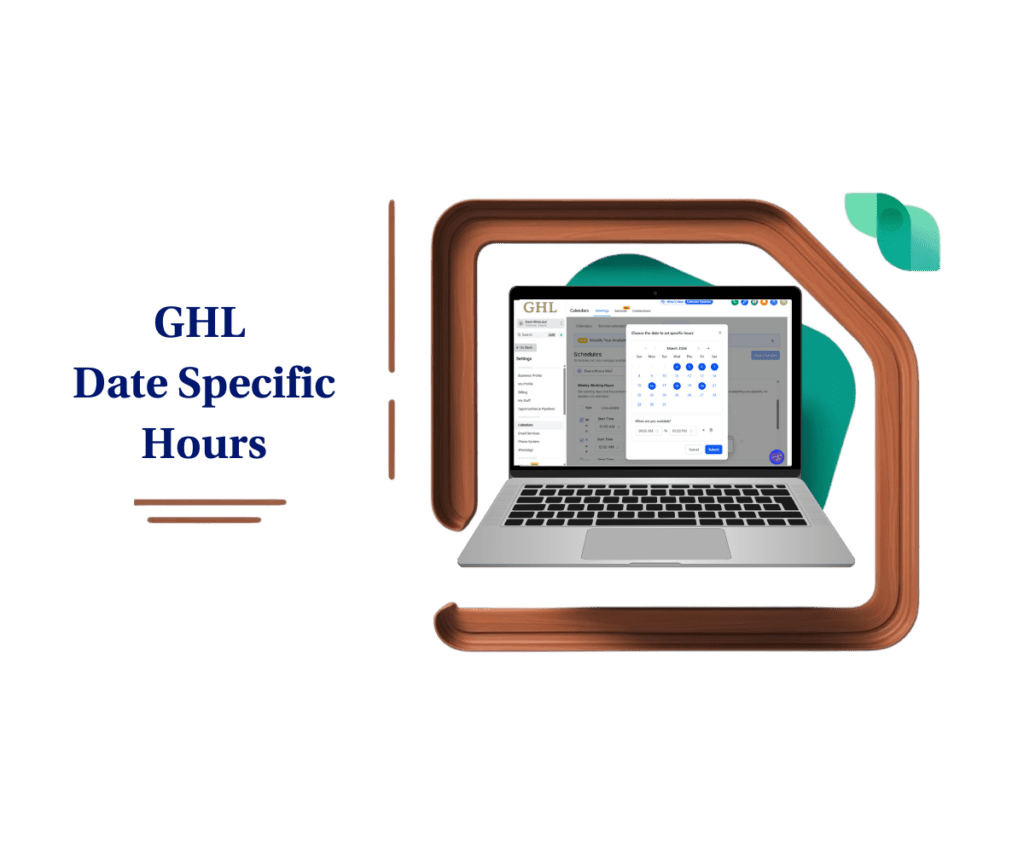
What changed: Date Specific Hours now support multi-date selection directly inside the date picker. You can highlight several dates, set your start and end time once, and apply that configuration across all selected days. On top of that, GHL automatically groups consecutive dates together for better organization, while keeping non-consecutive dates separated into clean, editable blocks. No extra setup required.
Who this is for: Agencies managing multiple client calendars, rental businesses setting short-term availability, coaches adjusting schedules for travel, and anyone who regularly configures holiday or special event hours inside GoHighLevel.
What we’ll demonstrate: Where to access Date Specific Hours inside your calendar settings, how to select multiple dates, how smart grouping works, how to edit grouped ranges later, what common mistakes to avoid, and how agencies can use bulk availability setup to maintain cleaner, more professional booking systems in GHL.
The latest GoHighLevel Changelog includes several other GHL feature updates that round out your daily workflow:
- Send prospects directly to your pipelines
- Documents & Contracts: Staff Selection in Templates
- Invoices, Estimates: Open in new tab
- Import from Media Storage in Courses ( Labs )
- Manus triggers and actions in Workflows
- Introducing New Templates
- Workflows: Expanded Error Highlight feature
- Deskphone-to-Deskphone Calling & Transfer
- AI Builder: Conversational Editing for If-Else & Wait Actions
Keep reading for much more on all these updates and a deep dive into the Date Specific Hours feature!
Quick Summary – Date Specific Hours Essentials
Purpose: This update improves how Date Specific Hours are configured inside GHL Calendars by allowing users to select multiple dates and apply availability in bulk instead of setting them one at a time.
Why It Matters: Manual date-by-date configuration was slow and repetitive. This upgrade removes friction, reduces errors, and makes calendar management cleaner and faster.
What You Get: Multi-date selection inside the date picker, bulk time application, and automatic grouping of consecutive dates into organized, editable blocks.
Time to Complete: Setting bulk Date Specific Hours now takes minutes instead of repetitive manual entry across individual dates.
Difficulty Level: Beginner-friendly. No advanced configuration required and no additional setup needed.Key Outcome: Faster availability setup, fewer scheduling mistakes, and a more professional booking experience inside GoHighLevel.
Here are this weeks HighLevel Updates
Send Prospects Directly to Your Pipelines
- What It Does:
Allows you to send prospects straight into a specific pipeline stage without manual movement after capture. Instead of creating a contact and then assigning them later, the system pushes them directly into your sales flow. - Where in GHL:
Found inside forms, funnels, workflows, and lead capture configurations where pipeline stage selection is available. You’ll see it when assigning opportunities during automation or submission actions. - Impact:
Removes friction between lead capture and sales follow-up. Reduces missed follow-ups. Ensures every prospect enters the correct pipeline stage immediately. - Who It’s Great For:
Sales teams, agencies managing multiple pipelines, appointment-based businesses, and anyone who wants tighter lead-to-opportunity automation.
Automate marketing, manage leads, and grow faster with GoHighLevel.

Documents & Contracts: Staff Selection in Templates
- What It Does:
Allows you to pre-assign or dynamically select staff members inside document and contract templates. This helps ensure the right team member is connected to the agreement. - Where in GHL:
Inside Documents & Contracts when creating or editing templates. Staff selection options now appear within template configuration. - Impact:
Improves contract accuracy and accountability. Reduces confusion around who owns a client agreement. Saves time during document generation. - Who It’s Great For:
Agencies with multiple account managers, service businesses with assigned reps, and teams that rely on clear ownership in contracts.
Invoices & Estimates: Open in New Tab
- What It Does:
Adds the ability to open invoices and estimates in a new browser tab instead of replacing your current screen. - Where in GHL:
Inside Payments → Invoices and Estimates when selecting or previewing a document. - Impact:
Improves workflow speed. Makes multitasking easier. Prevents losing your place when reviewing multiple financial documents. - Who It’s Great For:
Finance teams, agencies reviewing multiple client invoices, and users who process payments while navigating other GHL sections.
Import from Media Storage in Courses (Labs)
- What It Does:
Allows you to import files directly from Media Storage into Courses without re-uploading content. - Where in GHL:
Inside Online Courses (Labs) when adding course content. You’ll now see an option to import from Media Storage. - Impact:
Reduces duplicate uploads. Saves time. Keeps your content organized in one central media hub. - Who It’s Great For:
Course creators, membership site owners, agencies building training portals, and anyone managing large content libraries.
Manual Triggers and Actions in Workflows
- What It Does:
Introduces manual workflow triggers and/or actions that can be executed intentionally rather than automatically firing based on an event. - Where in GHL:
Inside Workflows when configuring triggers and actions. Manual options now appear in available selections. - Impact:
Adds flexibility. Gives teams more control over when automations execute. Helps prevent accidental automation runs. - Who It’s Great For:
Agencies testing workflows, teams that want approval-based automation, and businesses that need controlled execution steps.
Introducing New Templates
- What It Does:
Adds new pre-built templates inside relevant GHL builders (Workflows, Emails, Funnels, etc.) to speed up setup. - Where in GHL:
Inside template libraries when creating new assets across supported builders. - Impact:
Speeds up implementation. Reduces guesswork. Helps newer users launch faster with proven frameworks. - Who It’s Great For:
Beginners, agencies onboarding clients quickly, and teams that want plug-and-play automation.
Workflows: Expanded Error Highlight Feature
- What It Does:
Expands workflow error detection so more configuration issues are flagged before publishing or running automations. - Where in GHL:
Inside the Workflow Builder. Error highlighting appears directly on misconfigured triggers and actions. - Impact:
Prevents broken automations. Reduces troubleshooting time. Protects leads from falling through the cracks. - Who It’s Great For:
Agencies cloning workflows, advanced automation builders, and anyone managing complex If/Else logic paths.
Deskphone-to-Deskphone Calling & Transfer
- What It Does:
Enables direct deskphone-to-deskphone calling and live call transfers within GHL’s phone system. - Where in GHL:
Inside Phone settings and calling interface when deskphone integrations are configured. - Impact:
Improves internal communication. Makes call routing smoother. Reduces reliance on third-party call systems. - Who It’s Great For:
Sales teams, support desks, multi-agent businesses, and call-heavy operations.
AI Builder: Conversational Editing for If/Else & Wait Actions
- What It Does:
Allows you to edit If/Else conditions and Wait steps using conversational prompts inside the AI Builder. - Where in GHL:
Inside Workflows when using AI Builder to configure or modify automation logic. - Impact:
Speeds up workflow building. Reduces technical friction. Makes complex automation logic easier to adjust. - Who It’s Great For:
Agencies building advanced automations, users uncomfortable with logic configuration, and teams wanting faster workflow edits.
Multi-Date Selection for Date Specific Hours
Date Specific Hours now support multi-date selection directly inside the calendar date picker.
Before this update, you could only add Date Specific Hours one day at a time. If you needed to adjust five days for a holiday week, you had to repeat the same process five separate times.
Not anymore.
You can now:
- Select multiple dates in a single action
- Set your start time and end time once
- Apply that configuration across all selected dates instantly
Planning a long weekend closure? Updating seasonal hours? Blocking dates for rentals? You no longer need to rebuild the same availability settings over and over.
The process is simple.
Highlight the dates you want. Set the hours once. Apply. Done.
This update works across Meetings and Rentals (Private Beta), and it makes Date Specific Hours dramatically more efficient for anyone managing recurring short-term schedule changes.
But the real upgrade isn’t just bulk selection.
It’s how GHL organizes those selected dates automatically.
And that’s where smart grouping comes in.
Smart Grouping Inside Date Specific Hours
The bulk selection is powerful.
But the smart grouping logic is what keeps your calendar clean.
When you select multiple dates using Date Specific Hours, GHL automatically organizes them into grouped blocks based on whether the dates are consecutive.
Here’s how it works.
When the selected dates fall back-to-back, GHL automatically combines them into a single grouped entry.
If the dates are not consecutive, they are split into separate grouped blocks.
Let’s say you select:
- January 2
- January 3
- January 4
- January 5
- January 8
- January 9
GHL will automatically group them like this:
- January 2–5 (one grouped entry)
- January 8–9 (second grouped entry)
This keeps your Date Specific Hours organized instead of creating six separate lines.
And here’s the important part.
Each grouped block can still be edited or deleted independently later.
So if plans change and you need to adjust only January 8–9, you can modify just that block without affecting January 2–5.
That means bulk setup doesn’t remove flexibility.
It just removes repetition.
This smart grouping system makes Date Specific Hours easier to read, easier to manage, and much less cluttered, especially for businesses that frequently adjust availability.
Now let’s talk about why this matters beyond just saving a few clicks.
Why Date Specific Hours Save You Time
At first glance, this looks like a small update.
It’s not. If you manage calendars regularly, Date Specific Hours are something you touch often. Holidays. Special promotions. Seasonal changes. Staff time off. Rental blackout periods.
Before this update, every adjustment meant repeating the same setup for each individual day.
That adds up fast. Now, Date Specific Hours can be applied across multiple days in one move. That means fewer clicks, fewer chances to forget a date, and far less manual repetition.
And when you’re managing multiple client calendars inside GHL?
This becomes a serious time saver. It also reduces errors.
When availability is set one day at a time, it’s easy to accidentally:
- Miss a date
- Apply the wrong time range
- Forget to adjust one day in a holiday stretch
Bulk Date Specific Hours eliminate that risk. You configure once and apply consistently.
It also keeps your availability view clean. Instead of displaying every date as a separate override, the system bundles them into clean grouped ranges. That way it’s quicker to review your schedule and make adjustments if needed.
For agencies, this is operational leverage. For rental businesses, this is control.
For coaches and appointment-based businesses, this means smoother booking experiences and fewer calendar mistakes.
Less admin work. Cleaner systems. More reliable scheduling.
Now let’s walk through exactly how to set this up inside GHL.
How to Use It: Set Up Bulk Date Specific Hours
Setting Date Specific Hours across multiple days is done inside your calendar’s Availability settings in GoHighLevel. Instead of configuring each date individually, you can now select multiple dates and apply the same availability in one action.
In this section, you’ll learn where to find the Date Specific Hours settings and how to select multiple dates, apply availability, and review the grouped results. Follow the steps below to configure bulk Date Specific Hours in GHL.
- Click the gear icon ⚙️ labeled “Settings.”
- Open Your Calendar Settings and My Availability.
- Add Date Specific Hours to availability.
- Select Multiple Dates in the calendar.
- Set Availability Time Once.
- Review Smart Grouping of Availability
To start make sure you are logged in to your GoHighLevel sub-account.
Step 1.0 – Access the Settings area in GoHighLevel
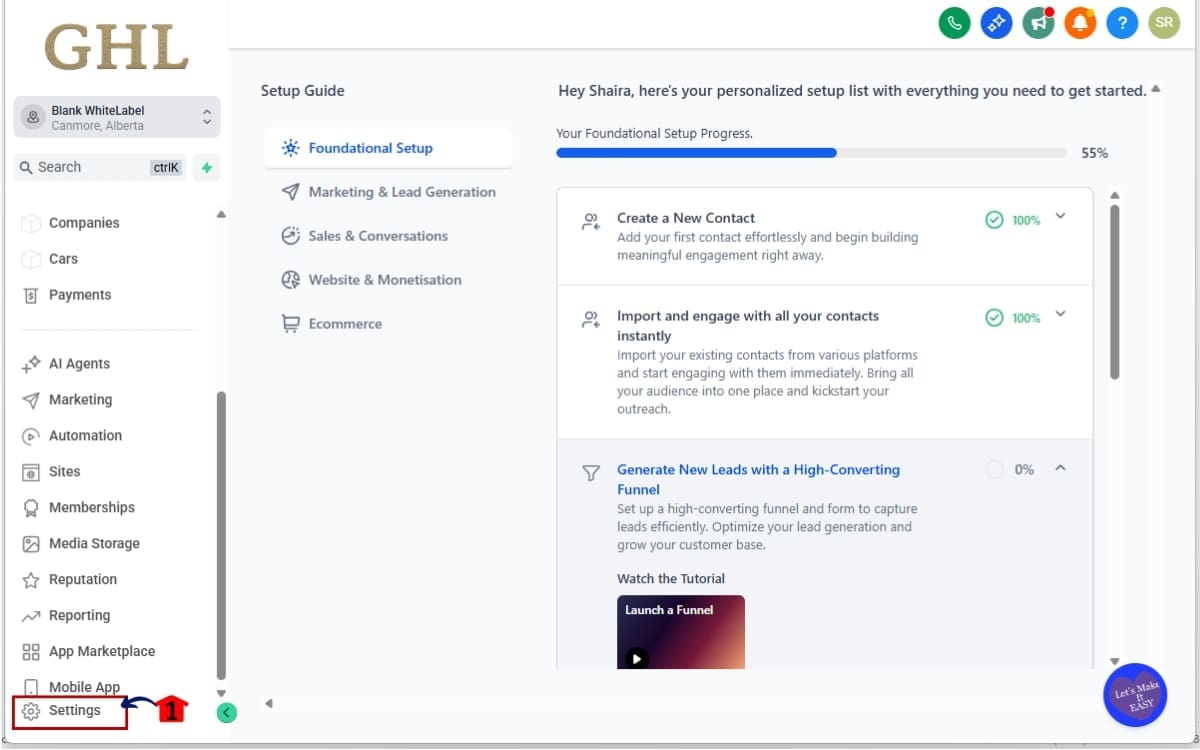
- Go to the bottom of the Main Menu on the left-hand sidebar.
1.1 Click the gear icon ⚙️ labeled “Settings”
- This will open the Settings dashboard, where you can access Business Info, Billing, My Staff and more.
Step 2.0 – Open Your Calendar Settings and My Availability
- Go to the Main Menu on the left-hand sidebar in your GoHighLevel account.
2.1 Click “Calendars.”
- This will open the calendar dashboard where you can manage your calendars and availability settings.
2.2 Select “My Availability.”
- This will open your availability settings where you can manage Date Specific Hours and schedule overrides.

Step 03 – Add Date Specific Hours to availability
- Scroll down in the Availability settings until you find the Date Specific Hours section.
3.1 Click “Add Date Specific Hours.”
- This will open the date picker where you can select the dates you want to configure.

Step 04 – Select Multiple Dates in the calendar
- Use the date picker to choose the days you want to update.
4.1 Click the dates you want to adjust.
- You can select consecutive dates such as March 4–7.
4.2 Select additional dates if needed.
- You can also choose non-consecutive dates like March 16, March 18, and March 20. All selected dates will be included in the same availability configuration.

Step 05 – Set Availability Time Once
- Choose the time range you want to apply to the selected dates.
5.1 Set the Start Time.
- Select the time when availability should begin.
5.2 Set the End Time.
- Select the time when availability should end.
5.3 Click “Submit.”
- The selected time range will be applied to all the dates you selected.

Step 06 – Review Smart Grouping of Availability
- Check how GHL organized the dates after saving.
6.1 Review grouped consecutive dates.
- Dates that run back-to-back will appear as one range (example: March 4–7).
6.2 Review separated non-consecutive dates.
- Dates with gaps between them will appear as different grouped blocks.
6.3 Click a group if you need to make changes.
- You can edit or delete that grouped entry if needed.

That’s it. Your Date Specific Hours are now applied across multiple dates in bulk, without repeating the setup for each day.
Maximize Date Specific Hours Setup
Now that you know how to set Date Specific Hours in bulk, let’s make sure you use them the smart way.
Here’s how to get the most out of this feature inside GHL:
Use It for Holiday Blocks
Instead of manually adjusting every holiday date, select the full holiday stretch at once. For example, block Dec 24–26 in one move instead of three separate entries.
It keeps your calendar clean and prevents missed dates.
Use It for Seasonal Hours
If your business runs different summer hours or reduced winter hours, select the full seasonal date range and apply your updated availability once.
No more repeating the same adjustment 30 times.
Perfect for Rental Blackout Dates
If you manage rentals, you can quickly block multi-day bookings or special event dates. Just select the range and apply unavailable hours or adjusted time slots.
Cleaner. Faster. Less risk of error.
Always Double-Check Timezone
Before saving Date Specific Hours, confirm your calendar timezone matches your business location.
A wrong timezone can cause availability shifts that confuse clients.
Review Grouped Blocks After Saving
After you apply bulk availability, scroll back and confirm how GHL grouped your dates.
Consecutive dates should appear as a clean range.
Non-consecutive dates should appear as separate entries.
If something looks off, edit the grouped block immediately.
Avoid Overlapping Overrides
If you already have existing Date Specific Hours set, make sure your new bulk selection doesn’t conflict with them.
Overlapping overrides can create unexpected availability behavior.
Edit Groups Instead of Recreating Them
If plans change, don’t delete everything and start over.Just click the grouped date block and modify it. That’s the advantage of smart grouping.
Real Business Use of Date Specific Hours
This isn’t just a convenience update. It’s an operational upgrade. If you manage one calendar, Date Specific Hours save you time. If you manage multiple calendars? This compounds fast.
Here’s what that looks like in the real world.
Agencies Managing Client Holidays
If you run an agency, you probably manage availability for multiple clients. When holiday season hits, you don’t want to manually adjust five days across ten different accounts.
Now you can bulk select the full holiday stretch and apply changes in seconds.
Multiply that by multiple clients, and that’s hours saved.
Rental Businesses Blocking Event Dates
For anyone managing rentals, equipment schedules, or event spaces, blocking off certain dates is a regular part of the process.
Instead of blocking dates individually, you can select the full event range at once. The grouped view also makes it easier to see which blocks are already reserved.
Cleaner system. Less risk of overbooking.
Coaches and Service Providers Adjusting for Travel
Going to a conference? Taking vacation? Reducing hours temporarily?
Select the entire travel window and adjust Date Specific Hours in one move. When you return, remove or modify the grouped block just as easily.
No rebuilding required.
Reduced Admin Work
Small improvements like this remove repetitive admin tasks.
- Less repetition means fewer mistakes.
- Fewer mistakes mean fewer scheduling headaches.
- Fewer headaches mean more time focused on growth.
More Professional Booking Experience
When availability is accurate and clean, clients book confidently.
- No accidental openings.
- No missed blackout dates.
- No confusing time changes.
Just smooth scheduling inside GHL. That’s the real win. You’re not just saving clicks. You’re building cleaner systems.
Common Questions About Date Specific Hours
Simplify Date Specific Hours Today
Date Specific Hours just went from functional… to efficient.
What used to take repetitive, date-by-date setup can now be done in a single move. Select multiple dates. Set availability once. Let GHL handle the grouping automatically.
That’s how systems should work.
This update removes unnecessary admin work, reduces scheduling mistakes, and keeps your calendar view clean and organized. Whether you’re managing holiday hours, rental blackout periods, or temporary schedule changes, bulk Date Specific Hours give you speed without losing control.
And if you run an agency? This is leverage.
Small time savings across multiple client accounts quickly turn into hours reclaimed every month. Cleaner availability also means fewer booking errors, fewer support messages, and a more professional experience for your clients and their customers.
- Less repetition.
- More precision.
- Better scheduling.
If you haven’t tested the new Date Specific Hours setup yet, jump into your calendar settings and try it on your next availability change.
It takes minutes to implement. Have you started using bulk Date Specific Hours inside GHL yet? Let me know how it’s working for your business.
And check back to the GHL Growth Garage blog for more practical, no-fluff GoHighLevel feature guides designed to help you build smarter systems.
Scale Your Business Today.
Streamline your workflow with GoHighLevel’s powerful tools.