- Finally Control Your Form layout spacing And Design Like A Pro In Minutes Not Hours
- Quick Summary – Code-Free Form layout spacing Essentials
- A Quick Look
- How to Use – Adjust Margins in Forms, Surveys, and Quizzes
- Frequently Asked Questions about Form Layout Spacing
- Results You Can Expect
- Your New Competitive Edge in Form layout spacing
Finally Control Your Form layout spacing And Design Like A Pro In Minutes Not Hours
Control Your Form layout spacing
For years, getting your Form layout spacing just right on your landing pages meant a tiresome battle with custom code. We have all wasted precious time trying to get those pixels perfectly aligned. Whether you are an agency owner or a solo freelancer, your focus should be on building pipelines, not debugging margin errors. That custom CSS work was a slow, unnecessary roadblock, and it killed speed and consistency in your campaign launches.
The good news is that the roadblock is gone. GHL has delivered a huge quality-of-life update by adding simple, built-in margin control for Forms, Surveys, and Quizzes. This is a game-changer for speed and design control. You no longer need to write a single line of code to adjust the vertical spacing between elements. Now, you can simply type in the value you want in the Layout panel, see the change instantly, and move on. This feature empowers every user to create clean, professional, and high-converting forms faster than ever before.
Why is this a big deal? Because clean design builds trust. A well-spaced form communicates professionalism, which keeps your visitors focused on completing their action. This update gives you the power to polish every form, leading to higher engagement and a better conversion rate on every page you build.
This new GHL feature gives you instant, code-free control over form design, allowing you to create high-converting, professional-grade forms, surveys, and quizzes in minutes.
Quick Summary – Code-Free Form layout spacing Essentials
Purpose: This update allows you to control the vertical Form layout spacing easily (Top Margin) in your Surveys, Quizzes, and Forms directly from the builder.
Why It Matters: It eliminates the need for custom CSS code, removing a major design bottleneck and empowering you to launch cleaner, more professional pages faster.
What You Get: A simple, instant-preview Top Margin setting located in the Styles > Layout panel of the form, survey, and quiz builders.
Time to Complete: Under 60 seconds. Just type in the value and save.
Difficulty Level: Easy. Zero coding knowledge or setup is required.
Key Outcome: Pixel-perfect Form layout spacing, resulting in higher conversions, less design friction, and faster campaign launches.
A Quick Look
The old way of achieving professional Form layout spacing was painful. It meant custom CSS. If you needed a few more pixels of vertical space on a form or survey, you had to stop your workflow, write code, and hope it worked on the first try. That is a waste of time and a massive friction point for non-technical users.
This new update completely removes the need for custom code to manage Form layout spacing. GHL has built this control right into the platform. You now have simple, direct access to the Top Margin setting within the builders for Forms, Surveys, and Quizzes. This is a game-changer for anyone who values speed and a clean design.
Automate marketing, manage leads, and grow faster with GoHighLevel.

Here are the details on how this update solves your Form layout spacing issues:
- The key control is the Top Margin setting, found under the Styles tab and the Layout panel.
- This setting allows you to easily add breathing room above any form element you choose.
- Crucially, the changes update in the preview window instantly. You will see your desired Form layout spacing immediately, so there is no more guesswork.
- The feature works consistently across all three builders Forms, Surveys, and Quizzes.
- The system maintains your existing defaults if the Top Margin field is left empty, ensuring no old assets are accidentally broken by this new feature.
This update is a pure win. It hands you the design control you need to ensure every single asset you publish has perfect Form layout spacing, all without needing to know a single line of CSS.
How to Use – Adjust Margins in Forms, Surveys, and Quizzes
This update is a pure time-saver. Before, getting perfect Form layout spacing required custom CSS. Now, you can control the vertical spacing (top margin) directly inside the builder. This simple feature makes your forms cleaner, more professional, and quicker to launch.
This section will show you how to find this setting, implement your spacing, and preview your changes instantly. This process works the same way for Forms, Surveys, and Quizzes.
Follow these simple steps inside your GHL account to get started:
Step 01: Access the Main Left Hand Menu in GoHighLevel
- The Main Menu on the Left side of your screen has all the main areas that you work in when using GHL
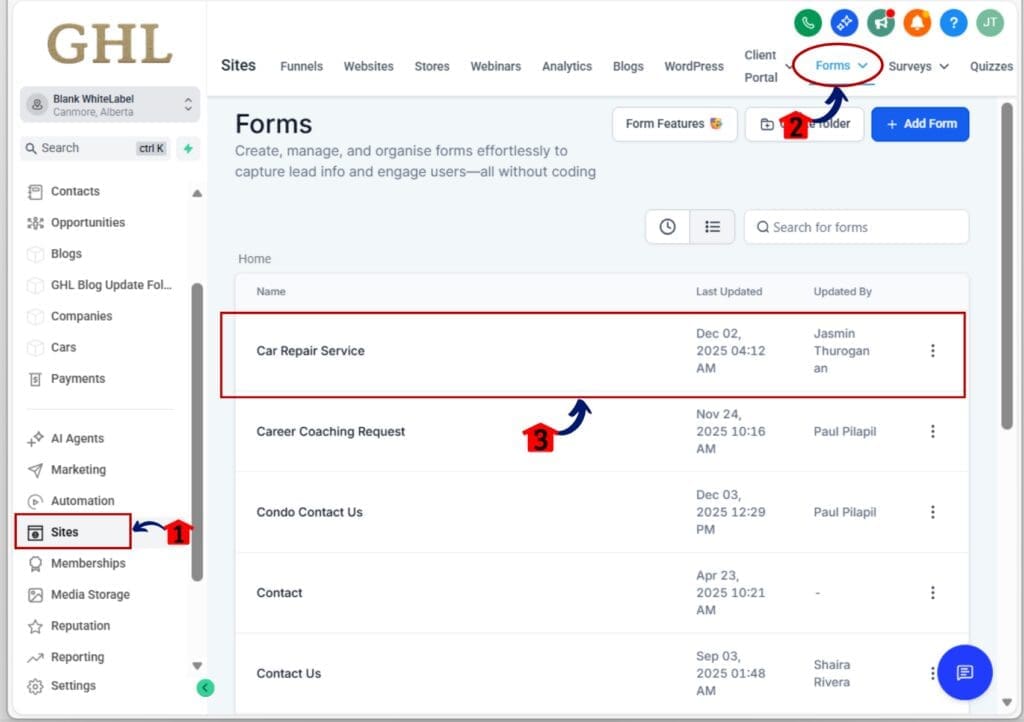
1.1 Click on the Sites Menu Item.
- Access the ‘Sites’ section of GoHighLevel
1.2 Choose either ‘Forms’ , ‘Quizzes’ or ‘Surveys’
- Select the builder that matches your project. For this demo we will use Forms
1.3 Click on Forms menu
- This will open the Forms Dashboard where you can access the available Forms
1.4 Click on the name of your existing form to open the builder.
Step 02: Locate the Layout Panel
- This is where the new control lives. You need to switch from the content editor to the design settings.
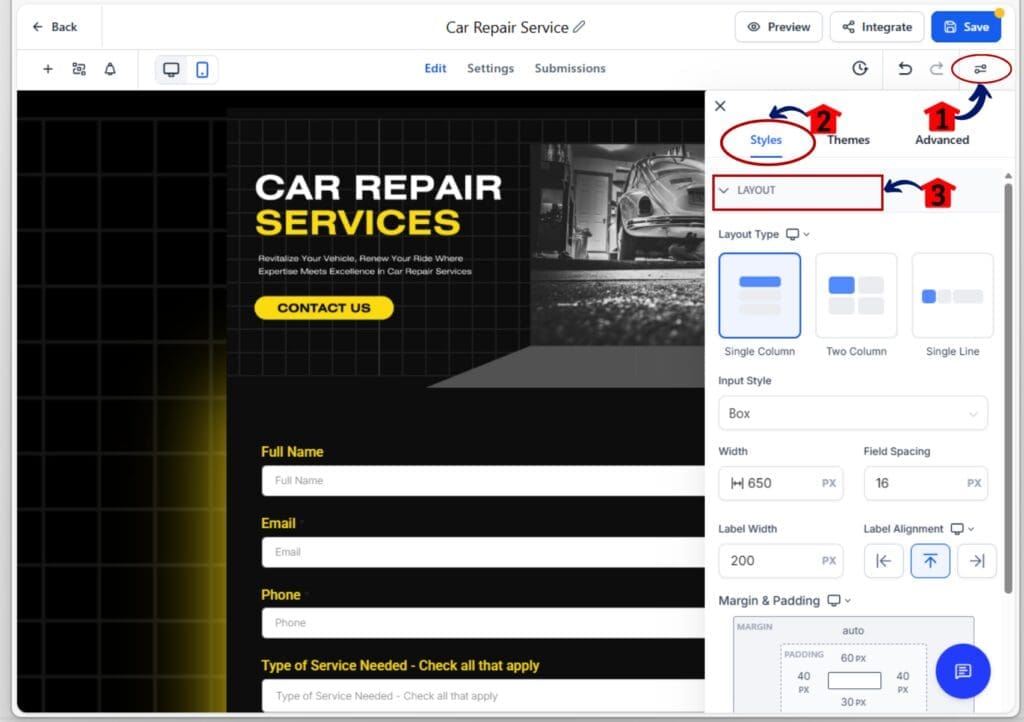
2.1 Click on the Styles & Options icon on the right side
- This will open the settings tabs, and click on Styles.
2.2 Within the Styles panel, find and click the Layout section.
Step 03: Set Your Top Margin Value
- This step is the core of the update, giving you instant control over your spacing.
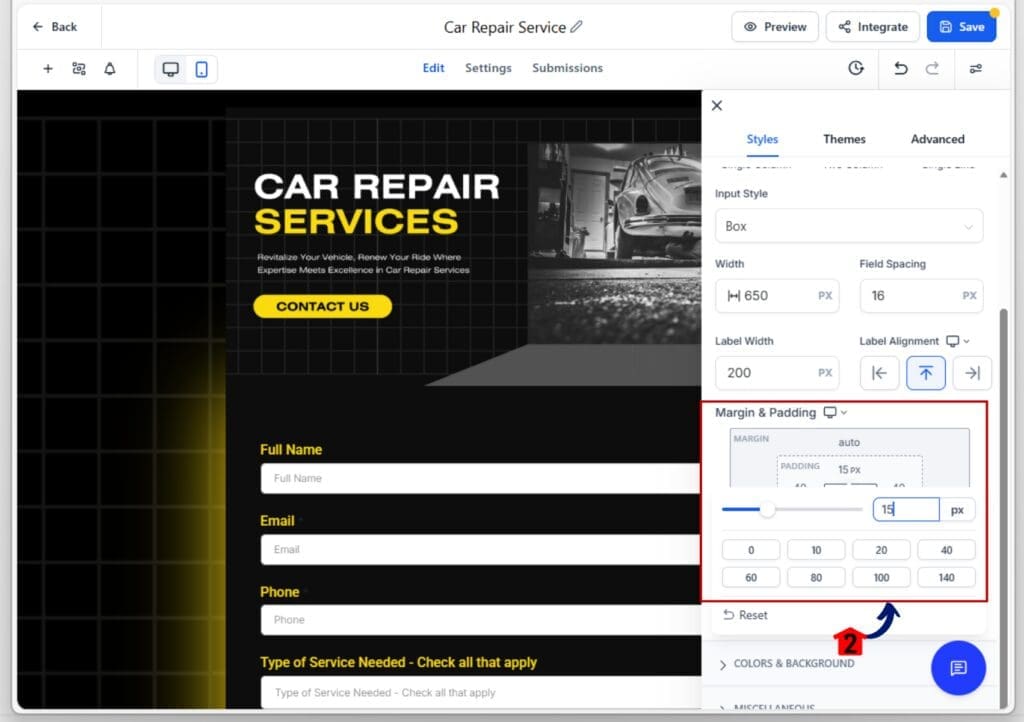
3.1 Scroll down within the Layout panel until you see the Margin & Padding.
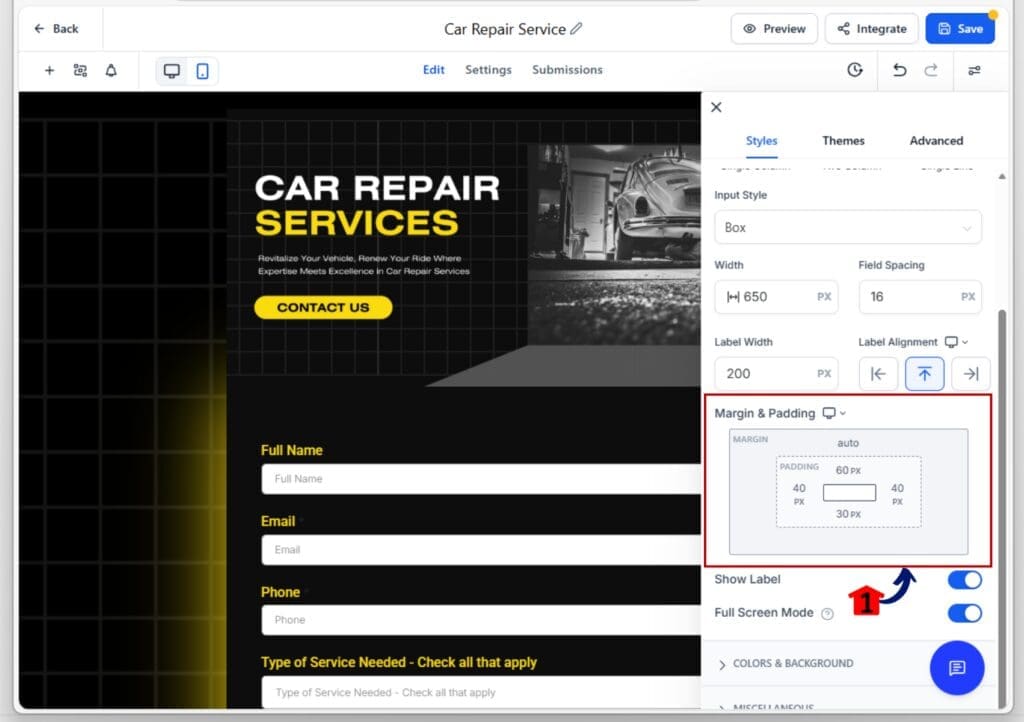
3.2 Click into the field and enter your desired spacing value (e.g., 15px).
3.3 Key Benefit: Watch the live preview of your form as you type. The system instantly adjusts the space above the form element, eliminating all the guesswork.
Step 04: Save and Test
- Once your design is clean and your spacing is perfect, it is time to lock it in and publish.
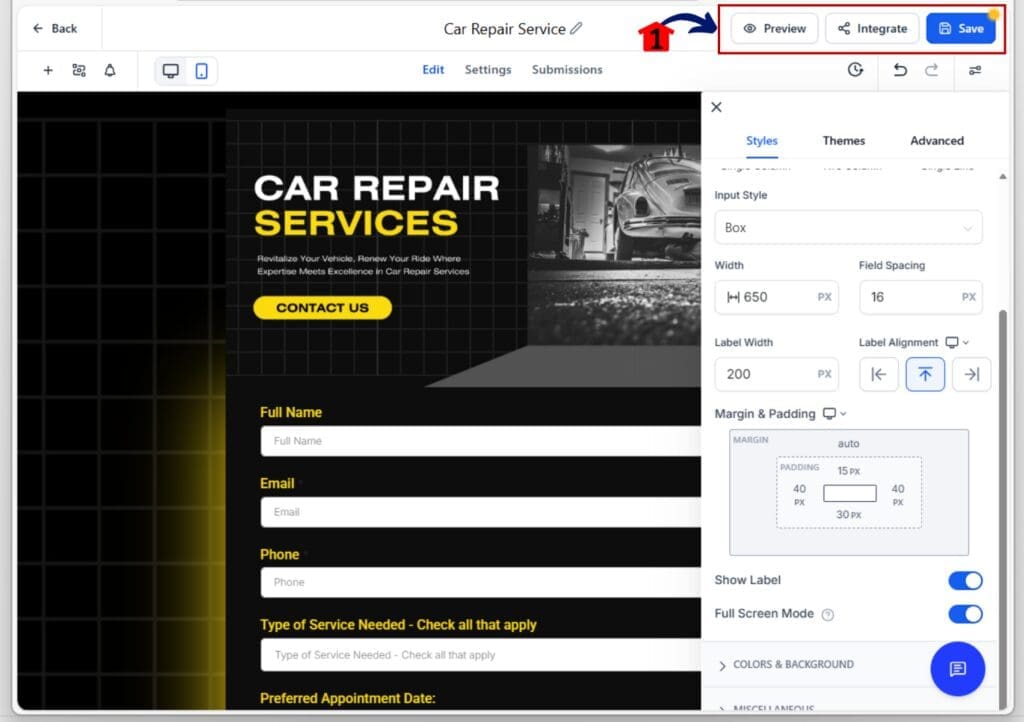
4.1 Click Save in the top-right corner of the builder.
4.2 Use the Preview function to verify the margins look correct on different screen sizes.
That is it. You have now perfectly set your Form layout spacing without touching a single line of code. Cleaner forms. Faster launches.
Frequently Asked Questions about Form Layout Spacing
Results You Can Expect
This is more than just a margin control; it is a productivity and professionalism boost. By gaining instant control over your Form layout spacing, you will see two immediate wins:
- Faster Launch Time: You can now create and deploy perfectly aligned, clean forms in minutes, drastically reducing your campaign launch time.
- Higher Conversion Rates: A polished, easy-to-read form is proven to generate less visual friction for the user, which directly translates to a better chance of conversion on your most critical lead capture pages.
Your New Competitive Edge in Form layout spacing
Look, we have all wasted time on tiny design tweaks that required frustrating custom code. But that era is officially over. Gaining control over your Form layout spacing without needing a developer is a massive win for your business efficiency. You no longer have to choose between speed and a professional-looking form. This update ensures that all your lead generation assets Forms, Surveys, and Quizzes can be pixel-perfect every single time. Stop struggling with technical workarounds and start leveraging the simplicity and power of the GHL builder.
Go try this feature right now! How will you use this newfound control over Form layout spacing to clean up your highest-traffic landing page? Let us know in the comments below!
Scale Your Business Today.
Streamline your workflow with GoHighLevel’s powerful tools.