- Stop using only floating bubbles and place live chat right where visitors click, scroll, and convert.
- Quick Summary – Inline Chat Widget Essentials
- What the GHL Inline Chat Widget Update Adds (Inline chat widget)
- Why Inline Placement Changes Conversions (Inline chat widget)
- Best Places to Embed Chat on a Page (Inline chat widget)
- How to Set Up the GHL Inline Chat Widget
- Pro / Quick Tips for Inline Chat Widget
- Common Mistakes and Quick Fixes (Inline chat widget)
- What This Means for Agencies (Inline chat widget)
- Frequently Asked Questions (Inline chat widget)
- Conclusion: Inline chat widget
Stop using only floating bubbles and place live chat right where visitors click, scroll, and convert.
Inline chat widget
Inline chat widget setups are finally here, and they fix a simple problem: most people ignore the floating chat bubble. On a busy page, that bubble blends into the corner. Or it feels like it is getting in the way.
GoHighLevel (GHL) Live Chat Widgets already let you answer questions, capture leads, and book calls without sending people to a contact page. Before this update, chat mostly lived as a sticky bubble that floats over your site. It worked, but you could not place chat inside the parts of the page where people make decisions.
Now you can embed the Live Chat Widget directly inside your funnel or website content using the Embedded/Inline placement option. That means chat can sit under a hero, beside a CTA, or near a form, so it feels like part of the page. In this guide, you will learn what changed, where it works best, and how to turn it on inside GHL.
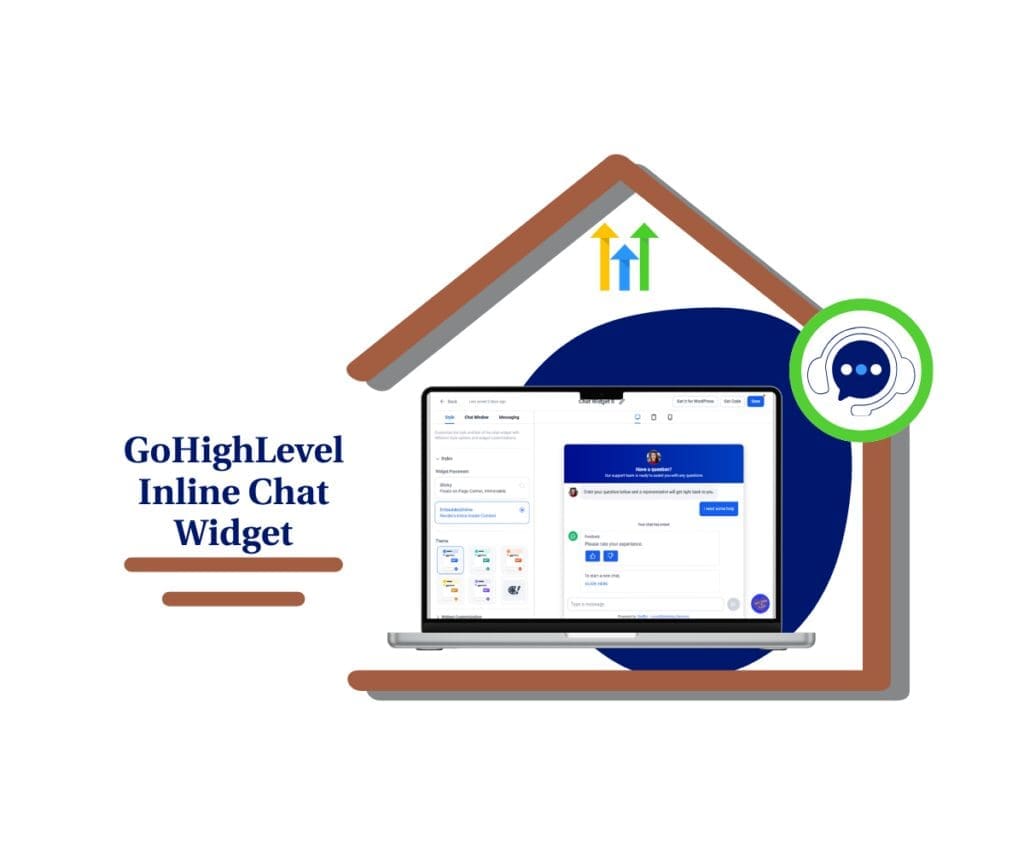
The inline chat widget lets you place live chat directly inside your page content, right where people hesitate, compare, or fill out forms. That means more conversations at the exact moment a visitor is ready to convert.
Quick Summary – Inline Chat Widget Essentials
Purpose: This guide shows you how to set up the GHL inline chat widget so live chat appears inside your page content, not just as a floating bubble.
Why It Matters: Inline placement puts chat closer to key decision points like pricing, forms, and CTAs, which can lead to more conversations that convert.
What You Get: You get a clear setup flow, smart placement ideas, and quick fixes for the most common embed and layout problems.
Time To Complete: Most setups take about 10 to 20 minutes per page once your widget is created.
Difficulty Level: Beginner-friendly since you are mainly switching placement, copying code, and pasting it into a page element.
Key Outcome: Your inline chat widget loads inside your funnel or website layout and is easy to test, track, and reuse across pages.
What the GHL Inline Chat Widget Update Adds (Inline chat widget)
This update adds a new Embedded/Inline option inside the Live Chat Widget settings. In plain terms, you can now place the chat box inside your page content instead of forcing it to live as a floating bubble in the corner. You will find it in the widget editor under the Style tab, inside Widget Placement.
When you choose inline mode, the chat looks like a normal part of the page. It can sit under your hero section, next to a form, or right beside a call-to-action. The preview also updates in real time so you can see how the inline layout will look while you style it. The customization options stay focused on what matters for an embedded setup, so you are not guessing how it will behave once it is on the page.
Automate marketing, manage leads, and grow faster with GoHighLevel.

The best part is that it works across the places you already build in GHL, like Funnels, Websites, and Landing Pages, plus other HTML areas where widgets are supported. It is also mobile-responsive by default, so it adjusts for smaller screens without extra work. Nothing changes with routing, messaging, or your backend workflows, and the classic sticky bubble still works the same.
Why Inline Placement Changes Conversions (Inline chat widget)
An inline chat widget works better because it shows up where people already look. A floating bubble sits in the corner and competes with everything else on the page. Many visitors tune it out like background noise.
Inline placement also feels calmer. It does not cover content, and it does not pop over the page. When chat sits inside the layout, it feels like a normal step in the page flow, not an interruption.
The real win is timing. You can place chat beside the exact moment someone hesitates, like a pricing block, a form, or a “Book Now” button. That is when questions show up, and that is when quick answers turn into conversions.
Best Places to Embed Chat on a Page (Inline chat widget)
An inline chat widget works best when it sits near a decision point. If you place it in a random spot, it becomes noise. If you place it where people pause, it becomes helpful.
Start with these high-impact placements:
- Right below the hero section, after your main headline
- Beside your main CTA button, especially on booking or quote pages
- Near a form, where people often get stuck or drop off
- Close to pricing tables, plans, or package comparisons
- Under testimonials or case studies, when trust is highest
- Inside an FAQ section, so people can ask the one question your FAQ missed
If you are not sure where to start, pick one spot per page and test it. Put the inline chat widget where the page asks for action, not where the page is still explaining. That is how you get more chats that actually lead somewhere.
How to Set Up the GHL Inline Chat Widget
The inline chat widget is set up inside the Chat Widget area in GHL Sites. You will open a Live Chat Widget, switch Widget Placement to Embedded/Inline, then copy the embed code and paste it into your funnel or website page.
Here are the steps to set up an inline chat widget in GoHighLevel.
- Access the Chat Widget area inside GHL Sites.
- Create or open a Live Chat Widget.
- Switch Widget Placement to Embedded/Inline.
- Customize the widget for inline placement.
- Copy the embed code for the inline chat widget.
- Paste the code into your Funnel or Website page.
- Publish and test.
To start make sure you are logged in to your GoHighLevel sub-account.
Step 01 – Access the Chat Widget area inside GHL Sites
- The Main Menu on the left side of your screen has all the main areas that you work in when using GHL.
1.1 Click Sites main menu item.
- This opens the Sites section where you can access Websites, Funnels, Chat Widget, and more.
1.2 Click Chat Widget.
- This opens the list of chat widgets for your sub-account.

Step 02 – Create or open a Live Chat Widget
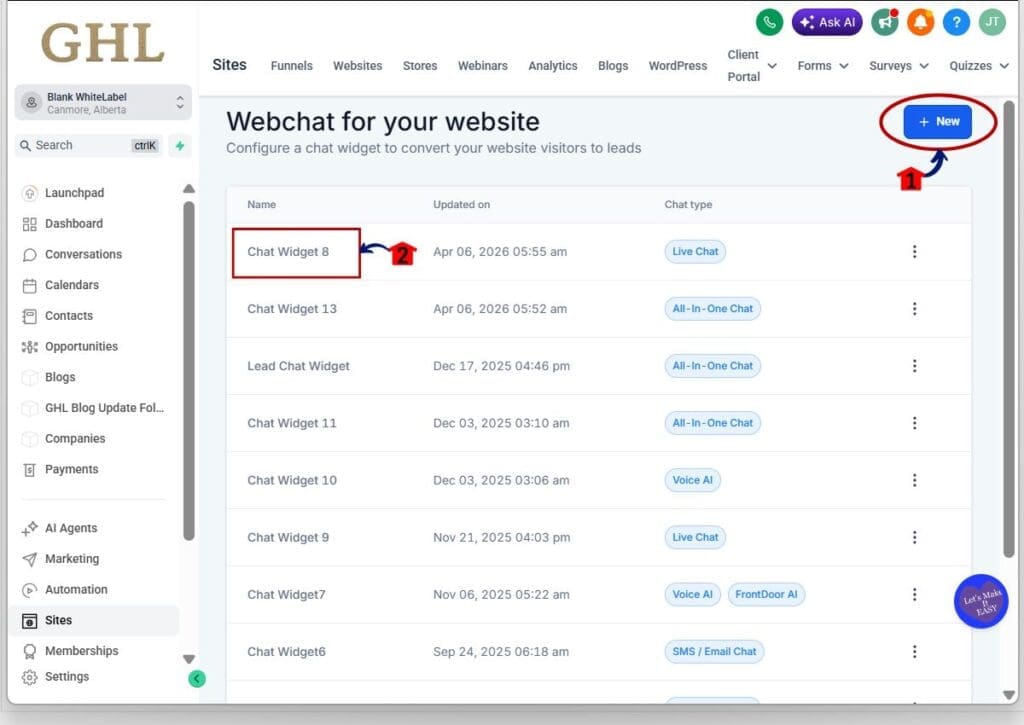
2.1 Click New Button if you want a new widget, or click an existing Live Chat Widget to edit it.
- For our example we will use an existing live chat widget to set up properly.
- Editing an existing widget is usually faster if it already routes messages correctly.
2.2 Click the Live Chat Widget name you want to update.
- The live chat widget will load.
Step 03 – Switch Widget Placement to Embedded/Inline
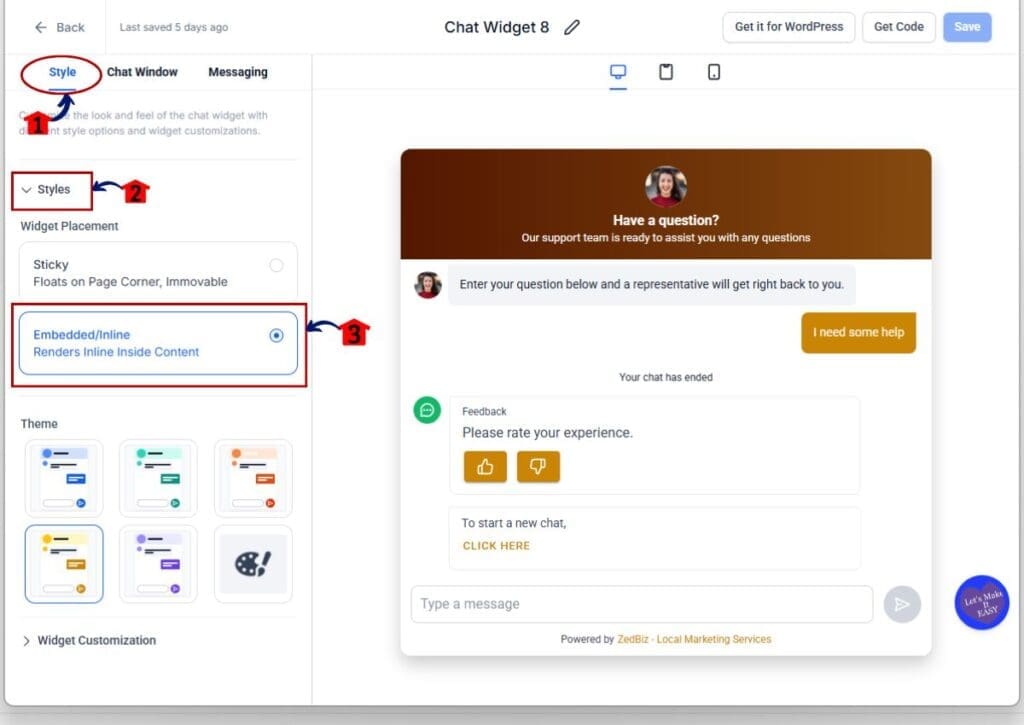
3.1 Click the Style tab inside the widget editor.
- This is where placement and visual settings live.
3.2 Click on the Styles Drop-down.
- This will expand and this is where you can find the widget placement.
3.3 Select Embedded/Inline.
- This changes the chat from a floating bubble to an inline chat widget that sits inside page content.
Step 04 – Customize the widget for inline placement
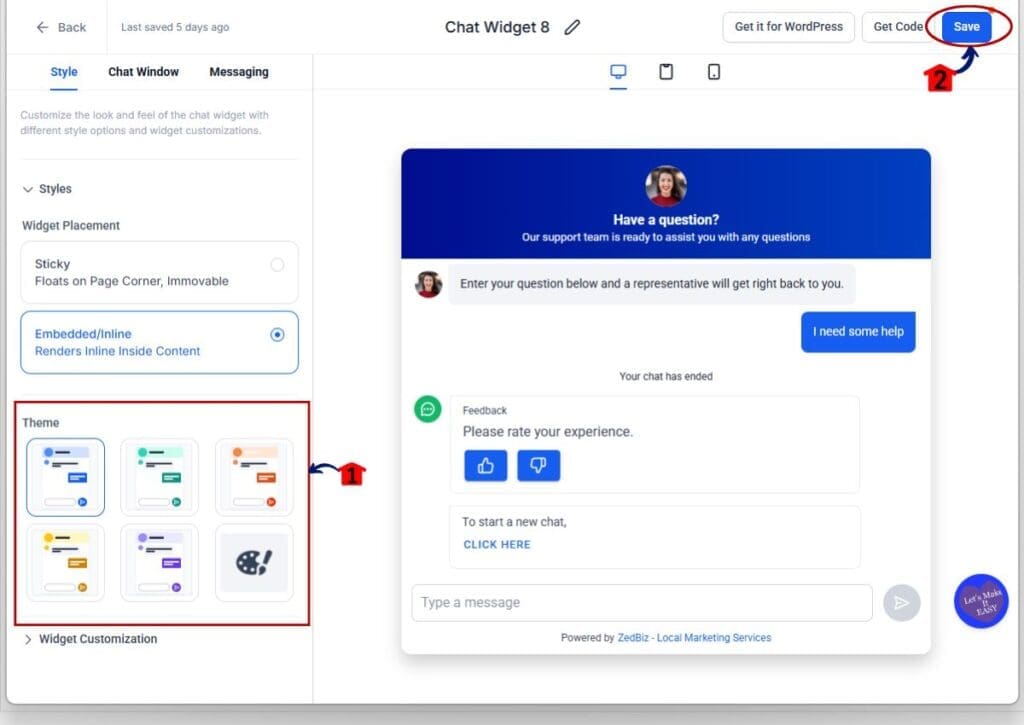
4.1 Set the theme and colors to match your page.
- If the page section is dark, use light text and clear contrast.
4.2 Click Save to lock in your styling changes.
Step 05 – Copy the embed code for the inline chat widget
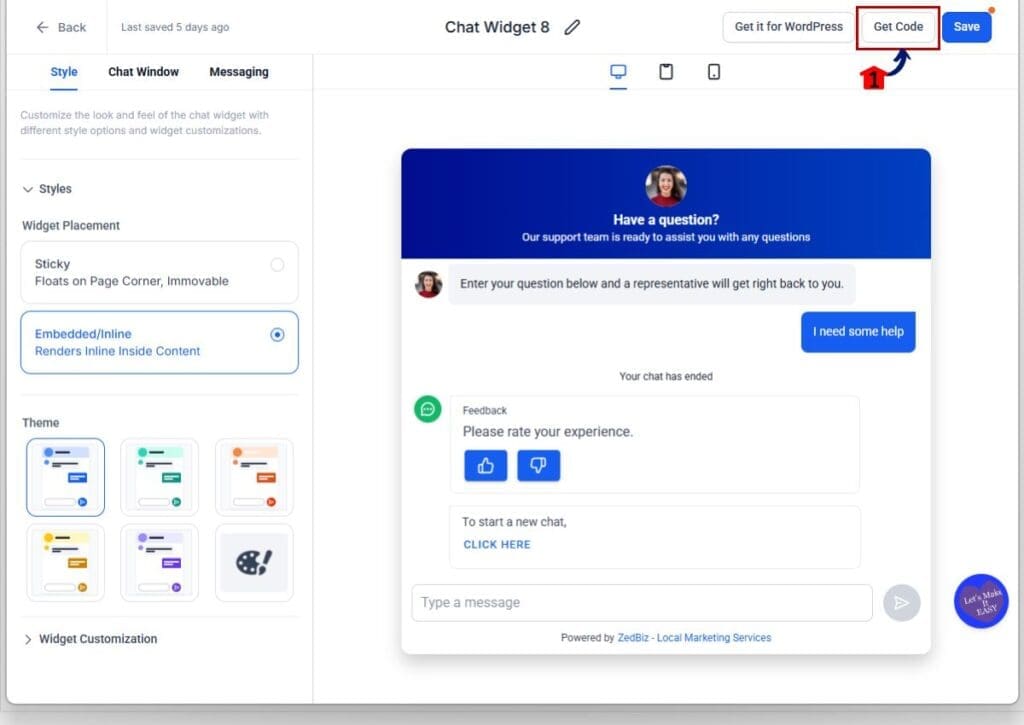
5.1 Click Get Code.
- This opens the code snippet you will paste on your page.
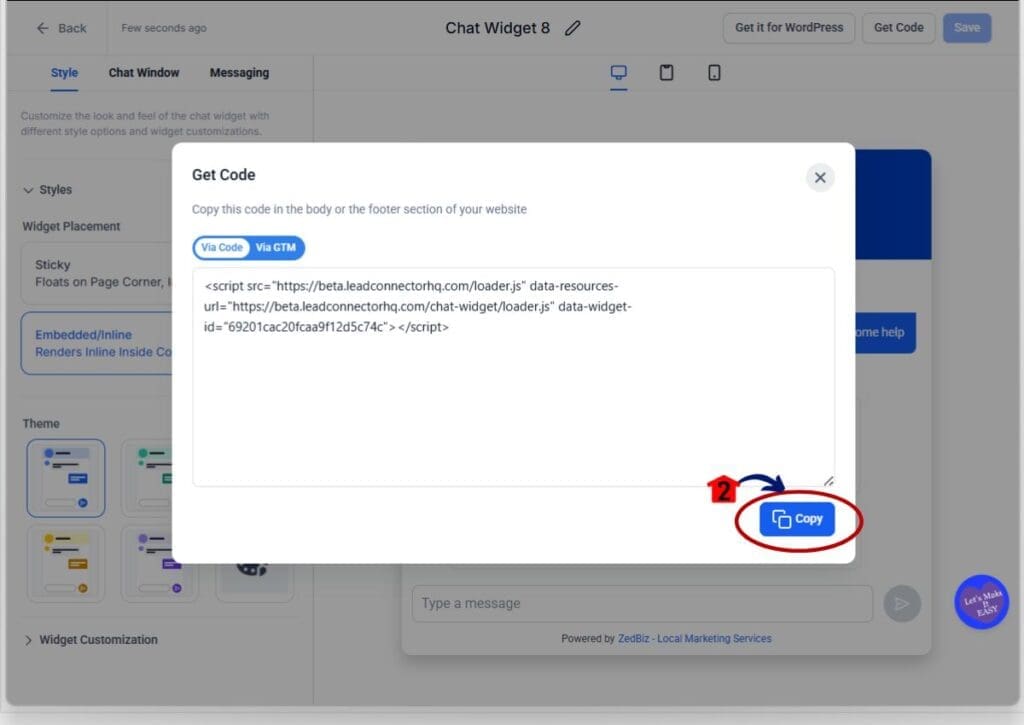
5.2 Click Copy Button to Copy the full embed snippet.
- Make sure you copy the entire block.
Step 06 – Paste the code into your Funnel or Website page
6.1 Open the Page where you want the inline chat widget to appear.
- You can use a Funnel step or a Website page.
6.2 Add a Code element or HTML/embed section on the page.
- Place it inside the section where you want chat to show.
- Good placements include near a CTA, next to a form, or under pricing.
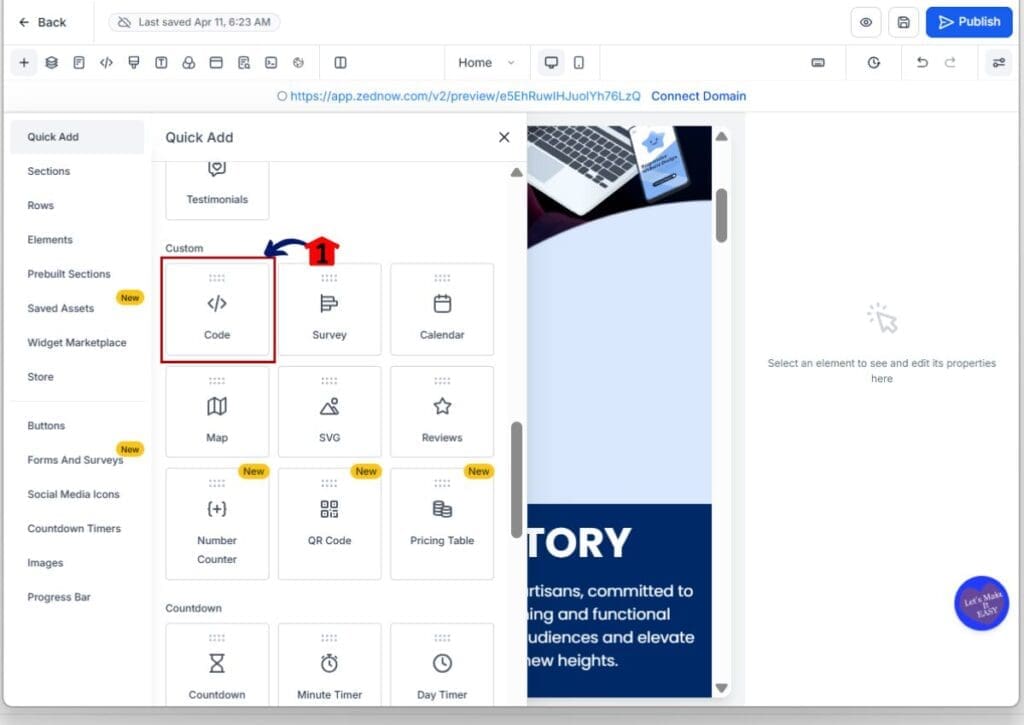
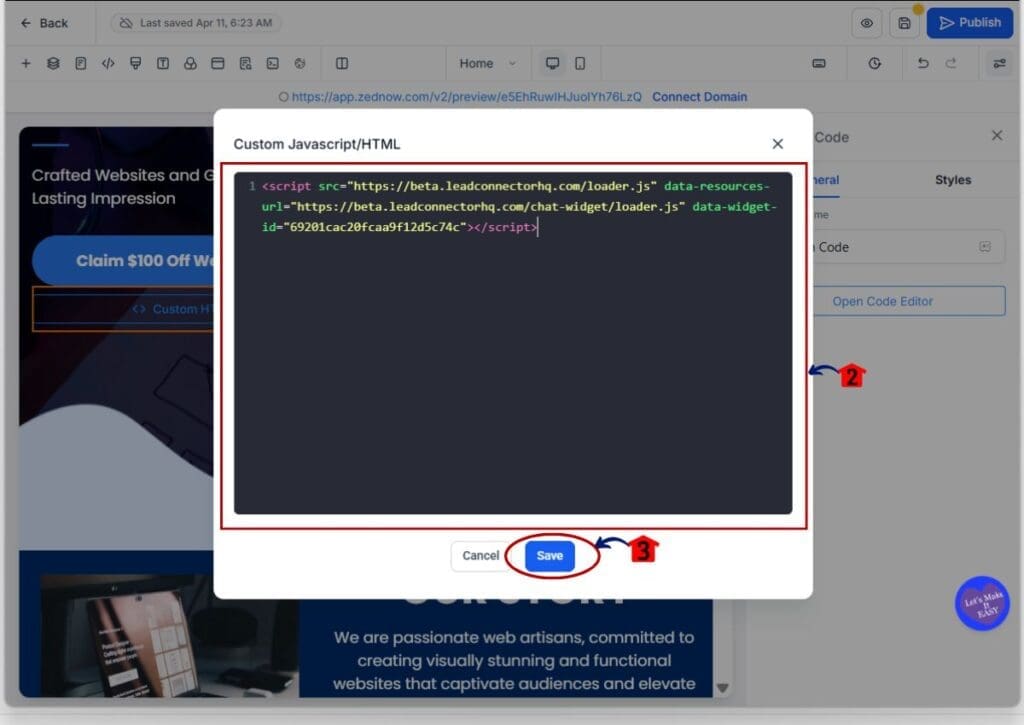
6.3 Paste the embed snippet into the Code or HTML area.
- Then save the element.
6.4 Click Save Button.
Step 07 – Publish and test
7.1 Publish the page.
- If the page is not published, visitors will not see the widget.
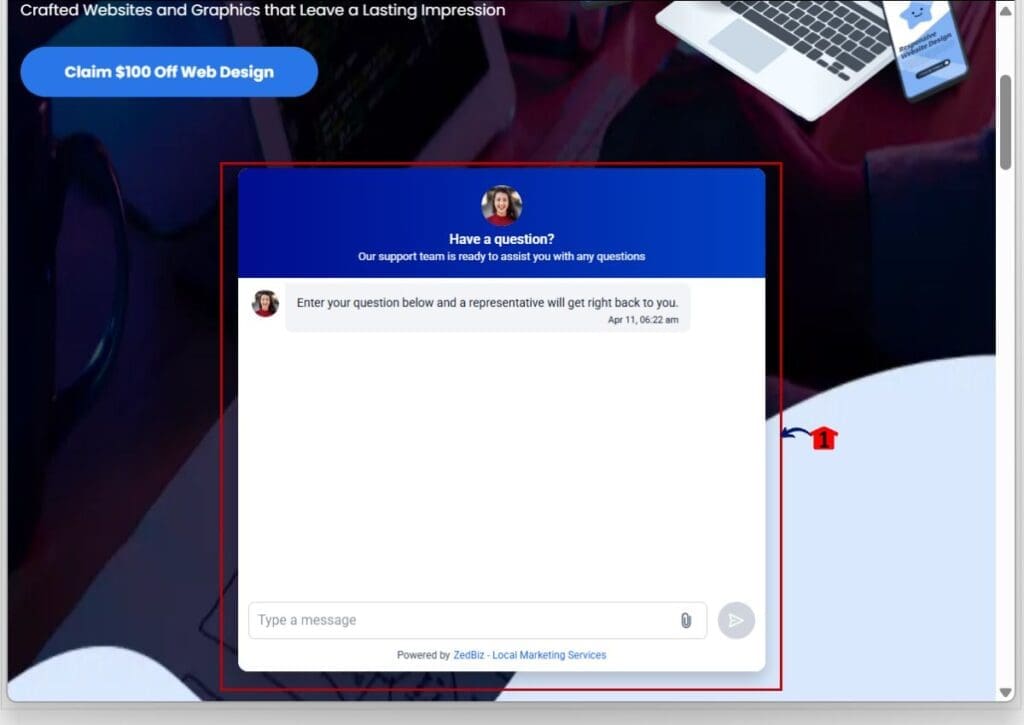
7.2 Open the live page in an incognito window.
- Scroll to the section where you embedded the inline chat widget.
7.3 Start a test conversation.
- Confirm the message shows up in Conversations and routes the same way it did before.
Pro / Quick Tips for Inline Chat Widget
If you want the inline chat widget to get used, it needs a reason to exist on the page. Do not drop it in and hope people notice. Put it next to a moment where someone is likely to pause, question, or hesitate.
Add a short “invite line” right above the widget. Keep it simple and tied to the page. Examples that work: “Not sure which option fits? Ask here.” or “Quick question before you book? Send it here.” This tiny line tells people what to do and why.
Match the first chat message to the section it sits in. If it is near pricing, make the first prompt about picking a plan. If it is near a form, make it about getting help to complete it. Generic openers like “How can we help?” feel like support. You want it to feel like guidance.
Stick to one strong placement per page. One inline chat widget near the main CTA usually beats three scattered placements that look random. If you want more coverage, add it on different pages in the funnel, not five times on the same page.
Finally, test it like a real visitor. Load the live page in incognito, scroll like a normal person, and start a test chat. If it feels out of place, move it closer to the decision point and tighten the first message.
Common Mistakes and Quick Fixes (Inline chat widget)
Inline chat widget issues usually come down to one of three things: the page is not published, the code is in the wrong place, or the layout is too tight. Start by checking the simple stuff first. Publish the page, then open it in an incognito window so you are seeing the real live version.
If the inline chat widget shows up but looks broken, it is almost always a spacing problem. The embed is sitting inside a narrow column or squeezed between sections with no padding. Move it into a full-width section, add space above and below, and keep it near the area where people are making a decision.
If it looks fine but nobody uses it, the message is probably too generic. “How can we help?” sounds like support, not guidance. Match the first line to the page section, like pricing, booking, or forms. That small change makes the inline chat widget feel like part of the page, not an extra feature.
What This Means for Agencies (Inline chat widget)
For agencies, the inline chat widget is not just a design tweak. It gives you a cleaner way to control where conversations start. Instead of hoping a floating bubble gets noticed, you can place chat right beside the offer, the form, or the pricing. That makes your funnels feel more guided, and it helps clients see chat as part of the conversion path.
It also makes delivery easier. You can build a simple “standard” inline chat widget style for your niche, then reuse it across client accounts with small message changes. One version for pricing pages, one for booking pages, and one for lead forms. This keeps your builds consistent, speeds up QA, and reduces random chat setups that look different on every client site.
Best of all, you can sell it as a real improvement without over complicating it. You are not changing routing, workflows, or the backend. You are changing placement and visitor experience. If a client asks why results improved, you can point to the inline chat widget sitting at the exact spot where visitors normally hesitate.
Frequently Asked Questions (Inline chat widget)
Conclusion: Inline chat widget
The inline chat widget is a small change with a real impact. You are not changing how chat works in the backend. You are changing where it shows up, so it feels like part of the page instead of a floating extra.
If you want the fastest win, embed it near one strong decision point first. Pick pricing, a lead form, or your main CTA. Then keep the first chat message tied to that section so it feels natural and useful.
Try it on one page, test it on mobile, and watch how many more conversations start when chat is placed in the right spot. Have you added the inline chat widget yet, and where are you placing it first?
Scale Your Business Today.
Streamline your workflow with GoHighLevel’s powerful tools.