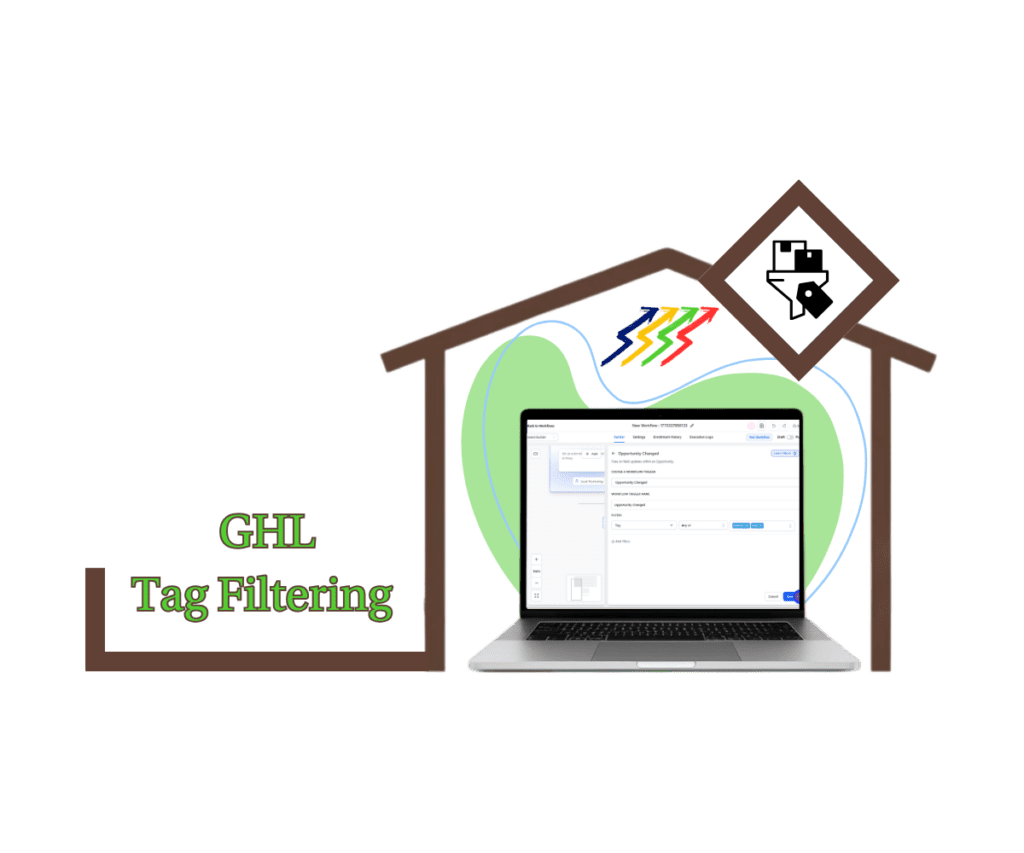
- Upgrade Your Kanban Pipeline View
- Quick Summary – Kanban Pipeline View Essentials
- Here are this weeks HighLevel Updates
- What’s New in the Kanban Pipeline View
- How the Kanban Pipeline View Controls Work
- Why the Kanban Pipeline View Upgrade Matters
- How to Use the Kanban Pipeline View Controls
- Pro Tips for Using the Kanban Pipeline View
- What This Means for Your Sales Process
- Kanban Pipeline View FAQ
- Take Control of Your Kanban Pipeline View
Upgrade Your Kanban Pipeline View
Before this update, the Kanban pipeline view inside GHL was fixed. You saw every stage. All the time. Full width. No flexibility. If your pipeline had 10 or 15 stages, you scrolled. And scrolled. And scrolled.
It worked. But it wasn’t built for large, active pipelines.
Agencies running full-cycle pipelines, from New Lead to Closed Won, felt it the most. With every stage stretched across the screen, reps had to comb through columns just to find priority deals. The hot opportunities blended in with cold or stalled ones.
Finding what mattered most took longer than it should. GHL has now fixed that limitation.
The Kanban pipeline view is now customizable. You can collapse stages you don’t need to see. Resize columns to prioritize important deals. And your layout preferences are saved automatically per user.
No more endless horizontal scrolling. No more visual clutter. No more one-size-fits-all pipeline layouts.
What changed: Inside Opportunities, the Kanban board is now flexible. You can fold stages closed when you don’t need them, stretch columns wider by dragging the edges, and double-click to snap everything back to normal. Your layout saves automatically, and it’s just for you. No one else’s view gets changed.
Who this is for: Agency owners managing large sales pipelines. Sales reps who live inside Opportunities daily. Virtual assistants updating deals. And any GHL user who wants a cleaner, more focused CRM workspace.
What we’ll demonstrate: In this breakdown, we’ll walk through what’s new inside the GHL Kanban pipeline view, explain why it matters for agency workflows, show you exactly how to collapse and resize stages, and share practical tips to help your team move faster and stay focused inside Opportunities.
The latest GoHighLevel Changelog includes several other GHL feature updates that round out your daily workflow:
- Version History Improvements: View & Restore Versions Across Builders
- [Compliance] Stay compliant with ACH payment on Stripe
- Canva Integration In Media Storage
- Bulk Import for Companies
- AI Builder: 52% Faster Workflow Generation
- Record IDs – Improved Visibility in Lists & Record Details
- Reselling Reporting on Agency Dashboard
- Blogs – Revamped URL Blog Importer Experience 🚀
Keep reading for much more on all these updates and a deep dive into the Pipeline Stages feature!
Quick Summary – Kanban Pipeline View Essentials
Purpose:
This update improves the Kanban pipeline view in GHL by allowing users to collapse and resize pipeline stages for better visibility and workflow control.
Why It Matters:
Large pipelines can feel cluttered and hard to scan. This feature removes visual overload and helps your team focus on revenue-driving stages.
What You Get:
You can collapse inactive stages, resize important columns, reset widths instantly, and save your layout automatically per user without affecting your team.
Time to Complete:
Less than 2 minutes to adjust your layout once inside Opportunities.
Difficulty Level:
Beginner-friendly with no technical setup required.
Key Outcome:
A cleaner Kanban pipeline view that improves daily efficiency, reduces scrolling, and helps your team focus on closing deals.
Here are this weeks HighLevel Updates
Version History Improvements: View & Restore Versions Across Builders
- What it does:
Access old versions and restore them across builders. - Where in GHL:
Found in Funnels, Websites, and other builders under version history. - Impact:
Quick fixes when changes don’t go as planned. - Who it’s great for:
Agencies and users making frequent updates.
Automate marketing, manage leads, and grow faster with GoHighLevel.

[Compliance] Stay compliant with ACH payment on Stripe
- What it does:
Helps make sure your ACH payments through Stripe follow the right rules by adding compliance checks. - Where in GHL:
You’ll see this when configuring ACH payments in the Payments and Stripe settings. - Impact:
Keeps you protected from potential compliance problems and makes payments more secure. - Who this is for:
Anyone collecting ACH payments, especially agencies and SaaS businesses.
Canva Integration In Media Storage
- What it does:
Allows you to access and import Canva designs directly into GHL’s media storage. - Where in GHL:
Media Library / Storage section when uploading or selecting files. - Impact:
Speeds up content creation by removing the need to download and re-upload assets. - Who this is for:
Marketers, designers, and agencies creating visual assets for funnels, emails, and ads.
Bulk Import for Companies
- What it does:
Enables bulk uploading of company records into GHL instead of adding them one by one. - Where in GHL:
CRM under Companies section (import/upload functionality). - Impact:
Saves time and simplifies onboarding large datasets or migrating client information. - Who this is for:
Agencies, sales teams, and businesses handling large volumes of company data.
AI Builder: 52% Faster Workflow Generation
- What it does:
Improves AI workflow generation speed, cutting build time by over half. - Where in GHL:
AI Workflow Builder inside Automation > Workflows. - Impact:
Speeds up automation creation, allowing faster testing and deployment. - Who this is for:
Agencies, automation builders, and marketers creating workflows frequently.
Record IDs – Improved Visibility in Lists & Record Details
- What it does:
Makes record IDs easier to see within lists and detailed views. - Where in GHL:
CRM records, lists, and detail pages. - Impact:
Improves tracking, integrations, and debugging when working with specific records. - Who this is for:
Developers, advanced users, and teams working with integrations or data tracking.
Reselling Reporting on Agency Dashboard
- What it does:
Adds reporting insights for reselling activities directly in the agency dashboard. - Where in GHL:
Agency Dashboard under reporting/analytics sections. - Impact:
Gives better visibility into revenue and performance from resold services. - Who this is for:
Agencies running SaaS mode or reselling GHL services.
Blogs – Revamped URL Blog Importer Experience 🚀
- What it does:
Improves the blog importer tool for pulling content from URLs into GHL. - Where in GHL:
Sites > Blogs > Import via URL. - Impact:
Makes moving your blogs over quicker and a lot easier to handle. - Who this is for:
Agencies, content marketers, and businesses migrating blogs into GHL.
What’s New in the Kanban Pipeline View
This update improves how you control and customize your Kanban pipeline view inside Opportunities.
Before, every stage stayed fully expanded. Now, you control what you see.
Here’s exactly what’s new:
- Collapse and expand individual stages
- You can now hide stages you don’t need to see. Click the collapse icon in a stage header, and it shrinks down. Click it again to expand.
Resize pipeline columns
Need more space for active deals? You can drag column dividers to make priority stages wider and less important ones smaller.
Double-click to reset column width
If your layout gets messy, just double-click the divider between columns. It instantly resets to default size.
Automatic layout saving (per user)
Your Kanban pipeline view preferences are saved automatically. Once you collapse or resize stages, your layout stays that way.
User-specific customization
Your changes only affect your view. Your team members will still see their own layouts based on their preferences.
Browser-based storage
Right now, layout preferences are stored locally in your browser. That means:
- They are saved on the device and browser you’re using.
- Clearing cache or switching browsers may reset the layout.
- Smart View saving for permanent layouts is coming soon.
Where this applies:
This update works inside: Opportunities → Kanban View
It does not affect:
- Pipeline stage setup
- Automation triggers
- Reporting logic
- Team permissions
It’s purely a usability and workflow enhancement. And for agencies managing large pipelines, that usability change matters more than you think.
How the Kanban Pipeline View Controls Work
This update is simple. But understanding how it behaves will help you use it properly inside your Kanban pipeline view.
Let’s break down what actually happens when you collapse or resize a stage.
Collapsing a Stage
When you click the collapse icon in a stage header:
- The column shrinks down into a narrow vertical bar.
- The stage name remains visible.
- All deal cards inside that stage are hidden from view.
This does not delete anything. It does not move deals. It simply hides that stage visually. Think of it like folding a section closed so you can focus elsewhere.
Expanding a Stage
Click the icon again, and:
- The stage expands back to full view.
- All deal cards become visible again.
- Your column width settings remain intact.
It’s instant. No refresh required.
Resizing a Stage Column
When you hover your mouse between two pipeline stages:
- Your cursor changes to a resize indicator.
- Click and drag left or right.
- The column adjusts in width.
You can:
- Widen high-priority stages like “Appointment Set” or “Closing.”
- Shrink inactive stages like “Cold Lead” or “Unqualified.”
This lets your Kanban pipeline view reflect what matters right now.
Resetting a Column
If you stretch things too far or want to start fresh:
- Double-click the divider between two stages.
- The column instantly resets to its default width.
No guessing. No manual adjustment needed.
How Layout Saving Works
Once you adjust your Kanban pipeline view:
- Your layout is saved automatically.
- No save button required.
- No confirmation needed.
However, it’s important to understand:
- Layout settings are stored locally in your browser.
- Switching browsers may reset the layout.
- Clearing cache may remove saved preferences.
And remember — this is user-specific.
Your sales manager can widen “Closing.” Your VA can widen “New Leads. Neither affects the other. That flexibility is where this update becomes powerful.
Why the Kanban Pipeline View Upgrade Matters
At first glance, this looks like a small UI tweak. It’s not. For agencies working inside the Kanban pipeline view every single day, this removes friction you didn’t even realize was slowing you down.
Large Pipelines Create Visual Overload
Most agencies don’t run simple 3-stage pipelines.
You’ve got:
- New Lead
- Contacted
- Appointment Set
- No Show
- Follow-Up
- Proposal Sent
- Negotiation
- Closed Won
- Closed Lost
That’s easily 8–12 stages.
Without control over your Kanban pipeline view, everything stays open. Every column takes space. And suddenly you’re scrolling sideways just to find what matters.
That kills focus. Now, you can collapse low-priority or inactive stages and widen the ones that drive revenue.
Focus on Revenue Stages
During sales calls or pipeline reviews, you don’t care about “Unqualified.”
You care about:
- Appointments
- Proposals
- Closing
Now you can:
- Collapse early funnel stages
- Expand high-value deal stages
- Resize columns to see more deal detail at once
Your pipeline starts working for you instead of against you. User-Specific Views = Cleaner Team Workflows This is where it gets powerful. Your layout does not affect your team.
That means:
- Sales reps can prioritize closing stages.
- VAs can prioritize new leads and follow-ups.
- Managers can widen reporting-focused stages.
Everyone works the same pipeline. But they see it differently. That’s smart CRM design.
Faster Weekly Pipeline Reviews
If you run weekly pipeline calls with clients, this saves time. Instead of scrolling through irrelevant columns, you collapse what doesn’t matter for the meeting.
Now the Kanban pipeline view becomes a presentation tool, not just a tracking tool. Small change. Big clarity shift.
How to Use the Kanban Pipeline View Controls
In this section, you’ll learn how to collapse and resize stages inside the Kanban pipeline view in your GHL sub-account. You’ll access Opportunities, switch to Kanban view, and adjust stage columns to match your workflow.
These steps will show you exactly where to click, how to control column width, how to collapse stages, and how layout saving works so you can customize your pipeline without affecting your team.
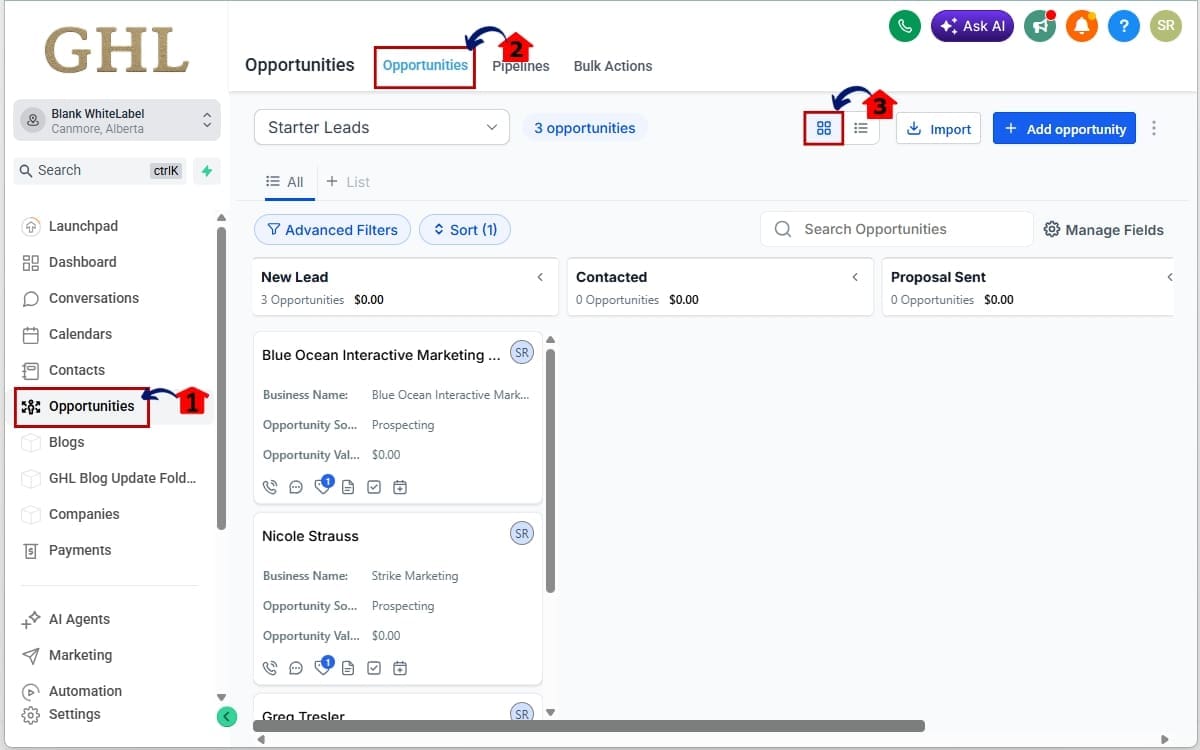
- Access the Main Left Hand Menu in GoHighLevel.
- Collapse a Pipeline Stage in Opportunities.
- Resize a Pipeline Stage Column.
To start, make sure you are logged in to your GoHighLevel sub-account.
Step 01 – Access the Main Left Hand Menu in GoHighLevel
- The Main Menu on the left side of your screen has all the main areas you work in when using GHL.
1.1 Click on “Opportunities.”
- You’ll now be inside the Opportunities section of your sub-account.
1.2 Click the opportunities in the menu above
- You are now inside the Opportunities view
1.3 Click on “Kanban View.”You are now inside the Kanban pipeline view where your deal stages appear as columns.
Step 02 – Collapse a Pipeline Stage in Opportunities
- Use this step to temporarily hide a stage in your pipeline. Collapsing a stage reduces visual clutter and helps you focus only on active or high-priority deals.
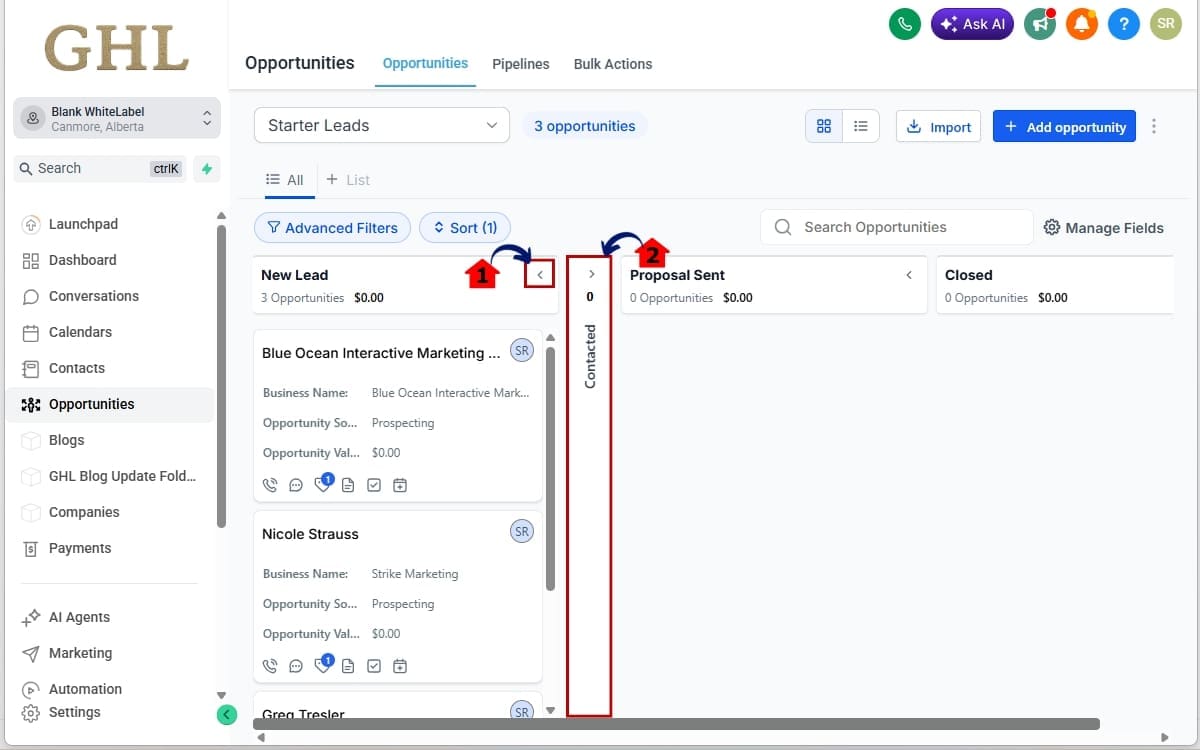
2.1 Look at the top of any pipeline stage column. Locate the collapse icon (< or > style arrow) in the stage header.
- The stage will shrink into a narrow vertical bar.
2.2 Click the icon. To shrink the stage again, click the icon once more.
- All deals inside that stage will be hidden from view, but they are not deleted or moved.
Step 03 – Resize a Pipeline Stage Column
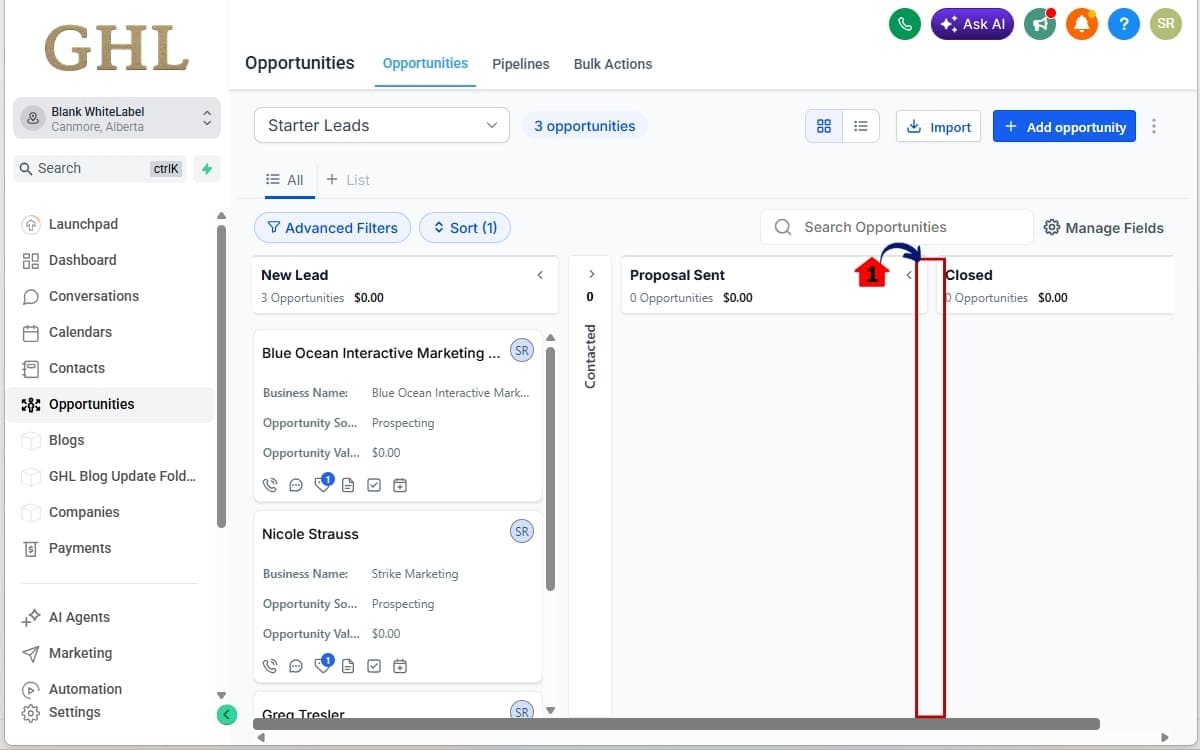
3.1 Hover your mouse between two stage columns.
Your cursor will change to indicate resizing.
You can:
- Make high-priority stages wider
- Make low-priority stages narrower
- Customize the Kanban pipeline view based on your workflow
Release the mouse when the column reaches your desired size.
Important notes:
- Layout preferences are device and browser-specific.
- Clearing cache may reset your layout.
- Switching to another browser may not carry over your preferences.
- Your layout changes do not affect other users.
Each team member can customize their own Kanban pipeline view without impacting the rest of the team. That’s it. No complicated setup. No settings changes required. Just simple, practical control over your pipeline layout.
Pro Tips for Using the Kanban Pipeline View
Now that you know how to control the Kanban pipeline view, let’s talk strategy. Because this isn’t just about collapsing columns. It’s about working smarter inside Opportunities.
Here’s how to get the most out of it.
Collapse Dead or Low-Activity Stages
If a stage rarely moves, collapse it.
Examples:
- Unqualified
- Cold Lead
- Long-Term Nurture
- Closed Lost
You don’t need those wide open during daily follow-ups. Keep your Kanban pipeline view focused on active revenue stages.
Widen Revenue-Critical Stages
Make stages like:
- Appointment Set
- Proposal Sent
- Negotiation
- Closing
Wider than the rest. Why? Because that’s where money is made.
Wider columns mean:
- More deal cards visible
- Less card stacking
- Faster scanning
Use It During Sales Meetings
Before pipeline review calls:
- Collapse irrelevant stages
- Widen the stage you’re reviewing
- Adjust layout to match the conversation
Your Kanban pipeline view becomes a live dashboard instead of a cluttered board.
Customize by Role
Your team shouldn’t all see the same layout.
Sales reps may widen:
- Follow-Up
- Closing
VAs may widen:
- New Leads
- Appointment Set
Managers may widen:
- Reporting-focused stages
That’s where it really gets useful — everyone can set up their own view without stepping on each other’s toes.
Common Mistake to Avoid
Don’t assume your layout changes apply to the entire team. They don’t.
If someone says, “My pipeline looks different,” it’s because their layout is customized too.
Also remember:
If you clear browser cache or switch devices, your Kanban pipeline view may reset.
That’s normal. Permanent Smart View saving is expected in a future update.
What This Means for Your Sales Process
This update isn’t just about cleaner columns. It’s about control.
When your Kanban pipeline view is cluttered, your team slows down. They scan more. Scroll more. Miss things more. When it’s clean and focused, they move faster.
Faster Deal Reviews
With the ability to collapse and resize stages, your team can:
- Scan active deals quicker
- Spot bottlenecks faster
- Identify stuck opportunities immediately
Instead of visually processing 12 columns, they focus on the 3–4 that matter right now. That saves minutes per review. Multiply that by daily usage across a team. It adds up.
Better Weekly Pipeline Calls
If you run weekly client reporting calls, this is a quiet productivity win.
Before the call:
- Collapse early-stage leads
- Widen “Proposal” or “Closing”
- Focus the Kanban pipeline view on revenue stages
Now your board supports the conversation. Less scrolling. Less distraction. More clarity.
Improved Role-Based Efficiency
Different roles care about different stages.
Sales reps care about:
- Follow-Ups
- Negotiations
- Closings
VAs care about:
- New Leads
- Appointment Confirmations
Managers care about:
- Conversion gaps
- Stage volume
Now everyone can customize the Kanban pipeline view without disrupting the system. That’s structured flexibility.
Less Visual Fatigue
This one matters more than people realize. When your pipeline looks chaotic, it creates mental resistance. When it looks clean, you want to use it.
A clean CRM drives adoption. And CRM adoption drives revenue. Small interface improvement. Real workflow impact.
Kanban Pipeline View FAQ
Take Control of Your Kanban Pipeline View
The Kanban pipeline view inside GHL just became a lot more practical. Before, you worked around the layout.
Now, the layout works around you. You can collapse inactive stages. Widen revenue-driving columns. Reset layouts instantly. And customize your view without affecting your team.
It’s a small interface update. But for agencies managing large pipelines, it creates real daily efficiency.
Less scrolling. Less visual clutter. More focus on closing deals. And because each user controls their own Kanban pipeline view, your sales reps, VAs, and managers can all optimize their workspace based on how they actually work.
That’s smart CRM flexibility. Just remember:
Layout preferences are currently browser-based. If you switch devices or clear cache, you may need to reset your layout. Permanent Smart View saving is expected soon.
If you live inside Opportunities every day, this is a feature you should start using immediately.
Log in. Open your pipeline. Collapse what doesn’t matter. Widen what does.
Cleaner pipeline. Faster decisions. Better focus.
Have you customized your Kanban pipeline view yet? How many stages are in your largest pipeline right now?
Check back to the GHL Growth Garage blog for more GoHighLevel update breakdowns and practical feature guides designed for agencies that want to move faster.
Scale Your Business Today.
Streamline your workflow with GoHighLevel’s powerful tools.