- Add schema in minutes with built-in validation and one-click publish.
- Quick Summary – Schema Markup Generator Essentials
- Schema Markup Generator Built Into GHL
- Schema Markup Generator Moved Under “SEO & AI”
- Schema Markup Generator for SEO + AI Visibility
- Schema Markup Generator Key Features
- Enable Schema Markup Generator in GHL Labs
- How To Use the Schema Markup Generator in GHL
- Quick Wins for Cleaner Schema
- Schema Markup Generator Frequently Asked Questions
- What This Means for Your Business
- Next Steps to Ship Schema Fast
Add schema in minutes with built-in validation and one-click publish.
Schema Markup Generator in GHL Explained
The Schema Markup Generator in GHL lets you create, validate, and publish schema markup directly inside the Website & Funnel Builder. No external tools. No manual code injection. No technical guesswork. You pick a schema type, fill in the fields (or paste JSON-LD), validate, and publish.
That matters because schema markup helps search engines and AI systems understand what your page is about. When your page is clearer, it has a better shot at showing up with rich results and being interpreted correctly in AI-driven search experiences.
With the Schema Markup Generator, you can publish clean, validated structured data in minutes, so Google and AI systems understand your pages faster. That means fewer errors, quicker launches, and a repeatable “SEO + AI optimization” deliverable you can roll out across client accounts.
One more thing in this release: the SEO Meta Data section is now called SEO & AI search optimization. It’s a small rename, but it makes this feature easier to find and signals the direction GHL is pushing toward.

With the Schema Markup Generator, you can publish clean, validated structured data in minutes, so Google and AI systems understand your pages faster. That means fewer schema errors, quicker launches, and a more “rich results ready” SEO deliverable you can standardize across clients.
Quick Summary – Schema Markup Generator Essentials
Purpose: This guide shows how to use the new Schema Markup Generator in GHL to add structured data directly inside the Website & Funnel Builder, without code or external tools.
Why It Matters: Schema helps Google and AI systems understand your pages better, which can support rich results eligibility and stronger AI search interpretation.
What You Get: You’ll learn how to enable the feature in Labs, add schema to a page, validate it inline, and publish it so it goes live in the page head.
Time To Complete: Most pages take about 5–15 minutes once your team has a repeatable schema checklist.
Difficulty Level: Easy for Form View setups, and moderate if you’re using JSON View for advanced schema.
Key Outcome: You can standardize validated structured data as a repeatable agency deliverable and ship it faster across multiple sub-accounts.
Schema Markup Generator Built Into GHL
GHL just added a native Schema Markup Generator directly inside the Website & Funnel Builder. That means you can create structured data for a page without bouncing between third-party tools, validators, and messy code snippets.
Inside the editor, you can choose from 140+ schema types, then build your schema using a guided Form View. It’s no-code and team-friendly, so your fulfillment staff doesn’t need to understand JSON-LD to get the job done.
Automate marketing, manage leads, and grow faster with GoHighLevel.

If you do want full control, there’s also a JSON View. Advanced users can paste in existing schemas or write it from scratch without needing to inject scripts into the page manually.
The real win is the built-in validation. When you click Validate & Save, GHL checks your schema and flags errors inline, so you can fix issues before anything goes live. Then, when you publish the page, the schema is saved into the page head automatically.
Schema Markup Generator Moved Under “SEO & AI”
In this release, GHL renamed the SEO Meta Data section to SEO & AI search optimization. You’ll see this in the left panel when you’re editing a page inside the Website & Funnel Builder.
Practically, this change does two things. First, it makes the Schema Markup Generator easier to find because it lives in a more obvious “SEO + AI” home. No more guessing whether schema belongs under “settings” or some hidden advanced menu.
Second, it’s a signal. GHL isn’t treating SEO as “just title tags and descriptions” anymore. They’re grouping classic search optimization and AI search visibility together because both depend on clarity and structured information.
So if you’re used to the old workflow, your clicks change slightly:
- Edit Page → SEO & AI search optimization → Schema Markup.
That’s it. Same goal, better labeling, and a cleaner place to manage the stuff that helps Google and AI systems interpret your page correctly.
Schema Markup Generator for SEO + AI Visibility
Schema markup is a translator. It tells Google (and AI systems) what your page is, what it contains, and what entities it represents. Without it, search engines can still “guess,” but you’re leaving clarity and sometimes visibility on the table.
For agencies, the real value is operational. Before this, schema usually meant: use a third-party generator, paste JSON-LD into a header area, run an external validator, fix errors, then repeat. That’s slow, messy, and easy to break when someone edits the page later.
Now you can do it inside GHL with a built-in flow: pick the schema type, fill the fields, validate, and publish. Your team gets fewer “schema is broken” surprises. Your clients get a cleaner SEO deliverable. And you get a process you can standardize across accounts instead of relying on one technical person.
This also fits where the search is going. AI-powered results pull from clear, structured, entity-based content. Schema doesn’t guarantee rankings, but it improves understanding. And better understanding is the foundation for rich results eligibility, stronger relevance signals, and cleaner data extraction for AI-driven search experiences.
Schema Markup Generator Key Features
This Schema Markup Generator release isn’t “nice to have.” It removes the biggest schema headaches agencies deal with: tool hopping, broken JSON, and last-minute validation errors.
Here’s what you get inside GHL:
140+ schema types to choose from
- You can cover the common agency use cases fast: local businesses, products, articles, FAQs, events, and more. That means fewer workarounds and less custom coding.
Form View (no-code editor)
- Pick a schema type, then fill in guided fields. This is ideal for fulfillment teams because it keeps work consistent across accounts and reduces mistakes.
JSON View (advanced control)
- If you already have schema from another site or tool, you can paste or write JSON-LD directly. This is perfect for power users who want full flexibility.
Built-in validation on save
- Click Validate & Save and GHL checks your schema. If something’s wrong, you’ll see it immediately, with errors highlighted inline. That’s a massive upgrade from “publish and pray.”
One-click publish to the page head
- Schema gets saved into the page <head> and goes live when you publish. No manual injection. No digging through code areas.
Multiple schemas per page
- You’re not limited to one type. You can stack schemas the right way, like Organization + LocalBusiness + FAQPage, as long as it matches what’s actually on the page.
Enable Schema Markup Generator in GHL Labs
With this update, enabling the Schema Markup Generator is a Settings-area task in your Agency view. You’re turning on a Labs feature so it becomes available inside the builder for the sub-accounts you choose. Here are the steps to enable the Schema Markup Generator in GoHighLevel.
- Access the Settings area in GoHighLevel.
- Open Labs inside Agency Settings.
- Activate the feature for specific or all sub-accounts.
To start make sure you are logged in to your GoHighLevel sub-account.
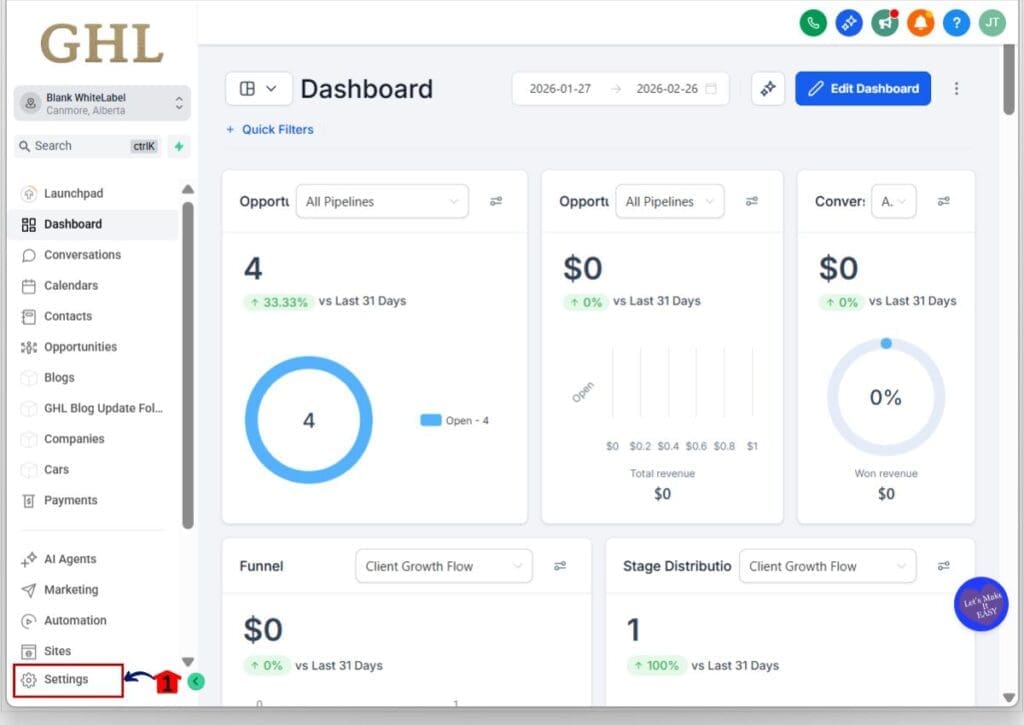
Step 1.0 – Access the Settings area in GoHighLevel
- Go to the bottom of the Main Menu on the left-hand sidebar.
1.1 Click the gear icon ⚙️ labeled “Settings”.
- This will open the Settings dashboard, where you can access Business Info, Billing, My Staff and more.
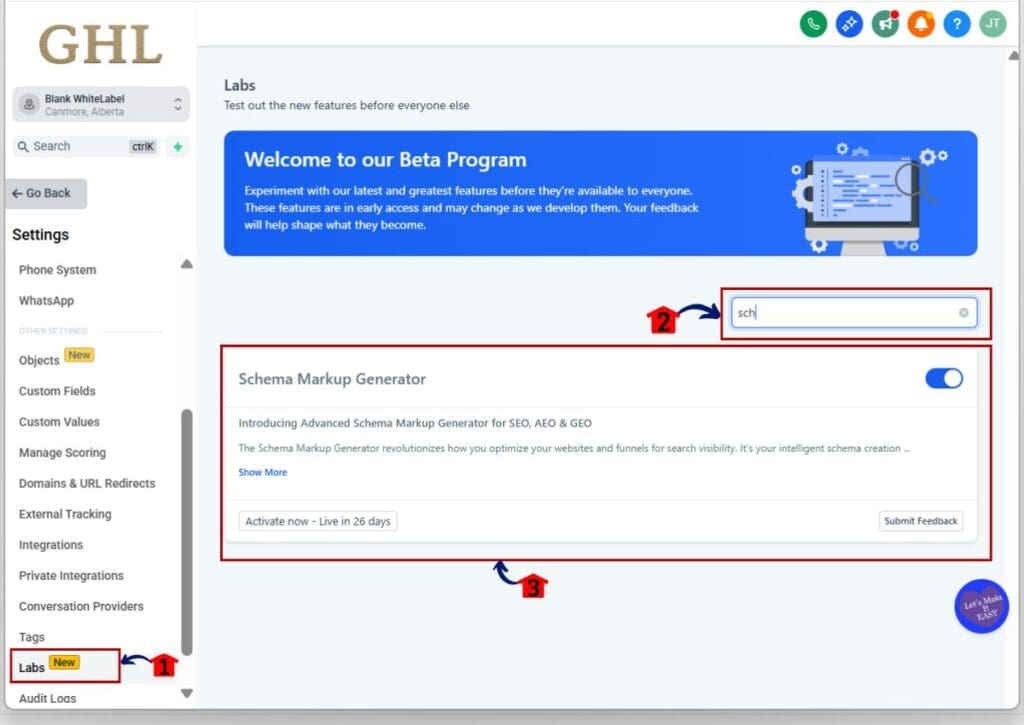
Step 02 – Open the Labs section in Settings
2.1 In the Settings dashboard, click “Labs”.
2.2 Click into the Labs search field.
2.3 Type “Schema Markup Generator”.
- You should now see the Schema Markup Generator feature flag in the results.
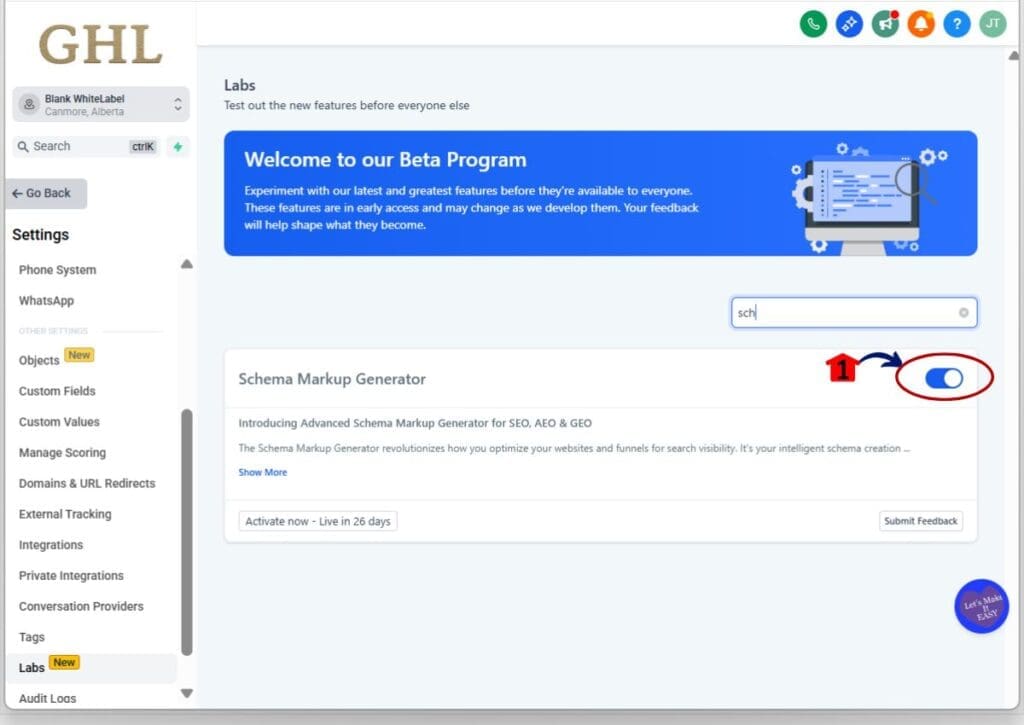
Step 03 – Activate the feature for sub-accounts
3.1 Choose whether to enable or turn off by clicking the toggle on or off
- Once activated or toggle on, sub-accounts will be able to access Schema Markup inside the page editor under “SEO & AI search optimization”.
How To Use the Schema Markup Generator in GHL
The Schema Markup Generator is used inside the Website & Funnel Builder while editing a page. You’ll add schema from the SEO & AI search optimization panel, validate it, and then publish the page to push it live. Here are the steps to add and publish schema markup using the Schema Markup Generator in GoHighLevel.
- Access the Website & Funnel Builder area.
- Open the page editor for the page you want to update.
- Open SEO & AI search optimization.
- Add a schema type (Form View or JSON View).
- Validate & Save your schema.
- Publish the page to make schema live.
To start make sure you are logged in to your GoHighLevel sub-account.
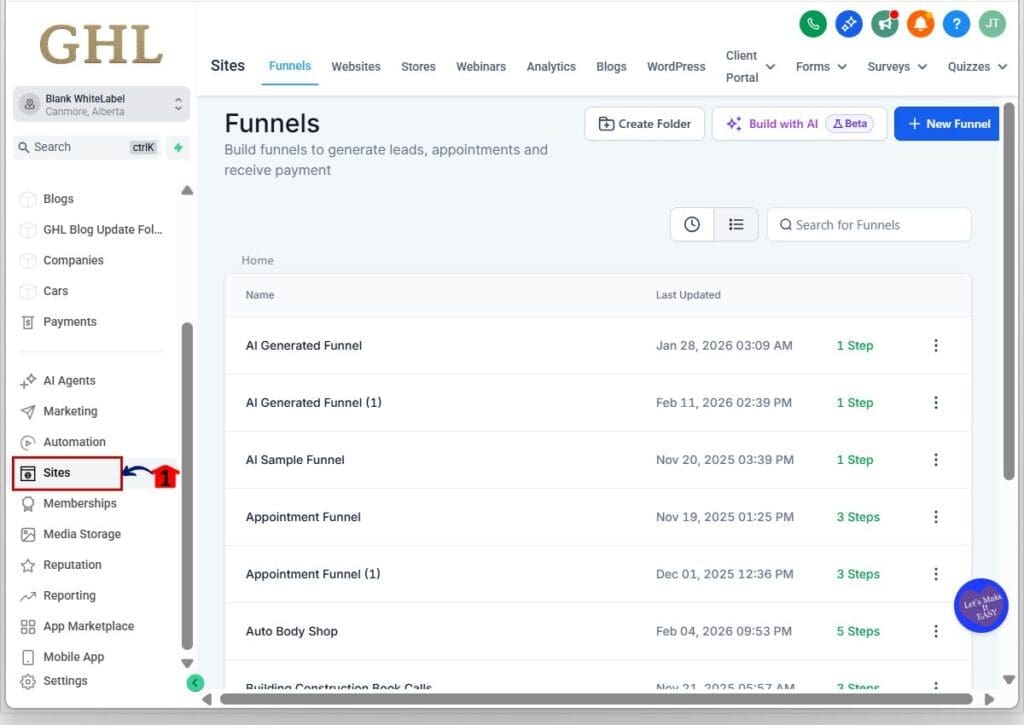
Step 1.0 – Access the Sites area page of GoHighLevel
- The Main Menu on the left side of your screen has all the main areas that you work in when using GHL.
1.1 Click “Sites” main menu item.
- Inside the Sites section you will find Websites, Funnels, and more.
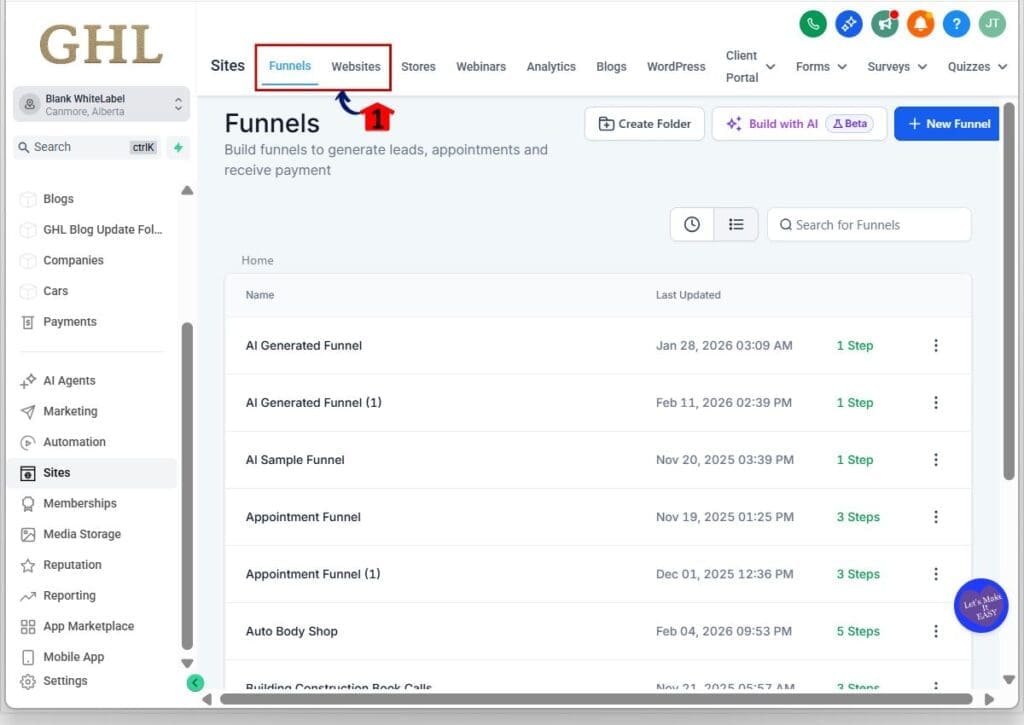
Step 02 – Open the Website or Funnel you want to edit
2.1 Click “Websites” if your page is on a website.
2.2 Click “Funnels” if your page is inside a funnel.
- This opens the list view where you can select the specific Website or Funnel you want to work on.
Step 03 – Open the page editor for your page
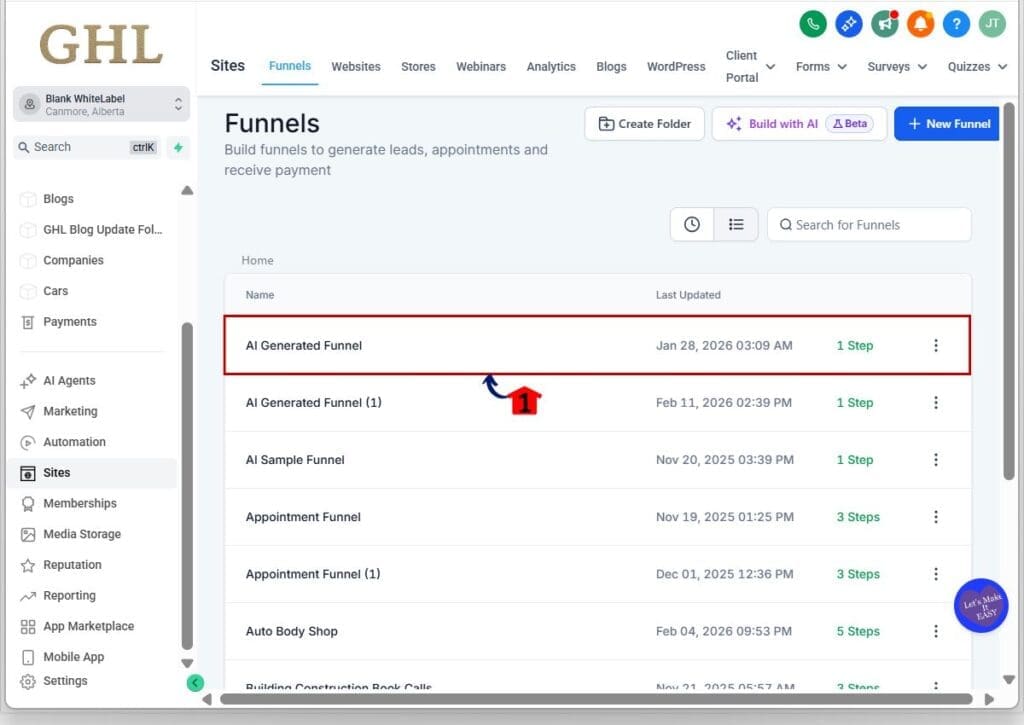
3.1 Click the Website or Funnel name you want to update.
- For this demo we will use the Funnel to walk you through
3.2 Locate the page you want to add schema to.
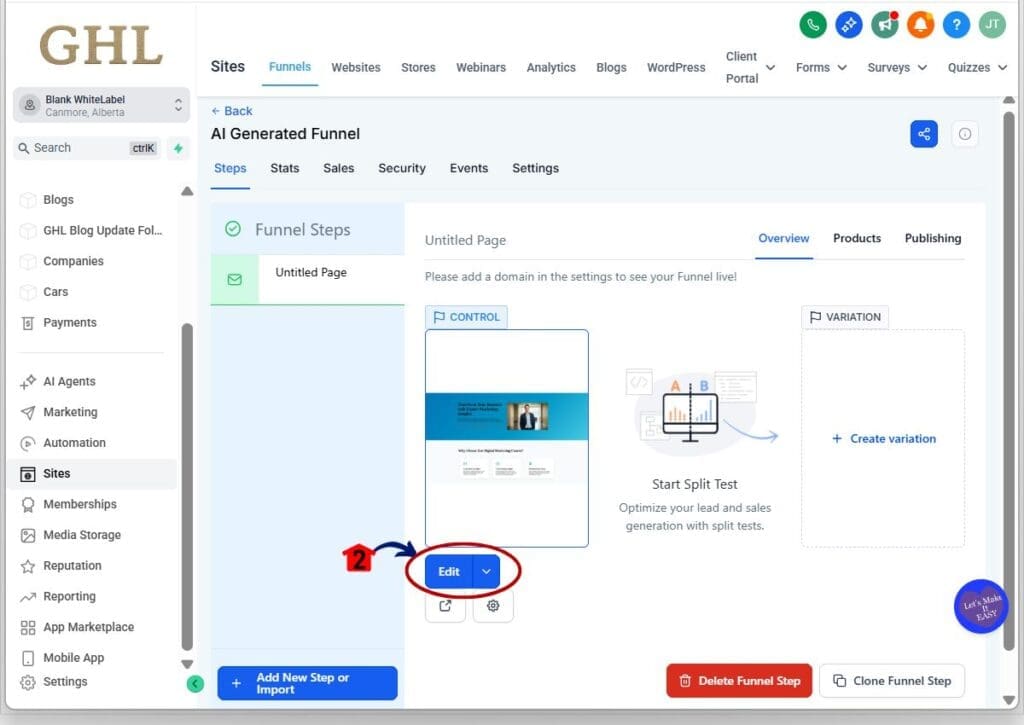
3.3 Click “Edit Button” to open the page editor.
- The page editor will load and you’ll see the left-side panel with page settings and optimization options.
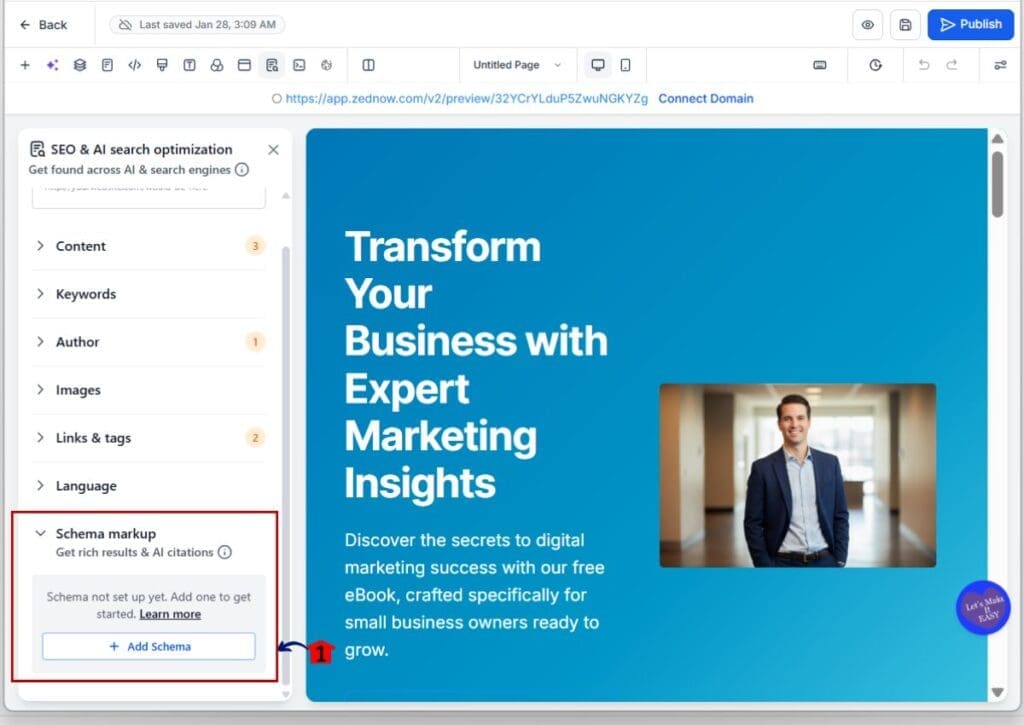
Step 04 – Open “SEO & AI search optimization” in the left panel
4.1 In the top panel, click “SEO & AI search optimization”.
- This opens the SEO and AI optimization settings for the page, including the Schema Markup area.

Step 05 – Add a new schema type
5.1 In the Schema Markup section, click “+ Add Schema”.
- A pop-up window will appear
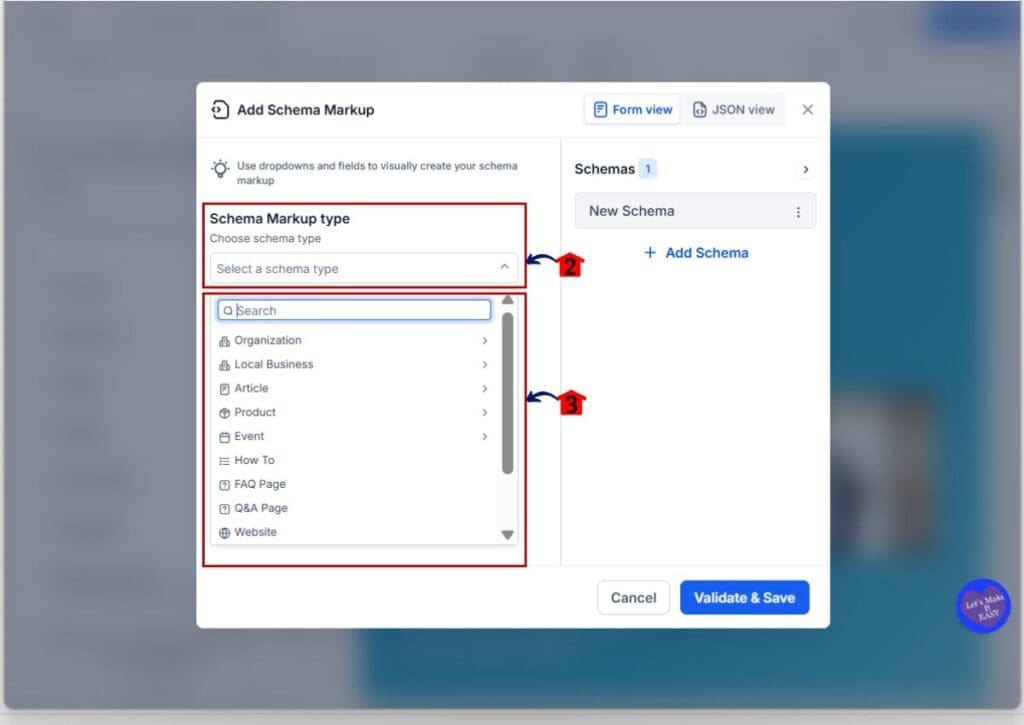
5.2 Open the schema Markup type dropdown.
5.3 Select a schema type (example: “LocalBusiness”, “FAQPage”, or “Product”).
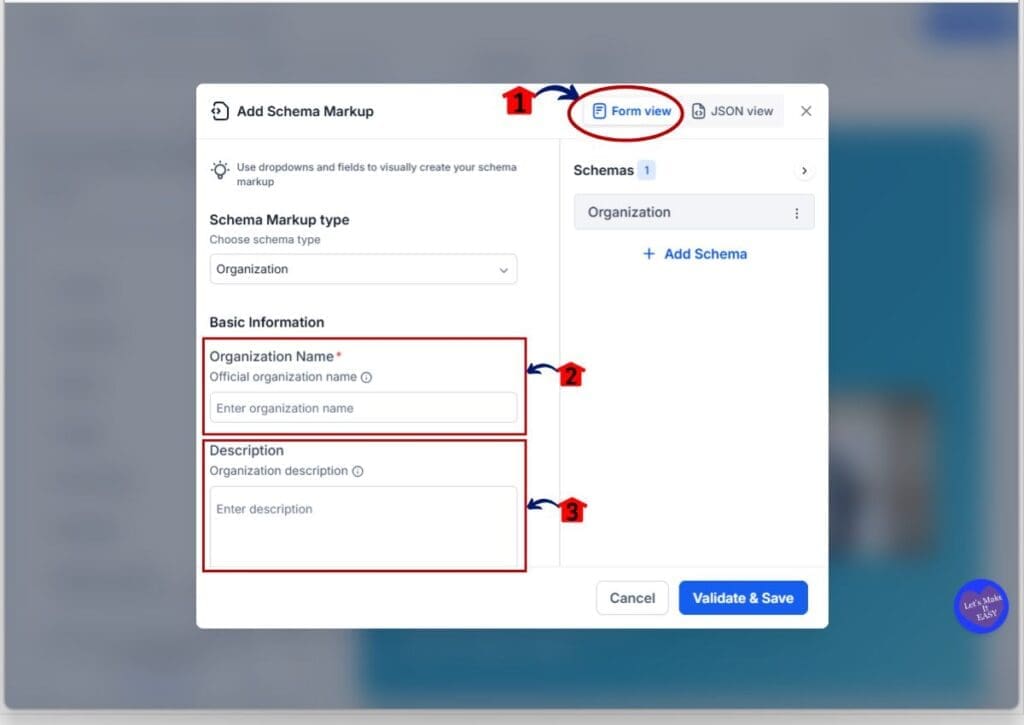
- After selecting a type, the schema editor will open in Form View by default.
Step 06 – Fill in schema details (Form View) or switch to JSON View
6.1 In Form View, fill in the fields shown for the schema type you selected.
- Business Name Field
- Description Field
- and more fields just scroll down to see them
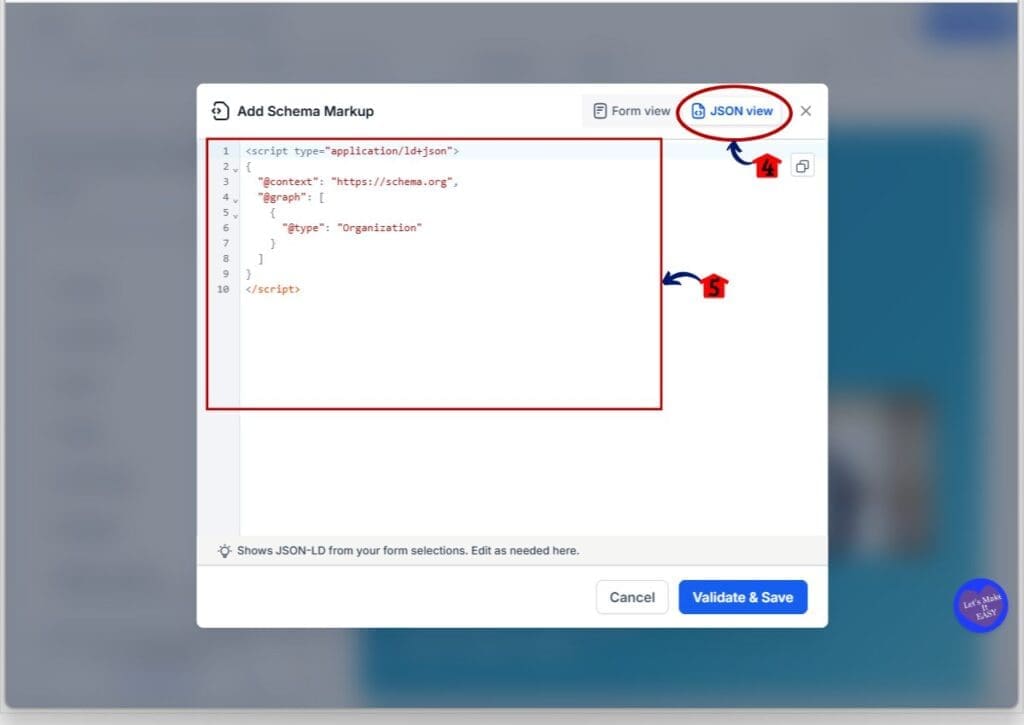
6.2 If you prefer direct editing, click “JSON View”.
- the screen will change where you can Paste or write your JSON-LD
6.3 Paste or write your JSON-LD, then review for missing required fields.
- Switching views updates how you edit, but you are still editing the same schema item for that page.
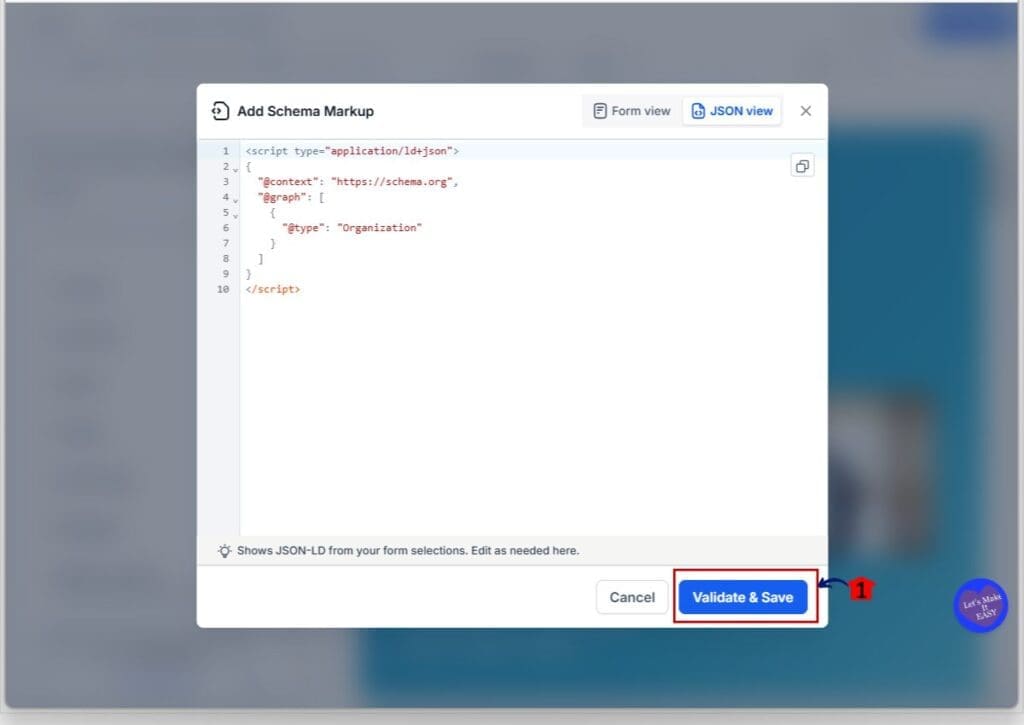
Step 07 – Validate & Save the schema
7.1 Click “Validate & Save” Button.
7.2 Review any inline errors that appear if validation fails.
7.3 Correct the highlighted fields or JSON formatting, then click “Validate & Save” again.
- When validation succeeds, the schema is saved for that page and you should see it listed under Schema Markup.
Step 08 – Publish the page to make the schema live
8.1 Click “Publish”.
8.2 Confirm publishing if prompted.
- Schema will appear in preview immediately after saving, but it goes live only after the page is published.

Good to know
- Schema is page-specific and does not carry over to other pages or funnel steps.
- You can add multiple schema types to the same page, as long as they match the page content.
- Schema is not auto-generated when creating a new page with AI, so add it after the content is finalized.
Quick Wins for Cleaner Schema
If you want this to pay off fast, don’t treat schema like a “one-off SEO task.” Treat it like a deliverable you can standardize. The teams that win with this feature are the ones who pick a small set of schema types, build a repeatable checklist, and ship it the same way every time.
Start with a simple baseline that fits most clients. For local service businesses, a reliable starter stack is Organization (brand), Website (site identity), and LocalBusiness (entity + location). Then add FAQPage on high-intent service pages where you already answer objections. It’s a small add-on that often creates a more complete page “story” for search engines and AI systems.
Keep the schema aligned with what’s actually on the page. If the page doesn’t show the FAQs, don’t add FAQ schema. If you mark a page as a Product, the price and product details should be visible. Most schema problems don’t come from “bad JSON.” They come from a mismatch between the markup and the page content.
Use Form View for fulfillment; save JSON View for edge cases. Form View is faster and keeps your team consistent. JSON View is great when you’re migrating existing JSON-LD, you need a specific property, or you’re doing something advanced for a client that already has a schema strategy.
Schema Markup Generator Frequently Asked Questions
What This Means for Your Business
This update turns schema from a “special request” task into a normal part of page building. Instead of bouncing between tools, your team can add, validate, and publish structured data right where they already work in GHL.
For agencies, that means faster fulfillment and fewer mistakes. You can standardize schema as a simple checklist step on every build, QA it quickly, and roll it out across sub-accounts without relying on one technical person.
It also strengthens your deliverable. “Validated structured data implemented” is a clear, reportable SEO win that supports both classic search results and AI-driven discovery.
Next Steps to Ship Schema Fast
The Schema Markup Generator in GHL is a simple upgrade with a big payoff. You can build structured data where you already build pages, validate it before anything breaks, and publish it without touching code. That’s exactly how SEO work should feel inside a platform like GoHighLevel.
Use this to tighten your delivery process. Start with a small set of schema types you can repeat, train your team on Form View first, and make validation part of every page launch. Once it’s baked into your SOP, schema stops being a “maybe later” task and becomes a standard you ship on every build.
Scale Your Business Today.
Streamline your workflow with GoHighLevel’s powerful tools.