

- Introduction – GHL Website Purchase Buttons Help You Sell Faster
- Quick Summary – Website Purchase Buttons
- Here are this weeks HighLevel Updates
- What Are GHL Website Purchase Buttons?
- What's New in This Update?
- Why Website Purchase Buttons Matter
- How to Set Up Website Purchase Buttons in GHL
- Pro Tips for Better Ecommerce Conversions
- What This Means for Your Business
- FAQs Website Purchase Button
- Conclusion – Website Purchase Buttons
Introduction – GHL Website Purchase Buttons Help You Sell Faster
Website Purchase Buttons sound simple. Until you realize how many sales get lost between a customer clicking and actually buying. You’ve seen it happen.
Someone lands on your website. They like what they see. They click a Website Purchase Buttons expecting to buy. Instead, they get sent somewhere else. Then another page. Then another click. And somewhere along the way, they leave.
That’s the problem with unnecessary friction. Every extra step creates another chance for a potential customer to disappear.
Getting someone to click is hard enough. Losing them because they have to dig through your store is even worse. With these new Website Purchase Buttons options, you can move customers exactly where they need to go in a single click.
Now GHL has made that possible. Website Purchase Buttons bring ecommerce actions directly into the Website Builder. You can now connect buttons to Add to Cart, Buy Now, and Collection actions, giving visitors a much faster path to the products they want.
Less clicking. Less searching. Less opportunity for customers to abandon the journey. And here’s what agency owners, marketers, and store owners will love.
This isn’t just a convenience update. It’s a conversion update.
The new Website Purchase Buttons feature helps customers discover products faster, reach checkout quicker, and move through your buying process with less resistance.
More action. More product visibility. More opportunities to turn visitors into buyers.
The latest GoHighLevel Changelog includes several other GHL feature updates that round out your daily workflow:
- New QR Code Styling Options: Shapes, Borders, and Rim Text
- Collapse & Resize Pipeline Stages in Kanban View
- Notes just got smarter for the contacts page!
- New Asana actions in workflows – Find Project and Find section
- Email AI + Knowledge Base Integration 🚀
- Dialer: Auto-minimize, Pin & Drag
- Schema Markup Using AI
Keep reading for much more on all these updates and a deep dive into the Website Purchase Buttons feature!

Quick Summary – Website Purchase Buttons
Purpose
Website Purchase Buttons allow you to connect buttons on your GHL website directly to ecommerce actions such as Add to Cart, Buy Now, and Collection pages.
Why It Matters
This update reduces friction in the buying journey by helping visitors reach products, collections, and checkout pages with fewer clicks.
What You Get
You can now create conversion-focused buttons that move customers directly into your shopping experience without relying on additional navigation steps.
Who Should Use It
This feature is ideal for ecommerce store owners, agency owners managing client websites, marketers, and businesses selling products through GoHighLevel Websites.
Time To Complete
Most users can configure their first Website Purchase Buttons in less than 10 minutes.
Difficulty Level
Beginner-friendly. The setup process is straightforward and requires no coding or advanced technical knowledge.
Key Outcome
Visitors can discover products faster, reach checkout quicker, and enjoy a smoother shopping experience that can help improve ecommerce conversions.
Biggest Benefit
The combination of Add to Cart, Buy Now, and Collection buttons gives you more control over how customers move through your website and purchasing process.
Here are this weeks HighLevel Updates
New QR Code Styling Options: Shapes, Borders, and Rim Text
What it does:
Lets you stop using boring QR codes. You can now tweak the shape, style the border, and add text around the edge.
Where in GHL:
Accessible via Sites → QR Codes and within QR tools embedded in Funnel and Website builders.
Automate marketing, manage leads, and grow faster with GoHighLevel.

Impact:
Improves visual presentation and brand alignment while increasing scan appeal.
Best suited for:
Agencies that care about branding, small businesses running local promotions, online stores, and teams pushing QR campaigns.
Collapse & Resize Pipeline Stages in Kanban View
What it does:
Lets you hide pipeline stages you’re not actively using and adjust column widths so your board fits the way you work.
Where in GHL:
Inside Opportunities when you’re viewing your pipeline in Kanban mode.
Impact:
No more dragging your screen forever just to find the deals that matter.
Best suited for:
Owners running multi-stage pipelines, reps working deals every day, and anyone fed up with a messy board.
Notes Just Got Smarter for the Contacts Page
What it does:
Upgrades the notes area so it’s easier to write, review, and keep things organized inside a contact record.
Where in GHL:
Found directly within each contact’s profile under Notes.
Impact:
Makes it simpler to see what’s been discussed and who added what — without digging through clutter.
Best suited for:
Teams collaborating on accounts and businesses that document every client touchpoint.
New Asana Actions in Workflows – Find Project & Find Section
What it does:
Lets your workflow check what already exists in Asana before adding anything new.
Where in GHL:
Go to Workflows, add an action, and choose the Asana integration.
Impact:
No more duplicate projects. No more messy task boards. Just cleaner automation.
Best suited for:
Operations teams and agencies that rely on Asana to manage client delivery.
Email AI + Knowledge Base Integration
- What it does:
Allows Email AI to reference your Knowledge Base for smarter, more accurate responses. - Where in GHL:
Found in Conversations → Email composer with AI enabled and Knowledge Base settings under AI configuration. - Impact:
Smarter email suggestions that understand your business and help you reply quicker. - Best suited for:
Support teams, agencies managing inboxes, and businesses scaling communication with AI.
Dialer: Auto-Minimize, Pin & Drag
- What it does:
Lets you auto-minimize the dialer during calls, pin it in place, and drag it anywhere on screen. - Where in GHL:
Found in Conversations → Dialer. - Impact:
Cleaner workspace and easier multitasking during sales or support calls. - Best suited for:
Sales teams, outbound callers, appointment setters, and agencies making daily calls.
Schema Markup Using AI
- What it does:
Generates structured schema markup automatically using AI for SEO enhancement. - Where in GHL:
Found in Sites → Website or Funnel settings within AI or SEO sections. - Impact:
Improves search visibility without manual coding. - This works well for:
Teams building websites that need stronger search visibility, from agencies to small local businesses.
What Are GHL Website Purchase Buttons?
Website Purchase Buttons are exactly what they sound like.
A Website Purchase Buttons no longer has to simply link to another page. Now it can take customers straight to the action you want them to complete.
Before this update, most website buttons simply linked to URLs, pages, forms, or other destinations. That worked. But it often added extra steps to the buying journey.
Now, GHL lets you connect Website Purchase Buttons directly to products, checkout actions, and product collections.
That means visitors can take action immediately. No extra navigation. No unnecessary clicks. No searching through your store.
The new Website Purchase Buttons feature introduces three ecommerce-focused button types:
- Add to Cart
- Buy Now
- Collection
Some customers are ready to buy. Others are still browsing. These Website Purchase Buttons options are designed to support both.
Think of Add to Cart as a “save it for checkout” button. Customers can add an item in seconds, then continue looking through the rest of your products.
Buy Now is designed for speed. Instead of sending customers through a longer shopping experience, it can move them directly toward checkout with the selected product already loaded.
Imagine someone clicks “Shop Summer Collection.” Instead of landing on your main store page, they’re taken straight to the products that match that campaign. That’s exactly what Collection Website Purchase Buttons make possible.
Every page has a different purpose. Now your Website Purchase Buttons can reflect that.
Use the right Website Purchase Buttons in the right place. A Buy Now button can drive quick sales from a hero banner, Add to Cart fits naturally beside featured products, and Collection buttons work well for showcasing product ranges.
Different customers behave in different ways. Now your website can adapt to that.
Every page on your website has a different job. Now your Website Purchase Buttons can support that instead of all doing the same thing.
The buying process becomes simpler from start to finish, helping customers reach checkout with less effort.
What’s New in This Update?
Most website buttons have one job. Send visitors somewhere else. This update changes that.
Instead of simply linking to another page, GHL Website Purchase Buttons can now trigger ecommerce actions directly from your website. That means customers can move closer to a Website Purchase Buttons the moment they click.
The update introduces three new “Link To” options inside the Website Builder:
- Add to Cart
- Buy Now
- Collection
Each option is designed to reduce friction and help visitors find products faster.
Add to Cart Just Got Easier
Why make shoppers jump through extra hoops? One click can now add a product straight to their cart.
All you need to do is choose a product and decide which pricing option the button should use.
You’ll notice two pricing options. If your product only has one price, choosing Single Price keeps things quick. A click on the button adds the item straight to the cart, ready for checkout.
All Prices is designed for products that have multiple options, plans, or variants. Instead of adding a specific product variation automatically, GHL opens a Product Details Page style modal where customers can select the option they want before adding it to their cart.
This creates a much smoother shopping experience for products that offer choices.
Buy Now Creates a Faster Checkout Path
Buy Now takes things one step further. Instead of adding a product to the cart, this option is designed to move customers directly toward completing a Website Purchase Buttons.
Just like Add to Cart, you can choose between Single Price and All Prices options.
With Single Price selected, customers are taken directly to checkout with the chosen product already loaded and ready to Website Purchase Buttons.
Rather than automatically selecting a product option, All Prices gives customers the chance to choose the variation or pricing that’s right for them.
This makes Buy Now an excellent option for promotions, featured products, limited-time offers, and high-converting sales pages.
Collection Buttons Improve Product Discovery
Not every visitor is ready to buy a specific product. Sometimes they want to browse. That’s where Collection buttons come in.
You can now link a website button directly to a selected collection inside your store.
When visitors click the button, they are taken to a filtered Product List Page showing only the products within that collection.
This is a powerful feature for:
- Seasonal promotions
- Product categories
- Featured collections
- New product launches
- Best seller collections
Don’t make shoppers dig through dozens of products. Take them exactly where you want them to go.
A Few Important Things to Know
There are a few limitations to keep in mind before using the new feature.
- Website Purchase Buttons are currently available on Websites only.
- They are not available inside Funnels.
- If a store has not been created, GHL will prompt users to create one before using the feature.
- Deleting a linked product or pricing option will disable the button, so it’s worth checking your links after making changes.
- The button depends on that collection being available. Remove it, and visitors won’t reach the intended page.
While these are minor considerations, they are worth checking whenever you update products or collections in your store.
The biggest takeaway? This update gives website owners more control over how visitors move through the buying journey.
Fewer clicks. Faster actions. More opportunities to generate sales.
Why Website Purchase Buttons Matter
Website Purchase Buttons might look like a small update. They’re not. They’re actually solving one of the biggest problems in ecommerce.
Too many clicks between interest and Website Purchase Buttons. Think about it.
However visitors arrive, one thing is usually true, they’re curious enough to find out more.
Someone has already decided you’re worth checking out. Don’t lose that momentum by making them click through three more pages just to buy something.
A customer clicks a button. They land on another page. Then they search for the product. Then they choose a variation. Then they add it to their cart. Then they start checkout.
Every additional step creates friction. And friction kills conversions.
Faster Website Purchase Buttons Journeys
The biggest advantage of Website Purchase Buttons is speed.
Cut out the detours. One click can move shoppers closer to making a Website Purchase Buttons.
Someone ready to make a Website Purchase Buttons shouldn’t have to jump through extra hoops. Let them head straight to checkout. If they’re still comparing products, keep them browsing with Add to Cart or point them towards a collection instead.
The journey becomes simpler. And customers love simple.
Better Product Discovery
Not every visitor knows exactly what they want. Many people arrive at a website looking for solutions rather than specific products.
Not every shopper arrives knowing exactly what they want. A Collection button gives them an easy way to browse a specific group of products instead of starting with your entire catalogue.
For example:
- Summer Sale Collection
- New Arrivals Collection
- Best Sellers Collection
- Agency Templates Collection
- Holiday Specials Collection
Getting shoppers to the right collection straight away makes browsing feel much more natural.
Higher Conversion Opportunities
Every ecommerce store is competing for attention. People are distracted. They’re busy. They’re comparing options.
Website Purchase Buttons help remove unnecessary barriers between curiosity and action.
People are far more likely to click when the path ahead feels simple.
That’s why major ecommerce brands constantly focus on reducing friction throughout the buying process.
Now GHL users can apply the same principle directly inside their websites.
Who Benefits Most From This Update?
This feature has value for almost every GHL user running a website. Agency owners can create more conversion-focused websites for clients. Ecommerce stores can guide visitors directly toward products and checkout.
Local businesses selling merchandise can shorten the buying journey. White-label SaaS businesses can build better product showcase pages. And marketers can create landing experiences that encourage action instead of creating distractions.
The real win isn’t the button itself. The real win is what happens after someone clicks it. Less friction. Better user experience. More opportunities to turn website visitors into customers.
How to Set Up Website Purchase Buttons in GHL
Website Purchase Buttons are configured in the Website Builder using the Button element. You’ll choose whether the button should add a product to the cart, take customers directly to checkout, or open a product collection. Before you begin, make sure your GoHighLevel account already has an ecommerce store set up, as these button options are only available for websites with an active store.
The steps below show you how to configure Add to Cart, Buy Now, and Collection buttons, select the appropriate product, pricing option, or collection, and publish your website so the changes are live.
- Access the Main Left-Hand Menu in GoHighLevel.
- Open the website page inside.
- Select or Add a Button Element.
- Configure a Buy Now Button.
- Configure a Collection Button.
- Save and Publish Your Website.
To start, make sure you are logged in to your GoHighLevel sub-account.
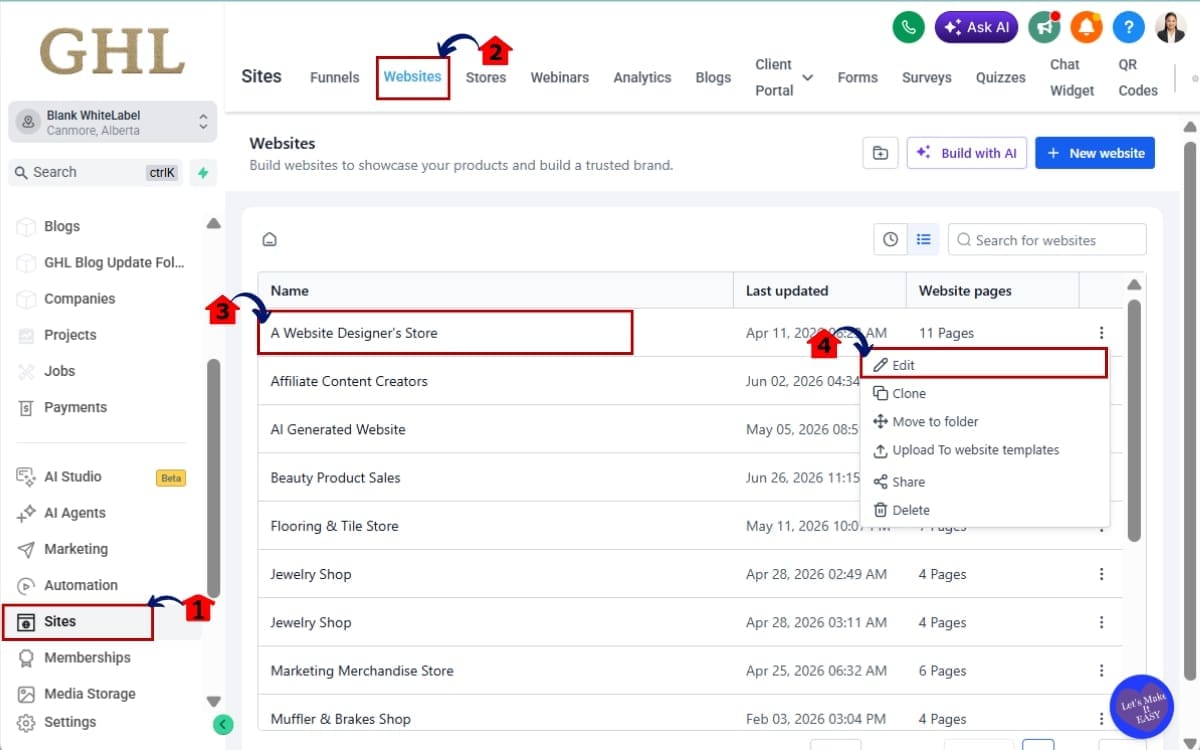
Step 01 – Access the Main Left-Hand Menu in GoHighLevel
- The Main Menu on the left side of your screen contains all the major areas of GoHighLevel.
1.1 Click on the Sites menu item.
- This is where you manage your websites, funnels, blogs, and other web assets.
1.2 Select Websites from the top navigation menu.
- This opens a list of all the websites available in your account.
1.3 Open the website you want to edit.
- Select the website where you want to add or update a purchase button.
1.4 Click Edit to launch the Website Builder.
- The Website Builder is where you’ll configure your button and connect it to your ecommerce store.
Step 02 – Open the website page inside
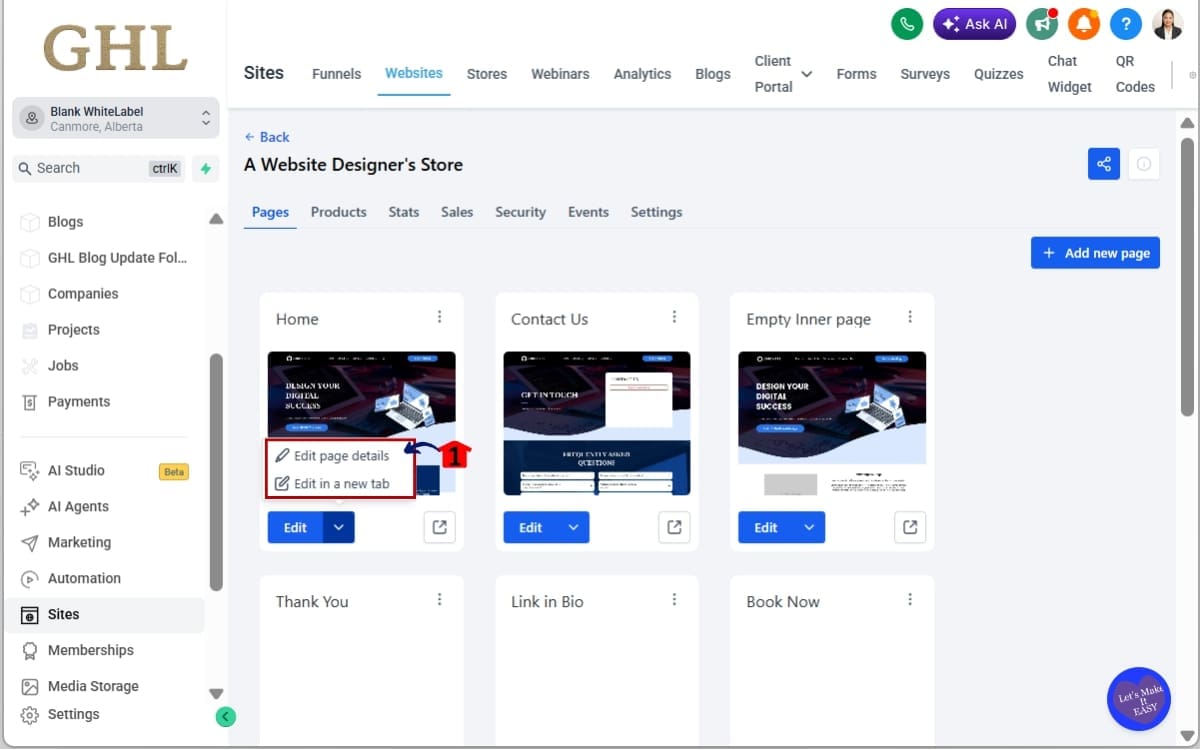
- Open the website page where you want to add a new ecommerce button or update an existing one.
2.1 Navigate to the page where you want the button to appear.
- Open the page that contains the existing button or where you plan to add a new purchase button.
Step 03 – Select or Add a Button Element
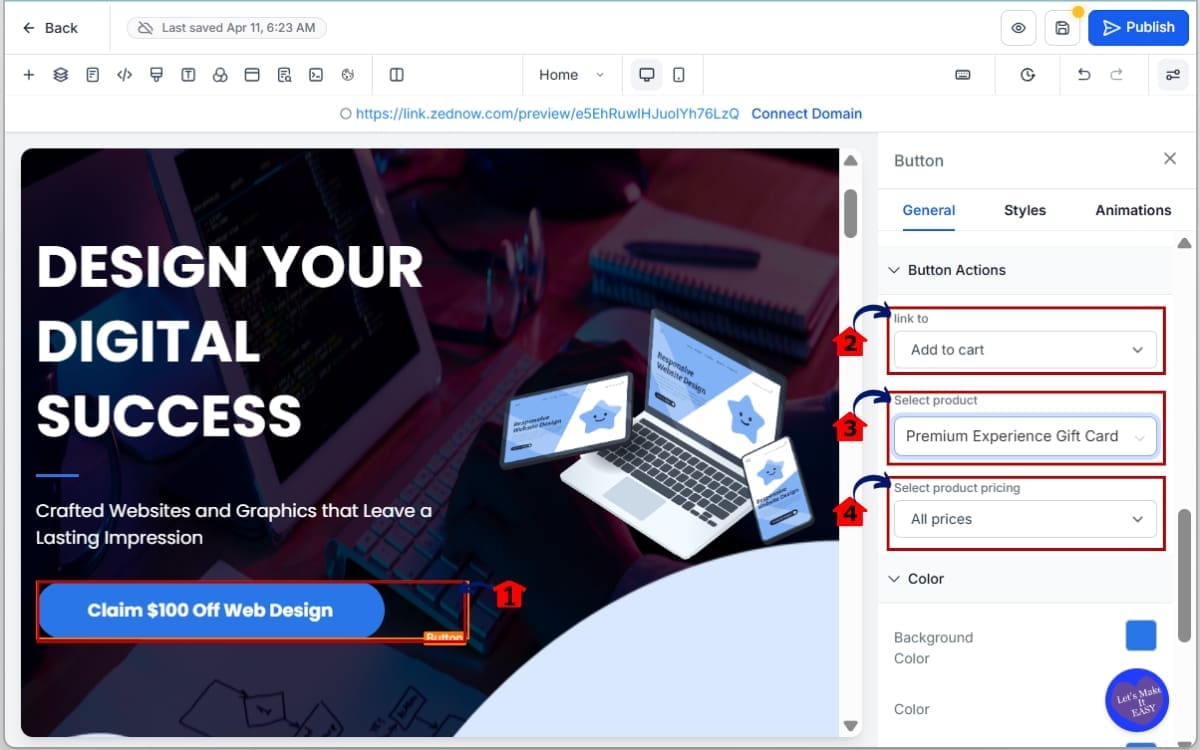
- Now you’ll choose the button that will trigger your ecommerce action.
3.1 Click an existing button element or drag a new Button element onto the page.
- Select the button you want to edit or add a new one if the page doesn’t already contain a button.
3.2 Click the Link To dropdown. Review the available options:
- Add to Cart when customers may continue shopping.
- Buy Now when you want a faster path to checkout.
- Collection when you want visitors to browse a group of products.
3.3 After selecting Add to Cart. Choose the product you want the button connected to.
- The selected product will be added to the customer’s cart when they click the button.
3.4 Select the pricing option. Decide between:
Single Price
- Instantly adds the product to the cart.
- Quantity is automatically set to one.
- Best for simple products with one pricing option.
All Prices
- Opens a Product Details Page style modal.
- Allows customers to select a variant or pricing option.
- Best for products with multiple choices.
Choose All Prices.
Step 04 – Configure a Buy Now Button
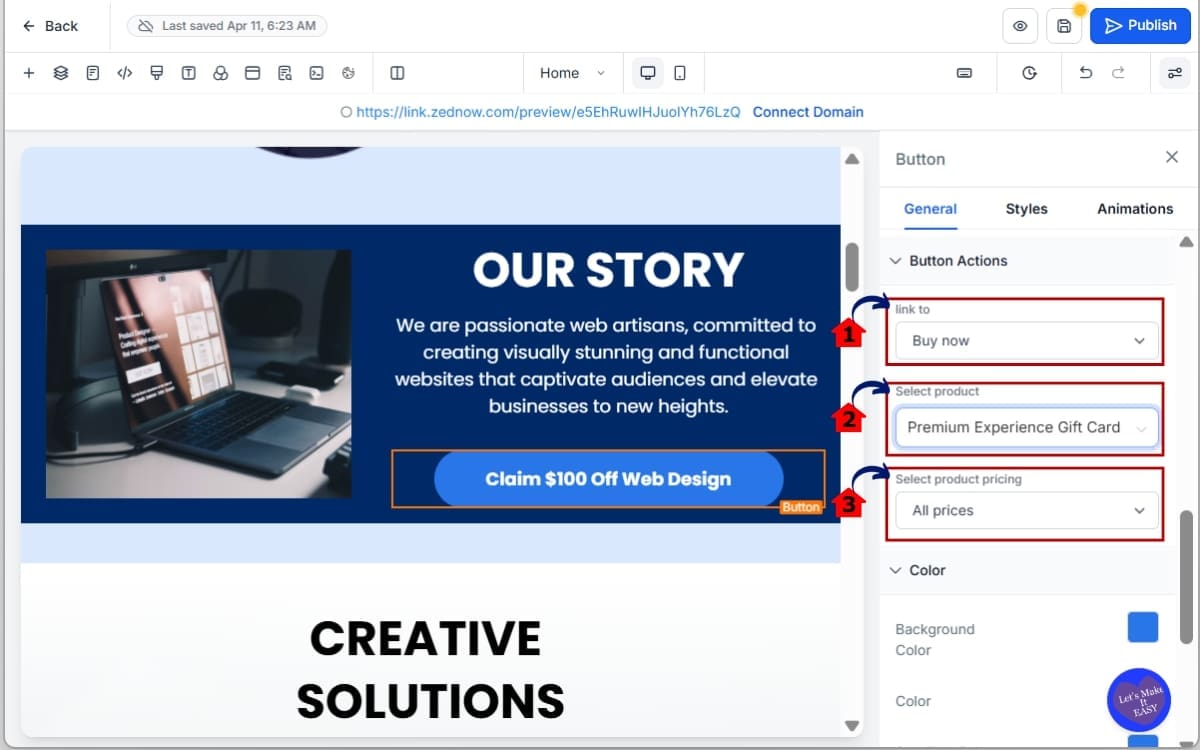
- Buy Now is designed for speed and direct conversions.
4.1 Select Buy Now from the Link To options.
- This configures the button to begin the checkout process instead of simply adding a product to the cart.
4.2 Choose the product.
- Select the product you want customers to purchase when they click the button.
4.3 Select the pricing option. Choose between:
Single Price
- Customer is redirected directly to checkout.
- Product is pre-loaded into the order.
- Great for promotions and featured products.
All Prices
- Opens the Product Details Page style modal.
- Allows the customer to select a preferred option.
- Continues into the checkout process.
This option is perfect when your goal is immediate action rather than continued browsing.
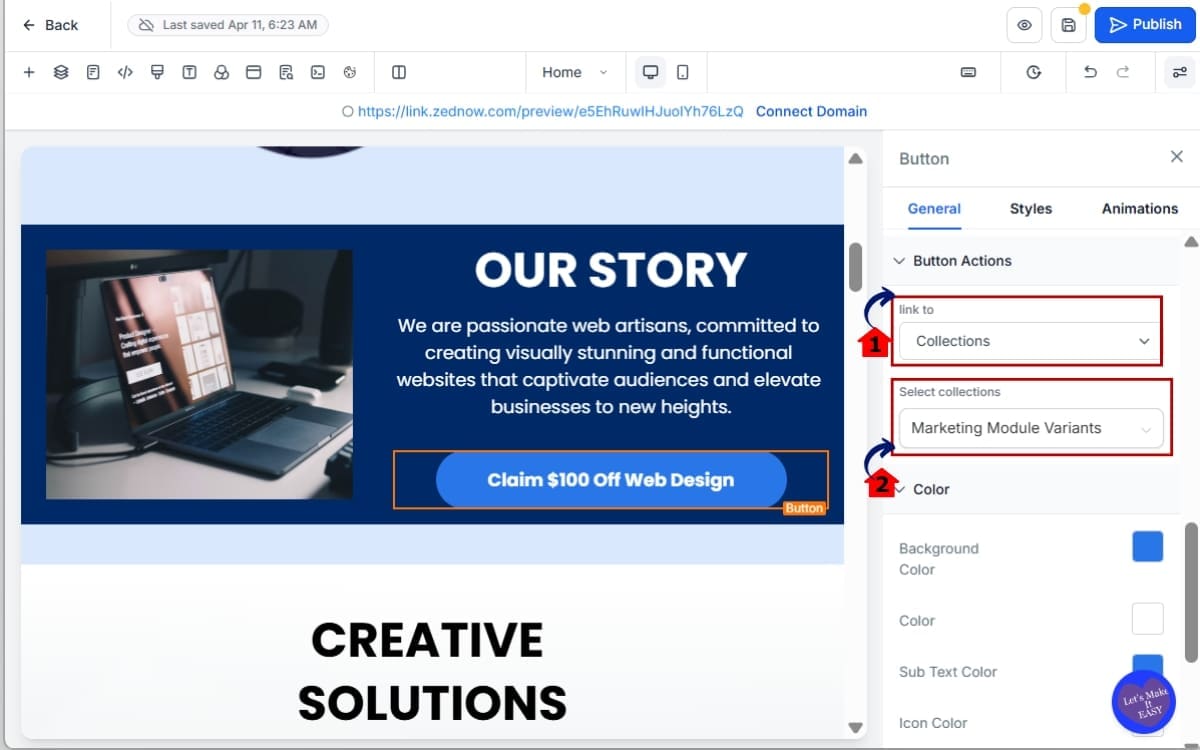
Step 05 – Configure a Collection Button
- Collection buttons help customers discover related products.
5.1 Select Collection from the Link To dropdown.
- This links the button to one of your ecommerce product collections.
5.2 Choose the collection you want to feature.
Examples include:
- Best Sellers
- New Arrivals
- Seasonal Products
- Limited-Time Offers
- Marketing Module Variants
When visitors click the button, they will be directed to the filtered Product List Page associated with that collection.
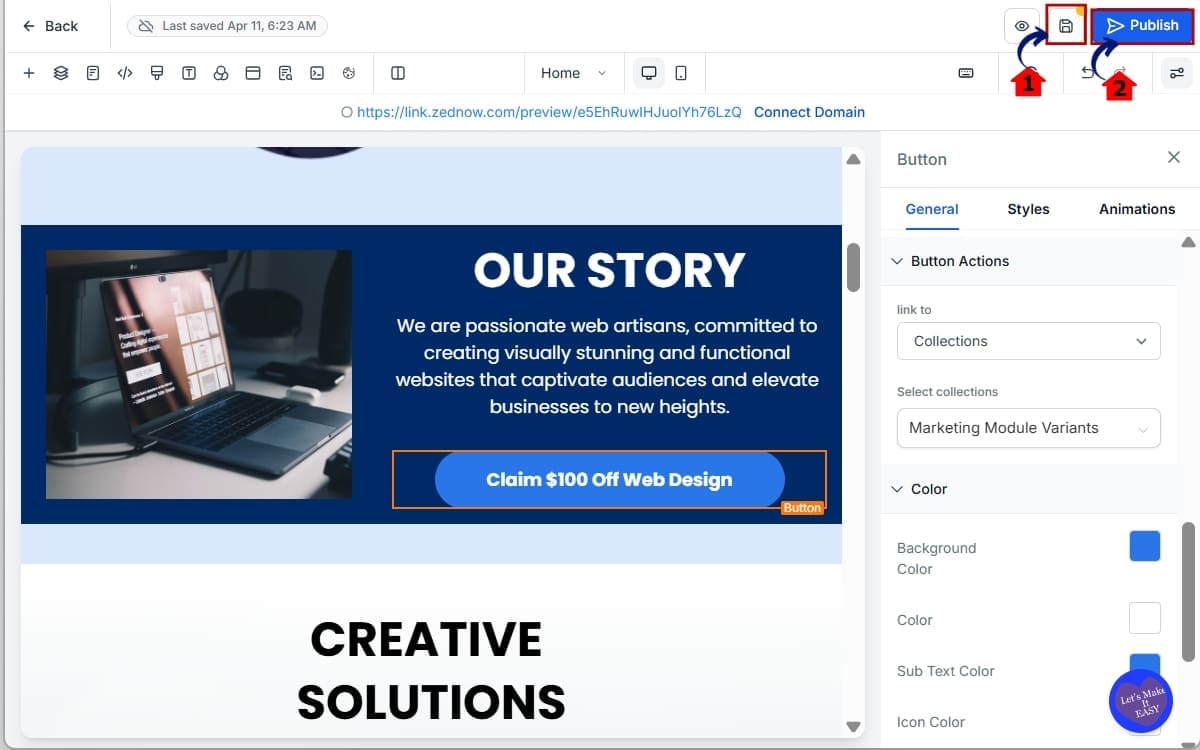
Step 06 – Save and Publish Your Website
- Always test before sending traffic to your pages.
6.1 Click Save.
- This stores your changes in the Website Builder.
6.2 Click Publish.
- Publishing makes your updated page live so visitors can use the new ecommerce button.
A quick test now can prevent lost sales later. Once published, your Website Purchase Buttons are ready to help visitors move through your buying journey faster and with fewer obstacles.
Pro Tips for Better Ecommerce Conversions
Getting the buttons on your website only takes a few minutes. Deciding where to place them is what can really influence how people shop.
Think about the last website where you bought something. Chances are you didn’t have to hunt for the button. It was exactly where you expected it to be.
Here are some practical ways to get the most out of this new GHL feature.
Match the Button to Customer Intent
Not every visitor is ready to buy immediately. That’s why GHL gives you three different button options.
When a customer doesn’t need convincing anymore, don’t slow them down. Let Buy Now take them straight to checkout.
Use Add to Cart when customers may want to continue browsing before checking out.
Use Collection when visitors need to explore multiple products before making a decision.
The closer the button matches the visitor’s intent, the higher your conversion potential.
Put Important Buttons Above the Fold
Most people won’t spend time searching for a button. If it isn’t obvious, they’ll usually click away instead.
Place your most important Website Purchase Buttons where visitors can see them immediately.
Good locations include:
- Hero sections
- Promotional banners
- Featured product areas
- Product comparison sections
- Limited-time offer blocks
People can’t click a button they don’t notice.
Use Buy Now for High-Converting Products
Every store usually has a few products that consistently outperform the rest. Those products are perfect candidates for Buy Now buttons.
If you already know a product converts well, don’t force visitors through unnecessary browsing steps. Give them the shortest possible path to checkout.
This works especially well for:
- Best sellers
- Flash sales
- Seasonal promotions
- Limited inventory products
- Featured offers
Create Collection-Based Shopping Paths
Collection buttons really come into their own when you’re promoting groups of related products.
Instead of sending visitors to a generic store page, guide them toward a specific group of products.
For example:
- Summer Collection
- New Arrivals
- Agency Resources
- Marketing Templates
- Holiday Specials
Shoppers spend less time searching and more time looking at products they actually came to see.
Test Different Button Text
The label on your button isn’t just decoration. It tells visitors what to expect next.
- Click Here
- Learn More
- View Product
Try more action-oriented language such as:
- Buy Now
- Add To Cart
- Shop Collection
- Get Yours Today
- View Best Sellers
- Browse New Arrivals
Clear button text removes uncertainty and encourages action.
Avoid Broken Product Links
This update includes an important limitation. If a linked product or pricing option is deleted, the button becomes disabled. If a linked collection is deleted, visitors may land on a 404 page.
Make it a habit to review your Website Purchase Buttons whenever:
- Products are removed
- Pricing changes
- Collections are updated
- Seasonal campaigns end
A quick audit can prevent lost opportunities and poor user experiences.
Think Like a Customer
Before calling the page finished, ask someone who’s never seen it to take a look. If they hesitate, your visitors probably will too.
If the answer is no, simplify the journey. The best Website Purchase Buttons don’t feel like buttons.
A good button doesn’t interrupt the journey. It simply points people in the direction they were already heading.
What This Means for Your Business
Most GHL updates make things easier. This one has the potential to make you more money.
Why? Because Website Purchase Buttons help remove one of the biggest barriers to ecommerce success: friction.
Once someone decides they want your product, don’t give them extra time to change their mind.
Every click matters. Every extra page matters. Every unnecessary step matters. This update helps eliminate many of those obstacles.
Ecommerce Stores Can Shorten the Buying Journey
Picture this. You launch a Facebook ad for one product, and someone clicks through because that’s exactly what caught their eye.
Previously, they might have needed to:
- Visit the store
- Search for the product
- Open the product page
- Select options
- Add it to the cart
- Start checkout
Now, a Buy Now button can move them significantly closer to purchase in a single click.
Less effort for the customer. More conversion opportunities for your business.
Agencies Can Build Better Client Websites
Agency owners should pay close attention to this update. Many client websites struggle because they focus too heavily on information and not enough on action.
Website Purchase Buttons make it easier to create websites that actively guide visitors toward a desired outcome.
For example:
- A fitness studio could promote merchandise using Buy Now buttons.
- A local retailer could showcase seasonal products using Collection buttons.
- A service-based business selling digital resources could use Add to Cart buttons throughout educational content.
Small improvements like these can create a much better customer experience without requiring a complete website redesign.
Product Discovery Becomes Easier
One of the most overlooked benefits of this update is product discovery. Many stores have great products that customers never see.
Not because the products are bad. Because they’re buried.
Collection buttons solve this problem by helping you highlight specific groups of products throughout your website.
Instead of hoping visitors navigate to the right section, you can guide them there directly.
This is especially useful for:
- New product launches
- Best sellers
- Seasonal promotions
- Limited-time offers
- Category-specific campaigns
The easier products are to find, the more likely they are to sell.
A Real-World Example
Let’s say you’re selling marketing templates.
Your homepage could include:
- A Buy Now button for your best-selling template pack.
- An Add to Cart button beneath a featured product section.
- A Collection button leading to your complete template library.
Each button serves a different purpose. Each supports a different customer journey. And together they create a smoother path toward a purchase.
The Bigger Picture
The real value of Website Purchase Buttons isn’t the button itself. It’s what happens after the click.
Customers find products faster. Checkout becomes easier. Collections become more discoverable.
And your website becomes more focused on generating results rather than simply displaying information.
That’s a win for store owners. A win for agencies.
And most importantly, a win for customers. Because when buying becomes easier, everybody benefits.
FAQs Website Purchase Button
Conclusion – Website Purchase Buttons
GHL Website Purchase Buttons may seem like a small feature update at first glance.
But don’t underestimate what they can do.
Every ecommerce business is trying to make the buying process easier. The fewer obstacles customers encounter, the more likely they are to take action. That’s exactly what this update helps accomplish.
Instead of sending visitors through multiple pages and unnecessary navigation steps, you can now connect buttons directly to products, checkout experiences, and curated collections.
That’s a big improvement for both customer experience and conversion optimization.
Whether you’re using Add to Cart to encourage continued shopping, Buy Now to speed up purchases, or Collection buttons to improve product discovery, each option helps create a smoother journey from visitor to customer.
For agency owners, this means building higher-converting websites for clients.
For store owners, it means creating faster paths to purchase.
For marketers, it means having more control over how visitors move through your sales process.
The best part?
Setup only takes a few minutes.
Yet the impact can be felt across your entire website.
If you’re already using GoHighLevel Websites and Ecommerce, this is one feature worth testing immediately. Start with a featured product, a best-selling collection, or a promotional offer and see how your visitors respond.
Small changes often create the biggest wins.
The team here at GHL Growth Garage will continue bringing you the latest GoHighLevel feature guides, updates, and practical implementation strategies to help you get more from the platform.
Have you started using Website Purchase Buttons on your GHL website yet?
Which option do you think will have the biggest impact on your conversions: Add to Cart, Buy Now, or Collection Buttons?
Scale Your Business Today.
Streamline your workflow with GoHighLevel’s powerful tools.


