- Introduction – Why workflow UX matters now more than ever
- Quick Summary – Workflow Builder Feature
- What’s New – Overview of 4 Game-Changing Updates
- What’s Changed – Smarter Logic vs Old Behavior
- Why This Matters – A Better Way to Build Automations
- How to Use the New Workflow Builder Feature
- Quick Pro Tips – Getting the Most from the Update
- FAQs – Answers to Common Questions
- What This Means – Bigger Picture for GHL Agencies
- Conclusion – Wrap Up and Next Action
Introduction – Why workflow UX matters now more than ever
If you’re running an agency, time is your most valuable asset, and clunky workflow builder feature interfaces steal it. Whether you’re onboarding clients, running drip campaigns, or syncing workflows across locations, how fast and clearly you can build automations directly affects your bottom line.
This update isn’t just about looks, it’s about how things feel when you’re building. GHL smoothed out the rough edges in the Workflow Builder Feature, so you’re not stuck clicking around, chasing comments, or fixing things twice. It just works better now, period.
You’ll find a breakdown of what’s new, what it actually helps with, and how to get started, fast.

These upgraded workflow builder feature in GHL make automation faster, more visual, and easier to collaborate on. From sticky notes with logos to real-time stats and right-click shortcuts, your team can now build smarter and ship faster.
Quick Summary – Workflow Builder Feature
Purpose: Highlight GHL’s new workflow builder feature tools designed to speed up builds, improve collaboration, and reduce errors.
Why It Matters: These features cut down manual work, make internal team reviews easier, and help agencies launch faster.
What You Get: Stats Mode for visual performance insights, Sticky Notes 2.0 for on-canvas annotations, Workflow Comments for contextual feedback, and Right-Click Quick Actions for editing speed.
Time to Complete: You can begin using these tools immediately, no setup needed.
Difficulty Level: Beginner-friendly, with serious speed perks for power users.
Key Outcome: Faster, more organized, and better-documented workflows that keep your team in sync and your clients impressed.
What’s New – Overview of 4 Game-Changing Updates
GoHighLevel just dropped four power-packed upgrades inside the Workflow Builder Feature that make building and editing automations way smoother and smarter:
- Stats Mode: Now you can view workflow performance in a clean, visual format, perfect for audits, QA, and optimization.
- Sticky Notes 2.0: Add images, color code notes, and create rich, branded annotations directly on your workflow canvas.
- Workflow Comments + Notes Sidebar: Leave contextual feedback on specific steps and manage all notes from a unified sidebar.
- Right-click anywhere in the builder to bring up a fast-action menu: No hunting through tabs to make edits or copy steps.
Automate marketing, manage leads, and grow faster with GoHighLevel.

These features work great individually but deliver massive value when used together. They’re designed to speed up collaboration, reduce missteps, and give you more control without clutter.
What’s Changed – Smarter Logic vs Old Behavior
Before this update, building and editing inside GHL’s Workflow Builder Feature required extra clicks, back-and-forths, and sometimes sticky notes… in a literal notebook. Stats were buried, team collaboration was done outside the platform, and edits took longer than they should’ve.
Here’s how that’s changed:
- Old: You had to jump between analytics and the workflow builder feature to see what was working.
Now: Stats Mode overlays performance data right on the workflow canvas. - Old: Notes were basic, hard to organize, and purely text-based.
Now: Sticky Notes support color coding, images, and links, perfect for branding and process docs. - Old: Feedback required separate tools (Slack, ClickUp, sticky notes on your monitor).
Now: Workflow Comments let you tag steps directly and manage them in the Notes Sidebar. - Old: Editing a step meant navigating menus and tabs.
Now: Right-click any action for instant, context-aware edits.
This update isn’t about piling on features, it’s about making everything you already do in the workflow builder feature smoother and faster.
Why This Matters – A Better Way to Build Automations
If you run an agency, you already know, every minute counts. But when your tools slow you down, even a basic workflow can take way longer than it should.
That’s where these GHL Workflow Builder Feature updates come in. They’re not just about flash, they’re about function. You’ll work faster, get clearer team feedback, and know exactly what’s working in your automations without ever leaving the canvas.
They cut out the extra steps so you can focus on what actually needs your attention.
How to Use the New Workflow Builder Feature
If you’re tired of clunky workflows and slow reviews, this is your fix. No setup needed, these new features are already built in and ready for action.
Step 01 – Access the Workflow Builder Feature
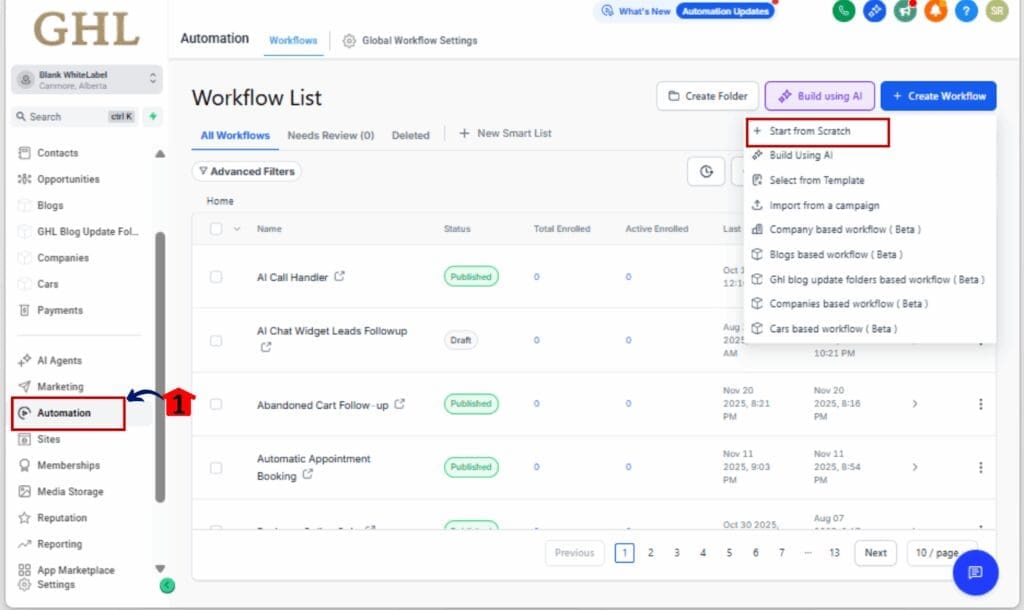
1.1 In your GHL account, head to the left menu and click Automation, then Workflows.
1.2 You can either open a workflow you’ve already made or start fresh by clicking + Create Workflow.
Step 02 – Open Stats Mode (Visual Performance View)
2.1 Once in your workflow, look at the toolbar on the left.
2.2 Click the Stats Mode icon (bar chart).
2.3 View key metrics like step performance and drop-offs.
2.4 Switch back to Workflow Builder Feature mode to make edits instantly.

Step 03 – Add Sticky Notes (Visual Labels + Links)
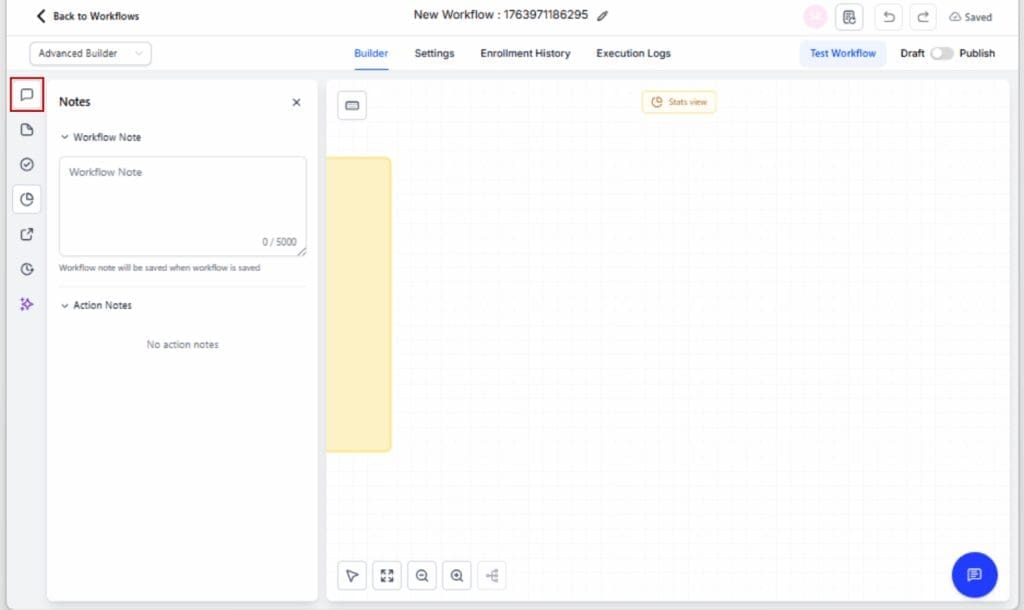
3.1 Click the Sticky Note icon in the left toolbar.
3.2 Choose a background color for organization.
3.3 Type your note, use it to leave reminders, SOP links, or branding cues.
3.4 (Optional) Embed an image, logo, or URL.
3.5 Drag and resize your note anywhere on the canvas.

Step 04 – Use Workflow Comments (Contextual Feedback)
4.1 Click on any workflow action or step.
4.2 Click Add Comment and leave your note or question.
4.3 Open the Notes Sidebar (from the top right) to view all comments.
4.4 Mark comments as resolved or reply to team members.
Step 05 – Use Right-Click Quick Actions (Speed Up Edits)
5.1 Right-click anywhere on the canvas or on a workflow step.
5.2 Use the glassmorphism-style menu to Edit, Duplicate, Delete, or more.
5.3 Combine with shortcuts like Ctrl+C / Ctrl+V for rapid workflow builds.

That’s it. No code. No extra tools. Just smarter, faster workflow building directly inside GHL.
Quick Pro Tips – Getting the Most from the Update
These updates are simple to use but powerful when used intentionally. Here’s how to level up your workflow builds:
- Use different Sticky Note colors to mark key sections – like red for sales, green for engagement, and blue for follow-up steps.
- Drop SOP Links – Embed URLs in notes to Looms, Docs, or Google Sheets for easy handoff or client review.
- Use Comments as Tasks – Assign internal setup instructions via comments and resolve them once completed to stay on track.
- Bulk Edit with Right-Click – Right-click to quickly clone or delete multiple steps in one pass, especially useful during versioning.
- Review Stats Before Launch – Use Stats Mode to spot weak links from previous flows and improve new ones before publishing.
These tips turn small conveniences into major workflow wins.
FAQs – Answers to Common Questions
What This Means – Bigger Picture for GHL Agencies
This update isn’t just about usability, it’s about scalability. GHL is giving agencies tools that reduce friction, improve communication, and cut build time in half. That’s not hype. That’s leverage.
With these new Workflow Builder Feature, you can:
- Build once and reuse faster with branded sticky note templates
- Speed up internal QA cycles with comments and instant edits
- Train team members or clients without bouncing between tools
- Optimize campaigns in real-time using Stats Mode
The result? Smoother builds, better performance, and happier clients. It’s a small shift that adds up to big operational gains.
Conclusion – Wrap Up and Next Action
Let’s be honest, building workflows can get messy. GHL’s new updates clean that up with in-canvas stats, better feedback tools, and faster editing, so your team can keep things moving without the usual friction.
If you’ve ever juggled Slack threads, Trello cards, and random screenshots just to explain a single automation, those days are over.
Start using these features in your next build:
- Leave notes your team can actually use
- Collaborate directly inside the workflow
- Make updates and get your workflows live again in record time.
Bottom line? These updates save you time, reduce mistakes, and make every build better. Go test them out today.
Scale Your Business Today.
Streamline your workflow with GoHighLevel’s powerful tools.